set NISSAN GT-R 2015 R35 Multi Function Display Owners Manual
[x] Cancel search | Manufacturer: NISSAN, Model Year: 2015, Model line: GT-R, Model: NISSAN GT-R 2015 R35Pages: 298, PDF Size: 11.39 MB
Page 181 of 298
![NISSAN GT-R 2015 R35 Multi Function Display Owners Manual 6-18Viewing technical information
INFO:
Touch [Legend] to display the map legend.
Warnings Map
The current warning/watch information can be
confirmed for the current location, the destina-
tion, the e](/img/5/423/w960_423-180.png "NISSAN GT-R 2015 R35 Multi Function Display Owners Manual 6-18Viewing technical information
INFO:
Touch [Legend] to display the map legend.
Warnings Map
The current warning/watch information can be
confirmed for the current location, the destina-
tion, the e")
6-18Viewing technical information
INFO:
Touch [Legend] to display the map legend.
Warnings Map
The current warning/watch information can be
confirmed for the current location, the destina-
tion, the entire country or the preferred city.
1. Highlight [Warnings Map] and push
2. Highlight the preferred map area and push
INFO:
[Destination Map] is not available unless a
destination is set for the route guidance.
3. A warning/watch map is displayed. Warning and watch information is shown by colors.
4. Push
screen. Push
Page 182 of 298
![NISSAN GT-R 2015 R35 Multi Function Display Owners Manual 2. Highlight the preferred map area and push<ENTER>.
INFO:
[Destination Map] is not available unless a
destination is set for the route guidance.
3. A road condition map is displayed. The road conditi](/img/5/423/w960_423-181.png "NISSAN GT-R 2015 R35 Multi Function Display Owners Manual 2. Highlight the preferred map area and push<ENTER>.
INFO:
[Destination Map] is not available unless a
destination is set for the route guidance.
3. A road condition map is displayed. The road conditi")
2. Highlight the preferred map area and push
INFO:
[Destination Map] is not available unless a
destination is set for the route guidance.
3. A road condition map is displayed. The road conditions are shown by colors.
4. Push
screen. Push
Page 183 of 298
6-20Viewing technical information
Thunderstorm
Tornado/Funnel
Cloud
AUTOMATICALLY DISPLAY WARN-
INGS/WATCHES
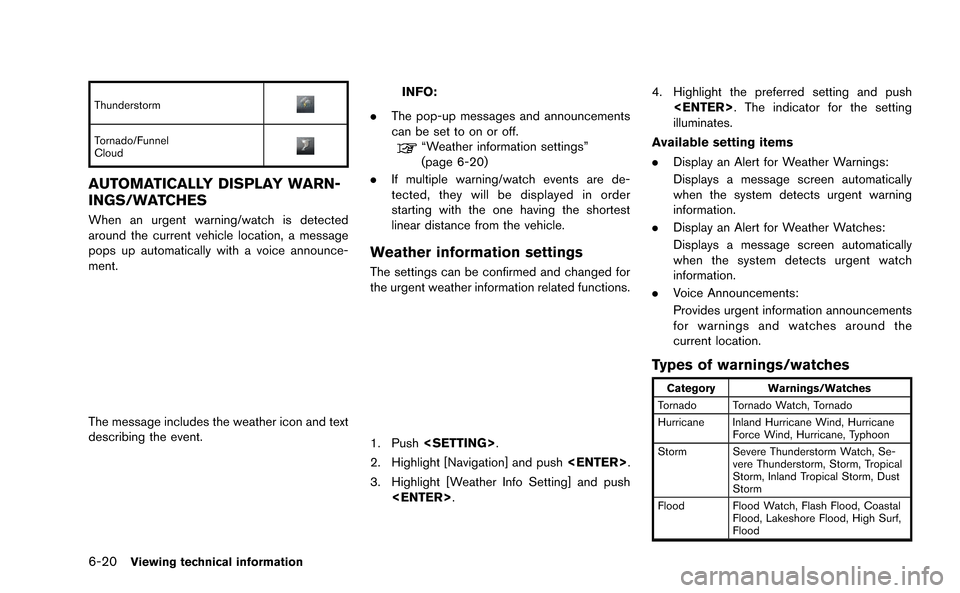
When an urgent warning/watch is detected
around the current vehicle location, a message
pops up automatically with a voice announce-
ment.
The message includes the weather icon and text
describing the event.
INFO:
. The pop-up messages and announcements
can be set to on or off.
“Weather information settings”
(page 6-20)
. If multiple warning/watch events are de-
tected, they will be displayed in order
starting with the one having the shortest
linear distance from the vehicle.
Weather information settings
The settings can be confirmed and changed for
the urgent weather information related functions.
1. Push
2. Highlight [Navigation] and push
3. Highlight [Weather Info Setting] and push
illuminates.
Available setting items
. Display an Alert for Weather Warnings:
Displays a message screen automatically
when the system detects urgent warning
information.
. Display an Alert for Weather Watches:
Displays a message screen automatically
when the system detects urgent watch
information.
. Voice Announcements:
Provides urgent information announcements
for warnings and watches around the
current location.
Types of warnings/watches
Category Warnings/Watches
Tornado Tornado Watch, Tornado
Hurricane Inland Hurricane Wind, Hurricane Force Wind, Hurricane, Typhoon
Storm Severe Thunderstorm Watch, Se- vere Thunderstorm, Storm, Tropical
Storm, Inland Tropical Storm, Dust
Storm
Flood Flood Watch, Flash Flood, Coastal Flood, Lakeshore Flood, High Surf,
Flood
Page 188 of 298

7 Other settings
Settings screen ........................................................................\
.. 7-2Basic operation .................................................................... 7-2
Audio settings ........................................................................\
..... 7-3
Display settings ........................................................................\
.. 7-4 Basic operation .................................................................... 7-4
Display adjustment .............................................................. 7-4
Setting color theme ............................................................. 7-5
Volume adjustment .................................................................... 7-6 Basic operation .................................................................... 7-6 Clock settings ........................................................................\
.... 7-7
Basic operation .................................................................. 7-7
Comfort settings........................................................................\
7-8
Language and unit settings .................................................... 7-8 Language settings ............................................................. 7-8
Unit settings ........................................................................\
7-9
Unit settings (Tire Pressure) ........................................ 7-10
Image viewer ........................................................................\
... 7-10 Full screen display .......................................................... 7-11
Setting the image viewer .............................................. 7-11
Page 189 of 298
7-2Other settings
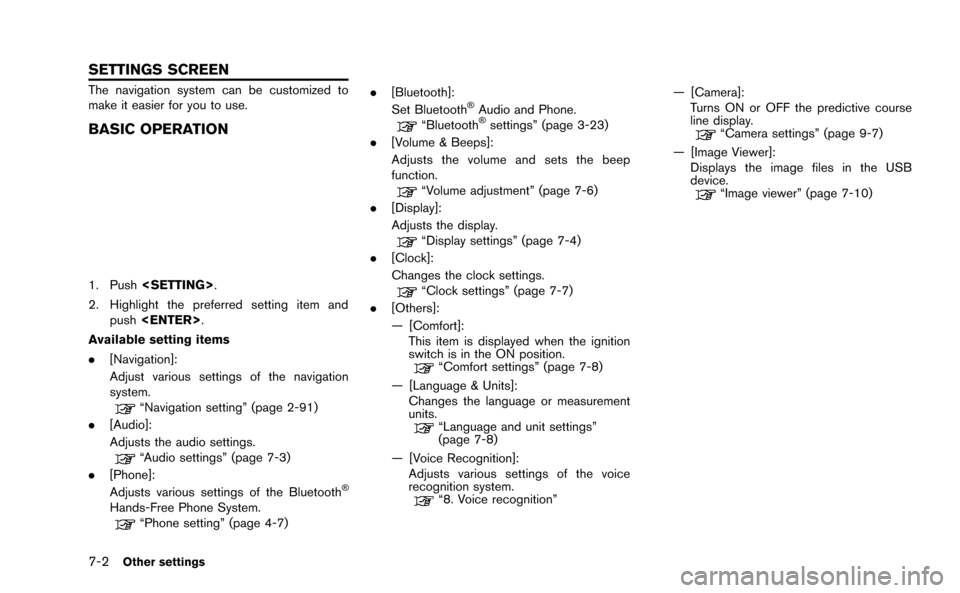
The navigation system can be customized to
make it easier for you to use.
BASIC OPERATION
1. Push
2. Highlight the preferred setting item and push
Available setting items
. [Navigation]:
Adjust various settings of the navigation
system.
“Navigation setting” (page 2-91)
. [Audio]:
Adjusts the audio settings.
“Audio settings” (page 7-3)
. [Phone]:
Adjusts various settings of the Bluetooth
®
Hands-Free Phone System.“Phone setting” (page 4-7) .
[Bluetooth]:
Set Bluetooth
®Audio and Phone.“Bluetooth®settings” (page 3-23)
. [Volume & Beeps]:
Adjusts the volume and sets the beep
function.
“Volume adjustment” (page 7-6)
. [Display]:
Adjusts the display.
“Display settings” (page 7-4)
. [Clock]:
Changes the clock settings.
“Clock settings” (page 7-7)
. [Others]:
— [Comfort]:
This item is displayed when the ignition
switch is in the ON position.
“Comfort settings” (page 7-8)
— [Language & Units]: Changes the language or measurement
units.
“Language and unit settings”
(page 7-8)
— [Voice Recognition]: Adjusts various settings of the voice
recognition system.
“8. Voice recognition” — [Camera]:
Turns ON or OFF the predictive course
line display.
“Camera settings” (page 9-7)
— [Image Viewer]: Displays the image files in the USB
device.
“Image viewer” (page 7-10)
SETTINGS SCREEN
Page 190 of 298
![NISSAN GT-R 2015 R35 Multi Function Display Owners Manual This allows to you adjust the speaker tone
quality and sound balance.
1. Push<SETTING>.
2. Highlight [Audio] and push <ENTER>.
3. Highlight the preferred adjustment item and push <ENTER>.
4. Use the c](/img/5/423/w960_423-189.png "NISSAN GT-R 2015 R35 Multi Function Display Owners Manual This allows to you adjust the speaker tone
quality and sound balance.
1. Push<SETTING>.
2. Highlight [Audio] and push <ENTER>.
3. Highlight the preferred adjustment item and push <ENTER>.
4. Use the c")
This allows to you adjust the speaker tone
quality and sound balance.
1. Push
2. Highlight [Audio] and push
3. Highlight the preferred adjustment item and push
4. Use the center dial to adjust the tone quality or sound balance.
5. After settings, push
6. Push
screen.
Push
Page 191 of 298
7-4Other settings
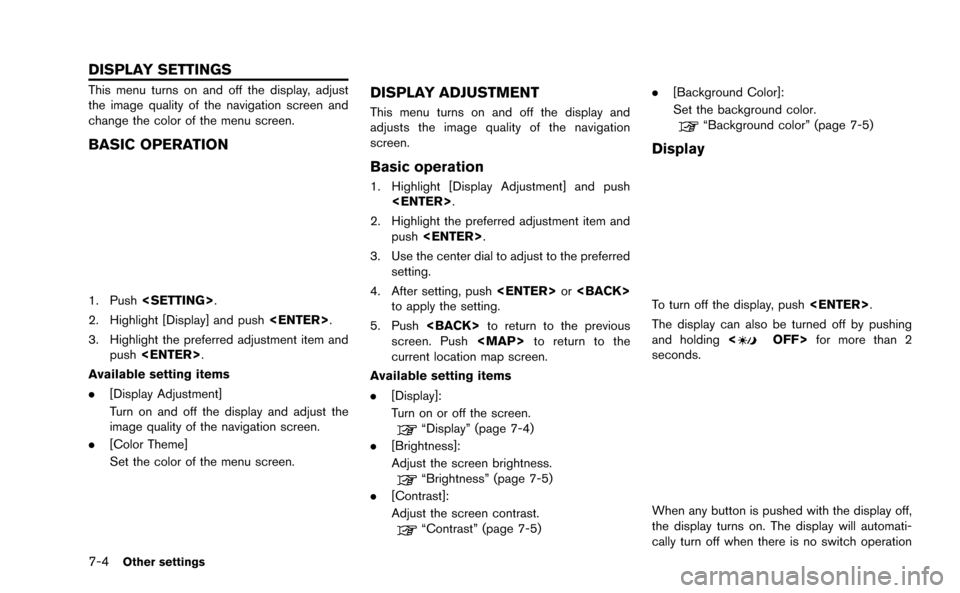
This menu turns on and off the display, adjust
the image quality of the navigation screen and
change the color of the menu screen.
BASIC OPERATION
1. Push
2. Highlight [Display] and push
3. Highlight the preferred adjustment item and push
Available setting items
. [Display Adjustment]
Turn on and off the display and adjust the
image quality of the navigation screen.
. [Color Theme]
Set the color of the menu screen.
DISPLAY ADJUSTMENT
This menu turns on and off the display and
adjusts the image quality of the navigation
screen.
Basic operation
1. Highlight [Display Adjustment] and push
2. Highlight the preferred adjustment item and push
3. Use the center dial to adjust to the preferred setting.
4. After setting, push
to apply the setting.
5. Push
screen. Push
Page 192 of 298
![NISSAN GT-R 2015 R35 Multi Function Display Owners Manual for 5 seconds.
To turn on the display, push<
OFF>.
Brightness
Adjust the display brightness by rotating the
center dial in the direction of [+] or [−].
Each time [+] or [−] is pushed, the display](/img/5/423/w960_423-191.png "NISSAN GT-R 2015 R35 Multi Function Display Owners Manual for 5 seconds.
To turn on the display, push<
OFF>.
Brightness
Adjust the display brightness by rotating the
center dial in the direction of [+] or [−].
Each time [+] or [−] is pushed, the display")
for 5 seconds.
To turn on the display, push<
OFF>.
Brightness
Adjust the display brightness by rotating the
center dial in the direction of [+] or [−].
Each time [+] or [−] is pushed, the display
brightness changes.
Contrast
Adjust the display contrast by rotating the center
dial in the direction of [+] or [−]. Each time [+] or [−] is pushed, the display
contrast changes.
Background color
Select to toggle between the day screen and
night screen.
Day screen
Night screen
INFO:
The background color setting can also be
changed using the <
OFF>.
SETTING COLOR THEME
1. Highlight [Color Theme] and push
Other settings7-5
Page 193 of 298
7-6Other settings
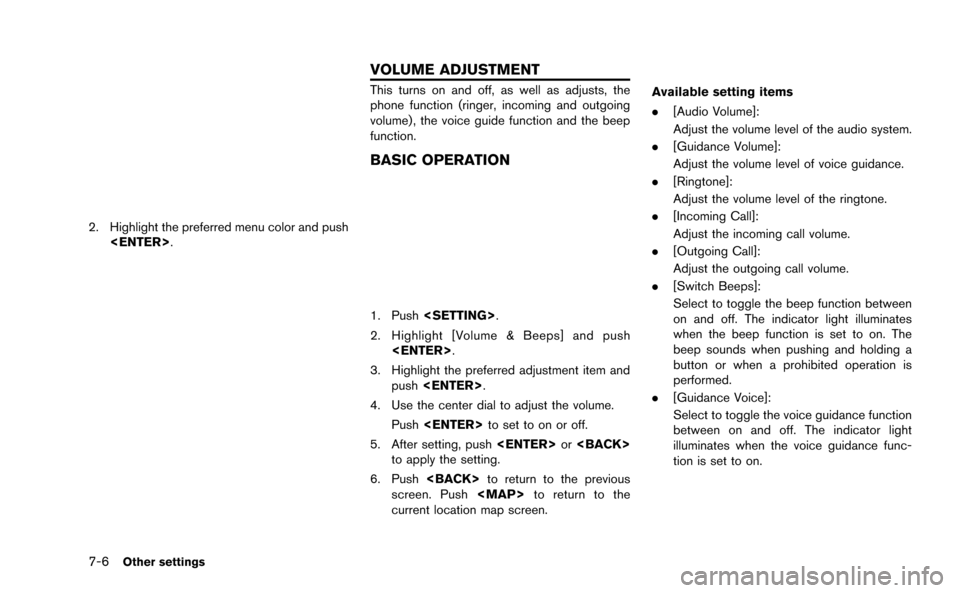
2. Highlight the preferred menu color and push
This turns on and off, as well as adjusts, the
phone function (ringer, incoming and outgoing
volume) , the voice guide function and the beep
function.
BASIC OPERATION
1. Push
2. Highlight [Volume & Beeps] and push
3. Highlight the preferred adjustment item and push
4. Use the center dial to adjust the volume. Push
5. After setting, push
to apply the setting.
6. Push
screen. Push
Page 194 of 298
![NISSAN GT-R 2015 R35 Multi Function Display Owners Manual This changes the clock settings.
BASIC OPERATION
1. Push<SETTING>.
2. Highlight [Clock] and push <ENTER>.
3. Highlight the preferred adjustment item and push <ENTER>.
4. Use the center dial to adjust](/img/5/423/w960_423-193.png "NISSAN GT-R 2015 R35 Multi Function Display Owners Manual This changes the clock settings.
BASIC OPERATION
1. Push<SETTING>.
2. Highlight [Clock] and push <ENTER>.
3. Highlight the preferred adjustment item and push <ENTER>.
4. Use the center dial to adjust")
This changes the clock settings.
BASIC OPERATION
1. Push
2. Highlight [Clock] and push
3. Highlight the preferred adjustment item and push
4. Use the center dial to adjust to the preferred setting. Push
5. After setting, push
to apply the setting.
6. Push
screen. Push