set NISSAN GT-R 2015 R35 Multi Function Display Owners Manual
[x] Cancel search | Manufacturer: NISSAN, Model Year: 2015, Model line: GT-R, Model: NISSAN GT-R 2015 R35Pages: 298, PDF Size: 11.39 MB
Page 214 of 298
![NISSAN GT-R 2015 R35 Multi Function Display Owners Manual Available items
.[Getting Started]:
Describes the basics of how to operate the
voice recognition system.
. [Let’s Practice]:
Mode for practice following the system
voice.
. [Using the Address Book]:](/img/5/423/w960_423-213.png "NISSAN GT-R 2015 R35 Multi Function Display Owners Manual Available items
.[Getting Started]:
Describes the basics of how to operate the
voice recognition system.
. [Let’s Practice]:
Mode for practice following the system
voice.
. [Using the Address Book]:")
Available items
.[Getting Started]:
Describes the basics of how to operate the
voice recognition system.
. [Let’s Practice]:
Mode for practice following the system
voice.
. [Using the Address Book]:
Tutorial for setting a destination by the
Address Book.
. [Finding a Street Address]:
Tutorial for entering a destination by street
address.
. [Placing Calls]:
Tutorial for marking a phone call by voice
command operation.
. [Help on Speaking]:
Displays the useful tips of speaking for
correct command recognition by the system.
. [Voice Recognition Settings]:
Describes the available voice recognition
settings.
. [Adapting the System to Your Voice]:
Tutorial adapting the system to the user’s
voice.Getting Started
Before using the voice recognition system for
the first time, it is possible to confirm how to use
commands by viewing the Getting Started
section of the User Guide.
1. Highlight [Getting Started] and push
2. To confirm the page, scroll the screen using the center dial.
Practicing voice commands
Practice for using the voice recognition function
can be performed by repeating a phrase after
the system announces it.
1. Highlight [Let’s Practice] and push
2. Practice voice commands in accordance with the audio guidance.
Tutorials on operation of voice re-
cognition system
When selecting [Using the Address Book],
[Finding a Street Address] or [Placing Calls],
the system displays tutorials on how to perform
these operations using voice recognition.
Example: With [Using the Address Book] high-
lighted
Voice recognition8-15
Page 215 of 298
![NISSAN GT-R 2015 R35 Multi Function Display Owners Manual 8-16Voice recognition
1. Highlight [Using the Address Book] andpush <ENTER>. The tutorial starts.
2. The voice guide demonstrates how to speak
when giving commands.
3. When the tutorial is completed,](/img/5/423/w960_423-214.png "NISSAN GT-R 2015 R35 Multi Function Display Owners Manual 8-16Voice recognition
1. Highlight [Using the Address Book] andpush <ENTER>. The tutorial starts.
2. The voice guide demonstrates how to speak
when giving commands.
3. When the tutorial is completed,")
8-16Voice recognition
1. Highlight [Using the Address Book] andpush
2. The voice guide demonstrates how to speak
when giving commands.
3. When the tutorial is completed, the system automatically switches to the Menu screen.
Useful tips for correct operation
It is possible to display useful speaking tips that
may help the system to accept a voice command
correctly.
1. Highlight [Help on Speaking] and push
2. To confirm the page, scroll the screen using the the center dial.
Voice recognition settings
The settings for easy operation of the voice
recognition system are displayed.
1. Highlight [Voice Recognition Settings] andpush
the center dial.
Adapting Voice Recognition System
to Your Voice
The voice recognition system is equipped with a
learning function to adapt to the user’s voice for
better recognition. It is possible to confirm how
to operate the learning function through this
tutorial.
1. Highlight [Adapting the System to Your
Voice] and push
starts.
Page 218 of 298
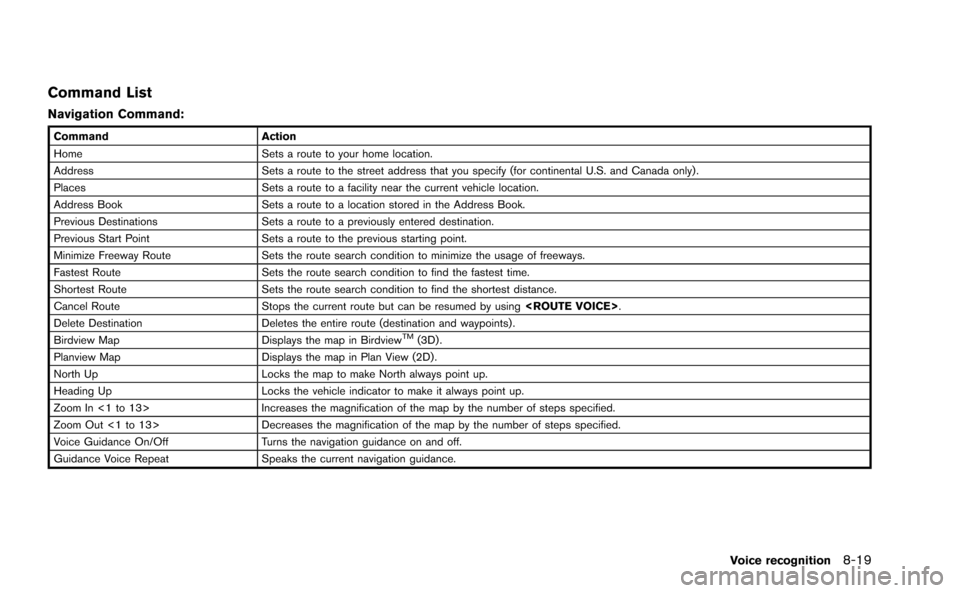
Command List
Navigation Command:
CommandAction
Home Sets a route to your home location.
Address Sets a route to the street address that you specify (for continental U.S. and Canada only) .
Places Sets a route to a facility near the current vehicle location.
Address Book Sets a route to a location stored in the Address Book.
Previous Destinations Sets a route to a previously entered destination.
Previous Start Point Sets a route to the previous starting point.
Minimize Freeway Route Sets the route search condition to minimize the usage of freeways.
Fastest Route Sets the route search condition to find the fastest time.
Shortest Route Sets the route search condition to find the shortest distance.
Cancel Route Stops the current route but can be resumed by using
Delete Destination Deletes the entire route (destination and waypoints) .
Birdview Map Displays the map in Birdview
TM(3D) .
Planview Map Displays the map in Plan View (2D) .
North Up Locks the map to make North always point up.
Heading Up Locks the vehicle indicator to make it always point up.
Zoom In <1 to 13> Increases the magnification of the map by the number of steps specified.
Zoom Out <1 to 13> Decreases the magnification of the map by the number of steps specified.
Voice Guidance On/Off Turns the navigation guidance on and off.
Guidance Voice Repeat Speaks the current navigation guidance.
Voice recognition8-19
Page 221 of 298
![NISSAN GT-R 2015 R35 Multi Function Display Owners Manual 8-22Voice recognition
SYSTEM FEEDBACK ANNOUNCE-
MENT MODES
It is possible to select two modes, long or short,
for the announcement by the system.
How to set
1. Push<SETTING>.
2. Highlight [Others] and](/img/5/423/w960_423-220.png "NISSAN GT-R 2015 R35 Multi Function Display Owners Manual 8-22Voice recognition
SYSTEM FEEDBACK ANNOUNCE-
MENT MODES
It is possible to select two modes, long or short,
for the announcement by the system.
How to set
1. Push<SETTING>.
2. Highlight [Others] and")
8-22Voice recognition
SYSTEM FEEDBACK ANNOUNCE-
MENT MODES
It is possible to select two modes, long or short,
for the announcement by the system.
How to set
1. Push
2. Highlight [Others] and push
3. Highlight [Voice Recognition] and push
4. Highlight [Minimize Voice Feedback] andpush
and the system announcement mode
switches to the short mode.
5. Push
screen. Push
Page 223 of 298
![NISSAN GT-R 2015 R35 Multi Function Display Owners Manual 8-24Voice recognition
INFO:
With [Continuous Learning] set to on, the
system does not go back to the command
list screen, allowing to continue voice
command learning by the system.
12. If the system h](/img/5/423/w960_423-222.png "NISSAN GT-R 2015 R35 Multi Function Display Owners Manual 8-24Voice recognition
INFO:
With [Continuous Learning] set to on, the
system does not go back to the command
list screen, allowing to continue voice
command learning by the system.
12. If the system h")
8-24Voice recognition
INFO:
With [Continuous Learning] set to on, the
system does not go back to the command
list screen, allowing to continue voice
command learning by the system.
12. If the system has learned the command correctly, “None” will change to “Stored”.
Editing registered items
It is possible to edit user names and select
learning function settings.
1. Push
2. Highlight [Others] and push
3. Highlight [Voice Recognition] and push
4. Highlight [Speaker Adaptation] and push
5. Highlight a user to edit, and push
6. Highlight [Setting] and push
7. Highlight an item to edit, and push
Setting items
.[Edit User Name]:
Edit the user name.
.[Delete Voice Data]:Reset the user voice that the voice
recognition system has learned.
.[Continuous Learning]:Have the system learn the voice com-
mands of the user in succession, without
selecting commands one by one.
VOICE COMMAND EXAMPLES
To use the voice recognition function, speaking
one command is sometimes sufficient, but at
other times it is necessary to speak two or more
commands. As examples, some additional basic
operations by voice commands are described
here.
Example 1: Switching map to 2D
(Plan View) mode
1. Push <>located on the steering wheel.
2. The system announces, “Please say a command”.
Page 224 of 298
![NISSAN GT-R 2015 R35 Multi Function Display Owners Manual 3. After the tone sounds and the icon on thescreen changes from []to[], speak
“Plan View Map”.
4. Voice feedback will be provided when the command is accepted, and the map is
displayed in 2D (Plan](/img/5/423/w960_423-223.png "NISSAN GT-R 2015 R35 Multi Function Display Owners Manual 3. After the tone sounds and the icon on thescreen changes from []to[], speak
“Plan View Map”.
4. Voice feedback will be provided when the command is accepted, and the map is
displayed in 2D (Plan")
3. After the tone sounds and the icon on thescreen changes from []to[], speak
“Plan View Map”.
4. Voice feedback will be provided when the command is accepted, and the map is
displayed in 2D (Plan View) .
Example 2: Setting destination
using places list
1. Push <>located on the steering wheel.
2. The system announces, “Please say a command”.
3. After the tone sounds and the icon on the screen changes from [
]to[], speak
“Places”.
4. If a route is already set, choose “Near Current Location”, “Along Route” or “Near
Destination”.
5. After the tone sounds and the icon on the screen changes again, speak “Along Route”.
6. Voice feedback will be provided when thecommand is accepted, and the list of places
of interest categories appears.
7. After the tone sounds and the icon on the screen changes again, speak “Two”.
8. Voice feedback will be provided when thecommand is accepted, and the list of places
of interest in the category specified in the
previous step appears.
9. After the tone sounds and the icon on the screen changes again, speak “One”.
10. Voice feedback will be provided when thecommand is accepted, and the system
starts calculating a route to the selected
facility.
Voice recognition8-25
Page 225 of 298
8-26Voice recognition
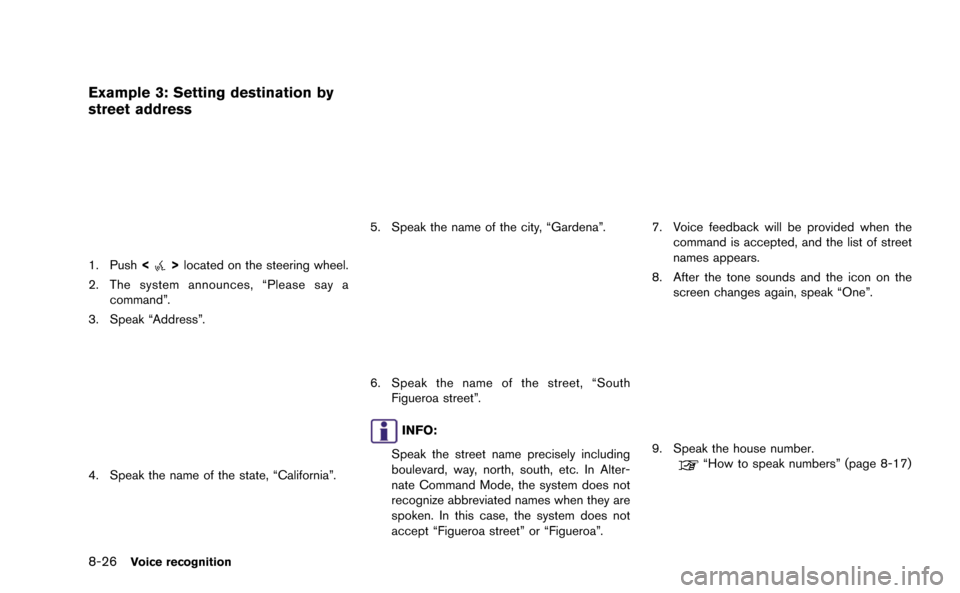
Example 3: Setting destination by
street address
1. Push<>located on the steering wheel.
2. The system announces, “Please say a command”.
3. Speak “Address”.
4. Speak the name of the state, “California”.
5. Speak the name of the city, “Gardena”.
6. Speak the name of the street, “South Figueroa street”.
INFO:
Speak the street name precisely including
boulevard, way, north, south, etc. In Alter-
nate Command Mode, the system does not
recognize abbreviated names when they are
spoken. In this case, the system does not
accept “Figueroa street” or “Figueroa”.
7. Voice feedback will be provided when the command is accepted, and the list of street
names appears.
8. After the tone sounds and the icon on the screen changes again, speak “One”.
9. Speak the house number.“How to speak numbers” (page 8-17)
Page 228 of 298
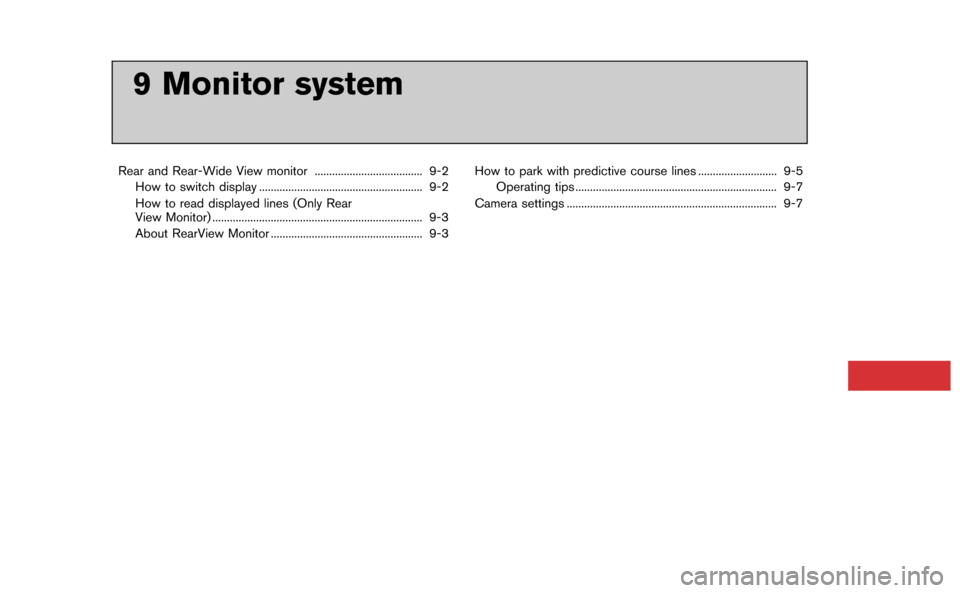
9 Monitor system
Rear and Rear-Wide View monitor ..................................... 9-2How to switch display ........................................................ 9-2
How to read displayed lines (Only Rear
View Monitor) ........................................................................\
9-3
About RearView Monitor .................................................... 9-3 How to park with predictive course lines ........................... 9-5
Operating tips ..................................................................... 9-7
Camera settings ........................................................................\
9-7
Page 230 of 298
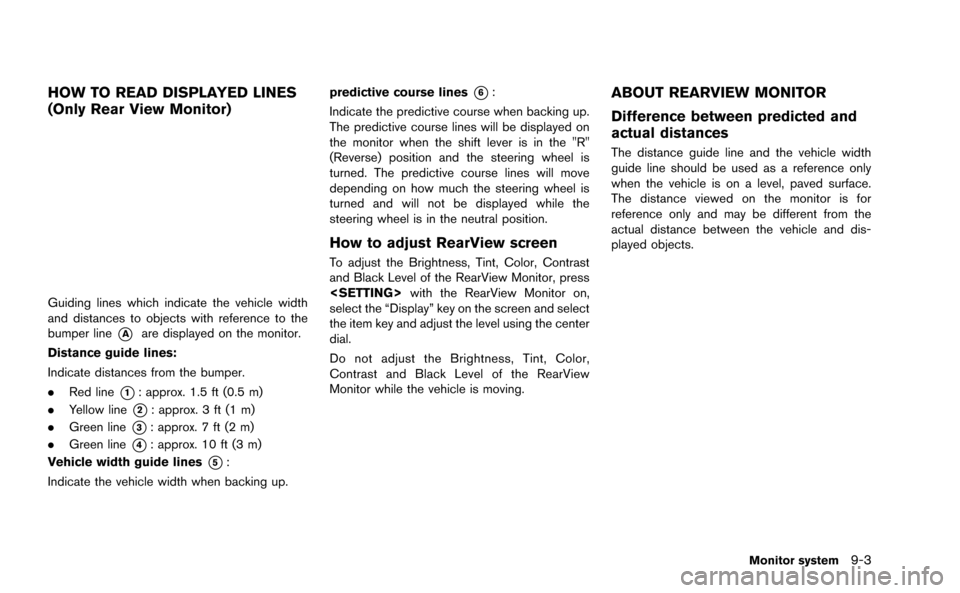
HOW TO READ DISPLAYED LINES
(Only Rear View Monitor)
Guiding lines which indicate the vehicle width
and distances to objects with reference to the
bumper line
*Aare displayed on the monitor.
Distance guide lines:
Indicate distances from the bumper.
. Red line
*1: approx. 1.5 ft (0.5 m)
. Yellow line
*2: approx. 3 ft (1 m)
. Green line
*3: approx. 7 ft (2 m)
. Green line
*4: approx. 10 ft (3 m)
Vehicle width guide lines
*5:
Indicate the vehicle width when backing up. predictive course lines
*6:
Indicate the predictive course when backing up.
The predictive course lines will be displayed on
the monitor when the shift lever is in the "R"
(Reverse) position and the steering wheel is
turned. The predictive course lines will move
depending on how much the steering wheel is
turned and will not be displayed while the
steering wheel is in the neutral position.
How to adjust RearView screen
To adjust the Brightness, Tint, Color, Contrast
and Black Level of the RearView Monitor, press
select the “Display” key on the screen and select
the item key and adjust the level using the center
dial.
Do not adjust the Brightness, Tint, Color,
Contrast and Black Level of the RearView
Monitor while the vehicle is moving.
ABOUT REARVIEW MONITOR
Difference between predicted and
actual distances
The distance guide line and the vehicle width
guide line should be used as a reference only
when the vehicle is on a level, paved surface.
The distance viewed on the monitor is for
reference only and may be different from the
actual distance between the vehicle and dis-
played objects.
Monitor system9-3
Page 234 of 298
5. When the vehicle is parked in the spacecompletely, move the shift lever to the
“P”(Park) position and apply the parking
brake
OPERATING TIPS
.When the shift lever is shifted to the “R”
(Reverse) position, the monitor screen auto-
matically changes to the RearView Monitor
mode. However, the radio can be heard.
. It may take some time until the RearView
Monitor is displayed after the shift lever has
been shifted to “R” from another position or
to another position from “R”. Objects may be
distorted momentarily until the RearView
Monitor screen is displayed completely.
. When the temperature is extremely high or
low, the screen may not clearly display
objects. This is not a malfunction.
. When strong light directly enters the cam-
era, objects may not be displayed clearly.
This is not a malfunction.
. The screen may flicker under fluorescent
light. This is not a malfunction.
. The colors of objects on the RearView
Monitor may differ somewhat from those of
the actual object. .
Objects on the monitor may not be clear in a
dark place or at night. This is not a
malfunction.
. If dirt, rain or snow attaches to the camera,
the RearView Monitor may not clearly dis-
play objects. Clean the camera.
. Do not use alcohol, benzine or thinner to
clean the camera. This will cause discolora-
tion. To clean the camera, wipe with a cloth
dampened with diluted mild cleaning agent
and then wipe with a dry cloth.
. Do not damage the camera as the monitor
screen may be adversely affected.
. Do not use wax on the camera window.
Wipe off any wax with a clean cloth
dampened with mild detergent diluted with
water.
Display of predictive course lines can be set to
ON or OFF.
If the rearview monitor is not in operation, set
according to the following procedure.
1. Push
2. Select [Others] and press
3. Select [Camera] and press
4. Select [Predictive Course Lines] and press
the item is set.
Monitor system9-7
CAMERA SETTINGS