low NISSAN GT-R 2017 R35 Multi Function Display Manual Online
[x] Cancel search | Manufacturer: NISSAN, Model Year: 2017, Model line: GT-R, Model: NISSAN GT-R 2017 R35Pages: 248, PDF Size: 1.72 MB
Page 176 of 248
7. Voice recognition
VOICE RECOGNITION
USING VOICE RECOGNITION SYS-
TEM
Initialization
When the ignition switch is in the ON or ACC
position, the voice recognition is initialized.
When the initialization is complete, the system
is ready to accept voice commands. If <
>on
the steering wheel is pushed before the initi-
alization completes, the display will show a
message to wait until the system is ready.
BEFORE STARTING
To get the best recognition performance from the
voice recognition, observe the following items.
. The interior of the vehicle should be as quiet
as possible. Close the windows to eliminate
the surrounding noises (traffic noise, vibra-
tion sounds, etc.) , which may prevent the
system from correctly recognizing the voice
commands.
. Wait until the tone sounds before speaking a
command.
. Speak in a natural conversational voice
without pausing between words. .
The system recognizes commands given
from the driver’s seat.
GIVING VOICE COMMANDS
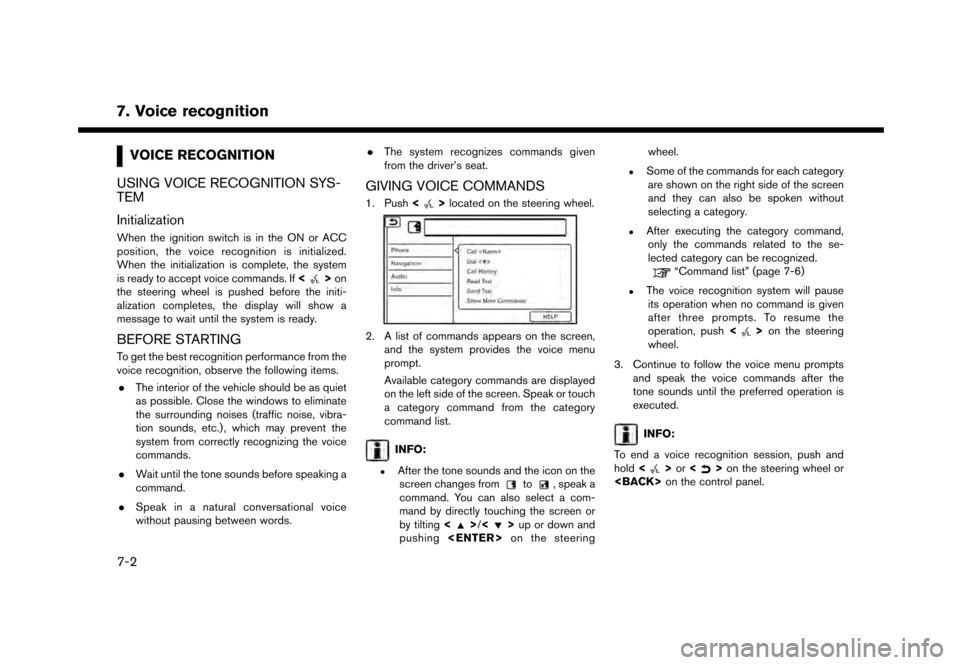
1. Push <>located on the steering wheel.
2. A list of commands appears on the screen,
and the system provides the voice menu
prompt.
Available category commands are displayed
on the left side of the screen. Speak or touch
a category command from the category
command list.
INFO:
.After the tone sounds and the icon on thescreen changes fromto, speak a
command. You can also select a com-
mand by directly touching the screen or
by tilting <
>/<>up or down and
pushing
.Some of the commands for each category
are shown on the right side of the screen
and they can also be spoken without
selecting a category.
.After executing the category command,only the commands related to the se-
lected category can be recognized.
“Command list” (page 7-6)
.The voice recognition system will pauseits operation when no command is given
after three prompts. To resume the
operation, push <
>on the steering
wheel.
3. Continue to follow the voice menu prompts and speak the voice commands after the
tone sounds until the preferred operation is
executed.
INFO:
To end a voice recognition session, push and
hold <
>or <>on the steering wheel or
7-2
Page 177 of 248
![NISSAN GT-R 2017 R35 Multi Function Display Manual Online Operating tips
.Speak a command after the tone.
. If the command is not recognized, the system
will prompt you to speak the command again.
Repeat the command in a clear voice.
. Touch [
] on the touch](/img/5/524/w960_524-176.png "NISSAN GT-R 2017 R35 Multi Function Display Manual Online Operating tips
.Speak a command after the tone.
. If the command is not recognized, the system
will prompt you to speak the command again.
Repeat the command in a clear voice.
. Touch [
] on the touch")
Operating tips
.Speak a command after the tone.
. If the command is not recognized, the system
will prompt you to speak the command again.
Repeat the command in a clear voice.
. Touch [
] on the touch screen display to
return to the previous screen.
. To exit the voice recognition system, push
and hold <
>on the steering wheel.
. To adjust the volume of the system feedback,
push + or - side of <
>on the steering
wheel or turn
is making an announcement.
The volume setting is also available from
[Guidance Volume] in the [Settings] menu on
the Launch Bar.
“Volume and Beeps settings”
(page 2-19)
. When setting a destination for route gui-
dance with some search methods, such as
POI, Intersection or City Center search, the
search area is automatically set to the state/
province where your vehicle is located.
Change state/province to change the search
area to another state/province if necessary. Voice Prompt Interrupt:
In most cases, you can interrupt the voice
feedback to speak the next command by pushing
<
>
on the steering wheel. After interrupting
the system, wait for a tone before speaking your
command.
One Shot Call:
To use the system faster when making a call, you
may speak the second level command skipping
speaking the first level command. For example,
push <
>and say “Redial” after the tone
without first saying “Phone”.
How to see voice command screen
1. Push <>to display the first screen of the
voice command list.
2. Speak a command or select an item on the voice command list. The Second screen is
displayed.
3. Speak a command or select an item on the voice command list. The command is exe-
cuted or the next screen for further command
is displayed.
4. Follow the prompts to complete the com- mands. Voice command screens:
First screen
*1Shows a list of available categories. Speak a
category command or touch the key of the
corresponding category.
*2Shows a list of available commands for the
selected category. Speak a preferred com-
mand.
*3Touch [HELP] or say “Help” to hear help
announcements on how to use the system.
7. Voice recognition
7-3
Page 180 of 248
7. Voice recognition
Command list
To use the Voice Recognition function, you can speak commands in the order of 1st command, 2nd command and 3rd command. You can also operate the
system by directly speaking the 2nd or 3rd command.
Variable numbers or words such as names can be applied in the < > when speaking a command.
Some navigation commands are only for English.
General Command
CommandAction
Show More Commands Display other commands of the same category.
Go Back Corrects the last recognition result to return to the previous screen.
Exit Cancels Voice Recognition.
Help Announces how to use voice guidance.
Next Skip to the next page.
Previous Skip to the previous page.
General phone command
The following commands can be used during a phone Voice Recognition session.
Command Action
Dial The system makes a call to the spoken phone number.
Change Number Change a spoken phone number.
7-6
Page 181 of 248
![NISSAN GT-R 2017 R35 Multi Function Display Manual Online Phone Command
1st Command 2nd Command 3rd Command 4th Command Action
PhonePhonebook <phonebook name>
Makes a call to a contact that is stored in the mobile phone. You can select the type
from [Mobile]](/img/5/524/w960_524-180.png "NISSAN GT-R 2017 R35 Multi Function Display Manual Online Phone Command
1st Command 2nd Command 3rd Command 4th Command Action
PhonePhonebook <phonebook name>
Makes a call to a contact that is stored in the mobile phone. You can select the type
from [Mobile]")
Phone Command
1st Command 2nd Command 3rd Command 4th Command Action
PhonePhonebook
Makes a call to a contact that is stored in the mobile phone. You can select the type
from [Mobile], [Home], [Office], [Main] or [Other].
Call History Incoming Calls Displays an Incoming Call list.
Outgoing Calls Displays an Outgoing Call list.
Missed Calls Displays a Missed Call list.
Dial <#> Dial Makes a call to a spoken phone number.
Change Number Change a spoken phone number.
International Call
You may need to include the international call prefixes and country codes.
Redial Makes a call to the last outgoing phone number.
Add Phone Use this command to connect a compatible Bluetooth
Šdevice to system. Follow
the on-screen instructions to complete the pairing process from your handset.
Select Phone <1 - 5> Use this command to select a phone from a list of the registered devices.
Quick Dial
<1 - 5>
Call
Call
Send Text
stored in the mobile phone.
7. Voice recognition
7-7
Page 183 of 248

General navigation command
The following commands can be used during the Navigation voice recognition session.
CommandAction
Select City Search a destination from the specified city.
Change State Change the state to search.
Calculate Route Calculate a route.
Adjust Location Fine-tune the destination.
Add as waypoint The selected location will be added to the route as a waypoint.
Change Address (English only) Change State After the street address is specified, change state, city, street, or house number.
Change City
Change Street
Change House Number
Navigation Command
1st Command 2nd Command 3rd Command Action
Navigation Street Address (English
only)
Select State
Select the state to search.
Street Address
Points of Interest (English only) Speak a POI name to search for as a destination.
Points of Interest
7. Voice recognition
7-9
Page 184 of 248

7. Voice recognition
1st Command 2nd Command 3rd Command ActionPoints of Interest (Eng-
lish only)
Used to search for the POI within a specified state or city. Follow the prompts to
enter the place name.
Nearby <1 - 5>When a route is set, options of [Near Current Location], [Along Route] and [Near
Destination] will be displayed. Select an item to search for the POI of the selected
category in the preferred area.
POI Category
Nearby
Say “Nearby” followed by a POI category name such as Gas station, Restaurant or
Parking. You can say any category name that appears when using manual controls.
The system will always search for nearby matches regardless of the current state
location.
Go Home Sets a route to your home location.
Previous Destinations <1 - 5> Sets a route to a previously entered destination.
Address Book
<1 - 5>Sets a route to a location stored in the Stored location.
City Center (English
only)
Sets a route to a city center.
Intersections (English
only)
[Select City].
Recalculate Route Fastest Sets the route search condition to find the fastest route.
Sets the route search condition to find the route that is the most energy saving.
Shortest distance Sets the route search condition to find the route that is the shortest in distance.
Minimize Freeway Sets the route search condition to find a route with a minimal use of freeways.
Traffic Detour Sets the route search condition to detour traffic jam and traffic accident.
Distance Detour Sets a detour according to the distance selected from the list.
7-10
Page 186 of 248
7. Voice recognition
1st Command 2nd Command 3rd Command ActionWhere am I? Displays the information of the current position.
Operating tips for navigation command operation:
. Depending on the area where the vehicle is located (such as in Puerto Rico, Guam, etc.) , the system may not recognize the general navigation
commands.
. Points Of Interest:
— The POI commands searches for Points of Interest registered in the navigation system.
— When searching for POI, the search is conducted within the current state/province or the state/province specified by “Change State” command. To change the state/province, speak “Change State” after the prompt and then after the next prompt, speak the name of the state/province for which
you wish to conduct the POI search. The state/province will be reset to the current state each time the voice recognition session is restarted.
— The following POI main categories cannot be used for “Points of Interest” search with voice command operations while all registered categories can be recognized for “Nearby” search:
Others, Repair, Rental Car Agency, Parking, Police Station, Administration, ATM, Other Leisure, Bars & Clubs, Other Dealers, Motorcycle
Dealership, Medical Offices, Post Office, Auto Parts, Banquets & Food Delivery, Carwash, Copying, Day Care, Fire Station, Laundry & Cleaners,
Office Supply, Other Services, Other Shopping, Package Delivery
. Street Address:
— Alphabet letters cannot be included when speaking a house number. When a specified house number cannot be found, a location representing the address will be displayed.
— Speak in a natural conversational speed without pausing between words for better recognition.
— When the system recognizes the command incorrectly, correct the search conditions using commands such as “Change State”, “Change City”, “Change Street” or “Change House Number”.
7-12
Page 194 of 248
8. Multi function meter
ABOUT MULTI FUNCTION ME-
TER
The multi function meter allows you to see the
vehicle status and the results of driving opera-
tion.
SAFETY NOTES
For your driving safety please read the following
warnings.
WARNING
.Use the information from the multi
function meter strictly as a reference
to make your driving more comforta-
ble. The readings are not meant to
prevent accidents caused by reckless
driving or poor driving conditions
(due to weather, road condition,
etc.) . Always obey all traffic regula-
tions and posted speed limits.
. Operating the multi function meter
while driving can lead to a crash
resulting in serious injuries or death.
Always park the vehicle in a safe
place before operating the display
screen. .
Look at the display screen only briefly
while driving. Keep your eyes on the
road. Inattentive driving may lead to a
crash resulting in serious injuries or
death.
INFO:
. The information displayed on the multi
function meter is for reference purposes
only. Due to road conditions and tempera-
ture, the information displayed by the system
may vary from actual driving conditions.
. You can select the units that the multi
function meter displays.
“Language and unit settings”
(page 2-20)
MULTI FUNCTION METER DISPLAY
The following information can be displayed on
the multi function meter.
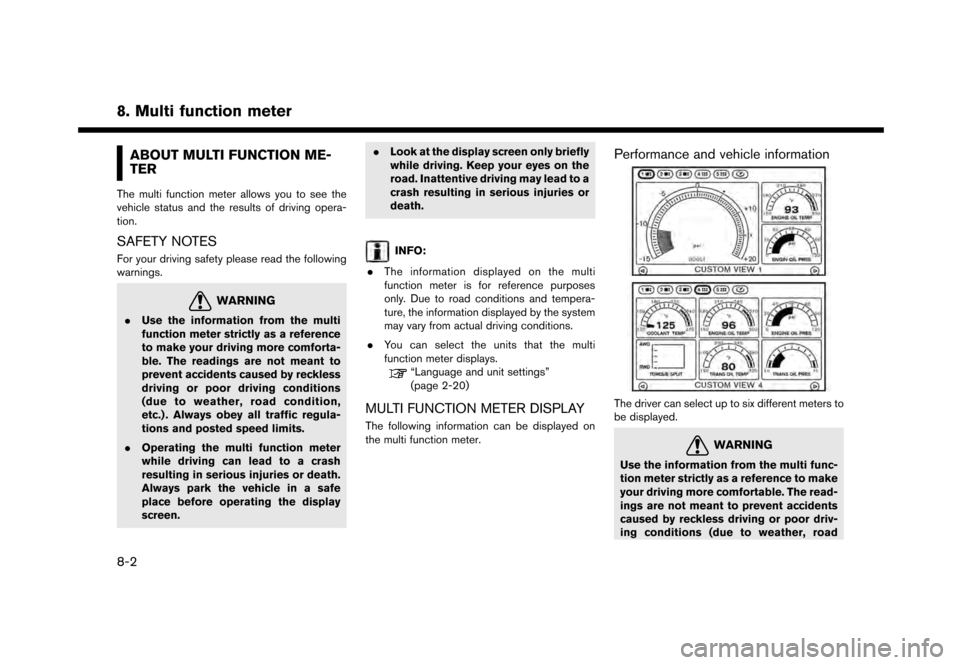
Performance and vehicle information
The driver can select up to six different meters to
be displayed.
WARNING
Use the information from the multi func-
tion meter strictly as a reference to make
your driving more comfortable. The read-
ings are not meant to prevent accidents
caused by reckless driving or poor driv-
ing conditions (due to weather, road
8-2
Page 197 of 248
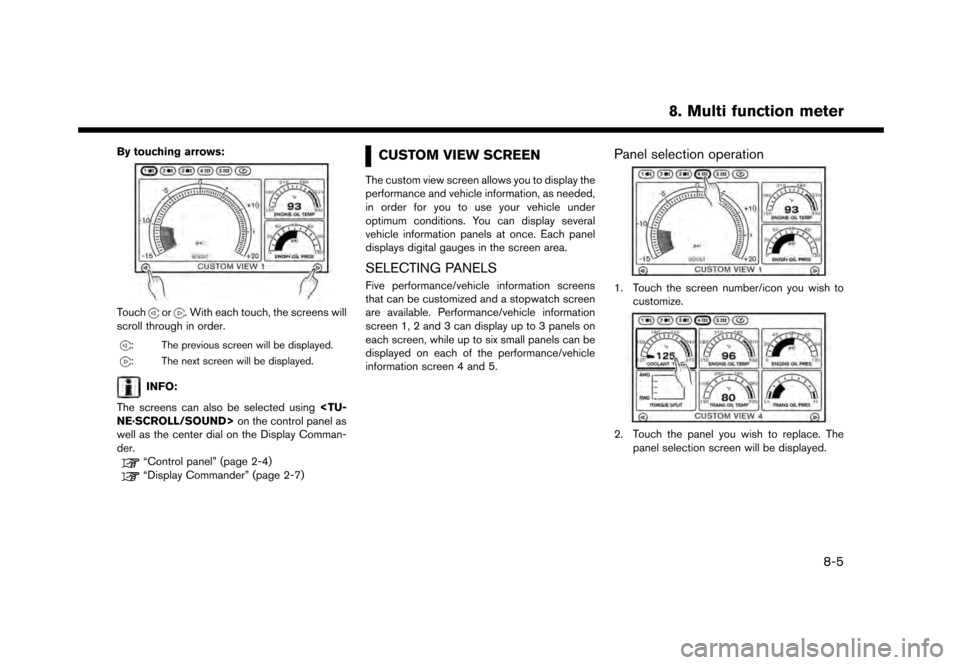
By touching arrows:
Touchor. With each touch, the screens will
scroll through in order.
: The previous screen will be displayed.
: The next screen will be displayed.
INFO:
The screens can also be selected using
well as the center dial on the Display Comman-
der.
“Control panel” (page 2-4)“Display Commander” (page 2-7)
CUSTOM VIEW SCREEN
The custom view screen allows you to display the
performance and vehicle information, as needed,
in order for you to use your vehicle under
optimum conditions. You can display several
vehicle information panels at once. Each panel
displays digital gauges in the screen area.
SELECTING PANELS
Five performance/vehicle information screens
that can be customized and a stopwatch screen
are available. Performance/vehicle information
screen 1, 2 and 3 can display up to 3 panels on
each screen, while up to six small panels can be
displayed on each of the performance/vehicle
information screen 4 and 5.
Panel selection operation
1. Touch the screen number/icon you wish to customize.
2. Touch the panel you wish to replace. The
panel selection screen will be displayed.
8. Multi function meter
8-5
Page 198 of 248
8. Multi function meter
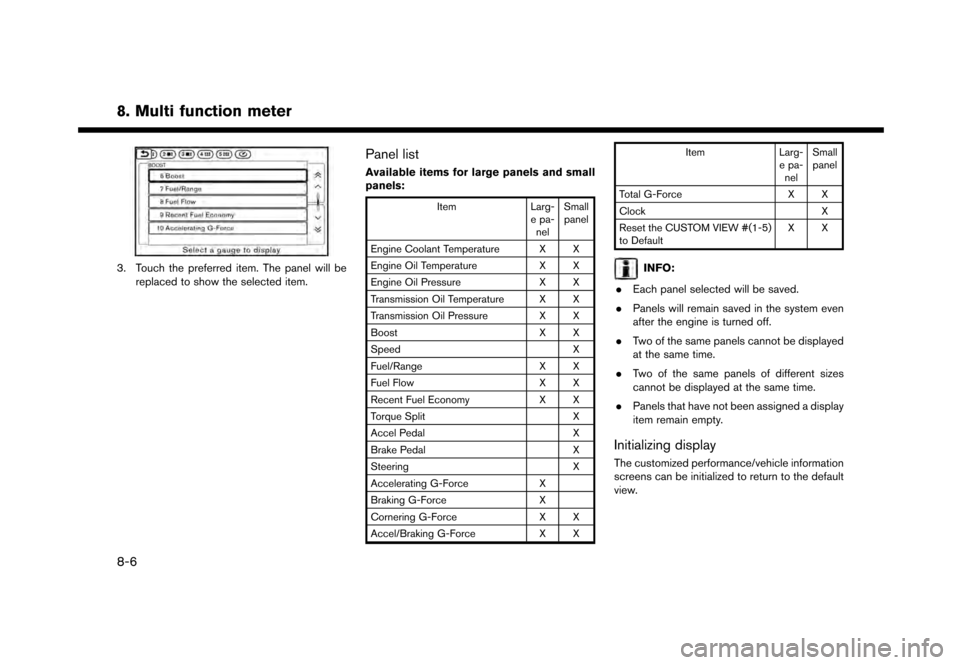
3. Touch the preferred item. The panel will bereplaced to show the selected item.
Panel list
Available items for large panels and small
panels:
Item Larg-
e pa- nel Small
panel
Engine Coolant Temperature X X
Engine Oil Temperature X X
Engine Oil Pressure X X
Transmission Oil Temperature X X
Transmission Oil Pressure X X
Boost X X
Speed X
Fuel/Range X X
Fuel Flow X X
Recent Fuel Economy X X
Torque Split X
Accel Pedal X
Brake Pedal X
Steering X
Accelerating G-Force X
Braking G-Force X
Cornering G-Force X X
Accel/Braking G-Force X XItem
Larg-
e pa- nel Small
panel
Total G-Force X X
Clock X
Reset the CUSTOM VIEW #(1-5)
to Default XX
INFO:
. Each panel selected will be saved.
. Panels will remain saved in the system even
after the engine is turned off.
. Two of the same panels cannot be displayed
at the same time.
. Two of the same panels of different sizes
cannot be displayed at the same time.
. Panels that have not been assigned a display
item remain empty.
Initializing display
The customized performance/vehicle information
screens can be initialized to return to the default
view.
8-6