phone NISSAN LEAF 2019 Owner´s Manual
[x] Cancel search | Manufacturer: NISSAN, Model Year: 2019, Model line: LEAF, Model: NISSAN LEAF 2019Pages: 610, PDF Size: 7.11 MB
Page 324 of 610
• Even if the remote climate control isset, the temperature in the passen-
ger room may become high if the
system automatically stops. Do not
leave children or adults who would
normally require the support of oth-
ers alone in your vehicle. Pets should
not be lef t alone either. On hot,
sunny days, temperatures in a
closed vehicle could quickly become
high enough to cause severe or pos-
sibly fatal injuries to people or ani-
mals.
NOTE:
•To check the Li-ion battery charging
status using an internet enabled smart
phone or personal computer.
– The vehicle must be located in a cel- lular phone coverage area.
– The cellular phone must be located in an area with cellular phone cover-
age.
– The computer must be connected to the internet.
• Some cellular phones are not compat-
ible with this system and cannot be
used to check the Li-ion battery charg-
ing status. Confirm this beforehand.
Operating tips
• When the charge connector is connected,
the climate control operates using electric
power. When the charge connector is dis-
connected from the vehicle, the climate
control operates using vehicle battery
electric power.
• The climate control can be operated for a maximum of 2 hours when the charge
connector is connected to the vehicle, or a
maximum of 15 minutes when the charge
connector is disconnected.
• The remote climate control will only start to operate when the power switch is in the
LOCK/OFF or ACC position.
• Remote climate control operation is not available when the vehicle is in an area of
cellular communication range.
• Communication becomes unavailable when the vehicle is not used for two
weeks or more. When the power switch is
placed in the ON position, communication
with the Nissan Data Center can be
restored.
• Air conditioning is limited to the capacity of the electric power when the charge
connector is connected to the vehicle. Therefore, the temperature may not reach
a comfortable level due to performance of
the air conditioning being limited, if the
outside temperature is excessively high or
low, or if the charge connector is con-
nected to a 110 – 120-volt outlet.
• If the power switch is in the ON position or the charge connector is disconnected,
while the remote climate control is being
operated, remote climate control opera-
tion is automatically stopped and an
e-mail is sent.
• If remote climate control operation is started while the vehicle is in normal
charge mode, the climate control oper-
ates in climate control priority mode and
charging is continued.
• If remote climate control operation is started and charging is stopped while the
vehicle is in quick charge mode, climate
control operation is also stopped.
• If the quick charge connector is con- nected and charging is not performed, re-
mote climate control operation starts us-
ing the battery electric power of the
vehicle.
Monitor, climate, audio, phone and voice recognition systems4-45
Page 325 of 610
Servicing climate control
The climate control system in your NISSAN
is charged with a refrigerant designed with
the environment in mind. This refrigerant
will not harm the earth’s ozone layer. Spe-
cial charging equipment and lubricant are
required when servicing your NISSAN cli-
mate control. Using improper refrigerants
or lubricants will cause severe damage to
your climate control system. For additional
information, refer to “Recommended
fluids/lubricants and capacities” in the
“Technical and consumer information” sec-
tion.
It is recommended that you visit a NISSAN
certified LEAF dealer to service your envi-
ronmentally friendly climate control sys-
tem.
RADIO
Push the power switch to the ACC or ON
position and press the
(power) button
to turn on the radio. If you listen to the radio
while the READY to drive indicator light is off,
the power switch should be pushed to the
ACC position.
Radio reception is affected by station sig-
nal strength, distance from radio transmit-
ter, buildings, bridges, mountains and other
external influences. Intermittent changes
in reception quality normally are caused by
these external influences.
Using a cellular phone in or near the
vehicle may influence radio reception
quality.
Radio reception
Your NISSAN radio system is equipped with
state-of-the-art electronic circuits to en-
hance radio reception. These circuits are
designed to extend reception range, and to
enhance the quality of that reception. However, there are some general charac-
teristics of both FM and AM radio signals
that can affect radio reception quality in a
moving vehicle, even when the finest
equipment is used. These characteristics
are completely normal in a given reception
area and do not indicate any malfunction
in your NISSAN radio system.
Reception conditions will constantly
change because of vehicle movement.
Buildings, terrain, signal distance and inter-
ference from other vehicles can work
against ideal reception. Described below
are some of the factors that can affect your
radio reception.
Some cellular phones or other devices may
cause interference or a buzzing noise to
come from the audio system speakers.
Storing the device in a different location
may reduce or eliminate the noise.
AUDIO SYSTEM (MODELS WITHOUT
NISSANCONNECT® SYSTEM)
4-46Monitor, climate, audio, phone and voice recognition systems
Page 326 of 610
FM RADIO RECEPTION
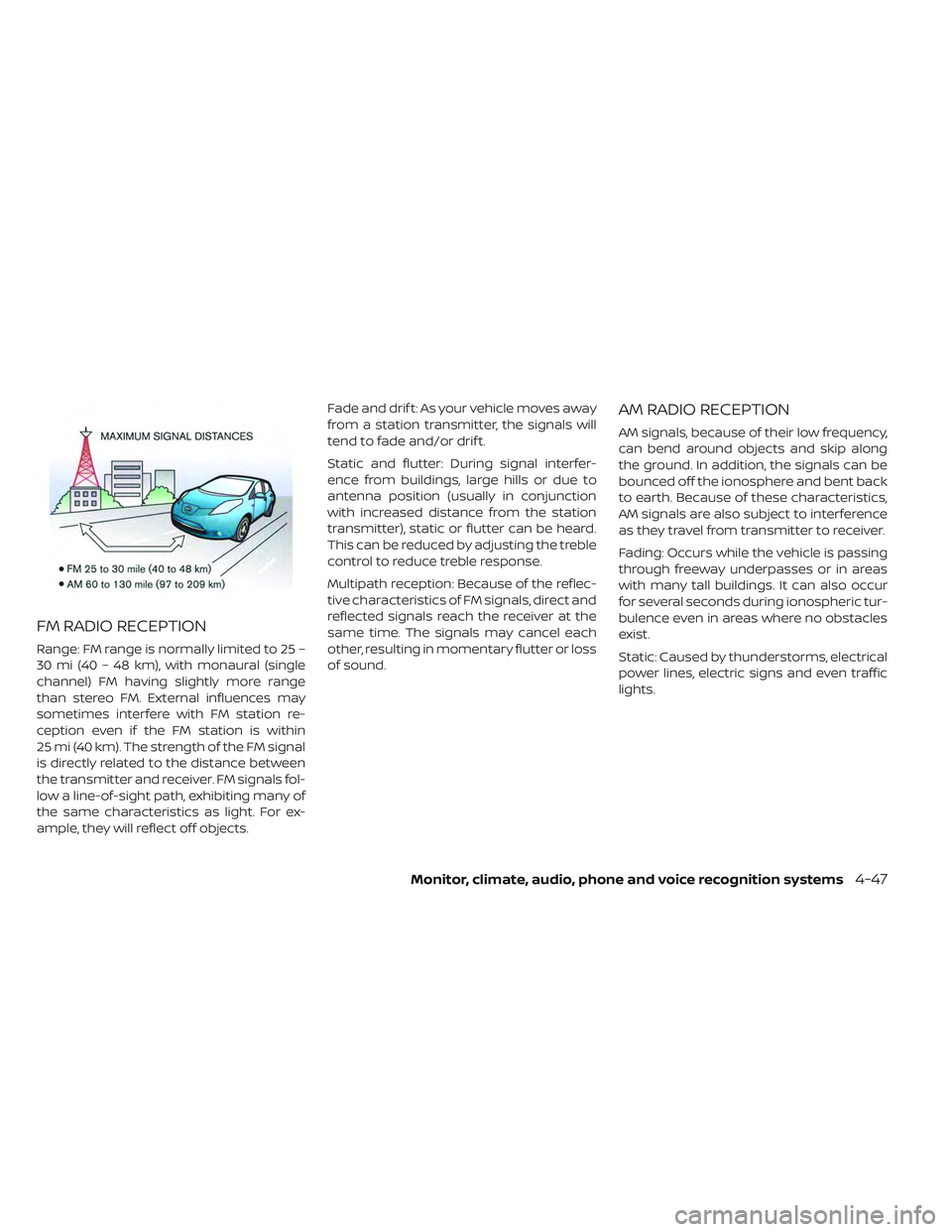
Range: FM range is normally limited to 25 –
30 mi (40 – 48 km), with monaural (single
channel) FM having slightly more range
than stereo FM. External influences may
sometimes interfere with FM station re-
ception even if the FM station is within
25 mi (40 km). The strength of the FM signal
is directly related to the distance between
the transmitter and receiver. FM signals fol-
low a line-of-sight path, exhibiting many of
the same characteristics as light. For ex-
ample, they will reflect off objects.Fade and drif t: As your vehicle moves away
from a station transmitter, the signals will
tend to fade and/or drif t.
Static and flutter: During signal interfer-
ence from buildings, large hills or due to
antenna position (usually in conjunction
with increased distance from the station
transmitter), static or flutter can be heard.
This can be reduced by adjusting the treble
control to reduce treble response.
Multipath reception: Because of the reflec-
tive characteristics of FM signals, direct and
reflected signals reach the receiver at the
same time. The signals may cancel each
other, resulting in momentary flutter or loss
of sound.
AM RADIO RECEPTION
AM signals, because of their low frequency,
can bend around objects and skip along
the ground. In addition, the signals can be
bounced off the ionosphere and bent back
to earth. Because of these characteristics,
AM signals are also subject to interference
as they travel from transmitter to receiver.
Fading: Occurs while the vehicle is passing
through freeway underpasses or in areas
with many tall buildings. It can also occur
for several seconds during ionospheric tur-
bulence even in areas where no obstacles
exist.
Static: Caused by thunderstorms, electrical
power lines, electric signs and even traffic
lights.
Monitor, climate, audio, phone and voice recognition systems4-47
Page 327 of 610
SATELLITE RADIO RECEPTION
When the satellite radio is used for the first
time or the battery has been replaced, the
satellite radio may not work properly. This
is not a malfunction. Wait more than
10 minutes with satellite radio ON and the
vehicle outside of any metal or large build-
ing for satellite radio to receive all of the
necessary data.
No satellite radio reception is available and
“NO SAT” is displayed when the SAT band
option is selected unless optional satellite
receiver and antenna are installed and a
SiriusXM® Satellite Radio service subscrip-
tion is active. Satellite radio is not available
in Alaska, Hawaii and Guam.
Satellite radio performance may be af-
fected if cargo carried on the roof blocks
the satellite radio signal.
If possible, do not put cargo over the satel-
lite antenna.
A build-up of ice on the satellite radio an-
tenna can affect satellite radio perfor-
mance. Remove the ice to restore satellite
radio reception.
AUDIO OPERATION PRECAUTIONS
Compact Disc (CD) player
CAUTION
• Do not force a compact disc into the CD insert slot. This could damage
the CD and/or CD player.
• Trying to load a CD with the CD door closed could damage the CD and/or
CD player.
• Only one CD can be loaded into the CD player at a time.
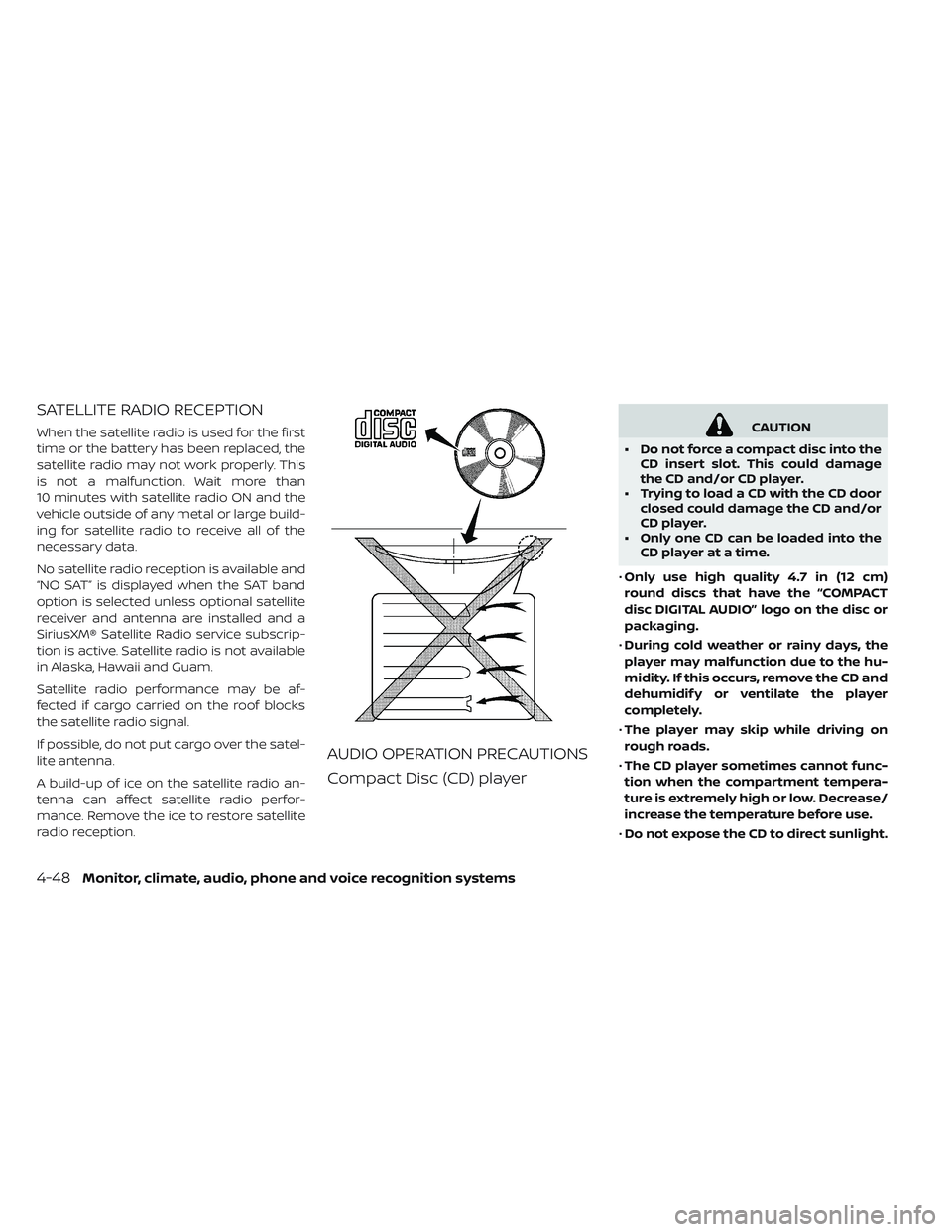
• Only use high quality 4.7 in (12 cm)
round discs that have the “COMPACT
disc DIGITAL AUDIO” logo on the disc or
packaging.
• During cold weather or rainy days, the
player may malfunction due to the hu-
midity. If this occurs, remove the CD and
dehumidif y or ventilate the player
completely.
• The player may skip while driving on
rough roads.
• The CD player sometimes cannot func-
tion when the compartment tempera-
ture is extremely high or low. Decrease/
increase the temperature before use.
• Do not expose the CD to direct sunlight.
4-48Monitor, climate, audio, phone and voice recognition systems
Page 328 of 610
•CDs that are in poor condition or are
dirty, scratched or covered with finger-
prints may not work properly.
•
The following CDs may not work properly.
– Copy Control Compact Discs (CCCD)
– Recordable Compact Discs (CD-R)
– Rewritable Compact Discs (CD-RW)
•
Do not use the following CDs as they may
cause the CD player to malfunction:
– 3.1 in (8 cm) discs with an adapter
– CDs that are not round
– CDs with a paper label
– CDs that are warped, scratched, or
have abnormal edges
• This audio system can only play prere-
corded CDs. It has no capability to re-
cord or burn CDs.
• If the CD cannot be played, one of the
following messages will be displayed.
CHECK DISC:
• Confirm that the CD is inserted correctly
(the label side is facing up, etc.).
•
Confirm that the CD is not bent or warped
and it is free of scratches.
PRESS EJECT:
This is an error due to excessive tem-
perature inside the player. Remove the
CD by pressing the EJECT button. Af ter a
short time, reinsert the CD. The CD can be
played when the temperature of the
player returns to normal.
UNPLAYABLE:
The file is unplayable in this audio system
(only MP3 or WMA (if so equipped) CD).
Compressed audio files
(MP3/WMA)
Terms
• MP3 — MP3 is short for Moving Pictures Experts Group Audio Layer 3. MP3 is the
most well-known compressed digital au-
dio file format. This format allows for near
“CD quality” sound, but at a fraction of the
size of normal audio files. MP3 conversion
of an audio track from CD-ROM can re-
duce the file size by approximately a
10:1 ratio with virtually no perceptible loss
in quality. MP3 compression removes the
redundant and irrelevant parts of a sound
signal that the human ear doesn’t hear. • WMA — Windows Media Audio (WMA)* is a
compressed audio format created by Mi-
crosof t as an alternative to MP3. The WMA
codec offers greater file compression
than the MP3 codec, enabling storage of
more digital audio tracks in the same
amount of space when compared to
MP3s at the same level of quality.
• Bit rate — Bit rate denotes the number of bits per second used by a digital music file.
The size and quality of a compressed digi-
tal audio file is determined by the bit rate
used when encoding the file.
• Sampling frequency — Sampling fre- quency is the rate at which the samples of
a signal are converted from analog to digi-
tal (A/D conversion) per second.
• Multisession — Multisession is one of the methods for writing data to media. Writing
data once to the media is called a single
session, and writing more than once is
called a multisession.
• ID3/WMA Tag — The ID3/WMA tag is the part of the encoded MP3 or WMA file that
contains information about the digital
music file such as song title, artist, encod-
ing bit rate, track time duration, etc. ID3 tag
information is displayed on the Artist/
song title line on the display.
Monitor, climate, audio, phone and voice recognition systems4-49
Page 329 of 610
* Windows® and Windows Media® are reg-
istered trademarks and trademarks in the
United States of America and other coun-
tries of Microsof t Corporation of the USA.Playback order
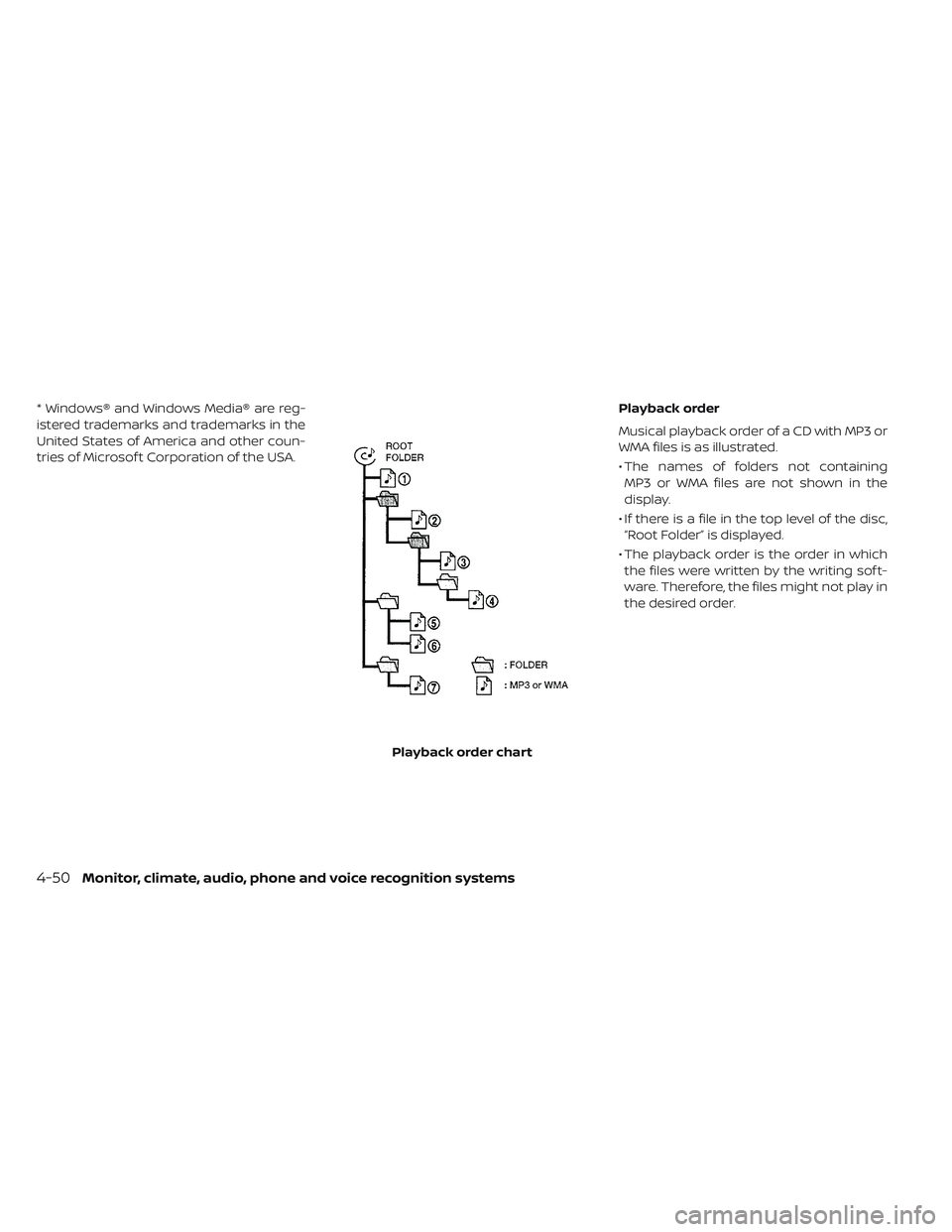
Musical playback order of a CD with MP3 or
WMA files is as illustrated.
• The names of folders not containing
MP3 or WMA files are not shown in the
display.
• If there is a file in the top level of the disc, “Root Folder” is displayed.
• The playback order is the order in which the files were written by the writing sof t-
ware. Therefore, the files might not play in
the desired order.
Playback order chart
4-50Monitor, climate, audio, phone and voice recognition systems
Page 330 of 610
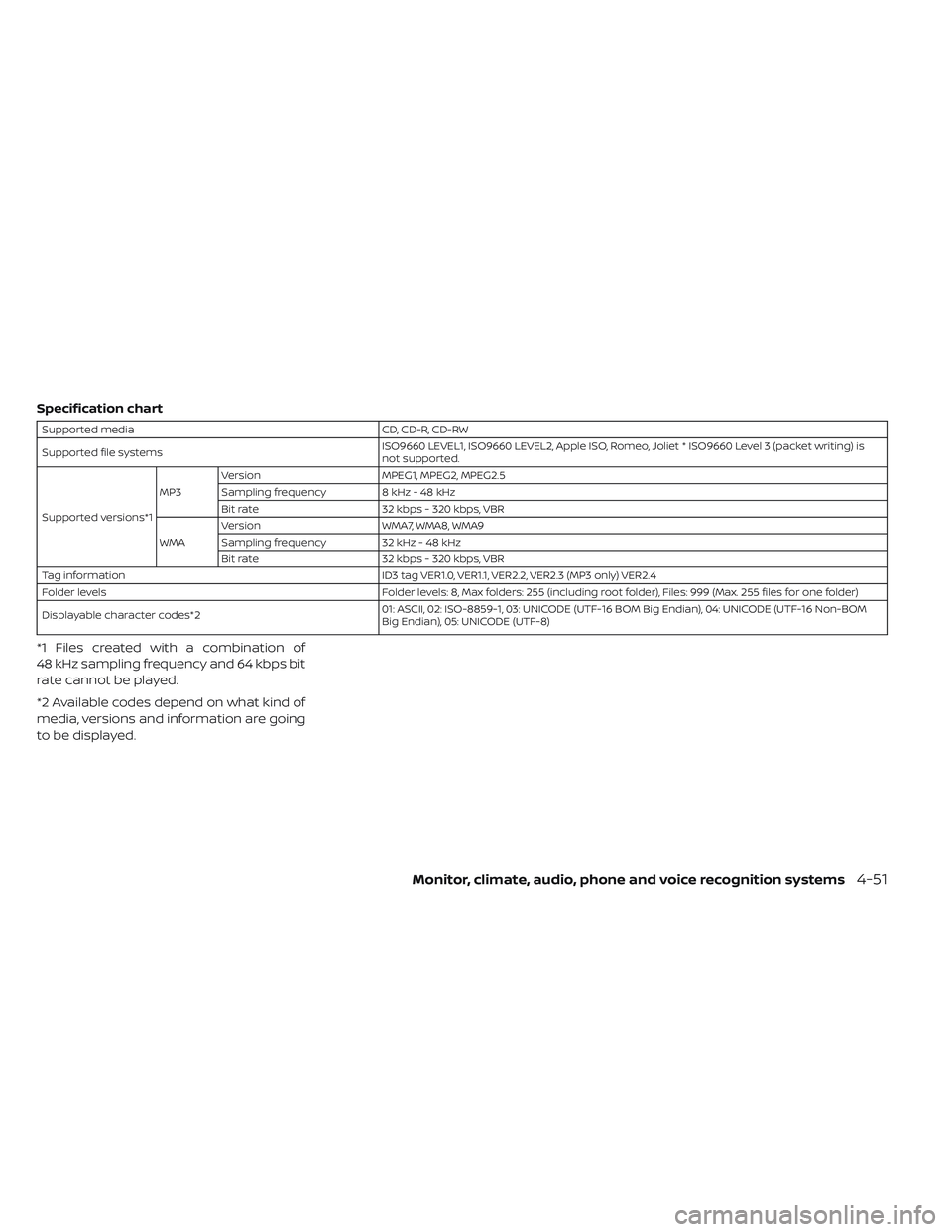
Specification chart
Supported mediaCD, CD-R, CD-RW
Supported file systems ISO9660 LEVEL1, ISO9660 LEVEL2, Apple ISO, Romeo, Joliet * ISO9660 Level 3 (packet writing) is
not supported.
Supported versions*1 MP3
Version
MPEG1, MPEG2, MPEG2.5
Sampling frequency 8 kHz - 48 kHz
Bit rate 32 kbps - 320 kbps, VBR
WMA Version
WMA7, WMA8, WMA9
Sampling frequency 32 kHz - 48 kHz
Bit rate 32 kbps - 320 kbps, VBR
Tag information ID3 tag VER1.0, VER1.1, VER2.2, VER2.3 (MP3 only) VER2.4
Folder levels Folder levels: 8, Max folders: 255 (including root folder), Files: 999 (Max. 255 files for one folder)
Displayable character codes*2 01: ASCII, 02: ISO-8859-1, 03: UNICODE (UTF-16 BOM Big Endian), 04: UNICODE (UTF-16 Non-BOM
Big Endian), 05: UNICODE (UTF-8)
*1 Files created with a combination of
48 kHz sampling frequency and 64 kbps bit
rate cannot be played.
*2 Available codes depend on what kind of
media, versions and information are going
to be displayed.
Monitor, climate, audio, phone and voice recognition systems4-51
Page 331 of 610
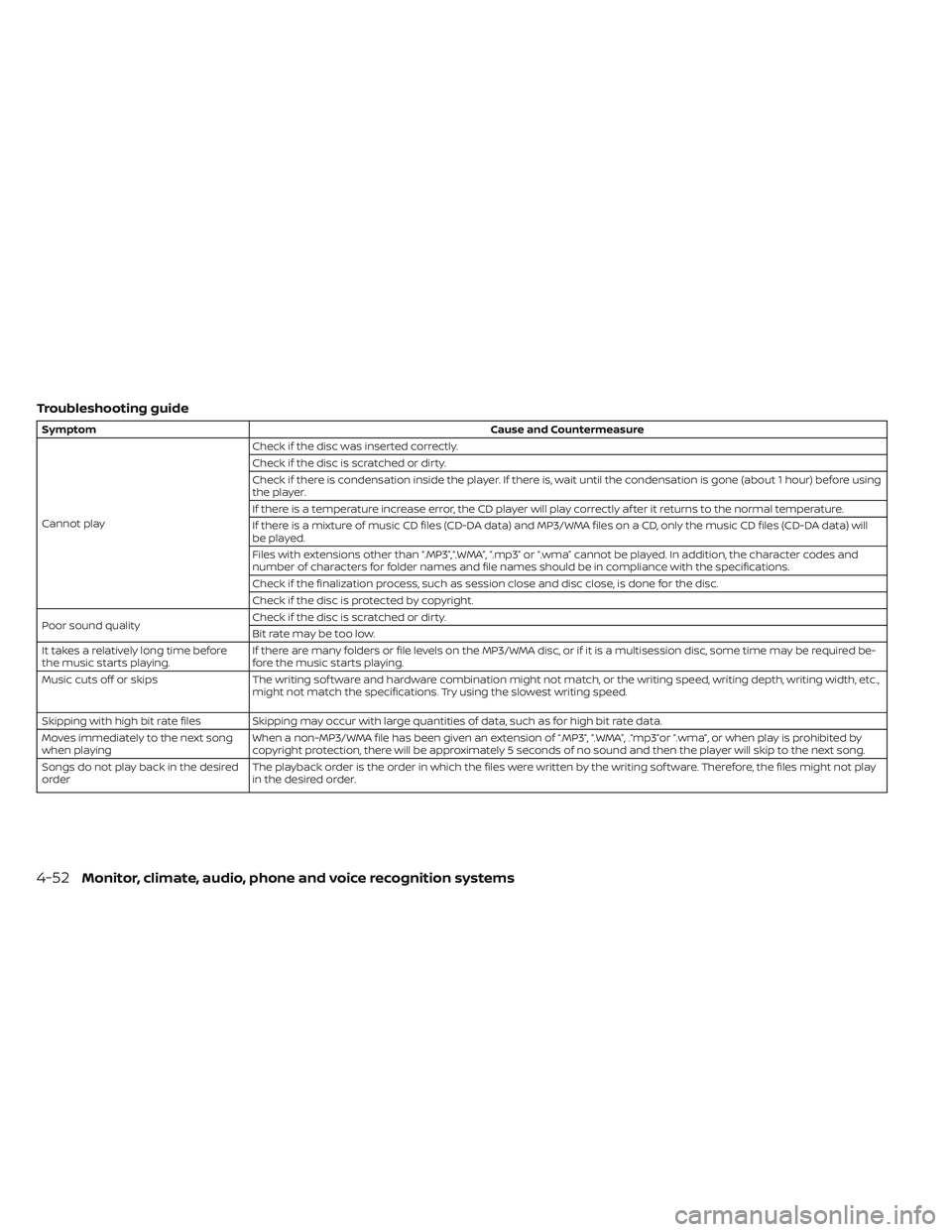
Troubleshooting guide
SymptomCause and Countermeasure
Cannot play Check if the disc was inserted correctly.
Check if the disc is scratched or dirty.
Check if there is condensation inside the player. If there is, wait until the condensation is gone (about 1 hour) before using
the player.
If there is a temperature increase error, the CD player will play correctly af ter it returns to the normal temperature.
If there is a mixture of music CD files (CD-DA data) and MP3/WMA files on a CD, only the music CD files (CD-DA data) will
be played.
Files with extensions other than “.MP3”,“.WMA”, “.mp3” or “.wma” cannot be played. In addition, the character codes and
number of characters for folder names and file names should be in compliance with the specifications.
Check if the finalization process, such as session close and disc close, is done for the disc.
Check if the disc is protected by copyright.
Poor sound quality Check if the disc is scratched or dirty.
Bit rate may be too low.
It takes a relatively long time before
the music starts playing. If there are many folders or file levels on the MP3/WMA disc, or if it is a multisession disc, some time may be required be-
fore the music starts playing.
Music cuts off or skips The writing sof tware and hardware combination might not match, or the writing speed, writing depth, writing width, etc.,
might not match the specifications. Try using the slowest writing speed.
Skipping with high bit rate files Skipping may occur with large quantities of data, such as for high bit rate data.
Moves immediately to the next song
when playing When a non-MP3/WMA file has been given an extension of “.MP3”, “.WMA”, .“mp3”or “.wma”, or when play is prohibited by
copyright protection, there will be approximately 5 seconds of no sound and then the player will skip to the next song.
Songs do not play back in the desired
order The playback order is the order in which the files were written by the writing sof tware. Therefore, the files might not play
in the desired order.
4-52Monitor, climate, audio, phone and voice recognition systems
Page 332 of 610
USB (Universal Serial Bus)
connection port
WARNING
Do not connect, disconnect or operate
the USB device while driving. Doing so
can be a distraction. If distracted you
could lose control of your vehicle and
cause an accident or serious injury.
CAUTION
• Do not force the USB device into the USB port. Inserting the USB device
tilted or up-side-down into the port
may damage the port. Make sure
that the USB device is connected
correctly into the USB port.
• Do not grab the USB port cover (if so equipped) when pulling the USB de-
vice out of the port. This could dam-
age the port and the cover.
• Do not leave the USB cable in a place where it can be pulled unintention-
ally. Pulling the cable may damage
the port. The vehicle is not equipped with a USB de-
vice. USB devices should be purchased
separately as necessary. This system can-
not be used to format USB devices. To for-
mat a USB device, use a personal com-
puter. In some states/area, the USB device
for the front seats plays only sound without
images for regulatory reasons, even when
the vehicle is parked.
This system supports various USB
memory devices, USB hard drives and
iPod® players. Some USB devices may not
be supported by this system.
Partitioned USB devices may not play cor-
rectly.
Some characters used in other languages
(Chinese, Japanese, etc.) may not appear
properly in the display. Using English lan-
guage characters with a USB device is rec-
ommended.
General notes for USB use:
For additional information refer to your de-
vice manufacturer’s owner information re-
garding the proper use and care of the
device. Notes for iPod® use:
iPod® is a trademark of Apple Inc., regis-
tered in the U.S. and other countries.
• Improperly plugging in the iPod® may
cause a checkmark to be displayed on
and off (flickering). Always make sure that
the iPod® is connected properly.
• An iPod® nano (1st Generation) may re- main in fast forward or rewind mode if it is
connected during a seek operation. In this
case, please manually reset the iPod®.
• An iPod® nano (2nd Generation) will con- tinue to fast-forward or rewind if it is dis-
connected during a seek operation.
• An incorrect song title may appear when the Play Mode is changed while using an
iPod® nano (2nd Generation).
• Audiobooks may not play in the same or- der as they appear on an iPod®.
•
Large video files cause slow responses in an
iPod®. The vehicle center display may mo-
mentarily black out, but will soon recover.
• If an iPod® automatically selects large video files while in the shuffle mode, the
vehicle center display may momentarily
black out, but will soon recover.
Monitor, climate, audio, phone and voice recognition systems4-53
Page 333 of 610
Bluetooth® streaming audio
• Some Bluetooth® audio devices may notbe recognized by the in-vehicle audio
system.
•
It is necessary to set up the wireless con-
nection between a compatible Bluetooth®
audio device and the in-vehicle Bluetooth®
module before using the Bluetooth® audio.
• Operating procedure of the Bluetooth® audio will vary depending on the devices.
Make sure how to operate your audio de-
vice before using it with this system.
• The Bluetooth® audio may be stopped under the following conditions: – Receiving a call on the Hands-FreePhone System.
– Checking the connection to the hands- free phone. • Do not place the Bluetooth® audio device
in an area surrounded by metal or far
away from the in-vehicle Bluetooth® mod-
ule to prevent tone quality degradation
and wireless connection disruption.
• While an audio device is connected through the Bluetooth® wireless connec-
tion, the battery power of the device may
discharge quicker than usual.
• This system supports the Bluetooth® Audio Distribution Profile (A2DP, AVRCP).
BLUETOOTH® is a trademark
owned by Bluetooth SIG, Inc. and licensed
to Visteon.
4-54Monitor, climate, audio, phone and voice recognition systems