heater NISSAN QASHQAI 2017 Owner´s Manual
[x] Cancel search | Manufacturer: NISSAN, Model Year: 2017, Model line: QASHQAI, Model: NISSAN QASHQAI 2017Pages: 508, PDF Size: 2.68 MB
Page 238 of 508
ENTER SETTING/TUNE·SCROLL dial and
then push the ENTER SETTING/TUNE·SC-
ROLL dial. To change the Speed Sensitive
Volume (Speed Sensitive Vol.) level from off
(0) to 5, turn the ENTER SETTING/TU-
NE·SCROLL dial. Push the ENTER
SETTING/TUNE·SCROLL dial to apply the
setting.
.AUX Vol.
Controls the volume level of incoming sound
when an auxiliary device is connected to the
system. Select the “AUX Vol.” using the
ENTER SETTING/TUNE·SCROLL dial and
then push the ENTER SETTING/TUNE·SC-
ROLL dial. Choose a setting between +1
and +3 or choose 0 to disable the feature
entirely. Push the ENTER SETTING/TU-
NE·SCROLL dial to apply the setting.
.Language Select
The language settings can be changed.
Select “Language Select” using the ENTER
SETTING/TUNE·SCROLL dial and then
push the ENTER SETTING/TUNE·SCROLL
dial. Use the ENTER SETTING/TUNE·SC-
ROLL dial to select the preferred language.
Push the ENTER SETTING/TUNE·SCROLL
dial to apply the setting.DISP button:
Display of the screen can be canceled by
pushing the
button. You can still listen to
music that is being played back even while the
screen display is turned off. If you want to
display the screen again, push the
button
once more. Pushing some of the audio source
buttons will also turn the screen back on and
display the screens of the corresponding
sources.
MEDIA button:
Pushing the
button will switch the audio
source as follows:
CD?USB/iPod?Bluetooth Audio?AUX?
CD
FM-AM-SAT Radio operation
radio (FM·AM) band select:
Pushing the
button will change the band as
follows:
AM?FM1?FM2?AM
The FM stereo indicator (STEREO) is shown on
the screen during FM stereo reception. When
the stereo broadcast signal is weak, the radio
automatically changes from stereo to monaural
reception.
radio (SAT) band select:
Pushing the XM button will change the band as
follows:
XM1?XM2?XM3?XM1 (satellite, if so
equipped)
When the XM button is pushed while the ignition
switch is placed in the ACC or ON position, the
radio will come on at the channel last played.
The last channel played will also come on when
the Power/VOL dial is pushed to turn the audio
system power on.
The satellite radio is not available in Alaska,
Hawaii and Guam.
If another audio source is playing when the XM
button is pushed, the audio source will auto-
matically be turned off and the last radio channel
played will come on.
When the stereo broadcast signal is weak, the
radio will automatically change from stereo to
monaural reception.
TUNE (Tuning):
.For AM and FM radio
Turn the radio ENTER SETTING/TUNE·SC-
ROLL dial for manual tuning.
.For SiriusXM Satellite Radio (if so equipped)
Turn the radio ENTER SETTING/TUNE·SC-
ROLL dial to seek channels from all of the
Heater, air conditioner, audio and phone systems4-57
Page 239 of 508
4-58Heater, air conditioner, audio and phone systems
categories when any category is not se-
lected.
Radio Data System (RDS):
RDS stands for Radio Data System, and is a
data information service transmitted by some
radio stations on the FM band (not AM band)
encoded within a regular radio broadcast.
Currently, most RDS stations are in large cities,
but many stations are now considering broad-
casting RDS data.
The station name, such as “The Groove”, is
displayed on the display.
SEEK tuning/CAT (category):
.For AM and FM radio
Push the
orbutton to tune from low
to high or high to low frequencies and to
stop at the next broadcasting station.
.For SiriusXM Satellite Radio
Push the
orbutton to tune to the
first channel of the next or previous category.
SCAN tuning:
Push the
button to tune from low to high
frequencies and stop at each broadcasting
station for several seconds. Pushing the
button again during this several seconds period
will stop SCAN tuning and the radio will remaintuned to that station.
If the
button is not pushed within five
seconds, SCAN tuning moves to the next
station.
toStation memory operations:
6 stations can be set for the AM band. 12
stations can be set for the FM band (6 for FM1,
6 for FM2) . 18 channels can be set for the
satellite radio (6 for XM1, 6 for XM2, 6 for XM3) .
1. Choose the radio band using the
or XM
button.
2. Tune to the desired station or channel.
3. Push and hold the desired station or channel
preset button
tountil beep sounds.
4. The station or channel indicator will then
come on. Memorizing is now complete.
5. Other buttons can be set in the same
manner.
If the battery cable is disconnected, or if the fuse
opens, the station memory will be erased. In that
case, reset the desired stations or channels.
CD player operation
Place the ignition switch in the ACC or ON
position, and insert the Compact Disc (CD) into
the slot with the label side facing up. The CD will
be guided automatically into the slot and start
playing.
After loading the CD, the number of tracks on
the CD and the play time will appear on the
display.
If another audio source is already operating, it
will automatically turn off and the CD will play.
If the system was turned off while the CD was
playing, pushing the Power/VOL dial will start
the CD.
PLAY:
With a CD loaded, push the
button until the
CD mode is displayed on the screen.
CD/MP3 display mode:
While listening to an MP3/WMA CD, certain text
may be displayed on the screen if the CD has
been encoded with text information. Depending
on how the MP3/WMA CD is encoded,
information such as Artist, Song and Folder will
be displayed. The track number and the total
number of tracks in the current folder or on the
current disc are displayed on the screen as well.
Page 240 of 508
SEEK/TRACK:
When the
orbutton is pushed and hold
while the CD is being played, the CD will play
while fast forwarding or rewinding. When the
button is released, the CD will return to normal
play speed.
When the
orbutton is pushed while
the CD is being played, the next track or the
beginning of the current track on the CD will be
played. Push the
button again to select the
previous track.
REPEAT (RPT):
When the
button is pushed while the CD is
played, the play pattern can be changed as
follows:
(CD)
(Normal)œ1 Track Repeat
(CD with compressed audio files)
(Normal)?1 Folder Repeat?1 Track Repeat
?(Normal)
RANDOM (RDM):
When the
button is pushed while a CD is
being played, the play pattern can be changed
as follows:
(CD)
(Normal)œ1 Disc Random
(CD with compressed audio files)
(Normal)?1 Disc Random?1 Folder
Random?(Normal)
CD eject:
When the
button is pushed with the CD
loaded, the CD will be ejected.
If the CD comes out and is not removed, it
will be pulled back into the slot to protect
it.
USB memory player operation
USB memory main operation:
The USB connection port is located on the
lower part of the instrument panel. (See “USB
(Universal Serial Bus) connection port” (P.4-
72) .) Connect a USB memory into the port.
When the audio system operates, the system
will switch to the USB memory mode auto-
matically.
If the system has been turned off while the USBmemory was playing, pushing the Power/VOL
dial will start the USB memory.
PLAY:
To change to the USB memory mode, push the
button with a USB memory connected until
the USB memory mode is selected.
Next/Previous File and Fast
Forward/Rewind:
When the
orbutton is pushed and held
while a USB memory is being played, the USB
memory will play while forwarding or rewinding.
When the button is released, the USB memory
will return to normal play speed.
When the
orbutton is pushed while
the USB memory is being played, the next track
or the beginning of the current track on the USB
memory will be played. Push the
button
again to select the previous track.
Folder selection:
To change to another folder in the USB memory,
choose a folder displayed on the screen using
the ENTER SETTING/TUNE·SCROLL dial.
REPEAT (RPT):
When the
button is pushed while the USB
memory is played, the play pattern can be
Heater, air conditioner, audio and phone systems4-59
Page 241 of 508
4-60Heater, air conditioner, audio and phone systems
change as follows.
(Normal)?1 Folder Repeat?1 Track Repeat
?(Normal)
RANDOM (RDM):
When the
button is pushed while a USB
memory is being played, the play pattern can be
changed as follows.
(Normal)?All Random?1 Folder Random?
(Normal)
BACK button:
When the BACK button is pushed, it returns to
the previous display.
iPodŠplayer operation
Connecting iPodŠ:
The USB connection port is located on the
lower part of the instrument panel. (See “USB
(Universal Serial Bus) connection port” (P.4-
72) .) Connect the iPod
Šcable to the USB
connection port. When the audio system oper-
ates, the system will switch to the iPod
Šmode
automatically. The battery of the iPodŠis
charged while the cable is connected to the
vehicle.
Depending on the version of the iPod
Š, the
display on the iPodŠshows a NISSAN orAccessory Attached screen when the connec-
tion is completed. When the iPod
Šis connected
to the vehicle, the iPodŠmusic library can only
be operated by the vehicle audio controls.
Compatibility:
The following models are compatible:
.iPod nano
Š1G (Firmware version 1.3.1 -)
.iPod nanoŠ2G (Firmware version 1.1.3 -)
.iPod nanoŠ3G (Firmware version 1.0.0 -)
.iPod nanoŠ4G (Firmware version 1.0.2 -)
.iPod nanoŠ5G (Firmware version 1.0.1 -)
.iPod nanoŠ6G (Firmware version 1.0 -)
.iPod nanoŠ7G (Firmware version 1.0.0 -)
.iPodŠ5G (Firmware version 1.2.1 -)
.iPod classicŠ(Firmware version 1.0.0 -)
.iPod TouchŠ(iOS 1.1 -)
.iPod TouchŠ2G (iOS 2.1.1 -)
.iPod TouchŠ3G (iOS 3.1 -)
.iPod TouchŠ4G (iOS 4.1 -)
.iPod TouchŠ5G (iOS 6.0.0 -)
.iPhoneŠ(iOS 1.0.0 - 2.2.1)
.iPhoneŠ3G (iOS 2.1 -)
.iPhoneŠ3GS (iOS 3.0 -)
.iPhoneŠ4/4S (iOS 4.0 -)
.iPhoneŠ5 (iOS 6.0.0 -)
Operations attributable to firmware update by
Apple are not guaranteed.iPod
Šmain operation:
The system operates when the ignition switch is
placed in the ACC or ON position. Push the
button repeatedly or push thebutton to
switch to the iPodŠmode.
If the system was turned off while the iPodŠwas
playing, pushing the Power/VOL dial will start
the iPod
Š.
If another audio source is playing and the iPodŠ
is connected, push thebutton repeatedly or
push thebutton to switch to the iPodŠ
mode.
When the
button is pushed while the iPodŠ
is connected, the interface for iPodŠoperation is
shown on the display. The items on the menu list
can be scrolled by turning the ENTER
SETTING/TUNE·SCROLL dial while the iPod
Š
is operating. To select an item, push ENTER
SETTING/TUNE·SCROLL dial. Items in the
iPod
Šmenu appear on the display in the
following order.
.Now Playing
.Playlists
.Artists
.Albums
.Songs
.Podcasts
Page 242 of 508
.Genres
.Composers
.Audiobooks
.Shuffle Songs
For more information about each item, see the
iPod
Šowner’s manual.
Next/Previous Track and Fast
Forward/Rewind:
When the
orbutton is pushed and hold
while the iPodŠis playing, the iPodŠwill play
while fast forwarding or rewinding. When the
button is released, the iPod
Šwill return to the
normal play speed.
When the
orbutton is pushed while
the iPodŠis playing, the next track or the
beginning of the current track on the iPodŠwill
be played. Push thebutton again to select
the previous track.
REPEAT (RPT):
When the
button is pushed while a track is
being played, the play pattern can be changed
as follows:
(Repeat Off)?1 Track Repeat?All Repeat?
(Repeat Off)
RANDOM (RDM):
When the
button is pushed while a track is
being played, the play pattern can be changed
as follows:
(Shuffle Off)?Track Shuffle?(Shuffle Off)
BACK button:
The display will return to the previous screen.
BluetoothŠaudio player operation
If you have a compatible BluetoothŠaudio
device that is capable of playing audio files,
the device can be connected to the vehicle’s
audio system so that the audio files on the
device play through the vehicle’s speakers.
Regulatory information:
Bluetooth
Štrademark:
BluetoothŠis a trademark owned
by Bluetooth SIG, Inc. and li-
censed to Visteon Corporation.
Connecting BluetoothŠdevice:
To connect your BluetoothŠdevice to the
vehicle, follow the procedure below:
1. Push the ENTER SETTING/TUNE·SCROLL
dial.
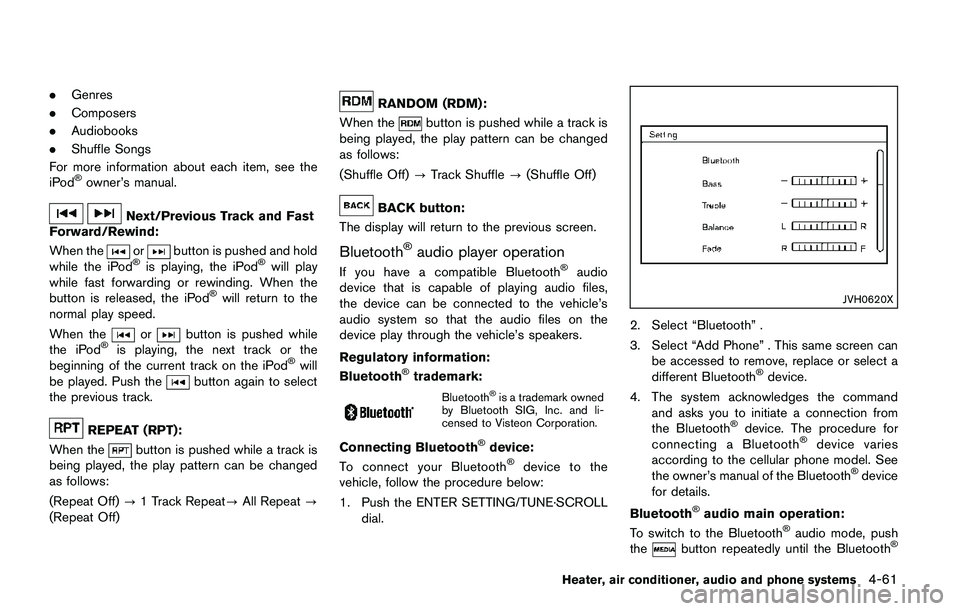
JVH0620X
2. Select “Bluetooth” .
3. Select “Add Phone” . This same screen can
be accessed to remove, replace or select a
different Bluetooth
Šdevice.
4. The system acknowledges the command
and asks you to initiate a connection from
the Bluetooth
Šdevice. The procedure for
connecting a BluetoothŠdevice varies
according to the cellular phone model. See
the owner’s manual of the Bluetooth
Šdevice
for details.
Bluetooth
Šaudio main operation:
To switch to the BluetoothŠaudio mode, push
thebutton repeatedly until the BluetoothŠ
Heater, air conditioner, audio and phone systems4-61
Page 243 of 508
4-62Heater, air conditioner, audio and phone systems
audio mode is displayed on the screen.
The controls for the BluetoothŠaudio are
displayed on the screen. Use the Preset
button to play and use the Presetbutton to
pause.
AUX device player operation
The AUX input jack is located on the lower part
of the instrument panel. (See “AUX (Auxiliary)
input jack” (P.4-73) .) The AUX input jack
accepts any standard analog audio input such
as from a portable cassette tape/CD player,
MP3 player or laptop computer.
Push the
button repeatedly to play a
compatible device when it is plugged into the
AUX input jack.
NISSAN strongly recommends using a stereo
mini plug cable when connecting your music
device to the audio system. Music may not play
properly when a monaural cable is used.
JVH1591X
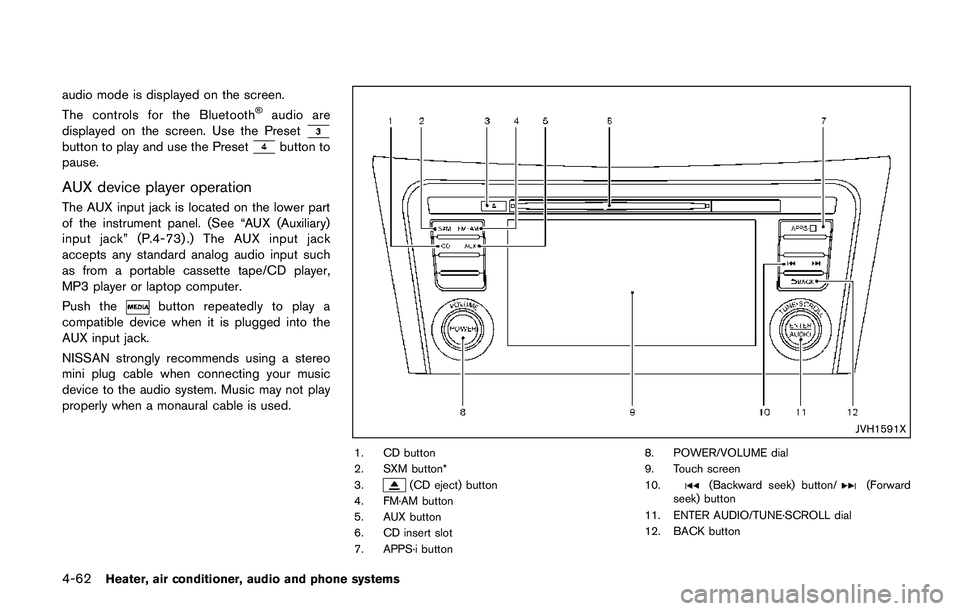
1. CD button
2. SXM button*
3.
(CD eject) button
4. FM·AM button
5. AUX button
6. CD insert slot
7. APPS·i button8. POWER/VOLUME dial
9. Touch screen
10.(Backward seek) button/(Forward
seek) button
11. ENTER AUDIO/TUNE·SCROLL dial
12. BACK button
Page 244 of 508
FM-AM-SAT RADIO WITH COMPACT
DISC (CD) PLAYER (Type B) (if so
equipped)
*No satellite radio reception is available when
the SXM button is pushed to access satellite
radio channels unless optional satellite receiver
and antenna are installed and a SiriusXM
Satellite Radio service subscription is active.
Satellite radio is not available in Alaska, Hawaii
and Guam.
For all operation precautions, see “Audio opera-
tion precautions” (P.4-38) .
Audio main operation
POWER/VOLUME dial:
Place the ignition switch in the ACC or ON
position and push the POWER/VOLUME dial
while the system is off to call up the available
audio source that was playing immediately
before the system was turned off.
To turn the system off, push the POWER/
VOLUME dial.
Turn the POWER/VOLUME dial to adjust the
volume.
This vehicle may be equipped with Speed
Sensitive Volume. When this feature is active,
the audio volume changes as the driving speed
changes.Audio settings:
Adjust the audio settings according to the
following procedure.
1. Push the APPS·i button.
2. Touch the “Settings” key.
3. Touch the “Audio” key.
Adjust the following items to the desired
setting.
.Bass:
Adjusts the bass to the desired level.
.Treble:
Adjusts the treble to the desired level.
.Balance:
Adjusts the balance to the desired level.
Balance adjusts the sound level between
the left and right speakers.
.Fade:
Adjusts the fade to the desired level.
Fade adjusts the sound level between
the front and rear speakers.
.Speed Sensitive Vol.:
Adjusts the speed sensitive volume
function, which increases the volume of
the audio system as the speed of the
vehicle increases. Set to “0” to disable
the feature. The higher the setting, the
more the volume increases in relation to
vehicle speed.
.AUX Volume Level:
Controls the volume level of incoming
sound when an auxiliary device is con-
nected to the system. Available options
are Low (quiet) , Medium, and High
(loud) .
Bass, treble, balance and fade can also be
adjusted by pushing the ENTER AUDIO/TU-
NE·SCROLL dial.
SXM settings:
View the SXM settings according to the follow-
ing procedure.
1. Push the APPS·i button.
2. Touch the “Settings” key.
3. Touch the “SXM” key.
The signal strength, activation status and other
information are displayed on the screen.
FM/AM/SAT radio operation
Radio (FM·AM) band select:
Push the FM·AM button to change the band as
follows:
AM?FM1?FM2?AM
If another audio source is playing when the
FM·AM button is pushed, the audio source
playing will automatically be turned off and the
last radio station played will begin playing.
The FM stereo indicator (ST) is shown on the
Heater, air conditioner, audio and phone systems4-63
Page 245 of 508
4-64Heater, air conditioner, audio and phone systems
screen during FM stereo reception. When the
stereo broadcast signal is weak, the radio
automatically changes from stereo to monaural
reception.
Radio (SXM) band select:
Pushing the SXM button will change the band
as follows:
SXM1?SXM2?SXM3?SXM1 (satellite, if
so equipped)
When the SXM button is pushed while the
ignition switch is placed in the ACC or ON
position, the radio will come on at the last
channel played.
The last channel played will also come on when
the POWER/VOLUME dial is pushed.
If a CD is playing when the SXM button is
pushed, the CD will automatically be turned off
and the last radio channel played will come on.
While the radio is in SXM mode, the operation
can be controlled through the touch screen.
Touch the “Channels” key to display a list of
channels. Touch a channel displayed on the list
to change to that channel. Touch the “Cate-
gories” key to display a list of categories. Touch
a category displayed on the list to display
options within that category.Tuning with the touch screen:
When in AM or FM mode, the radio can be
tuned using the touch screen. To bring up the
visual tuner, touch the “Tune” key on the lower
right corner of the screen. A screen appears
with a bar running from low frequencies on the
left to high frequencies on the right. Touch the
screen at the location of the frequency you wish
to tune and the station will change to that
frequency. To return to the regular radio screen,
touch the “OK” key.
Tuning with the ENTER AUDIO/TUNE·SC-
ROLL dial:
The radio can also be manually tuned using the
ENTER AUDIO/TUNE·SCROLL dial. When in
FM or AM mode, turn the ENTER AUDIO/
TUNE·SCROLL dial to the left for lower fre-
quencies or to the right for higher frequencies.
When in SXM mode, turn the ENTER AUDIO/
TUNE·SCROLL dial to change the channel.
SEEK tuning:
When in FM or AM mode, push the
orbutton to tune from low to high or high to low
frequencies and to stop at the next broadcasting
station.
When in SXM mode, push the
orbutton to change the category.
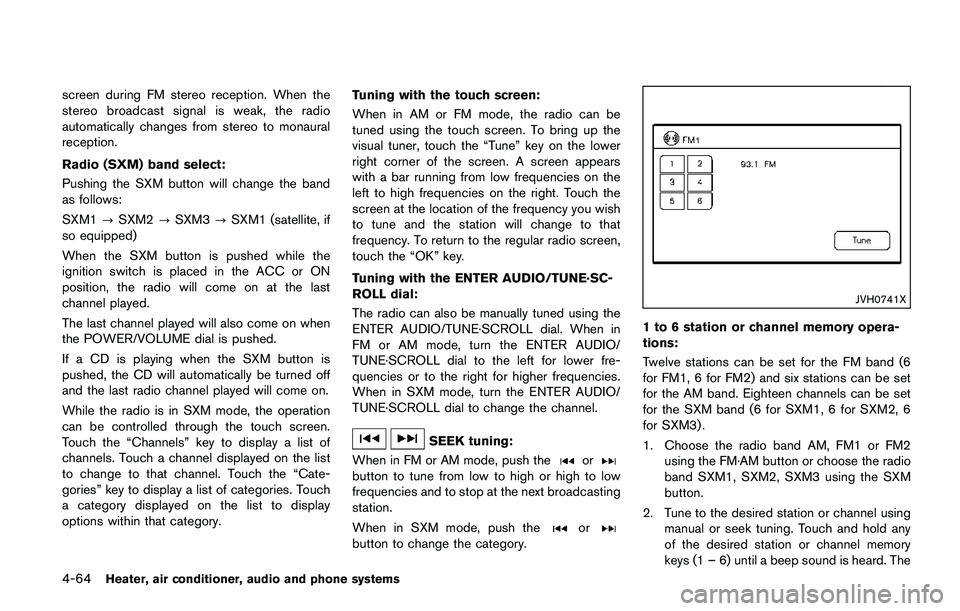
JVH0741X
1 to 6 station or channel memory opera-
tions:
Twelve stations can be set for the FM band (6
for FM1, 6 for FM2) and six stations can be set
for the AM band. Eighteen channels can be set
for the SXM band (6 for SXM1, 6 for SXM2, 6
for SXM3) .
1. Choose the radio band AM, FM1 or FM2
using the FM·AM button or choose the radio
band SXM1, SXM2, SXM3 using the SXM
button.
2. Tune to the desired station or channel using
manual or seek tuning. Touch and hold any
of the desired station or channel memory
keys (1 – 6) until a beep sound is heard. The
Page 246 of 508
station or channel indicator will then come
on.
3. Other keys can be set in the same manner.
If the battery cable is disconnected or if the fuse
opens, the radio memory will be erased. In that
case, reset the desired stations or channels.
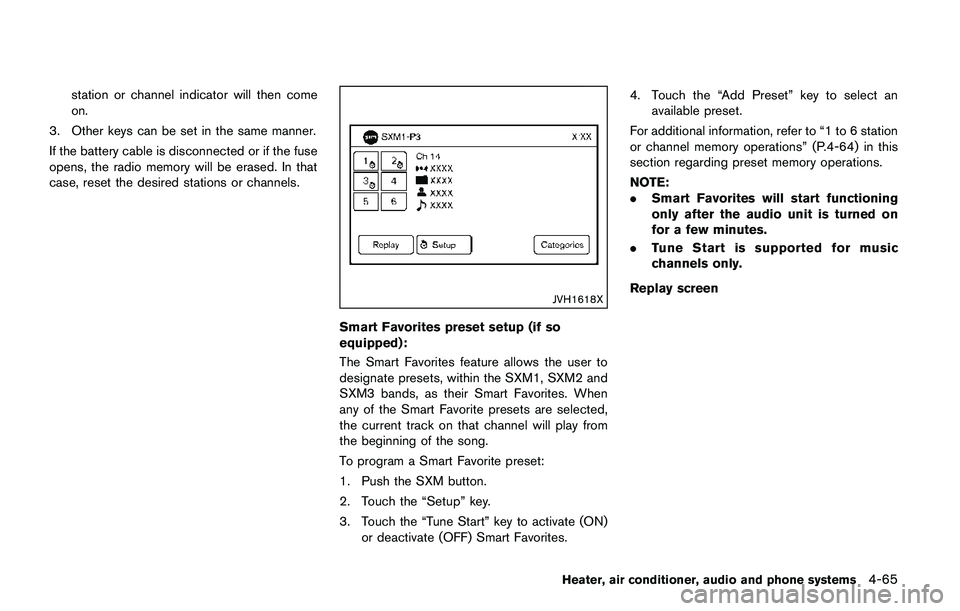
JVH1618X
Smart Favorites preset setup (if so
equipped):
The Smart Favorites feature allows the user to
designate presets, within the SXM1, SXM2 and
SXM3 bands, as their Smart Favorites. When
any of the Smart Favorite presets are selected,
the current track on that channel will play from
the beginning of the song.
To program a Smart Favorite preset:
1. Push the SXM button.
2. Touch the “Setup” key.
3. Touch the “Tune Start” key to activate (ON)
or deactivate (OFF) Smart Favorites.4. Touch the “Add Preset” key to select an
available preset.
For additional information, refer to “1 to 6 station
or channel memory operations” (P.4-64) in this
section regarding preset memory operations.
NOTE:
.Smart Favorites will start functioning
only after the audio unit is turned on
for a few minutes.
.Tune Start is supported for music
channels only.
Replay screen
Heater, air conditioner, audio and phone systems4-65
Page 247 of 508
4-66Heater, air conditioner, audio and phone systems
JVH1619X
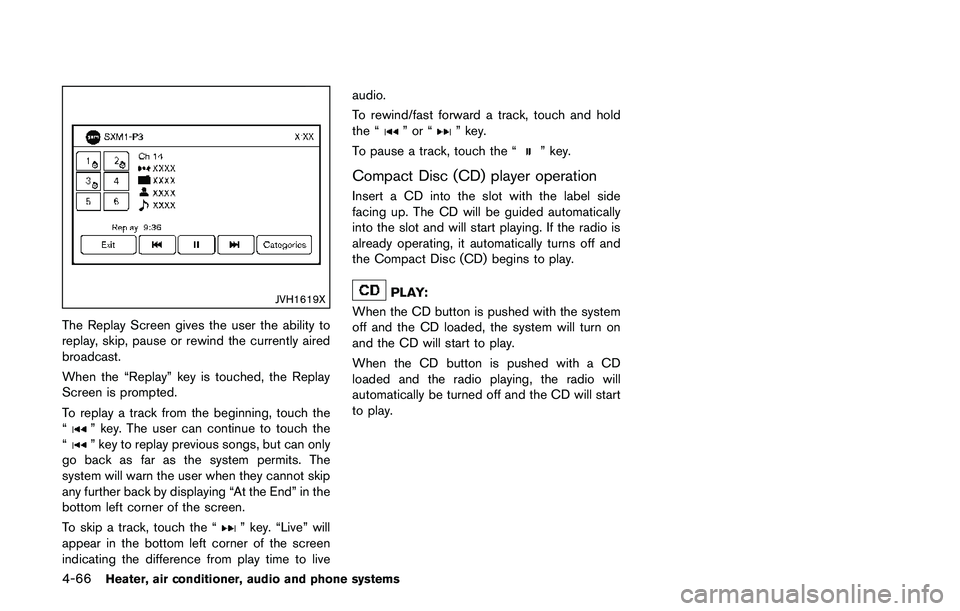
The Replay Screen gives the user the ability to
replay, skip, pause or rewind the currently aired
broadcast.
When the “Replay” key is touched, the Replay
Screen is prompted.
To replay a track from the beginning, touch the
“
” key. The user can continue to touch the
“” key to replay previous songs, but can only
go back as far as the system permits. The
system will warn the user when they cannot skip
any further back by displaying “At the End” in the
bottom left corner of the screen.
To skip a track, touch the “
” key. “Live” will
appear in the bottom left corner of the screen
indicating the difference from play time to liveaudio.
To rewind/fast forward a track, touch and hold
the “
”or“” key.
To pause a track, touch the “
” key.
Compact Disc (CD) player operation
Insert a CD into the slot with the label side
facing up. The CD will be guided automatically
into the slot and will start playing. If the radio is
already operating, it automatically turns off and
the Compact Disc (CD) begins to play.
PLAY:
When the CD button is pushed with the system
off and the CD loaded, the system will turn on
and the CD will start to play.
When the CD button is pushed with a CD
loaded and the radio playing, the radio will
automatically be turned off and the CD will start
to play.