NISSAN VERSA 2007 1.G Navigation Manual
VERSA 2007 1.G
NISSAN
NISSAN
https://www.carmanualsonline.info/img/5/721/w960_721-0.png
NISSAN VERSA 2007 1.G Navigation Manual
Page 185 of 272
NAV2965
2. Enter the telephone number of the home or
stored location.
“PHONE NUMBER INPUT SCREEN”
(page 2-25)
3. Highlight [OK] and push.
The telephone number is stored.
INFO:
If the phone number of your home or a location is
stored, the phone number can be used to search
for the destination even if it is not included in the
map DVD-ROM data.
NAV3094
Group (only for stored locations)
This allows you to group the stored locations.
By grouping the stored locations, you can utilize
the [By Group] option of the sort function more
effectively.
1. Highlight [Group] and push.
NAV2967
2. Highlight the preferred group and push
.
When the indicator of the selected group
illuminates, the stored location is classified
into the applicable group.
Storing a location/route6-23
Page 198 of 272
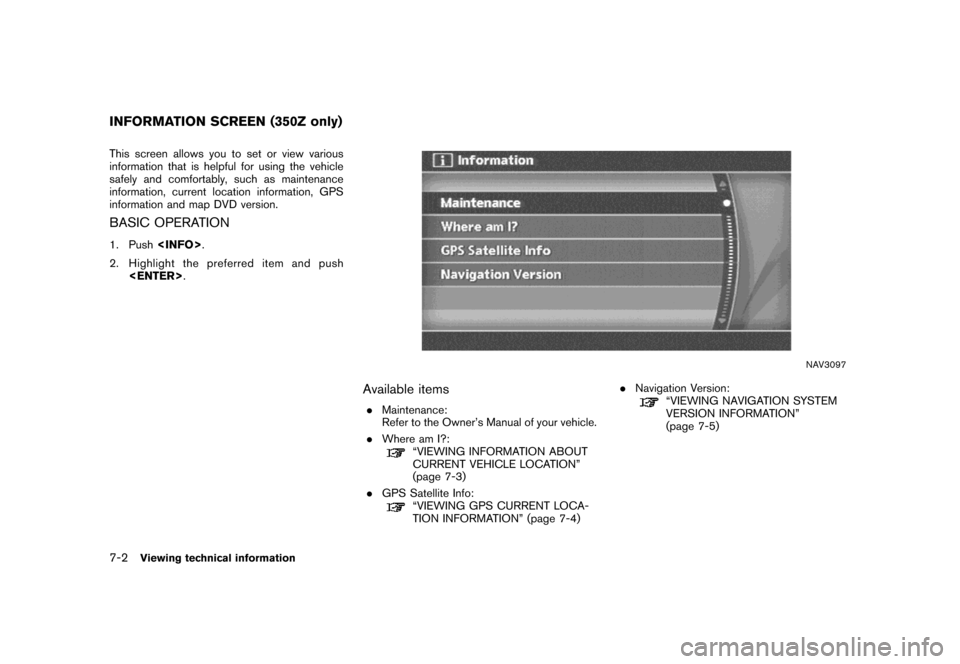
This screen allows you to set or view various
information that is helpful for using the vehicle
safely and comfortably, such as maintenance
information, current location information, GPS
information and map DVD version.
BASIC OPERATION
1. Push.
2. Highlight the preferred item and push
.
NAV3097
Available items
.Maintenance:
Refer to the Owner’s Manual of your vehicle.
.Where am I?:
“VIEWING INFORMATION ABOUT
CURRENT VEHICLE LOCATION”
(page 7-3)
.GPS Satellite Info:
“VIEWING GPS CURRENT LOCA-
TION INFORMATION” (page 7-4).Navigation Version:
“VIEWING NAVIGATION SYSTEM
VERSION INFORMATION”
(page 7-5)
INFORMATION SCREEN (350Z only)
7-2Viewing technical information
Page 199 of 272
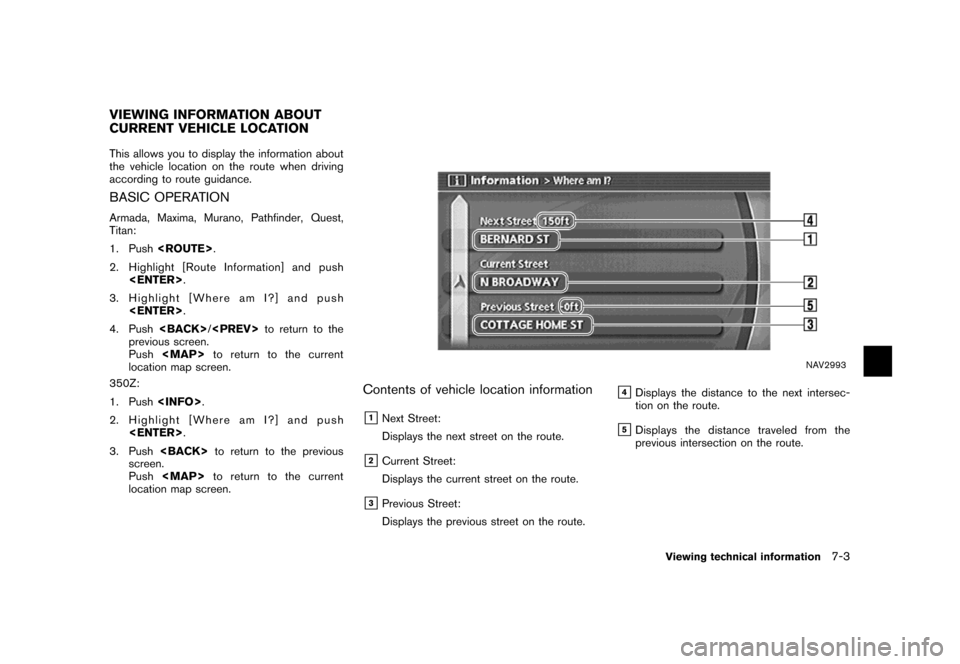
This allows you to display the information about
the vehicle location on the route when driving
according to route guidance.
BASIC OPERATION
Armada, Maxima, Murano, Pathfinder, Quest,
Titan:
1. Push.
2. Highlight [Route Information] and push
.
3. Highlight [Where am I?] and push
.
4. Push/to return to the
previous screen.
Push
Page 200 of 272
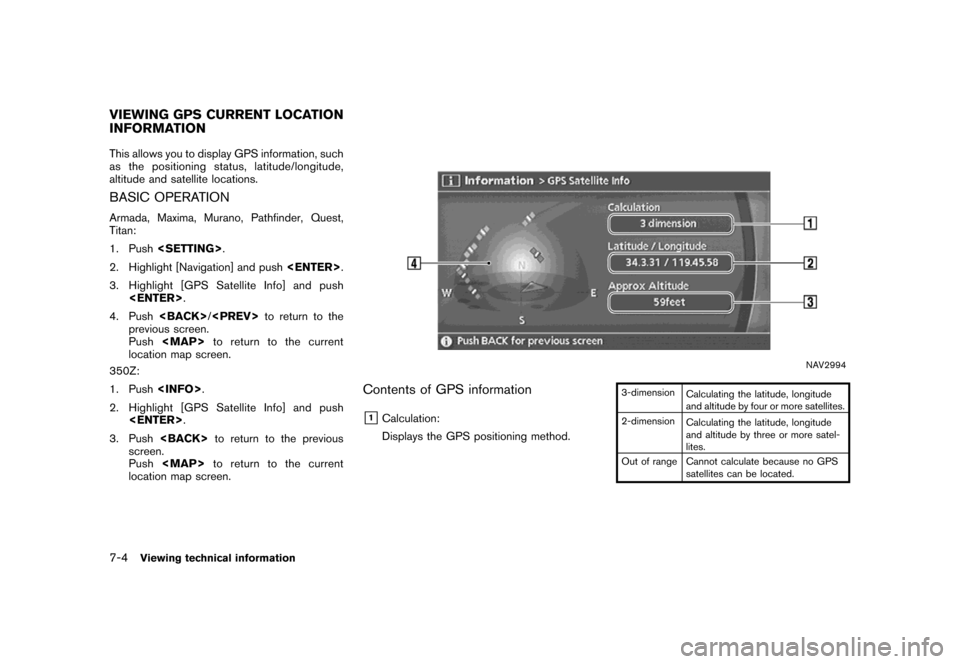
This allows you to display GPS information, such
as the positioning status, latitude/longitude,
altitude and satellite locations.
BASIC OPERATION
Armada, Maxima, Murano, Pathfinder, Quest,
Titan:
1. Push.
2. Highlight [Navigation] and push.
3. Highlight [GPS Satellite Info] and push
.
4. Push/to return to the
previous screen.
Push
Page 201 of 272
&2Latitude/Longitude:
Displays the latitude/longitude.
&3Approx Altitude:
Displays the approximate altitude.
&4Positioning status:
It indicates that satellites are available.
It indicates that satellites are being
searched for.
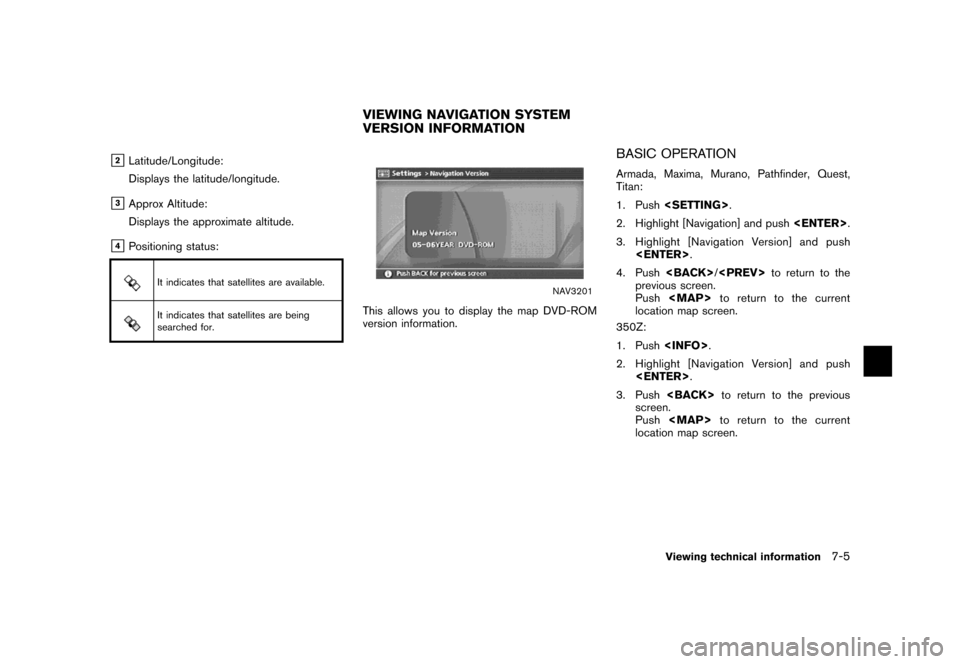
NAV3201
This allows you to display the map DVD-ROM
version information.
BASIC OPERATION
Armada, Maxima, Murano, Pathfinder, Quest,
Titan:
1. Push.
2. Highlight [Navigation] and push.
3. Highlight [Navigation Version] and push
.
4. Push/to return to the
previous screen.
Push
Page 204 of 272
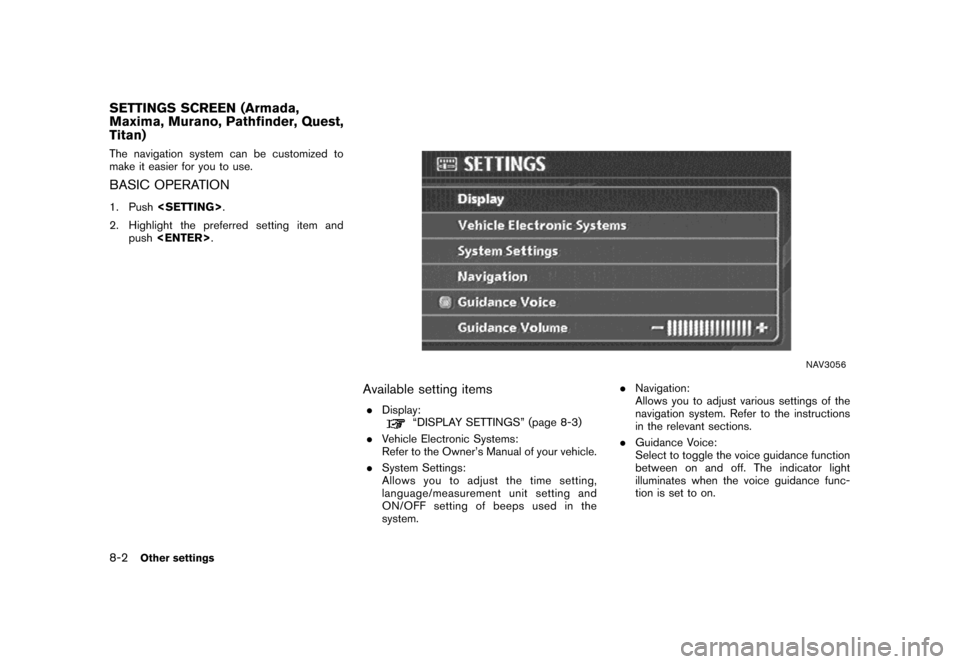
The navigation system can be customized to
make it easier for you to use.
BASIC OPERATION
1. Push.
2. Highlight the preferred setting item and
push.
NAV3056
Available setting items
.Display:“DISPLAY SETTINGS” (page 8-3)
.Vehicle Electronic Systems:
Refer to the Owner’s Manual of your vehicle.
.System Settings:
Allows you to adjust the time setting,
language/measurement unit setting and
ON/OFF setting of beeps used in the
system..Navigation:
Allows you to adjust various settings of the
navigation system. Refer to the instructions
in the relevant sections.
.Guidance Voice:
Select to toggle the voice guidance function
between on and off. The indicator light
illuminates when the voice guidance func-
tion is set to on.
SETTINGS SCREEN (Armada,
Maxima, Murano, Pathfinder, Quest,
Titan)
8-2Other settings
Page 205 of 272
.Guidance Volume:
Adjust the volume level of voice guidance by
tilting the joystick in the direction of [+] or
[−].
DISPLAY SETTINGS
This menu allows you to turn on and off the
display and adjust the image quality.
Basic operation
1. Highlight [Display] and push.
2. Highlight the preferred adjustment item and
push.
3. Use the joystick to adjust to the preferred
setting.
4. After setting, pushor/
to apply the setting.
5. Push/to return to the
previous screen. Push
Page 208 of 272
SYSTEM SETTINGS SCREEN
Allows you to set system settings such as
language/measurement unit setting.
Basic operation
1. Highlight [System Settings] and push
.
2. Highlight the preferred adjustment item and
push.
3. Push/to return to the
previous screen. Push
Page 209 of 272
LANGUAGE AND UNIT SETTINGS
This allows you to change the language and
measurement unit used in the system.
NAV3031
Language settings
1. Highlight [Language/Units] and push
.
NAV3032
2. Highlight the preferred setting item and
push. The indicator light of the
selected item illuminates.
Available languages
— English
— Franc¸ais
Other settings8-7
Page 212 of 272
CLOCK SETTINGS
This allows you to change the clock settings.
Basic operation
1. Highlight [Clock] and push.
2. Highlight the preferred adjustment item.
3. Use the joystick to adjust to the preferred
setting.
4. After setting, pushor/
to apply the setting.
5. Push/to return to the
previous screen. Push
![NISSAN VERSA 2007 1.G Navigation Manual NAV2965
2. Enter the telephone number of the home or
stored location.
“PHONE NUMBER INPUT SCREEN”
(page 2-25)
3. Highlight [OK] and push<ENTER>.
The telephone number is stored.
INFO:
If the phone](/img/5/721/w960_721-184.png "NISSAN VERSA 2007 1.G Navigation Manual NAV2965
2. Enter the telephone number of the home or
stored location.
“PHONE NUMBER INPUT SCREEN”
(page 2-25)
3. Highlight [OK] and push<ENTER>.
The telephone number is stored.
INFO:
If the phone")
![NISSAN VERSA 2007 1.G Navigation Manual .Guidance Volume:
Adjust the volume level of voice guidance by
tilting the joystick in the direction of [+] or
[−].
DISPLAY SETTINGS
This menu allows you to turn on and off the
display and adjust th](/img/5/721/w960_721-204.png "NISSAN VERSA 2007 1.G Navigation Manual .Guidance Volume:
Adjust the volume level of voice guidance by
tilting the joystick in the direction of [+] or
[−].
DISPLAY SETTINGS
This menu allows you to turn on and off the
display and adjust th")
![NISSAN VERSA 2007 1.G Navigation Manual SYSTEM SETTINGS SCREEN
Allows you to set system settings such as
language/measurement unit setting.
Basic operation
1. Highlight [System Settings] and push
<ENTER>.
2. Highlight the preferred adjustme](/img/5/721/w960_721-207.png "NISSAN VERSA 2007 1.G Navigation Manual SYSTEM SETTINGS SCREEN
Allows you to set system settings such as
language/measurement unit setting.
Basic operation
1. Highlight [System Settings] and push
<ENTER>.
2. Highlight the preferred adjustme")
![NISSAN VERSA 2007 1.G Navigation Manual LANGUAGE AND UNIT SETTINGS
This allows you to change the language and
measurement unit used in the system.
NAV3031
Language settings
1. Highlight [Language/Units] and push
<ENTER>.
NAV3032
2. Highligh](/img/5/721/w960_721-208.png "NISSAN VERSA 2007 1.G Navigation Manual LANGUAGE AND UNIT SETTINGS
This allows you to change the language and
measurement unit used in the system.
NAV3031
Language settings
1. Highlight [Language/Units] and push
<ENTER>.
NAV3032
2. Highligh")
![NISSAN VERSA 2007 1.G Navigation Manual CLOCK SETTINGS
This allows you to change the clock settings.
Basic operation
1. Highlight [Clock] and push<ENTER>.
2. Highlight the preferred adjustment item.
3. Use the joystick to adjust to the pref](/img/5/721/w960_721-211.png "NISSAN VERSA 2007 1.G Navigation Manual CLOCK SETTINGS
This allows you to change the clock settings.
Basic operation
1. Highlight [Clock] and push<ENTER>.
2. Highlight the preferred adjustment item.
3. Use the joystick to adjust to the pref")