low NISSAN VERSA 2007 1.G Navigation Manual
[x] Cancel search | Manufacturer: NISSAN, Model Year: 2007, Model line: VERSA, Model: NISSAN VERSA 2007 1.GPages: 272, PDF Size: 4.16 MB
Page 214 of 272
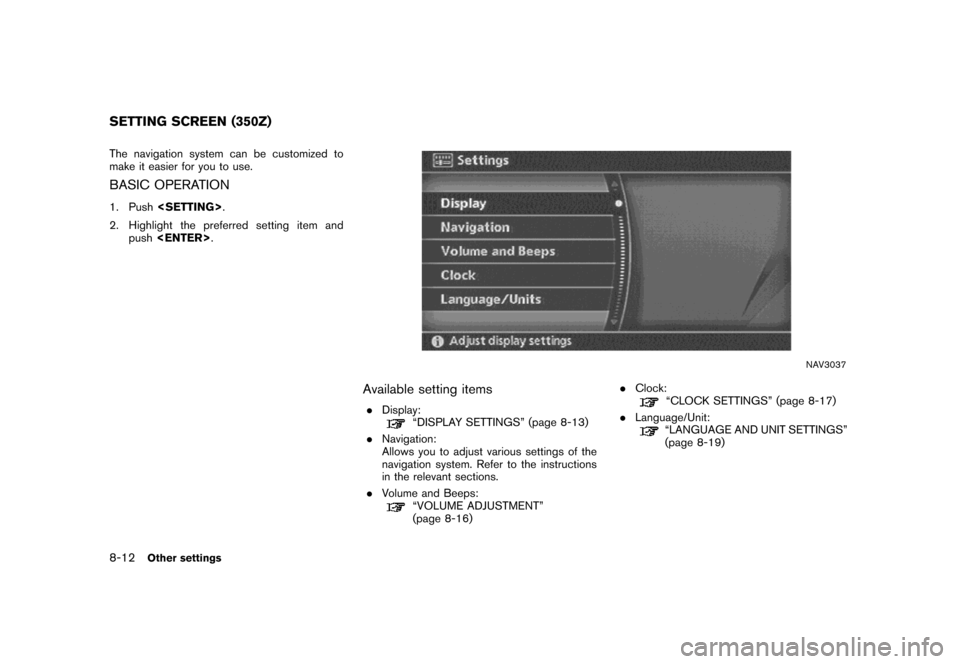
The navigation system can be customized to
make it easier for you to use.
BASIC OPERATION
1. Push
2. Highlight the preferred setting item and
push
NAV3037
Available setting items
.Display:“DISPLAY SETTINGS” (page 8-13)
.Navigation:
Allows you to adjust various settings of the
navigation system. Refer to the instructions
in the relevant sections.
.Volume and Beeps:
“VOLUME ADJUSTMENT”
(page 8-16).Clock:
“CLOCK SETTINGS” (page 8-17)
.Language/Unit:
“LANGUAGE AND UNIT SETTINGS”
(page 8-19)
SETTING SCREEN (350Z)
8-12Other settings
Page 215 of 272
![NISSAN VERSA 2007 1.G Navigation Manual DISPLAY SETTINGS
This menu allows you to turn on and off the
display and adjust the image quality.
Basic operation
1. Highlight [Display] and push<ENTER>.
2. Highlight the preferred adjustment item an](/img/5/721/w960_721-214.png "NISSAN VERSA 2007 1.G Navigation Manual DISPLAY SETTINGS
This menu allows you to turn on and off the
display and adjust the image quality.
Basic operation
1. Highlight [Display] and push<ENTER>.
2. Highlight the preferred adjustment item an")
DISPLAY SETTINGS
This menu allows you to turn on and off the
display and adjust the image quality.
Basic operation
1. Highlight [Display] and push
2. Highlight the preferred adjustment item and
push
3. Use the main directional buttons or the
center dial to adjust to the preferred setting.
4. After setting, push
to apply the setting.
5. Push
screen. Push
Page 218 of 272
![NISSAN VERSA 2007 1.G Navigation Manual VOLUME ADJUSTMENT
This allows you to turn on and off, as well as
adjust, the voice guide function and the beep
function.
Basic operation
1. Highlight [Volume and Beeps] and push
<ENTER>.
2. Highlight](/img/5/721/w960_721-217.png "NISSAN VERSA 2007 1.G Navigation Manual VOLUME ADJUSTMENT
This allows you to turn on and off, as well as
adjust, the voice guide function and the beep
function.
Basic operation
1. Highlight [Volume and Beeps] and push
<ENTER>.
2. Highlight")
VOLUME ADJUSTMENT
This allows you to turn on and off, as well as
adjust, the voice guide function and the beep
function.
Basic operation
1. Highlight [Volume and Beeps] and push
2. Highlight the preferred adjustment item and
push
3. Use the joystick to adjust the volume.
Push
4. After setting, push
to apply the setting.
5. Push
screen. Push
Page 219 of 272
![NISSAN VERSA 2007 1.G Navigation Manual CLOCK SETTINGS
This allows you to change the clock settings.
Basic operation
1. Highlight [Clock] and push<ENTER>.
2. Highlight the preferred adjustment item and
push<ENTER>.
3. Use the joystick to ad](/img/5/721/w960_721-218.png "NISSAN VERSA 2007 1.G Navigation Manual CLOCK SETTINGS
This allows you to change the clock settings.
Basic operation
1. Highlight [Clock] and push<ENTER>.
2. Highlight the preferred adjustment item and
push<ENTER>.
3. Use the joystick to ad")
CLOCK SETTINGS
This allows you to change the clock settings.
Basic operation
1. Highlight [Clock] and push
2. Highlight the preferred adjustment item and
push
3. Use the joystick to adjust to the preferred
setting.
Push
4. After setting, push
to apply the setting.
5. Push
screen. Push
Page 221 of 272
![NISSAN VERSA 2007 1.G Navigation Manual LANGUAGE AND UNIT SETTINGS
This allows you to change the language and
measurement unit used in the system.
NAV3009
Language settings
1. Highlight [Language/Units] and push
<ENTER>.
NAV3010
2. Highligh](/img/5/721/w960_721-220.png "NISSAN VERSA 2007 1.G Navigation Manual LANGUAGE AND UNIT SETTINGS
This allows you to change the language and
measurement unit used in the system.
NAV3009
Language settings
1. Highlight [Language/Units] and push
<ENTER>.
NAV3010
2. Highligh")
LANGUAGE AND UNIT SETTINGS
This allows you to change the language and
measurement unit used in the system.
NAV3009
Language settings
1. Highlight [Language/Units] and push
NAV3010
2. Highlight [Select Language] and push
Other settings8-19
Page 224 of 272
![NISSAN VERSA 2007 1.G Navigation Manual This allows you to change the map color.
NAV3005
1. Highlight [Navigation] and push<ENTER>.
2. Highlight [Map Color Settings] and push
<ENTER>.
NAV3006
3. Highlight the preferred map color and push
<E](/img/5/721/w960_721-223.png "NISSAN VERSA 2007 1.G Navigation Manual This allows you to change the map color.
NAV3005
1. Highlight [Navigation] and push<ENTER>.
2. Highlight [Map Color Settings] and push
<ENTER>.
NAV3006
3. Highlight the preferred map color and push
<E")
This allows you to change the map color.
NAV3005
1. Highlight [Navigation] and push
2. Highlight [Map Color Settings] and push
NAV3006
3. Highlight the preferred map color and push
lected color illuminates.
Available map colors
Warm: Sets warm colors for the map
coloring.
Cool: Sets cool colors for the map color-
ing.
INFO:
You can confirm the effect of your setting on the
preview displayed on the right side of the
screen.
MAP COLOR SETTINGS
8-22Other settings
Page 227 of 272
This allows you to restore various settings
(display, volume level, etc.) to the default
settings.
INFO:
The memory contents, such as the stored
locations, will not be deleted.
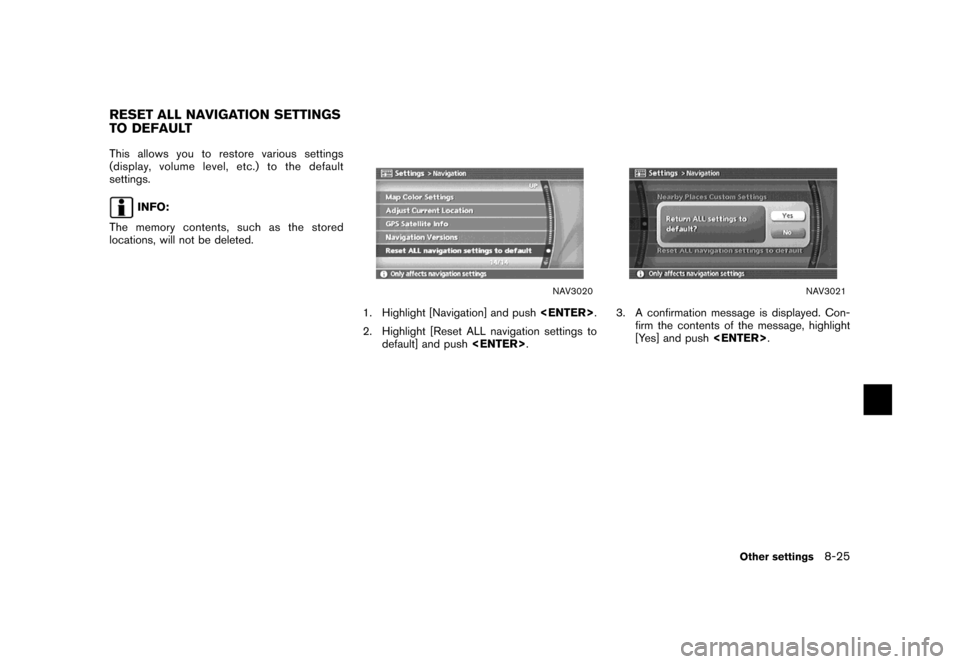
NAV3020
1. Highlight [Navigation] and push
2. Highlight [Reset ALL navigation settings to
default] and push
NAV3021
3. A confirmation message is displayed. Con-
firm the contents of the message, highlight
[Yes] and push
RESET ALL NAVIGATION SETTINGS
TO DEFAULT
Other settings8-25
Page 230 of 272

ROUTE GUIDANCE
The main features of the NISSAN Navigation
System are visual guidance and voice guidance
in selected map coverage areas. Utilizing a
network of GPS (Global Positioning System)
satellites, the NISSAN Navigation System tracks
your location on the map and navigates you to a
preferred location.
Once you set the destination in a map coverage
area, the NISSAN Navigation System will
calculate a route from your current location to
your destination. The real-time map display and
turn-by-turn voice guidance leads the driver
along the route.
These features can be especially helpful when
driving to unfamiliar locations.
The system may be unable to set a destination
and/or calculate a route when the destination is
outside the map coverage area. Additionally,
voice guidance may not be available if the
destination is outside the map coverage area.
For more information on how to set a destina-
tion, refer to section 4.
POINTS OF INTEREST (POI) DIREC-
TO RY
The NISSAN Navigation System offers an
extensive Points of Interest (POI) directory in
map coverage areas. This directory includes awide variety of destinations ranging from gas
stations, ATMs, and restaurants to casinos, ski
resorts, shopping centers and businesses. By
accessing the Points of Interest directory, you
can search for addresses and phone numbers
for a destination, and just by pushing a button,
the NISSAN Navigation System will calculate a
route to the destination.
The POI directory has many uses. For example,
the directory can be sorted by the various types
of restaurants near your current location. If you
need an ATM or gas station, the NISSAN
Navigation System can navigate you to the
closest preferred location.
For more information on how to use the Points of
Interest directory, refer to section 4.
ADDRESS BOOK
The Address Book can store up to 100 locations
from map coverage areas into a personal
directory. This is especially useful for frequently
visited locations, such as clients, relatives and
friends. The Address Book function allows easy
access to frequently visited locations when
setting them as your destination.
For more information on how to use the Address
Book, refer to section 6.
AVOID AREA
The Avoid Area function allows you to identify
areas or freeways that you would like the
NISSAN Navigation System to avoid when
calculating routes. For example, if a freeway or
area is always congested with traffic, you can
set the NISSAN Navigation System to calculate
routes that exclude that freeway or area.
For more information on the Avoid Area function,
refer to section 6.
AUTOMATIC REROUTE
If you deviate from the suggested route, the
NISSAN Navigation System will automatically
recalculate a new route to your destination.
For more information on the Automatic reroute
function, refer to section 5.
DETOUR
If you want to make a detour due to traffic
conditions, you can use the Detour function to
calculate an alternative route. The NISSAN
Navigation System can calculate a route using
secondary roads that will return you to primary
roads after a specified number of miles.
For more information on the Detour function,
refer to section 5.
FEATURES OF THIS NAVIGATION
SYSTEM
9-2General system information
Page 232 of 272
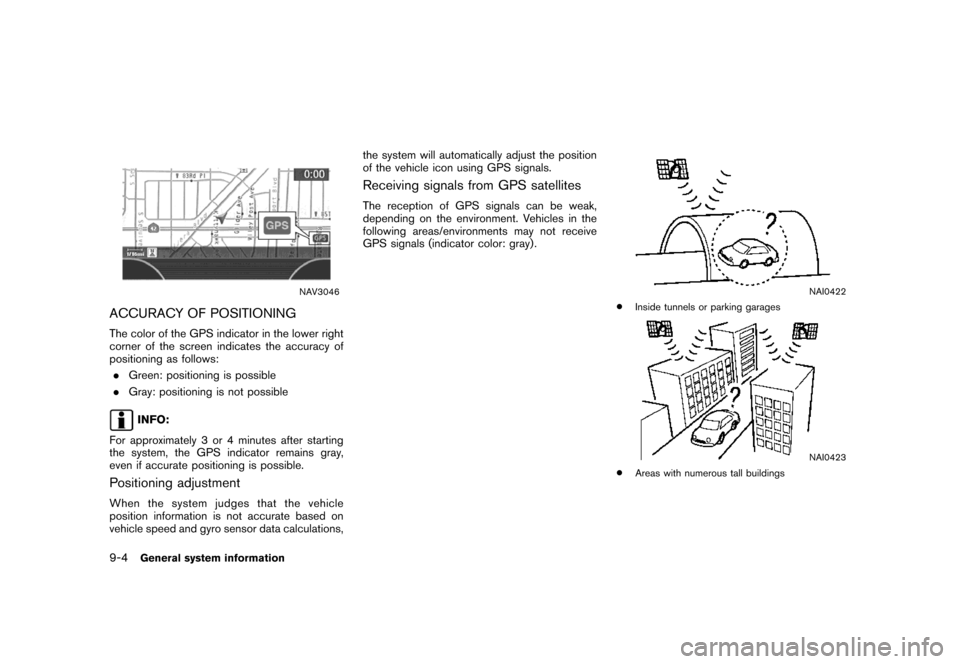
NAV3046
ACCURACY OF POSITIONING
The color of the GPS indicator in the lower right
corner of the screen indicates the accuracy of
positioning as follows:
.Green: positioning is possible
.Gray: positioning is not possible
INFO:
For approximately 3 or 4 minutes after starting
the system, the GPS indicator remains gray,
even if accurate positioning is possible.
Positioning adjustment
When the system judges that the vehicle
position information is not accurate based on
vehicle speed and gyro sensor data calculations,the system will automatically adjust the position
of the vehicle icon using GPS signals.
Receiving signals from GPS satellites
The reception of GPS signals can be weak,
depending on the environment. Vehicles in the
following areas/environments may not receive
GPS signals (indicator color: gray) .
NAI0422
*Inside tunnels or parking garages
NAI0423
*Areas with numerous tall buildings
9-4General system information
Page 234 of 272

INCORRECT DISPLAY OF VEHICLE
POSITION
The following cases may affect the display
accuracy of the vehicle’s position or traveling
direction. The accuracy will return to normal if
the driving conditions return to normal.
NAI0426
*When there is a similar road nearby.
NAI0427
*When the vehicle is traveling in an area with a grid
pattern road system.
NAI0428
*When the vehicle is passing through a large Y-
shaped intersection/junction.
NAI0429
*When the vehicle is traveling on a continuous,
slowly curving road.
9-6General system information