AUX PEUGEOT 108 2015 Owners Manual
[x] Cancel search | Manufacturer: PEUGEOT, Model Year: 2015, Model line: 108, Model: PEUGEOT 108 2015Pages: 271, PDF Size: 7.42 MB
Page 65 of 271
63
108_en_Chap04_amenagements_ed01-2015
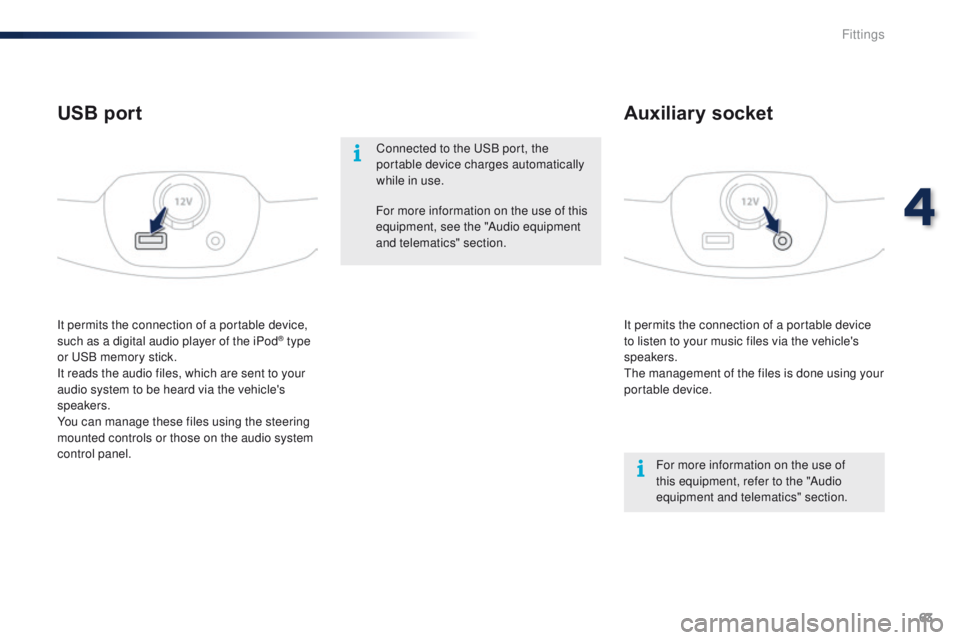
It permits the connection of a portable device
to listen to your music files via the vehicle's
speakers.
th
e management of the files is done using your
portable device.
It permits the connection of a portable device,
such as a digital audio player of the iPod® type
or
uS
B memory stick.
It reads the audio files, which are sent to your
audio system to be heard via the vehicle's
speakers.
You can manage these files using the steering
mounted controls or those on the audio system
control panel.
Auxiliary socket
USB port
For more information on the use of
this equipment, refer to the "Audio
equipment and telematics" section.
For more information on the use of this
equipment, see the "Audio equipment
and telematics" section.
Connected to the
u
S
B port, the
portable device charges automatically
while in use.
4
Fittings
Page 157 of 271
155
108_en_Chap09_info-pratiques_ed01-2015
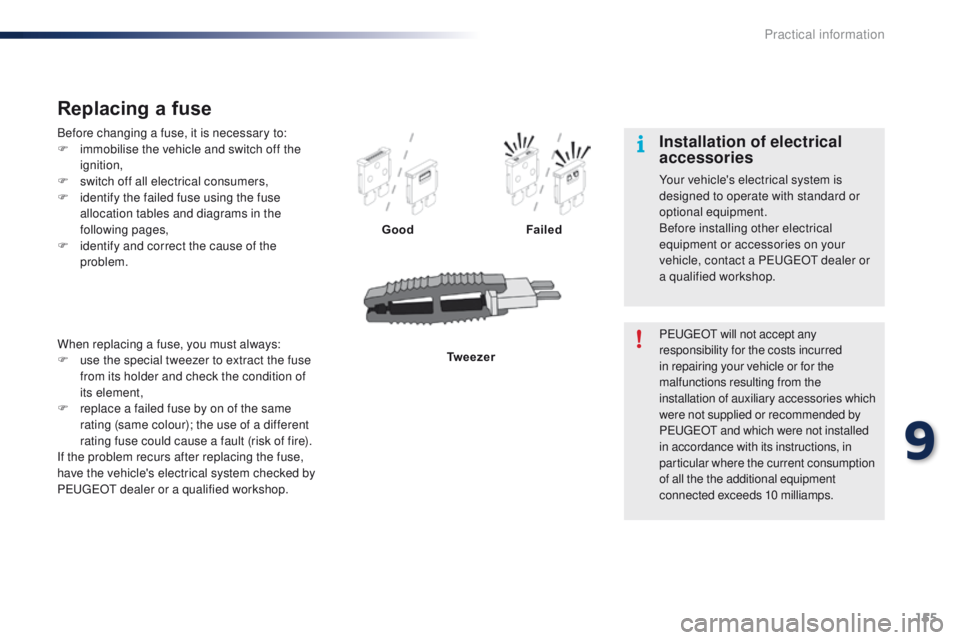
Before changing a fuse, it is necessary to:
F i mmobilise the vehicle and switch off the
ignition,
F
s
witch off all electrical consumers,
F
i
dentify the failed fuse using the fuse
allocation tables and diagrams in the
following pages,
F
i
dentify and correct the cause of the
problem.
Replacing a fuse
Good Failed
Tw e e z e r
When replacing a fuse, you must always:
F
u
se the special tweezer to extract the fuse
from its holder and check the condition of
its element,
F
r
eplace a failed fuse by on of the same
rating (same colour); the use of a different
rating fuse could cause a fault (risk of fire).
If the problem recurs after replacing the fuse,
have the vehicle's electrical system checked by
P
e
uge
Ot
dealer or a qualified workshop. P
e
uge
Ot
will not accept any
responsibility for the costs incurred
in repairing your vehicle or for the
malfunctions resulting from the
installation of auxiliary accessories which
were not supplied or recommended by
P
e
uge
Ot
and which were not installed
in accordance with its instructions, in
particular where the current consumption
of all the the additional equipment
connected exceeds 10 milliamps.
Installation of electrical
accessories
Your vehicle's electrical system is
designed to operate with standard or
optional equipment.
Before installing other electrical
equipment or accessories on your
vehicle, contact a P
e
uge
Ot
dealer or
a qualified workshop.
9
Practical information
Page 187 of 271
185
108_en_Chap12a_Autoradio-Toyota-tactile-1_ed01-2015
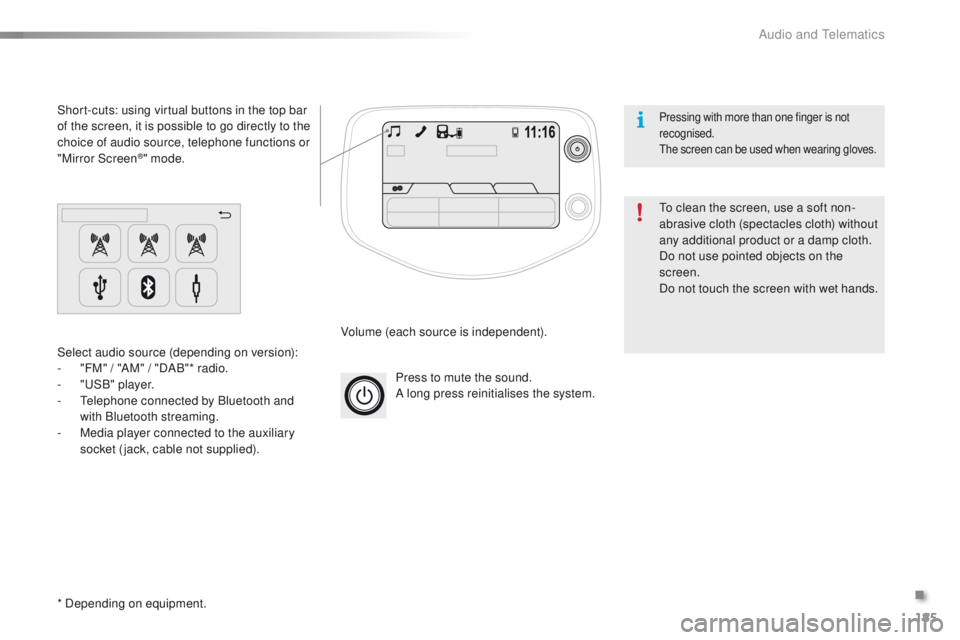
Press to mute the sound.
A long press reinitialises the system.
Volume (each source is independent).
Select audio source (depending on version):
-
"
FM" / "AM" / "DAB"* radio.
-
"uS
B" player.
-
t
e
lephone connected by Bluetooth and
with Bluetooth streaming.
-
M
edia player connected to the auxiliary
socket (jack, cable not supplied).
Short-cuts: using virtual buttons in the top bar
of the screen, it is possible to go directly to the
choice of audio source, telephone functions or
"Mirror Screen
®" mode.
* Depending on equipment.
to c
lean the screen, use a soft non-
abrasive cloth (spectacles cloth) without
any additional product or a damp cloth.
Do not use pointed objects on the
screen.
Do not touch the screen with wet hands.
Pressing with more than one finger is not
recognised.
th
e screen can be used when wearing gloves.
.
Audio and telematics
Page 198 of 271
196
108_en_Chap12a_Autoradio-Toyota-tactile-1_ed01-2015
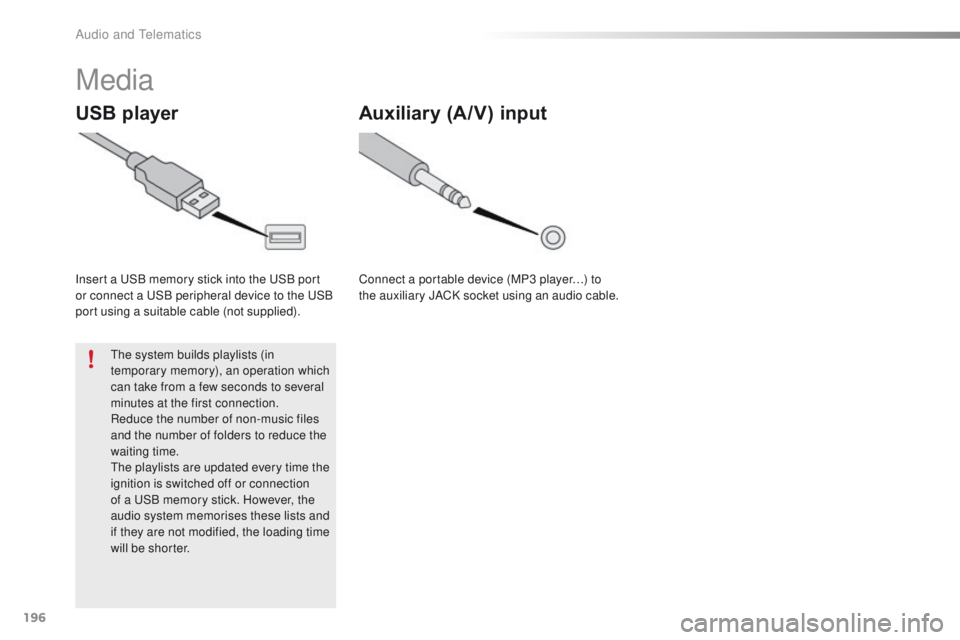
Media
USB player
Insert a uSB memory stick into the uS B port
or connect a uS B peripheral device to the uS B
port using a suitable cable (not supplied).
th
e system builds playlists (in
temporary memory), an operation which
can take from a few seconds to several
minutes at the first connection.
Reduce the number of non-music files
and the number of folders to reduce the
waiting time.
th
e playlists are updated every time the
ignition is switched off or connection
of a
u
S
B memory stick. However, the
audio system memorises these lists and
if they are not modified, the loading time
will be shorter.
Auxiliary (A/V) input
Connect a portable device (MP3 player…) to
the auxiliary JACK socket using an audio cable.
Audio and telematics
Page 199 of 271
197
108_en_Chap12a_Autoradio-Toyota-tactile-1_ed01-2015
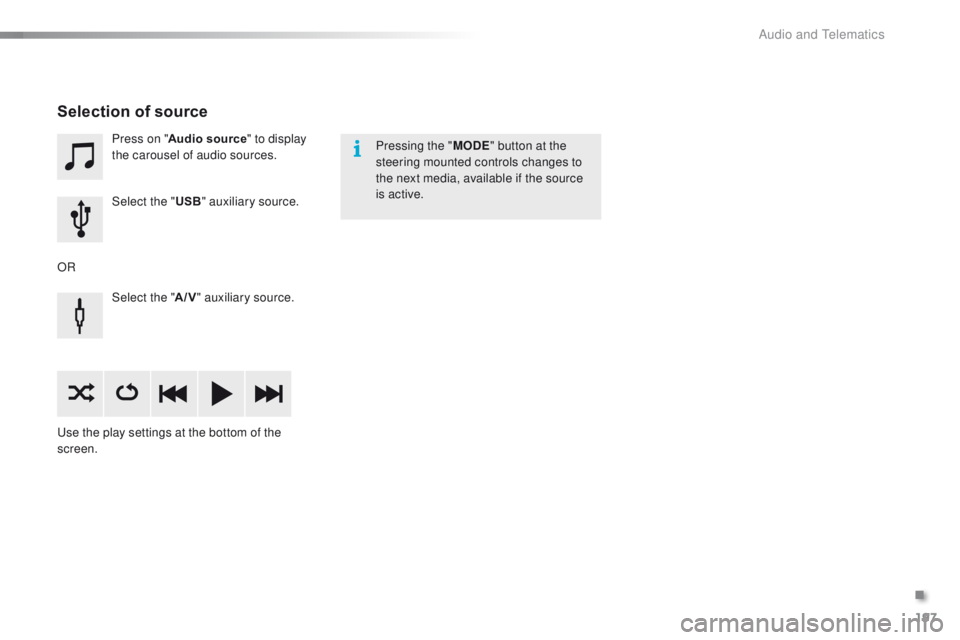
Press on "Audio source " to display
the carousel of audio sources.
Select the " USB" auxiliary source.
Select the " A/V" auxiliary source.
us
e the play settings at the bottom of the
screen.
Selection of source
OR Pressing the "
MODE" button at the
steering mounted controls changes to
the next media, available if the source
is active.
.
Audio and telematics
Page 200 of 271
198
108_en_Chap12a_Autoradio-Toyota-tactile-1_ed01-2015
Information and advice
the system accepts uS B mass storage
devices or Apple® players via the uS
B ports.
th
e adaptor cable is not
supplied.
Control of the peripheral device is with
the audio system controls.
Other peripherals, not recognised on
connection, must be connected to the
auxiliary socket using a Jack cable (not
supplied).
It is advisable to restrict file names to
20
characters, without using of special
characters (e.g.: " " ? ; ù) to avoid any playing
and displaying problems.
us
e only
u
S
B memory sticks formatted FA
t
32
(File Allocation
t
a
ble).th
e audio system plays files with the extension:
".wma", type Ver7 and Ver8 with bit rate
between 48 and 192 Kbps and type Ver9 with
bit rate between 48 and 320 Kbps.
".aac", with bit rate between 16 and 320 Kbps.
".mp3 - MP
e
g
1
" with bit rate between 32 and
320 Kbps and ".mp3 - MP
e
g
2
" with bit rate
between 8 and 160 Kbps.
th
e sampling rates supported are 11, 22, 44
and 48 KHz.
th
e system can alternatively read files
via the Bluetooth
® system and the uS B
port.
It is recommended that the
u
S
B cable
for the portable device is used.
Audio and telematics
Page 212 of 271
210
108_en_Chap12a_Autoradio-Toyota-tactile-1_ed01-2015
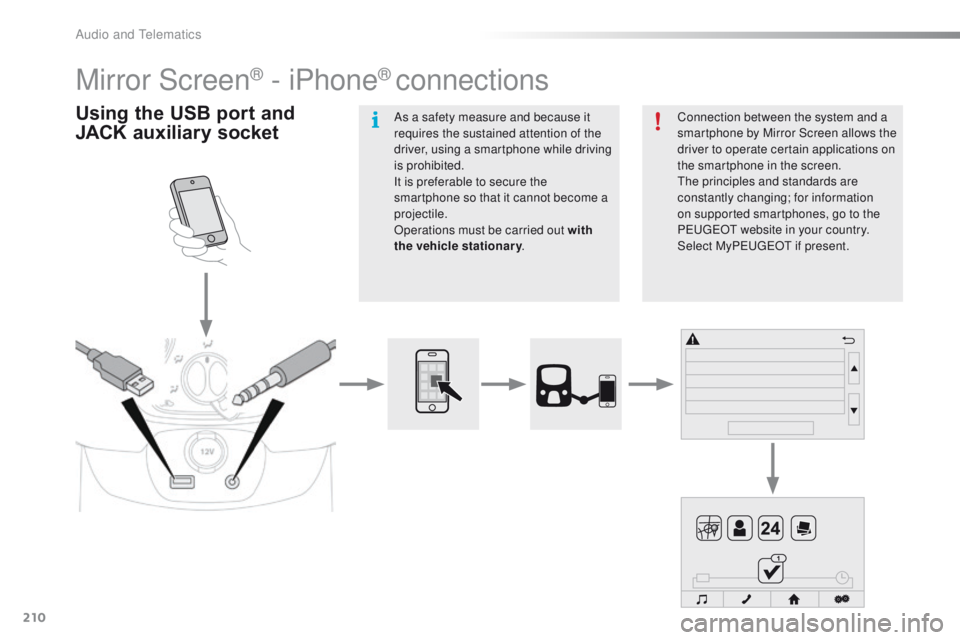
Mirror Screen® - iPhone® connections
Using the USB port and
JACK auxiliary socketConnection between the system and a
smartphone by Mirror Screen allows the
driver to operate certain applications on
the smartphone in the screen.
th
e principles and standards are
constantly changing; for information
on supported smartphones, go to the
P
e
uge
Ot
website in your country.
Select MyP
e
uge
Ot i
f present.
As a safety measure and because it
requires the sustained attention of the
driver, using a smartphone while driving
is prohibited.
It is preferable to secure the
smartphone so that it cannot become a
projectile.
Operations must be carried out with
the vehicle stationary
.
Audio and telematics
Page 213 of 271
211
108_en_Chap12a_Autoradio-Toyota-tactile-1_ed01-2015
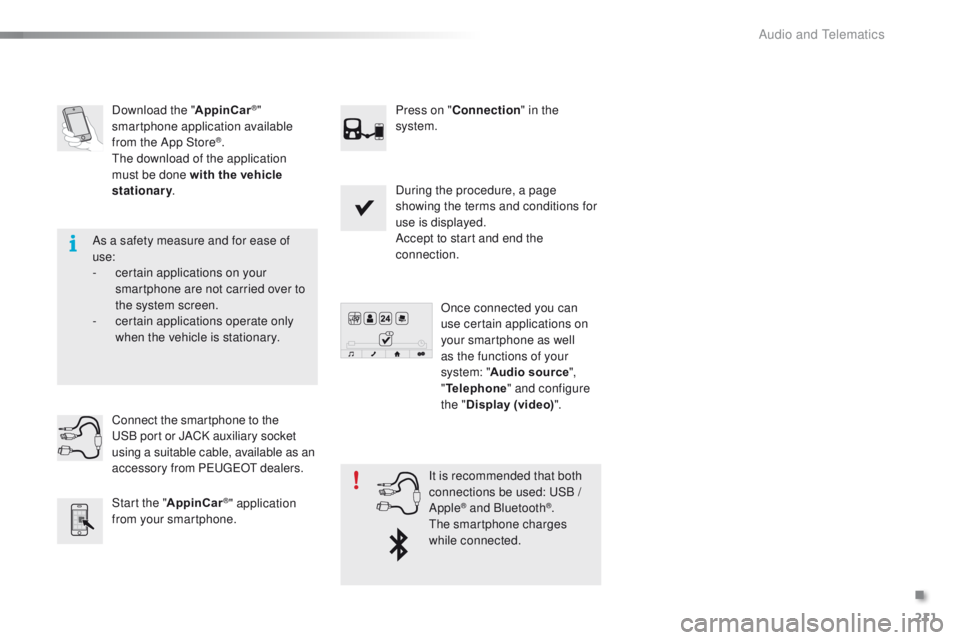
Download the "AppinCar®"
smartphone application available
from the App Store
®.th
e download of the application
must be done with the vehicle
stationary . Press on "
Connection " in the
system.
During the procedure, a page
showing the terms and conditions for
use is displayed.
Accept to start and end the
connection.
Once connected you can
use certain applications on
your smartphone as well
as the functions of your
system: " Audio source ",
" Telephone " and configure
the " Display (video) ".
Connect the smartphone to the
uS
B
port or JACK auxiliary socket
using a suitable cable, available as an
accessory from P
e
uge
Ot d
ealers.
Start the " AppinCar
®" application
from your smartphone. It is recommended that both
connections be used:
uS B /
Apple® and Bluetooth®.th
e smartphone charges
while connected.
As a safety measure and for ease of
use:
-
c
ertain applications on your
smartphone are not carried over to
the system screen.
-
c
ertain applications operate only
when the vehicle is stationary.
.
Audio and telematics
Page 226 of 271
224
108_en_Chap12b_Autoradio-toyota-2_ed01-2015
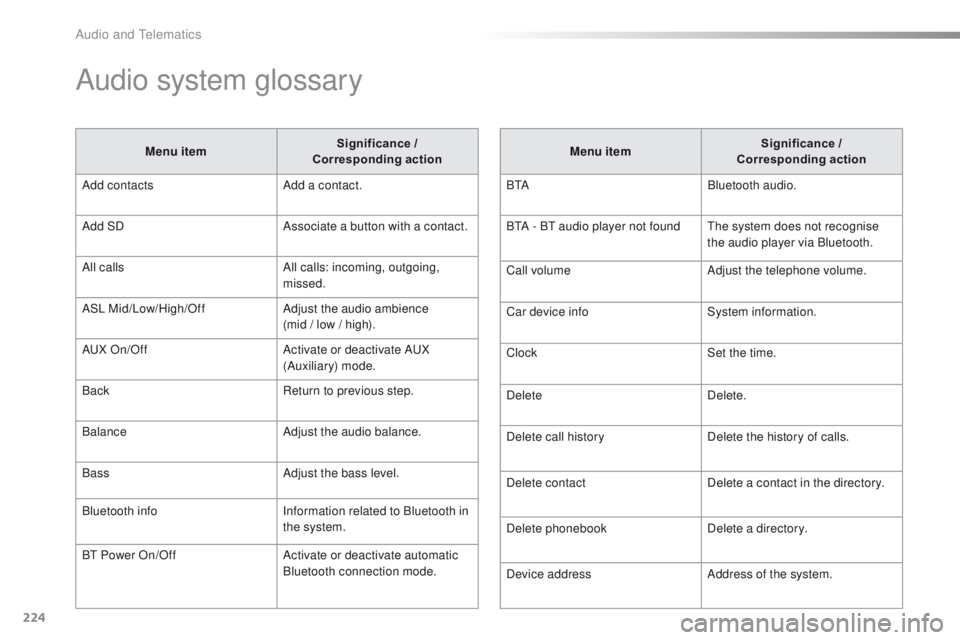
Audio system glossary
Menu item Significance /
Corresponding action
Add contacts Add a contact.
Add SD Associate a button with a contact.
All calls All calls: incoming, outgoing,
missed.
ASL Mid/Low/High/Off Adjust the audio ambience
(mid / low / high).
A
uX
On/Off Activate or deactivate A
uX
(
Auxiliary) mode.
Back Return to previous step.
Balance Adjust the audio balance.
Bass Adjust the bass level.
Bluetooth info Information related to Bluetooth in
the system.
B
t
Power On/Off Activate or deactivate automatic
Bluetooth connection mode. Menu item
Significance /
Corresponding action
B
t
ABluetooth audio.
B
tA - Bt
audio player not found
th
e system does not recognise
the audio player via Bluetooth.
Call volume Adjust the telephone volume.
Car device info System information.
Clock Set the time.
Delete Delete.
Delete call history Delete the history of calls.
Delete contact Delete a contact in the directory.
Delete phonebook Delete a directory.
Device address Address of the system.
Audio and telematics
Page 229 of 271
227
108_en_Chap12b_Autoradio-toyota-2_ed01-2015
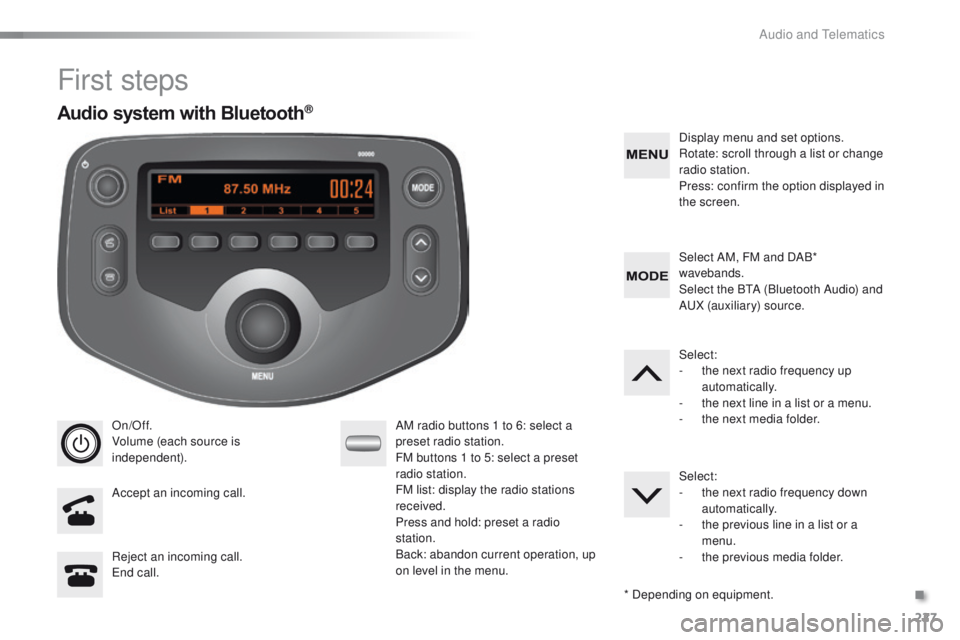
First steps
On/Off.
Volume (each source is
independent).
Accept an incoming call. AM radio buttons 1 to 6: select a
preset radio station.
FM buttons 1 to 5: select a preset
radio station.
FM list: display the radio stations
received.
Press and hold: preset a radio
station.
Back: abandon current operation, up
on level in the menu.Display menu and set options.
Rotate: scroll through a list or change
radio station.
Press: confirm the option displayed in
the screen.
Reject an incoming call.
en
d call. Select AM, FM and DAB*
wavebands.
Select the B
tA (
Bluetooth Audio) and
A
uX
(auxiliary) source.
Select:
-
t
he next radio frequency up
automatically.
-
t
he next line in a list or a menu.
- t he next media folder.
Select:
-
t
he next radio frequency down
automatically.
-
t
he previous line in a list or a
menu.
-
t
he previous media folder.
* Depending on equipment.
Audio system with Bluetooth®
.
Audio and telematics