screen PEUGEOT 3008 2013 Owners Manual
[x] Cancel search | Manufacturer: PEUGEOT, Model Year: 2013, Model line: 3008, Model: PEUGEOT 3008 2013Pages: 352, PDF Size: 15.64 MB
Page 320 of 352
318
01 FIRST STEPS
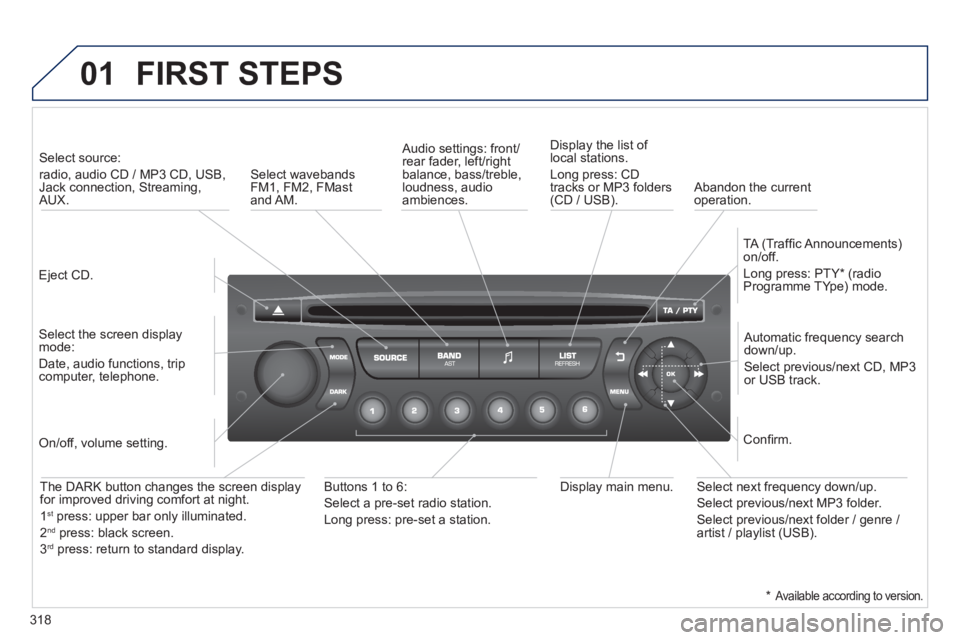
Eject CD.
Select source:
radio, audio CD / MP3 CD, USB,Jack connection, Streaming,AUX.
Select the screen displaymode:
Date, audio functions, tripcomputer, telephone.
Automatic frequency search
down/up.
Select previous/next CD, MP3
or USB track.
Audio settings: front/rear fader, left/right
balance, bass/treble, loudness, audio ambiences. Displa
y the list of local stations.
Lon
g press: CD
tracks or MP3 folders(CD / USB).
TA
(Traffi c Announcements)
on/off.
Lon
g press: PTY * (radio
Programme TYpe) mode.
Display main menu. The DARK button changes the screen display
for improved driving comfort at night.
1st
press: upper bar only illuminated.
2ndpress: black screen.
3rdpress: return to standard display.
On/off, volume setting.
Buttons 1 to 6:
Select a pre-set radio station.
Lon
g press: pre-set a station.
Select next frequency down/up.
Select previous/next MP3 folder.
Select previous/next folder / genre /
artist / playlist (USB).
Confi rm.
Select wavebandsFM1, FM2, FMast and AM.
Abandon the current
operation.
*
Available according to version.
Page 322 of 352
320
03
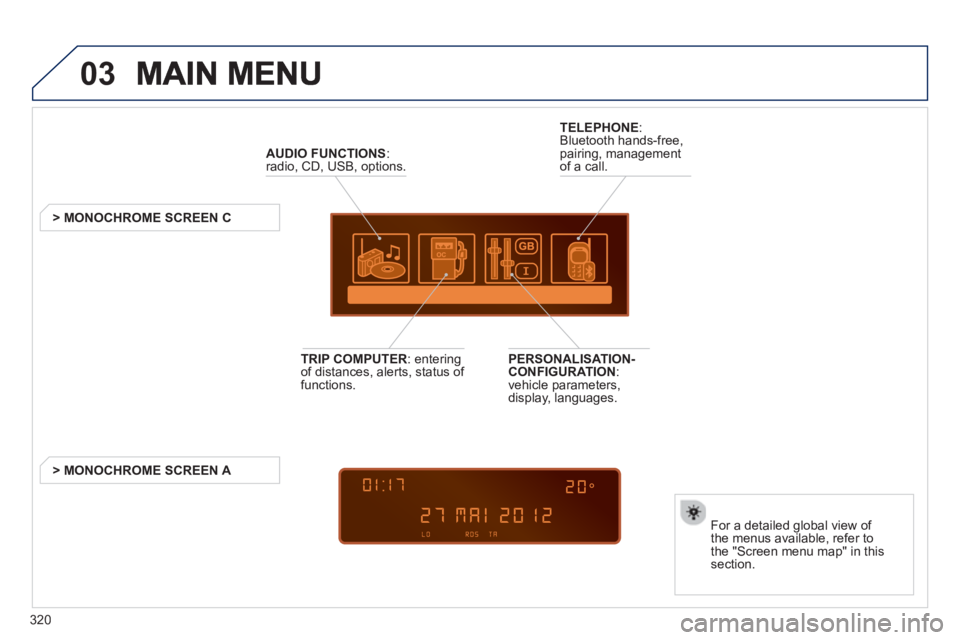
AUDIO FUNCTIONS :radio, CD, USB, options.
> MONOCHROME SCREEN C
For a detailed
global view of
the menus available, refer to
the "Screen menu map" in thissection.
TELEPHONE
:
Bluetooth hands-free,
pairing, managementof a call.
PERSONALISATION-
CONFIGURATION:
vehicle parameters,
display, languages.
TRIP COMPUTER
: enteringof distances, alerts, status of
functions.
> MONOCHROME
SCREEN A
Page 323 of 352
321
04 AUDIO
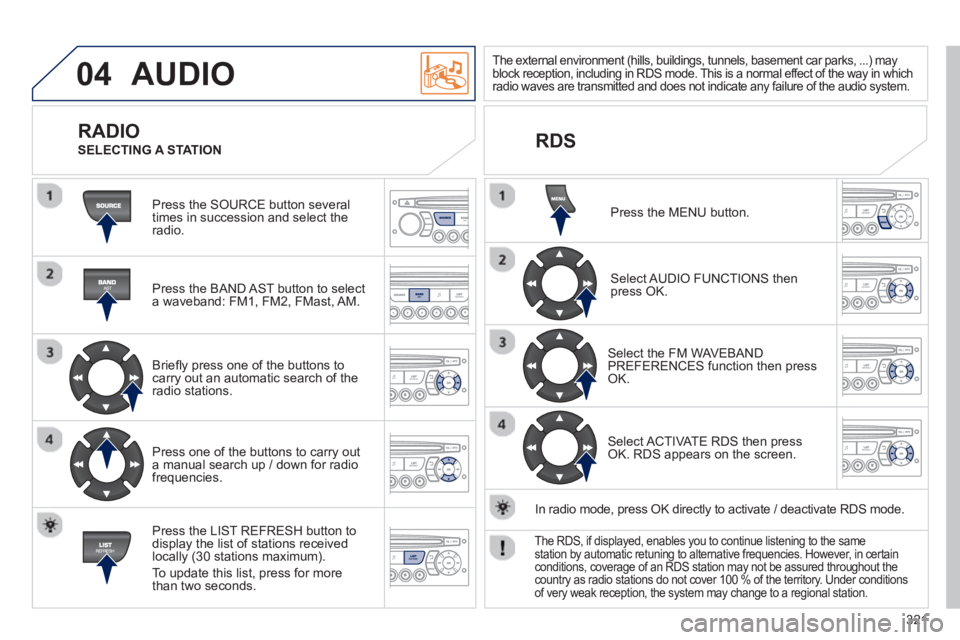
Press the SOURCE button several
times in succession and select theradio.
Press the BAND A
ST button to select
a waveband: FM1, FM2, FMast, AM.
Briefl
y press one of the buttons tocarry out an automatic search of theradio stations.
Press one o
f the buttons to carry out
a manual search up / down for radiofrequencies.
Press the LI
ST REFRESH button to
display the list of stations received
locally (30 stations maximum).
To update this list, press for more
t
han two seconds.
The external environment (hills, buildings, tunnels, basement car parks, ...) may
block reception, including in RDS mode. This is a normal effect of the way in which
radio waves are transmitted and does not indicate any failure of the audio system.
RDS
RADIO
SELECTING A STATION
Press the MENU button.
Select AUDIO FUNCTIONS thenpress OK.
Select the FM WAVEBANDPREFERENCES function then pressOK.
Select ACTIVATE RDS then pressOK. RDS appears on the screen.
In radio mode, press
OK directly to activate / deactivate RDS mode.
The RDS, if displayed, enables you to continue listening to the samestation by automatic retuning to alternative frequencies. However, in certainconditions, coverage of an RDS station may not be assured throughout thecountry as radio stations do not cover 100 % of the territory. Under conditions
of very weak reception, the system may change to a regional station.
Page 329 of 352
327
06BLUETOOTH
For safety reasons and because they require prolonged attentionon the part of the driver, the operations for pairing of the Bluetooth mobile telephone with the Bluetooth hands-free system of your
audio equipment must be carried out with the vehicle stationary
and the ignition on.
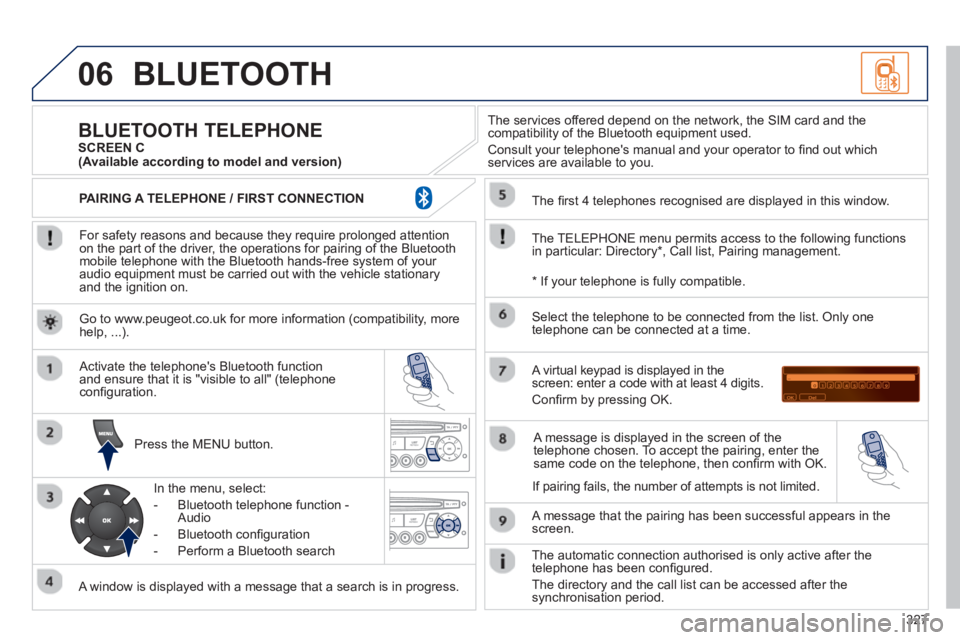
Pr
ess the MENU button.
A window is displayed with a message that a search is in progress.
Activate the telephone's Bluetooth
function
and ensure that it is "visible to all" (telephone confi guration.
In the menu, select:
- Bluetooth telephone
function -
Audio
- Bluetooth confi
guration
- P
erform a Bluetooth search
The services o
ffered depend on the network, the SIM card and thecompatibility of the Bluetooth equipment used.
Consult your telephone's manual and your operator to fi nd out which
services are available to you.
BLUETOOTH TELEPHONE SCREEN C
The TELEPH
ONE menu permits access to the following functions
in particular: Directory * , Call list, Pairing management.
The
fi rst 4 telephones recognised are displayed in this window.
A virtual ke
ypad is displayed in thescreen: enter a code with at least 4 digits.
Confi rm by pressing OK.
A messa
ge that the pairing has been successful appears in thescreen.
Select the telephone to be connected from the list.
Only one
telephone can be connected at a time.
A messa
ge is displayed in the screen of the
telephone chosen. To accept the pairing, enter the same code on the telephone, then confi rm with OK.
The automatic connection authorised is onl
y active after the
telephone has been confi gured.
The directory and the call list can be accessed a
fter thesynchronisation period.
(Available according to model and version)
*
If your telephone is fully compatible.
I
f pairing fails, the number of attempts is not limited. Go to www.peu
geot.co.uk for more information (compatibility, more help, ...).
PAIRING A TELEPHONE / FIR
ST CONNECTION
Page 330 of 352
328
06
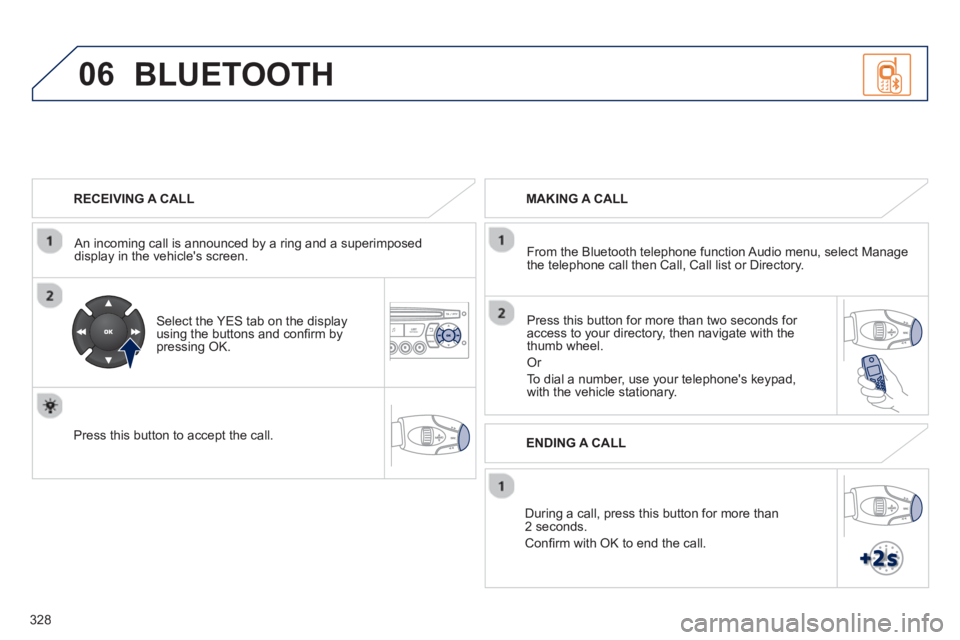
RECEIVING A CALL
An incomin
g call is announced by a ring and a superimposed
display in the vehicle's screen.
Select the YES tab on the display
using the buttons and confi rm bypressing OK.
Press this button to acce
pt the call.
MAKING A CALL
From the Bluetooth telephone
function Audio menu, select Manage
the telephone call then Call, Call list or Directory.
Pr
ess this button for more than two seconds for
access to your directory, then navigate with the
thumb wheel.
Or
To dial a number, use your telephone's keypad,with the vehicle stationary.
Durin
g a call, press this button for more than2 seconds.
Confi rm with OK to end the call.
BLUETOOTH
ENDING A CALL
Page 331 of 352
329
06
Initiate the pairing between the telephone and
the vehicle. This pairing can be initiated from
the vehicle's telephone function menu or via the
telephone's ke
ypad. See steps 1 to 9 on theprevious pages. During the pairing phase, the
vehicle must be stationary with the key in the
i
gnition.
Select the telephone to be connected from the telephone functionmenu.
The audio s
ystem connects to a newly paired telephone automatically.
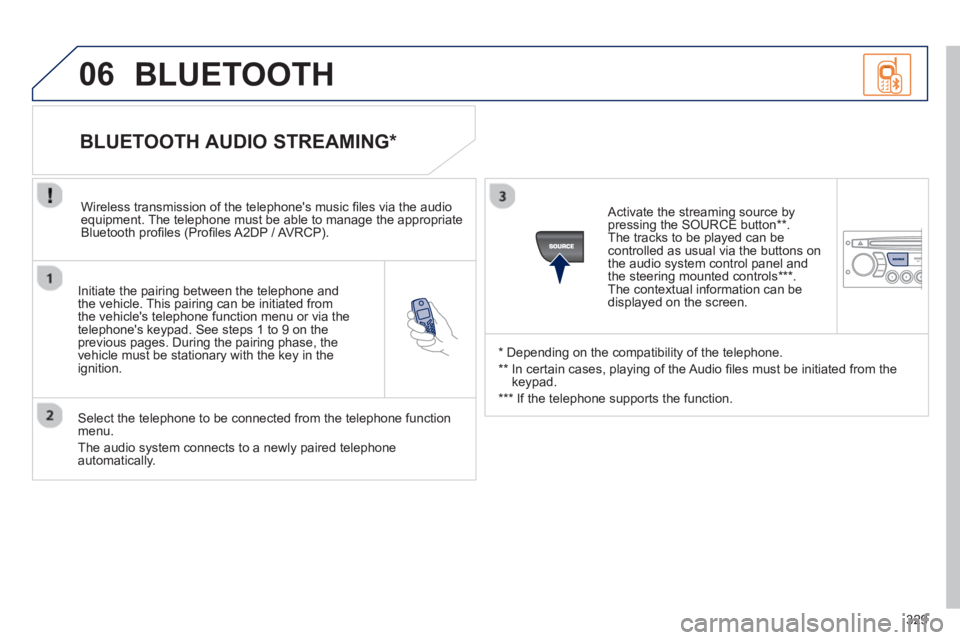
BLUETOOTH AUDIO STREAMING *
Wireless transmission of the telephone's music fi les via the audioequipment. The telephone must be able to manage the appropriate
Bluetooth profi les (Profi les A2DP / AVRCP).
*
Depending on the compatibility of the telephone.
**
In certain cases, playing of the Audio fi les must be initiated from the
keypad.
***
If the tele
phone supports the function.
Activate the streaming source by
pressin
g the SOURCE button ** .
The tracks to be played can becontrolled as usual via the buttons on
the audio system control panel and
the steering mounted controls *** .
The contextual information can bedisplayed on the screen.
BLUETOOTH
Page 332 of 352
330
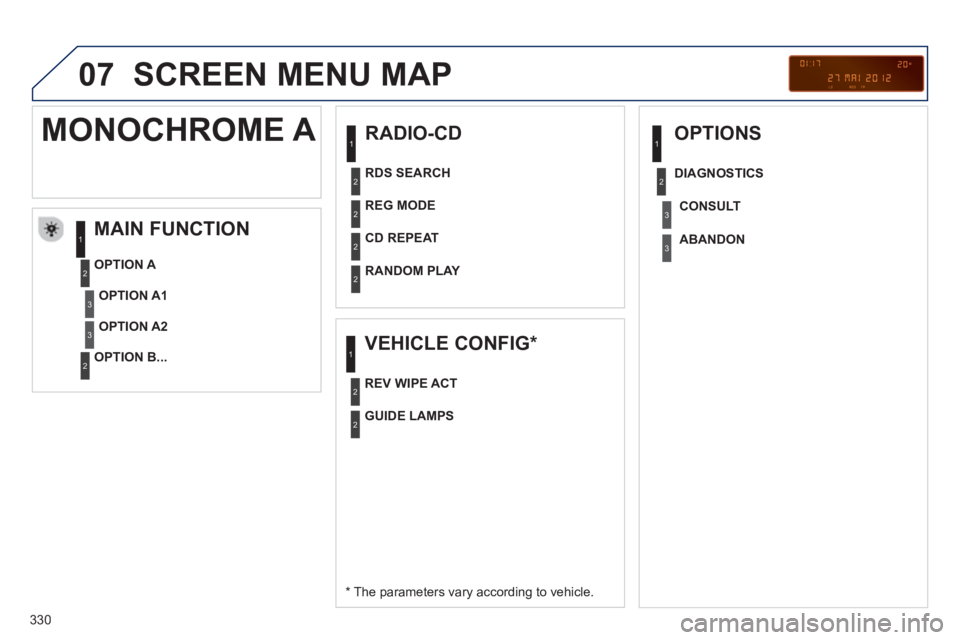
07 SCREEN MENU MAP
RADIO-CD
MAIN FUNCTION
*
The parameters vary according to vehicle.
OPTION
A
OPTION B...
MONOCHROME A
OPTION A1
OPTION A2
REG MODE
CD REPEAT
RANDOM PLAY
VEHICLE CONFIG *
REV WIPE ACT
OPTIONS
GUIDE LAMPS
DIAGNO
STICS
RDS SEARCH
CONSUL
T
ABANDON
1
2
3
3
1
2
2
2
21
2
3
2
3
1
2
2
Page 333 of 352
331
07
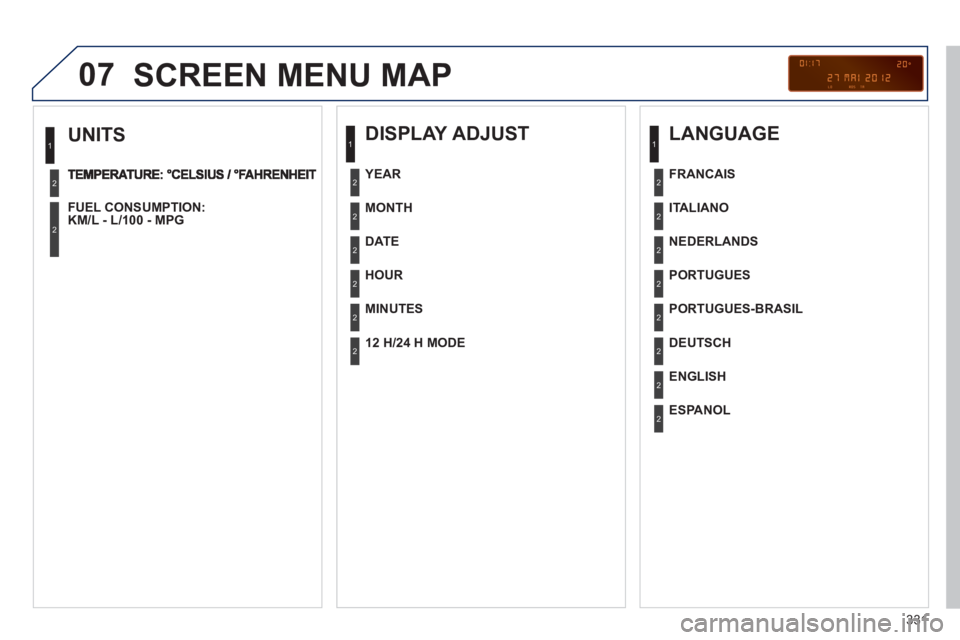
UNITS
FUEL CONSUMPTION:
KM/L - L/100 - MPG
1
2
2
SCREEN MENU MAP
DISPLAY ADJUST
MONTH
DATE
HOUR
MINUTES
YEAR
12 H/24 H MODE
LANGUAGE
ITALIANO
NEDERLANDS
PORTUGUES
PORTUGUES-BRASIL
FRANCAIS
DEUTSCH
ENGLISH
ESPANOL
1
2
2
2
2
2
2
1
2
2
2
2
2
2
2
2
Page 334 of 352
332
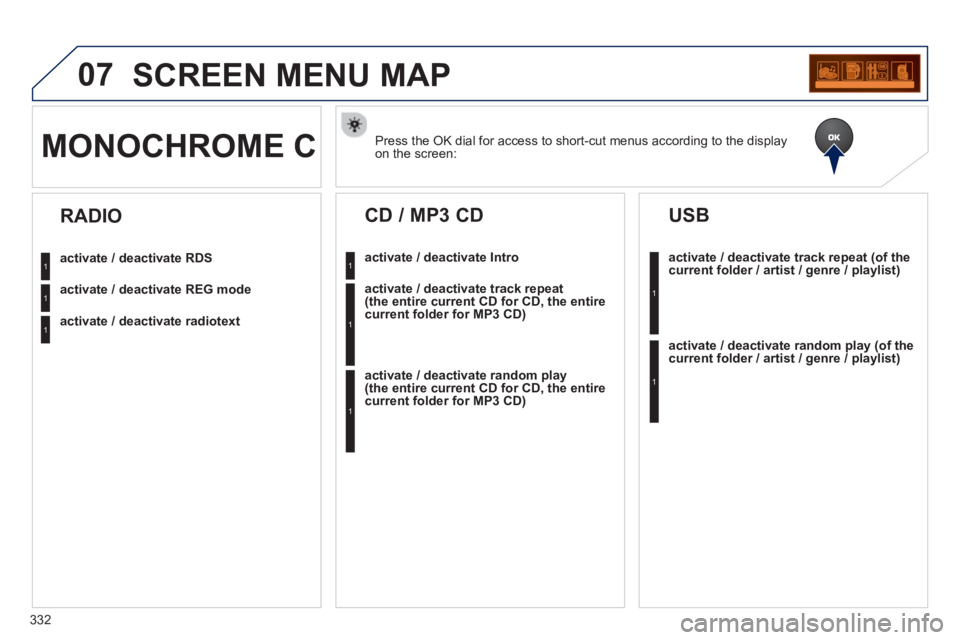
07SCREEN MENU MAP
Press the OK dial for access to short-cut menus according to the displayon the screen: MONOCHROME C
activate / deactivate RDS
activate / deactivate REG mode
activate / deactivate radiotext
RADIO
activate / deactivate Intro
CD / MP3 CD
activate / deactivate track repeat (the entire current CD for CD, the entire current folder for MP3 CD)
activate / deactivate random play (the entire current CD for CD, the entire current folder for MP3 CD)
activate / deactivate track repeat (of the current folder / artist / genre / playlist)
USB
activate / deactivate random play(of thecurrent folder / artist / genre / playlist)
1
1
1
1
1
1
1
1
Page 335 of 352
333
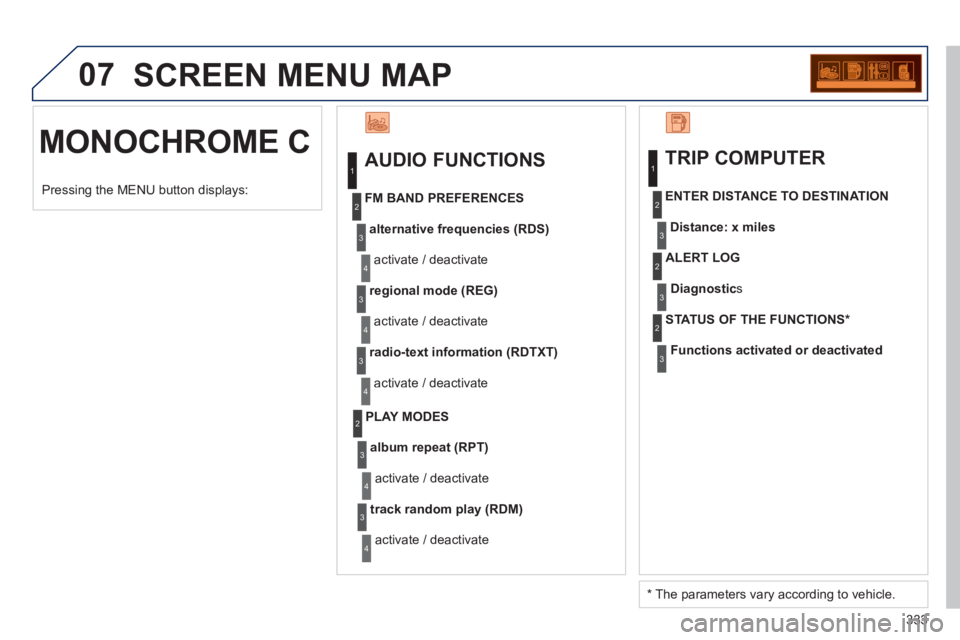
07 SCREEN MENU MAP
MONOCHROME C
AUDIO FUNCTIONS
alternative frequencies (RDS)
activate / deactivate
FM BAND PREFERENCES
regional mode (REG)
activate / deactivate
radio-text information (RDTXT)
activate / deactivate
1
2
3
4
3
4
3
4
PLAY MODES
album repeat (RPT)
activate / deactivate
track random pla
y (RDM)
activate / deactivate
2
3
4
3
4
TRIP COMPUTER
Distance: x miles ENTER DISTANCE TO DESTINATION
Diagnostic s
ALERT LOG
Functions activated or deactivated STATUS OF THE FUNCTIONS *
1
2
3
3
2
3
2
Pressing the MENU button displays:
*
The parameters vary according to vehicle.