CD player Peugeot 308 CC 2011 User Guide
[x] Cancel search | Manufacturer: PEUGEOT, Model Year: 2011, Model line: 308 CC, Model: Peugeot 308 CC 2011Pages: 292, PDF Size: 40.04 MB
Page 226 of 292
224
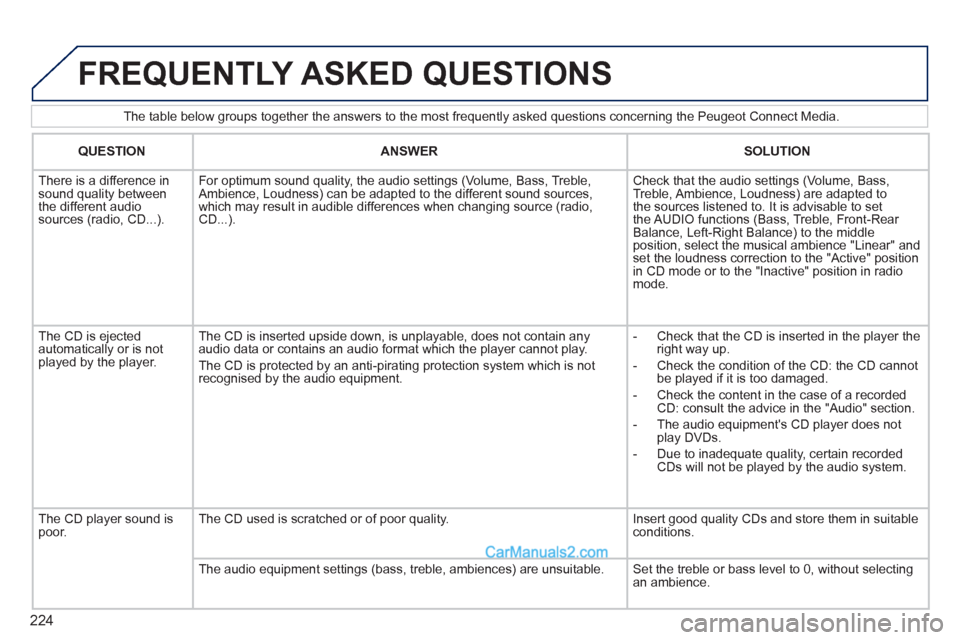
The table below groups together the answers to the most frequently asked questions concerning the Peugeot Connect Media.
FREQUENTLY ASKED QUESTIONS
QUESTION
ANSWER
SOLUTION
There is a difference in
sound quality between
the different audio
sources (radio, CD...).
For optimum sound quality, the audio settings (Volume, Bass, Treble,
Ambience, Loudness) can be adapted to the different sound sources,
which may result in audible differences when changing source (radio,
CD...).
Check that the audio settings (Volume, Bass,
Treble, Ambience, Loudness) are adapted to
the sources listened to. It is advisable to set
the AUDIO functions (Bass, Treble, Front-Rear
Balance, Left-Right Balance) to the middle
position, select the musical ambience "Linear" and
set the loudness correction to the "Active" position
in CD mode or to the "Inactive" position in radio
mode.
The CD is ejected
automatically or is not
played by the player. The CD is inserted upside down, is unplayable, does not contain any
audio data or contains an audio format which the player cannot play.
The CD is protected by an anti-pirating protection system which is not
recognised by the audio equipment.
- Check that the CD is inserted in the player the
right way up.
- Check the condition of the CD: the CD cannot
be played if it is too damaged.
- Check the content in the case of a recorded
CD: consult the advice in the "Audio" section.
- The audio equipment's CD player does not
play DVDs.
- Due to inadequate quality, certain recorded
CDs will not be played by the audio system.
The CD player sound is
poor. The CD used is scratched or of poor quality. Insert good quality CDs and store them in suitable
conditions.
The audio equipment settings (bass, treble, ambiences) are unsuitable. Set the treble or bass level to 0, without selecting
an ambience.
Page 231 of 292
229
The Peugeot Connect Navigation is protected in such
a way that it will only operate in your vehicle. If it is to be
installed in another vehicle, contact a PEUGEOT dealer
for confi guration of the system.
Certain functions described in this handbook will
become available during the course of the year.
PEUGEOT CONNECT NAVIGATION
For safety reasons, the driver should only carry out
operations which require prolonged attention while the
vehicle is stationary.
When the engine is switched off and to prevent
discharging of the battery, the Peugeot Connect
Navigation switches off following the activation of
Energy Economy mode.
MULTIMEDIA AUDIO SYSTEM/BLUETOOTH TELEPHONE
GPS EUROPE ON AN SD CARD
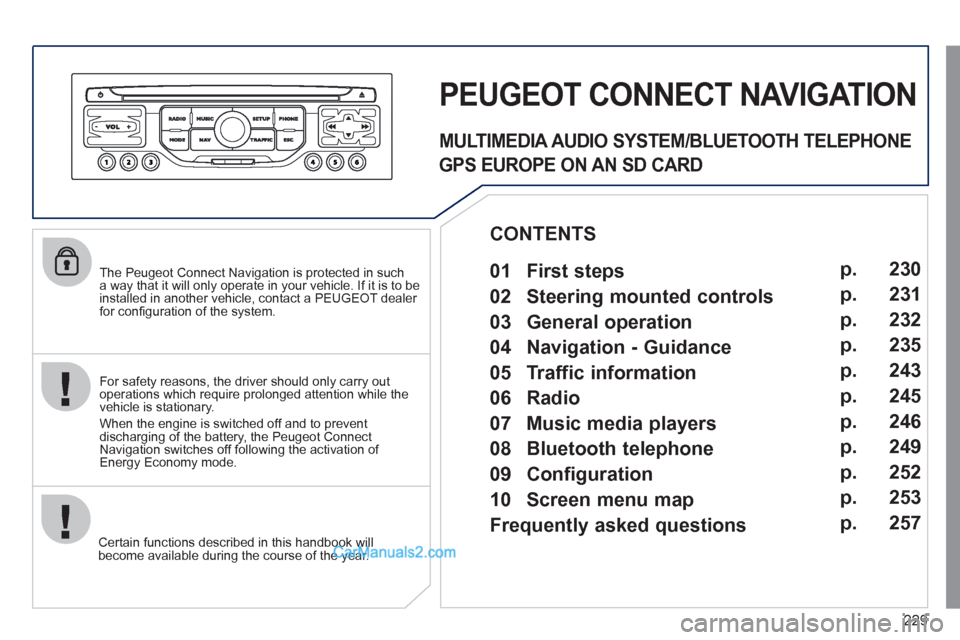
01 First steps
CONTENTS
02 Steering mounted controls
03 General operation
04 Navigation - Guidance
05 Traffic information
06 Radio
07 Music media players
08 Bluetooth telephone
09 Configuration
10 Screen menu map p.
p.
p.
p.
p.
p.
p.
p.
p.
p.
Frequently asked questions p. 230
231
232
235
243
245
246
249
252
253
257
Page 234 of 292
232
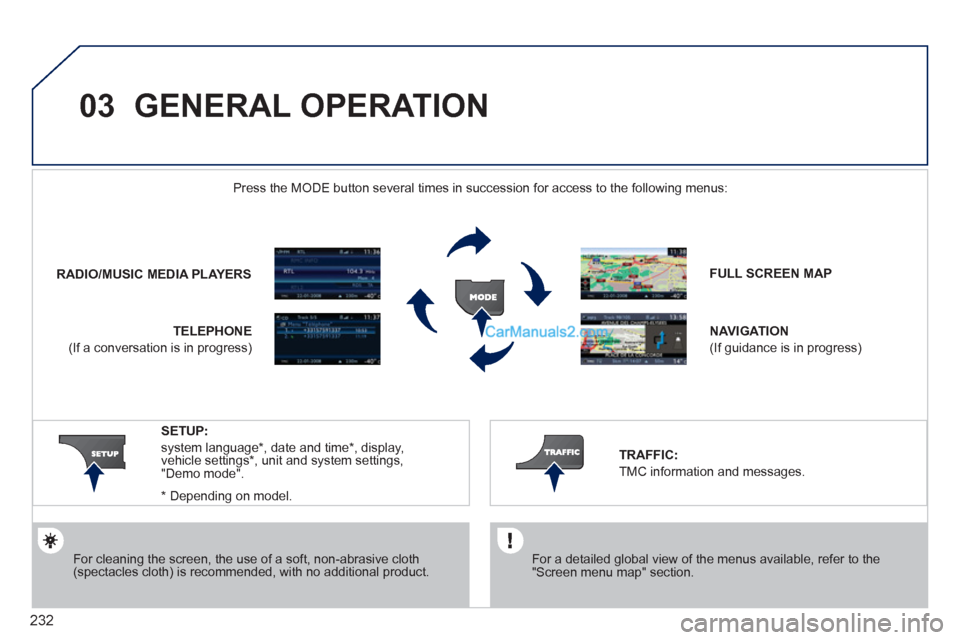
03 GENERAL OPERATION
For cleaning the screen, the use of a soft, non-abrasive cloth
(spectacles cloth) is recommended, with no additional product.
FULL SCREEN MAP
NAVIGATION
(If guidance is in progress)
SETUP:
system language*
, date and time*
, display,
vehicle settings*
, unit and system settings,
"Demo mode".
*
Depending on model.
RADIO
/
MUSIC MEDIA PLAYERS
Press the MODE button several times in succession for access to the following menus:
TELEPHONE
(If a conversation is in progress)
TRAFFIC:
TMC information and messages.
For a detailed global view of the menus available, refer to the
"Screen menu map" section.
Page 236 of 292
234
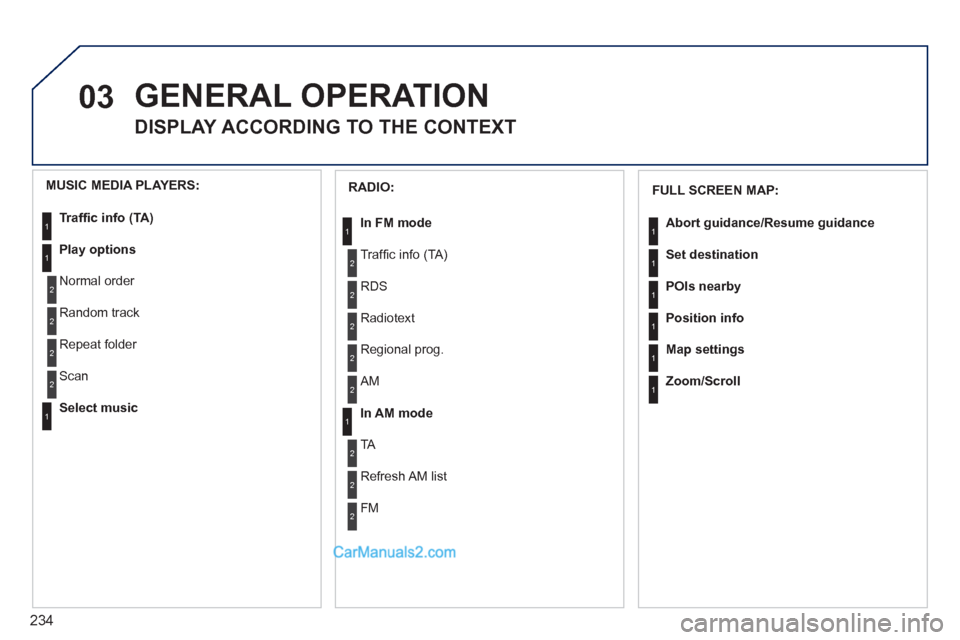
03 GENERAL OPERATION
DISPLAY ACCORDING TO THE CONTEXT
1
1
1
1
1
1
RADIO:
In FM mode
Traffi c info (TA)
RDS
Radiotext
Regional prog.
In AM mode
AM
TA
Refresh AM list
FM
1
2
1
2
2
2
2
2
2
2
MUSIC MEDIA PLAYERS:
Traffi c info (TA)
Play options
Normal order
Random track
Repeat folder
Select music
Scan
1
1
2
2
2
2
1
FULL SCREEN MAP:
Abort guidance
/Resume guidance
Set destination
POIs nearby
Position info
Map settings
Zoom/Scroll
Page 248 of 292
246
07 MUSIC MEDIA PLAYERS
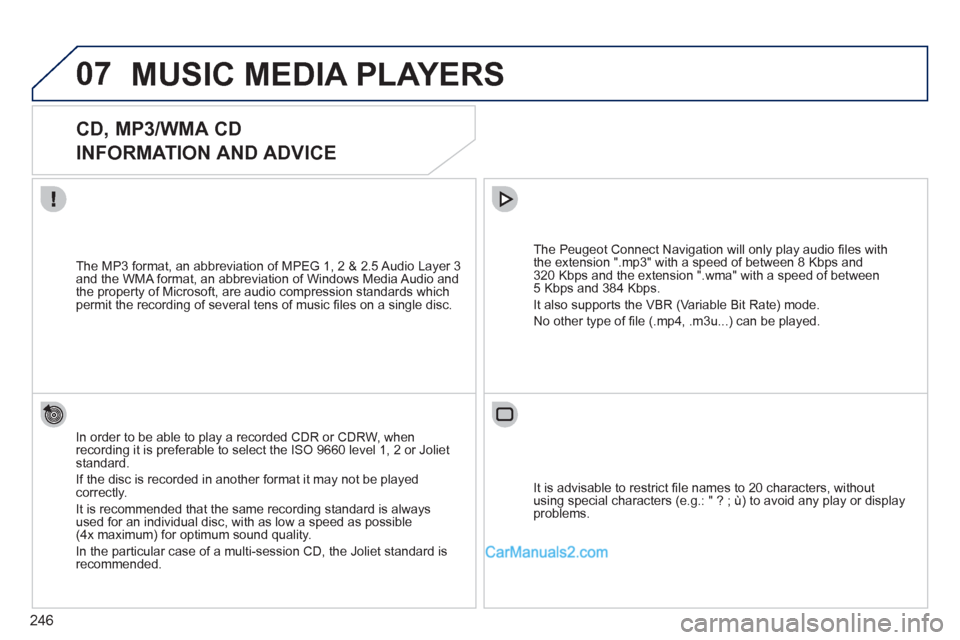
CD, MP3/WMA CD
INFORMATION AND ADVICE
In order to be able to play a recorded CDR or CDRW, when
recording it is preferable to select the ISO 9660 level 1, 2 or Joliet
standard.
If the disc is recorded in another format it may not be played
correctly.
It is recommended that the same recording standard is always
used for an individual disc, with as low a speed as possible
(4x maximum) for optimum sound quality.
In the particular case of a multi-session CD, the Joliet standard is
recommended.
The Peugeot Connect Navigation will only play audio fi les with
the extension ".mp3" with a speed of between 8 Kbps and
320 Kbps and the extension ".wma" with a speed of between
5 Kbps and 384 Kbps.
It also supports the VBR (Variable Bit Rate) mode.
No other type of fi le (.mp4, .m3u...) can be played.
The MP3 format, an abbreviation of MPEG 1, 2 & 2.5 Audio Layer 3
and the WMA format, an abbreviation of Windows Media Audio and
the property of Microsoft, are audio compression standards which
permit the recording of several tens of music fi les on a single disc.
It is advisable to restrict fi le names to 20 characters, without
using special characters (e.g.: " ? ; ù) to avoid any play or display
problems.
Page 249 of 292
247
07
3 2 1
6
4
5
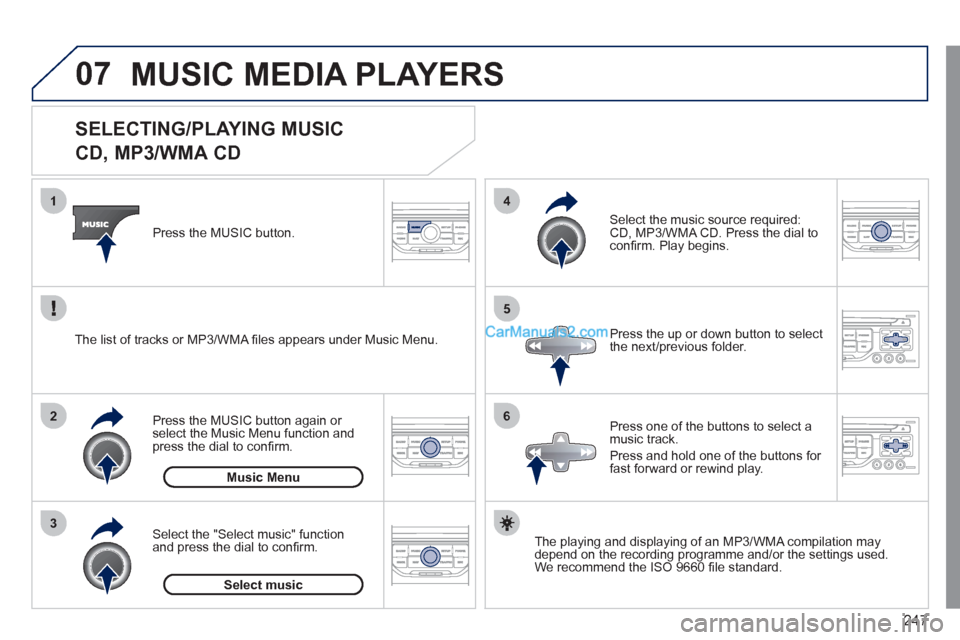
SELECTING/PLAYING MUSIC
CD, MP3/WMA CD
The playing and displaying of an MP3/WMA compilation may
depend on the recording programme and/or the settings used.
We recommend the ISO 9660 fi le standard.
Press the MUSIC button.
Select the "Select music" function
and press the dial to confi rm.
Press the up or down button to select
the next/previous folder.
Select the music source required:
CD, MP3/WMA CD. Press the dial to
confi rm. Play begins.
Select music
Press the MUSIC button again or
select the Music Menu function and
press the dial to confi rm.
Press one of the buttons to select a
music track.
Press and hold one of the buttons for
fast forward or rewind play.
Music Menu
The list of tracks or MP3/WMA fi les appears under Music Menu.
MUSIC MEDIA PLAYERS
Page 250 of 292
248
07
43 1
2
MUSIC MEDIA PLAYERS
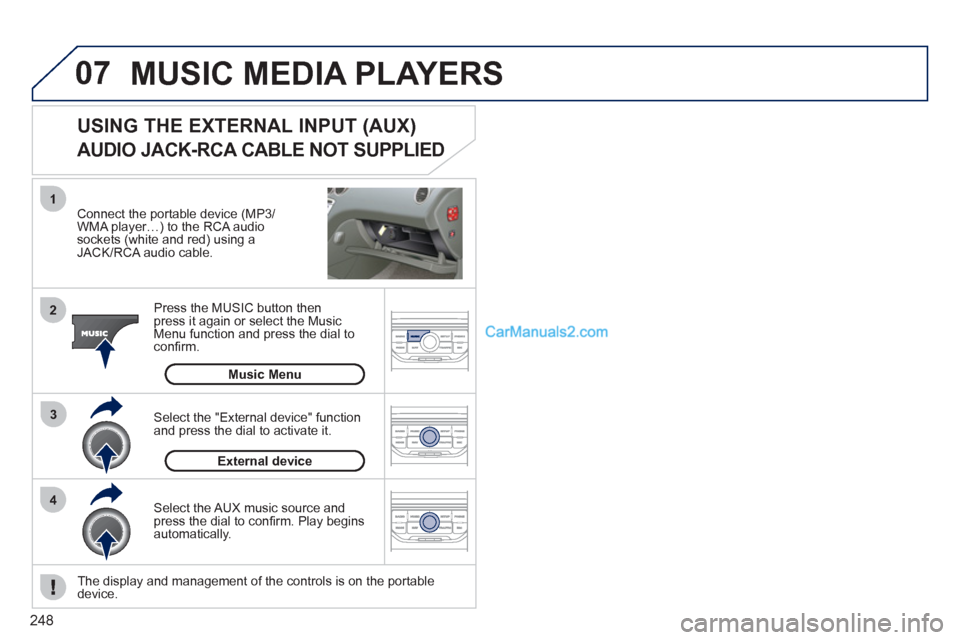
Connect the portable device (MP3/
WMA player…) to the RCA audio
sockets (white and red) using a
JACK/RCA audio cable.
Press the MUSIC button then
press it again or select the Music
Menu function and press the dial to
confi rm.
Select the AUX music source and
press the dial to confi rm. Play begins
automatically.
Select the "External device" function
and press the dial to activate it.
External device
USING THE EXTERNAL INPUT (AUX)
AUDIO JACK-RCA CABLE NOT SUPPLIED
Music Menu
The display and management of the controls is on the portable
device.
Page 259 of 292
257
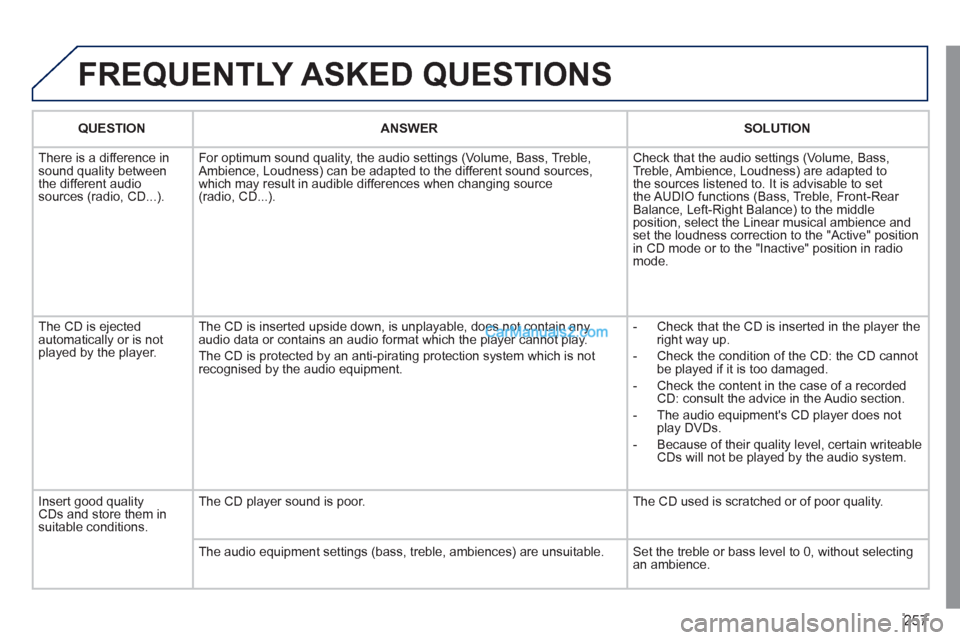
FREQUENTLY ASKED QUESTIONS
QUESTION
ANSWER
SOLUTION
There is a difference in
sound quality between
the different audio
sources (radio, CD...). For optimum sound quality, the audio settings (Volume, Bass, Treble,
Ambience, Loudness) can be adapted to the different sound sources,
which may result in audible differences when changing source
(radio, CD...). Check that the audio settings (Volume, Bass,
Treble, Ambience, Loudness) are adapted to
the sources listened to. It is advisable to set
the AUDIO functions (Bass, Treble, Front-Rear
Balance, Left-Right Balance) to the middle
position, select the Linear musical ambience and
set the loudness correction to the "Active" position
in CD mode or to the "Inactive" position in radio
mode.
The CD is ejected
automatically or is not
played by the player. The CD is inserted upside down, is unplayable, does not contain any
audio data or contains an audio format which the player cannot play.
The CD is protected by an anti-pirating protection system which is not
recognised by the audio equipment.
- Check that the CD is inserted in the player the
right way up.
- Check the condition of the CD: the CD cannot
be played if it is too damaged.
- Check the content in the case of a recorded
CD: consult the advice in the Audio section.
- The audio equipment's CD player does not
play DVDs.
- Because of their quality level, certain writeable
CDs will not be played by the audio system.
Insert good quality
CDs and store them in
suitable conditions. The CD player sound is poor. The CD used is scratched or of poor quality.
The audio equipment settings (bass, treble, ambiences) are unsuitable. Set the treble or bass level to 0, without selecting
an ambience.
Page 268 of 292
266
04
1
2
3
1
AUDIO
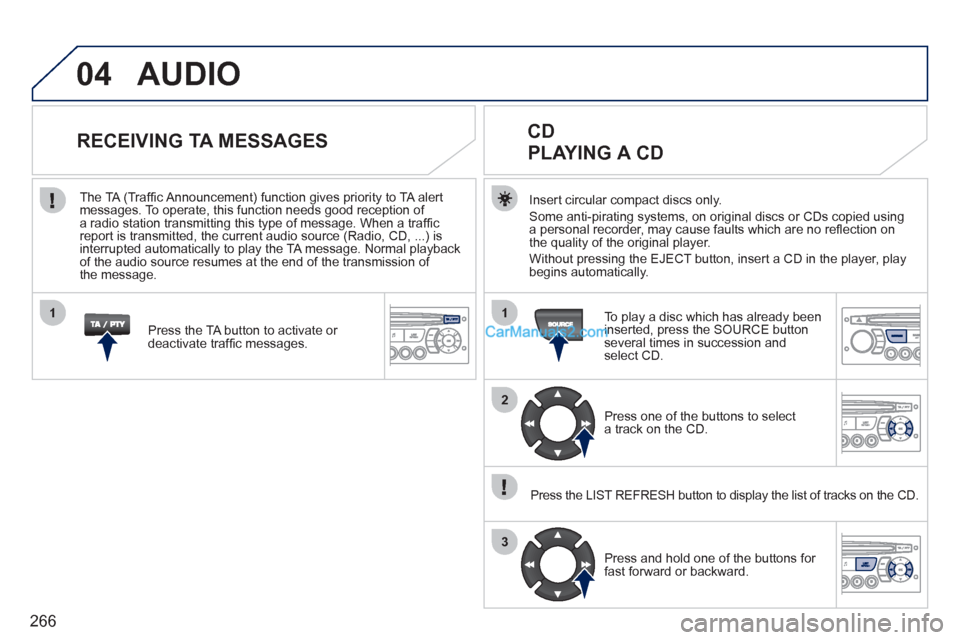
Insert circular compact discs only.
Some anti-pirating systems, on original discs or CDs copied using
a personal recorder, may cause faults which are no refl ection on
the quality of the original player.
Without pressing the EJECT button, insert a CD in the player, play
begins automatically.
CD
PLAYING A CD
To play a disc which has already been
inserted, press the SOURCE button
several times in succession and
select CD.
Press one of the buttons to select
a track on the CD.
Press the LIST REFRESH button to display the list of tracks on the CD.
Press and hold one of the buttons for
fast forward or backward.
RECEIVING TA MESSAGES
Press the TA button to activate or
deactivate traffi c messages.
The TA (Traffi c Announcement) function gives priority to TA alert
messages. To operate, this function needs good reception of
a radio station transmitting this type of message. When a traffi c
report is transmitted, the current audio source (Radio, CD, ...) is
interrupted automatically to play the TA message. Normal playback
of the audio source resumes at the end of the transmission of
the message.
Page 269 of 292
267
04
1
2
3
The MP3 format, an abbreviation of MPEG 1.2 & 2.5 Audio Layer 3,
is an audio compression standard which permits the recording of
several tens of music fi les on a single disc.
In order to be able to play a recorded CDR or CDRW, when
recording, the ISO 9660 level 1.2 or Joliet fi le format is
recommended.
If the disc is recorded in another format, it may not be played
correctly.
It is recommended that the same recording format is always
used for an individual disc, with as low a speed as possible
(4x maximum) for optimum sound quality.
In the particular case of a multi-session CD, the Joliet format is
recommended.
The audio system will only play fi les with the extension ".mp3" with
a sampling rate of 22.05 KHz or 44.1 KHz. No other type of fi le
(.wma, .mp4, .m3u...) can be played.
It is advisable to restrict fi le names to 20 characters without using
special characters (e.g. " ? ; ù) to avoid any playing or displaying
problems.
MP3 CD
INFORMATION AND ADVICE
AUDIO
Empty CDs are not recognised and may damage the system.
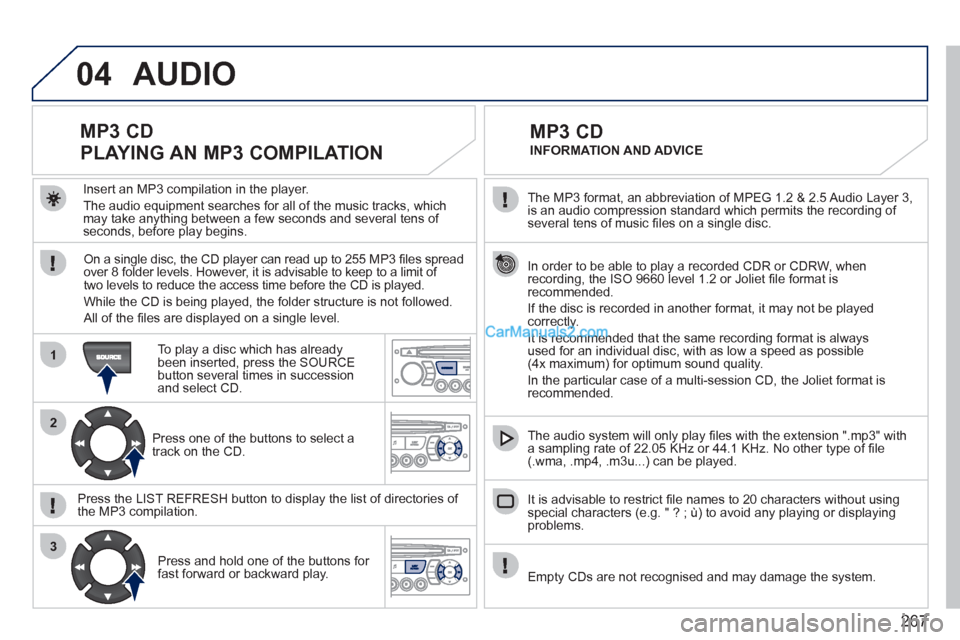
Insert an MP3 compilation in the player.
The audio equipment searches for all of the music tracks, which
may take anything between a few seconds and several tens of
seconds, before play begins.
MP3 CD
PLAYING AN MP3 COMPILATION
On a single disc, the CD player can read up to 255 MP3 fi les spread
over 8 folder levels. However, it is advisable to keep to a limit of
two levels to reduce the access time before the CD is played.
While the CD is being played, the folder structure is not followed.
All of the fi les are displayed on a single level.
To play a disc which has already
been inserted, press the SOURCE
button several times in succession
and select CD.
Press one of the buttons to select a
track on the CD.
Press the LIST REFRESH button to display the list of directories of
the MP3 compilation.
Press and hold one of the buttons for
fast forward or backward play.