sent Peugeot 508 2019 Service Manual
[x] Cancel search | Manufacturer: PEUGEOT, Model Year: 2019, Model line: 508, Model: Peugeot 508 2019Pages: 320, PDF Size: 10.09 MB
Page 260 of 320
14
Procedure from the system
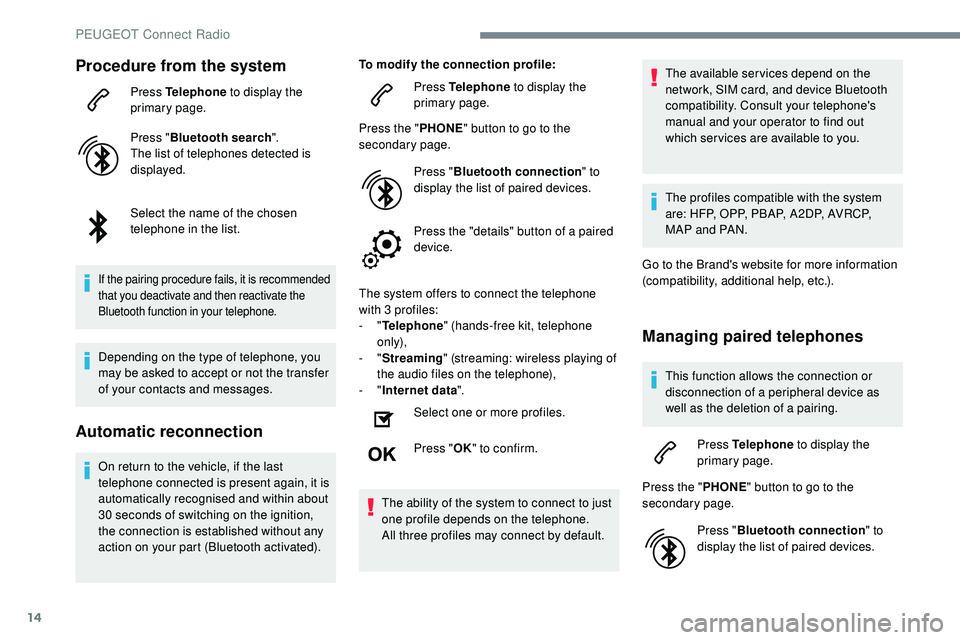
Press Telephone to display the
primary page.
Press " Bluetooth search ".
The list of telephones detected is
displayed.
Select the name of the chosen
telephone in the list.
If the pairing procedure fails, it is recommended
that you deactivate and then reactivate the
Bluetooth function in your telephone.
Depending on the type of telephone, you
may be asked to accept or not the transfer
of your contacts and messages.
Automatic reconnection
On return to the vehicle, if the last
telephone connected is present again, it is
automatically recognised and within about
30 seconds of switching on the ignition,
the connection is established without any
action on your part (Bluetooth activated). To modify the connection profile:
Press Telephone to display the
primary page.
Press the " PHONE" button to go to the
secondary page.
Press "Bluetooth connection " to
display the list of paired devices.
Press the "details" button of a paired
device.
The system offers to connect the telephone
with 3 profiles:
- "
Telephone " (hands-free kit, telephone
only),
- "
Streaming " (streaming: wireless playing of
the audio files on the telephone),
- "
Internet data ".
Select one or more profiles.
Press " OK" to confirm.
The ability of the system to connect to just
one profile depends on the telephone.
All three profiles may connect by default. The available services depend on the
network, SIM card, and device Bluetooth
compatibility. Consult your telephone's
manual and your operator to find out
which ser vices are available to you.
The profiles compatible with the system
are: HFP, OPP, PBAP, A 2DP, AVRCP,
MAP and PAN.
Go to the Brand's website for more information
(compatibility, additional help, etc.).
Managing paired telephones
This function allows the connection or
disconnection of a peripheral device as
well as the deletion of a pairing.
Press Telephone to display the
primary page.
Press the " PHONE" button to go to the
secondary page.
Press "Bluetooth connection " to
display the list of paired devices.
PEUGEOT Connect Radio
Page 265 of 320
19
Radio
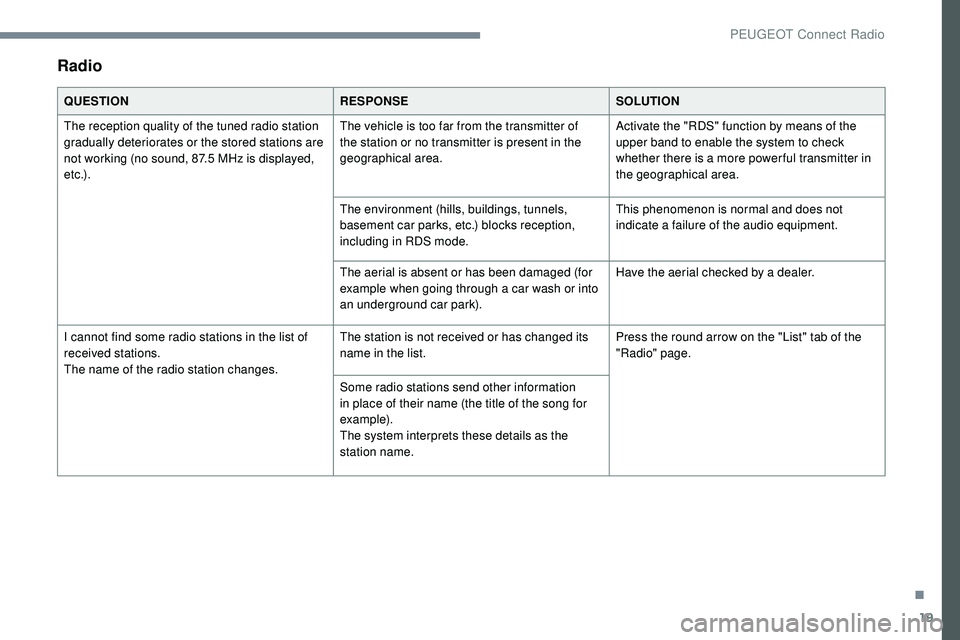
QUESTIONRESPONSESOLUTION
The reception quality of the tuned radio station
gradually deteriorates or the stored stations are
not working (no sound, 87.5 MHz is displayed,
e t c .) . The vehicle is too far from the transmitter of
the station or no transmitter is present in the
geographical area.
Activate the "RDS" function by means of the
upper band to enable the system to check
whether there is a more power ful transmitter in
the geographical area.
The environment (hills, buildings, tunnels,
basement car parks, etc.) blocks reception,
including in RDS mode. This phenomenon is normal and does not
indicate a failure of the audio equipment.
The aerial is absent or has been damaged (for
example when going through a car wash or into
an underground car park). Have the aerial checked by a dealer.
I cannot find some radio stations in the list of
received stations.
The name of the radio station changes. The station is not received or has changed its
name in the list.
Press the round arrow on the "List" tab of the
"Radio" page.
Some radio stations send other information
in place of their name (the title of the song for
example).
The system interprets these details as the
station name.
.
PEUGEOT Connect Radio
Page 287 of 320
19
The synchronisation of a personal
smartphone allows users to display
applications compatible with the
smartphone's CarPlay
® technology on the
v
ehicle screen when the smartphone's
CarPlay
® function has been previously
activated.
As the processes and standards are
constantly changing, it is recommended
that you keep your smar tphone's
operating system updated .
For the list of eligible smartphones, go
to the Brand's internet website in your
c o u nt r y.
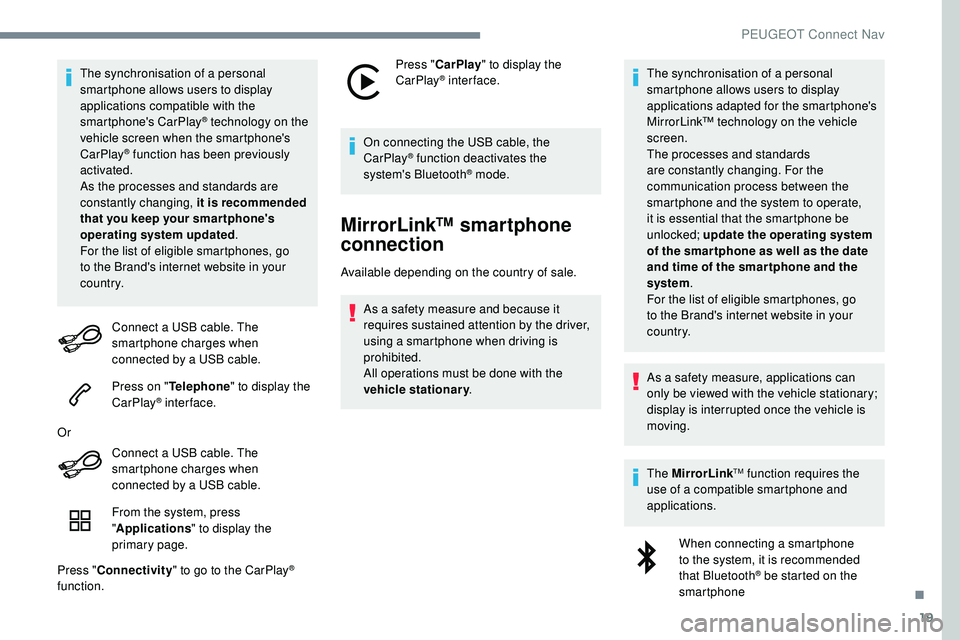
Connect a USB cable. The
smartphone charges when
connected by a USB cable.
Press on " Telephone " to display the
CarPlay
® inter face.
Or Connect a USB cable. The
smartphone charges when
connected by a USB cable.
From the system, press
"Applications " to display the
primary page.
Press " Connectivity " to go to the CarPlay
®
function. Press "
CarPlay " to display the
CarPlay
® inter face.
On connecting the USB cable, the
CarPlay
® function deactivates the
system's Bluetooth® mode.
MirrorLink™ smartphone
connection
Available depending on the country of sale.
As a safety measure and because it
requires sustained attention by the driver,
using a smartphone when driving is
prohibited.
All operations must be done with the
vehicle stationary . The synchronisation of a personal
smartphone allows users to display
applications adapted for the smartphone's
MirrorLink™
technology on the vehicle
screen.
The processes and standards
are constantly changing. For the
communication process between the
smartphone and the system to operate,
it is essential that the smartphone be
unlocked; update the operating system
of the smar tphone as well as the date
and time of the smar tphone and the
system .
For the list of eligible smartphones, go
to the Brand's internet website in your
c o u nt r y.
As a safety measure, applications can
only be viewed with the vehicle stationary;
display is interrupted once the vehicle is
moving.
The MirrorLink
TM function requires the
use of a compatible smartphone and
applications.
When connecting a smartphone
to the system, it is recommended
that Bluetooth
® be started on the
smartphone
.
PEUGEOT Connect Nav
Page 288 of 320
20
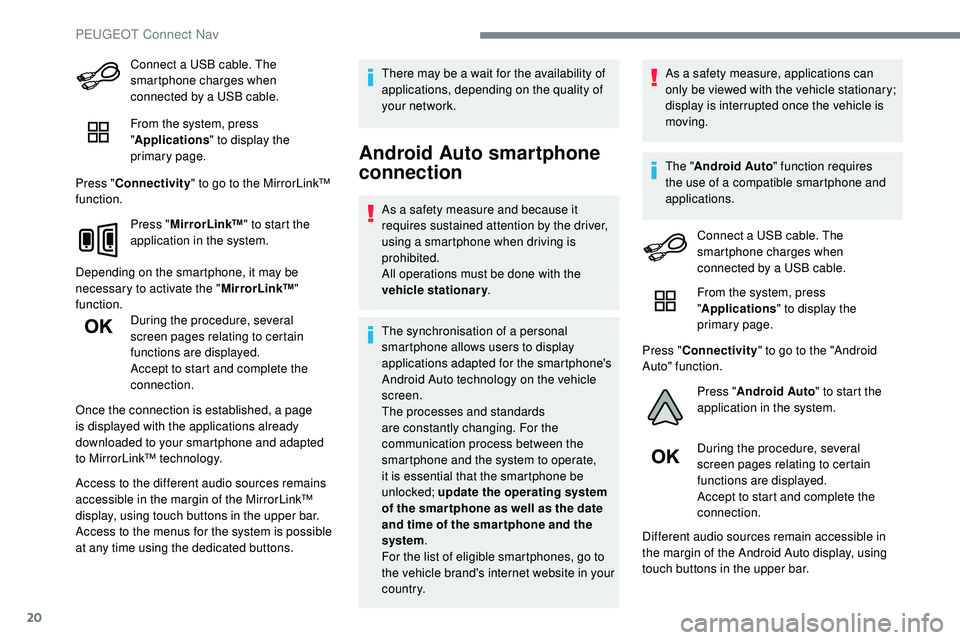
Connect a USB cable. The
smartphone charges when
connected by a USB cable.
From the system, press
"Applications " to display the
primary page.
Press " Connectivity " to go to the MirrorLink™
function.
Press "MirrorLink™ " to start the
application in the system.
Depending on the smartphone, it may be
necessary to activate the " MirrorLink™"
function. During the procedure, several
screen pages relating to certain
functions are displayed.
Accept to start and complete the
connection.
Once the connection is established, a page
is displayed with the applications already
downloaded to your smartphone and adapted
to MirrorLink™ technology.
Access to the different audio sources remains
accessible in the margin of the MirrorLink™
display, using touch buttons in the upper bar.
Access to the menus for the system is possible
at any time using the dedicated buttons. There may be a wait for the availability of
applications, depending on the quality of
your network.
Android Auto smartphone
connection
As a safety measure and because it
requires sustained attention by the driver,
using a smartphone when driving is
prohibited.
All operations must be done with the
vehicle stationary
.
The synchronisation of a personal
smartphone allows users to display
applications adapted for the smartphone's
Android Auto technology on the vehicle
screen.
The processes and standards
are constantly changing. For the
communication process between the
smartphone and the system to operate,
it is essential that the smartphone be
unlocked; update the operating system
of the smar tphone as well as the date
and time of the smar tphone and the
system .
For the list of eligible smartphones, go to
the vehicle brand's internet website in your
c o u nt r y. As a safety measure, applications can
only be viewed with the vehicle stationary;
display is interrupted once the vehicle is
moving.
The "
Android Auto " function requires
the use of a compatible smartphone and
applications.
Connect a USB cable. The
smartphone charges when
connected by a USB cable.
From the system, press
"Applications " to display the
primary page.
Press " Connectivity " to go to the "Android
Auto" function.
Press "Android Auto " to start the
application in the system.
During the procedure, several
screen pages relating to certain
functions are displayed.
Accept to start and complete the
connection.
Different audio sources remain accessible in
the margin of the Android Auto display, using
touch buttons in the upper bar.
PEUGEOT Connect Nav
Page 296 of 320
28
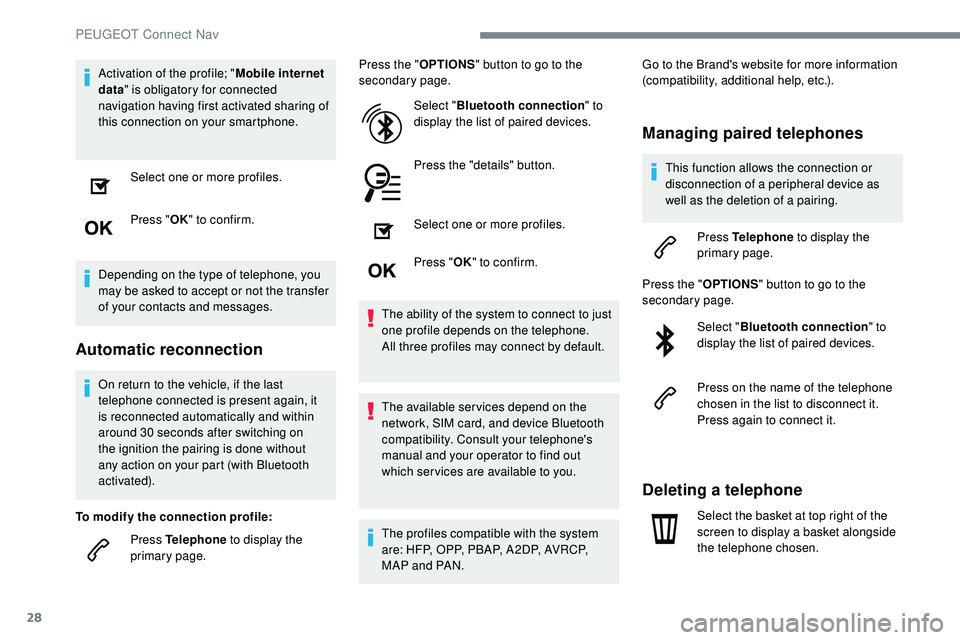
Activation of the profile; "Mobile internet
data " is obligatory for connected
navigation having first activated sharing of
this connection on your smartphone.
Select one or more profiles.
Press " OK" to confirm.
Depending on the type of telephone, you
may be asked to accept or not the transfer
of your contacts and messages.
Automatic reconnection
On return to the vehicle, if the last
telephone connected is present again, it
is reconnected automatically and within
around 30 seconds after switching on
the ignition the pairing is done without
any action on your part (with Bluetooth
activated).
To modify the connection profile: Press Telephone to display the
primary page. Press the "
OPTIONS" button to go to the
secondary page.
Select "Bluetooth connection " to
display the list of paired devices.
Press the "details" button.
Select one or more profiles.
Press " OK" to confirm.
The ability of the system to connect to just
one profile depends on the telephone.
All three profiles may connect by default.
The available services depend on the
network, SIM card, and device Bluetooth
compatibility. Consult your telephone's
manual and your operator to find out
which ser vices are available to you.
The profiles compatible with the system
are: HFP, OPP, PBAP, A 2DP, AVRCP,
MAP and PAN. Go to the Brand's website for more information
(compatibility, additional help, etc.).
Managing paired telephones
This function allows the connection or
disconnection of a peripheral device as
well as the deletion of a pairing.
Press Telephone to display the
primary page.
Press the " OPTIONS" button to go to the
secondary page.
Select "Bluetooth connection " to
display the list of paired devices.
Press on the name of the telephone
chosen in the list to disconnect it.
Press again to connect it.
Deleting a telephone
Select the basket at top right of the
screen to display a basket alongside
the telephone chosen.
PEUGEOT Connect Nav
Page 298 of 320
30
In the "Telephone " tab, enter the telephone
numbers for the contact.
In the " Address " tab, enter the addresses for
the contact.
In the " Email" tab, enter the email addresses
for the contact.
The " Email " function allows email
addresses to be entered for a contact, but
the system is not able to send emails.
Managing messages
Press Telephone to display the
primary page.
Press the " OPTIONS" button to go to the
secondary page.
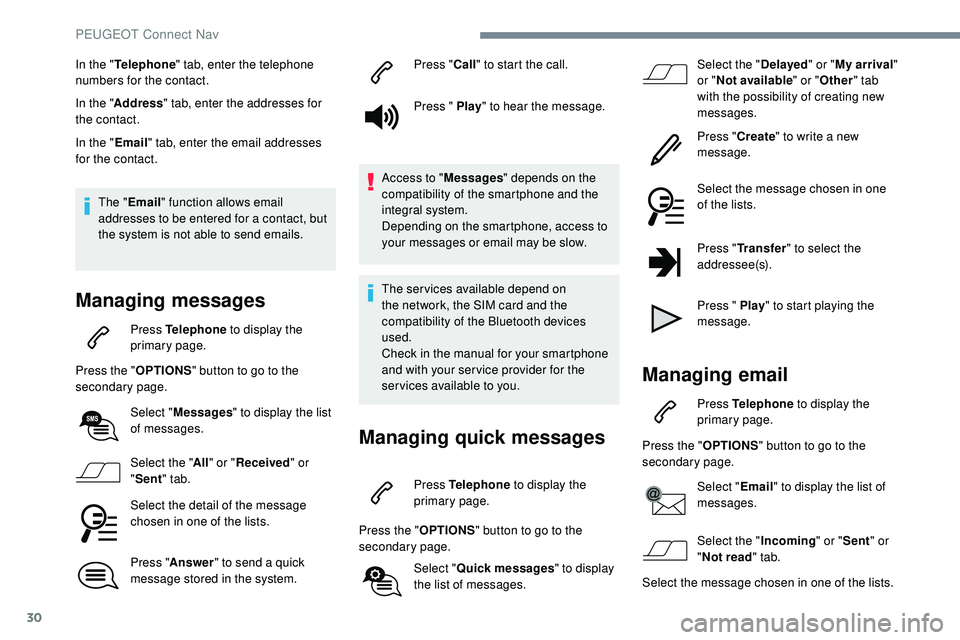
Select "Messages " to display the list
of messages.
Select the " All" or " Received " or
" Sent " tab.
Select the detail of the message
chosen in one of the lists.
Press " Answer " to send a quick
message stored in the system. Press "
Call" to start the call.
Press " Play " to hear the message.
Access to " Messages" depends on the
compatibility of the smartphone and the
integral system.
Depending on the smartphone, access to
your messages or email may be slow.
The services available depend on
the network, the SIM card and the
compatibility of the Bluetooth devices
used.
Check in the manual for your smartphone
and with your ser vice provider for the
services available to you.
Managing quick messages
Press Telephone to display the
primary page.
Press the " OPTIONS" button to go to the
secondary page.
Select "Quick messages " to display
the list of messages. Select the "
Delayed" or "My arrival "
or " Not available " or "Other " tab
with the possibility of creating new
messages.
Press " Create" to write a new
message.
Select the message chosen in one
of the lists.
Press " Transfer " to select the
addressee(s).
Press " Play " to start playing the
message.
Managing email
Press Telephone to display the
primary page.
Press the " OPTIONS" button to go to the
secondary page.
Select "Email" to display the list of
messages.
Select the " Incoming" or "Sent " or
" Not read " tab.
Select the message chosen in one of the lists.
PEUGEOT Connect Nav
Page 303 of 320
35
Radio
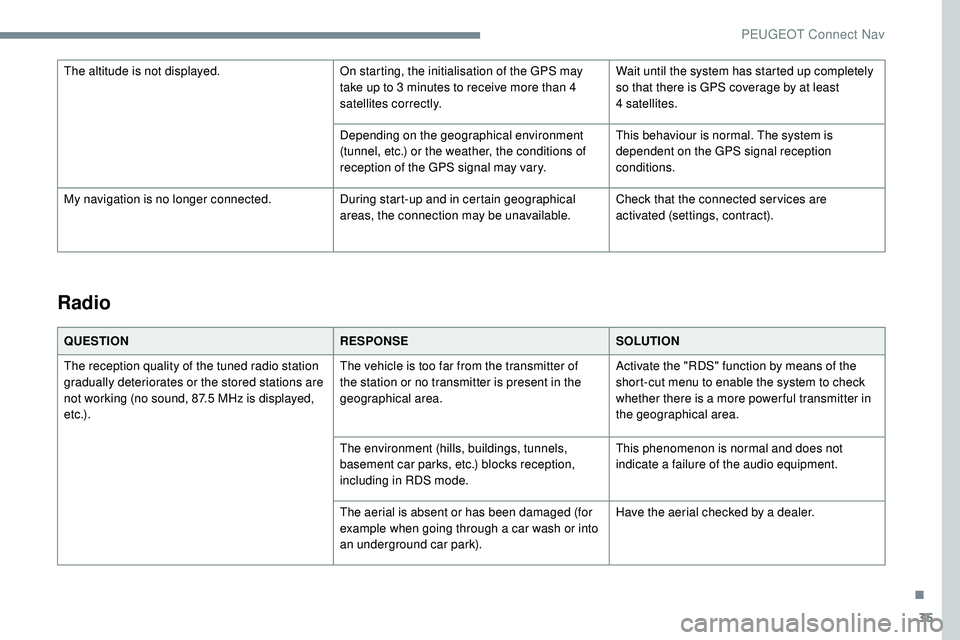
QUESTIONRESPONSESOLUTION
The reception quality of the tuned radio station
gradually deteriorates or the stored stations are
not working (no sound, 87.5 MHz is displayed,
e t c .) . The vehicle is too far from the transmitter of
the station or no transmitter is present in the
geographical area.
Activate the "RDS" function by means of the
short-cut menu to enable the system to check
whether there is a more power ful transmitter in
the geographical area.
The environment (hills, buildings, tunnels,
basement car parks, etc.) blocks reception,
including in RDS mode. This phenomenon is normal and does not
indicate a failure of the audio equipment.
The aerial is absent or has been damaged (for
example when going through a car wash or into
an underground car park). Have the aerial checked by a dealer.
The altitude is not displayed.
On starting, the initialisation of the GPS may
take up to 3 minutes to receive more than 4
satellites correctly.Wait until the system has started up completely
so that there is GPS coverage by at least
4
satellites.
Depending on the geographical environment
(tunnel, etc.) or the weather, the conditions of
reception of the GPS signal may vary. This behaviour is normal. The system is
dependent on the GPS signal reception
conditions.
My navigation is no longer connected. During start-up and in certain geographical
areas, the connection may be unavailable.Check that the connected ser vices are
activated (settings, contract).
.
PEUGEOT Connect Nav