Message Peugeot Boxer 2020 Owner's Guide
[x] Cancel search | Manufacturer: PEUGEOT, Model Year: 2020, Model line: Boxer, Model: Peugeot Boxer 2020Pages: 196, PDF Size: 5.1 MB
Page 88 of 196
86
Driving
The message "Vehicle close" is displayed.Level 2 (red): visual and audible alert,
signalling that a collision is imminent.
The message "Brake! " is displayed.
Level 3: finally, in some cases, a haptic alert
in the form of micro-braking can be given,
confirming the risk of collision.
Where the speed of your vehicle is too
high approaching another vehicle, the
first level of alert may not be displayed: the
level 2 alert may be displayed directly.
Important:
the level 1 alert is never displayed for a stationary obstacle or when the " Close"
trigger threshold has been selected.
Intelligent emergency
braking assistance
If the driver brakes, but not sufficiently to avoid a
collision, this system will supplement the braking,
within the limits of the laws of physics.
This assistance will only be provided if the driver
presses the brake pedal.
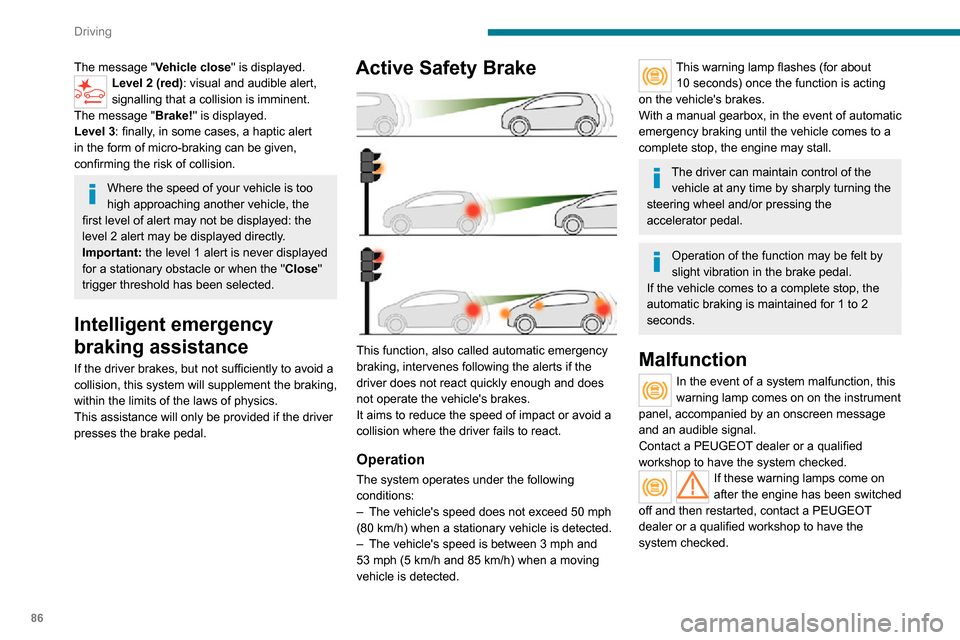
Active Safety Brake
This function, also called automatic emergency
braking, intervenes following the alerts if the
driver does not react quickly enough and does
not operate the vehicle's brakes.
It aims to reduce the speed of impact or avoid a
collision where the driver fails to react.
Operation
The system operates under the following
conditions:
– The vehicle's speed does not exceed 50 mph (80 km/h) when a stationary vehicle is detected.
– The vehicle's speed is between 3 mph and 53 mph (5 km/h and 85 km/h) when a moving vehicle is detected.
This warning lamp flashes (for about 10 seconds) once the function is acting on the vehicle's brakes.
With a manual gearbox, in the event of automatic
emergency braking until the vehicle comes to a
complete stop, the engine may stall.
The driver can maintain control of the vehicle at any time by sharply turning the
steering wheel and/or pressing the
accelerator pedal.
Operation of the function may be felt by
slight vibration in the brake pedal.
If the vehicle comes to a complete stop, the
automatic braking is maintained for 1 to 2
seconds.
Malfunction
In the event of a system malfunction, this
warning lamp comes on on the instrument
panel, accompanied by an onscreen message
and an audible signal.
Contact a PEUGEOT dealer or a qualified
workshop to have the system checked.
If these warning lamps come on
after the engine has been switched
off and then restarted, contact a PEUGEOT
dealer or a qualified workshop to have the
system checked.
Audible rear parking
sensors
Refer to the General recommendations on the
use of driving and manoeuvring aids .
If fitted to your vehicle, the system consists of 4
proximity sensors installed in the rear bumper.
They detect any obstacle, e.g. person, vehicle,
tree, barrier, which is behind the vehicle while
manoeuvring.
Certain types of obstacle detected at the
beginning of the manoeuvre will no longer be
detected at the end of manoeuvre if they are
located in the blind spots between and under the
sensors. Examples: stake, roadworks cone or
pavement post.
The rear parking sensors may be associated
with the reversing camera.
Switching on
► Engage reverse gear with the gear lever.
Page 89 of 196
87
Driving
6Audible rear parking sensors
Refer to the General recommendations on the
use of driving and manoeuvring aids .
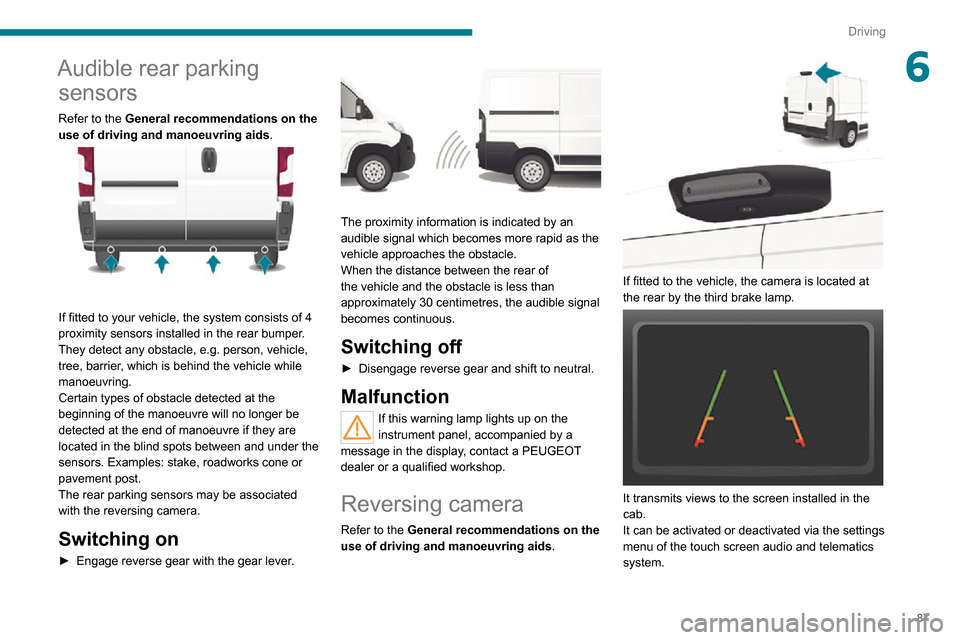
If fitted to your vehicle, the system consists of 4
proximity sensors installed in the rear bumper.
They detect any obstacle, e.g. person, vehicle,
tree, barrier, which is behind the vehicle while
manoeuvring.
Certain types of obstacle detected at the
beginning of the manoeuvre will no longer be
detected at the end of manoeuvre if they are
located in the blind spots between and under the
sensors. Examples: stake, roadworks cone or
pavement post.
The rear parking sensors may be associated
with the reversing camera.
Switching on
► Engage reverse gear with the gear lever .
The proximity information is indicated by an
audible signal which becomes more rapid as the
vehicle approaches the obstacle.
When the distance between the rear of
the vehicle and the obstacle is less than
approximately 30 centimetres, the audible signal
becomes continuous.
Switching off
► Disengage reverse gear and shift to neutral.
Malfunction
If this warning lamp lights up on the
instrument panel, accompanied by a
message in the display, contact a PEUGEOT
dealer or a qualified workshop.
Reversing camera
Refer to the General recommendations on the
use of driving and manoeuvring aids .
If fitted to the vehicle, the camera is located at
the rear by the third brake lamp.
It transmits views to the screen installed in the
cab.
It can be activated or deactivated via the settings
menu of the touch screen audio and telematics
system.
Page 101 of 196
99
Practical information
7A clogged passenger compartment filter can adversely affect air conditioning
system performance and generate
undesirable odours.
Oil filter
Change the oil filter each time the engine
oil is changed.
Particle filter (Diesel)
In addition to the catalytic converter, this filter
actively contributes to the preservation of
air quality by trapping the unburnt pollutant
particles. Black exhaust fumes are therefore not
emitted.
Operation
This filter, inserted into the exhaust system,
accumulates the carbonaceous particles. The
engine management computer automatically
and periodically manages the removal of
carbonaceous particles (regeneration).
The regeneration procedure is triggered
according to the amount of accumulated
particles and the conditions of use of the vehicle.
During this phase, you may notice certain
phenomena - accelerated idling, triggering of
the cooling fan, increased smoke and increased
temperature at the exhaust - which have no
impact on the operation of the vehicle and the
environment.
Following prolonged operation of the
vehicle at very low speed or at idle, you
may, in exceptional circumstances, notice the
emission of water vapour at the exhaust while
accelerating. This has no impact on the
vehicle’s behaviour and the environment.
Due to the high exhaust temperatures
caused by the normal operation of the
particle filter, it is recommended not to park
the vehicle on flammable materials (grass, dry
leaves, pine needles, etc.) to avoid any risk of
fire.
Saturation/Regeneration
If there is a risk of clogging, this warning
lamp comes on, accompanied by a
message on the instrument panel display.
This warning is due to the start of saturation of
the particle filter (exceptionally long urban driving
conditions: reduced speed, traffic jams, etc.).
In order to regenerate the filter, it is
recommended to drive as soon as possible -
when traffic conditions and regulations permit
- at a speed of at least 37 mph (60 km/h), with
an engine speed above 2,000 rpm for about
15 minutes (until the warning lamp and/or the
message disappear).
If possible, avoid switching off the engine
before the end of filter regeneration; repeated
interruptions can lead to early deterioration of the
engine oil. It is not recommended to terminate
the filter regeneration with the vehicle stationary.
Malfunction
If this alert persists, do not ignore this warning;
this indicates that a malfunction has occurred in
the exhaust system/particle filter assembly.
Have the assembly checked by a PEUGEOT
dealer or a qualified workshop.
Manual gearbox
The gearbox does not require any maintenance (no oil change).
Brake pads
Brake wear depends on the style of
driving, particularly in the case of vehicles
used in town, over short distances. It may be
necessary to have the condition of the brakes
checked, even between vehicle services.
Unless there is a leak in the circuit, a drop in the
brake fluid level indicates that the brake pads
are worn.
If this warning lamp comes on, have the
brake pads checked by a PEUGEOT
dealer or a qualified workshop.
After washing the vehicle, moisture, or in wintry conditions, ice can form on the
brake discs and pads: braking efficiency may
be reduced. Gently dab the brakes to dry and
defrost them.
Page 104 of 196
102
Practical information
If the AdBlue® tank is completely empty
– which is confirmed by the message
"Top up AdBlue: Starting impossible" – it is essential to add at least 5 litres.
After refilling
► Refit the blue cap to the tank filler and turn it clockwise as far as it will go (one sixth of a turn).► Close the fuel filler flap.
Do not dispose of AdBlue® containers in
the household waste.
Place them in a container reserved for this
purpose or take them back to where you
bought them.
Never store AdBlue® containers in your
vehicle.
Precautions for use
AdBlue® is a urea-based solution. This fluid is
non-flammable, colourless and odourless (when
kept in a cool place).
In the event of contact with the skin, wash the
affected area with soap and running water. In the
event of contact with the eyes, immediately rinse
the eyes with large amounts of water or with an
eye wash solution for at least 15 minutes. Seek
medical attention if you feel a persistent burning
sensation or irritation.
If swallowed, immediately wash out the mouth
with clean water and then drink plenty of water.
In certain conditions (high temperature, for
example), the risk of release of ammonia cannot
be excluded: do not inhale the fluid. Ammonia
vapours have an irritant effect on mucous
membranes (eyes, nose and throat).
Store AdBlue® out of the reach of
children, in its original container.
Procedure
Before starting the top-up procedure, ensure that
the vehicle is parked on a flat and level surface.
In wintry conditions, ensure that the temperature
of the vehicle is above -11 °C. Otherwise the AdBlue® may be frozen and so cannot be poured
into its tank. Park the vehicle in a warmer area
for a few hours to allow the top-up to be carried
out.
Never put the AdBlue® into the Diesel
fuel tank.
If any AdBlue® is splashed, or if there are
any spillages on the bodywork, rinse
immediately with cold water or wipe with a
damp cloth.
If the fluid has crystallised, clean it off using a
sponge and hot water.
Important: in the event of a top-up after
an AdBlue breakdown, you must wait
about 5 minutes before switching on the ignition, without opening the driver's door,
unlocking the vehicle or bringing the
electronic key into the passenger
compartment.
Switch on the ignition, then wait for 10
seconds before starting the engine.
► Switch off the ignition and remove the key from the switch to switch off the engine.
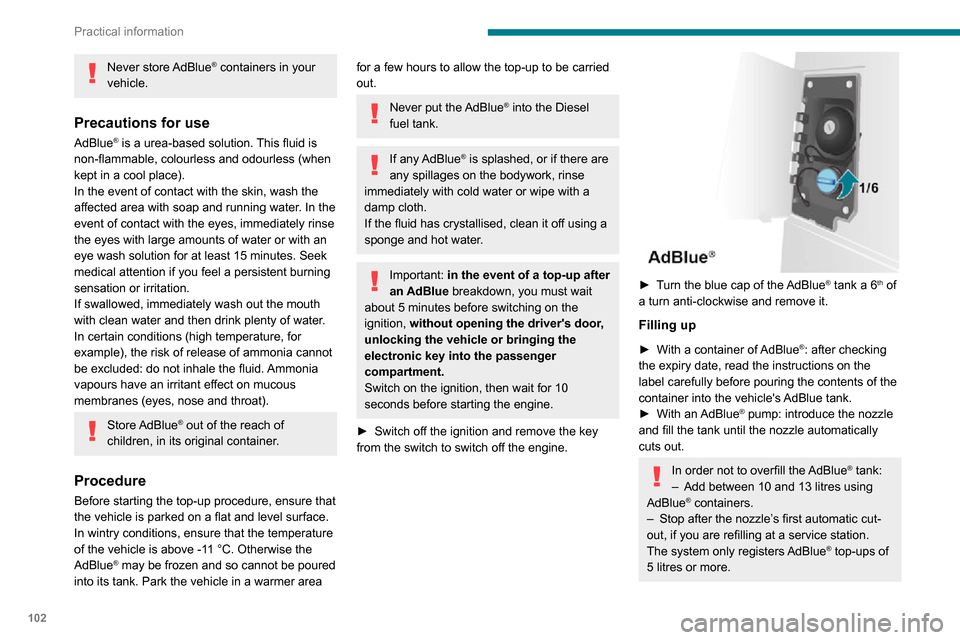
► Turn the blue cap of the AdBlue® tank a 6th of
a turn anti-clockwise and remove it.
Filling up
► With a container of AdBlue®: after checking
the expiry date, read the instructions on the
label carefully before pouring the contents of the
container into the vehicle's AdBlue tank.► With an AdBlue® pump: introduce the nozzle
and fill the tank until the nozzle automatically
cuts out.
In order not to overfill the AdBlue® tank:– Add between 10 and 13 litres using AdBlue® containers.– Stop after the nozzle’ s first automatic cut-out, if you are refilling at a service station.
The system only registers AdBlue® top-ups of 5 litres or more.
Page 105 of 196
103
Practical information
7If the AdBlue® tank is completely empty
– which is confirmed by the message
"Top up AdBlue: Starting impossible" – it is essential to add at least 5 litres.
After refilling
► Refit the blue cap to the tank filler and turn it clockwise as far as it will go (one sixth of a turn).► Close the fuel filler flap.
Do not dispose of AdBlue® containers in
the household waste.
Place them in a container reserved for this
purpose or take them back to where you
bought them.
Page 153 of 196
151
Audio system
11Audio system
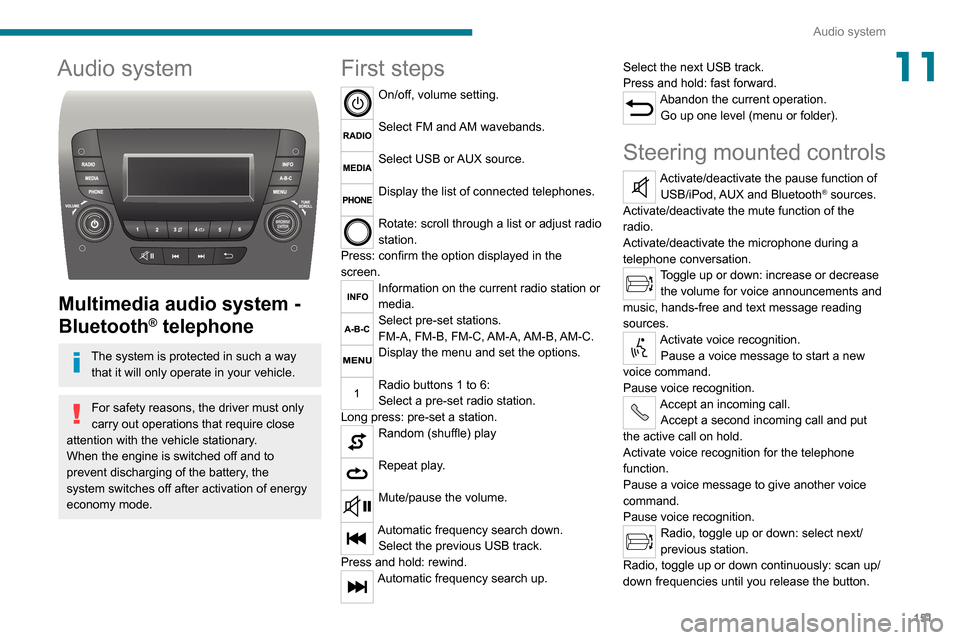
Multimedia audio system -
Bluetooth
® telephone
The system is protected in such a way that it will only operate in your vehicle.
For safety reasons, the driver must only
carry out operations that require close
attention with the vehicle stationary.When the engine is switched off and to
prevent discharging of the battery, the
system switches off after activation of energy
economy mode.
First steps
On/off, volume setting.
Select FM and AM wavebands.
Select USB or AUX source.
Display the list of connected telephones.
Rotate: scroll through a list or adjust radio
station.
Press: confirm the option displayed in the
screen.
Information on the current radio station or
media.
Select pre-set stations.
FM-A, FM-B, FM-C, AM-A, AM-B, AM-C.
Display the menu and set the options.
Radio buttons 1 to 6:
Select a pre-set radio station.
Long press: pre-set a station.
Random (shuffle) play
Repeat play.
Mute/pause the volume.
Automatic frequency search down.
Select the previous USB track.
Press and hold: rewind.
Automatic frequency search up. Select the next USB track.
Press and hold: fast forward.
Abandon the current operation.
Go up one level (menu or folder).
Steering mounted controls
Activate/deactivate the pause function of USB/iPod, AUX and Bluetooth® sources.
Activate/deactivate the mute function of the
radio.
Activate/deactivate the microphone during a
telephone conversation.
Toggle up or down: increase or decrease the volume for voice announcements and
music, hands-free and text message reading
sources.
Activate voice recognition. Pause a voice message to start a new
voice command.
Pause voice recognition.
Accept an incoming call. Accept a second incoming call and put
the active call on hold.
Activate voice recognition for the telephone
function.
Pause a voice message to give another voice
command.
Pause voice recognition.
Radio, toggle up or down: select next/
previous station.
Radio, toggle up or down continuously: scan up/
down frequencies until you release the button.
Page 154 of 196
152
Audio system
To protect the system, do not use a USB hub.
The system builds playlists (in temporary
memory); this operation can take from a
few seconds to several minutes at the first
connection.
Reduce the number of non-music files and the
number of folders to reduce the waiting time.
The playlists are updated every time the ignition
is switched off or a USB memory stick is
connected. The lists are memorised: if they are
not modified, the subsequent loading time will
be shorter.
USB socket
Located on the central console, this
socket is used only to power and
recharge the connected portable device.
Auxiliary socket (AUX)
Connect a portable device (MP3 player, etc.) to the auxiliary jack socket using an
audio cable (not supplied).
First adjust the volume on your portable device
(to a high level). Then adjust the volume on your
audio system.
Controls are managed via the portable device.
The functions of the device connected to the
“AUX” socket are managed directly by this
device: it is therefore not possible to change the
track/folder/playlist or manipulate the playback
Media, toggle up or down: select next/previous
track.
Media, toggle up or down continuously: fast
forward/rewind until you release the button.
Refuse an incoming call.
End the call in progress.
Radio
Selecting a station
The exterior environment (hills, buildings, tunnels, car parks, underground location,
etc.) may block reception, including in RDS
mode.
This behaviour is normal in the propagation of
radio waves and does not indicate any fault
with the audio system.
Press the "RADIO" button to select the
FM or AM waveband.
Briefly press one of the buttons to
automatically search for a lower/
higher frequency.
Turn the knob to manually search for a lower/higher frequency.
Press the knob to display the list of
stations received locally.
Turn the knob to select a station and press to
select it.
Memorising a station
Press the "RADIO" button to select the
FM or AM waveband.
Press the "A-B-C" button to select one of
the three memorised station levels.
Press and hold a button to memorise the
station being listened to.
The name of the station is displayed and an
audible signal confirms the memorisation.
Press "INFO" to display the information of
the station being listened to.
RDS
RDS, if displayed, allows you to continue
listening to the same station by
automatically retuning to alternative
frequencies. However, in certain conditions,
following this RDS station is not guaranteed
over the whole country, because radio
stations do not cover 100% of the area. When
the reception is weak, the frequency switches
to a regional station.
Press the "MENU" button.
Select "Regional" then press to activate
or deactivate RDS.
Alternative frequency (AF)
Select "Alternative frequency (AF)" then
press to activate or deactivate the
frequency.
When the "Regional” function is
activated, the system is therefore able to
search at any time for the best available frequency.
Playing TA messages
The TA (Traffic Announcement) function gives priority to TA alert messages. To
operate, this function needs good reception of
a radio station that carries this type of
message. While traffic information is being
broadcast, the current media is automatically
interrupted so that the TA message can be
heard. Normal play of the previously playing
media resumes at the end of the message.
Press the "MENU" button.
Select "Traffic announcement (TA)" then
press to activate or deactivate the
reception of traffic announcements.
Media
USB socket
Insert the USB memory stick or connect the device to the USB socket in the
central storage space , provided for transferring
data to the system, using a suitable cable (not
supplied).
Page 157 of 196
155
Audio system
11Voice commands
Information - Using the
system
Instead of touching the screen, you can
use your voice to control the system.
To ensure that voice commands are always recognised by the system, please
observe the following recommendations:
– speak in a normal tone of voice,– before speaking, always wait for the "beep" (acoustic signal),– the system is able to recognise the voice commands provided, regardless of gender,
tone and inflection of the voice of the speaker,
– if possible, minimise the noise inside the passenger compartment,– before issuing a voice command, ask any other passengers to refrain from speaking.
Since the system recognises commands
regardless of who is speaking, when several
people are speaking simultaneously, it
is possible for the system to recognise
commands that are different or additional to
what has been requested,
– for optimal operation, you are advised to close the windows and any sunroof present
(on versions/markets where fitted) to avoid
any external source of disturbance.
Steering-mounted controls
This button is used to activate the “Telephone” voice recognition mode that
allows you to make calls, view recent/received/
outgoing calls, display the directory, etc.
This button is used to activate the "Radio/ Media" voice recognition mode that allows
you to tune to a specific radio station or a
specific AM/FM radio frequency, play a track or
an album contained on a USB stick/iPod/MP3/
CD.
Quick voice interaction can be used if
these buttons are depressed during a
voice message from the system; it allows you
to directly say a voice command.
For example, if the system is in the middle
of saying a voice help message and if we
know the command to give the system, by
pressing these buttons, the voice message
is interrupted and it is possible to directly
say the desired voice command (so avoiding
having to listen to the complete voice help
message).
When the system is waiting for a voice
command from the user, pressing these
buttons closes the voice session.
Each time a button is pressed, a "beep"
(acoustic signal) is emitted and the
screen displays a screen page of suggestions
asking the user to say a command.
Global voice commands
These commands can be made from any screen page after
pressing the voice recognition or telephone
button located on the steering wheel, as long as
there is no telephone call in progress.
Help
Provide generic help to the user by offering
some available commands.
Cancel
Close the current voice sequence.
Repeat
Repeat the last spoken voice message to the
user.
Voice tutorial
Provide a detailed description to the user on how
to use the voice system.
"Telephone" voice
commands
If a telephone is connected to the system,
the following voice commands can be
made from any main screen page after pressing
the telephone button located on the steering
wheel, as long as there is no telephone call in
progress.
If no telephone is connected, a voice message
announces: "No telephone is connected.
Connect a telephone and try again” and the
voice session will be closed.
Page 158 of 196
156
Audio system
Play the audio book "Book 1”.Listen to track number > "5"Play track number “5”.Select > "USB"
Select the USB media support as the active
audio source.
Browse > "Album"
View the list of available albums.
"Text message" voice
commands
The following commands can be made from each main screen after pressing the
telephone button located on the steering wheel,
as long as there is no telephone call in progress.
Send a text message to > 0123456789
Start the voice procedure to send a preset text
message using the system.
Send a text message to > Henri Dupont >
Mobile phone
Start the voice procedure to send a preset text
message using the system.
View text message > Henri Dupont > Mobile
phone
View the list of text messages downloaded by
the phone.
"Hands-free calls" voice
commands
The following commands are available when a call is in progress.
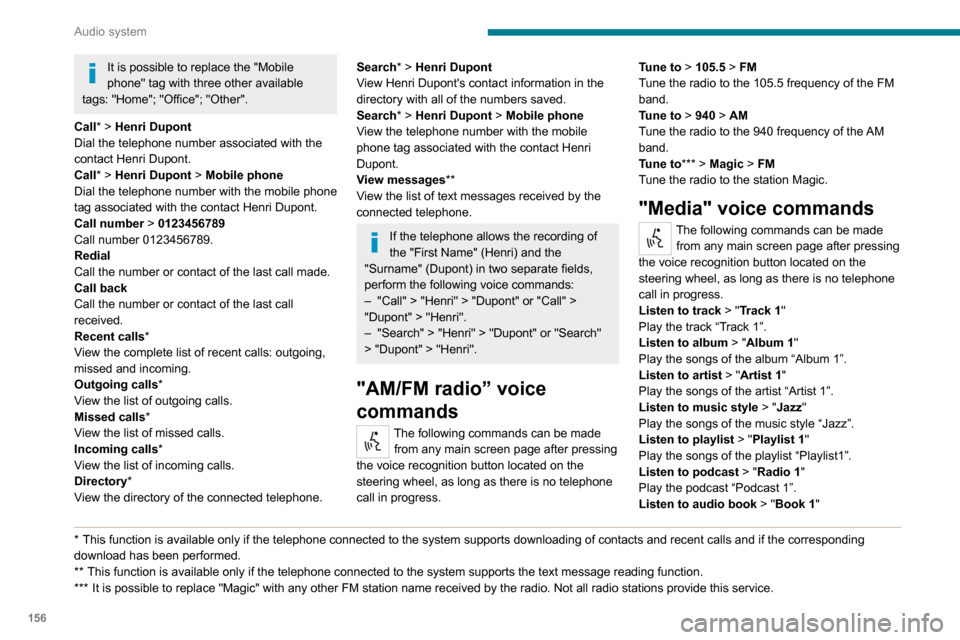
It is possible to replace the "Mobile phone" tag with three other available tags: "Home"; "Office"; "Other".
Call* > Henri Dupont
Dial the telephone number associated with the
contact Henri Dupont.
Call* > Henri Dupont > Mobile phone
Dial the telephone number with the mobile phone
tag associated with the contact Henri Dupont.
Call number > 0123456789
Call number 0123456789.
Redial
Call the number or contact of the last call made.
Call back
Call the number or contact of the last call
received.
Recent calls*
View the complete list of recent calls: outgoing,
missed and incoming.
Outgoing calls *
View the list of outgoing calls.
Missed calls*
View the list of missed calls.
Incoming calls *
View the list of incoming calls.
Directory *
View the directory of the connected telephone.
* This function is av ailable only if the telephone connected to the system supports downloading of contacts and recent calls and if the corresponding download has been performed.
** This function is available only if the telephone connected to the system supports the text message reading function.
*** It is possible to replace "Magic" with any other FM station name received by the radio. Not all radio stations provide this service.
Search* > Henri Dupont
View Henri Dupont's contact information in the
directory with all of the numbers saved.
Search* > Henri Dupont > Mobile phone
View the telephone number with the mobile
phone tag associated with the contact Henri
Dupont.
View messages **
View the list of text messages received by the
connected telephone.
If the telephone allows the recording of
the "First Name" (Henri) and the
"Surname" (Dupont) in two separate fields,
perform the following voice commands:
– "Call" > "Henri" > "Dupont" or "Call" > "Dupont" > "Henri".– "Search" > "Henri" > "Dupont" or "Search" > "Dupont" > "Henri".
"AM/FM radio” voice
commands
The following commands can be made from any main screen page after pressing
the voice recognition button located on the
steering wheel, as long as there is no telephone
call in progress. Tune to
> 105.5 > FM
Tune the radio to the 105.5 frequency of the FM
band.
Tune to > 940 > AM
Tune the radio to the 940 frequency of the AM
band.
Tune to *** > Magic > FM
Tune the radio to the station Magic.
"Media" voice commands
The following commands can be made from any main screen page after pressing
the voice recognition button located on the
steering wheel, as long as there is no telephone
call in progress.
Listen to track > "Track 1"
Play the track “Track 1”.Listen to album > "Album 1"
Play the songs of the album “Album 1”.
Listen to artist > "Artist 1"
Play the songs of the artist “Artist 1”.Listen to music style > "Jazz"
Play the songs of the music style “Jazz”.
Listen to playlist > "Playlist 1"
Play the songs of the playlist “Playlist1”.
Listen to podcast > "Radio 1"
Play the podcast “Podcast 1”.Listen to audio book > "Book 1"
Page 159 of 196
157
Audio system
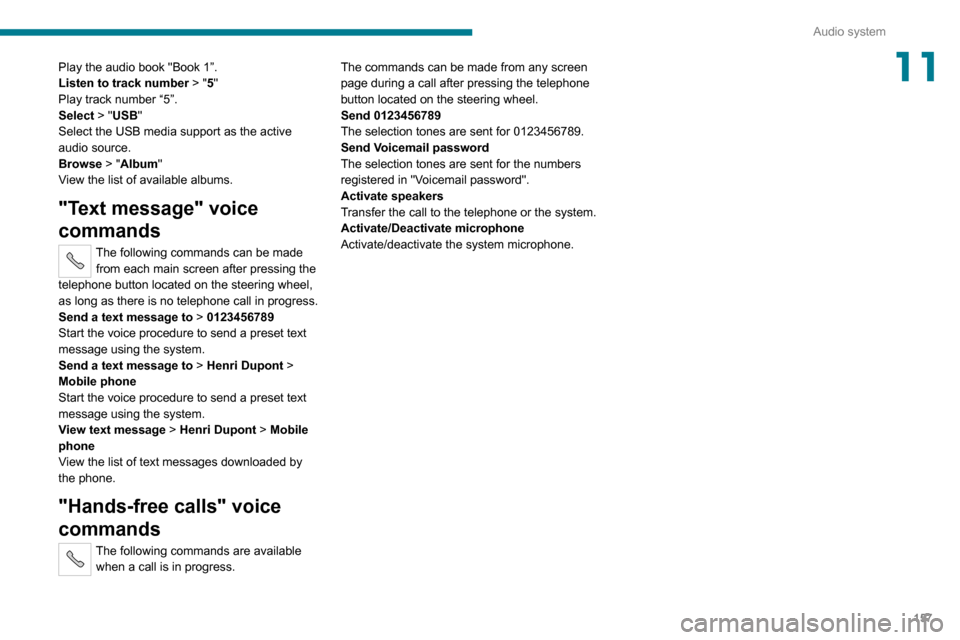
11Play the audio book "Book 1”.
Listen to track number > "5"
Play track number “5”.Select > "USB"
Select the USB media support as the active
audio source.
Browse > "Album"
View the list of available albums.
"Text message" voice
commands
The following commands can be made from each main screen after pressing the
telephone button located on the steering wheel,
as long as there is no telephone call in progress.
Send a text message to > 0123456789
Start the voice procedure to send a preset text
message using the system.
Send a text message to > Henri Dupont >
Mobile phone
Start the voice procedure to send a preset text
message using the system.
View text message > Henri Dupont > Mobile
phone
View the list of text messages downloaded by
the phone.
"Hands-free calls" voice
commands
The following commands are available when a call is in progress. The commands can be made from any screen
page during a call after pressing the telephone
button located on the steering wheel.
Send 0123456789
The selection tones are sent for 0123456789.
Send Voicemail password
The selection tones are sent for the numbers
registered in "Voicemail password".
Activate speakers
Transfer the call to the telephone or the system.
Activate/Deactivate microphone
Activate/deactivate the system microphone.