starting Peugeot Boxer 2020 Owner's Guide
[x] Cancel search | Manufacturer: PEUGEOT, Model Year: 2020, Model line: Boxer, Model: Peugeot Boxer 2020Pages: 196, PDF Size: 5.1 MB
Page 105 of 196
103
Practical information
7If the AdBlue® tank is completely empty
– which is confirmed by the message
"Top up AdBlue: Starting impossible" – it is essential to add at least 5 litres.
After refilling
► Refit the blue cap to the tank filler and turn it clockwise as far as it will go (one sixth of a turn).► Close the fuel filler flap.
Do not dispose of AdBlue® containers in
the household waste.
Place them in a container reserved for this
purpose or take them back to where you
bought them.
Page 122 of 196
120
In the event of a breakdown
FusesA (amperes)Allocation
14 15Front 12 V socket (+ battery)
15 15Cigarette lighter (+ battery)
19 7.5Air conditioning compressor
20 30Screenwash/headlamp wash pump
21 15Fuel pump supply
23 30ABS solenoid valves
24 7.5Auxiliary control panel - Door mirror control and folding (+ key)
30 15Door mirror defrosting
12 V battery
Procedure for starting the engine using another
battery or charging a discharged battery.
Lead-acid starter batteries
Batteries contain harmful substances
such as sulphuric acid and lead.
They must be disposed of in accordance
with regulations and must not, in any
circumstances, be discarded with household
waste.
Take used remote control batteries and
vehicle batteries to a special collection point.
Protect your eyes and face before
handling the battery.
All operations on the battery must be carried
out in a well ventilated area and away from
naked flames and sources of sparks, so as to
avoid the risk of explosion or fire.
Wash your hands afterwards.
Accessing the battery
The battery is located under the left-hand front
floor.
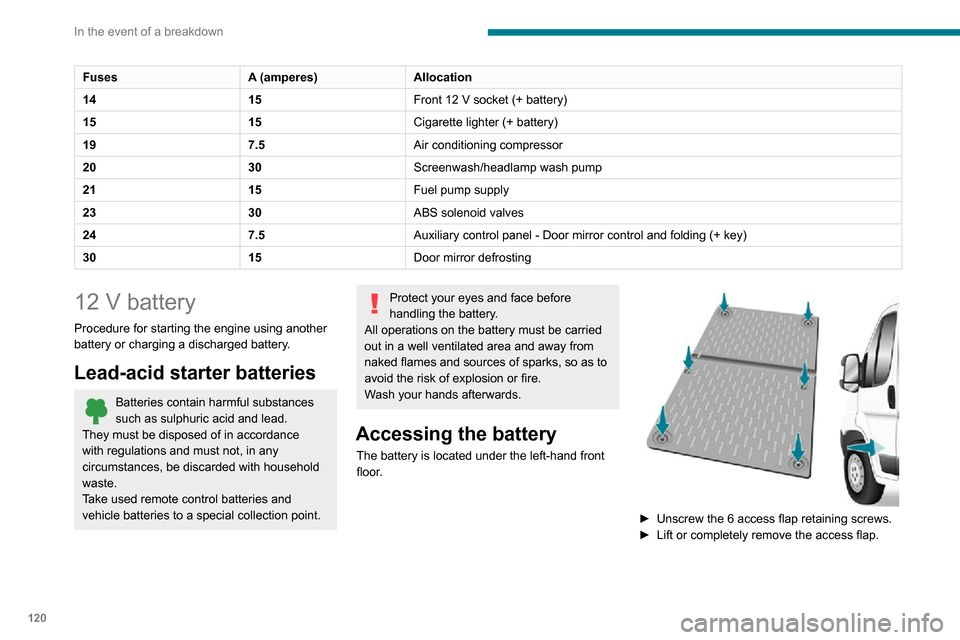
► Unscrew the 6 access flap retaining screws.
► Lift or completely remove the access flap.
Page 123 of 196
121
In the event of a breakdown
8
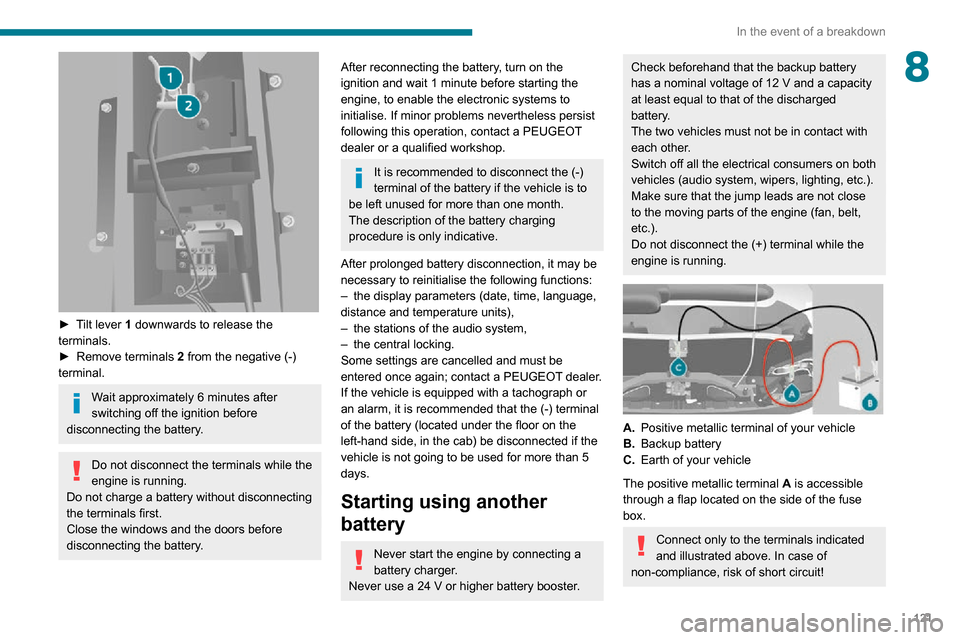
► Tilt lever 1 downwards to release the
terminals.
► Remove terminals 2 from the negative (-)
terminal.
Wait approximately 6 minutes after
switching off the ignition before
disconnecting the battery.
Do not disconnect the terminals while the
engine is running.
Do not charge a battery without disconnecting
the terminals first.
Close the windows and the doors before
disconnecting the battery.
After reconnecting the battery, turn on the ignition and wait 1 minute before starting the engine, to enable the electronic systems to
initialise. If minor problems nevertheless persist
following this operation, contact a PEUGEOT
dealer or a qualified workshop.
It is recommended to disconnect the (-) terminal of the battery if the vehicle is to be left unused for more than one month.
The description of the battery charging
procedure is only indicative.
After prolonged battery disconnection, it may be
necessary to reinitialise the following functions:
– the display parameters (date, time, language, distance and temperature units),– the stations of the audio system,– the central locking.Some settings are cancelled and must be
entered once again; contact a PEUGEOT dealer.
If the vehicle is equipped with a tachograph or
an alarm, it is recommended that the (-) terminal of the battery (located under the floor on the
left-hand side, in the cab) be disconnected if the
vehicle is not going to be used for more than 5
days.
Starting using another
battery
Never start the engine by connecting a
battery charger.
Never use a 24 V or higher battery booster.
Check beforehand that the backup battery
has a nominal voltage of 12 V and a capacity
at least equal to that of the discharged
battery.
The two vehicles must not be in contact with
each other.
Switch off all the electrical consumers on both
vehicles (audio system, wipers, lighting, etc.).
Make sure that the jump leads are not close
to the moving parts of the engine (fan, belt,
etc.).
Do not disconnect the (+) terminal while the
engine is running.
A. Positive metallic terminal of your vehicle
B. Backup battery
C. Earth of your vehicle
The positive metallic terminal A is accessible
through a flap located on the side of the fuse
box.
Connect only to the terminals indicated
and illustrated above. In case of
non-compliance, risk of short circuit!
Page 124 of 196
122
In the event of a breakdown
► Connect the red cable to metallic terminal A,
then to the (+) terminal of backup battery B.
► Connect one end of the green or black cable to the negative (-) terminal of backup battery B.► Connect the other end of the green or black cable to earth point C of your vehicle.► Operate the starter , let the engine run.► Wait for the engine to return to idle and disconnect the cables.
Charging the battery using a
battery charger
► Access the battery, located in the left-hand front floor.► Disconnect the battery .► Follow the instructions for use provided by the manufacturer of the charger.► Reconnect starting with the (-) terminal.► Check the cleanliness of the terminals. If they are covered with sulphate (whitish or greenish
deposit), remove and clean them.
The charging operation must be carried
out in a well-ventilated area and away
from naked flames and any sources of sparks
so as to avoid the risk of explosion or fire.
Do not try to recharge a frozen battery: it
must first be thawed to avoid the risk of
explosion. If it has frozen, before charging it,
have the battery checked by a specialist who
will check that the interior components have
not been damaged and that the container is
not cracked, which would involve a risk of
leakage of toxic and corrosive acid.
Perform a slow charge at low amperage for
about 24 hours maximum to avoid damaging
the battery.
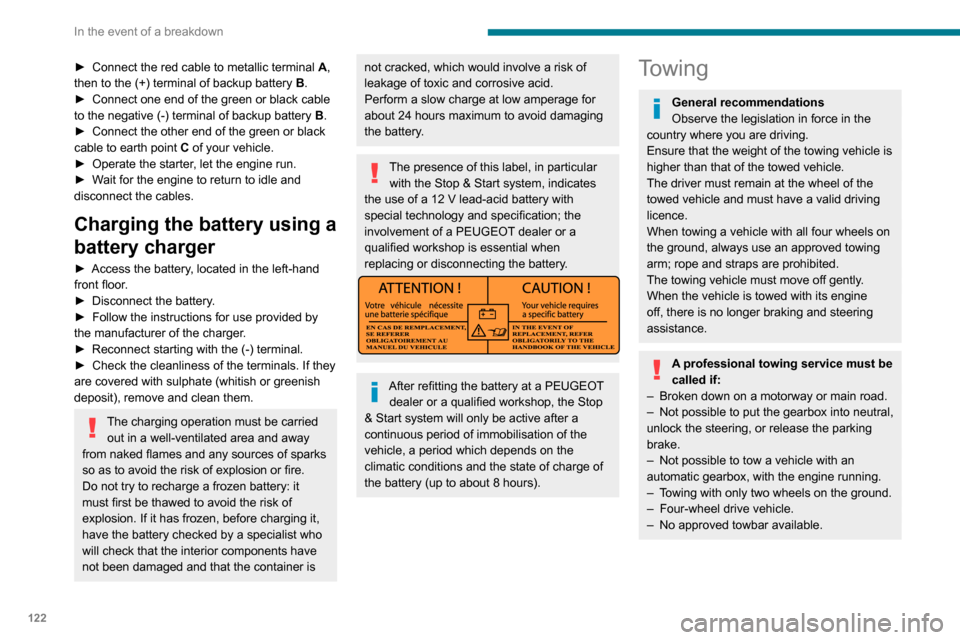
The presence of this label, in particular with the Stop & Start system, indicates
the use of a 12 V lead-acid battery with
special technology and specification; the
involvement of a PEUGEOT dealer or a
qualified workshop is essential when
replacing or disconnecting the battery.
After refitting the battery at a PEUGEOT dealer or a qualified workshop, the Stop
& Start system will only be active after a
continuous period of immobilisation of the
vehicle, a period which depends on the
climatic conditions and the state of charge of
the battery (up to about 8 hours).
Towing
General recommendations
Observe the legislation in force in the
country where you are driving.
Ensure that the weight of the towing vehicle is
higher than that of the towed vehicle.
The driver must remain at the wheel of the
towed vehicle and must have a valid driving
licence.
When towing a vehicle with all four wheels on
the ground, always use an approved towing
arm; rope and straps are prohibited.
The towing vehicle must move off gently.
When the vehicle is towed with its engine
off, there is no longer braking and steering
assistance.
A professional towing service must be
called if:
– Broken down on a motorway or main road.– Not possible to put the gearbox into neutral, unlock the steering, or release the parking
brake.
– Not possible to tow a vehicle with an automatic gearbox, with the engine running.– Towing with only two wheels on the ground.– Four-wheel drive vehicle.– No approved towbar available.
Towing your vehicle
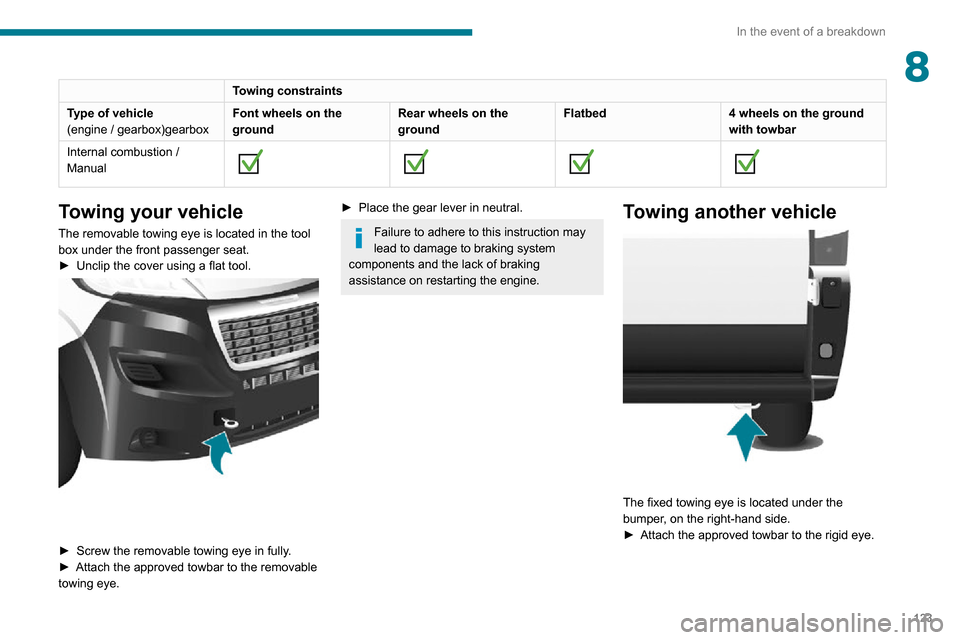
The removable towing eye is located in the tool
box under the front passenger seat.
► Unclip the cover using a flat tool.
► Screw the removable towing eye in fully.► Attach the approved towbar to the removable towing eye.
Page 125 of 196
123
In the event of a breakdown
8Towing constraints
Type of vehicle
(engine / gearbox)gearbox Font wheels on the
groundRear wheels on the
groundFlatbed
4 wheels on the ground
with towbar
Internal combustion /
Manual
Towing your vehicle
The removable towing eye is located in the tool
box under the front passenger seat.
► Unclip the cover using a flat tool.
► Screw the removable towing eye in fully .► Attach the approved towbar to the removable towing eye.
► Place the gear lever in neutral.
Failure to adhere to this instruction may
lead to damage to braking system
components and the lack of braking
assistance on restarting the engine.
Towing another vehicle
The fixed towing eye is located under the
bumper, on the right-hand side.
► Attach the approved towbar to the rigid eye.
Page 136 of 196
134
Technical data
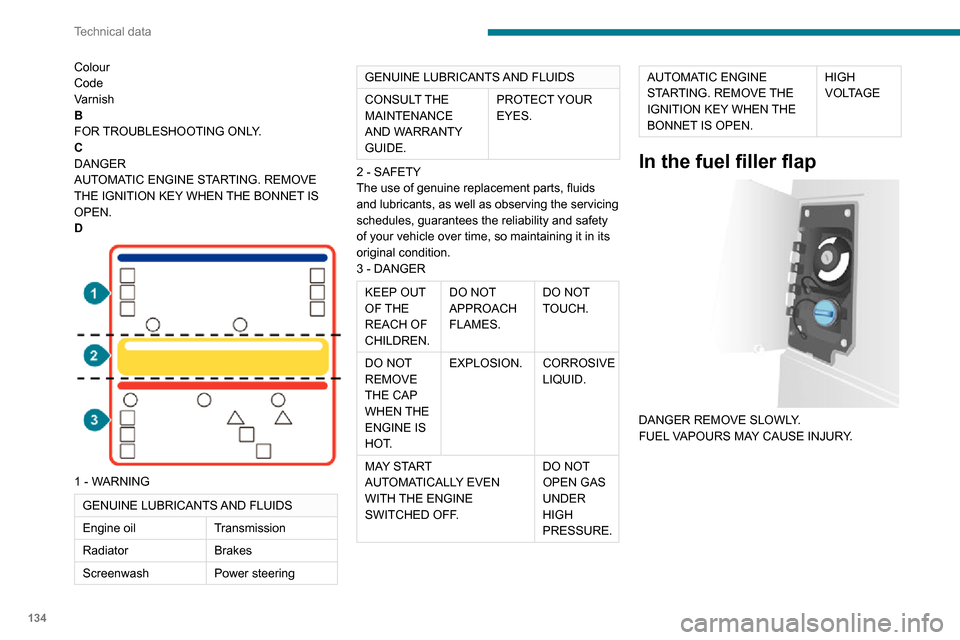
Colour
Code
Varnish
B
FOR TROUBLESHOOTING ONLY.
C
DANGER
AUTOMATIC ENGINE STARTING. REMOVE
THE IGNITION KEY WHEN THE BONNET IS
OPEN.
D
1 - WARNING
GENUINE LUBRICANTS AND FLUIDS
Engine oilTransmission
Radiator Brakes
Screenwash Power steering
GENUINE LUBRICANTS AND FLUIDS
CONSULT THE
MAINTENANCE
AND WARRANTY
GUIDE.PROTECT YOUR
EYES.
2 - SAFETY
The use of genuine replacement parts, fluids
and lubricants, as well as observing the servicing
schedules, guarantees the reliability and safety
of your vehicle over time, so maintaining it in its
original condition.
3 - DANGER
KEEP OUT
OF THE
REACH OF
CHILDREN. DO NOT
APPROACH
FLAMES.
DO NOT
TOUCH.
DO NOT
REMOVE
THE CAP
WHEN THE
ENGINE IS
HOT. EXPLOSION.
CORROSIVE
LIQUID.
MAY START
AUTOMATICALLY EVEN
WITH THE ENGINE
SWITCHED OFF. DO NOT
OPEN GAS
UNDER
HIGH
PRESSURE.
AUTOMATIC ENGINE
STARTING. REMOVE THE
IGNITION KEY WHEN THE
BONNET IS OPEN.HIGH
VOLTAGE
In the fuel filler flap
DANGER REMOVE SLOWLY.
FUEL VAPOURS MAY CAUSE INJURY.
On the rear bench seat
A
Push the backrest before folding it down.
B
PULL TO OPEN.
C
PULL LEVER 1 TO PARTIALLY TILT THE
BACKREST.
PULL LEVER 2 TO FOLD THE BACKREST
FULLY.
Page 162 of 196
160
Touch screen audio and telematics system
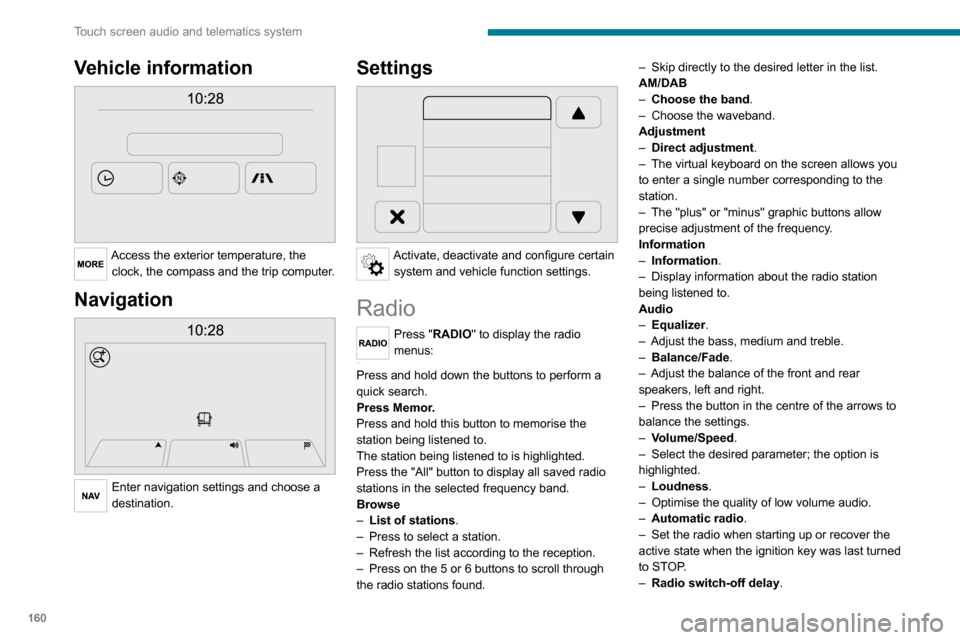
Vehicle information
Access the exterior temperature, the clock, the compass and the trip computer.
Navigation
Enter navigation settings and choose a
destination.
Settings
Activate, deactivate and configure certain system and vehicle function settings.
Radio
Press "RADIO" to display the radio
menus:
Briefly press on the 9 or : buttons to perform an automatic search.
Press and hold down the buttons to perform a
quick search.
Press Memor.
Press and hold this button to memorise the
station being listened to.
The station being listened to is highlighted.
Press the "All" button to display all saved radio stations in the selected frequency band.
Browse
– List of stations .– Press to select a station.– Refresh the list according to the reception.– Press on the 5 or 6 buttons to scroll through
the radio stations found.
– Skip directly to the desired letter in the list.AM/DAB– Choose the band .– Choose the waveband.Adjustment– Direct adjustment.– The virtual keyboard on the screen allows you to enter a single number corresponding to the
station.
– The "plus" or "minus" graphic buttons allow precise adjustment of the frequency.
Information
– Information.– Display information about the radio station being listened to.
Audio
– Equalizer.– Adjust the bass, medium and treble.– Balance/Fade.– Adjust the balance of the front and rear speakers, left and right.– Press the button in the centre of the arrows to balance the settings.
– Volume/Speed.– Select the desired parameter; the option is highlighted.– Loudness.– Optimise the quality of low volume audio.– Automatic radio.– Set the radio when starting up or recover the active state when the ignition key was last turned
to STOP.
– Radio switch-off delay .
– Set the parameter.– AUX vol. setting .– Set the parameters.
DAB (Digital Audio
Broadcasting) radio
Terrestrial Digital Radio
Digital radio
Digital radio provides higher quality
reception and also the graphical display
of current information on the radio station
being listened to.
The various "multiplexes/ensembles" offer
a choice of radio stations organised in
alphabetical order.
Press “RADIO” successively to display the "DAB Radio".Select the "Navigate" tab.
Select a list from the filters offered: "All", "Types",
"Ensembles", then select a radio station.
Press the "Update" button to update the
list of "DAB Radio" stations received.
Page 164 of 196
162
Touch screen audio and telematics system
– Select the desired parameter; the option is highlighted.– Loudness.– Optimise the quality of low volume audio.– Automatic radio.– Set the radio when starting up or recover the active state when the ignition key was last turned
to STOP.
– Radio switch-off delay.– Set the parameter.– AUX vol. setting.– Set the parameters.
USB socket
Insert the USB memory stick or connect the device to the USB socket in the
central storage space , provided for transferring
data to the system, using a suitable cable (not
supplied).
To protect the system, do not use a USB hub.
The system builds playlists (in temporary
memory); this operation can take from a
few seconds to several minutes at the first
connection.
Reduce the number of non-music files and the
number of folders to reduce the waiting time.
The playlists are updated every time the ignition
is switched off or a USB memory stick is
connected. The lists are memorised: if they are
not modified, the subsequent loading time will
be shorter.
USB socket
Located on the central console, this
socket is used only to power and
recharge the connected portable device.
Auxiliary socket (AUX)
Connect a portable device (MP3 player,
etc.) to the auxiliary jack socket using an
audio cable (not supplied).
First adjust the volume on your portable device
(to a high level). Then adjust the volume on your
audio system.
Controls are managed via the portable device.
The functions of the device connected to the
“AUX” socket are managed directly by this
device: it is therefore not possible to change the
track/folder/playlist or manipulate the playback
start/end/pause using the controls on the control
panel or the steering wheel.
Do not leave the cable of your portable device
connected to the “AUX” socket when not in use,
to avoid possible noise from the speakers.
Selecting the source
Press on "MEDIA".
Select the "Source" tab to show the rolling display of audio sources.Select the source.
Use the play settings on the screen.
Press the "Rand." button and/or the "Repeat" button to activate them, press again to deactivate them.
Information and advice
The audio system will only play audio files with
".wav", ".wma" and ".mp3" file extensions, at bit
rates between 32 Kbps and 320 Kbps.
For audio files with ".aac", ".m4a", ".m4b" and
".mp4" file extensions, the supported sampling
rates are 8 - 96 kHz.
".m3u" and ".wpl" types are also supported.
The system does not manage devices with a
capacity greater than 64 GB.
It is advisable to restrict file names to 20
characters, without using special characters (e.g.
" " ? . ; ù) so as to avoid any reading or display
problems.
The system supports USB mass storage devices, BlackBerry® devices or Apple®
players via the USB sockets. The adapter
cable is not supplied.
Devices are managed using the audio system
controls.
Other devices, not recognised by the system
during connection, must be connected to
the auxiliary socket using a Jack cable (not
supplied).
Only use USB memory sticks formatted to FAT
32 (File Allocation Table).
To protect the system, do not use a USB hub.
The system does not support the simultaneous connection of two identical
devices (two memory sticks or two
Apple
® players) but it is possible to connect one memory stick and one Apple® player at
the same time.
It is recommended that you use genuine
Apple® USB cables to guarantee correct
operation.
Bluetooth® Streaming
Streaming allows music files on the telephone to
be played via the vehicle's speakers.
Active the Bluetooth
® function on the device.Press "MEDIA".
If there is a media source active, press
the "Source" button.
Select the "Bluetooth®" media source
then press the "Add device” button.
If no device has yet been paired with the system,
a special page is displayed on the screen.
Select "Yes" to start the pairing procedure, and
then search for the name of the system on the
device.
Select the name of the system on the device
and, when requested by the audio system,
enter the PIN code displayed on the screen of
Page 165 of 196
163
Touch screen audio and telematics system
12To protect the system, do not use a USB hub.
The system does not support the simultaneous connection of two identical
devices (two memory sticks or two
Apple
® players) but it is possible to connect one memory stick and one Apple® player at
the same time.
It is recommended that you use genuine
Apple® USB cables to guarantee correct
operation.
Bluetooth® Streaming
Streaming allows music files on the telephone to
be played via the vehicle's speakers.
Active the Bluetooth
® function on the device.Press "MEDIA".
If there is a media source active, press
the "Source" button.
Select the "Bluetooth®" media source
then press the "Add device” button.
If no device has yet been paired with the system,
a special page is displayed on the screen.
Select "Yes" to start the pairing procedure, and
then search for the name of the system on the
device.
Select the name of the system on the device
and, when requested by the audio system,
enter the PIN code displayed on the screen of
the system or confirm the PIN displayed on the
device.
During pairing, a screen page is displayed
showing the progress of the operation.
If the pairing procedure fails, we recommend
deactivating and then reactivating the Bluetooth
®
function on your device.
Once the pairing procedure is complete, a
screen page appears:
– if you reply "Y es" to the question, the Bluetooth® audio device will be saved as
favourite (the device will have priority over other
devices paired later).
– if you reply "No", the priority will be determined by the order of connection. The last device
connected has the highest priority.
Some Bluetooth® devices do not allow
you to scroll through the tracks and
information on the telephone using all of the
categories present in the system.
Connecting Apple® players
Connect the Apple® player to the USB
socket using a suitable cable (not
supplied).
Play starts automatically.
Control is via the audio system.
The classifications available are those of the portable device connected (artists/
albums/types/tracks/playlists/audio books/
podcasts).
The default classification is sorting by artist.
To change the classification used, return to
the first level of the menu and then select the
desired classification (playlists for example)
and confirm to browse the tree to the desired
track.
The audio system software version may not be compatible with the generation of
your Apple® player.
Navigation
Press "N AV " and then at the centre or
bottom of the screen to display the
settings and navigation menus:
Go to...
Select "Go to" to set the destination in several
ways and not just by entering the address.
Display the map
Display the route map for an overview using the
map's navigator.
Plan a route
Use the navigation system to plan a route in
advance by selecting the starting point and the
destination.
Services
Use traffic information to minimise the impact of
traffic delays on your route.
Settings
Page 170 of 196
168
Touch screen audio and telematics system
Enter the telephone number using the keypad,
then press the “Call” button to make the call.
Calling a contact
Press "PHONE".
Press the "Contacts" button or the
"Recent calls" button.
Select the desired contact from the list offered to
start the call.
Vehicle information
Press "MORE" to display the vehicle
information menus:
Exterior temp.
Display the exterior temperature.
Clock
Display the clock.CompassDisplay the direction that you are travelling in.Trip– Current info., Trip A, Trip B.
Display the trip computer.
Press and hold the "Trip A" or "Trip B" button to
reset the trip concerned.
Settings
Press this button to display the settings
menus:
Display
– Brightness.
– Set the brightness of the screen.– Display mode.– Set the display mode.– Language.– Choose the desired language.– Unit of measurement.– Set the display units for consumption, distance and temperature.– Touch screen beep.– Activate or deactivate the audible signal when touching a button on the screen.– Display Trip B.– Display Trip B on the driver's screen.Voice commands– Voice response time.– Set the length of the voice system response.– Display list of commands.– Display suggestions with the different options during a voice session.
Clock and Date
– Time setting and format.– Setting the time.– Display time mode.
– Activate or deactivate the display of the digital clock on the status bar.– Synchro time.– Activate or deactivate the automatic time display.– Date setting.– Set the date.Safety/Assistance– Reversing camera.– Display the reversing camera in reverse.
– Camera delay.– Maintain the on-screen display of the reversing camera for a maximum of 10 seconds
or up to 11 mph (18 km/h).
Lighting
– Daytime running lamps.– Activate or deactivate the automatic illumination of the headlamps when starting.
Doors & locking
– Autoclose.– Activate or deactivate the automatic locking of the doors when the vehicle is moving.Audio– Equalizer.– Adjust the bass, medium and treble.– Balance/Fade.– Adjust the balance of the front and rear speakers, left and right.– Press the button in the centre of the arrows to balance the settings.– Volume/Speed.– Select the desired parameter; the option is highlighted.
– Loudness.– Optimise the quality of low volume audio.– Automatic radio.– Set the radio when starting up or recover the active state when the ignition key was last turned
to STOP.
– Radio switch-off delay.– Set the parameter.– AUX vol. setting.– Set the parameters.