ECO mode PEUGEOT BOXER 2021 Owner's Guide
[x] Cancel search | Manufacturer: PEUGEOT, Model Year: 2021, Model line: BOXER, Model: PEUGEOT BOXER 2021Pages: 212, PDF Size: 6.37 MB
Page 182 of 212
180
Touch screen audio and telematics system
– Memorise the selected mobile device in the
favourites.
–
Set the parameters.
–
Add device
.
–
Add a new mobile device.
–
Connected audio.
–
Connect the mobile device only for audio.
Radio setting
–
DAB announcements
.
–
Activate or deactivate the announcements.
–
Activate or deactivate the options:
Alarm,
Event announc., Stock market newsflash,
Newsflash, Programme info, Special event, Sport
info, Public transp. info. Alarm announcement,
Weather newsflash.
Restore settings
Restore the default settings of the screen, clock,
sound and radio.
Delete personal data
Delete personal data, Bluetooth
® devices and
built-in presets.
Voice commands
Information - Using the
system
Instead of touching the screen, you can
use your voice to control the system.
To ensure that voice commands are always recognised by the system, please
observe the following recommendations:
–
speak in a normal tone of voice,
–
before speaking, always wait for the "beep"
(acoustic signal),
–
the system is able to recognise the voice
commands provided, regardless of gender
,
tone and inflection of the voice of the speaker,
–
if possible, minimise the noise inside the
passenger compartment,
–
before issuing a voice command, ask any
other passengers to refrain from speaking.
Since the system recognises commands
regardless of who is speaking, when several
people are speaking simultaneously
, it
is possible for the system to recognise
commands that are different or additional to
what has been requested,
–
for optimal operation, you are advised to
close the windows and any sunroof present
(on versions/markets where fitted) to avoid
any external source of disturbance.
Steering-mounted controls
This button is used to activate the “Telephone” voice recognition mode that
allows you to make calls, view recent/received/
outgoing calls, display the directory, etc.
This button is used to activate the "Radio/ Media" voice recognition mode that allows
you to tune to a specific radio station or a
specific AM/FM radio frequency, play a track or
an album contained on a USB stick/iPod/MP3/
CD.
Quick voice interaction can be used if
these buttons are depressed during a
voice message from the system; it allows you
to directly say a voice command.
For example, if the system is in the middle
of saying a voice help message and if we
know the command to give the system, by
pressing these buttons, the voice message
is interrupted and it is possible to directly
say the desired voice command (so avoiding
having to listen to the complete voice help
message).
When the system is waiting for a voice
command from the user, pressing these
buttons closes the voice session.
Each time a button is pressed, a "beep"
(acoustic signal) is emitted and the
screen displays a screen page of suggestions
asking the user to say a command.
Global voice commands
These commands can be made from any screen page after
pressing the voice recognition or telephone
button located on the steering wheel, as long as
there is no telephone call in progress.
Help
Page 184 of 212
182
Touch screen audio and telematics system
Tune the radio to the 940 frequency of the AM
band.
Tune to* > Magic > FM
Tune the radio to the station Magic.
Tune to DAB channel ** > Absolute Radio
Tune the DAB radio to the Absolute Radio
channel.
"Media" voice commands
The following commands can be made from any main screen page after pressing
the voice recognition button located on the
steering wheel, as long as there is no telephone
call in progress.
Listen to track > "Track 1"
Play the track
“Track 1”.
Listen to album > "Album 1"
Play the songs of the album “Album 1”.
Listen to artist > "Artist 1"
Play the songs of the artist
“Artist 1”.
Listen to music style > "Jazz"
Play the songs of the music style “Jazz”.
Listen to playlist > "Playlist 1"
Play the songs of the playlist “Playlist1”.
Listen to podcast > "Radio 1"
Play the podcast
“Podcast 1”.
Listen to audio book > "Book 1"
Play the audio book "Book 1”.
Listen to track number > "5"
Play track
number “5”.
* It is possible to rep lace "Magic" with any other FM station name received by the radio. Not all radio stations provide this service.
** It is possible to re place "Absolute Radio" with any other DAB channel received by the radio. Not all DAB channels provide this service. Select > "USB"
Select the USB media support as the active
audio source.
Browse > "Album"
View the list of available albums.
"Navigation" voice
commands
The following commands can be made
from any main screen page after pressing
the voice recognition or telephone button located
on the steering wheel, as long as there is no
telephone call in progress.
Go home
Display the route home.
2D mode
Switch to 2D mode.
3D mode
Switch to 3D mode.
Clear route
Clear the displayed route.
Add a favourite
Display the favourites screen page.
Repeat instruction
Repeat the last spoken voice message.
"Text message" voice
commands
The following commands can be made from each main screen after pressing the
telephone button located on the steering wheel,
as long as there is no telephone call in progress.
Send a text message to > 0123456789
Start the voice procedure to send a preset text
message using the system.
Send a text message to > Henri Dupont >
Mobile phone
Start the voice procedure to send a preset text
message using the system.
View text message > Henri Dupont > Mobile
phone
View the list of text messages downloaded by
the phone.
"Hands-free calls" voice
commands
The following commands are available when a call is in progress.
The commands can be made from any screen
page during a call after pressing the telephone
button located on the steering wheel.
Send 0123456789
The selection tones are sent for 0123456789.
Send Voicemail password
Page 186 of 212
184
ALPINE® X902D system
ALPINE® X902D system
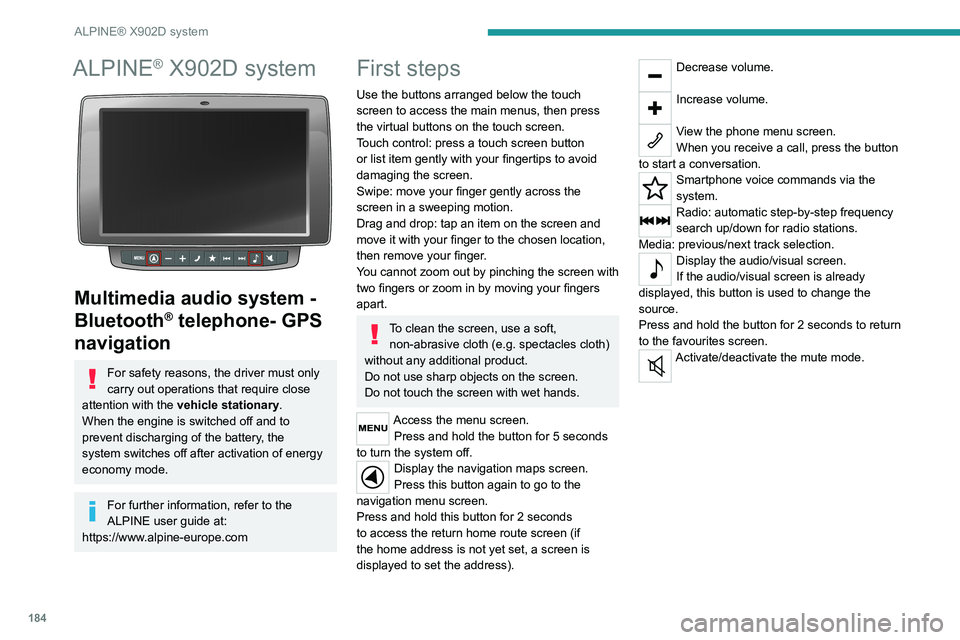
Multimedia audio system -
Bluetooth
® telephone- GPS
navigation
For safety reasons, the driver must only
carry out operations that require close
attention with the vehicle stationary.
When the engine is switched off and to
prevent discharging of the battery, the
system switches off after activation of energy
economy mode.
For further information, refer to the
ALPINE user guide at:
https://www.alpine-europe.com
First steps
Use the buttons arranged below the touch
screen to access the main menus, then press
the virtual buttons on the touch screen.
Touch control: press a touch screen button
or list item gently with your fingertips to avoid
damaging the screen.
Swipe: move your finger gently across the
screen in a sweeping motion.
Drag and drop: tap an item on the screen and
move it with your finger to the chosen location,
then remove your finger.
You cannot zoom out by pinching the screen with
two fingers or zoom in by moving your fingers
apart.
To clean the screen, use a soft, non-abrasive cloth (e.g. spectacles cloth)
without any additional product.
Do not use sharp objects on the screen.
Do not touch the screen with wet hands.
Access the menu screen. Press and hold the button for 5 seconds
to turn the system off.
Display the navigation maps screen.
Press this button again to go to the
navigation menu screen.
Press and hold this button for 2 seconds
to access the return home route screen (if
the home address is not yet set, a screen is
displayed to set the address).
Decrease volume.
Increase volume.
View the phone menu screen.
When you receive a call, press the button
to start a conversation.
Smartphone voice commands via the
system.
Radio: automatic step-by-step frequency
search up/down for radio stations.
Media: previous/next track selection.
Display the audio/visual screen.
If the audio/visual screen is already
displayed, this button is used to change the
source.
Press and hold the button for 2 seconds to return
to the favourites screen.
Activate/deactivate the mute mode.
Page 190 of 212
188
Event data recorders
Depending on the vehicle's equipment level, this
may include:
–
Seat and steering wheel position settings.
–
Chassis and air conditioning settings.
–
Personalised settings such as the interior
lighting.
Y
ou can enter your own data into the functions
of your vehicle's audio and telematic system, as
part of the selected functionalities.
Depending on the vehicle's equipment level,
this
may
include:
–
Multimedia data such as music, videos or
photos to be read by an integrated multimedia
system.
–
Address book data to be used with an
integrated hands-free system or with an
integrated navigation system.
–
Entered destinations.
–
Data regarding the use of online services.
This data for the comfort and infotainment
functions may be stored locally in the vehicle
or saved to a device that you have connected
to the vehicle (e.g.
smartphone, USB memory
stick or MP3 player). Data that you have entered
yourself may be deleted at any time.
This data may also be transmitted outside the
vehicle at your request, particularly when using
online services in line with the settings that you
have selected. Smartphone integration
(e.g.
Android
Auto
® or
Apple
®CarPlay®)
If your vehicle is equipped accordingly, you can
connect your smartphone or another mobile
device to the vehicle in order to operate it using
the vehicle's integrated controls. Images and
sounds from the smartphone can be transmitted
through the audio and telematics system.
Specific information is simultaneously sent
to your smartphone. Depending on the type
of
integration,
this includes data such as location,
day/night mode and other general information
about the vehicle. For more information, please
refer to the user instructions for the vehicle or the
audio and telematics system.
Integrating a smartphone allows you to use
its applications, such as a navigation app or
music player. No other
integration between
the smartphone and the vehicle is possible, in
particular active access to vehicle data. How the
data is processed subsequently is determined
by the supplier of the application being used.
The ability the change settings depends on the
application in question and on the operating
system installed on your smartphone.
Online services
If your vehicle is connected to a wireless
network, data can be exchanged between
your vehicle and other systems. Connection
to a wireless network is made possible
via a transmitter located in your vehicle or a mobile
device that you have provided (e.g.
smartphone).
The online services can be used via this wireless
connection.
These include online services and
applications (apps) provided to you by the
Manufacturer or other suppliers.
Exclusive services
As regards the Manufacturer's online services,
the corresponding functions are described by
the Manufacturer in an appropriate medium
(e.g.
handbook, Manufacturer's website) and the
information about data protection is provided.
Personal data may be used for online services.
The exchange of data for this purpose takes
place over a secure connection, using for
example the Manufacturer's dedicated computer
systems. The collection, processing and use of
personal data for the development of services
are carried out solely on the basis of a legal
authorisation, for example in the case of a
legal emergency call system or a contractual
agreement or else under a consent agreement.
You can activate or deactivate the services and
functions (some may be chargeable) and, in
some cases, the vehicle's entire connection to
the wireless network. This does not include the
statutory functions and services such as the
emergency or assistance call system.
Third-party services
If you use online services provided by other
(third-party) suppliers, these services are subject