lock PEUGEOT BOXER 2021 Workshop Manual
[x] Cancel search | Manufacturer: PEUGEOT, Model Year: 2021, Model line: BOXER, Model: PEUGEOT BOXER 2021Pages: 212, PDF Size: 6.37 MB
Page 160 of 212
158
Special features
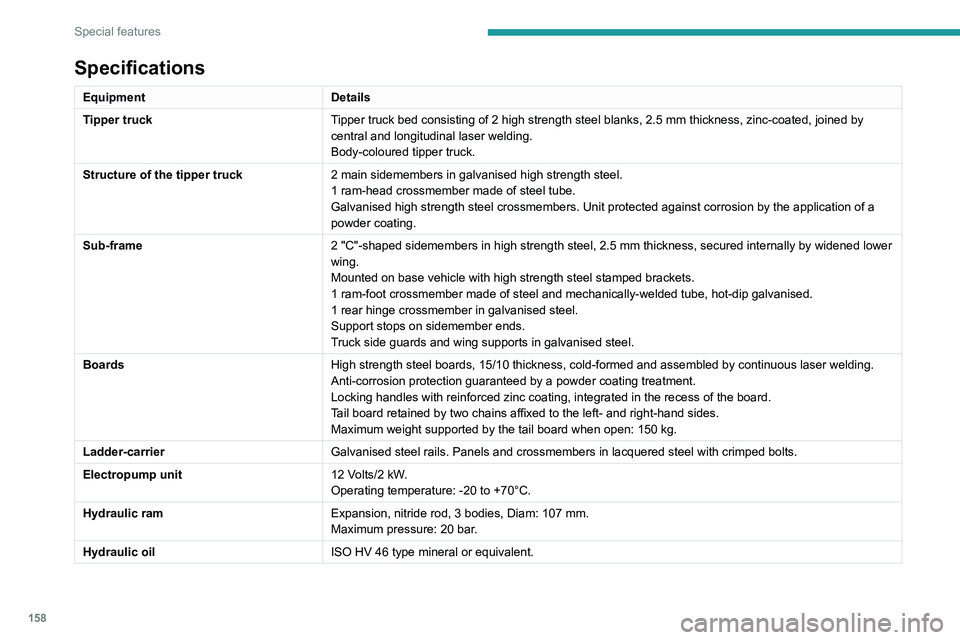
Specifications
EquipmentDetails
Tipper truck Tipper truck bed consisting of 2 high strength steel blanks, 2.5 mm thickness, zinc-coated, joined by
central and longitudinal laser welding.
Body-coloured tipper truck.
Structure of the tipper truck 2 main sidemembers in galvanised high strength steel.
1 ram-head crossmember made of steel tube.
Galvanised high strength steel crossmembers. Unit protected against corrosion by the application of a
powder coating.
Sub-frame 2 "C"-shaped sidemembers in high strength steel, 2.5 mm thickness, secured internally by widened lower
wing.
Mounted on base vehicle with high strength steel stamped brackets.
1 ram-foot crossmember made of steel and mechanically-welded tube, hot-dip galvanised.
1 rear hinge crossmember in galvanised steel.
Support stops on sidemember ends.
Truck side guards and wing supports in galvanised steel.
Boards High strength steel boards, 15/10 thickness, cold-formed and assembled by continuous laser welding.
Anti-corrosion protection guaranteed by a powder coating treatment.
Locking handles with reinforced zinc coating, integrated in the recess of the board.
Tail board retained by two chains affixed to the left- and right-hand sides.
Maximum weight supported by the tail board when open: 150 kg.
Ladder-carrier Galvanised steel rails. Panels and crossmembers in lacquered steel with crimped bolts.
Electropump unit 12 Volts/2 kW.
Operating temperature: -20 to +70°C.
Hydraulic ram Expansion, nitride rod, 3 bodies, Diam: 107 mm.
Maximum pressure: 20 bar.
Hydraulic oil ISO HV 46 type mineral or equivalent.
Page 163 of 212
161
Special features
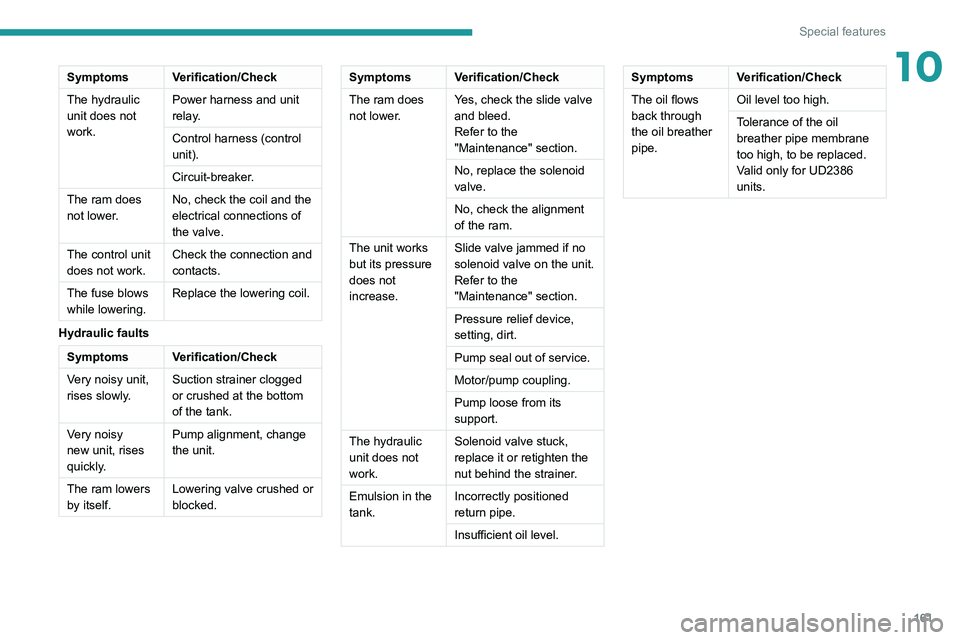
10SymptomsVerification/Check
The hydraulic
unit does not
work. Power harness and unit
relay.
Control harness (control
unit).
Circuit-breaker.
The ram does
not lower. No, check the coil and the
electrical connections of
the valve.
The control unit
does not work. Check the connection and
contacts.
The fuse blows
while lowering. Replace the lowering coil.
Hydraulic faults
Symptoms Verification/Check
Very noisy unit,
rises slowly. Suction strainer clogged
or crushed at the bottom
of the tank.
Very noisy
new unit, rises
quickly. Pump alignment, change
the unit.
The ram lowers
by itself. Lowering valve crushed or
blocked.
Symptoms
Verification/Check
The ram does
not lower. Yes, check the slide valve
and bleed.
Refer to the
"Maintenance" section.
No, replace the solenoid
valve.
No, check the alignment
of the ram.
The unit works
but its pressure
does not
increase. Slide valve jammed if no
solenoid valve on the unit.
Refer to the
"Maintenance" section.
Pressure relief device,
setting, dirt.
Pump seal out of service.
Motor/pump coupling.
Pump loose from its
support.
The hydraulic
unit does not
work. Solenoid valve stuck,
replace it or retighten the
nut behind the strainer.
Emulsion in the
tank. Incorrectly positioned
return pipe.
Insufficient oil level.Symptoms
Verification/Check
The oil flows
back through
the oil breather
pipe. Oil level too high.
Tolerance of the oil
breather pipe membrane
too high, to be replaced.
Valid only for UD2386
units.
Page 165 of 212
163
Audio system
11Media, toggle up or down: select next/previous
track.
Media, toggle up or down continuously: fast
forward/rewind until you release the button.
Refuse an incoming call.
End the call in progress.
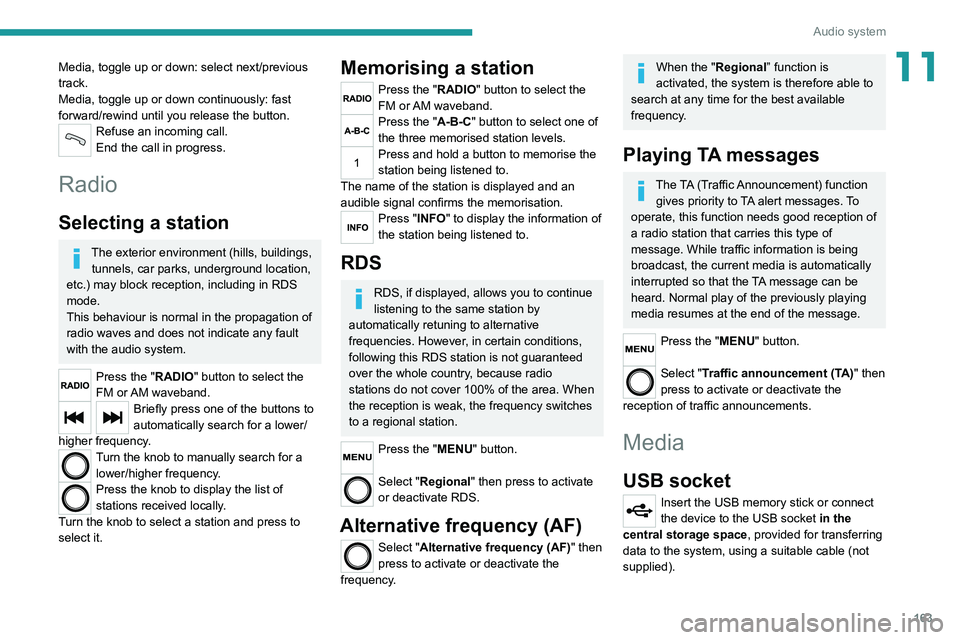
Radio
Selecting a station
The exterior environment (hills, buildings, tunnels, car parks, underground location,
etc.) may block reception, including in RDS
mode.
This behaviour is normal in the propagation of
radio waves and does not indicate any fault
with the audio system.
Press the "RADIO" button to select the
FM or AM waveband.
Briefly press one of the buttons to
automatically search for a lower/
higher frequency.
Turn the knob to manually search for a lower/higher frequency.
Press the knob to display the list of
stations received locally.
Turn the knob to select a station and press to
select it.
Memorising a station
Press the "RADIO" button to select the
FM or AM waveband.
Press the "A-B-C" button to select one of
the three memorised station levels.
Press and hold a button to memorise the
station being listened to.
The name of the station is displayed and an
audible signal confirms the memorisation.
Press "INFO" to display the information of
the station being listened to.
RDS
RDS, if displayed, allows you to continue
listening to the same station by
automatically retuning to alternative
frequencies. However, in certain conditions,
following this RDS station is not guaranteed
over the whole country, because radio
stations do not cover 100% of the area. When
the reception is weak, the frequency switches
to a regional station.
Press the "MENU" button.
Select "Regional" then press to activate
or deactivate RDS.
Alternative frequency (AF)
Select "Alternative frequency (AF)" then
press to activate or deactivate the
frequency.
When the "Regional” function is
activated, the system is therefore able to
search at any time
for the best available
frequency.
Playing TA messages
The TA (Traffic Announcement) function gives priority to TA alert messages. To
operate, this function needs good reception of
a radio station that carries this type of
message. While traffic information is being
broadcast, the current media is automatically
interrupted so that the TA message can be
heard. Normal play of the previously playing
media resumes at the end of the message.
Press the "MENU" button.
Select "Traffic announcement (TA)" then
press to activate or deactivate the
reception of traffic announcements.
Media
USB socket
Insert the USB memory stick or connect
the device to the USB socket in the
central storage space , provided for transferring
data to the system, using a suitable cable (not
supplied).
Page 173 of 212
171
Touch screen audio and telematics system
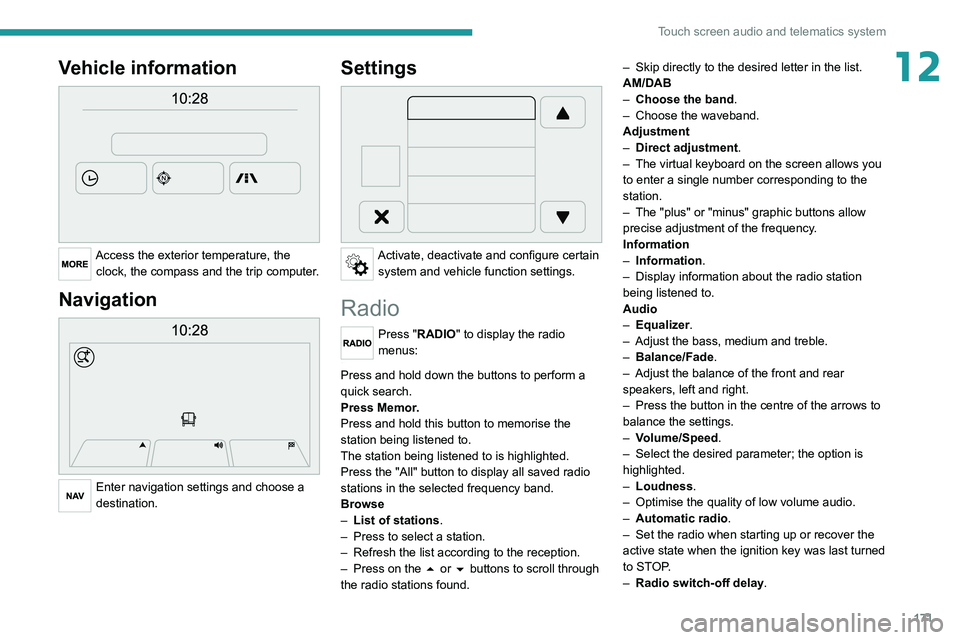
12Vehicle information
Access the exterior temperature, the clock, the compass and the trip computer.
Navigation
Enter navigation settings and choose a
destination.
Settings
Activate, deactivate and configure certain system and vehicle function settings.
Radio
Press "RADIO" to display the radio
menus:
Briefly press on the 9 or : buttons to perform an automatic search.
Press and hold down the buttons to perform a
quick search.
Press Memor.
Press and hold this button to memorise the
station being listened to.
The station being listened to is highlighted.
Press the "All" button to display all saved
radio
stations in the selected frequency band.
Browse
–
List of stations .
–
Press to select a station.
–
Refresh the list according to the reception.
–
Press on the
5 or 6 buttons to scroll through
the radio stations found. –
Skip directly to the desired letter in the list.
AM/DAB
–
Choose the band
.
–
Choose the waveband.
Adjustment
–
Direct adjustment
.
–
The virtual keyboard on the screen allows you
to enter a single number corresponding to the
station.
–
The "plus" or "minus" graphic buttons allow
precise adjustment of the frequency
.
Information
–
Information.
–
Display information about the radio station
being listened to.
Audio
–
Equalizer
.
–
Adjust the bass, medium and treble.
–
Balance/Fade
.
– Adjust the balance of the front and rear
speakers, left and right.
–
Press the button in the centre of the arrows to
balance the settings.
–
V
olume/Speed.
–
Select the desired parameter; the option is
highlighted.
–
Loudness
.
–
Optimise the quality of low volume audio.
–
Automatic radio
.
–
Set the radio when starting up or recover the
active state when the ignition key was last turned
to ST
OP.
–
Radio switch-off delay.
Page 177 of 212
175
Touch screen audio and telematics system
12Help
Access information about assistance services
and other specialised services.
Finish
Validate the settings.
Limitation
Speed limitation (if known).
To see the difference between the desired arrival
time and the estimated arrival time.
Switch between a 3D map and a 2D map.
Go to..., Display the map, Plan a route,
Services, Settings, Help, Finish.
When the navigation system starts for the first
time, the "Driving mode" as well as detailed
information on the current position is displayed.
Touch the centre of the screen to open the main
menu.
Details
The route summary provides an overview of the
route, the remaining distance to the destination
and an estimate of the remaining travel time.
With the RDS-TMC data, the route summary
also shows the traffic information concerning
delays along the route.
Modify route
The navigation system helps you to get to your
destination as quickly as possible by displaying a
faster alternative route when it is available.
Finish
Validate the settings.
Instructions
Navigation instructions for the next part of the
trip and the distance to the next instruction. If the second instruction is less than 150 metres from
the first one, it is immediately displayed instead
of the distance.
Touch this part of the status bar to repeat the last
voice instruction.
Updating maps
To get a map update, proceed as follows: – Map refresh guarantee: if a new map
becomes available within 90 days of the first
use of the system, you can download it once
for free.
–
Map update: you can purchase a new
version of the map loaded on the system.
T
o install a map update on the system, perform
the following four steps:
–
Prepare a USB device.
–
Install TomTom HOME and create a
MyTomTom account.
–
Download the map.
–
Install the new map.
Use a USB device and not a mass
storage device (telephone or media
player).
To protect the system, do not use a USB hub.
Prepare a USB device
The preparation of the USB device
must be done with the engine running
and the vehicle stationary.
In order to update the map, you must have
a USB device that meets the following
requirements:
–
The USB device must be empty
.
–
The USB device has 16 GB of available
space.
–
Use only USB devices formatted to F
AT32
(File Allocation Table).
–
Do not lock the USB device and check that
files can be saved to it.
T
o prepare the USB device, proceed as follows:
►
Make sure that the map to be updated is
active on the vehicle's navigation system.
If the navigation system has multiple maps and
you want to update a map that is not currently
active, you will need to activate it.
►
Select "
Change map" in the "Settings" menu
of the navigation application.
►
Select "
Navigation updates" in the
"Settings" menu.
►
Y
ou must indicate whether you want to
prepare a USB device to download updates.
►
Select "
Ye s".
►
Insert the USB device into the USB socket
located in the central storage space
and
which is dedicated to data transfer.
The system starts preparing the USB device.
Page 181 of 212
179
Touch screen audio and telematics system
12Press the "Contacts" button or the
"Recent calls" button.
Select the desired contact from the list offered to
start the call.
Vehicle information
Press "MORE" to display the vehicle
information menus:
Exterior temp.
Display the exterior temperature.
Clock
Display
the clock.
Compass
Display
the direction that you are travelling in.
Trip
–
Current info., T
rip A, Trip B.
Display the trip computer.
Press and hold the "Trip A" or "Trip B" button to
reset the trip concerned.
Settings
Press this button to display the settings
menus:
Display
–
Brightness
.
–
Set the brightness of the screen.
–
Display mode
.
–
Set the display mode.
–
Language
.
–
Choose the desired language.
–
Unit of measurement
. –
Set the display units for consumption,
distance
and temperature.
–
T
ouch screen beep.
–
Activate or deactivate the audible signal when
touching a button on the screen.
–
Display T
rip B.
–
Display
Trip B on the driver's screen.
Voice commands
–
V
oice response time.
–
Set the length of the voice system response.
–
Display list of commands
.
–
Display suggestions with the different options
during a voice session.
Clock and Date
–
T
ime setting and format.
–
Setting the time.
–
Display time mode
.
–
Activate or deactivate the display of the digital
clock on the status bar
.
–
Synchro time
.
–
Activate or deactivate the automatic time
display
.
– Date setting .
– Set the date.
Safety/Assistance
–
Reversing camera.
–
Display the reversing camera in reverse.
–
Camera delay.
–
Maintain the on-screen display of the
reversing camera for a maximum of 10 seconds
or up to 1
1 mph (18 km/h).
Lighting
–
Daytime running lamps
.–
Activate or deactivate the automatic
illumination of the headlamps when starting.
Doors & locking
–
Autoclose
.
–
Activate or deactivate the automatic locking of
the doors
when the vehicle is moving.
Audio
–
Equalizer
.
–
Adjust the bass, medium and treble.
–
Balance/Fade
.
–
Adjust the balance of the front and rear
speakers, left and right.
–
Press the button in the centre of the arrows to
balance the settings.
–
V
olume/Speed.
–
Select the desired parameter; the option is
highlighted.
–
Loudness
.
–
Optimise the quality of low volume audio.
–
Automatic radio
.
–
Set the radio when starting up or recover the
active state when the ignition key was last turned
to ST
OP.
– Radio switch-off delay.
–
Set the parameter
.
–
AUX vol. setting.
–
Set the parameters.
T
elephone/Bluetooth
®
– Connected tels.
– Start the Bluetooth® connection of the selected
mobile device.
–
Delete the selected mobile device.
Page 182 of 212
180
Touch screen audio and telematics system
– Memorise the selected mobile device in the
favourites.
–
Set the parameters.
–
Add device
.
–
Add a new mobile device.
–
Connected audio.
–
Connect the mobile device only for audio.
Radio setting
–
DAB announcements
.
–
Activate or deactivate the announcements.
–
Activate or deactivate the options:
Alarm,
Event announc., Stock market newsflash,
Newsflash, Programme info, Special event, Sport
info, Public transp. info. Alarm announcement,
Weather newsflash.
Restore settings
Restore the default settings of the screen, clock,
sound and radio.
Delete personal data
Delete personal data, Bluetooth
® devices and
built-in presets.
Voice commands
Information - Using the
system
Instead of touching the screen, you can
use your voice to control the system.
To ensure that voice commands are always recognised by the system, please
observe the following recommendations:
–
speak in a normal tone of voice,
–
before speaking, always wait for the "beep"
(acoustic signal),
–
the system is able to recognise the voice
commands provided, regardless of gender
,
tone and inflection of the voice of the speaker,
–
if possible, minimise the noise inside the
passenger compartment,
–
before issuing a voice command, ask any
other passengers to refrain from speaking.
Since the system recognises commands
regardless of who is speaking, when several
people are speaking simultaneously
, it
is possible for the system to recognise
commands that are different or additional to
what has been requested,
–
for optimal operation, you are advised to
close the windows and any sunroof present
(on versions/markets where fitted) to avoid
any external source of disturbance.
Steering-mounted controls
This button is used to activate the “Telephone” voice recognition mode that
allows you to make calls, view recent/received/
outgoing calls, display the directory, etc.
This button is used to activate the "Radio/ Media" voice recognition mode that allows
you to tune to a specific radio station or a
specific AM/FM radio frequency, play a track or
an album contained on a USB stick/iPod/MP3/
CD.
Quick voice interaction can be used if
these buttons are depressed during a
voice message from the system; it allows you
to directly say a voice command.
For example, if the system is in the middle
of saying a voice help message and if we
know the command to give the system, by
pressing these buttons, the voice message
is interrupted and it is possible to directly
say the desired voice command (so avoiding
having to listen to the complete voice help
message).
When the system is waiting for a voice
command from the user, pressing these
buttons closes the voice session.
Each time a button is pressed, a "beep"
(acoustic signal) is emitted and the
screen displays a screen page of suggestions
asking the user to say a command.
Global voice commands
These commands can be made from any screen page after
pressing the voice recognition or telephone
button located on the steering wheel, as long as
there is no telephone call in progress.
Help
Page 192 of 212
190
Alphabetical index
A
ABS 29
Accelerated charging unit (Wallbox)
71
Accessories
28
Active Safety Brake
90–92
AdBlue®
86
AdBlue® tank
87
Adjusting the date
21
Adjusting the seat angle
18
Adjusting the seat belt height
60–61
Adjusting the time
21
Advice on care and maintenance
70, 88
Advice on driving
6, 69–70
Airbags
35, 37
Airbags, curtain
35
Airbags, front
62–63
Airbags, lateral
35
Air conditioning
23, 39–40
Air conditioning, additional
39–40
Air conditioning, automatic
24
Air conditioning, manual
24
Air vents
23
Alarm
27–28
Anti-lock braking system (ABS)
29
Armrest, front
19
ASR
29
Assistance, emergency braking
29, 64
Audible warning
28
Audio streaming (Bluetooth)
173–174
Audio system
134
B
Battery 45
Battery, 12 V
111–112, 102
Battery, ancillaries
102
Blind spot sensors
61
BlueHDi
14, 83
Bluetooth (hands-free)
137, 177–178
Bluetooth (telephone)
137, 177–178
Bodywork
89
Bonnet
79
Brake discs
85
Brakes
85
Braking, automatic emergency
90–92
Brightness
8
Bulbs (changing)
97
Bulbs (changing, type)
97
C
Cable, audio 136, 145
Cable, Jack
136, 145
Capacity, fuel tank
68
Care of the bodywork
89
CCS (Combined Charging System)
74
CD
145
CD, MP3
145
Centre console
4
Changing a bulb
97
Changing a fuse
101
Changing to free-wheeling
105
Charging cable (Electric) 71
Charging connector (Electric)
70, 101–103
Charging flap (Electric)
70, 101–103
Charging system (Electric)
5, 6, 69
Charging the traction battery
(Electric)
69, 101–103
Checking the levels
109–111
Checks
111 – 11 3
Checks, routine
111 – 11 3
Children
33
Child seats
33, 63–65
Cigar lighter
35
Cleaning (advice)
70, 116–117
Collision Risk Alert
90–92
Configuration, vehicle
15, 21
Container, AdBlue®
87
Control, heated seats
19
Control stalk, lighting
23
Control stalk, wipers
26
Control unit
71
Courtesy lamp, front
43–46
Courtesy lamp, rear
36
Courtesy lamps
36
Cruise control
85–86
D
DAB (Digital Audio Broadcasting) -
Digital radio
144
Dashboard
4
Daytime running lamps, LED
23