buttons Peugeot Partner 2019 User Guide
[x] Cancel search | Manufacturer: PEUGEOT, Model Year: 2019, Model line: Partner, Model: Peugeot Partner 2019Pages: 312, PDF Size: 9.56 MB
Page 146 of 312
144
Switching on
F With the engine running, turn the wheel 1
to the " CRUISE " position. The system is
paused (grey display).
With a manual gearbox
With the speed of the vehicle between 20 and
100
mph (30 and 160 km/h):
F
W
ith the vehicle moving, press one of the
buttons 2 or 3 : the current speed of your
vehicle becomes the cruise speed setting.
The cruise control starts operating (displayed
in green).
With an automatic gearbox
The D or M mode must be selected.
With the speed of the vehicle between 1 and
112
mph (30 km/h and 180 km/h):
F
A
ccelerate slightly and press one of the
buttons 2 or 3 : the system starts (green
display).
The cruise speed setting then becomes equal to:
-
t
he current speed of your vehicle, if it is over
19
mph (30 km/h),
-
1
9 mph (30 km/h), if it is below 19 mph
(30
km/h).
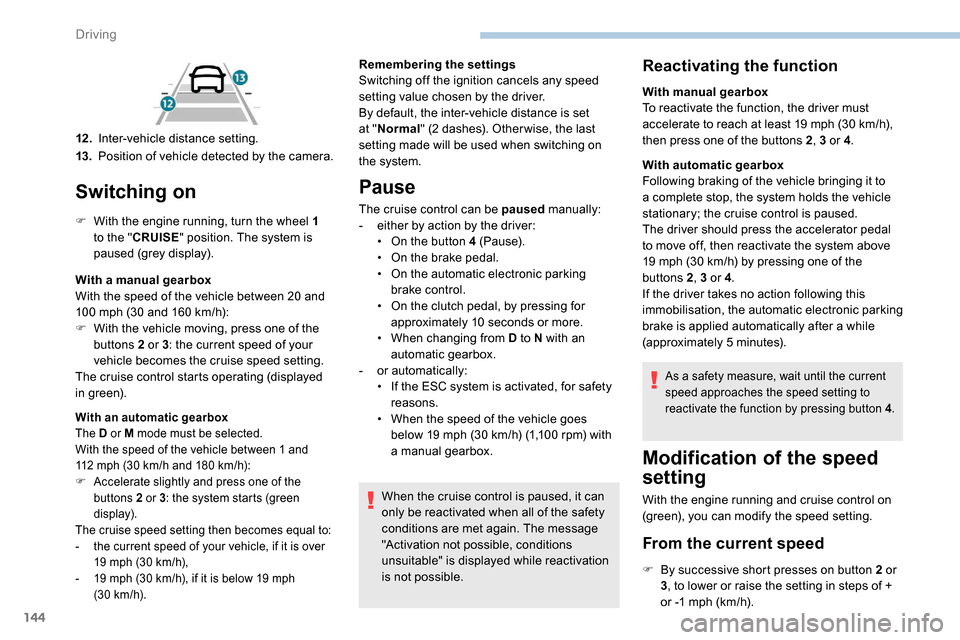
12 .Inter-vehicle distance setting.
13. Position of vehicle detected by the camera. Remembering the settings
Switching off the ignition cancels any speed
setting value chosen by the driver.
By default, the inter-vehicle distance is set
at "
Normal " (2 dashes). Other wise, the last
setting made will be used when switching on
the system.
Pause
The cruise control can be paused manually:
- e ither by action by the driver:
•
O
n the button 4 (Pause).
•
O
n the brake pedal.
•
O
n the automatic electronic parking
brake control.
•
O
n the clutch pedal, by pressing for
approximately 10
seconds or more.
•
W
hen changing from D to N with an
automatic gearbox.
-
o
r automatically:
•
I
f the ESC system is activated, for safety
reasons.
•
W
hen the speed of the vehicle goes
below 19
mph (30 km/h) (1,100 rpm) with
a manual gearbox.
When the cruise control is paused, it can
only be reactivated when all of the safety
conditions are met again. The message
"Activation not possible, conditions
unsuitable" is displayed while reactivation
is not possible.
Reactivating the function
With manual gearbox
To reactivate the function, the driver must
accelerate to reach at least 19 mph (30 km/h),
then press one of the buttons 2 , 3 or 4.
With automatic gearbox
Following braking of the vehicle bringing it to
a complete stop, the system holds the vehicle
stationary; the cruise control is paused.
The driver should press the accelerator pedal
to move off, then reactivate the system above
19
mph (30 km/h) by pressing one of the
buttons 2 , 3 or 4.
If the driver takes no action following this
immobilisation, the automatic electronic parking
brake is applied automatically after a while
(approximately 5
minutes).
As a safety measure, wait until the current
speed approaches the speed setting to
reactivate the function by pressing button 4 .
Modification of the speed
setting
With the engine running and cruise control on
(green), you can modify the speed setting.
From the current speed
F By successive short presses on button 2 or
3, to lower or raise the setting in steps of +
or -1
mph (km/h).
Driving
Page 150 of 312
148
Following braking of the vehicle bringing it to
a complete stop, the system holds the vehicle
stationary; the cruise control is paused.
The driver should press the accelerator
pedal to move off, then reactivate the system
by pressing one of the buttons 2, 3 or 4.
If the driver takes no action following this
immobilisation, the automatic electronic parking
brake is applied automatically after a while
(approximately 5
minutes).
Operating limits
The system cannot exceed the limits of the
laws of physics.
Certain situations cannot be managed by the
system and require the driver to take back
control of the vehicle.
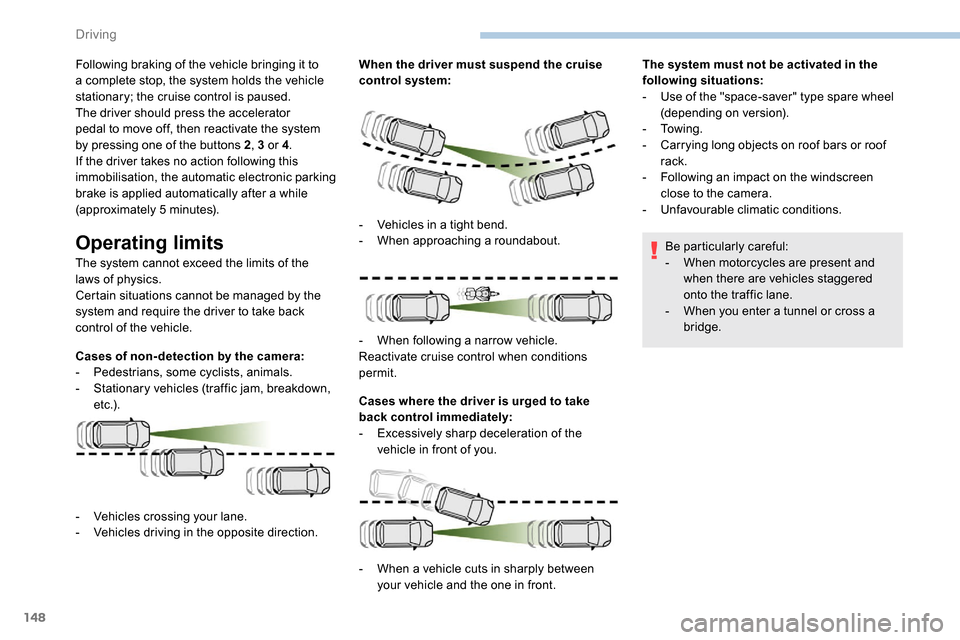
Cases of non- detection by the camera:
-
Pe
destrians, some cyclists, animals.
-
S
tationary vehicles (traffic jam, breakdown,
e t c .) . When the driver must suspend the cruise
control system:
Cases where the driver is urged to take
back control immediately:
-
E
xcessively sharp deceleration of the
vehicle in front of you. The system must not be activated in the
following situations:
-
U
se of the "space-saver" type spare wheel
(depending on version).
-
To w i n g .
-
C
arrying long objects on roof bars or roof
rack.
-
F
ollowing an impact on the windscreen
close to the camera.
-
Un
favourable climatic conditions.
Be particularly careful:
- W hen motorcycles are present and
when there are vehicles staggered
onto the traffic lane.
-
W
hen you enter a tunnel or cross a
bridge.
-
V
ehicles crossing your lane.
-
V
ehicles driving in the opposite direction. -
V
ehicles in a tight bend.
-
W
hen approaching a roundabout.
-
W
hen following a narrow vehicle.
Reactivate cruise control when conditions
permit.
-
W
hen a vehicle cuts in sharply between
your vehicle and the one in front.
Driving
Page 177 of 312
175
ON
ON
ON
Overload indicator
The overload indicator is a driving aid and
informs you that the maximum authorised
weight has been exceeded; this may be
either the gross vehicle weight (GV W) or the
maximum authorised weight on either axle
(front and rear) (GAWR).
The indicator does not relieve the user
from the responsibility.
Even if you correctly measure the weight
of the vehicle's load, any factor that
may vary this weight (seating the driver/
additional passengers or taking on
additional fuel) after the measurement
may put the vehicle into the overload
condition. -
T
he load includes the weight of the
items stored in the loading area
(including any fittings such as shelves),
but also the weight of all persons on
board the vehicle, the amount of fuel
and various equipment fitted on the
vehicle.
-
F
or optimal per formance, the vehicle
must be parked and loaded on level
ground (avoid the following conditions:
parking on a slope or straddling a
pavement).
Attaching a trailer to your vehicle may
affect the operation of the system.
Operation
The measurement of the weight on board your
vehicle starts:
F
A
utomatically when the engine restarts. F
W
hen the vehicle is stopped,
press this button located in
the loading area. The system
is then active for 5 minutes.
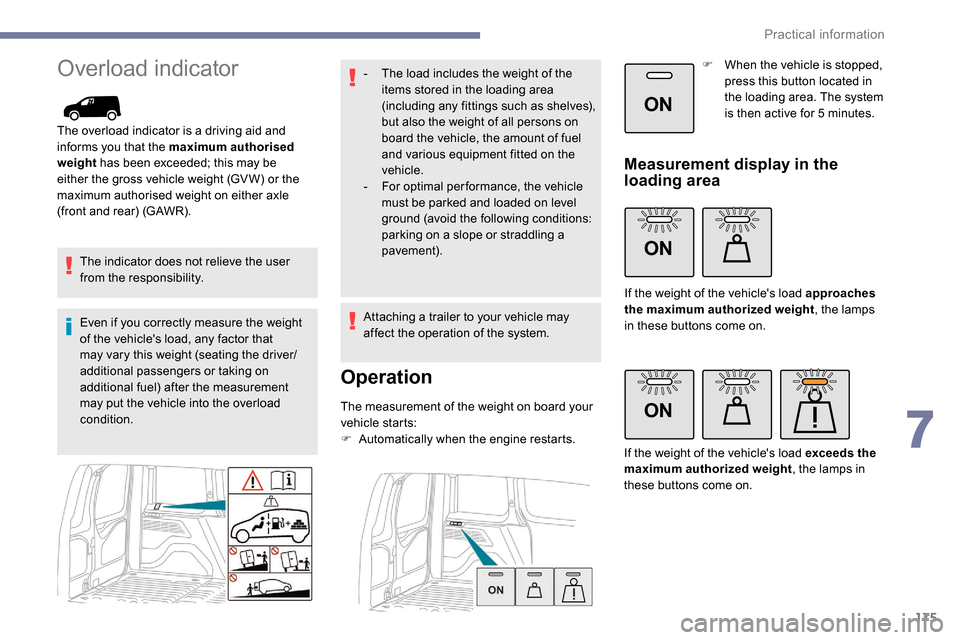
Measurement display in the
loading area
If the weight of the vehicle's load approaches
the maximum authorized weight
, the lamps
in these buttons come on.
If the weight of the vehicle's load exceeds the
maximum authorized weight , the lamps in
these buttons come on.
7
Practical information
Page 178 of 312
176
ON
Measurement display on the
instrument panel.
If the weight of the vehicle's load
exceeds the maximum authorized
weight, this warning lamp comes
on.
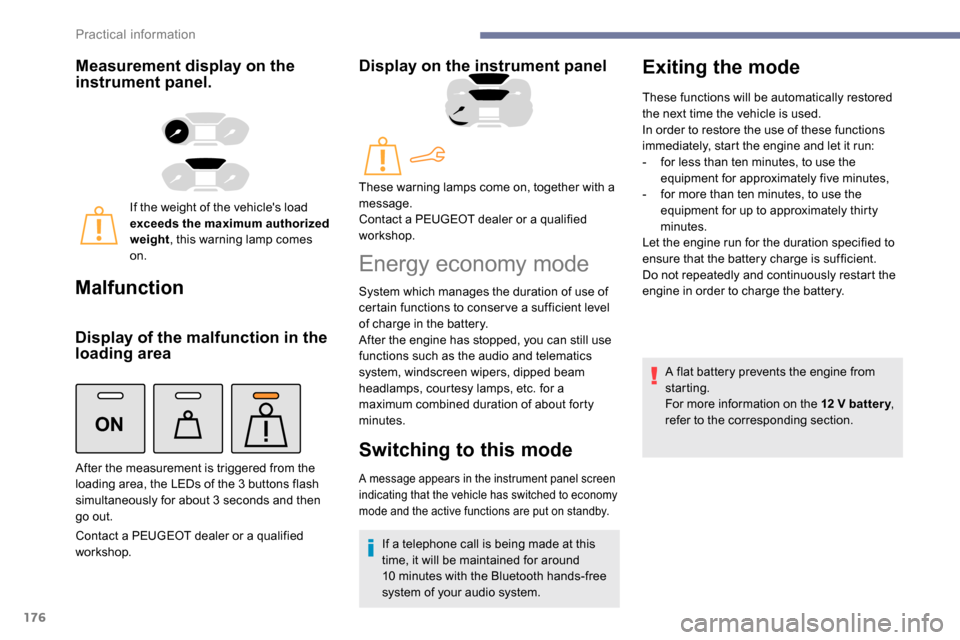
Malfunction
Display of the malfunction in the
loading area
Contact a PEUGEOT dealer or a qualified
workshop.
Display on the instrument panel
After the measurement is triggered from the
loading area, the LEDs of the 3 buttons flash
simultaneously for about 3
seconds and then
go out. These warning lamps come on, together with a
message.
Contact a PEUGEOT dealer or a qualified
workshop.
Energy economy mode
System which manages the duration of use of
certain functions to conser ve a sufficient level
of charge in the battery.
After the engine has stopped, you can still use
functions such as the audio and telematics
system,
windscreen wipers, dipped beam
headlamps,
courtesy lamps, etc. for a
maximum combined duration of about forty
minutes.
Switching to this mode
A message appears in the instrument panel screen
indicating that the vehicle has switched to economy
mode and the active functions are put on standby.
If a telephone call is being made at this
time, it will be maintained for around
10
minutes with the Bluetooth hands-free
system of your audio system.
Exiting the mode
These functions will be automatically restored
the next time the vehicle is used.
In order to restore the use of these functions
immediately, start the engine and let it run:
-
f
or less than ten minutes, to use the
equipment for approximately five minutes,
-
f
or more than ten minutes, to use the
equipment for up to approximately thirty
minutes.
Let the engine run for the duration specified to
ensure that the battery charge is sufficient.
Do not repeatedly and continuously restart the
engine in order to charge the battery.
A flat battery prevents the engine from
starting.
For more information on the 12
V batter y,
refer to the corresponding section.
Practical information
Page 222 of 312
2
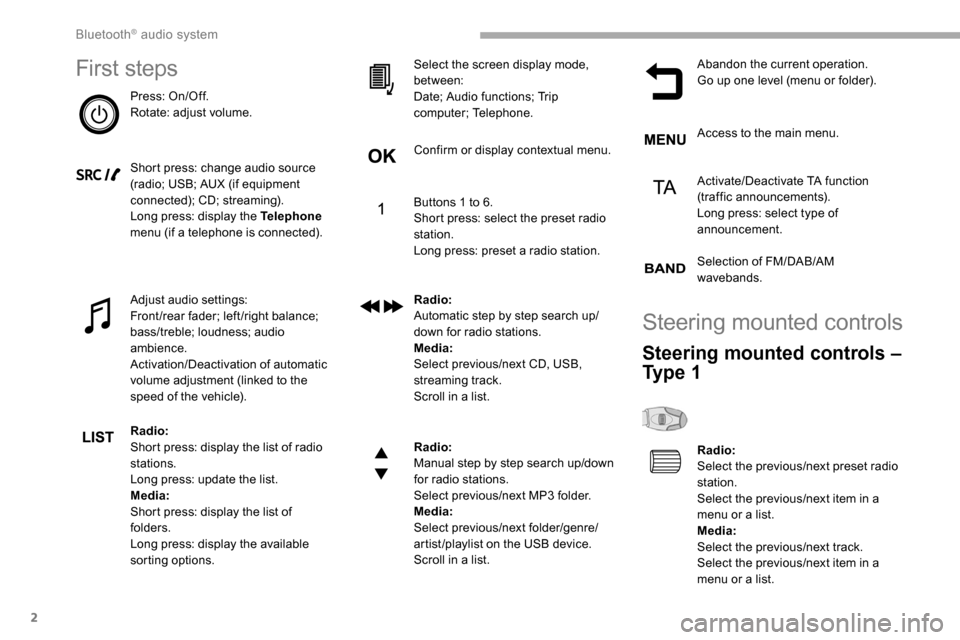
First steps
Press: On/Off.
Rotate: adjust volume.
Short press: change audio source
(radio; USB; AUX (if equipment
connected); CD; streaming).
Long press: display the Telephone
menu (if a telephone is connected).
Adjust audio settings:
Front/rear fader; left/right balance;
bass/treble; loudness; audio
ambience.
Activation/Deactivation of automatic
volume adjustment (linked to the
speed of the vehicle).
Radio:
Short press: display the list of radio
stations.
Long press: update the list.
Media:
Short press: display the list of
folders.
Long press: display the available
sorting options. Select the screen display mode,
between:
Date; Audio functions; Trip
computer; Telephone.
Confirm or display contextual menu.
Buttons 1 to 6.
Short press: select the preset radio
station.
Long press: preset a radio station.
Radio:
Automatic step by step search up/
down for radio stations.
Media:
Select previous/next CD, USB,
streaming track.
Scroll in a list.
Radio:
Manual step by step search up/down
for radio stations.
Select previous/next MP3 folder.
Media:
Select previous/next folder/genre/
artist/playlist on the USB device.
Scroll in a list.
Abandon the current operation.
Go up one level (menu or folder).
Access to the main menu.
Activate/Deactivate TA function
(traffic announcements).
Long press: select type of
announcement.
Selection of FM/DAB/AM
wavebands.
Steering mounted controls
Steering mounted controls –
Ty p e 1
Radio:
Select the previous/next preset radio
station.
Select the previous/next item in a
menu or a list.
Media:
Select the previous/next track.
Select the previous/next item in a
menu or a list.
Bluetooth® audio system
Page 223 of 312
3
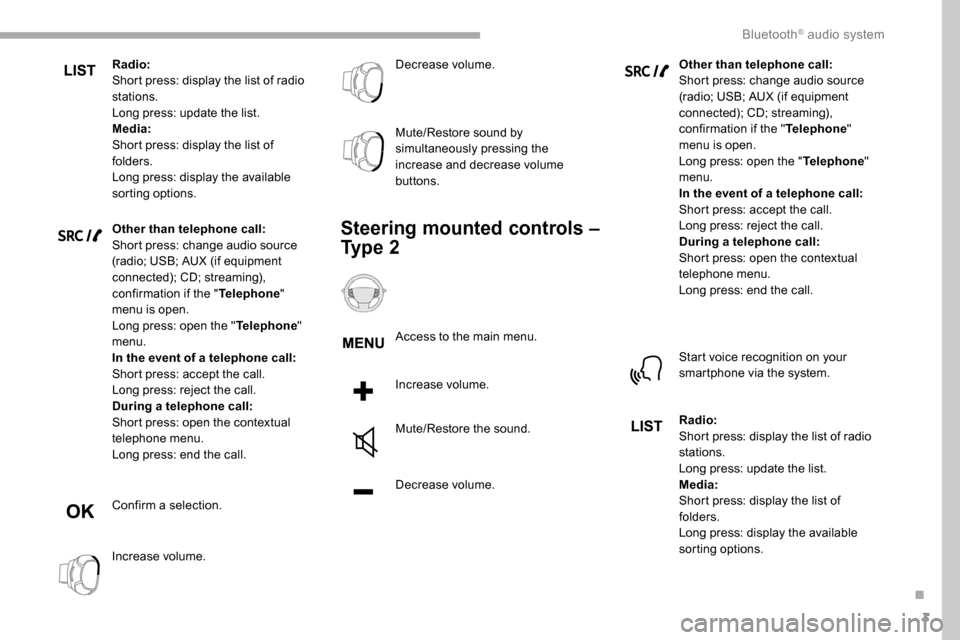
Radio:
Short press: display the list of radio
stations.
Long press: update the list.
Media:
Short press: display the list of
folders.
Long press: display the available
sorting options.
Other than telephone call:
Short press: change audio source
(radio; USB; AUX (if equipment
connected); CD; streaming),
confirmation if the "Telephone"
menu is open.
Long press: open the " Telephone"
menu.
In the event of a telephone call:
Short press: accept the call.
Long press: reject the call.
During a telephone call:
Short press: open the contextual
telephone menu.
Long press: end the call.
Confirm a selection.
Increase volume. Decrease volume.
Mute/Restore sound by
simultaneously pressing the
increase and decrease volume
buttons.
Steering mounted controls –
Ty p e 2
Access to the main menu.
Increase volume.
Mute/Restore the sound.
Decrease volume.
Other than telephone call:
Short press: change audio source
(radio; USB; AUX (if equipment
connected); CD; streaming),
confirmation if the "
Telephone"
menu is open.
Long press: open the " Telephone"
menu.
In the event of a telephone call:
Short press: accept the call.
Long press: reject the call.
During a telephone call:
Short press: open the contextual
telephone menu.
Long press: end the call.
Start voice recognition on your
smartphone via the system.
Radio:
Short press: display the list of radio
stations.
Long press: update the list.
Media:
Short press: display the list of
folders.
Long press: display the available
sorting options.
.
Bluetooth® audio system
Page 224 of 312
4
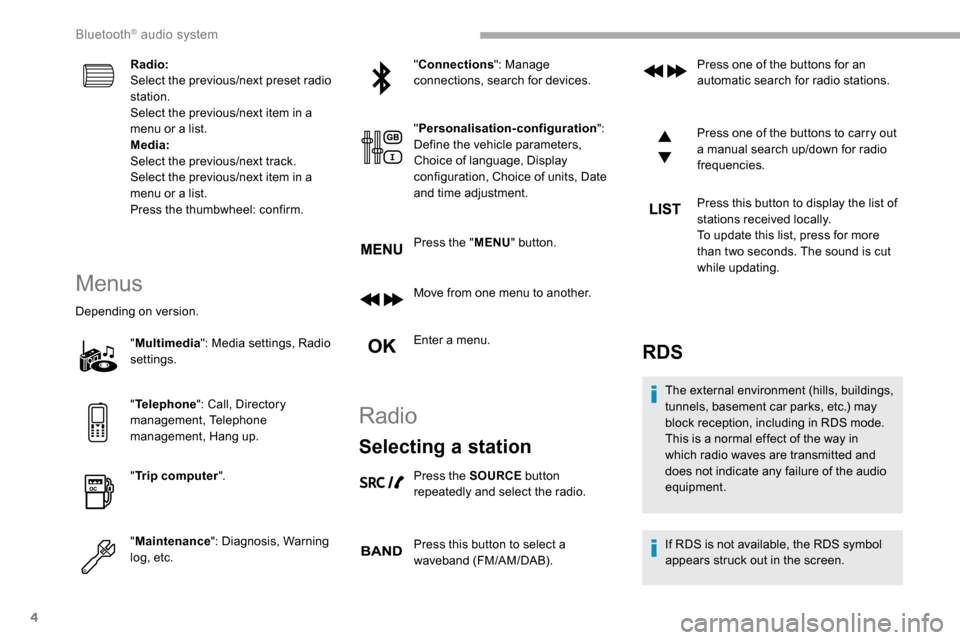
Radio:
Select the previous/next preset radio
station.
Select the previous/next item in a
menu or a list.
Media:
Select the previous/next track.
Select the previous/next item in a
menu or a list.
Press the thumbwheel: confirm.
Menus
Depending on version."Multimedia ": Media settings, Radio
settings.
" Telephone ": Call, Directory
management, Telephone
management, Hang up.
" Trip computer ".
" Maintenance ": Diagnosis, Warning
log, etc. "
Connections ": Manage
connections, search for devices.
" Personalisation-configuration ":
Define the vehicle parameters,
Choice of language, Display
configuration, Choice of units, Date
and time adjustment.
Press the " MENU" button.
Move from one menu to another.
Enter a menu.
Radio
Selecting a station
Press the SOURCE button
repeatedly and select the radio.
Press this button to select a
waveband (FM/AM/DAB). Press one of the buttons for an
automatic search for radio stations.
Press one of the buttons to carry out
a manual search up/down for radio
frequencies.
Press this button to display the list of
stations received locally.
To update this list, press for more
than two seconds. The sound is cut
while updating.
RDS
The external environment (hills, buildings,
tunnels, basement car parks, etc.) may
block reception, including in RDS mode.
This is a normal effect of the way in
which radio waves are transmitted and
does not indicate any failure of the audio
equipment.
If RDS is not available, the RDS symbol
appears struck out in the screen.
Bluetooth® audio system
Page 226 of 312
6
When the radio station is displayed
in the screen, press OK to display
the contextual menu.
Select " RadioText (TXT) display "
and confirm OK to save.
DAB (Digital Audio
Broadcasting) radio
Depending on version
If the current DAB radio station is not
available on FM, "DAB FM" is struck out. When changing region, an update of the
list of preset radio stations is advisable.
Display of the list of all radio stations
and "multiplexes".
Terrestrial digital radio
Digital radio provides a superior audio
quality and also additional categories of
traffic announcements (TA INFO).
The different "multiplex/ensemble"
ser vices offer a choice of radio stations in
alphabetical order.Change of band (FM1, FM2, DAB,
e t c .)
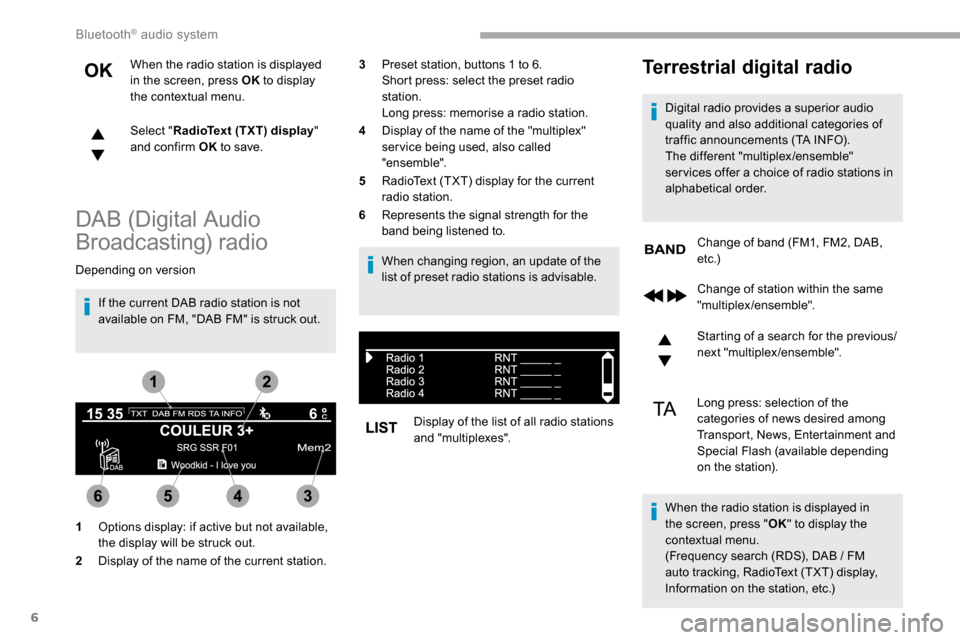
1 Options display: if active but not available,
the display will be struck out.
2 Display of the name of the current station. 3
Preset station, buttons 1 to 6.
Short press: select the preset radio
station.
Long press: memorise a radio station.
4 Display of the name of the "multiplex"
ser vice being used, also called
"ensemble".
5 RadioText (TXT) display for the current
radio station.
6 Represents the signal strength for the
band being listened to.
Change of station within the same
"multiplex/ensemble".
Starting of a search for the previous/
next "multiplex/ensemble".
Long press: selection of the
categories of news desired among
Transport, News, Entertainment and
Special Flash (available depending
on the station).
When the radio station is displayed in
the screen, press " OK" to display the
contextual menu.
(Frequency search (RDS), DAB
/ FM
auto tracking, RadioText (TXT) display,
Information on the station, etc.)
Bluetooth® audio system
Page 228 of 312
8
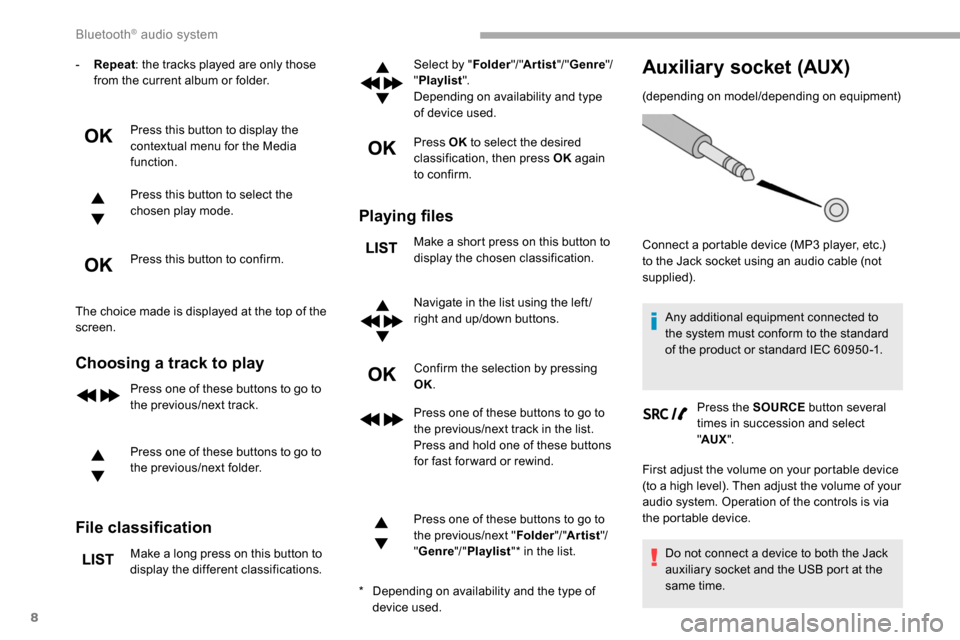
- Repeat: the tracks played are only those
from the current album or folder.
Press this button to display the
contextual menu for the Media
function.
Press this button to select the
chosen play mode.
Press this button to confirm.
The choice made is displayed at the top of the
screen.
Choosing a track to play
Press one of these buttons to go to
the previous/next track.
Press one of these buttons to go to
the previous/next folder.
File classification
Make a long press on this button to
display the different classifications. Select by "
Folder"/ "Artist "/ "Genre "/
" Playlist ".
Depending on availability and type
of device used.
Press OK to select the desired
classification, then press OK again
to confirm.
Playing files
Make a short press on this button to
display the chosen classification.
Navigate in the list using the left /
right and up/down buttons.
Confirm the selection by pressing
OK.
Press one of these buttons to go to
the previous/next track in the list.
Press and hold one of these buttons
for fast for ward or rewind.
Press one of these buttons to go to
the previous/next " Folder"/ "Artist "/
" Genre "/ "Playlist "* in the list.
Auxiliary socket (AUX)
(depending on model/depending on equipment)
*
D
epending on availability and the type of
device used. Connect a portable device (MP3 player, etc.)
to the Jack socket using an audio cable (not
supplied).
Any additional equipment connected to
the system must conform to the standard
of the product or standard IEC 60950 -1.
Press the SOURCE button several
times in succession and select
" AUX ".
First adjust the volume on your portable device
(to a high level). Then adjust the volume of your
audio system. Operation of the controls is via
the portable device.
Do not connect a device to both the Jack
auxiliary socket and the USB port at the
same time.
Bluetooth® audio system
Page 229 of 312
9
CD player
Insert circular compact discs only.
Some anti-pirating systems, on original discs
or CDs copied using a personal recorder, may
cause faults which are no reflection on the
quality of the original player.
Insert a CD in the player, play begins
automatically.External CD players connected via the
USB port are not recognised by the
system. To play a disc which has already
been inserted, press the SOURCE
button several times in succession
and select " CD".
Press one of the buttons to select a
track on the CD.
Press the LIST button to display the
list of tracks on the CD.
Press and hold one of these buttons
for fast for ward or rewind.
Playing an MP3 compilation
Insert an MP3 compilation in the CD player.
The audio equipment searches for all of the
music tracks, which may take anything between
a few seconds and several tens of seconds,
before play begins.
On a single disc, the CD player can
read up to 255 MP3 files spread over 8
directory levels.
However, it is advisable to keep to a limit
of two levels to reduce the access time
before the CD is played.
The folder structure is not obser ved during
playback.
All of the files are displayed on a single
level. To play a disc which has already
been inserted, press the SOURCE
button several times in succession
and select " CD".
Press one of the buttons to select a
folder on the CD.
Press one of the buttons to select a
track on the CD. Press the LIST
button to display
the list of directories of the MP3
compilation.
Press and hold one of these buttons
for fast for ward or rewind.
Bluetooth® audio streaming
Streaming allows music files on the telephone
to be played via the vehicle's loudspeakers.
Connect the telephone.
(Refer to the " Pairing a Bluetooth
®
telephone " section).
Activate the streaming source by
pressing SOURCE.
In certain cases, play of the audio
files must be initiated from the
keypad.
Audio files can be selected using the buttons
on the audio system control panel and the
steering mounted controls. The contextual
information can be displayed in the screen, if
the telephone supports the function. The audio
quality depends on the quality of transmission
by the telephone.
.
Bluetooth® audio system