steering PEUGEOT PARTNER 2022 Workshop Manual
[x] Cancel search | Manufacturer: PEUGEOT, Model Year: 2022, Model line: PARTNER, Model: PEUGEOT PARTNER 2022Pages: 324, PDF Size: 9.42 MB
Page 248 of 324
246
PEUGEOT Connect Radio
In the "Settings" menu, it is possible to
create a profile for an individual or for a
group of people with shared interests, and
configure a wide range of settings (radio
presets, audio settings, ambiences, etc.).
Settings are applied automatically.
In very hot conditions, the volume may
be limited to protect the system. It may
enter standby mode (with the screen and
sound off) for 5 minutes or more.
The system will resume normal operation
when the temperature in the passenger
compartment has dropped.
Steering mounted controls
Steering mounted controls -
Type 1
Radio:
Select the previous/next preset radio
station.
Select the previous/next item in a menu or a list.
Media:
Select the previous/next track.
Select the previous/next item in a menu or a list.
Radio:
Short press: display the list of radio
stations.
Long press: update the list.
Media:
Short press: display the list of folders.
Long press: display the available sorting options.
Change audio source (radio; USB; AUX if
equipment connected; CD; streaming).
Confirm a selection.
Increase volume.
Decrease volume.
Mute/restore sound by simultaneously
pressing the increase and decrease
volume buttons.
Steering mounted controls -
Type 2
Voice commands: This control is located on the steering wheel or
at the end of the lighting control stalk (depending
on equipment).
Short press, smartphone voice commands via
the system.
Increase volume.
Decrease volume.
Mute by pressing the volume increase
and decrease buttons simultaneously
(depending on equipment).
Restore the sound by pressing one of the two
volume buttons.
Media (short press): change the
multimedia source.
Telephone (short press): start telephone
call.
Call in progress (short press): access
telephone menu.
Telephone (long press): reject an incoming call,
end call; when no call is in progress, access
telephone menu.
Radio (rotate): automatic search for the
previous/next station.
Media (rotate): previous/next track, move in a
list.
Short press: confirm a selection; if nothing
selected, access to presets.
Radio: display the list of stations.
Media: display the list of tracks.
Radio (press and hold): update the list of
stations received.
Page 256 of 324
254
PEUGEOT Connect Radio
Press the "PHONE" button to access the
secondary page.
Press "Bluetooth connection" to
display the list of paired devices.
Press on the name of the telephone
selected in the list to disconnect it.
Press again to connect it.
Deleting a telephone
Press the basket at the top right of the
screen to display a basket alongside the
telephone chosen.
Press the basket alongside the telephone
chosen to delete it.
Receiving a call
An incoming call is announced by a ring and a
superimposed display in the screen.
Make a short press on the steering
mounted PHONE button to accept an
incoming call.
And
Make a long press
on the steering mounted PHONE button
to reject the call.
Or
Press "End call".
Making a call
Using the telephone is not recommended
while driving.
Parking the vehicle.
Make the call using the steering mounted
controls.
Calling a new number
Press Telephone to display the main
page.
Enter the phone number using the digital
keypad.
Press "Call" to start the call.
Calling a contact
Press Telephone to display the main
page.
Or press and hold
the steering mounted PHONE button.
Press "Contacts".
Select the desired contact from the displayed list.
Press "Call".
Calling a recently used
number
Press Telephone to display the main
page.
OrPress and hold
the steering mounted button.
Press "Recent calls".
Select the desired contact from the displayed list.
It is always possible to make a call
directly from the telephone; as a safety
measure, first park the vehicle.
Setting the ringtone
Press Telephone to display the main
page.
Press the "OPTIONS " button to access the
secondary page.
Press "Ring volume" to display the
volume bar.
Press the arrows or move the slider to set
the ring volume.
Settings
Configuring profiles
Press Settings to display the main page.
Press "Profiles".
Select "Profile 1", "Profile 2", "Profile 3” or
"Common profile ".
Page 261 of 324
259
PEUGEOT Connect Nav
12– Media player connected via the auxiliary
socket (depending on equipment).
–
V
ideo (depending on equipment).
In the "Settings" menu, it is possible to
create a profile for an individual or for a
group of people with shared interests, and
configure a wide range of settings (radio
presets, audio settings, navigation history,
favourite contacts, etc.). Settings are applied
automatically.
In very hot conditions, the volume may
be limited to protect the system. It may
enter standby mode (with the screen and
sound off) for 5 minutes or more.
The system will resume normal operation
when the temperature in the passenger
compartment has dropped.
Steering mounted controls
Voice control:
This control is located on the steering
wheel or at the end of the lighting control stalk
(depending on equipment).
Short press, system voice control.
Long press, voice commands from smartphone
or CarPlay
®, Android Auto via the system.Increase volume.
Decrease volume.
Mute by pressing the volume increase
and decrease buttons simultaneously
(depending on equipment).
Restore the sound by pressing one of the two
volume buttons.
Media (short press): change the
multimedia source.
Telephone (short press): start telephone
call.
Call in progress (short press): access
telephone menu.
Telephone (long press): reject an incoming call,
end call; when no call is in progress, access
telephone menu.
Radio (rotate): automatic search for the
previous/next station.
Media (rotate): previous/next track, move
through a list.
Short press: confirm a selection; if nothing
selected, access presets.
Radio: display the list of stations. Media: display the list of tracks.
Radio (press and hold): update the list of
detected stations.
Menus
Connected navigation
Enter navigation settings and choose a
destination.
Use real-time services, depending on equipment.
Page 263 of 324
261
PEUGEOT Connect Nav
12Voice commands
Steering wheel-mounted
controls
Voice commands:
Voice commands can be issued from any
screen page after a short press on the "Voice
commands" button located on the steering
wheel or at the end of the lighting control stalk
(depending on equipment), as long as there is no
telephone call in progress.
To ensure that voice commands are always recognised by the system, please
follow these recommendations:
–
use natural language in a normal tone
without breaking up words or raising your
voice.
–
always wait for the "beep" (audible signal)
before speaking.
–
for best results, closing the windows and
sunroof is recommended, to avoid extraneous
interference (depending on version).
–
before issuing a voice command, ask any
other passengers to refrain from speaking.
First steps
Example of a "voice command" for
navigation:
"Navigate to address 11 regent street,
London"
Example of a "voice command" for the radio and
media:
"Play artist Madonna"
Example of a "voice command" for the
telephone:
"Call David Miller"
The voice commands, with a choice of 17 languages (Arabic, Brazilian, Czech,
Danish, Dutch, English, Farsi, French,
German, Italian, Norwegian, Polish,
Portuguese, Russian, Spanish, Swedish,
Turkish), are made using the language
previously chosen and set in the system.
For some voice commands, there are
alternative synonyms.
Example: Guide to / Navigate to / Go to / ...
The voice commands in Arabic for: "Navigate
to address" and "Display POI in the city", are
not available.
Information - Using the
system
When voice commands are activated, by
briefly pressing the button, help is
displayed on the touch screen, offering various
menus and enabling voice-based interaction with
the system.
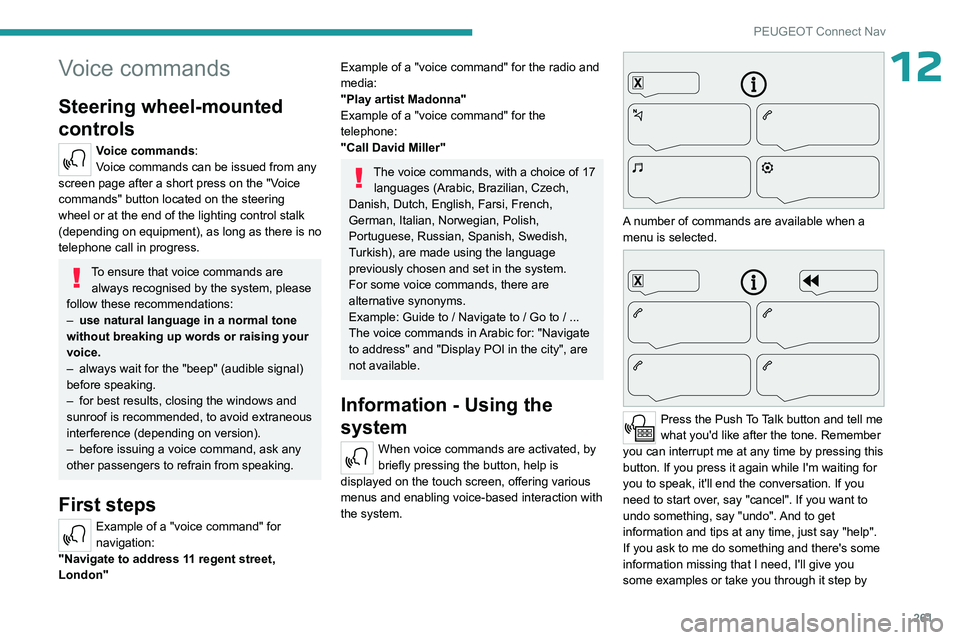
A number of commands are available when a
menu is selected.
Press the Push To Talk button and tell me
what you'd like after the tone. Remember
you can interrupt me at any time by pressing this
button. If you press it again while I'm waiting for
you to speak, it'll end the conversation. If you
need to start over, say "cancel". If you want to
undo something, say "undo". And to get
information and tips at any time, just say "help".
If you ask to me do something and there's some
information missing that I need, I'll give you
some examples or take you through it step by
Page 278 of 324
276
PEUGEOT Connect Nav
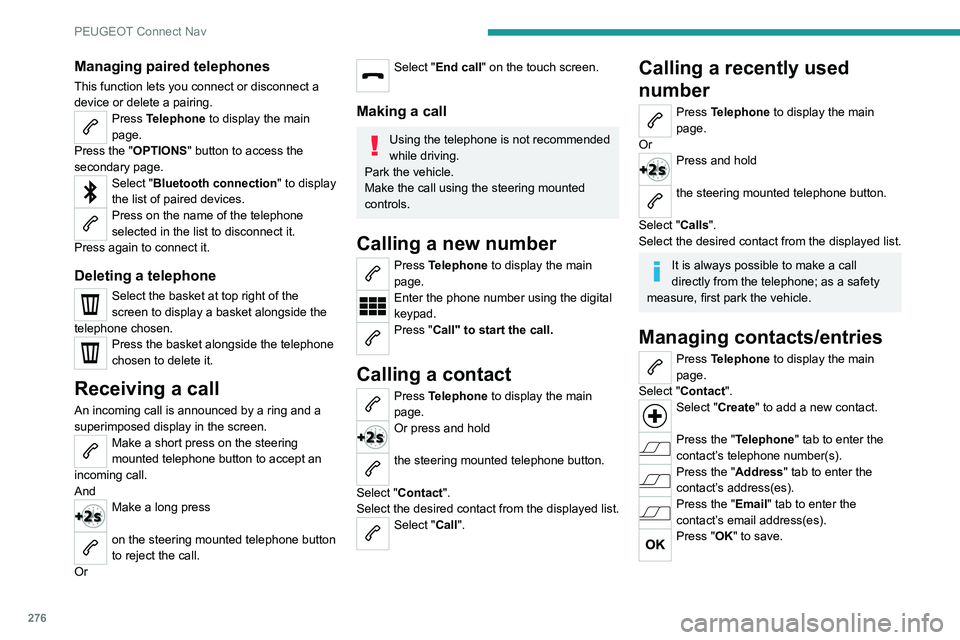
Managing paired telephones
This function lets you connect or disconnect a
device or delete a pairing.
Press Telephone to display the main
page.
Press the "OPTIONS " button to access the
secondary page.
Select "Bluetooth connection" to display
the list of paired devices.
Press on the name of the telephone
selected in the list to disconnect it.
Press again to connect it.
Deleting a telephone
Select the basket at top right of the
screen to display a basket alongside the
telephone chosen.
Press the basket alongside the telephone
chosen to delete it.
Receiving a call
An incoming call is announced by a ring and a
superimposed display in the screen.
Make a short press on the steering
mounted telephone button to accept an
incoming call.
And
Make a long press
on the steering mounted telephone button
to reject the call.
Or
Select "End call" on the touch screen.
Making a call
Using the telephone is not recommended
while driving.
Park the vehicle.
Make the call using the steering mounted
controls.
Calling a new number
Press Telephone to display the main
page.
Enter the phone number using the digital
keypad.
Press "Call" to start the call.
Calling a contact
Press Telephone to display the main
page.
Or press and hold
the steering mounted telephone button.
Select "Contact".
Select the desired contact from the displayed list.
Select "Call".
Calling a recently used
number
Press Telephone to display the main
page.
Or
Press and hold
the steering mounted telephone button.
Select "Calls".
Select the desired contact from the displayed list.
It is always possible to make a call
directly from the telephone; as a safety
measure, first park the vehicle.
Managing contacts/entries
Press Telephone to display the main
page.
Select "Contact".
Select "Create" to add a new contact.
Press the "Telephone " tab to enter the
contact’s telephone number(s).
Press the "Address" tab to enter the
contact’s address(es).
Press the "Email" tab to enter the
contact’s email address(es).
Press "OK" to save.
Page 285 of 324
283
Event data recorders
13Event data recorders
Electronic control units are installed in your
vehicle. Control units process data which is
received by vehicle sensors, for example, or
which they generate themselves or exchange
amongst themselves. Some control units are
necessary for the safe functioning of your
vehicle, others assist you while you drive (driver
assistance systems), while others provide
comfort or infotainment functions.
The following contains general information about
data processing in the vehicle. You will find
additional information as to which specific data is
uploaded, stored and passed on to third parties
and for what purpose in your vehicle under
the key word Data Protection closely linked
to the references for the affected functional
characteristics in the relevant owner's manual
or in the general terms of sale. These are also
available online.
Vehicle operating data
The control units process the data used for the
operation of the vehicle.
This data includes, for example:
–
Information about the state of the vehicle
(e.g.
speed, travel time, lateral acceleration,
wheel rotation rate, fastened seat belts display).
–
Environmental conditions (e.g.
temperature,
rain sensor, distance sensor).
As a general rule, this data is temporary, is
not stored for longer than one operating cycle and is only used within the vehicle itself. The
control units often record this data (including the
vehicle's key). This function allows either the
temporary or permanent storage of information
about the state of the vehicle, stresses on
components, servicing requirements, as well as
events and technical errors.
Depending on the vehicle's equipment level, the
data stored is as follows:
–
Operating state of system components
(e.g.
filling level, tyre pressures, battery charge
status).
–
Faults and malfunctions in important system
components (e.g.
lamps, brakes).
–
System reactions in specific driving situations
(e.g.
deployment of an airbag, triggering of
stability control and braking systems).
–
Information about events which have
damaged the vehicle.
–
For electric and rechargeable hybrid vehicles,
the traction battery charge level and the
estimated driving range.
In particular circumstances (e.g.
if the vehicle
has detected a malfunction), it may be necessary
to record data which would otherwise simply not
be stored.
When taking your vehicle in for servicing
(e.g.
repairs, maintenance), the stored operating
data may be read along with the vehicle's
identification number and used if necessary.
The personnel working for the servicing network
(e.g.
garages, manufacturers) or third parties
(e.g.
roadside assistance agents) may read the vehicle's data. This also applies to work
carried out under warranty and quality assurance
measures.
This data is generally read via the OBD
(On-Board Diagnostics) port fitted by law to
the vehicle. It is used to report on the technical
state of the vehicle or its components and
facilitates the diagnosis of malfunctions, in
compliance with warranty obligations and for
quality improvement. This data, in particular the
information relating to stress on components,
technical events, operator errors and other
malfunctions, is sent to the Manufacturer, if
necessary, along with the vehicle's identification
number. The Manufacturer's liability may also be
engaged. The Manufacturer may also use the
operating data taken from the vehicle for product
recalls. This data may also be used to check the
customer's warranty and any claims made under
warranty.
Any malfunctions stored in the vehicle may be
reset by an after-sales service company during
servicing or repair work, or at your request.
Comfort and infotainment
functions
Comfort settings and personalised settings
may
be saved in the vehicle and modified or
reinitialised at any time.
Depending on the vehicle's equipment level,
this
may
include:
–
Seat and steering wheel position settings.
Page 288 of 324
286
Alphabetical index
A
ABS 95
Accelerated charging unit (Wallbox)
177
Accessories
92
Access to the 3rd row
58
Access to the spare wheel
204–205
Active Safety Brake
150–152
AdBlue®
195
AdBlue® tank
197
Additive, Diesel
193–194
Adjusting headlamps
88
Adjusting head restraints
59
Adjusting seat
51, 58
Adjusting the air distribution
75–76
Adjusting the air flow
75–76
Adjusting the date
256, 278
Adjusting the height and reach of
the steering wheel
53
Adjusting the lumbar support
51
Adjusting the temperature
75–76
Adjusting the time
242, 255, 279
Advanced Grip Control
97–98
Advice on care and maintenance
175, 198
Advice on driving
8, 117–118
Airbags
103, 105–107
Airbags, curtain
104–106
Airbags, front
104–105, 108
Airbags, lateral
104–105
Air conditioning
73, 76, 79
Air conditioning, digital
77
Air conditioning, dual-zone automatic
75–76
Air conditioning, electronic
(with display screen)
79
Air conditioning, manual
74–75
Air intake
75–76
Air vents
73
Alarm
45–46
Alarm, volumetric
46
Android Auto connection
270
Anti-lock braking system (ABS)
95
Antitheft / Immobiliser
33
Apple CarPlay connection
252, 269
Applications
270
Area, loading
34, 42, 67
Armrest
51
Armrest, front
60
Assistance call
92–93
Assistance, emergency braking
95, 152
Audible warning
95
Audio streaming (Bluetooth)
239, 251, 274
B
Battery, 12 V 185, 194, 212–215
Battery, ancillaries
212–213
Battery, charging
214–215
Battery, remote control
40, 81
Bench seat, one-piece, fixed
58
Blanking screen (snow shield)
186
Blind spot sensors
156
BlueHDi
193, 200
Bluetooth (hands-free)
240–241, 253, 275
Bluetooth (telephone) 240–241,
253–254, 275–276
Bluetooth touch screen audio system
28
Bodywork
199
Bonnet
190–191
Boot lid
37, 39
Bottle holder
60
Brake discs
195
Brake lamps
2 11
Brakes
195
Braking
133
Braking assistance system
95
Braking, automatic emergency
150–152
Braking, dynamic emergency
124–125
Brightness
242, 255
Bulbs
208
Bulbs (changing)
207–208
Bulbs (changing, type)
208
C
Cable, audio 273
Cable, Jack
273
Capacity, fuel tank
172–173
Cap, fuel filler
172–173
Care of the bodywork
199
CD
239
CD, MP3
239
Central locking
32, 37
Changing a bulb
207–208
Changing a fuse
212
Page 289 of 324
287
Alphabetical index
Changing a wheel 201, 204
Changing a wiper blade
89–90
Changing the remote control battery
40
Changing to free-wheeling
197, 216
Charger, induction
62
Charger, wireless
62
Charging cable
178
Charging cable (Electric)
177
Charging connector (Electric)
176, 181, 183, 185
Charging flap (Electric)
176, 181, 183–185
Charging system (Electric)
5, 9, 30, 174, 191
Charging the traction battery
(Electric)
174, 181, 183, 185
Checking the levels
191–193
Checking tyre pressures
(using the kit)
202–203
Checks
191, 194–195
Checks, routine
194–195
Child lock
11 6
Children
102, 110, 114–116
Children (safety)
11 6
Child seats
102, 106–107, 109–111, 114–115
Child seats, conventional
109
Child seats, i-Size
11 5
Child seats, ISOFIX
114–116
Cleaning (advice)
175, 198–199
Closing the doors
32, 37
Collision Risk Alert
150–151
Configuration, vehicle
29–30
Connected applications
270Connection, Bluetooth 240–241, 253–254,
270–271, 275–276
Connection, MirrorLink
252
Connection, Wi-Fi network
271
Connectivity
269
Consumption figures
30
Container, AdBlue®
196
Control, emergency boot release
39
Control, emergency door
32, 38–39
Control, heated seats
52–53
Controls, steering mounted
131
Control stalk, lighting
83–84
Control stalk, wipers
88–90
Control unit
177–178
Courtesy lamp
81–82
Courtesy lamp, front
82
Courtesy lamp, rear
82
Courtesy lamps
82
Cover, load space
65
Cruise control
141, 144–146, 150
Cruise control, adaptive
146
Cruise control by speed limit recognition
141
Cruise control, dynamic with Stop
function
141
Cup holder
60
D
DAB (Digital Audio Broadcasting) -
Digital radio
238, 250, 273
Date (setting)
256, 278
Daytime running lamps 85, 208–209
Deactivating the passenger
airbag
104, 108–109
Deactivation of DSC (ESC)
96
Deadlocking
38
Deferred charging
31
Deferred charging (Electric)
30, 176, 181, 184
Defrosting
54, 77
Defrosting, front
77
Demisting
77
Demisting, front
77
Demisting, rear
53, 78
Demisting, rear screen
53, 78
Dials and gauges
10, 12
Digital instrument panel
11–13
Dimensions
219
Dipstick
192
Direction indicators
84, 208, 210–211
Display screen, instrument panel
10
Domestic charging
178
Domestic charging (Electric)
183, 185, 234
Doors, side
43
Doors, side-hinged
37–38
Driver’s attention warning
158
Drive selector (Electric)
132, 195
Driving
117–118
Driving aids camera (warnings)
138
Driving aids (recommendations)
138
Driving economically
8
Driving modes
133–134
Dynamic stability control (DSC)
96–98
Page 293 of 324
291
Alphabetical index
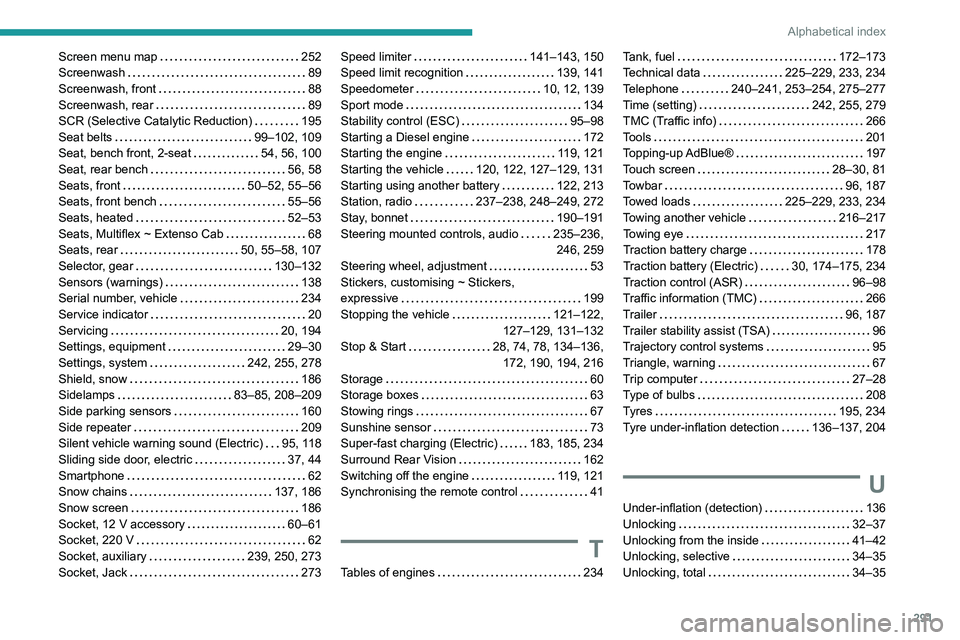
Screen menu map 252
Screenwash
89
Screenwash, front
88
Screenwash, rear
89
SCR (Selective Catalytic Reduction)
195
Seat belts
99–102, 109
Seat, bench front, 2-seat
54, 56, 100
Seat, rear bench
56, 58
Seats, front
50–52, 55–56
Seats, front bench
55–56
Seats, heated
52–53
Seats, Multiflex ~ Extenso Cab
68
Seats, rear
50, 55–58, 107
Selector, gear
130–132
Sensors (warnings)
138
Serial number, vehicle
234
Service indicator
20
Servicing
20, 194
Settings, equipment
29–30
Settings, system
242, 255, 278
Shield, snow
186
Sidelamps
83–85, 208–209
Side parking sensors
160
Side repeater
209
Silent vehicle warning sound (Electric)
95, 118
Sliding side door, electric
37, 44
Smartphone
62
Snow chains
137, 186
Snow screen
186
Socket, 12 V accessory
60–61
Socket, 220 V
62
Socket, auxiliary
239, 250, 273
Socket, Jack
273Speed limiter 141–143, 150
Speed limit recognition
139, 141
Speedometer
10, 12, 139
Sport mode
134
Stability control (ESC)
95–98
Starting a Diesel engine
172
Starting the engine
119, 121
Starting the vehicle
120, 122, 127–129, 131
Starting using another battery
122, 213
Station, radio
237–238, 248–249, 272
Stay, bonnet
190–191
Steering mounted controls, audio
235–236, 246, 259
Steering wheel, adjustment
53
Stickers, customising ~ Stickers,
expressive
199
Stopping the vehicle
121–122,
127–129, 131–132
Stop & Start
28, 74, 78, 134–136, 172, 190, 194, 216
Storage
60
Storage boxes
63
Stowing rings
67
Sunshine sensor
73
Super-fast charging (Electric)
183, 185, 234
Surround Rear Vision
162
Switching off the engine
119, 121
Synchronising the remote control
41
T
Tables of engines 234
Tank, fuel 172–173
Technical data
225–229, 233, 234
Telephone
240–241, 253–254, 275–277
Time (setting)
242, 255, 279
TMC (Traffic info)
266
Tools
201
Topping-up AdBlue®
197
Touch screen
28–30, 81
Towbar
96, 187
Towed loads
225–229, 233, 234
Towing another vehicle
216–217
Towing eye
217
Traction battery charge
178
Traction battery (Electric)
30, 174–175, 234
Traction control (ASR)
96–98
Traffic information (TMC)
266
Trailer
96, 187
Trailer stability assist (TSA)
96
Trajectory control systems
95
Triangle, warning
67
Trip computer
27–28
Type of bulbs
208
Tyres
195, 234
Tyre under-inflation detection
136–137, 204
U
Under-inflation (detection) 136
Unlocking
32–37
Unlocking from the inside
41–42
Unlocking, selective
34–35
Unlocking, total
34–35