NAV Ram 1500 2020 Owner's Guide
[x] Cancel search | Manufacturer: RAM, Model Year: 2020, Model line: 1500, Model: Ram 1500 2020Pages: 674, PDF Size: 32.69 MB
Page 602 of 674
600 MULTIMEDIA
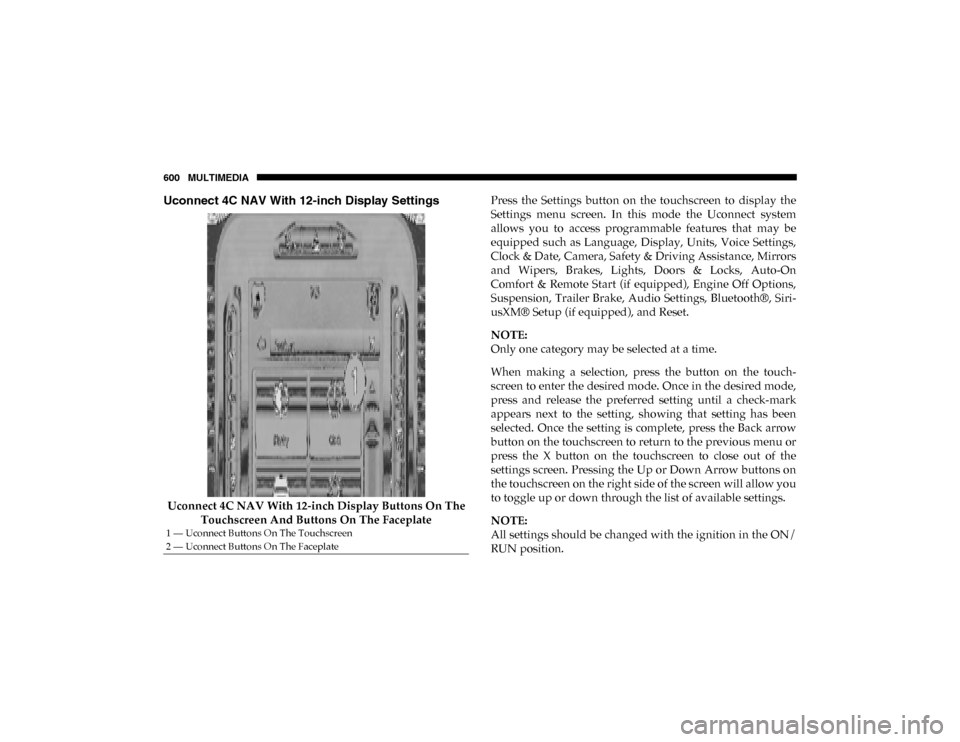
Uconnect 4C NAV With 12-inch Display Settings
Uconnect 4C NAV With 12-inch Display Buttons On The Touchscreen And Buttons On The Faceplate Press the Settings button on the touchscreen to display the
Settings menu screen. In this mode the Uconnect system
allows you to access programmable features that may be
equipped such as Language, Display, Units, Voice Settings,
Clock & Date, Camera, Safety & Driving Assistance, Mirrors
and Wipers, Brakes, Lights, Doors & Locks, Auto-On
Comfort & Remote Start (if equipped), Engine Off Options,
Suspension, Trailer Brake, Audio Settings, Bluetooth®, Siri
-
usXM® Setup (if equipped), and Reset.
NOTE:
Only one category may be selected at a time.
When making a selection, press the button on the touch -
screen to enter the desired mode. Once in the desired mode,
press and release the preferred setting until a check-mark
appears next to the setting, showing that setting has been
selected. Once the setting is complete, press the Back arrow
button on the touchscreen to return to the previous menu or
press the X button on the touchscreen to close out of the
settings screen. Pressing the Up or Down Arrow buttons on
the touchscreen on the right side of the screen will allow you
to toggle up or down through the list of available settings.
NOTE:
All settings should be changed with the ignition in the ON/
RUN position.
1 — Uconnect Buttons On The Touchscreen
2 — Uconnect Buttons On The Faceplate
2020_DT_1500_OM_US.book Page 600
Page 603 of 674

MULTIMEDIA 601
Language
After pressing the Language button on the touchscreen, the following settings will be available:
Display
After pressing the Display button on the touchscreen, the following settings will be available:Setting Name
Selectable Options
Language English (US) EspañolFrançais
NOTE:
When the “Set Language” feature is selected, you may select one of multiple languages (English (US) / Français / Español)
for all display nomenclature, including the trip functions and the navigation system (if equipped). Press the Set Language
button on the touchscreen, and then press the desired language button on the touchscreen until a check-mark appears next
to the language, showing that setting has been selected.
Setting Name Selectable Options
Display Brightness Mode AutoManual
NOTE:
Select Auto or Manual display mode and this allows adjustment of overall screen brightness. Display Brightness Headlight ON -+
NOTE:
To make changes to the "Display Brightness with Headlights ON" setting, the headlights must be on and the interior dimmer
switch must not be in the "party" or "parade" positions.
9
2020_DT_1500_OM_US.book Page 601
Page 604 of 674

602 MULTIMEDIA
Display Brightness Headlight OFF-+
NOTE:
To make changes to the "Display Brightness with Headlights OFF" setting, the headlights must be off and the interior dimmer
switch must not be in the "party" or "parade" positions. Set Theme Pre-configured Themes
Touchscreen Beep OnOff
Controls Screen Time-Out — If Equipped On
Off
Fuel Saver Display — If Equipped OnOff
NOTE:
When selected, the system displays fuel saver mode in the instrument cluster. Navigation Turn-By-Turn Displayed in Cluster — If Equipped On
Off
Phone Pop-Ups Displays In Cluster OnOff
Ready To Drive Pop-Ups — If Equipped On
Off
Setting Name
Selectable Options
2020_DT_1500_OM_US.book Page 602
Page 630 of 674

628 MULTIMEDIA
La operación de este equipo está sujeta a las siguientes dos
condiciones:
1. es posible que este equipo o dispositivo no cause interfer-
encia perjudicial y
2. este equipo o dispositivo debe aceptar cualquier interfer- encia, incluyendo la que pueda causar su operación no
deseada.
NOTE:
Changes or modifications not expressly approved by the
party responsible for compliance could void the user’s
authority to operate the equipment.
NOTE:
• This equipment has been tested and found to comply with the limits for a Class B digital device, pursuant to Part 15
of the FCC Rules. These limits are designed to provide
reasonable protection against harmful interference in a
residential installation. This equipment generates, uses
and can radiate radio frequency energy and, if not
installed and used in accordance with the instructions,
may cause harmful interference to radio communications.
However, there is no guarantee that interference will not
occur in a particular installation. • If this equipment does cause harmful interference to radio
or television reception, which can be determined by
turning the equipment off and on, the user is encouraged
to try to correct the interference by one or more of the
following measures:
1. Increase the separation between the equipment and receiver.
2. Consult an authorized dealer or an experienced radio technician for help.
UCONNECT VOICE RECOGNITION QUICK TIPS
Introducing Uconnect
Start using Uconnect Voice Recognition (VR) with these
helpful quick tips. It provides the key Voice Commands and
tips you need to know to control your Uconnect system.
If you see the NAV icon on the bottom bar, or in the Apps
menus, of your touchscreen, you have the Uconnect 4C NAV
With 8.4-inch Display or the Uconnect 4C NAV With 12-inch
Display system. If not, you have a Uconnect 4C With 8.4-inch
Display system.
2020_DT_1500_OM_US.book Page 628
Page 632 of 674
630 MULTIMEDIA
Uconnect 4/4C/4C NAV With 8.4-inch DisplayUconnect 4C NAV With 12-inch Display
2020_DT_1500_OM_US.book Page 630
Page 633 of 674
MULTIMEDIA 631
Radio
Use your voice to quickly get to the AM, FM or SiriusXM®
Satellite Radio stations you would like to hear. (Subscription
or included SiriusXM® Satellite Radio trial required.)
Push the VR button . After the beep, say:
• “Tune to ninety-five-point-five FM”.
• “Tune to Satellite Channel Hits 1”.
TIP:
At any time, if you are not sure of what to say or want to
learn a Voice Command, push the VR button and say
“Help .” The system provides you with a list of commands.
Uconnect 3 Radio Uconnect 4/4C/4C NAV With 8.4-inch Display
9
2020_DT_1500_OM_US.book Page 631
Page 634 of 674
632 MULTIMEDIA
Uconnect 4C NAV With 12-inch Display Radio
Media
Uconnect offers connections via USB, Bluetooth® and auxil-
iary ports (if equipped). Voice operation is only available for
connected USB and AUX devices. (Remote CD player
optional and not available on all vehicles.)
Push the VR button . After the beep, say one of the
following commands and follow the prompts to switch your
media source or choose an artist.
• “Change source to Bluetooth®”.
• “Change source to AUX”.
• “Change source to USB”.
• “Play artist Beethoven”; “ Play album Greatest Hits”;
“Play song Moonlight Sonata”; “ Play genre Classical”.
TIP:
Press the Browse button on the touchscreen to see all of the
music on your USB device. Your Voice Command must
match exactly how the artist, album, song and genre infor -
mation is displayed.
2020_DT_1500_OM_US.book Page 632
Page 635 of 674

MULTIMEDIA 633
Uconnect 3 MediaUconnect 4/4C/4C NAV With 8.4-inch Display
9
2020_DT_1500_OM_US.book Page 633
Page 636 of 674

634 MULTIMEDIA
Uconnect 4C NAV With 12-inch Display Media
Phone
Making and answering hands-free phone calls is easy with
Uconnect. When the Phonebook button is illuminated on
your touchscreen, your system is ready. Check Uconnect-
Phone.com for mobile phone compatibility and pairing
instructions.
Push the Phone button . After the beep, say one of the
following commands:
• “Call John Smith”
• “Dial 123-456-7890 and follow the system prompts”
• “Redial (call previous outgoing phone number)”
• “Call back (call previous incoming phone number)”
TIP:
When providing a Voice Command, push the Phone button and say “ Call,” then pronounce the name exactly as it
appears in your phone book. When a contact has multiple
phone numbers, you can say “ Call John Smith work.”
2020_DT_1500_OM_US.book Page 634
Page 637 of 674

MULTIMEDIA 635
Uconnect 3 PhoneUconnect 4/4C/4C NAV With 8.4-inch Display
9
2020_DT_1500_OM_US.book Page 635