radio RAM 1500 2023 User Guide
[x] Cancel search | Manufacturer: RAM, Model Year: 2023, Model line: 1500, Model: RAM 1500 2023Pages: 416, PDF Size: 20.59 MB
Page 46 of 416
44GETTING TO KNOW YOUR VEHICLE
PROGRAMMING HOMELINK® TO A
G
ARAGE DOOR OPENER
To program any of the HomeLink® buttons to activate your
garage door opener motor, proceed as follows:
NOTE:All HomeLink® buttons are programmed using this
procedure. You do not need to erase all channels when
programming additional buttons.
1. Place the ignition switch into the ON/RUN position.
2. Place the garage door opener transmitter
1 to 3 inches (3 to 8 cm) away from the HomeLink®
button you wish to program, while keeping the
HomeLink® indicator light in view.
3. Push and hold the HomeLink® button you want to program while you push and hold the garage door
opener transmitter button you are trying to replicate.
4. Continue to hold both buttons and observe the HomeLink® indicator light. The HomeLink® indicator
light will flash slowly and then rapidly. Once this
happens, release both buttons.
NOTE:Make sure the garage door opener motor is plugged in
before moving on to the rolling code/non-rolling code final
steps. Rolling Code Garage Door Opener Final Steps
NOTE:You have 30 seconds in which to initiate rolling code final
step 2, after completing rolling code final step 1.
1. At the garage door opener motor (in the garage),
locate the “LEARN” or “TRAIN” button. This can
usually be found where the hanging antenna wire is
attached to the garage door opener motor. Firmly
push and release the “LEARN” or “TRAIN” button.
2. Return to the vehicle and push the programmed HomeLink® button three times (holding the button
for two seconds each time). If the garage door opener
motor operates, programming is complete.
3. Push the programmed HomeLink® button to confirm that the garage door opener motor operates. If the
garage door opener motor does not operate, repeat
the final steps for the rolling code procedure.
Non-Rolling Code Garage Door Opener Final Steps
1. Push and hold the programmed HomeLink® button and observe the HomeLink® indicator light. If the
HomeLink® indicator light stays on constantly,
programming is complete.
2. Push the programmed HomeLink® button to confirm that the garage door opener motor operates. If the
garage door opener motor does not operate, repeat
the steps from the beginning.
PROGRAMMING HOMELINK® TO A
M
ISCELLANEOUS DEVICE
The procedure on how to program HomeLink® to a
miscellaneous device follows the same procedure as
programming to a garage door opener
Úpage 44. Be sure
to determine if the device has a rolling code, or non-rolling
code before beginning the programming process.
NOTE:Canadian Radio Frequency (RF) laws require transmitter
signals to time-out (or quit) after several seconds of trans -
mission, which may not be long enough for HomeLink® to
pick up the signal during programming. Similar to this
Canadian law, some U.S. gate operators are designed to
time-out in the same manner. The procedure may need to
be performed multiple times to successfully pair the
device to your HomeLink® buttons.
WARNING!
Your motorized door or gate will open and close while
you are programming the universal transmitter.
Do not program the transmitter if people or pets are
in the path of the door or gate.
Do not run your vehicle in a closed garage or
confined area while programming the transmitter.
Exhaust gas from your vehicle contains carbon
monoxide (CO) which is odorless and colorless.
Carbon monoxide is poisonous when inhaled and
can cause you and others to be severely injured
or killed.
23_DT_OM_EN_USC_t.book Page 44
Page 47 of 416
GETTING TO KNOW YOUR VEHICLE45
REPROGRAMMING A SINGLE
H
OMELINK® BUTTON
To reprogram a single HomeLink® button that has been
previously trained, without erasing all the channels, refer
to the following procedure. Be sure to determine whether
the new device you want to program the HomeLink®
button to has a rolling code, or non-rolling code.
1. Place the ignition in the ON/RUN position, without
starting the engine.
2. Push and hold the desired HomeLink® button until the HomeLink® indicator light begins to flash after
20 seconds. Do not release the button.
3. Without releasing the button , proceed with Step 2 in
“Programming HomeLink® To A Garage Door
Opener”
Úpage 44, and follow all remaining steps.
CANADIAN/GATE OPERATOR
P
ROGRAMMING
For programming transmitters in Canada/United States
that require the transmitter signals to “time-out” after
several seconds of transmission:
Canadian Radio Frequency (RF) laws require transmitter
signals to time-out (or quit) after several seconds of
transmission, which may not be long enough for
HomeLink® to pick up the signal during programming.
Similar to this Canadian law, some U.S. gate operators are
designed to time-out in the same manner.
It may be helpful to unplug the device during the cycling
process to prevent possible overheating of the garage
door or gate motor.
1. Place the ignition in the ON/RUN position.
NOTE:For vehicles equipped with Keyless Enter ‘n Go™, place
the ignition in the RUN position. Make sure while
programming HomeLink® with the engine on that your
vehicle is outside of your garage, or that the garage door
remains open at all times.
2. Place the hand-held transmitter 1 to 3 inches
(3 to 8 cm) away from the HomeLink® button you
wish to program while keeping the HomeLink®
indicator light in view.
3. Continue to push and hold the HomeLink® button while you push and release (cycle) your hand-held
transmitter every two seconds until HomeLink® has
successfully accepted the frequency signal. The
indicator light will flash slowly and then rapidly when
fully trained.
4. Watch for the HomeLink® indicator to change flash rates. When it changes, it is programmed. It may take
up to 30 seconds or longer in rare cases. The garage
door may open and close while you are programming.
5. Push and hold the programmed HomeLink® button and observe the indicator light.
NOTE:
If the indicator light stays on constantly, program -
ming is complete and the garage door/device
should activate when the HomeLink® button is
pushed.
To program the two remaining HomeLink®
buttons, repeat each step for each remaining
button. DO NOT erase the channels. If you unplugged the garage door opener/device for
programming, plug it back in at this time.
Reprogramming A Single HomeLink® Button
(Canadian/Gate Operator)
To reprogram a channel that has been previously trained,
follow these steps:
1. Place the ignition in the ON/RUN position.
2. Press and hold the desired HomeLink® button until
the indicator light begins to flash after 20 seconds.
Do not release the button.
3. Without releasing the button, proceed with “Canadian/Gate Operator Programming” Step 2 and
follow all remaining steps.
SECURITY
It is advised to erase all channels before you sell or turn in
your vehicle.
To do this, push and hold the two outside buttons for
20 seconds until the indicator flashes. Note that all
channels will be erased. Individual channels cannot be
erased.
The HomeLink® Universal Transceiver is disabled when
the Vehicle Security system is active.
2
23_DT_OM_EN_USC_t.book Page 45
Page 56 of 416
54GETTING TO KNOW YOUR VEHICLE
CLIMATE CONTROLS
The Climate Control system allows you to regulate the
temperature, air flow, and direction of air circulating
throughout the vehicle. The controls are located on the
touchscreen, on the sides of the touchscreen, or on the
instrument panel below the radio.
AUTOMATIC CLIMATE CONTROL
D
ESCRIPTIONS AND FUNCTIONS
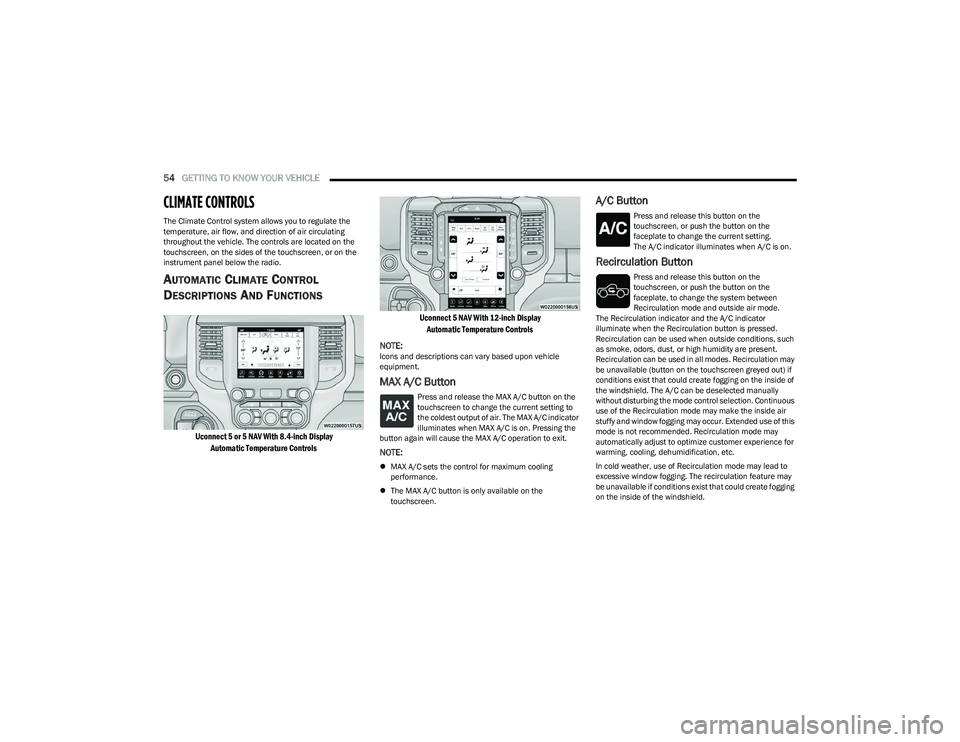
Uconnect 5 or 5 NAV With 8.4-inch Display
Automatic Temperature Controls Uconnect 5 NAV With 12-inch Display
Automatic Temperature Controls
NOTE:
Icons and descriptions can vary based upon vehicle
equipment.
MAX A/C Button
Press and release the MAX A/C button on the
touchscreen to change the current setting to
the coldest output of air. The MAX A/C indicator
illuminates when MAX A/C is on. Pressing the
button again will cause the MAX A/C operation to exit.
NOTE:
MAX A/C sets the control for maximum cooling
performance.
The MAX A/C button is only available on the
touchscreen.
A/C Button
Press and release this button on the
touchscreen, or push the button on the
faceplate to change the current setting.
The A/C indicator illuminates when A/C is on.
Recirculation Button
Press and release this button on the
touchscreen, or push the button on the
faceplate, to change the system between
Recirculation mode and outside air mode.
The Recirculation indicator and the A/C indicator
illuminate when the Recirculation button is pressed.
Recirculation can be used when outside conditions, such
as smoke, odors, dust, or high humidity are present.
Recirculation can be used in all modes. Recirculation may
be unavailable (button on the touchscreen greyed out) if
conditions exist that could create fogging on the inside of
the windshield. The A/C can be deselected manually
without disturbing the mode control selection. Continuous
use of the Recirculation mode may make the inside air
stuffy and window fogging may occur. Extended use of this
mode is not recommended. Recirculation mode may
automatically adjust to optimize customer experience for
warming, cooling, dehumidification, etc.
In cold weather, use of Recirculation mode may lead to
excessive window fogging. The recirculation feature may
be unavailable if conditions exist that could create fogging
on the inside of the windshield.
23_DT_OM_EN_USC_t.book Page 54
Page 67 of 416

GETTING TO KNOW YOUR VEHICLE65
Flip the inside of the base upward into the upright position,
locking into place, creating and extended storage area.
Fully Extended Storage Area
NOTE:
The rear seats do not need to be folded up to access this
feature.
USB/AUX CONTROL
Located on the center stack, just below the instrument
panel, is the main media hub. There are four total USB
ports: Two Mini-USBs (Type C) and two Standard USBs
(Type A). There is also an AUX port located in the middle of
the USB ports.
Plugging in a smartphone device to a USB port may
activate Android Auto™ or Apple CarPlay® features, if
equipped. For further information, refer to “Android
Auto™” or “Apple CarPlay®” in the Uconnect Radio
Instruction Manual.
NOTE:Two devices can be plugged in at the same time, and both
ports will provide charging capabilities. Only one port can
transfer data to the system at a time. A pop-up will appear
and allow you to select the device transferring data.
For example, if a device is plugged into the Type A USB port
and another device is plugged into the Type C USB port, a
message will appear and allow you to select which device
to use.
Center Stack USB/AUX Media Hub
The third and fourth USB ports are located behind the
center console, above the power inverter. Both are charge
only.
Rear USB Ports
Applicable to only Uconnect 5/5 NAV With 8.4-inch
Display, and Uconnect 5 NAV With 12-inch Display radios,
different scenarios are listed below when a non-phone
device is plugged into the smaller and larger USB ports,
and when a phone device is plugged into the smaller and
larger USB ports:
“A new device is now connected. Previous connection
was lost”.
“(Phone Name) now connected. Previous connection
was lost”.
“Another device is in use through the same USB port.
Please disconnect the first device to use the second
device”.
1 — Standard USB Type A Port #1
2 — AUX Port
3 — Standard USB Type A Port #2
1 — Rear Charge Only USB Ports 1
2 — Rear Charge Only USB Ports 2
2
23_DT_OM_EN_USC_t.book Page 65
Page 68 of 416

66GETTING TO KNOW YOUR VEHICLE
NOTE:Charge unsupported devices with the Charge Only USB
ports. If an unsupported device is plugged into a Media
USB port, a message will display on the touchscreen that
the device is not supported by the system.
Plugging in a phone or another USB device may cause the
connection to a previous device to be lost.
If equipped, your vehicle may also contain a USB port
located on the top tray of the vehicle’s center console.
If equipped, two Mini-USB ports (Type C), two Standard
USB ports (Type A), and one AUX port may be located to the
left of the center stack, just below the climate controls.
Center Console USB/AUX Media Hub
Some USB ports support media and charging. You can use
features, such as Apple CarPlay®, Android Auto™,
Pandora®, and others while charging your phone.
NOTE:Plugging in a phone or another USB device may cause the
connection to a previous device to be lost.
For further information, refer to the Uconnect Radio
Instruction Manual or visit UconnectPhone.com.
ELECTRICAL POWER OUTLETS
The auxiliary 12 Volt (13 Amp) power outlet can provide
power for in-cab accessories designed for use with the
standard “cigarette lighter” style plug. The 12 Volt power
outlets and 5 Volt (2.5 Amp) USB Port (Charge Only) have
a cap attached to the outlet indicating “12V DC”, together
with either a key symbol, battery symbol, or USB symbol.
An auxiliary power outlet can be found in the tray on top of
the center stack. This power outlet works when the ignition
is in the ON/RUN, ACC, or OFF position.
Power Outlet — Top Of Center Stack
Power Outlet Fuse Locations
1 — Standard USB Type A Ports
2 — Mini-USB Type C Ports
3 — AUX Port
CAUTION!
Do not exceed the maximum power of 160 Watts
(13 Amps) at 12 Volts. If the 160 Watts (13 Amps)
power rating is exceeded, the fuse protecting the
system will need to be replaced.
Power outlets are designed for accessory plugs only.
Do not insert any other object in the power outlets as
this will damage the outlet and blow the fuse.
Improper use of the power outlet can cause damage
not covered by your New Vehicle Limited Warranty.
1 — F54 Fuse 20 A Yellow Power Outlet Battery Fed
Position
2 — F54 Fuse 20 A Yellow Power Outlet Ignition Fed
Position
3 — F48 Fuse 10 A Red Port Power or Rear USB
(Charge Only)
23_DT_OM_EN_USC_t.book Page 66
Page 71 of 416
GETTING TO KNOW YOUR VEHICLE69
iPhone® 12 (including iPod®) is equipped with
software to protect the device from overheating. When
the software is active, the rate of charge is slowed
down to protect the device.
Phones must always be placed on the wireless
charging pad within the outline shown on the pad so
that its charging parts connect with the charging coils
of the system. Movement of the phone during charging
may prevent or slow the rate of charge.
Having multiple applications open on the phone while
charging will reduce the charging efficiency, and may
even shut down an application that is actively running
(i.e. Apple CarPlay®). This may also cause the phone to
overheat.
Wireless chargers may implement certain methods to
prevent the phone from overheating during charging
such as slowing down the rate of charge. In certain
instances, the device may shut down for a brief period
of time (when the device reaches a certain tempera -
ture). If this happens, it does not mean there is a fault
with the wireless charging pad. This may just be a
protective measure to prevent damage to the phone.UV-C LIGHT — IF EQUIPPED
Your vehicle may be equipped with a UV-C light located
inside the glove compartment used to hygienize surface
areas of items placed inside. The UV-C light hygienizes
using a very specialized, and high powered, UV-C light
source.
NOTE:No chemicals are used in the hygienizing process.
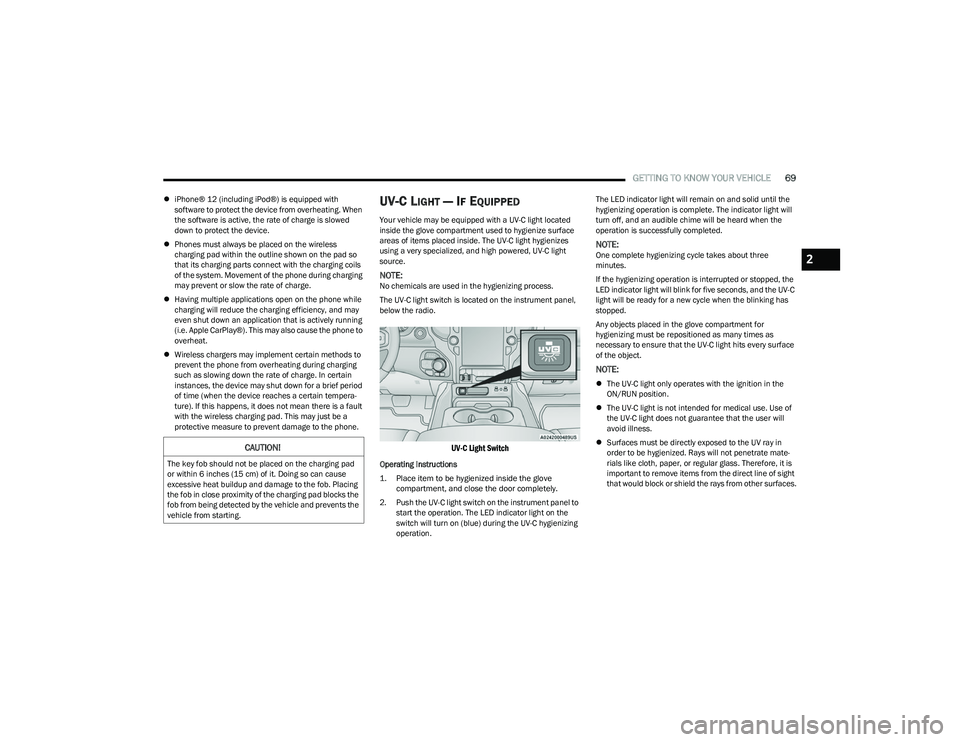
The UV-C light switch is located on the instrument panel,
below the radio.
UV-C Light Switch
Operating Instructions
1. Place item to be hygienized inside the glove compartment, and close the door completely.
2. Push the UV-C light switch on the instrument panel to start the operation. The LED indicator light on the
switch will turn on (blue) during the UV-C hygienizing
operation. The LED indicator light will remain on and solid until the
hygienizing operation is complete. The indicator light will
turn off, and an audible chime will be heard when the
operation is successfully completed.
NOTE:One complete hygienizing cycle takes about three
minutes.
If the hygienizing operation is interrupted or stopped, the
LED indicator light will blink for five seconds, and the UV-C
light will be ready for a new cycle when the blinking has
stopped.
Any objects placed in the glove compartment for
hygienizing must be repositioned as many times as
necessary to ensure that the UV-C light hits every surface
of the object.
NOTE:
The UV-C light only operates with the ignition in the
ON/RUN position.
The UV-C light is not intended for medical use. Use of
the UV-C light does not guarantee that the user will
avoid illness.
Surfaces must be directly exposed to the UV ray in
order to be hygienized. Rays will not penetrate mate -
rials like cloth, paper, or regular glass. Therefore, it is
important to remove items from the direct line of sight
that would block or shield the rays from other surfaces.
CAUTION!
The key fob should not be placed on the charging pad
or within 6 inches (15 cm) of it. Doing so can cause
excessive heat buildup and damage to the fob. Placing
the fob in close proximity of the charging pad blocks the
fob from being detected by the vehicle and prevents the
vehicle from starting.
2
23_DT_OM_EN_USC_t.book Page 69
Page 109 of 416

GETTING TO KNOW YOUR INSTRUMENT PANEL107
NOTE:
The charging system is independent from load reduc -
tion. The charging system performs a diagnostic on the
charging system continuously.
If the Battery Charge Warning Light is on it may indicate
a problem with the charging system
Úpage 108.
The electrical loads that may be switched off (if equipped),
and vehicle functions which can be affected by load
reduction:
Heated Seats / Vented Seats / Heated Wheel
Rear Defroster And Heated Mirrors
HVAC System
115 Volts AC Power Inverter System
Audio and Telematics System
Loss of the battery charge may indicate one or more of the
following conditions:
The charging system cannot deliver enough electrical
power to the vehicle system because the electrical
loads are larger than the capability of charging system.
The charging system is still functioning properly.
Turning on all possible vehicle electrical loads
(e.g. HVAC to max settings, exterior and interior lights,
overloaded power outlets +12 Volts, 115 Volts AC, USB
ports) during certain driving conditions (city driving,
towing, frequent stopping).
Installing options like additional lights, upfitter
electrical accessories, audio systems, alarms and
similar devices.
Unusual driving cycles (short trips separated by long
parking periods).
The vehicle was parked for an extended period of time
(weeks, months).
The battery was recently replaced and was not charged
completely.
The battery was discharged by an electrical load left on
when the vehicle was parked.
The battery was used for an extended period with the
engine not running to supply radio, lights, chargers,
+12 Volt portable appliances like vacuum cleaners,
game consoles and similar devices.
What to do when an electrical load reduction action
message is present (“Battery Saver On” or “Battery Saver
Mode”)
During a trip:
Reduce power to unnecessary loads if possible:
Turn off redundant lights (interior or exterior).
Check what may be plugged in to power outlets
+12 Volts, 115 Volts AC, USB ports.
Check HVAC settings (blower, temperature).
Check the audio settings (volume). After a trip:
Check if any aftermarket equipment was installed
(additional lights, upfitter electrical accessories, audio
systems, alarms) and review specifications if any
(load and Ignition Off Draw currents).
Evaluate the latest driving cycles (distance, driving
time and parking time).
The vehicle should have service performed if the
message is still present during consecutive trips and
the evaluation of the vehicle and driving pattern did not
help to identify the cause.
WARNING LIGHTS AND MESSAGES
The warning/indicator lights will illuminate in the
instrument panel together with a dedicated message
and/or acoustic signal when applicable. These indications
are indicative and precautionary and as such must not be
considered as exhaustive and/or alternative to the
information contained in the Owner’s Manual, which you
are advised to read carefully in all cases. Always refer to
the information in this chapter in the event of a failure
indication. All active telltales will display first if applicable.
The system check menu may appear different based upon
equipment options and current vehicle status. Some
telltales are optional and may not appear.
3
23_DT_OM_EN_USC_t.book Page 107
Page 137 of 416
STARTING AND OPERATING135
The vehicle will return to NRH from Aero Mode if the
vehicle speed remains between 30 mph (48 km/h)
and 35 mph (56 km/h) for greater than 20 seconds or
if the vehicle speed falls below 30 mph (48 km/h).
NOTE:
Automatic Aero mode will be disabled if a trailer is
detected to prevent shifting loads.
Speed thresholds for raising/lowering the vehicle
automatically at higher speeds only apply if
Automatic Aero Mode is enabled in your Uconnect
Radio settings.
To enter Aero Height manually push the height selector
switch down once from NRH at any vehicle speed. To
return to NRH push the height selector switch up once
while vehicle speed is less than 56 mph (90 km/h).
NOTE:Automatic Aero Mode may be disabled through vehicle
settings in the instrument cluster display Úpage 98 or
through your Uconnect Radio (if equipped) Úpage 191.
Entry/Exit Height (Lowers the vehicle approximately
2 inches [51 mm]) – This position lowers the vehicle
for easier passenger entry and exit as well as lowering
the vehicle for easier loading and unloading of cargo.
To enter Entry/Exit Mode, push the height selector
switch down once from the NRH while the vehicle
speed is below 33 mph (53 km/h). Once the vehicle
speed goes below 15 mph (24 km/h) the vehicle
height will begin to lower. If the vehicle speed remains
between 15 mph (24 km/h) and 25 mph (40 km/h) for
greater than 60 seconds, or the vehicle speed exceeds
25 mph (40 km/h) the Entry/Exit change will be canceled. To return to Normal Height Mode, push the height
selector switch up once while in Entry/Exit or drive the
vehicle over 15 mph (24 km/h).
NOTE:Entry/Exit Height may be achieved using the Remote
Lowering feature on your key fob for easier entry/loading
Úpage 16.
The system requires that the ignition be in the ON/RUN
position or the engine running for all user requested
changes. When lowering the vehicle, all of the doors must
be closed. If a door is opened at any time while the vehicle
is lowering, the change will not be completed until the
open door(s) is closed.
This system uses a lifting and lowering pattern which
keeps the headlights from incorrectly shining into
oncoming traffic. When raising the vehicle, the rear of the
vehicle will move up first and then the front. When
lowering the vehicle, the front will move down first and
then the rear.
After the engine is turned off, it may be noticed that the air
suspension system operates briefly; this is normal. The
system is correcting the position of the vehicle to ensure a
proper appearance.
To assist with changing a spare tire, the air suspension
system has a feature which allows the automatic leveling
to be disabled
Úpage 98. Default Ride Height:
Select Aero Height or Normal Ride Height as the default
for all vehicle speeds and operation. This is the
selected height that the suspension will level for speed
changes (e.g. raising from Entry/Exit Height at speed,
lowering from Off-Road Height at speed, etc.).
Default ride height can be changed by manually
adjusting the Air Suspension switch to Normal Ride
Height or Aero Ride Height and staying in the selected
height for 2.5 seconds. It will be stored as the default
ride height and the height will be maintained until a
new default ride height is selected.
NOTE:If equipped with a touchscreen radio, all enabling/
disabling of air suspension features must be done through
the radio
Úpage 191.
AIR SUSPENSION MODES
The air suspension system has multiple modes to protect
the system in unique situations. The engine should be
running to change between Air Suspension Modes.
CAUTION!
When in Entry/Exit Height, be aware of your
surroundings, you may not have the clearance required
for certain areas and vehicle damage may occur.
WARNING!
The air suspension system uses a high pressure
volume of air to operate the system. To avoid personal
injury or damage to the system, see an authorized
dealer for service.
4
23_DT_OM_EN_USC_t.book Page 135
Page 138 of 416

136STARTING AND OPERATING
Automatic Aero Mode
To improve aerodynamics, the air suspension system has
a feature which will put the vehicle into Aero Height
automatically at higher speeds
Úpage 98.
Automatic Aero Mode may be disabled through vehicle
settings in the Uconnect Radio (if equipped)
Úpage 191.
Tire Jack Mode
To assist with changing a tire, the air suspension system
has a feature which allows the automatic leveling to be
disabled
Úpage 191.
Transport Mode
For towing your vehicle with four wheels off the road, the
air suspension system has a feature which will put the
vehicle into Entry/Exit height and disable the automatic
load leveling system
Úpage 191.
Wheel Alignment Mode
Before performing a wheel alignment, this mode must be
enabled which will put the vehicle into NRH and disable
automatic leveling
Úpage 191.
Protection Strategy
In order to protect the air suspension system, the vehicle
will disable load leveling as required (suspension
overloaded, battery charge low, etc.). Load leveling will
automatically resume as soon as system operation
requirements are met. See an authorized dealer if system
does not resume.
NOTE:For towing with air suspension Úpage 173.
INSTRUMENT CLUSTER DISPLAY
M
ESSAGES
When the appropriate conditions exist, a message will
appear in the instrument cluster display Úpage 98.
An audible chime will be heard whenever a system error
has been detected.
See an authorized dealer for system service if normal
operation does not resume.
OPERATION
Air Suspension Switch
The indicator lamps 1 through 5 will illuminate to show the
current position of the vehicle. Flashing indicator lamps
will show a position which the system is working to
achieve. When raising, if multiple indicator lamps are
flashing, the highest flashing indicator lamp is the position
the system is working to achieve.
When lowering, if multiple indicators are flashing, the
lowest solid indicator lamp is the position the system is
working to achieve. Pushing the height selector up once will move the
suspension one position higher from the current position,
assuming all conditions are met (i.e., ignition in ON/RUN
position, engine running, speed below threshold, etc.).
The height selector switch can be pushed up multiple
times, each push will raise the requested level by one
position up to a maximum position of OR2 or the highest
position allowed based on current conditions
(i.e., vehicle speed, etc.).
Pushing the height selector down once will move the
suspension one position lower from the current level,
assuming all conditions are met (i.e., ignition in ON/RUN
position, engine running, doors closed, speed below
threshold, etc.). The height selector switch can be pushed
down multiple times, each push will lower the requested
level by one position down to a minimum of Entry/Exit
Mode or the lowest position allowed based on current
conditions (i.e., vehicle speed, etc.).
Automatic height changes will occur based on vehicle
speed and the current vehicle height. The indicator lamps
and instrument cluster display messages will operate the
same for automatic changes and user requested changes.
Off-Road 2 (OR2) – Indicator lamps 5, 4, 3, 2 and 1 will
be illuminated.
Off-Road 1 (OR1) – Indicator lamps 5, 4, 3 and 2 will be
illuminated.
Normal Ride Height (NRH) – Indicator lamps 5, 4 and 3
will be illuminated.
23_DT_OM_EN_USC_t.book Page 136
Page 139 of 416
STARTING AND OPERATING137
Aero Height– Indicator lamps 5 and 4 will be
illuminated.
Entry/Exit – Indicator lamp 5 will be illuminated.
Entry/Exit can be requested up to 33 mph (53 km/h).
If vehicle speed is reduced to, and kept below, 15 mph
(24 km/h) indicator lamp 4 will flash and indicator
lamp 5 will remain solid until Entry/Exit is achieved at
which point indicator lamp 4 will turn off.
Automatic Aero Mode – Indicator lamps 5 and 4 will be
illuminated.
Transport Mode – No indicator lamps will be illumi -
nated. Transport Mode is disabled by driving the
vehicle or disabling in the Uconnect settings.
Tire/Jack Mode – Indicator lamps 5 and 1 will be illumi -
nated. Tire/Jack Mode is disabled by driving the vehicle
or disabling in the Uconnect settings.
Wheel Alignment Mode – Indicator lamps 3, 4, and 5
will be illuminated. Wheel Alignment Mode is disabled
by driving the vehicle or disabling in the Uconnect
settings.
ACTIVE-LEVEL FOUR CORNER
AIR SUSPENSION SYSTEM
(OFF-ROAD GROUP) — IF EQUIPPED
DESCRIPTION
The air suspension system provides full-time load-leveling
capability along with the benefit of being able to adjust
vehicle height by using the toggle switch.
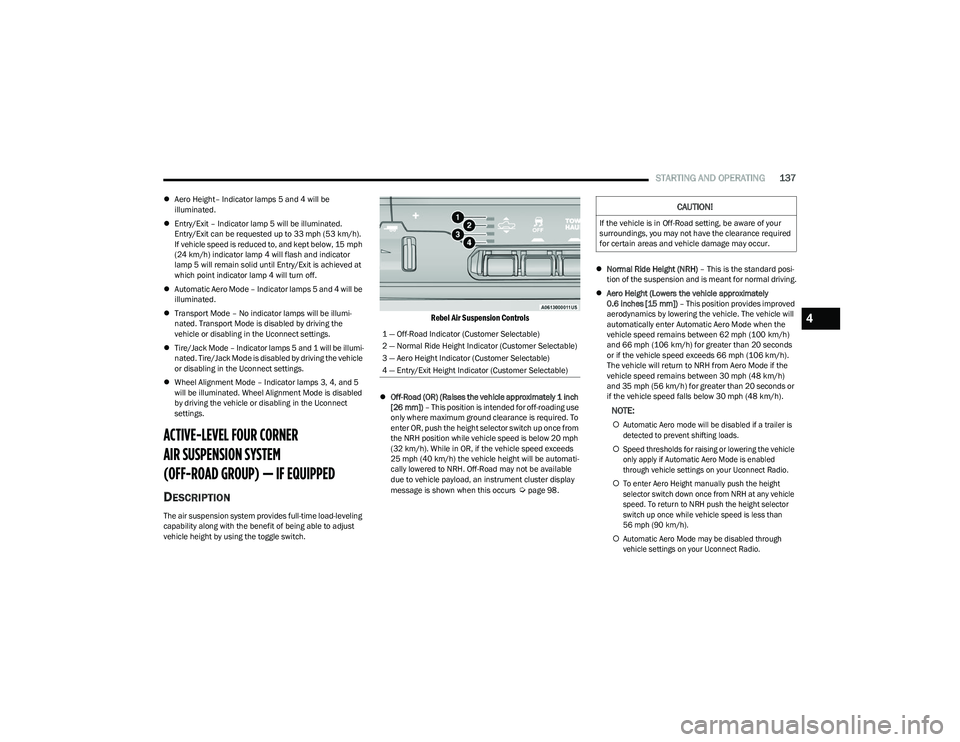
Rebel Air Suspension Controls
Off-Road (OR) (Raises the vehicle approximately 1 inch
[26 mm]) – This position is intended for off-roading use
only where maximum ground clearance is required. To
enter OR, push the height selector switch up once from
the NRH position while vehicle speed is below 20 mph
(32 km/h). While in OR, if the vehicle speed exceeds
25 mph (40 km/h) the vehicle height will be automati -
cally lowered to NRH. Off-Road may not be available
due to vehicle payload, an instrument cluster display
message is shown when this occurs
Úpage 98.
Normal Ride Height (NRH) – This is the standard posi -
tion of the suspension and is meant for normal driving.
Aero Height (Lowers the vehicle approximately
0.6 inches [15 mm]) – This position provides improved
aerodynamics by lowering the vehicle. The vehicle will
automatically enter Automatic Aero Mode when the
vehicle speed remains between 62 mph (100 km/h)
and 66 mph (106 km/h) for greater than 20 seconds
or if the vehicle speed exceeds 66 mph (106 km/h).
The vehicle will return to NRH from Aero Mode if the
vehicle speed remains between 30 mph (48 km/h)
and 35 mph (56 km/h) for greater than 20 seconds or
if the vehicle speed falls below 30 mph (48 km/h).
NOTE:
Automatic Aero mode will be disabled if a trailer is
detected to prevent shifting loads.
Speed thresholds for raising or lowering the vehicle
only apply if Automatic Aero Mode is enabled
through vehicle settings on your Uconnect Radio.
To enter Aero Height manually push the height
selector switch down once from NRH at any vehicle
speed. To return to NRH push the height selector
switch up once while vehicle speed is less than
56 mph (90 km/h).
Automatic Aero Mode may be disabled through
vehicle settings on your Uconnect Radio.
1 — Off-Road Indicator (Customer Selectable)
2 — Normal Ride Height Indicator (Customer Selectable)
3 — Aero Height Indicator (Customer Selectable)
4 — Entry/Exit Height Indicator (Customer Selectable)
CAUTION!
If the vehicle is in Off-Road setting, be aware of your
surroundings, you may not have the clearance required
for certain areas and vehicle damage may occur.
4
23_DT_OM_EN_USC_t.book Page 137