radio RAM 1500 2023 Owner's Manual
[x] Cancel search | Manufacturer: RAM, Model Year: 2023, Model line: 1500, Model: RAM 1500 2023Pages: 416, PDF Size: 20.59 MB
Page 140 of 416
![RAM 1500 2023 Owners Manual
138STARTING AND OPERATING
Entry/Exit Height (Lowers the vehicle approximately
3 inches [73 mm]) – This position lowers the vehicle
for easier passenger entry and exit as well as lowering
t](/img/34/59197/w960_59197-139.png "RAM 1500 2023 Owners Manual
138STARTING AND OPERATING
Entry/Exit Height (Lowers the vehicle approximately
3 inches [73 mm]) – This position lowers the vehicle
for easier passenger entry and exit as well as lowering
t")
138STARTING AND OPERATING
Entry/Exit Height (Lowers the vehicle approximately
3 inches [73 mm]) – This position lowers the vehicle
for easier passenger entry and exit as well as lowering
the vehicle for easier loading and unloading of cargo.
To enter Entry/Exit Mode, push the height selector
switch down twice from the NRH while the vehicle
speed is below 33 mph (53 km/h). Once the vehicle
speed goes below 15 mph (24 km/h) the vehicle
height will begin to lower. If the vehicle speed remains
between 15 mph (24 km/h) and 25 mph (40 km/h) for
greater than 60 seconds, or the vehicle speed exceeds
25 mph (40 km/h) the Entry/Exit change will be canceled. To return to Normal Height Mode, push the
height selector switch up twice while in Entry/Exit or
drive the vehicle over 15 mph (24 km/h). Entry/Exit Height may not be available due to vehicle payload, an
instrument cluster display message is shown when this
occurs
Úpage 98.
The system requires that the ignition be in the ON/RUN
position or the engine running for all user requested
changes. When lowering the vehicle, all of the doors must
be closed. If a door is opened at any time while the vehicle
is lowering, the change will not be completed until the
open door(s) is closed. This system uses a lifting and lowering pattern which
keeps the headlights from incorrectly shining into
oncoming traffic. When raising the vehicle, the rear of the
vehicle will move up first and then the front. When
lowering the vehicle, the front will move down first and
then the rear.
After the engine is turned off, it may be noticed that the air
suspension system operates briefly; this is normal.
The system is correcting the position of the vehicle to
ensure a proper appearance.
To assist with changing a spare tire, the air suspension
system has a feature which allows the automatic leveling
to be disabled
Úpage 191.
Default Ride Height:
Select Aero Height or Normal Ride Height as the default
for all vehicle speeds and operation. This is the
selected height that the suspension will level for speed
changes (e.g. raising from Entry/Exit Height at speed,
lowering from Off-Road Height at speed, etc.).
Default ride height can be changed by manually
adjusting the Air Suspension switch to Normal Ride
Height or Aero Ride Height and staying in the selected
height for 2.5 seconds. It will be stored as the default
ride height and the height will be maintained until a
new default ride height is selected.
NOTE:If equipped with a touchscreen radio, all enabling/
disabling of air suspension features must be done through
the radio
Úpage 191.
AIR SUSPENSION MODES
The air suspension system has multiple modes to protect
the system in unique situations:
Automatic Aero Mode
To improve aerodynamics, the air suspension system has
a feature which will put the vehicle into Aero height
automatically at higher speeds
Úpage 98.
Tire Jack Mode
To assist with changing a tire, the air suspension system
has a feature which allows the automatic leveling to be
disabled
Úpage 191.
Transport Mode
For towing your vehicle with four wheels off the road, the
air suspension system has a feature which will put the
vehicle into Entry/Exit height and disable the automatic
load leveling system
Úpage 191.
CAUTION!
When in Entry/Exit Height, be aware of your
surroundings, you may not have the clearance required
for certain areas and vehicle damage may occur.
WARNING!
The air suspension system uses a high pressure
volume of air to operate the system. To avoid personal
injury or damage to the system, see an authorized
dealer for service.
23_DT_OM_EN_USC_t.book Page 138
Page 157 of 416
STARTING AND OPERATING155
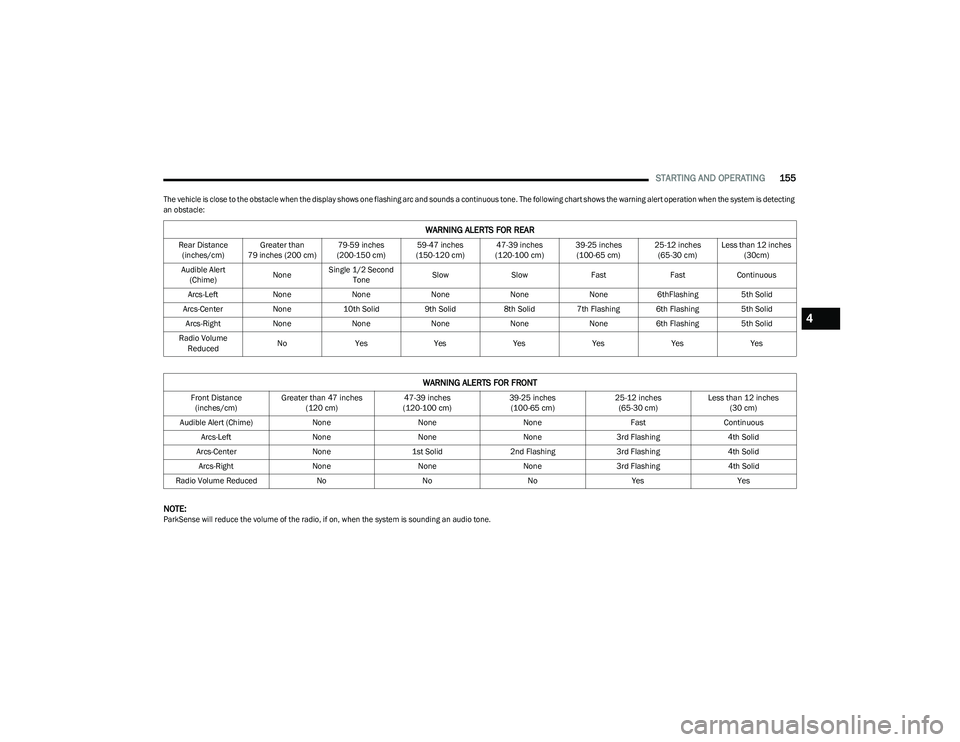
The vehicle is close to the obstacle when the display shows one flashing arc and sounds a continuous tone. The following chart shows the warning alert operation when the system is detecting
an obstacle:
NOTE:
ParkSense will reduce the volume of the radio, if on, when the system is sounding an audio tone.
WARNING ALERTS FOR REAR
Rear Distance
(inches/cm) Greater than
79 inches (200 cm) 79-59 inches
(200-150 cm) 59-47 inches
(150-120 cm) 47-39 inches
(120-100 cm) 39-25 inches
(100-65 cm) 25-12 inches
(65-30 cm) Less than 12 inches
(30cm)
Audible Alert (Chime) NoneSingle 1/2 Second
Tone Slow
Slow FastFastContinuous
Arcs-Left NoneNoneNoneNoneNone6thFlashing 5th Solid
Arcs-Center None10th Solid 9th Solid8th Solid7th Flashing 6th Flashing 5th Solid
Arcs-Right NoneNoneNoneNoneNone6th Flashing 5th Solid
Radio Volume Reduced No
Yes YesYesYesYesYes
WARNING ALERTS FOR FRONT
Front Distance
(inches/cm) Greater than 47 inches
(120 cm) 47-39 inches
(120-100 cm) 39-25 inches
(100-65 cm) 25-12 inches
(65-30 cm) Less than 12 inches
(30 cm)
Audible Alert (Chime) NoneNoneNone FastContinuous
Arcs-Left NoneNoneNone3rd Flashing 4th Solid
Arcs-Center None1st Solid2nd Flashing 3rd Flashing 4th Solid
Arcs-Right NoneNoneNone3rd Flashing 4th Solid
Radio Volume Reduced NoNoNoYes Yes
4
23_DT_OM_EN_USC_t.book Page 155
Page 159 of 416

STARTING AND OPERATING157
When you move the gear selector to the REVERSE posi -
tion and Front or Rear ParkSense is turned off, the
instrument cluster display will show a vehicle graphic
with "OFF" in the corresponding side. This vehicle
graphic will be displayed for as long as the vehicle is in
REVERSE.
ParkSense, when on, will reduce the volume of the
radio when it is sounding a tone.
Clean the ParkSense sensors regularly, taking care not
to scratch or damage them. The sensors must not be
covered with ice, snow, slush, mud, dirt or debris.
Failure to do so can result in the system not working
properly. The ParkSense system might not detect an
obstacle behind or in front of the fascia/bumper, or it
could provide a false indication that an obstacle is
behind or in front of the fascia/bumper.
Use the ParkSense switch to turn the ParkSense
system off if obstacles such as bicycle carriers, trailer
hitches, etc. are placed near the rear fascia/bumper.
Failure to do so can result in the system misinter -
preting a close obstacle as a sensor problem, causing
the “PARKSENSE UNAVAILABLE SERVICE REQUIRED”
message to be appear in the instrument cluster
display.
ParkSense should be disabled when the tailgate is in
the lowered or open position. A lowered tailgate could
provide a false indication that an obstacle is behind the
vehicle and could also cause a false braking event.
The Rear ParkSense system will automatically disable
when the system detects that a trailer with trailer
brakes has been connected to the Integrated Trailer
Brake Module.
The Front ParkSense system will automatically disable
if a snowplow has been connected to the vehicle.
PARKSENSE ACTIVE PARK ASSIST
SYSTEM — IF EQUIPPED
The ParkSense Active Park Assist system is intended to
assist the driver during parallel and perpendicular parking
maneuvers by identifying a proper parking space,
providing audible/visual instructions through the
instrument cluster display, and controlling the steering
wheel. The ParkSense Active Park Assist system is defined
as “semi-automatic” since the driver maintains control of
the accelerator, gear selector and brakes. Depending on
the driver's parking maneuver selection, the ParkSense
Active Park Assist system is capable of maneuvering a
vehicle into a parallel or a perpendicular parking space on
either side (i.e., driver side or passenger side).
WARNING!
Drivers must be careful when backing up even when
using ParkSense. Always check carefully behind your
vehicle, look behind you, and be sure to check for
pedestrians, animals, other vehicles, obstructions,
and blind spots before backing up. You are respon -
sible for safety and must continue to pay attention to
your surroundings. Failure to do so can result in
serious injury or death.
Before using ParkSense, it is strongly recommended
that the ball mount and hitch ball assembly be
disconnected from the vehicle when the vehicle is
not used for towing. Failure to do so can result in
injury or damage to vehicles or obstacles because
the hitch ball will be much closer to the obstacle than
the rear fascia/bumper when the vehicle sounds the
continuous tone. Also, the sensors could detect the
ball mount and hitch ball assembly, depending on its
size and shape, and give a false indication that an
obstacle is behind the vehicle, and could cause false
braking.
CAUTION!
ParkSense is only a parking aid and it is unable to
recognize every obstacle, including small obstacles.
Parking curbs might be temporarily detected or not
detected at all. Obstacles located above or below the
sensors will not be detected when they are in close
proximity.
The vehicle must be driven slowly when using Park -
Sense in order to be able to stop in time when an
obstacle is detected. It is recommended that the
driver looks over his/her shoulder when using Park -
Sense.
4
23_DT_OM_EN_USC_t.book Page 157
Page 165 of 416
STARTING AND OPERATING163
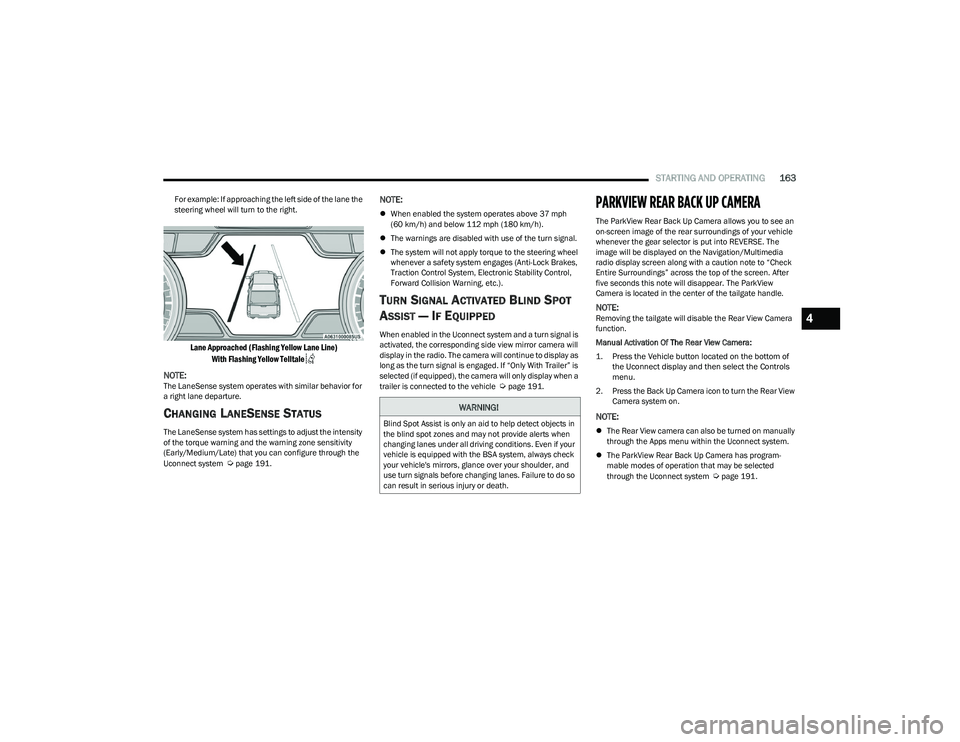
For example: If approaching the left side of the lane the
steering wheel will turn to the right.
Lane Approached (Flashing Yellow Lane Line)
With Flashing Yellow Telltale
NOTE:
The LaneSense system operates with similar behavior for
a right lane departure.
CHANGING LANESENSE STATUS
The LaneSense system has settings to adjust the intensity
of the torque warning and the warning zone sensitivity
(Early/Medium/Late) that you can configure through the
Uconnect system
Úpage 191.
NOTE:
When enabled the system operates above 37 mph
(60 km/h) and below 112 mph (180 km/h).
The warnings are disabled with use of the turn signal.
The system will not apply torque to the steering wheel
whenever a safety system engages (Anti-Lock Brakes,
Traction Control System, Electronic Stability Control,
Forward Collision Warning, etc.).
TURN SIGNAL ACTIVATED BLIND SPOT
A
SSIST — IF EQUIPPED
When enabled in the Uconnect system and a turn signal is
activated, the corresponding side view mirror camera will
display in the radio. The camera will continue to display as
long as the turn signal is engaged. If “Only With Trailer” is
selected (if equipped), the camera will only display when a
trailer is connected to the vehicle
Úpage 191.
PARKVIEW REAR BACK UP CAMERA
The ParkView Rear Back Up Camera allows you to see an
on-screen image of the rear surroundings of your vehicle
whenever the gear selector is put into REVERSE. The
image will be displayed on the Navigation/Multimedia
radio display screen along with a caution note to “Check
Entire Surroundings” across the top of the screen. After
five seconds this note will disappear. The ParkView
Camera is located in the center of the tailgate handle.
NOTE:Removing the tailgate will disable the Rear View Camera
function.
Manual Activation Of The Rear View Camera:
1. Press the Vehicle button located on the bottom of
the Uconnect display and then select the Controls
menu.
2. Press the Back Up Camera icon to turn the Rear View Camera system on.
NOTE:
The Rear View camera can also be turned on manually
through the Apps menu within the Uconnect system.
The ParkView Rear Back Up Camera has program -
mable modes of operation that may be selected
through the Uconnect system
Úpage 191.
WARNING!
Blind Spot Assist is only an aid to help detect objects in
the blind spot zones and may not provide alerts when
changing lanes under all driving conditions. Even if your
vehicle is equipped with the BSA system, always check
your vehicle's mirrors, glance over your shoulder, and
use turn signals before changing lanes. Failure to do so
can result in serious injury or death.
4
23_DT_OM_EN_USC_t.book Page 163
Page 172 of 416
170STARTING AND OPERATING
The system is deactivated in the following conditions if it
was activated manually from the Uconnect controls menu
via the Trailer Surround Camera button:
The touchscreen X button is pressed
Vehicle is shifted into PARK
Ignition is placed in the OFF position
Vehicle speed is over 8 mph (13 km/h) for 10 seconds
NOTE:If the Trailer Surround Camera is activated manually, and
the vehicle is shifted into REVERSE, deactivation methods
for automatic activation are assumed.
The camera delay system is turned off manually through
the Uconnect system
Úpage 191.
NOTE:
If snow, ice, mud, or any foreign substance builds up on
the camera lenses, clean the lenses, rinse with water,
and dry with a soft cloth. Do not cover the lenses.
If a malfunction with the system has occurred, see an
authorized dealer.
AUX CAMERA — IF EQUIPPED
Your vehicle may be equipped with one or two AUX
Cameras, which display rearview and side view images
from the trailer on the touchscreen.
NOTE:Two Aux Cameras are only available on vehicles with NAV
equipped radios if the vehicle is not equipped with a
Center High Mounted Stop Lamp (CHMSL) and Surround
View Camera system.
Activation
The AUX Camera is activated by first pressing the Back Up
Camera or Cargo Camera (if equipped) button on the
touchscreen, followed by the AUX button located in the
upper left corner of the rearview display. On vehicles with
Surround View Camera (if equipped), the AUX Camera can
be activated when the vehicle is in REVERSE by first
pressing the More Cams button in the Surround View
screen, followed by the AUX tab. The AUX camera can also be activated when the vehicle is
in REVERSE by pressing the AUX button.
If equipped with two AUX Cameras, you can switch
between each camera by pressing the AUX 1 or AUX 2
buttons on the Trailer Camera display.
Deactivation
The AUX Camera is deactivated by pressing the
touchscreen X button. This will return the display back to
the previously displayed screen.NOTE:
If the AUX button is pressed and no AUX Camera is
connected, the touchscreen will display a blue screen
along with the message “Camera System Unavailable.”
The screen can be exited out by pressing the touch -
screen X button. This will return the display back to the
previously displayed screen.
Zoom View is not available with the AUX Camera
feature.
The display will always default to the Trailer Camera
display AUX 1.
WARNING!
Drivers must be careful when backing up even when
using the Trailer Surround View Camera. Always check
carefully behind your vehicle, and be sure to check for
pedestrians, animals, other vehicles, obstructions, or
blind spots before backing up. You are responsible for
the safety of your surroundings and must continue to
pay attention while backing up. Failure to do so can
result in serious injury or death.
CAUTION!
To avoid vehicle damage, Trailer Surround View
should only be used as a parking aid. The Trailer
Surround View Camera is unable to view every
obstacle or object in your drive path.
To avoid vehicle damage, the vehicle must be driven
slowly when using Trailer Surround View to be able to
stop in time when an obstacle is seen. It is recom -
mended that the driver look frequently over his/her
shoulder when using Trailer Surround View.
AUX 1 Camera Button
AUX 2 Camera Button
23_DT_OM_EN_USC_t.book Page 170
Page 177 of 416
STARTING AND OPERATING175
RECOMMENDED DISTRIBUTION HITCH
ADJUSTMENT
Towing With Air Suspension — If Equipped
1. Verify that the vehicle is at the normal ride height.
NOTE:The vehicle must remain in the engine run position with all
doors closed while attaching a trailer for proper leveling of
the air suspension system.
2. Position the truck to be ready to connect to the trailer
(do not connect the trailer).
3. Enable tire jack mode through the instrument cluster or touchscreen radio settings. Tire jack mode will be
canceled and the procedure must be restarted if the
vehicle is driven at speeds above 5 mph (8 km/h).
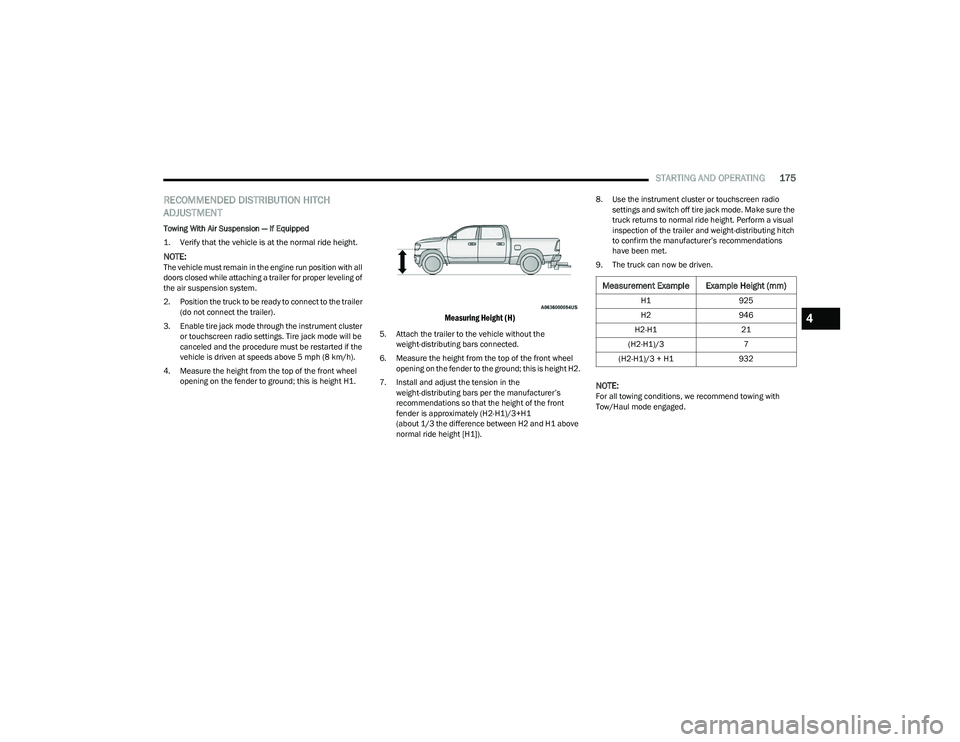
4. Measure the height from the top of the front wheel opening on the fender to ground; this is height H1.
Measuring Height (H)
5. Attach the trailer to the vehicle without the weight-distributing bars connected.
6. Measure the height from the top of the front wheel opening on the fender to the ground; this is height H2.
7. Install and adjust the tension in the weight-distributing bars per the manufacturer’s
recommendations so that the height of the front
fender is approximately (H2-H1)/3+H1
(about 1/3 the difference between H2 and H1 above
normal ride height [H1]). 8. Use the instrument cluster or touchscreen radio
settings and switch off tire jack mode. Make sure the
truck returns to normal ride height. Perform a visual
inspection of the trailer and weight-distributing hitch
to confirm the manufacturer’s recommendations
have been met.
9. The truck can now be driven.
NOTE:For all towing conditions, we recommend towing with
Tow/Haul mode engaged.
Measurement Example Example Height (mm)
H1 925
H2 946
H2-H1 21
(H2-H1)/3 7
(H2-H1)/3 + H1 932
4
23_DT_OM_EN_USC_t.book Page 175
Page 193 of 416
191
MULTIMEDIA
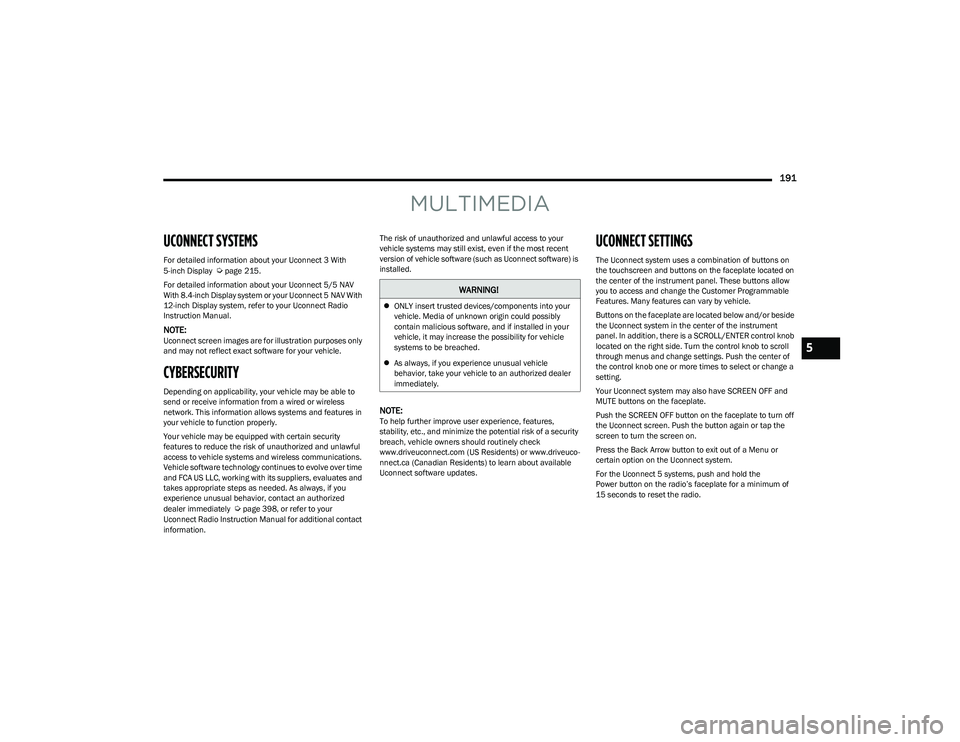
UCONNECT SYSTEMS
For detailed information about your Uconnect 3 With
5-inch Display Úpage 215.
For detailed information about your Uconnect 5/5 NAV
With 8.4-inch Display system or your Uconnect 5 NAV With
12-inch Display system, refer to your Uconnect Radio
Instruction Manual.
NOTE:Uconnect screen images are for illustration purposes only
and may not reflect exact software for your vehicle.
CYBERSECURITY
Depending on applicability, your vehicle may be able to
send or receive information from a wired or wireless
network. This information allows systems and features in
your vehicle to function properly.
Your vehicle may be equipped with certain security
features to reduce the risk of unauthorized and unlawful
access to vehicle systems and wireless communications.
Vehicle software technology continues to evolve over time
and FCA US LLC, working with its suppliers, evaluates and
takes appropriate steps as needed. As always, if you
experience unusual behavior, contact an authorized
dealer immediately
Úpage 398, or refer to your
Uconnect Radio Instruction Manual for additional contact
information. The risk of unauthorized and unlawful access to your
vehicle systems may still exist, even if the most recent
version of vehicle software (such as Uconnect software) is
installed.
NOTE:To help further improve user experience, features,
stability, etc., and minimize the potential risk of a security
breach, vehicle owners should routinely check
www.driveuconnect.com (US Residents) or www.driveuco
-
nnect.ca (Canadian Residents) to learn about available
Uconnect software updates.
UCONNECT SETTINGS
The Uconnect system uses a combination of buttons on
the touchscreen and buttons on the faceplate located on
the center of the instrument panel. These buttons allow
you to access and change the Customer Programmable
Features. Many features can vary by vehicle.
Buttons on the faceplate are located below and/or beside
the Uconnect system in the center of the instrument
panel. In addition, there is a SCROLL/ENTER control knob
located on the right side. Turn the control knob to scroll
through menus and change settings. Push the center of
the control knob one or more times to select or change a
setting.
Your Uconnect system may also have SCREEN OFF and
MUTE buttons on the faceplate.
Push the SCREEN OFF button on the faceplate to turn off
the Uconnect screen. Push the button again or tap the
screen to turn the screen on.
Press the Back Arrow button to exit out of a Menu or
certain option on the Uconnect system.
For the Uconnect 5 systems, push and hold the
Power button on the radio’s faceplate for a minimum of
15 seconds to reset the radio.
WARNING!
ONLY insert trusted devices/components into your
vehicle. Media of unknown origin could possibly
contain malicious software, and if installed in your
vehicle, it may increase the possibility for vehicle
systems to be breached.
As always, if you experience unusual vehicle
behavior, take your vehicle to an authorized dealer
immediately.
5
23_DT_OM_EN_USC_t.book Page 191
Page 195 of 416
MULTIMEDIA193
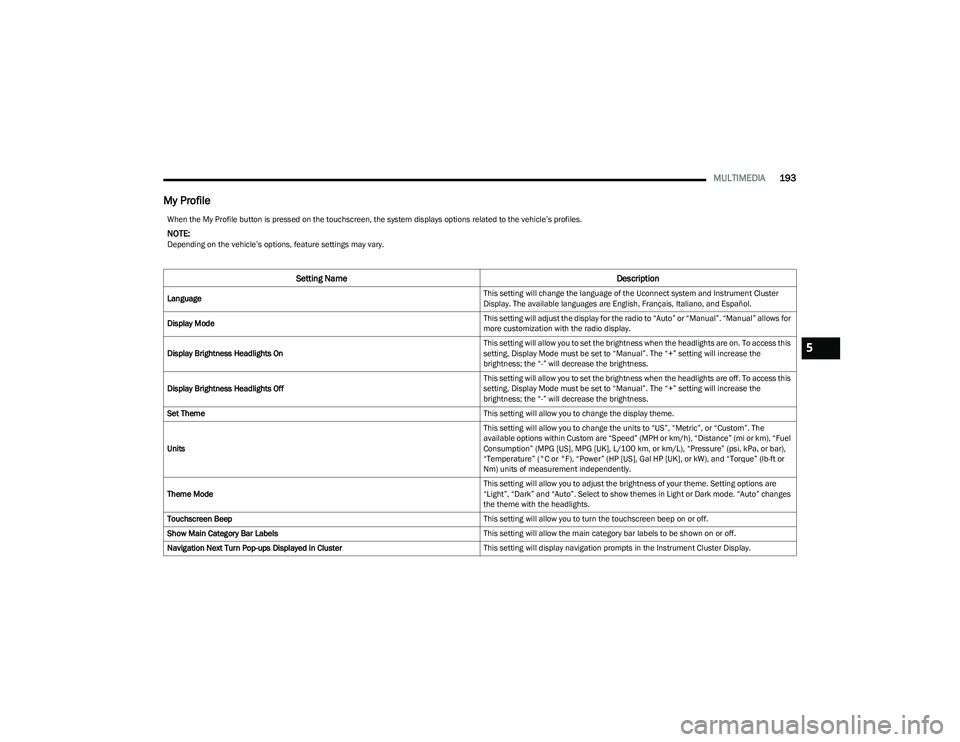
My Profile
When the My Profile button is pressed on the touchscreen, the system displays options related to the vehicle’s profiles.
NOTE:Depending on the vehicle’s options, feature settings may vary.
Setting Name Description
Language This setting will change the language of the Uconnect system and Instrument Cluster
Display. The available languages are English, Français, Italiano, and Español.
Display Mode This setting will adjust the display for the radio to “Auto” or “Manual”. “Manual” allows for
more customization with the radio display.
Display Brightness Headlights On This setting will allow you to set the brightness when the headlights are on. To access this
setting, Display Mode must be set to “Manual”. The “+” setting will increase the
brightness; the “-” will decrease the brightness.
Display Brightness Headlights Off This setting will allow you to set the brightness when the headlights are off. To access this
setting, Display Mode must be set to “Manual”. The “+” setting will increase the
brightness; the “-” will decrease the brightness.
Set Theme This setting will allow you to change the display theme.
Units This setting will allow you to change the units to “US”, “Metric”, or “Custom”. The
available options within Custom are “Speed” (MPH or km/h), “Distance” (mi or km), “Fuel
Consumption” (MPG [US], MPG [UK], L/100 km, or km/L), “Pressure” (psi, kPa, or bar),
“Temperature” (°C or °F), “Power” (HP [US], Gal HP [UK], or kW), and “Torque” (lb-ft or
Nm) units of measurement independently.
Theme Mode This setting will allow you to adjust the brightness of your theme. Setting options are
“Light”, “Dark” and “Auto”. Select to show themes in Light or Dark mode. “Auto” changes
the theme with the headlights.
Touchscreen Beep This setting will allow you to turn the touchscreen beep on or off.
Show Main Category Bar Labels This setting will allow the main category bar labels to be shown on or off.
Navigation Next Turn Pop-ups Displayed in Cluster This setting will display navigation prompts in the Instrument Cluster Display.
5
23_DT_OM_EN_USC_t.book Page 193
Page 196 of 416
194MULTIMEDIA
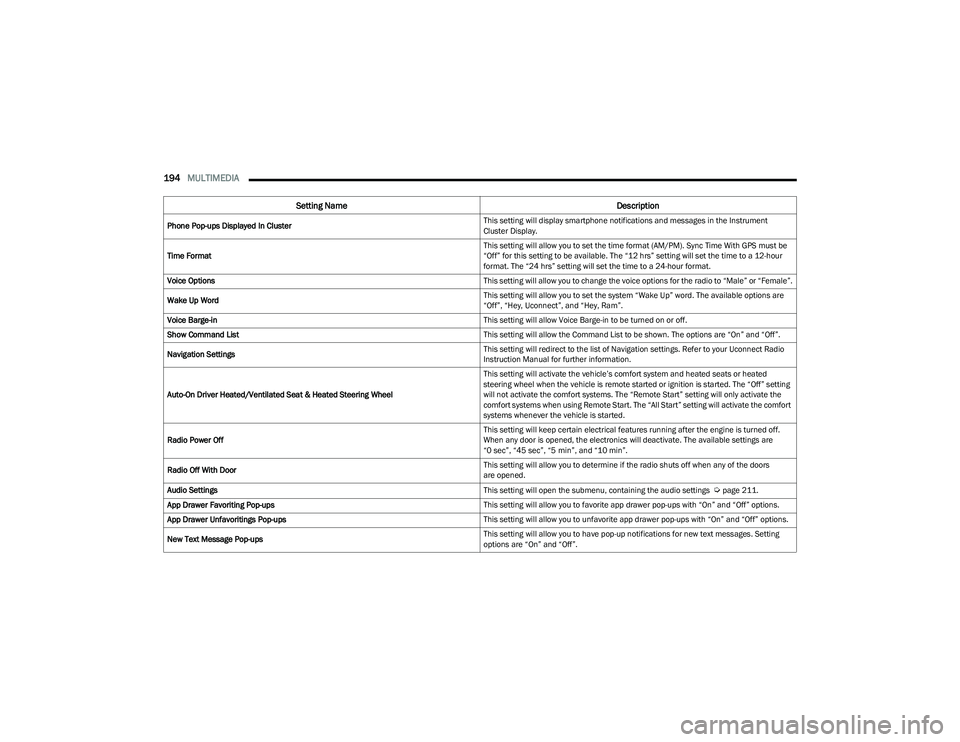
Phone Pop-ups Displayed In Cluster This setting will display smartphone notifications and messages in the Instrument
Cluster Display.
Time Format This setting will allow you to set the time format (AM/PM). Sync Time With GPS must be
“Off” for this setting to be available. The “12 hrs” setting will set the time to a 12-hour
format. The “24 hrs” setting will set the time to a 24-hour format.
Voice Options This setting will allow you to change the voice options for the radio to “Male” or “Female”.
Wake Up Word This setting will allow you to set the system “Wake Up” word. The available options are
“Off”, “Hey, Uconnect”, and “Hey, Ram”.
Voice Barge-in This setting will allow Voice Barge-in to be turned on or off.
Show Command List This setting will allow the Command List to be shown. The options are “On” and “Off”.
Navigation Settings This setting will redirect to the list of Navigation settings. Refer to your Uconnect Radio
Instruction Manual for further information.
Auto-On Driver Heated/Ventilated Seat & Heated Steering Wheel This setting will activate the vehicle’s comfort system and heated seats or heated
steering wheel when the vehicle is remote started or ignition is started. The “Off” setting
will not activate the comfort systems. The “Remote Start” setting will only activate the
comfort systems when using Remote Start. The “All Start” setting will activate the comfort
systems whenever the vehicle is started.
Radio Power Off This setting will keep certain electrical features running after the engine is turned off.
When any door is opened, the electronics will deactivate. The available settings are
“0 sec”, “45 sec”, “5 min”, and “10 min”.
Radio Off With Door This setting will allow you to determine if the radio shuts off when any of the doors
are opened.
Audio Settings This setting will open the submenu, containing the audio settings
Úpage 211.
App Drawer Favoriting Pop-ups This setting will allow you to favorite app drawer pop-ups with “On” and “Off” options.
App Drawer Unfavoritings Pop-ups This setting will allow you to unfavorite app drawer pop-ups with “On” and “Off” options.
New Text Message Pop-ups This setting will allow you to have pop-up notifications for new text messages. Setting
options are “On” and “Off”.
Setting Name
Description
23_DT_OM_EN_USC_t.book Page 194
Page 202 of 416
200MULTIMEDIA
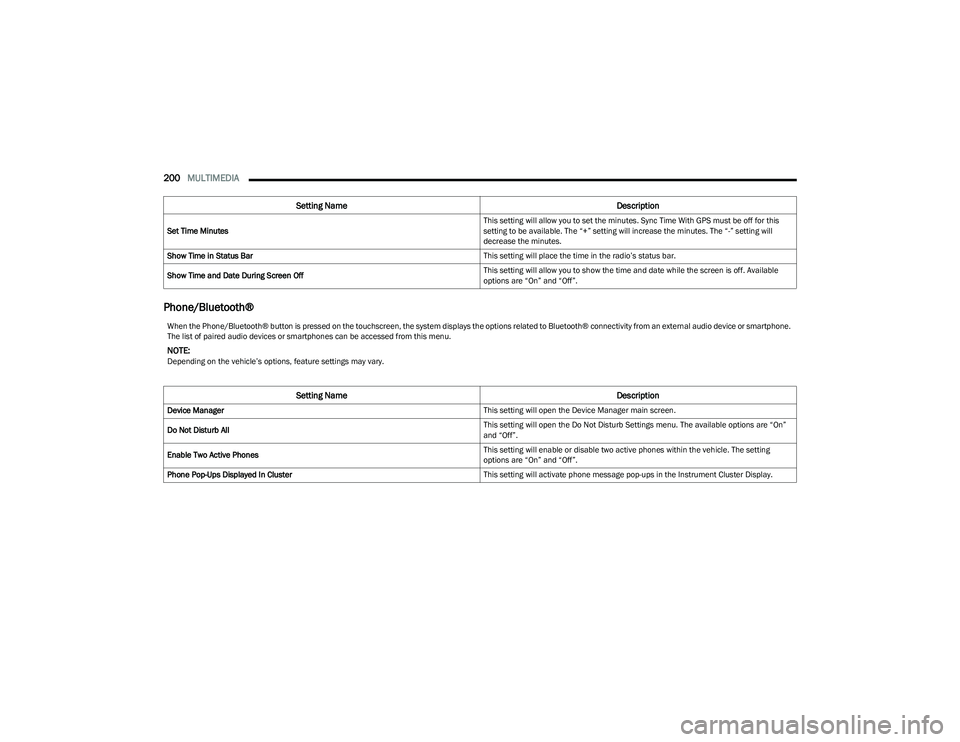
Phone/Bluetooth®
Set Time Minutes This setting will allow you to set the minutes. Sync Time With GPS must be off for this
setting to be available. The “+” setting will increase the minutes. The “-” setting will
decrease the minutes.
Show Time in Status Bar This setting will place the time in the radio’s status bar.
Show Time and Date During Screen Off This setting will allow you to show the time and date while the screen is off. Available
options are “On” and “Off”.
Setting Name
Description
When the Phone/Bluetooth® button is pressed on the touchscreen, the system displays the options related to Bluetooth® connectivity from an external audio device or smartphone.
The list of paired audio devices or smartphones can be accessed from this menu.
NOTE:Depending on the vehicle’s options, feature settings may vary.
Setting NameDescription
Device Manager This setting will open the Device Manager main screen.
Do Not Disturb All This setting will open the Do Not Disturb Settings menu. The available options are “On”
and “Off”.
Enable Two Active Phones This setting will enable or disable two active phones within the vehicle. The setting
options are “On” and “Off”.
Phone Pop-Ups Displayed In Cluster This setting will activate phone message pop-ups in the Instrument Cluster Display.
23_DT_OM_EN_USC_t.book Page 200