radio RAM 1500 2023 Service Manual
[x] Cancel search | Manufacturer: RAM, Model Year: 2023, Model line: 1500, Model: RAM 1500 2023Pages: 416, PDF Size: 20.59 MB
Page 224 of 416
222MULTIMEDIA
REPLAY
Replay provides a means to store and replay up to 22 minutes of music audio and 48 minutes of talk radio. Once the channel is switched, content in replay memory is lost.
Press the Replay button on the touchscreen. The Play/Pause, Rewind/Forward and Live buttons will display at the top of the screen, along with the replay time.
You can exit by pressing the Replay button on the touchscreen any time during the Replay Mode.
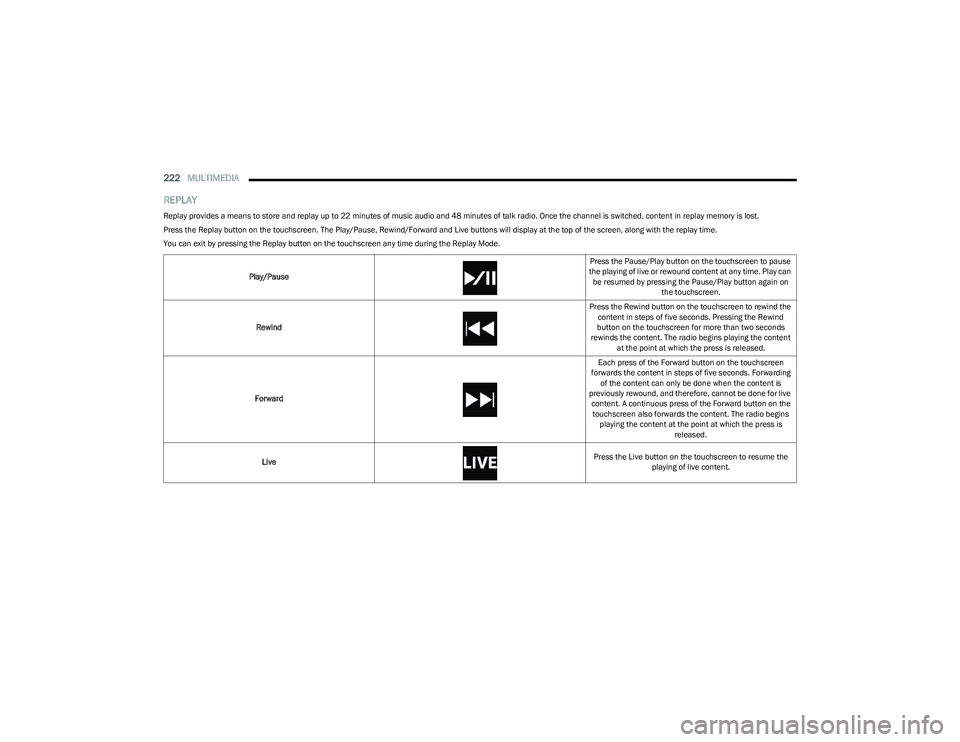
Play/Pause Press the Pause/Play button on the touchscreen to pause
the playing of live or rewound content at any time. Play can be resumed by pressing the Pause/Play button again on the touchscreen.
Rewind Press the Rewind button on the touchscreen to rewind the
content in steps of five seconds. Pressing the Rewind
button on the touchscreen for more than two seconds
rewinds the content. The radio begins playing the content at the point at which the press is released.
Forward Each press of the Forward button on the touchscreen
forwards the content in steps of five seconds. Forwarding of the content can only be done when the content is
previously rewound, and therefore, cannot be done for live content. A continuous press of the Forward button on the touchscreen also forwards the content. The radio begins playing the content at the point at which the press is released.
Live Press the Live button on the touchscreen to resume the
playing of live content.
23_DT_OM_EN_USC_t.book Page 222
Page 225 of 416
MULTIMEDIA223
FAVORITES
Press the Favorites button on the touchscreen to activate
the favorites menu, which will time out within 20 seconds
in absence of user interaction.
You can exit the Favorites Menu by a press of the X button.
The Favorites feature enables you to set a favorite artist or
song that is currently playing. The radio then uses this
information to alert you when either the favorite artist or
song is being played at any time by any of the SiriusXM®
Channels.
The maximum number of favorites that can be stored in
the Radio is 50.
Favorite Artist: While the song is playing, to set a favorite
artist, press the Favorites button on the touchscreen and
then the Favorite Artist button on the touchscreen.
Favorite Song: While the song is playing, to set a favorite
song, press the Favorites button on the touchscreen and
then the Favorite Song button on the touchscreen.
BROWSE IN SXM
Press the Browse button on the touchscreen to edit
Presets, Favorites, Game Zone, and Jump settings, along
with providing the SiriusXM® Channel List.
This Screen contains many submenus. You can exit
submenus to return to a parent menu by pressing the
Back arrow. All
Press the All button on the Browse Screen. When pressing
the All button, the following categories become available:
Channel List: Press the Channel List to display all the
SiriusXM® Channel Numbers. You can scroll the
Channel List by pressing the Up and Down arrows,
located on the right side of the screen. Scrolling can
also be done by operating the TUNE/SCROLL knob.
Genre List: Press the Genre button on the touchscreen
to display a list of Genres. You can select any desired
Genre by pressing the Genre List. The radio tunes to a
channel with the content in the selected Genre.
Favorites
Press the Favorites button on the Browse screen.
The Favorites menu provides a means to edit the Favorites
list and to configure the Alert Settings, along with
providing a list of Channels currently airing any of the
items in the Favorites list.
You can scroll the Favorites list by pressing the Up and
Down arrows located at the right side of the screen.
Scrolling can also be done by operating the TUNE/SCROLL
knob as well.
Remove Favorites
Press the Remove Favorites tab at the top of the screen.
Press the Delete All button on the touchscreen to delete
all of the Favorites or press the Trash Can icon next to the
Favorite to be deleted. Alert Settings
Press the Alert Settings tab at the top of the Favorites
screen. The Alert Settings menu allows you to choose from
a visual alert or audible and visual alert when one of your
favorites is airing on any of the SiriusXM® channels.
Game Zone
Press the Game Zone button, located at the left of the
Browse screen. This feature provides you with the ability to
select teams, edit the selection, and set alerts.
On-Air
Press the On-Air tab at the top of the screen. The On-Air list
provides a list of Channels currently airing any of the items
in the Selections list, and pressing any of the items in the
list tunes the radio to that channel.
Add/Delete — If Equipped
Press the Add/Delete button on the touchscreen to
activate the League Scroll list. Press the chosen league
and a scroll list of all teams within the league will appear,
then you can select a team by pressing the corresponding
box. A check mark appears for all teams that are chosen.
Remove Selection/Trash Can Icon
Press the Remove Selection tab at the top of the screen.
Press the Delete All button on the touchscreen to delete
all of the selections or press the Trash Can icon next to the
selection to be deleted.
5
23_DT_OM_EN_USC_t.book Page 223
Page 226 of 416
224MULTIMEDIA
Alert Settings
Press the Alert Setting tab at the top of the screen. The
Alert Settings menu allows you to choose from “Alert me to
on-air games upon start” or “Alert upon score update” or
both when one or more of your selections is airing on any
of the SiriusXM® channels.
Tune Start
Tune Start begins playing the current song from the
beginning when you tune to a music channel using one of
the 12 presets. This feature occurs the first time the
preset is selected during that current song.Setting Presets
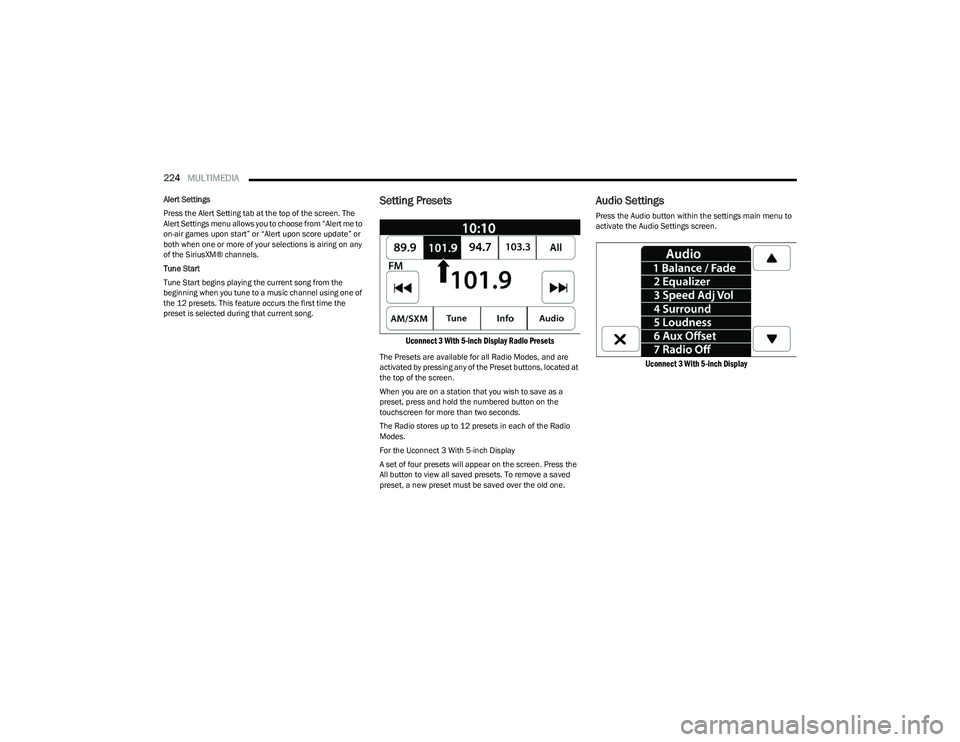
Uconnect 3 With 5-inch Display Radio Presets
The Presets are available for all Radio Modes, and are
activated by pressing any of the Preset buttons, located at
the top of the screen.
When you are on a station that you wish to save as a
preset, press and hold the numbered button on the
touchscreen for more than two seconds.
The Radio stores up to 12 presets in each of the Radio
Modes.
For the Uconnect 3 With 5-inch Display
A set of four presets will appear on the screen. Press the
All button to view all saved presets. To remove a saved
preset, a new preset must be saved over the old one.
Audio Settings
Press the Audio button within the settings main menu to
activate the Audio Settings screen.
Uconnect 3 With 5-inch Display
23_DT_OM_EN_USC_t.book Page 224
Page 227 of 416
MULTIMEDIA225
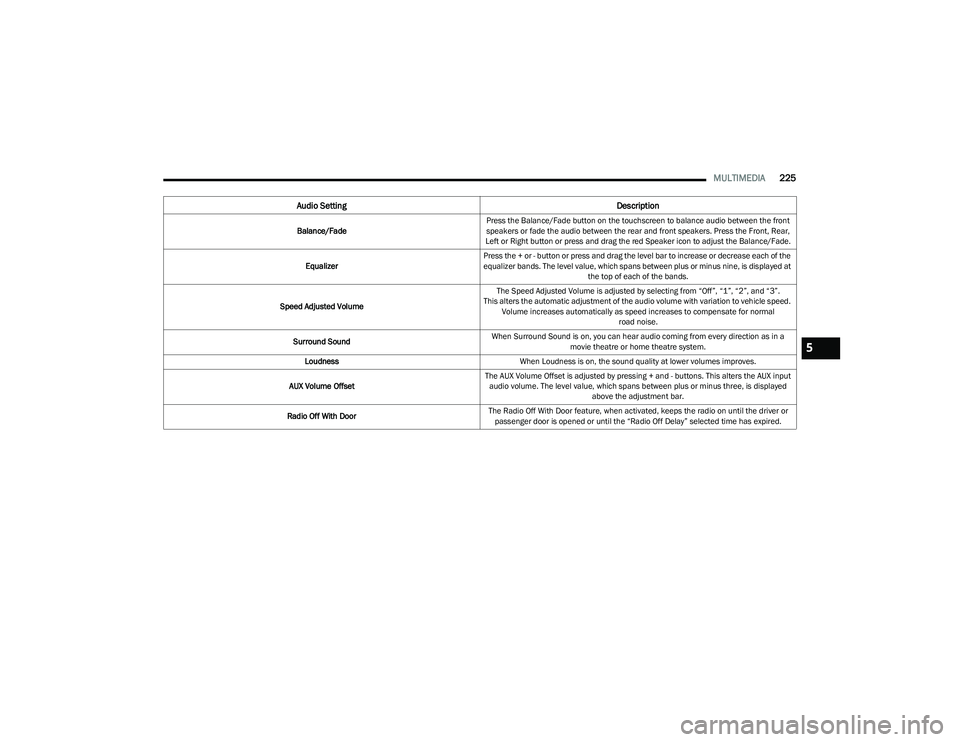
Audio Setting Description
Balance/FadePress the Balance/Fade button on the touchscreen to balance audio between the front
speakers or fade the audio between the rear and front speakers. Press the Front, Rear,
Left or Right button or press and drag the red Speaker icon to adjust the Balance/Fade.
Equalizer Press the + or - button or press and drag the level bar to increase or decrease each of the
equalizer bands. The level value, which spans between plus or minus nine, is displayed at
the top of each of the bands.
Speed Adjusted Volume The Speed Adjusted Volume is adjusted by selecting from “Off”, “1”, “2”, and “3”.
This alters the automatic adjustment of the audio volume with variation to vehicle speed. Volume increases automatically as speed increases to compensate for normal road noise.
Surround Sound When Surround Sound is on, you can hear audio coming from every direction as in a
movie theatre or home theatre system.
Loudness When Loudness is on, the sound quality at lower volumes improves.
AUX Volume Offset The AUX Volume Offset is adjusted by pressing + and - buttons. This alters the AUX input
audio volume. The level value, which spans between plus or minus three, is displayed above the adjustment bar.
Radio Off With Door The Radio Off With Door feature, when activated, keeps the radio on until the driver or
passenger door is opened or until the “Radio Off Delay” selected time has expired.
5
23_DT_OM_EN_USC_t.book Page 225
Page 228 of 416
226MULTIMEDIA
MEDIA MODE
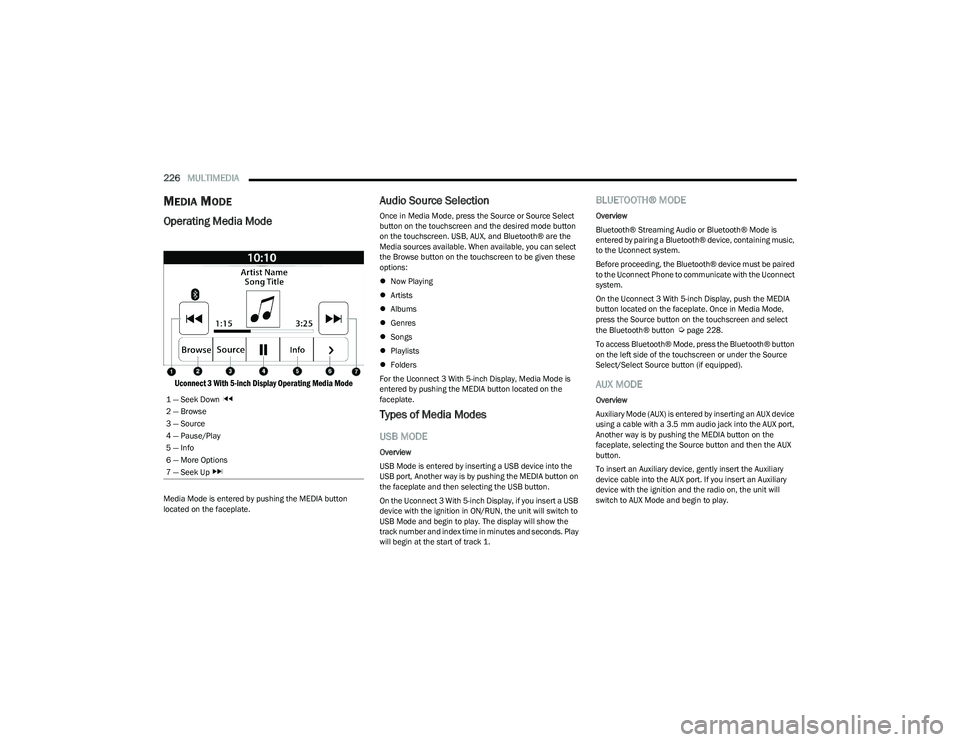
Operating Media Mode
Uconnect 3 With 5-inch Display Operating Media Mode
Media Mode is entered by pushing the MEDIA button
located on the faceplate.
Audio Source Selection
Once in Media Mode, press the Source or Source Select
button on the touchscreen and the desired mode button
on the touchscreen. USB, AUX, and Bluetooth® are the
Media sources available. When available, you can select
the Browse button on the touchscreen to be given these
options:
Now Playing
Artists
Albums
Genres
Songs
Playlists
Folders
For the Uconnect 3 With 5-inch Display, Media Mode is
entered by pushing the MEDIA button located on the
faceplate.
Types of Media Modes
USB MODE
Overview
USB Mode is entered by inserting a USB device into the
USB port, Another way is by pushing the MEDIA button on
the faceplate and then selecting the USB button.
On the Uconnect 3 With 5-inch Display, if you insert a USB
device with the ignition in ON/RUN, the unit will switch to
USB Mode and begin to play. The display will show the
track number and index time in minutes and seconds. Play
will begin at the start of track 1.
BLUETOOTH® MODE
Overview
Bluetooth® Streaming Audio or Bluetooth® Mode is
entered by pairing a Bluetooth® device, containing music,
to the Uconnect system.
Before proceeding, the Bluetooth® device must be paired
to the Uconnect Phone to communicate with the Uconnect
system.
On the Uconnect 3 With 5-inch Display, push the MEDIA
button located on the faceplate. Once in Media Mode,
press the Source button on the touchscreen and select
the Bluetooth® button
Úpage 228.
To access Bluetooth® Mode, press the Bluetooth® button
on the left side of the touchscreen or under the Source
Select/Select Source button (if equipped).
AUX MODE
Overview
Auxiliary Mode (AUX) is entered by inserting an AUX device
using a cable with a 3.5 mm audio jack into the AUX port,
Another way is by pushing the MEDIA button on the
faceplate, selecting the Source button and then the AUX
button.
To insert an Auxiliary device, gently insert the Auxiliary
device cable into the AUX port. If you insert an Auxiliary
device with the ignition and the radio on, the unit will
switch to AUX Mode and begin to play.
1 — Seek Down
2 — Browse
3 — Source
4 — Pause/Play
5 — Info
6 — More Options
7 — Seek Up
23_DT_OM_EN_USC_t.book Page 226
Page 229 of 416
MULTIMEDIA227
Controlling The Auxiliary Device
Auxiliary Mode (AUX) is entered by inserting an AUX device
using a cable with a 3.5 mm audio jack into the AUX port
Another way is by pushing the MEDIA button on the
faceplate, selecting the Source button, and then the AUX
button.
NOTE:The radio unit is acting as the amplifier for audio output
from the Auxiliary device. Therefore, if the volume control
on the Auxiliary device is set too low, there will be insuffi -
cient audio signal for the radio unit to play the music on
the device.
Seek Up /Seek Down
In USB Mode, press the Seek Up button on the
touchscreen for the next selection on the USB device.
Press and release the Seek Down button on the
touchscreen to return to the beginning of the current
selection, or to return to the beginning of the previous
selection if the USB device is within the first three seconds
of the current selection.
In Bluetooth® Mode, press and release the Seek Up
button on the touchscreen for the next selection on the
Bluetooth® device. Press and release the Seek Down
button on the touchscreen to return to the beginning of
the current selection, or return to the beginning of the
previous selection if the Bluetooth® device is within the
first second of the current selection. Browse
In USB Mode, press the Browse button on the touchscreen
to display the browse window. In USB Mode, the left side
of the browse window displays a list of ways you can
browse through the contents of the USB device.
If supported by the device, you can browse by Folder,
Artist, Playlist, Album, Song, etc. Press the desired button
on the touchscreen on the left side of the screen. The
center of the browse window shows items and their
sub-functions, which can be scrolled through by pressing
the Up and Down buttons to the right. The TUNE/SCROLL
knob can also be used to scroll.
On the Uconnect 3 With 5-inch Display, rotate the
ENTER/BROWSE button on the faceplate or press the
Browse button on the touchscreen to scroll through and
select a desired track on the device. Press the Exit button
on the touchscreen if you wish to cancel the Browse
function.
Media Mode
In USB Mode, press the Media button on the touchscreen
to select the desired audio source: USB.
In Bluetooth® Mode, press the Media button on the
touchscreen to select the desired audio source:
Bluetooth®.
In AUX Mode, press the Media button on the touchscreen
to select the desired audio source: AUX.
Repeat
In USB Mode, press the Repeat button on the touchscreen
to toggle the repeat functionality. The Repeat button on
the touchscreen is highlighted when active. The Radio will
continue to play the current track, repeatedly, as long as
the repeat is active. Press the Repeat button again to
enter Repeat All. The radio will continue to play all the
current tracks, repeatedly, as long as the repeat function
is active. To cancel Repeat, press the Repeat button a
third time.
Shuffle
In USB Mode, press the Shuffle button on the touchscreen
to play the selections on the USB device in random order
to provide an interesting change of pace. Press the Shuffle
button on the touchscreen a second time to turn this
feature off.
Audio
Audio settings can be accessed by pressing the Audio
button
Úpage 218.
Info
In USB Mode, press the Info button on the touchscreen to
display the current track information. Press the Info or X
button on the touchscreen a second time to cancel this
feature.
5
23_DT_OM_EN_USC_t.book Page 227
Page 230 of 416
228MULTIMEDIA
Tracks
In USB Mode, press the Tracks button on the touchscreen
to display a pop-up with the Song List. The song currently
playing is indicated by an arrow and lines above and below
the song title. When in the Tracks List screen you can
rotate the TUNE/SCROLL knob to highlight a track
(indicated by the line above and below the track name)
and then push the ENTER/BROWSE knob to start playing
that track.
In Bluetooth® Mode, if the Bluetooth® device supports
this feature, press the Tracks button on the touchscreen
to display a pop-up with the Song List. The currently
playing song is indicated by a red arrow and lines above
and below the song title.
Pressing the Tracks button on the touchscreen while the
pop-up is displayed will close the pop-up.
MEDIA VOICE COMMANDS
Uconnect offers connections via USB, Bluetooth®, and
auxiliary (AUX) ports. Voice operation is only available for
connected USB and AUX devices.
Push the VR button located on the steering wheel.
After the beep, say one of the following commands and
follow the prompts to switch your media source or choose
an artist:
“Change source to Bluetooth®”
“Change source to AUX”
“Change source to USB”
“Play artist Beethoven”; “ Play album Greatest Hits”;
“ Play song Moonlight Sonata”; “ Play genre Classical” Did You Know:
Press the Browse button on the
touchscreen to see all of the music on your USB device.
Your Voice Command must match exactly how the artist,
album, song, and genre information is displayed.
PHONE MODE
Overview
Uconnect Phone is a voice-activated, hands-free,
in-vehicle communications system. It allows you to dial a
phone number with your mobile phone.
The feature supports the following:
Voice Activated Features
Hands-Free dialing via Voice (“Call John Smith Mobile”
or “Dial 248-555-1212”).
Hands-Free text-to-speech listening of your incoming
SMS messages.
Hands-Free Text Message Replying: Forward one of
18 predefined SMS messages to incoming calls/text
messages.
Redialing last dialed numbers (“Redial”).
Calling Back the last incoming call number
(“Call Back”).
Viewing call logs on screen (“Show Incoming Calls,”
“Show Outgoing Calls,” “Show Missed Calls,” or “Show
Recent Calls”).
Searching Contacts phone number
(“Search for John Smith Mobile”). Screen Activated Features
Dialing via Keypad using touchscreen.
Viewing and Calling contacts from Phonebooks
displayed on the touchscreen.
Setting Favorite Contact phone numbers so they are
easily accessible on the Main Phone screen.
Viewing and Calling contacts from Recent Call logs.
Reviewing your recent Incoming SMS Messages.
Pairing up to 10 phones/audio devices for easy access
to connect to them quickly.
NOTE:Your phone must be capable of SMS messaging via Blue -
tooth® for messaging features to work properly.
Your mobile phone’s audio is transmitted through your
vehicle’s audio system; the system will automatically mute
your radio when using the Uconnect Phone.
For Uconnect customer support:
US visit UconnectPhone.com or call 877-855-8400
Canada visit UconnectPhone.com or call
800-465-2001 (English) or (French) call
800-387-9983
Uconnect Phone allows you to transfer calls between the
system and your mobile phone as you enter or exit your
vehicle and enables you to mute the system's microphone
for private conversation.
23_DT_OM_EN_USC_t.book Page 228
Page 233 of 416
MULTIMEDIA231
9. When the pairing process has successfully
completed, the system will prompt you to choose
whether or not this is your favorite phone. Selecting
“Yes” will make this phone the highest priority. This
phone will take precedence over other paired phones
within range and will connect to the Uconnect system
automatically when entering the vehicle. Only one
mobile phone and/or one Bluetooth® audio device
can be connected to the Uconnect system at a time.
If “No” is selected, simply select “Uconnect” from the
mobile phone/audio device Bluetooth® screen, and
the Uconnect system will reconnect to the
Bluetooth® device.
NOTE:For phones which are not made a favorite, the phone
priority is determined by the order in which it was paired.
The most recent phone paired will have the higher priority.
NOTE:During the pairing procedure, you may receive a pop-up on
your mobile phone for the Uconnect system to access your
“messages” and “contacts”. Selecting “Ok” or “Allow” will
sync your contacts with the Uconnect system.
You can also use the VR command “Show Paired Phones”
to bring up the Paired Phone screen from any screen on
the radio.
NOTE:Software updates on your phone or the Uconnect system
may interfere with the Bluetooth® connection. If this
happens, simply repeat the pairing process. However, first
make sure to delete the device from the list of phones on
your Uconnect system. Next, be sure to remove Uconnect
from the list of devices in your phone’s Bluetooth®
settings.
CONNECTING TO A PARTICULAR MOBILE
PHONE OR AUDIO DEVICE AFTER PAIRING
Uconnect Phone will automatically connect to the highest
priority paired phone and/or Audio Device within range.
If you need to choose a particular phone or audio device
follow these steps:
1. Press the
Settings
button on the touchscreen.
2. Press the Paired Phones or Audio Sources button. 3. Press to select the particular phone or the particular audio device. A pop-up menu will appear; press
“Connect Phone”.
4. Press the X to exit out of the Settings screen.
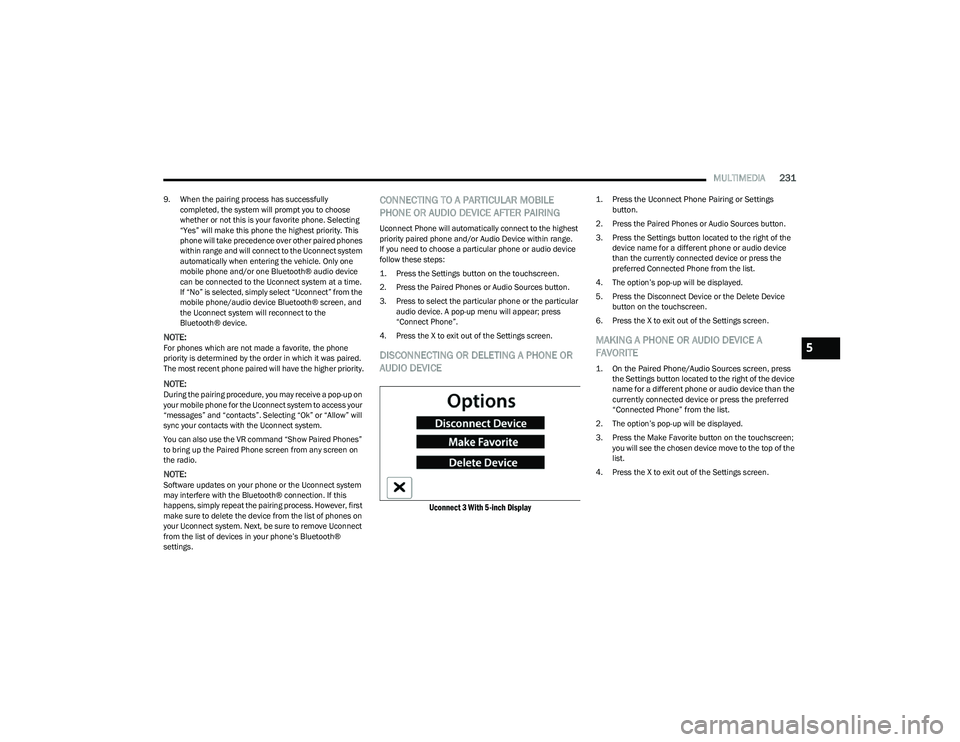
DISCONNECTING OR DELETING A PHONE OR
AUDIO DEVICE
Uconnect 3 With 5-inch Display
1. Press the Uconnect Phone Pairing or Settings button.
2. Press the Paired Phones or Audio Sources button. 3. Press the Settings button located to the right of the device name for a different phone or audio device
than the currently connected device or press the
preferred Connected Phone from the list.
4. The option’s pop-up will be displayed.
5. Press the Disconnect Device or the Delete Device button on the touchscreen.
6. Press the X to exit out of the Settings screen.
MAKING A PHONE OR AUDIO DEVICE A
FAVORITE
1. On the Paired Phone/Audio Sources screen, press the Settings button located to the right of the device
name for a different phone or audio device than the
currently connected device or press the preferred
“Connected Phone” from the list.
2. The option’s pop-up will be displayed.
3. Press the Make Favorite button on the touchscreen; you will see the chosen device move to the top of the
list.
4. Press the X to exit out of the Settings screen.
5
23_DT_OM_EN_USC_t.book Page 231
Page 238 of 416

236MULTIMEDIA
Voice Text Reply — If Equipped
Uconnect can announce incoming text messages. Push
the VR button or Phone button and say:
1. “
Listen
” to have the system read an incoming text
message. (Must have compatible mobile phone
paired to Uconnect system.)
2. “ Reply” after an incoming text message has been
read.
Listen to the Uconnect prompts. After the beep, re -
peat one of the predefined messages and follow the
system prompts.NOTE:Only use the numbering listed in the provided table.
Otherwise, the system will not transpose the message.
Did You Know: Your mobile phone must have the full
implementation of the Message Access Profile (MAP) to
take advantage of this feature. For details about MAP, visit
UconnectPhone.com.
Apple® iPhone® iOS 5 or later supports reading incoming
text messages only. For further information on how to
enable this feature on your Apple® iPhone®, refer to your
iPhone® “User Manual”.
Did You Know: Voice Text Reply is not compatible with
iPhone®, but if your vehicle is equipped with Siri® Eyes
Free, you can use your voice to send a text message.
Siri® Eyes Free — If Equipped
When used with your Apple® iPhone® connected to your
vehicle via Bluetooth®, Siri lets you use your voice to send
text messages, select media, place phone calls and much
more. Siri uses your natural language to understand what
you mean and responds back to confirm your requests.
The system is designed to keep your eyes on the road and
your hands on the wheel by letting Siri help you perform
useful tasks.
To enable Siri, push and hold, then release the Uconnect
Voice Recognition (VR) button on the steering wheel. After
you hear a double beep, you can ask Siri to play podcasts
and music, get directions, read text messages, and many
other useful requests.BLUETOOTH® COMMUNICATION LINK
Mobile phones may lose connection to the Uconnect
Phone. When this happens, the connection can generally
be re-established by restarting the mobile phone. Your
mobile phone is recommended to remain in Bluetooth®
ON Mode.
POWER-UP
After switching the ignition key from OFF to either the
ON/RUN or ACC position, or after a language change, you
must wait at least 15 seconds prior to using the system
Úpage 402.
CONNECTED VEHICLE SERVICES —
IF EQUIPPED
IS MY VEHICLE CONNECTED?
If equipped, vehicles with an ASSIST and an SOS button
are connected vehicles. These buttons will be located on
either the rearview mirror or overhead console, depending
on the vehicle. If these buttons are present in your vehicle,
you have a connected radio and can take advantage of the
many connected vehicle features.
For further information about the ASSIST and SOS buttons
Úpage 314.
PRE-DEFINED VOICE TEXT REPLY RESPONSES
Yes. Stuck in traffic. See you later.
No. Start without
me. I’ll be late.
Okay. Where are you? I will be 5
minutes late.
Call me.
Are you there
yet?
I’ll call you later. I need
directions. See you in 5
I’m on my way.
Can’t talk right
now.
I’m lost. Thanks.
23_DT_OM_EN_USC_t.book Page 236
Page 243 of 416
MULTIMEDIA241
(Continued)
Automatic SOS — If Equipped
Automatic SOS is a hands-free safety service that can
immediately connect you with help in the event that your
vehicle’s airbags deploy. After an accident, a live agent will
contact you through the Uconnect system and alert
emergency services.
NOTE:An active SiriusXM Guardian™ subscription is required for
this feature to function. After a crash where the airbags deploy:
1. Automatic SOS will initiate a call with an agent.
2. An agent will receive the call and confirm the location
of the emergency.
3. If needed, the agent will request the assistance of emergency services.
4. First responders will arrive on scene. The agent will remain on the call until emergency services arrive.
NOTE:
Agents are available 24/7 to assist you in the case of
an emergency.
On your behalf, agents are able to notify family
members about the collision.
Agents can brief first responders of the situation before
they arrive on scene.
In the event vehicle occupants are unable to speak,
emergency services will be dispatched based on the
last known GPS coordinates.
SiriusXM Guardian™ connected services are depen -
dent upon an operative telematics device, a cellular
connection, navigation map data, and GPS satellite
reception, which can limit the ability to reach the
response center or reach emergency support.
Terms of service of the Uconnect and the SiriusXM
Guardian™ subscriber agreement apply. See terms of
services for complete service limitation.
WARNING!
Never place anything on or near the vehicle’s LTE
(voice/data) or 4G (data) and GPS antennas. You
could prevent LTE (voice/data) or 4G (data) and GPS
signal reception, which can prevent your vehicle from
placing an emergency call.
Do not add any aftermarket electrical equipment to
the vehicle’s electrical system. This may prevent your
vehicle from sending a signal to initiate an emer -
gency call. To avoid interference that can cause the
SOS Call system to fail, never add aftermarket equip -
ment (e.g., two-way mobile radio, CB radio, data
recorder, etc.) to your vehicle’s electrical system or
modify the antennas on your vehicle. IF YOUR
VEHICLE LOSES POWER FOR ANY REASON
(INCLUDING DURING OR AFTER AN ACCIDENT),
NEITHER THE VEHICLE BRANDED APPS NOR THE
SIRIUSXM GUARDIAN™ CONNECTED SERVICES WILL
OPERATE.
The Occupant Restraint Controller (ORC) turns on the
Air Bag Warning Light on the instrument panel if a
malfunction in any part of the air bag system is
detected. If the Air Bag Warning Light is illuminated,
the air bag system may not be working properly and
the SOS Call system may not be able to send a signal
to the SiriusXM Guardian™ Customer Care center. If
the Air Bag Warning Light is illuminated, have an
authorized dealer service your vehicle immediately.Ignoring the Rearview Mirror Light could mean you
will not have SOS Call services if needed. If the
Rearview Mirror Light is illuminated, have an autho -
rized dealer service the SOS Call system immedi -
ately.
If anyone in the vehicle could be in danger
(e.g., fire or smoke is visible, dangerous road condi-
tions or location), do not wait for voice contact from
a SiriusXM Guardian™ Customer Care agent.
All occupants should exit the vehicle immediately
and move to a safe location.
Failure to perform scheduled maintenance and
regular inspection of your vehicle may result in
vehicle damage, accident or injury.
WARNING!
5
23_DT_OM_EN_USC_t.book Page 241