light RAM 1500 2023 Service Manual
[x] Cancel search | Manufacturer: RAM, Model Year: 2023, Model line: 1500, Model: RAM 1500 2023Pages: 416, PDF Size: 20.59 MB
Page 74 of 416
72GETTING TO KNOW YOUR VEHICLE
(Continued)
WIND BUFFETING
Wind buffeting can be described as the perception of
pressure on the ears or a helicopter-type sound in the
ears. Your vehicle may exhibit wind buffeting with the
windows down, or the sunroof (if equipped) in certain open
or partially open positions. This is a normal occurrence
and can be minimized. If the buffeting occurs with the rear
windows open, open the front and rear windows together
to minimize the buffeting. If the buffeting occurs with the
sunroof open, adjust the sunroof opening to minimize the
buffeting or open any window.
POWER SUNROOF — IF EQUIPPED
DUAL PANE POWER SUNROOF
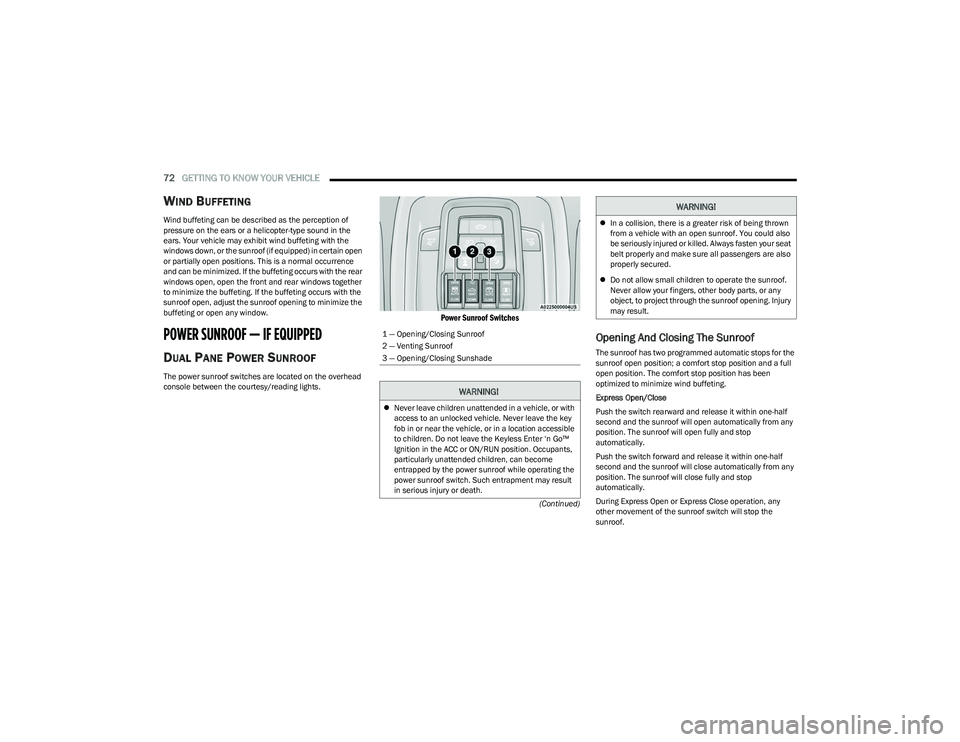
The power sunroof switches are located on the overhead
console between the courtesy/reading lights.
Power Sunroof Switches
Opening And Closing The Sunroof
The sunroof has two programmed automatic stops for the
sunroof open position; a comfort stop position and a full
open position. The comfort stop position has been
optimized to minimize wind buffeting.
Express Open/Close
Push the switch rearward and release it within one-half
second and the sunroof will open automatically from any
position. The sunroof will open fully and stop
automatically.
Push the switch forward and release it within one-half
second and the sunroof will close automatically from any
position. The sunroof will close fully and stop
automatically.
During Express Open or Express Close operation, any
other movement of the sunroof switch will stop the
sunroof.
1 — Opening/Closing Sunroof
2 — Venting Sunroof
3 — Opening/Closing Sunshade
WARNING!
Never leave children unattended in a vehicle, or with
access to an unlocked vehicle. Never leave the key
fob in or near the vehicle, or in a location accessible
to children. Do not leave the Keyless Enter ‘n Go™
Ignition in the ACC or ON/RUN position. Occupants,
particularly unattended children, can become
entrapped by the power sunroof while operating the
power sunroof switch. Such entrapment may result
in serious injury or death.
In a collision, there is a greater risk of being thrown
from a vehicle with an open sunroof. You could also
be seriously injured or killed. Always fasten your seat
belt properly and make sure all passengers are also
properly secured.
Do not allow small children to operate the sunroof.
Never allow your fingers, other body parts, or any
object, to project through the sunroof opening. Injury
may result.
WARNING!
23_DT_OM_EN_USC_t.book Page 72
Page 77 of 416
GETTING TO KNOW YOUR VEHICLE75
Electronic Tailgate Release — If Equipped
The key fob may be equipped with an electronic
release feature for the tailgate, allowing
hands-free tailgate opening. To activate, push
and release the Tailgate Release button on the
key fob twice within five seconds. The tailgate door will
unlatch, and slowly lower into the open position.
If equipped, a button on the center overhead console
inside the vehicle can be used to release the tailgate.
An indicator light may also signal when the tailgate is
open.
For the tailgate to lower, the vehicle must be stationary
and in PARK or NEUTRAL.
NOTE:The optional Tri-Fold Tonneau Cover Úpage 86 may
prevent electronic tailgate release. The Tonneau Cover
must be removed or folded up before releasing the
tailgate.
CLOSING
To close the tailgate, push it upward until both sides are
securely latched.
LOCKING TAILGATE
The tailgate can be locked using the key fob lock button.
MULTIFUNCTION TAILGATE —
I
F EQUIPPED
The 60/40 multifunction tailgate has two swing doors to
allow for closer access to the pickup box with the doors
open.
Opening
The tailgate must be latched closed to open the swing
doors. Push the paddle down, then pull the release handle
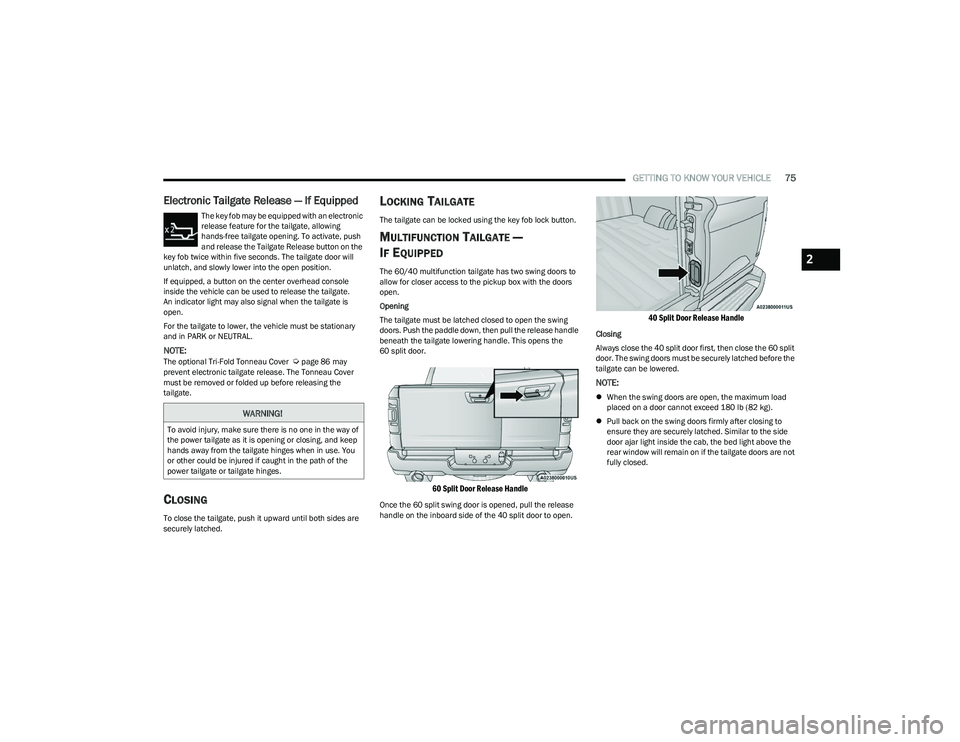
beneath the tailgate lowering handle. This opens the
60 split door.
60 Split Door Release Handle
Once the 60 split swing door is opened, pull the release
handle on the inboard side of the 40 split door to open.
40 Split Door Release Handle
Closing
Always close the 40 split door first, then close the 60 split
door. The swing doors must be securely latched before the
tailgate can be lowered.
NOTE:
When the swing doors are open, the maximum load
placed on a door cannot exceed 180 lb (82 kg).
Pull back on the swing doors firmly after closing to
ensure they are securely latched. Similar to the side
door ajar light inside the cab, the bed light above the
rear window will remain on if the tailgate doors are not
fully closed.
WARNING!
To avoid injury, make sure there is no one in the way of
the power tailgate as it is opening or closing, and keep
hands away from the tailgate hinges when in use. You
or other could be injured if caught in the path of the
power tailgate or tailgate hinges.
2
23_DT_OM_EN_USC_t.book Page 75
Page 80 of 416
78GETTING TO KNOW YOUR VEHICLE
9. Tape the tailgate harness and bracket against the
forward-facing surface of the tailgate. This will
prevent damaging the connector and bracket when
storing or reinstalling the tailgate.
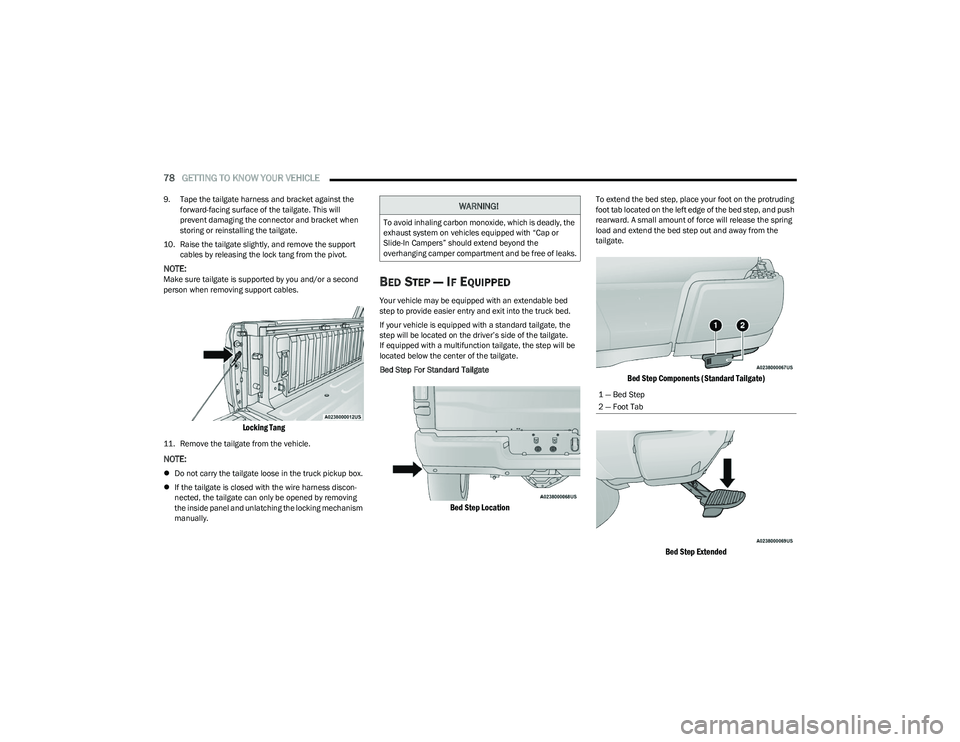
10. Raise the tailgate slightly, and remove the support cables by releasing the lock tang from the pivot.
NOTE:Make sure tailgate is supported by you and/or a second
person when removing support cables.
Locking Tang
11. Remove the tailgate from the vehicle.
NOTE:
Do not carry the tailgate loose in the truck pickup box.
If the tailgate is closed with the wire harness discon -
nected, the tailgate can only be opened by removing
the inside panel and unlatching the locking mechanism
manually.
BED STEP — IF EQUIPPED
Your vehicle may be equipped with an extendable bed
step to provide easier entry and exit into the truck bed.
If your vehicle is equipped with a standard tailgate, the
step will be located on the driver’s side of the tailgate.
If equipped with a multifunction tailgate, the step will be
located below the center of the tailgate.
Bed Step For Standard Tailgate
Bed Step Location
To extend the bed step, place your foot on the protruding
foot tab located on the left edge of the bed step, and push
rearward. A small amount of force will release the spring
load and extend the bed step out and away from the
tailgate.
Bed Step Components (Standard Tailgate)
Bed Step Extended
WARNING!
To avoid inhaling carbon monoxide, which is deadly, the
exhaust system on vehicles equipped with “Cap or
Slide-In Campers” should extend beyond the
overhanging camper compartment and be free of leaks.
1 — Bed Step
2 — Foot Tab
23_DT_OM_EN_USC_t.book Page 78
Page 84 of 416
82GETTING TO KNOW YOUR VEHICLE
LOCKING AND UNLOCKING RAMBOX
Push and release the lock or unlock button on the key fob
to lock and unlock all doors, the tailgate and the RamBox
Úpage 16. To unlatch the storage bin manually, insert the
emergency key into the keyhole and turn clockwise.
Always return the key to the upright (vertical) position
before removing it from the keyhole.
RAMBOX CARGO STORAGE BINS
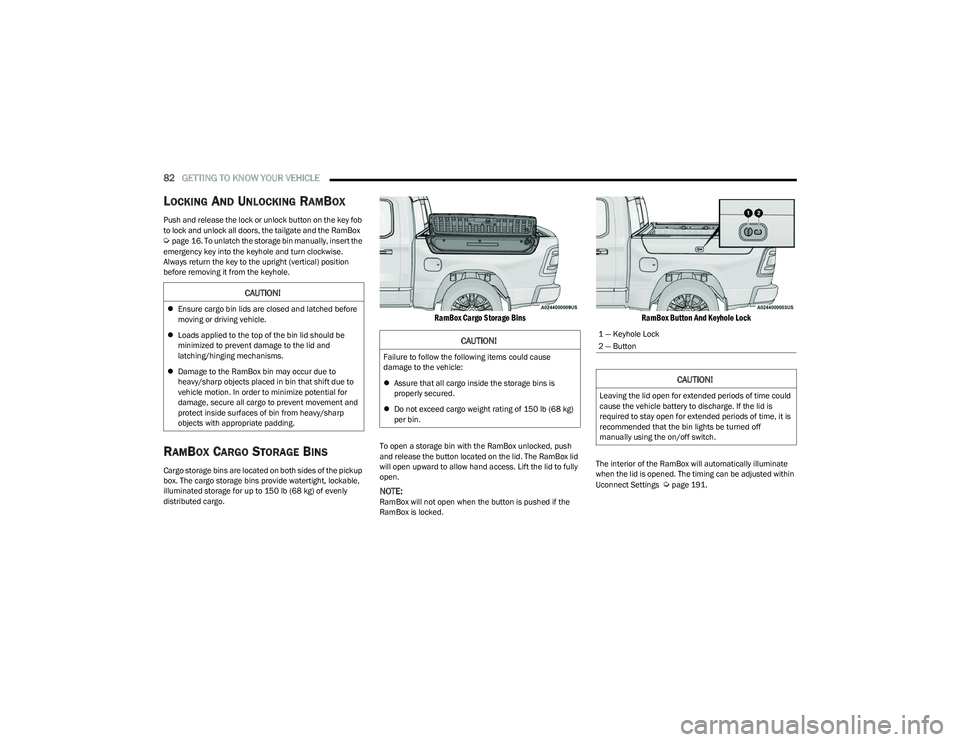
Cargo storage bins are located on both sides of the pickup
box. The cargo storage bins provide watertight, lockable,
illuminated storage for up to 150 lb (68 kg) of evenly
distributed cargo.
RamBox Cargo Storage Bins
To open a storage bin with the RamBox unlocked, push
and release the button located on the lid. The RamBox lid
will open upward to allow hand access. Lift the lid to fully
open.
NOTE:RamBox will not open when the button is pushed if the
RamBox is locked.
RamBox Button And Keyhole Lock
The interior of the RamBox will automatically illuminate
when the lid is opened. The timing can be adjusted within
Uconnect Settings
Úpage 191.
CAUTION!
Ensure cargo bin lids are closed and latched before
moving or driving vehicle.
Loads applied to the top of the bin lid should be
minimized to prevent damage to the lid and
latching/hinging mechanisms.
Damage to the RamBox bin may occur due to
heavy/sharp objects placed in bin that shift due to
vehicle motion. In order to minimize potential for
damage, secure all cargo to prevent movement and
protect inside surfaces of bin from heavy/sharp
objects with appropriate padding.
CAUTION!
Failure to follow the following items could cause
damage to the vehicle:
Assure that all cargo inside the storage bins is
properly secured.
Do not exceed cargo weight rating of 150 lb (68 kg)
per bin.
1 — Keyhole Lock
2 — Button
CAUTION!
Leaving the lid open for extended periods of time could
cause the vehicle battery to discharge. If the lid is
required to stay open for extended periods of time, it is
recommended that the bin lights be turned off
manually using the on/off switch.
23_DT_OM_EN_USC_t.book Page 82
Page 101 of 416
GETTING TO KNOW YOUR INSTRUMENT PANEL99
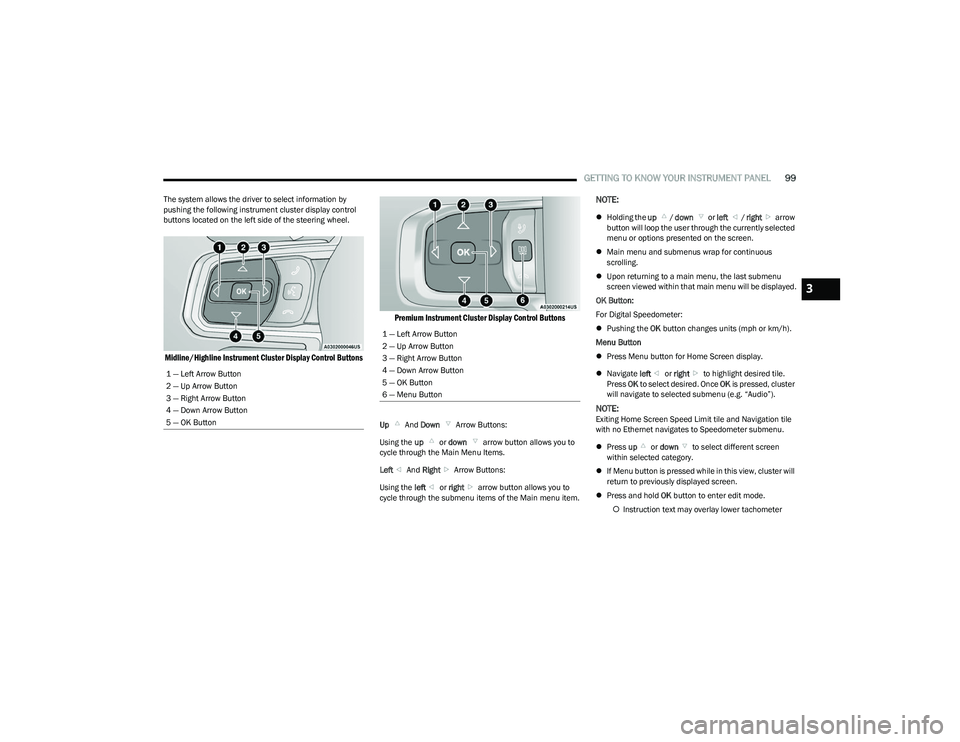
The system allows the driver to select information by
pushing the following instrument cluster display control
buttons located on the left side of the steering wheel.
Midline/Highline Instrument Cluster Display Control Buttons Premium Instrument Cluster Display Control Buttons
Up
And Down Arrow Buttons:
Using the up or down arrow button allows you to
cycle through the Main Menu Items.
Left And Right Arrow Buttons:
Using the left or right arrow button allows you to
cycle through the submenu items of the Main menu item.
NOTE:
Holding the up / down or left / right arrow
button will loop the user through the currently selected
menu or options presented on the screen.
Main menu and submenus wrap for continuous
scrolling.
Upon returning to a main menu, the last submenu
screen viewed within that main menu will be displayed.
OK Button:
For Digital Speedometer:
Pushing the OK button changes units (mph or km/h).
Menu Button
Press Menu button for Home Screen display.
Navigate left or right to highlight desired tile.
Press OK to select desired. Once OK is pressed, cluster
will navigate to selected submenu (e.g. “Audio”).
NOTE:Exiting Home Screen Speed Limit tile and Navigation tile
with no Ethernet navigates to Speedometer submenu.
Press up or down to select different screen
within selected category.
If Menu button is pressed while in this view, cluster will
return to previously displayed screen.
Press and hold OK button to enter edit mode.
Instruction text may overlay lower tachometer
1 — Left Arrow Button
2 — Up Arrow Button
3 — Right Arrow Button
4 — Down Arrow Button
5 — OK Button
1 — Left Arrow Button
2 — Up Arrow Button
3 — Right Arrow Button
4 — Down Arrow Button
5 — OK Button
6 — Menu Button
3
23_DT_OM_EN_USC_t.book Page 99
Page 102 of 416
100GETTING TO KNOW YOUR INSTRUMENT PANEL
For Screen Setup:
OK button allows user to enter menu and submenus.
Within each submenu layer, the left and Right
arrow buttons will allow the user to select the item of
interest.
Pushing the OK button makes the selection and a
confirmation screen will appear (returning the user to
the first page of the submenu).
Pushing the up arrow button will exit each submenu
layer and return to the main menu.
Custom Tile Configuration — If Equipped
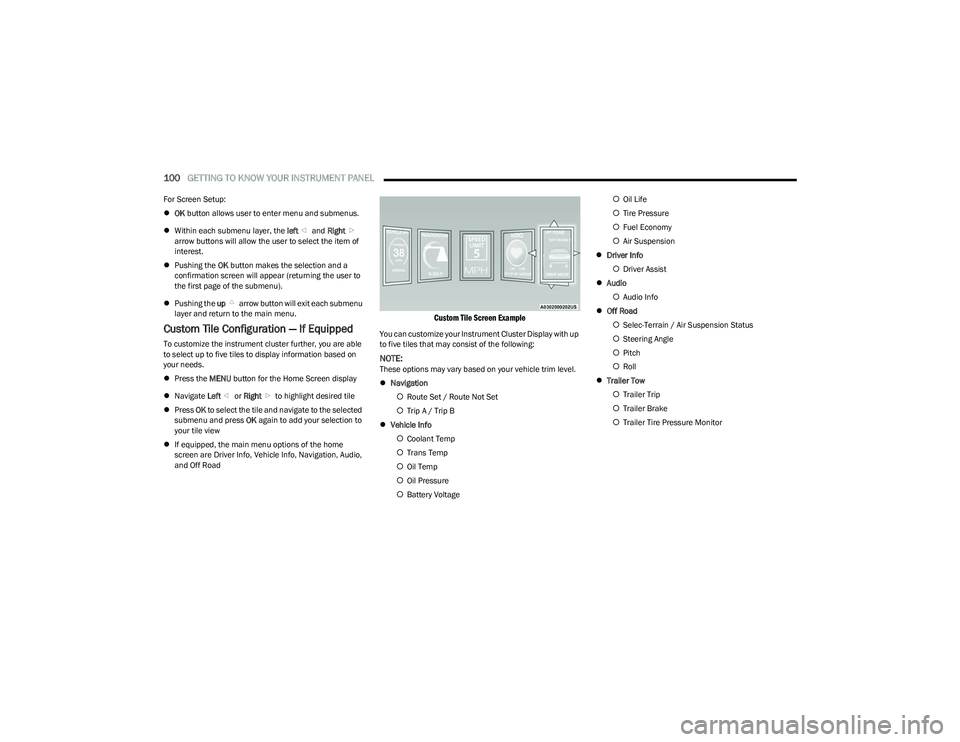
To customize the instrument cluster further, you are able
to select up to five tiles to display information based on
your needs.
Press the MENU button for the Home Screen display
Navigate Left or Right to highlight desired tile
Press OK to select the tile and navigate to the selected
submenu and press OK again to add your selection to
your tile view
If equipped, the main menu options of the home
screen are Driver Info, Vehicle Info, Navigation, Audio,
and Off Road
Custom Tile Screen Example
You can customize your Instrument Cluster Display with up
to five tiles that may consist of the following:
NOTE:These options may vary based on your vehicle trim level.
Navigation
Route Set / Route Not Set
Trip A / Trip B
Vehicle Info
Coolant Temp
Trans Temp
Oil Temp
Oil Pressure
Battery Voltage
Oil Life
Tire Pressure
Fuel Economy
Air Suspension
Driver Info
Driver Assist
Audio
Audio Info
Off Road
Selec-Terrain / Air Suspension Status
Steering Angle
Pitch
Roll
Trailer Tow
Trailer Trip
Trailer Brake
Trailer Tire Pressure Monitor
23_DT_OM_EN_USC_t.book Page 100
Page 103 of 416

GETTING TO KNOW YOUR INSTRUMENT PANEL101
OIL LIFE RESET
Use this QR code to access your digital
experience.
Your vehicle is equipped with an
engine oil change indicator system.
The “Oil Change Required” message
will display in the instrument cluster
display for five seconds after a single
chime has sounded, to indicate the
next scheduled oil change interval. The engine oil change
indicator system is duty cycle based, which means the
engine oil change interval may fluctuate, dependent upon
your personal driving style.
Unless reset, this message will continue to display each
time you place the ignition in the ON/RUN position. To turn
off the message temporarily, push and release the OK or
arrow buttons. To reset the oil change indicator system
(after performing the scheduled maintenance), refer to
the following procedure:
1. Without pressing the brake pedal, push the ENGINE START/STOP button and place the ignition in the
ON/RUN position (do not start the engine).
2. Push and release the down arrow button to scroll
downward through the main menu to “Vehicle Info.”
3. Push and release the right arrow button to access
the ”Oil Life” screen. 4. Push and hold the
OK button to reset oil life. If
conditions are met, the gauge and numeric display
will update to show 100%. If conditions are not met a
pop-up message of “To reset oil life engine must be
off with ignition in run” will be displayed (for five
seconds), and the user will remain at the Oil Life
screen.
5. Push and release the up or down arrow button
to exit the submenu screen.
NOTE:If the indicator message illuminates when you start the
vehicle, the oil change indicator system did not reset. If
necessary, repeat this procedure.
DISPLAY MENU ITEMS
Push and release the up or down arrow button until
the desired selectable menu icon is highlighted in the
instrument cluster display.
Speedometer
Push and release the up or down arrow button
until the speedometer menu item is highlighted in the
instrument cluster display. Push and release the OK
button to cycle the display between mph and km/h.
Driver Assist — If Equipped
The Driver Assist menu displays the status of the ACC and
LaneSense systems.
Push and release the up or down arrow button
until the Driver Assist menu is displayed in the instrument
cluster display. Adaptive Cruise Control (ACC) Feature
The instrument cluster display displays the current ACC
system settings. The information displayed depends on
ACC system status.
Push the ACC on/off button (located on the steering
wheel) until one of the following displays in the instrument
cluster display:
Adaptive Cruise Control Off
When ACC is deactivated, the display will read “Adaptive
Cruise Control Off.”
Adaptive Cruise Control Ready
When ACC is activated but the vehicle speed setting has
not been selected, the display will read “Adaptive Cruise
Control Ready.”
Push the SET + or the SET- button (located on the steering
wheel) and the following will display in the instrument
cluster display:
ACC SET
When ACC is set, the set speed will display in the
instrument cluster
Úpage 145.
The ACC screen may display once again if any ACC activity
occurs, which may include any of the following:
Distance Setting Change
System Cancel
Driver Override
System Off
ACC Proximity Warning
ACC Unavailable Warning
3
23_DT_OM_EN_USC_t.book Page 101
Page 104 of 416
102GETTING TO KNOW YOUR INSTRUMENT PANEL
LaneSense — If Equipped
The instrument cluster display displays the current
LaneSense system settings. The information displayed
depends on LaneSense system status and the conditions
that need to be met
Úpage 116.
Vehicle Info
Push and release the up or down arrow button until
the Vehicle Info menu icon is displayed in the instrument
cluster display. Push and release the left or right
arrow button to scroll through the information submenus
and push and release the OK button to select or reset the
resettable submenus.
BASE AND MIDLINE CLUSTER
Tire Pressure Monitor System
Air Suspension — If Equipped
Coolant Temperature — If Equipped
Trans Temperature
Oil Temperature
Oil Pressure — If Equipped
Oil Life
Battery Voltage — If Equipped
Gauge Summary — If Equipped
Coolant Temp
Trans Temp
Oil Temp
Oil Pressure
Engine Hours — If Equipped
PREMIUM CLUSTER
Fuel Economy
Average
Current
Range to Empty
Gauge Summary
Coolant Temperature — If Equipped
Battery Voltage — If Equipped
Trans Temperature
Oil Summary
Oil Temperature
Oil Life
Oil Pressure — If Equipped
Tire Pressure Monitor System
Stop/Start — If Equipped
Air Suspension Status — If Equipped
Engine Hours — If Equipped
Off Road – If Equipped
Push and release the up or down arrow button
until the Off Road menu icon is displayed in the instrument
cluster display. Push and release the left or right
arrow button to scroll through the information submenus.
Vehicle Dynamics
Front Wheel Angle: displays the graphical and
numerical value of calculated average front wheel
angle from the steering wheel orientation.
Transfer Case Lock Status: displays “Lock”
graphic only during 4WD High, 4WD Auto, 4WD
Low status.
Axle Lock And Sway Bar Status (If Equipped):
displays front and rear or rear only axle locker
graphic, and sway bar connection graphic with text
message (connected or disconnected).
Pitch And Roll
Displays the pitch and roll of the vehicle in the
graphic with the angle number on the screen.
NOTE:When vehicle speed becomes too high to display the pitch
and roll, “- -” will display in place of the numbers, and the
graphic will be grayed out. A message indicating the
necessary speed for the feature to become available will
also display.
Fuel Economy
Push and release the up or down arrow button until
the Fuel Economy menu item is highlighted in the
instrument cluster display. Push and hold the OK button to
reset Average Fuel Economy.
Current Fuel Economy
Average Fuel Economy
Range To Empty
23_DT_OM_EN_USC_t.book Page 102
Page 105 of 416
GETTING TO KNOW YOUR INSTRUMENT PANEL103
Trip Info
Push and release the up or down arrow button until
the Trip menu item is highlighted in the instrument cluster
display. Push and release the right or left arrow
button to enter the submenus of Trip A and Trip B. The Trip
A or Trip B information will display the following:
Distance
Average Fuel Economy
Elapsed Time
Push and hold OK button to reset all information.
Navigation — If Equipped
Push and release the up or down arrow button until
the Navigation display title is highlighted in the instrument
cluster display, “Hold OK to Start Route” will display when
no active route is set. “Hold OK to Cancel Route” will
display when active route is set. Use the left or right
arrow button to zoom in or out on the display
Úpage 191.
Stop/Start — If Equipped
Push and release the up or down arrow button until
the Stop/Start icon/title is highlighted in the instrument
cluster display. The screen will display the Stop/Start
status.
Trailer Tow — If Equipped
Push and release the up or down arrow button until
the Trailer Tow menu item is highlighted in the instrument
cluster display. Push and release the right or left
arrow button to cycle through the following trailer tow
information:
Trip (trailer specific) Distance: Push and hold the OK
button to reset the distance.
Integrated Trailer Brake Module (ITBM):
Braking Output
Trailer Type
ITBM Gain
Trailer Tire Pressure Monitoring: The Instrument
Cluster Display will display the Trailer Tire Pressure for
a connected trailer with sensors that match the active
trailer profile. When a low tire is present, the low tire
value will be displayed in red, and the affected low tire
will have a red glow. “Trailer Tire Low“ will be displayed
on the center bottom of the Instrument Cluster Display
screen.
Trailer Light Check — If Equipped: Push and hold the OK
button to begin the Trailer Light Test sequence
Úpage 182.
Audio
Push and release the up or down arrow button until
the Audio Menu icon/title is highlighted in the instrument
cluster display. This menu will display the audio source
information, including the Song name, Artist name, and
audio source with an accompanying graphic.
Phone Call Status
When a call is incoming, a Phone Call Status pop-up will
display on the screen. The pop-up will remain until the
phone is answered or ignored.
NOTE:The call status will temporarily replace the previous media
source information displayed on the screen. When the
pop-up is no longer displayed, the display will return to the
last used screen.
Stored Messages
Push and release the up or down arrow button until
the Messages Menu item is highlighted. This feature
shows the number of stored warning messages Example:
“Oil Change Required”. Push and release the right or
left arrow button to cycle through stored messages.
3
23_DT_OM_EN_USC_t.book Page 103
Page 106 of 416
104GETTING TO KNOW YOUR INSTRUMENT PANEL
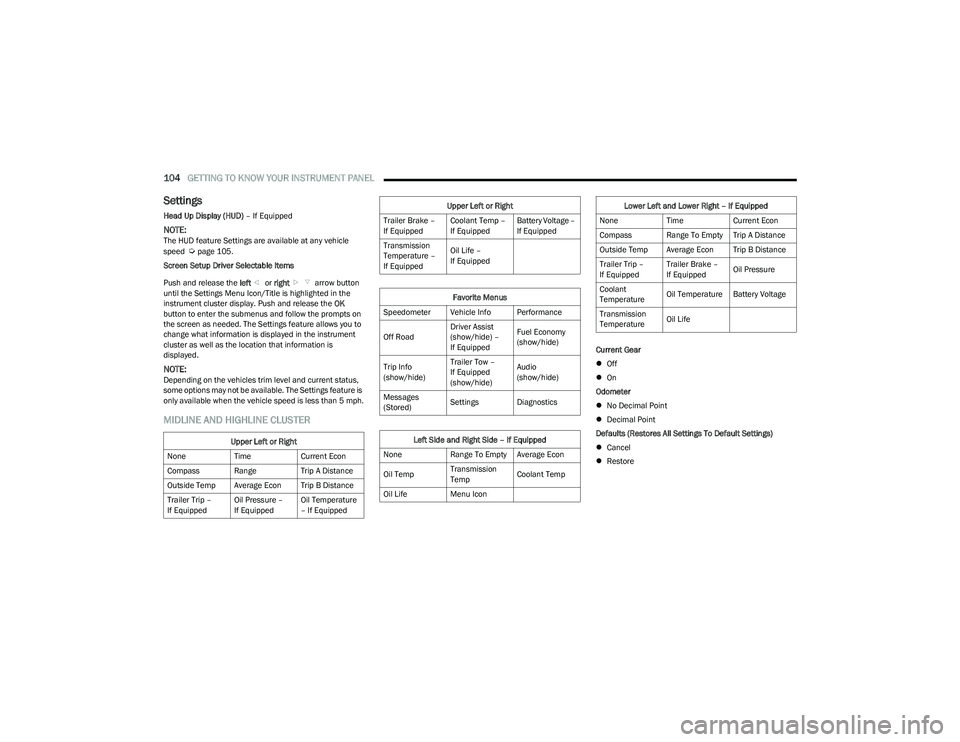
Settings
Head Up Display (HUD) – If Equipped
NOTE:The HUD feature Settings are available at any vehicle
speed Úpage 105.
Screen Setup Driver Selectable Items
Push and release the left or right arrow button
until the Settings Menu Icon/Title is highlighted in the
instrument cluster display. Push and release the OK
button to enter the submenus and follow the prompts on
the screen as needed. The Settings feature allows you to
change what information is displayed in the instrument
cluster as well as the location that information is
displayed.
NOTE:Depending on the vehicles trim level and current status,
some options may not be available. The Settings feature is
only available when the vehicle speed is less than 5 mph.
MIDLINE AND HIGHLINE CLUSTER
Current Gear
Off
On
Odometer
No Decimal Point
Decimal Point
Defaults (Restores All Settings To Default Settings)
Cancel
Restore
Upper Left or Right
None TimeCurrent Econ
Compass Range Trip A Distance
Outside Temp Average Econ Trip B Distance
Trailer Trip –
If Equipped Oil Pressure –
If EquippedOil Temperature
– If Equipped
Trailer Brake –
If EquippedCoolant Temp –
If EquippedBattery Voltage –
If Equipped
Transmission
Temperature –
If Equipped Oil Life –
If Equipped
Favorite Menus
Speedometer Vehicle Info Performance
Off Road Driver Assist
(show/hide) –
If EquippedFuel Economy
(show/hide)
Trip Info
(show/hide) Trailer Tow –
If Equipped
(show/hide)Audio
(show/hide)
Messages
(Stored) Settings Diagnostics
Left Side and Right Side – If Equipped
None Range To Empty Average Econ
Oil Temp Transmission
TempCoolant Temp
Oil Life Menu Icon
Upper Left or Right
Lower Left and Lower Right – If Equipped
None TimeCurrent Econ
Compass Range To Empty Trip A Distance
Outside Temp Average Econ Trip B Distance
Trailer Trip –
If Equipped Trailer Brake –
If Equipped
Oil Pressure
Coolant
Temperature Oil Temperature Battery Voltage
Transmission
Temperature Oil Life
23_DT_OM_EN_USC_t.book Page 104