radio RAM CHASSIS CAB 2021 User Guide
[x] Cancel search | Manufacturer: RAM, Model Year: 2021, Model line: CHASSIS CAB, Model: RAM CHASSIS CAB 2021Pages: 463, PDF Size: 21.5 MB
Page 74 of 463
72GETTING TO KNOW YOUR VEHICLE
USB/AUX CONTROL
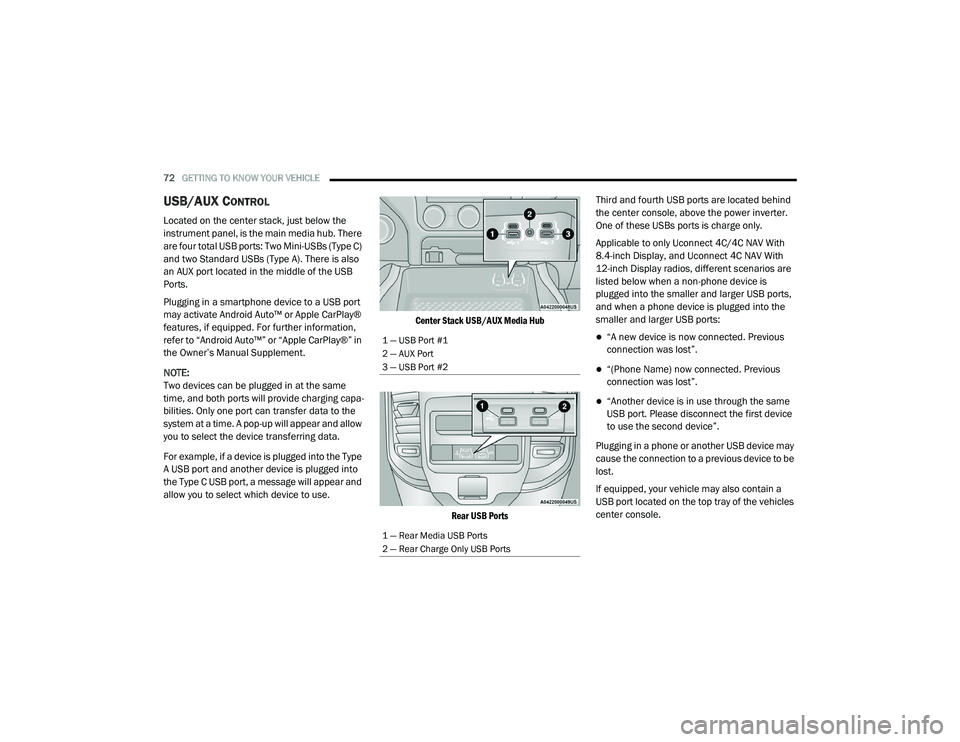
Located on the center stack, just below the
instrument panel, is the main media hub. There
are four total USB ports: Two Mini-USBs (Type C)
and two Standard USBs (Type A). There is also
an AUX port located in the middle of the USB
Ports.
Plugging in a smartphone device to a USB port
may activate Android Auto™ or Apple CarPlay®
features, if equipped. For further information,
refer to “Android Auto™” or “Apple CarPlay®” in
the Owner’s Manual Supplement.
NOTE:
Two devices can be plugged in at the same
time, and both ports will provide charging capa-
bilities. Only one port can transfer data to the
system at a time. A pop-up will appear and allow
you to select the device transferring data.
For example, if a device is plugged into the Type
A USB port and another device is plugged into
the Type C USB port, a message will appear and
allow you to select which device to use.
Center Stack USB/AUX Media Hub
Rear USB Ports
Third and fourth USB ports are located behind
the center console, above the power inverter.
One of these USBs ports is charge only.
Applicable to only Uconnect 4C/4C NAV With
8.4-inch Display, and Uconnect 4C NAV With
12-inch Display radios, different scenarios are
listed below when a non-phone device is
plugged into the smaller and larger USB ports,
and when a phone device is plugged into the
smaller and larger USB ports:
“A new device is now connected. Previous
connection was lost”.
“(Phone Name) now connected. Previous
connection was lost”.
“Another device is in use through the same
USB port. Please disconnect the first device
to use the second device”.
Plugging in a phone or another USB device may
cause the connection to a previous device to be
lost.
If equipped, your vehicle may also contain a
USB port located on the top tray of the vehicles
center console.
1 — USB Port #1
2 — AUX Port
3 — USB Port #2
1 — Rear Media USB Ports
2 — Rear Charge Only USB Ports
21_DPF_OM_EN_USC_t.book Page 72
Page 100 of 463
98GETTING TO KNOW YOUR INSTRUMENT PANEL
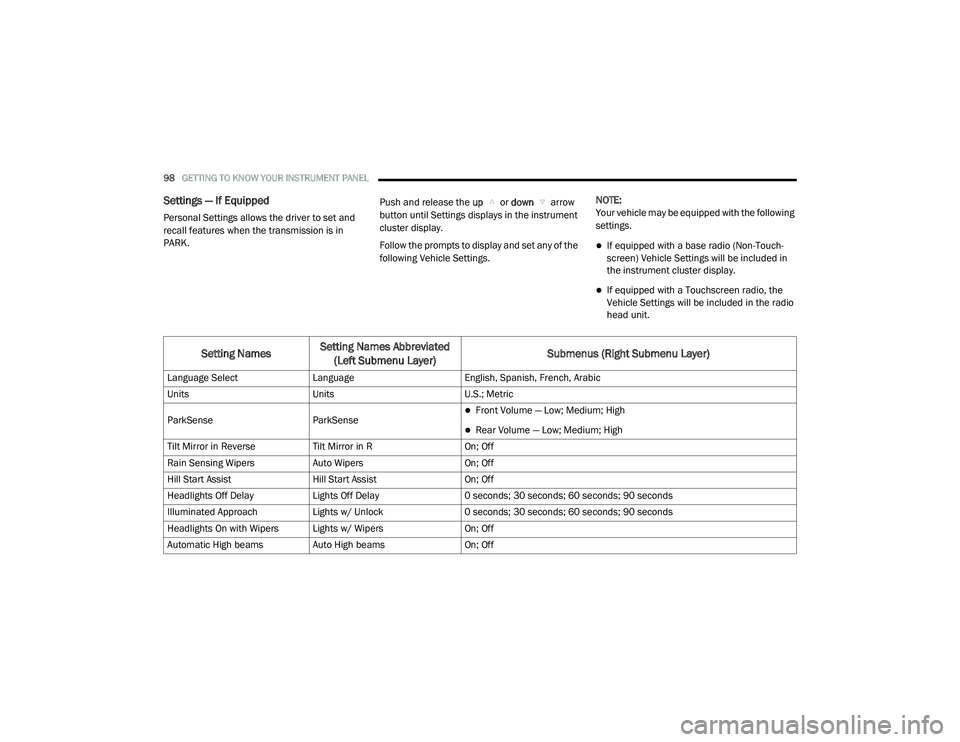
Settings — If Equipped
Personal Settings allows the driver to set and
recall features when the transmission is in
PARK. Push and release the
up or down arrow
button until Settings displays in the instrument
cluster display.
Follow the prompts to display and set any of the
following Vehicle Settings. NOTE:
Your vehicle may be equipped with the following
settings.
If equipped with a base radio (Non-Touch
-
screen) Vehicle Settings will be included in
the instrument cluster display.
If equipped with a Touchscreen radio, the
Vehicle Settings will be included in the radio
head unit.
Setting Names Setting Names Abbreviated
(Left Submenu Layer) Submenus (Right Submenu Layer)
Language Select
Language English, Spanish, French, Arabic
Units Units U.S.; Metric
ParkSense ParkSense
Front Volume — Low; Medium; High
Rear Volume — Low; Medium; High
Tilt Mirror in Reverse Tilt Mirror in R On; Off
Rain Sensing Wipers Auto Wipers On; Off
Hill Start Assist Hill Start Assist On; Off
Headlights Off Delay Lights Off Delay 0 seconds; 30 seconds; 60 seconds; 90 seconds
Illuminated Approach Lights w/ Unlock 0 seconds; 30 seconds; 60 seconds; 90 seconds
Headlights On with Wipers Lights w/ Wipers On; Off
Automatic High beams Auto High beams On; Off
21_DPF_OM_EN_USC_t.book Page 98
Page 103 of 463

GETTING TO KNOW YOUR INSTRUMENT PANEL101
Commercial Settings — If Equipped
Commercial Settings allows the driver to set
and recall additional features when the
transmission is in PARK.
Push and release the up or down arrow
button until Commercial Settings displays in the
instrument cluster display.
Follow the prompts to enter the required PIN
and enter the Commercial Settings submenu.
NOTE:
If your vehicle is equipped with a touchscreen
radio, “Commercial Settings” will replace
“Vehicle Settings” in the instrument cluster
display. The Commercial Settings menu will only
include the settings below Ú page 228.Commercial Settings allows you to access the
following features (if equipped):
Power Take Off (PTO)
Remote Ignition
Idle Control
Backup Alarm
ParkSense
Aux Switches
PIN Setup
NOTE:
If the vehicle’s PIN is forgotten or not known,
see an authorized dealer to have the PIN reset.
DIESEL MESSAGES AND WARNINGS
Diesel Particulate Filter (DPF) Messages
The Cummins diesel engine meets all diesel
emissions standards, resulting in one of the
lowest emitting diesel engines ever produced.
To achieve these emissions standards, your
vehicle is equipped with a state-of-the-art
engine and exhaust system. These systems are
seamlessly integrated into your vehicle and
managed by the Powertrain Control Module
(PCM). The PCM manages engine combustion
to allow the exhaust system’s catalyst to trap
and burn Particulate Matter (PM) pollutants,
with no input or interaction on your part.
Calibrate Compass
Compass Cal Cancel; Calibrate
Fuel Saver Display Fuel Saver On; Off
Setting NamesSetting Names Abbreviated
(Left Submenu Layer) Submenus (Right Submenu Layer)
3
21_DPF_OM_EN_USC_t.book Page 101
Page 108 of 463
106GETTING TO KNOW YOUR INSTRUMENT PANEL
NOTE:
The charging system is independent from
load reduction. The charging system
performs a diagnostic on the charging
system continuously.
If the Battery Charge Warning Light is on it
may indicate a problem with the charging
system Úpage 108.
The electrical loads that may be switched off
(if equipped), and vehicle functions which can
be affected by load reduction:
Heated Seats/Vented Seats/Heated Wheel
Rear Defroster And Heated Mirrors
HVAC System
115 Volt AC Power Inverter System
Audio and Telematics System
Loss of the battery charge may indicate one or
more of the following conditions:
The charging system cannot deliver enough
electrical power to the vehicle system because
the electrical loads are larger than the capa -
bility of charging system. The charging system
is still functioning properly.
Turning on all possible vehicle electrical
loads (e.g. HVAC to max settings, exterior
and interior lights, overloaded power outlets
+12 Volts, 115 Volt AC, USB ports) during
certain driving conditions (city driving,
towing, frequent stopping).
Installing options like additional lights,
upfitter electrical accessories, audio
systems, alarms and similar devices.
Unusual driving cycles (short trips separated
by long parking periods).
The vehicle was parked for an extended
period of time (weeks, months).
The battery was recently replaced and was
not charged completely.
The battery was discharged by an electrical
load left on when the vehicle was parked.
The battery was used for an extended period
with the engine not running to supply radio,
lights, chargers, +12 Volt portable appli -
ances like vacuum cleaners, game consoles
and similar devices. What to do when an electrical load reduction
action message is present (“Battery Saver On”
or “Battery Saver Mode”)
During a trip:
Reduce power to unnecessary loads if
possible:
Turn off redundant lights (interior or exterior).
Check what may be plugged in to power
outlets +12 Volts, 115 Volt AC, USB ports.
Check HVAC settings (blower, temperature).
Check the audio settings (volume).
After a trip:
Check if any aftermarket equipment was
installed (additional lights, upfitter electrical
accessories, audio systems, alarms) and
review specifications if any (load and Ignition
Off Draw currents).
Evaluate the latest driving cycles (distance,
driving time and parking time).
The vehicle should have service performed if the
message is still present during consecutive trips
and the evaluation of the vehicle and driving
pattern did not help to identify the cause.
21_DPF_OM_EN_USC_t.book Page 106
Page 182 of 463
180STARTING AND OPERATING
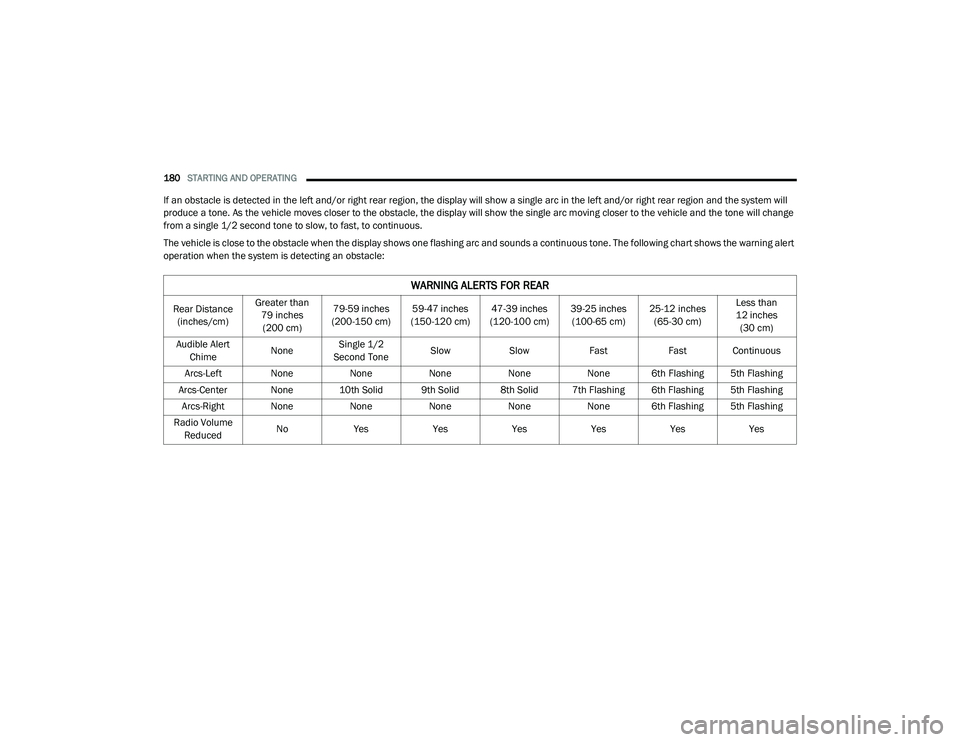
If an obstacle is detected in the left and/or right rear region, the display will show a single arc in the left and/or right rear region and the system will
produce a tone. As the vehicle moves closer to the obstacle, the display will show the single arc moving closer to the vehicle and the tone will change
from a single 1/2 second tone to slow, to fast, to continuous.
The vehicle is close to the obstacle when the display shows one flashing arc and sounds a continuous tone. The following chart shows the warning alert
operation when the system is detecting an obstacle:
WARNING ALERTS FOR REAR
Rear Distance
(inches/cm) Greater than
79 inches (200 cm) 79-59 inches
(200-150 cm) 59-47 inches
(150-120 cm) 47-39 inches
(120-100 cm) 39-25 inches
(100-65 cm) 25-12 inches
(65-30 cm) Less than
12 inches (30 cm)
Audible Alert Chime NoneSingle 1/2
Second Tone Slow
Slow FastFast Continuous
Arcs-Left None NoneNoneNoneNone 6th Flashing 5th Flashing
Arcs-Center None 10th Solid 9th Solid 8th Solid 7th Flashing 6th Flashing 5th Flashing Arcs-Right None NoneNoneNoneNone 6th Flashing 5th Flashing
Radio Volume Reduced No
Yes YesYesYesYesYes
21_DPF_OM_EN_USC_t.book Page 180
Page 183 of 463

STARTING AND OPERATING181
NOTE:
ParkSense will reduce the volume of the radio,
if on, when the system is sounding an audio
tone.
Front Park Assist Audible Alerts
ParkSense will turn off the Front Park Assist
audible alert (chime) after approximately three
seconds when an obstacle has been detected,
the vehicle is stationary, and brake pedal is
applied. Adjustable Chime Volume Settings
The Front and Rear chime volume settings are
programmable through the Uconnect system
Ú
page 228.
ENABLING AND DISABLING PARKSENSE
Front ParkSense can be enabled and
disabled with the Front ParkSense
switch.
Rear ParkSense can be enabled and disabled
with the Rear ParkSense switch.
When the gear selector is moved to REVERSE
and the Front or Rear system is disabled, the
instrument cluster display will show a vehicle graphic with an “Off” message overlay over the
system that is off (Front or Rear system). This
vehicle graphic will be displayed for as long as
the vehicle is in REVERSE.
The Front or Rear ParkSense switch LED will be
on when Front or Rear ParkSense is disabled or
requires service. The Front or Rear ParkSense
switch LED will be off when the Front or Rear
system is enabled. If the Front or Rear
ParkSense switch is pushed, and the system
requires service, the Front or Rear ParkSense
switch LED will blink momentarily, and then the
LED will be on.
WARNING ALERTS FOR FRONT
Front Distance
(inches/cm) Greater than 47 inches
(120 cm) 47-39 inches
(120-100 cm) 39-25 inches
(100-65 cm) 25-12 inches
(65-30 cm) Less than 12 inches
(30 cm)
Audible Alert Chime NoneNoneNone FastContinuous
Arcs-Left NoneNoneNone3rd Flashing 4th Flashing
Arcs-Center None1st Solid2nd Flashing 3rd Flashing4th Flashing
Arcs-Right NoneNoneNone3rd Flashing 4th Flashing
Radio Volume Reduced No
NoNo Yes Yes
4
21_DPF_OM_EN_USC_t.book Page 181
Page 184 of 463

182STARTING AND OPERATING
SERVICE THE PARKSENSE PARK ASSIST
S
YSTEM
During vehicle start up, when the Front/Rear
ParkSense System has detected a faulted
condition, the instrument cluster display will
show the "Front/Rear ParkSense Unavailable
Service Required" or the "Front/Rear
ParkSense Unavailable Wipe Sensors"
message.
When the gear selector is moved into REVERSE,
a vehicle graphic will show in the instrument
cluster display, along with the display overlay
“Wipe Sensors.” If the system needs service,
the display overlay will read “Service.” Under
this condition, ParkSense will not operate.
If "Front/Rear ParkSense Unavailable Wipe
Sensors" appears in the instrument cluster
display make sure the outer surface and the
underside of the rear fascia/bumper is clean
and clear of snow, ice, mud, dirt or other
obstruction, and then cycle the ignition. If the
message continues to appear, see an
authorized dealer. If "Front/Rear ParkSense Unavailable Service
Required" appears in the instrument cluster
display, see an authorized dealer.CLEANING THE PARKSENSE SYSTEM
Clean the ParkSense sensors with water, car
wash soap and a soft cloth. Do not use rough or
hard cloths. Do not scratch or poke the sensors.
Otherwise, you could damage the sensors.
PARKSENSE SYSTEM USAGE
P
RECAUTIONS
NOTE:
Ensure that the front and rear bumpers are
free of snow, ice, mud, dirt and debris to keep
the ParkSense system operating properly.
Jackhammers, large trucks, and other vibrations
could affect the performance of ParkSense.
When you move the gear selector to the
REVERSE position and Front or Rear ParkSense
is turned off, the instrument cluster display will
show "Off" on the vehicle graphic arcs. This
vehicle graphic will be displayed for as long as
the vehicle is in REVERSE.
ParkSense, when on, will reduce the volume
of the radio when it is sounding a tone.
Clean the ParkSense sensors regularly,
taking care not to scratch or damage them.
The sensors must not be covered with ice,
snow, slush, mud, dirt or debris. Failure to do
so can result in the system not working prop -
erly. The ParkSense system might not detect
an obstacle behind or in front of the fascia/
bumper, or it could provide a false indication
that an obstacle is behind or in front of the
fascia/bumper.
Use the ParkSense switch to turn the Park -
Sense system off if obstacles such as bicycle
carriers, trailer hitches, etc. are placed within
18 inches (45 cm) from the rear fascia/
bumper. Failure to do so can result in the
system misinterpreting a close obstacle as a
sensor problem, causing the “Front/Rear
ParkSense Unavailable Service Required”
message to be appear in the instrument
cluster display.
21_DPF_OM_EN_USC_t.book Page 182
Page 188 of 463
186STARTING AND OPERATING
CHANGING LANESENSE STATUS
The LaneSense system has settings to adjust
the intensity (Low/Medium/High) of the torque
warning and the warning zone sensitivity (Early/
Medium/Late) that you can configure through
the Uconnect system Úpage 228.
NOTE:
When enabled the system operates above
37 mph (60 km/h) and below 112 mph (180 km/h).
Use of the turn signal suppresses the warnings.
The system will not apply torque to the
steering wheel whenever a safety system
engages (Anti-Lock Brakes, Traction Control
System, Electronic Stability Control, Forward
Collision Warning, etc.).
PARKVIEW REAR BACK UP CAMERA
The ParkView Rear Back Up Camera allows
you to see an on-screen image of the rear
surroundings of your vehicle whenever the gear
selector is put into REVERSE. The image will be
displayed on the Navigation/Multimedia radio
display screen along with a caution note to
“Check Entire Surroundings” across the top of
the screen. After five seconds this note will
disappear. The ParkView Camera is located in
the center of the tailgate handle.
NOTE:
For the 3500, 4500, and 5500 Chassis Cab
vehicles, the Rear Backup Camera is shipped
loose and not installed. Please refer to the Ram
Body Builders Guide for more information.
Manual Activation Of The Rear View
Camera:
1. Press the "Controls" button located on the bottom of the Uconnect display.
2. Press the "Back Up Camera" icon to turn the Rear View Camera system on.
When the vehicle is shifted out of REVERSE (with
camera delay turned off), the rear camera mode is exited and the previous screen appears. When
the vehicle is shifted out of REVERSE (with
camera delay turned on), the camera image will
continue to be displayed for up to 10 seconds
unless the following conditions occur: The vehicle
speed exceeds 8 mph (13 km/h), the vehicle is
shifted into PARK, the vehicle’s ignition is placed
in the OFF position, or the user presses image
defeat “X” to exit out of the camera video display.
Whenever the Rear View Camera image is
activated through the "Backup Camera" button
in the Controls menu, and the vehicle speed is
greater than, or equal to, 8 mph (13 km/h), a
display timer for the image is initiated. The
image will continue to be displayed until the
display timer exceeds 10 seconds.
NOTE:
If the vehicle speed remains below 8 mph
(13 km/h), the Rear View Camera image will
be displayed continuously until deactivated
via the touchscreen button "X", the transmis -
sion is shifted into PARK, or the ignition is
placed in the OFF position.
The touchscreen button "X" to disable display
of the camera image is made available ONLY
when the vehicle is not in REVERSE.
21_DPF_OM_EN_USC_t.book Page 186
Page 223 of 463
MULTIMEDIA221
NOTE:
FCA US LLC or your dealer may contact you
directly regarding software updates.
To help further improve vehicle security and
minimize the potential risk of a security
breach, vehicle owners should:
Routinely check www.driveuconnect.com
(US Residents) or www.driveuconnect.ca
(Canadian Residents) to learn about
available Uconnect software updates.
Only connect and use trusted media
devices (e.g. personal mobile phones,
USBs, CDs).
Privacy of any wireless and wired
communications cannot be assured. Third
parties may unlawfully intercept information
and private communications without your
consent Ú page 116.
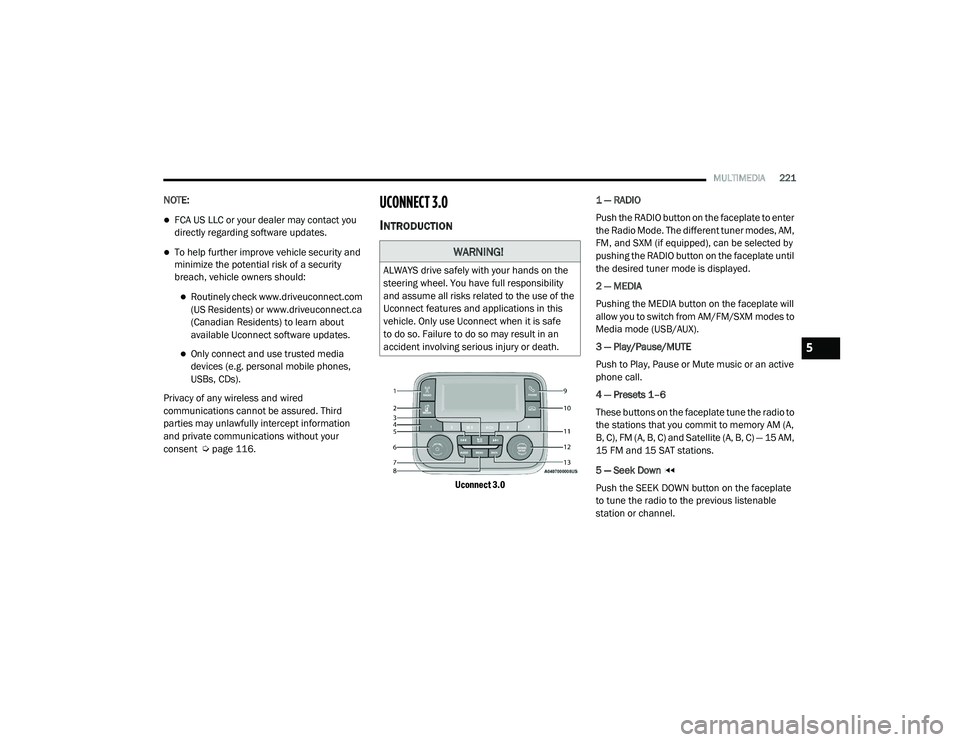
UCONNECT 3.0
INTRODUCTION
Uconnect 3.0
1 — RADIO
Push the RADIO button on the faceplate to enter
the Radio Mode. The different tuner modes, AM,
FM, and SXM (if equipped), can be selected by
pushing the RADIO button on the faceplate until
the desired tuner mode is displayed.
2 — MEDIA
Pushing the MEDIA button on the faceplate will
allow you to switch from AM/FM/SXM modes to
Media mode (USB/AUX).
3 — Play/Pause/MUTE
Push to Play, Pause or Mute music or an active
phone call.
4 — Presets 1–6
These buttons on the faceplate tune the radio to
the stations that you commit to memory AM (A,
B, C), FM (A, B, C) and Satellite (A, B, C) — 15 AM,
15 FM and 15 SAT stations.
5 — Seek Down
Push the SEEK DOWN button on the faceplate
to tune the radio to the previous listenable
station or channel.
WARNING!
ALWAYS drive safely with your hands on the
steering wheel. You have full responsibility
and assume all risks related to the use of the
Uconnect features and applications in this
vehicle. Only use Uconnect when it is safe
to do so. Failure to do so may result in an
accident involving serious injury or death.
5
21_DPF_OM_EN_USC_t.book Page 221
Page 224 of 463
222MULTIMEDIA
6 — ON/VOLUME
Push the ON/VOLUME control knob to turn on
the radio. Push the ON/VOLUME control knob a
second time to turn off the radio.
The volume control turns continuously
(360 degrees) in either direction without
stopping. Turning the ON/VOLUME control knob
to the right increases the volume and to the left
decreases it.
7 — AUDIO
Push the Audio button on the faceplate to
adjust the Bass, Mid Range, Treble, Balance or
Fade.
8 — MENU
Push the Menu button on the faceplate to scroll
between the setting submenus.
9 — Phone Pick Up
Push the Phone Pick Up button to initiate or
answer a phone call and send or receive a text.
10 — Phone Hang Up
Push the Phone Hang Up button to end a call. 11 — Seek Up
Push the SEEK UP button on the faceplate to
tune the radio to the next listenable station or
channel.
12 — ENTER/BROWSE & TUNE/SCROLL
Push the Enter/Browse button to accept a
highlighted selection on the screen. Rotate the
Tune/Scroll knob to scroll through a list or tune
a radio station.
13 — BACK
Push the Back button on the faceplate to return
to a previous menu or screen.
RADIO MODE
Operating Radio Mode
The radio is equipped with the following modes:
FM
AM
SXM SiriusXM® Satellite Radio (if equipped)
Push the Radio button on the faceplate to enter
the Radio Mode. The different tuner modes, AM,
FM, and SXM, can then be selected by pushing
the Radio button until the desired tuner mode is
displayed.
Switching The System ON/OFF
Push the On/Off Volume Control knob to turn on
the radio. Push the On/Off Volume Control knob
a second time to turn off the radio.
When the audio system is turned on, the sound
will be set at the same volume level as last
played.
Volume Control
The electronic volume control turns
continuously (360 degrees) in either direction
without stopping. Turning the On/Off & Volume
control knob to the right increases the volume
and to the left decreases it.
Enter/Browse And Tune/Scroll Control
Turn the rotary Tune/Scroll control knob
clockwise to increase or counterclockwise to
decrease the radio station frequency.
When scrolling through a list, push the
Enter/Browse button on the faceplate to
choose a selection.
21_DPF_OM_EN_USC_t.book Page 222