change time RAM CHASSIS CAB 2021 Owner's Manual
[x] Cancel search | Manufacturer: RAM, Model Year: 2021, Model line: CHASSIS CAB, Model: RAM CHASSIS CAB 2021Pages: 463, PDF Size: 21.5 MB
Page 225 of 463
MULTIMEDIA223
Seek Functions
Seek Up
Push and release the Seek Up button to tune
the radio to the next listenable station or
channel.
During a Seek Up function, if the radio
reaches the starting station after passing
through the entire band two times, the radio
will stop at the station where it began.
Seek Down
Push and release the Seek Down button to
tune the radio to the next listenable station or
channel.
During a Seek Down function, if the radio
reaches the starting station after passing
through the entire band two times, the radio will
stop at the station where it began.
SiriusXM® Satellite Radio Mode — If
Equipped
SiriusXM® Satellite Radio uses direct
satellite-to-receiver broadcasting technology
to provide clear digital sound, coast to coast.
The subscription service provider is SiriusXM®
Satellite Radio. This service offers over 130 channels of music, sports, news,
entertainment, and programming for children,
directly from its satellites and broadcasting
studios. A one-year SiriusXM® Satellite Radio
subscription is included.
Visit siriusxm.com/getallaccess or review your
SiriusXM® Radio pamphlet in your Owner’s
Manual kit for more information.
SiriusXM® and all related marks and logos are
trademarks of SiriusXM® Radio Inc. and its
subsidiaries. SiriusXM® Satellite Radio requires
a subscription, sold separately after the trial
subscription included with vehicle purchase.
Prices and programming are provided by SiriusXM®
and are subject to change. Subscriptions
governed by Terms & Conditions available at
www.siriusxm.com/customeragreement
.
SiriusXM® Radio US service is only available to
those at least 18 years of age in the 48 contiguous
United States, D.C., and PR. Service is available in
Canada; see
www.siriusxm.ca
.
No Subscription
Radios equipped with a Satellite receiver
require a subscription to the SiriusXM® Service.
When the Radio does not have the necessary
subscription, the Radio is able to receive the
Preview channel only.
Acquiring SiriusXM® Subscription
To activate the SiriusXM® Satellite Radio
subscription, US visit siriusxm.com/
getallaccess or call: 1-800-643-2112
Canada visit https://www.siriusxm.ca/ or
call: 1-888-539-7474.
Setting Presets
The Presets are available for all Radio Modes,
and are activated by pushing any of the six
Preset buttons on the faceplate.
When you are receiving a station that you wish
to commit into memory, push and hold the
desired numbered button on the faceplate for
more than two seconds or until you hear a
confirmation beep.
The Radio stores up to 18 presets in each of the
Radio modes.
5
21_DPF_OM_EN_USC_t.book Page 223
Page 230 of 463
228MULTIMEDIA
steering wheel controls during a call, push the
Voice Recognition button on the steering wheel.
After the beep, say “transfer call”.
UCONNECT SETTINGS
The Uconnect system uses a combination of
buttons on the touchscreen and buttons on the
faceplate located on the center of the instrument
panel. These buttons allow you to access and
change the Customer Programmable Features.
Many features can vary by vehicle.
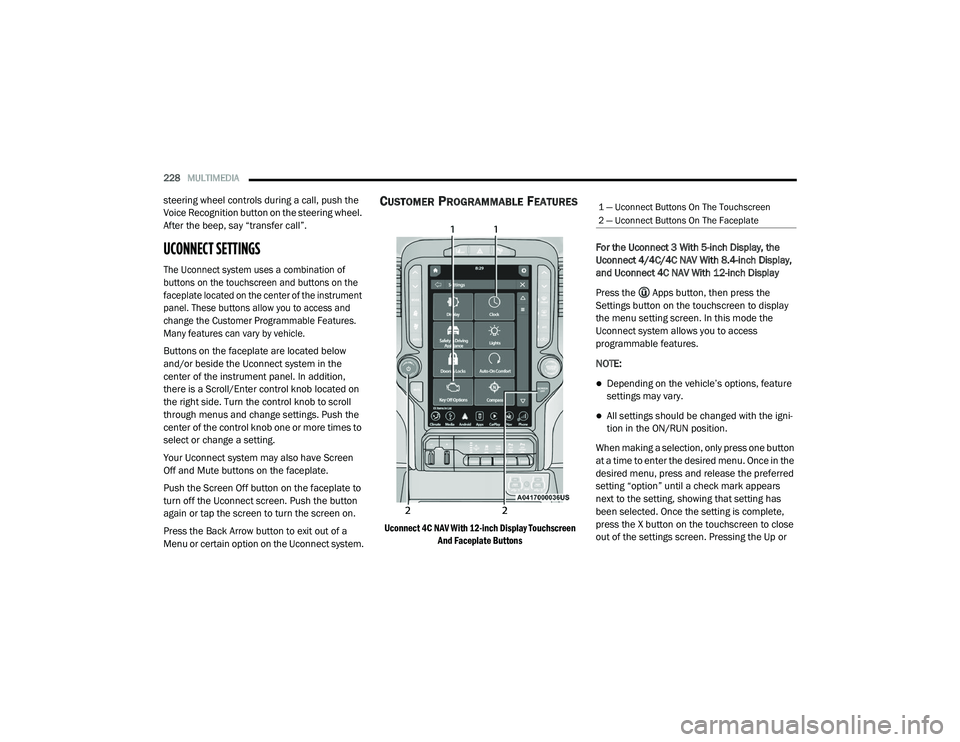
Buttons on the faceplate are located below
and/or beside the Uconnect system in the
center of the instrument panel. In addition,
there is a Scroll/Enter control knob located on
the right side. Turn the control knob to scroll
through menus and change settings. Push the
center of the control knob one or more times to
select or change a setting.
Your Uconnect system may also have Screen
Off and Mute buttons on the faceplate.
Push the Screen Off button on the faceplate to
turn off the Uconnect screen. Push the button
again or tap the screen to turn the screen on.
Press the Back Arrow button to exit out of a
Menu or certain option on the Uconnect system.
CUSTOMER PROGRAMMABLE FEATURES
Uconnect 4C NAV With 12-inch Display Touchscreen
And Faceplate Buttons
For the Uconnect 3 With 5-inch Display, the
Uconnect 4/4C/4C NAV With 8.4-inch Display,
and Uconnect 4C NAV With 12-inch Display
Press the Apps button, then press the
Settings button on the touchscreen to display
the menu setting screen. In this mode the
Uconnect system allows you to access
programmable features.
NOTE:
Depending on the vehicle’s options, feature
settings may vary.
All settings should be changed with the igni
-
tion in the ON/RUN position.
When making a selection, only press one button
at a time to enter the desired menu. Once in the
desired menu, press and release the preferred
setting “option” until a check mark appears
next to the setting, showing that setting has
been selected. Once the setting is complete,
press the X button on the touchscreen to close
out of the settings screen. Pressing the Up or
1 — Uconnect Buttons On The Touchscreen
2 — Uconnect Buttons On The Faceplate
21_DPF_OM_EN_USC_t.book Page 228
Page 231 of 463
MULTIMEDIA229
Down Arrow button on the right side of the
screen will allow you to toggle up or down
through the available settings.Language
When the Language button is pressed on the
touchscreen, the system displays the different language options. Once an option is selected,
the system will display in the chosen language.
The available setting is:
Display
When the Display button is pressed on the touchscreen, the system will display the options related to the theme (if equipped), brightness, and color of
the touchscreen. The available settings are:
Setting Name
Description
LanguageThis setting will change the language of the Uconnect system. The available languages are
English, Français, and Español.
Setting Name
Description
Display ModeThis setting will allow you to set the brightness manually or have the system set it
automatically. The “Auto” setting has the system automatically adjust the display brightness.
The “Manual” setting will allow the user to adjust the brightness of the display.
Display Brightness With Headlights ON/Brightness This setting will allow you to set the brightness when the headlights are on. To access this
setting, Display Mode must be set to Manual. The “+” setting will increase the brightness; the
“-” will decrease the brightness.
Display Brightness With Headlights OFF/Brightness This setting will allow you to set the brightness when the headlights are off. To access this
setting, Display Mode must be set to Manual. The “+” setting will increase the brightness; the
“-” will decrease the brightness.
Set Theme This setting will allow you to change the display theme.
5
21_DPF_OM_EN_USC_t.book Page 229
Page 232 of 463

230MULTIMEDIA
Units
When the Units button is pressed on the touchscreen, the system displays the different measurement options. The selected unit of measurement will
display in the instrument cluster display and Navigation system (if equipped). The available settings are:Keyboard
This setting will change the keyboard type on the display. The selectable keyboards are
“ABCDEF Keyboard”, “QWERTY Keyboard”, and “AZERTY Keyboard”.
Touchscreen Beep This setting will allow you to turn the touchscreen beep on or off.
Control Screen Timeout This setting allows you to set the Control Screen to turn off automatically after five seconds or
stay open until manually closed.
Navigation Next Turn Pop-ups Displayed in Cluster This setting will display navigation prompts in the Instrument Cluster Display.
Phone Pop-ups Displayed In Cluster This setting will display smartphone notifications and messages in the Instrument Cluster
Display.
Fuel Saver Display This setting will enable fuel saver mode in the Instrument Cluster Display.
Ready To Drive Pop-ups This setting will enable the Ready To Drive Pop-ups in the Instrument Cluster Display.
Setting Name Description
USThis setting will change the unit of measurement on the display to US.
Metric This setting will change the unit of measurement on the display to Metric.
Custom This setting changes the “Speed” (MPH or km/h), “Distance” (mi or km), “Fuel Consumption”
(MPG [US], MPG [UK], L/100 km, or km/L), “Pressure” (psi, kPa, or bar), “Temperature”
(°C or °F), and “Capacity” (Gal [US], Gal [UK], or L) units of measurement independently.
Setting Name
Description
21_DPF_OM_EN_USC_t.book Page 230
Page 233 of 463
MULTIMEDIA231
Voice
When the Voice button is pressed on the touchscreen, the system displays the options related to the vehicle’s Voice Recognition feature.
Clock
When the Clock button is pressed on the touchscreen, the system displays the different options related to the vehicle’s internal clock.
Setting Name Description
Voice Response LengthT
his setting will change the response length for the Voice Recognition system. The “Brief”
setting provides a shortened audio description from the system. The “Detailed” setting
provides the full audio description from the system.
Show Command List
This setting will allow you to turn the command list on or off. The “Always” setting will always
show the command list. The “With Help” setting will show the command list and provide a brief
description of what the command does. The “Never” setting will turn the command list off.
Setting Name
Description
Sync Time With GPSThis setting will sync the time to the GPS receiver in the system. The system will control the
time via the GPS location.
Set Time And Format/Time Format This setting will allow you to set the time format (AM/PM). Sync Time With GPS must be off for
this setting to be available. The “12 hrs” setting will set the time to a 12-hour format. The
“24 hrs” setting will set the time to a 24-hour format.
Set Time Hours This setting will allow you to set the hours. Sync Time With GPS must be off for this setting to
be available. The “+” setting will increase the hours. The “-” setting will decrease the hours.
5
21_DPF_OM_EN_USC_t.book Page 231
Page 235 of 463
MULTIMEDIA233
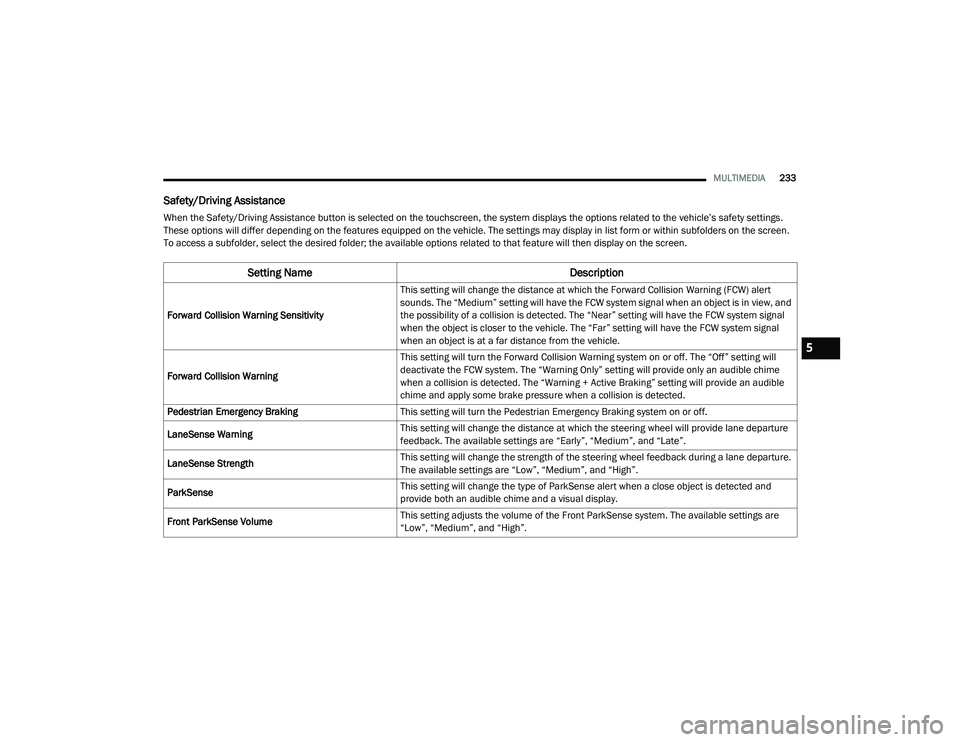
Safety/Driving Assistance
When the Safety/Driving Assistance button is selected on the touchscreen, the system displays the options related to the vehicle’s safety settings.
These options will differ depending on the features equipped on the vehicle. The settings may display in list form or within subfolders on the screen.
To access a subfolder, select the desired folder; the available options related to that feature will then display on the screen.
Setting Name Description
Forward Collision Warning SensitivityThis setting will change the distance at which the Forward Collision Warning (FCW) alert
sounds. The “Medium” setting will have the FCW system signal when an object is in view, and
the possibility of a collision is detected. The “Near” setting will have the FCW system signal
when the object is closer to the vehicle. The “Far” setting will have the FCW system signal
when an object is at a far distance from the vehicle.
Forward Collision Warning This setting will turn the Forward Collision Warning system on or off. The “Off” setting will
deactivate the FCW system. The “Warning Only” setting will provide only an audible chime
when a collision is detected. The “Warning + Active Braking” setting will provide an audible
chime and apply some brake pressure when a collision is detected.
Pedestrian Emergency Braking This setting will turn the Pedestrian Emergency Braking system on or off.
LaneSense Warning This setting will change the distance at which the steering wheel will provide lane departure
feedback. The available settings are “Early”, “Medium”, and “Late”.
LaneSense Strength This setting will change the strength of the steering wheel feedback during a lane departure.
The available settings are “Low”, “Medium”, and “High”.
ParkSense This setting will change the type of ParkSense alert when a close object is detected and
provide both an audible chime and a visual display.
Front ParkSense Volume This setting adjusts the volume of the Front ParkSense system. The available settings are
“Low”, “Medium”, and “High”.
5
21_DPF_OM_EN_USC_t.book Page 233
Page 236 of 463

234MULTIMEDIA
Rear ParkSense Volume This setting adjusts the volume of the Rear ParkSense system. The available settings are
“Low”, “Medium”, and “High”.
Rear ParkSense Braking Assist This setting will turn the Rear ParkSense Braking Assist on or off.
Blind Spot Alert This setting will change the type of alert provided when an object is detected in a vehicle’s
blind spot. The “Off” setting will turn off Blind Spot Alert. The “Lights” setting will activate the
Blind Spot Alert lights on the outside mirrors. The “Lights & Chime” setting will activate both
the lights on the outside mirrors and an audible chime.
Trailer Length For Blind Spot Alert This setting will auto detect the length of an attached trailer. The “Auto” setting will have the
system automatically set the trailer length. The “Max” setting will always set the length to the
maximum 39.5 ft (12 m).
Hill Start Assist This setting will turn the Hill Start Assist system on or off.
ParkView Backup Camera Delay This setting will add a timed delay to the rear backup camera when shifting out of reverse.
ParkView Backup Camera Active Guidelines This setting will turn the Backup Camera Active Guidelines on or off.
ParkView Backup Camera Fixed Guidelines This setting will turn the Backup Camera Fixed Guidelines on or off.
Tire Fill Assist This setting will turn Tire Fill Assist on or off.
Power Side Steps
This setting will raise and lower or stow the power side steps. The available options are “Automatic” to
raise and lower the power side steps and “Stow” to deactivate the power side steps.
Setting Name
Description
21_DPF_OM_EN_USC_t.book Page 234
Page 239 of 463

MULTIMEDIA237
Doors & Locks
When the Doors & Locks button is pressed on the touchscreen, the system displays the options related to locking and unlocking the vehicle’s doors.
Setting Name Description
Auto Door LocksThis setting will allow you to change if the doors lock automatically when the vehicle reaches
12 mph (19 km/h).
Auto Unlock On Exit This setting will unlock the doors when any of the doors are opened from the inside.
Flash Lights With Lock This setting will allow you to turn the flashing of the lights when the Lock button is pushed on
the key fob on or off.
Sound Horn With Lock This setting will sound the horn when the Lock button is pushed on the key fob. The “Off”
setting will not sound the horn when the Lock button is pushed. The “1st Press” setting will
sound the horn when the Lock button is pushed once. The “2nd Press” setting will sound the
horn when the Lock button is pushed twice.
Sound Horn With Remote Start This setting will sound the horn when the remote start is activated from the key fob.
Remote Door Unlock, Door Lock/1st Press Of Key Fob
Unlocks This setting will change how many pushes of the Unlock button on the key fob are needed to
unlock all the doors. The “Driver Door” setting will only unlock the driver door on the first push
on the Unlock button. The “All Doors” setting will unlock all doors with only one push of the
Unlock button.
Passive Entry This setting will allow you to turn the Passive Entry feature (Keyless Enter-N-Go) on or off.
Personal Settings Linked To Key Fob This setting will recall preset radio stations and driver seat position that have been linked to
the key fob.
5
21_DPF_OM_EN_USC_t.book Page 237
Page 243 of 463

MULTIMEDIA241
Trailer Brake/Trailer
When the Trailer Brake/Trailer button is pressed on the touchscreen, the system will display settings related to trailer towing.
Audio
When the Audio button is pressed on the touchscreen, the system displays options related to the vehicle’s sound system. These settings can change
the audio location within the vehicle, adjust the bass or treble levels, and auto-play settings from an audio device or smartphone.
Setting Name Description
Trailer SelectSelect from “Trailer 1”, “Trailer 2”, “Trailer 3”, and “Trailer 4”. These trailer designations can
be used to save different trailer settings.
Trailer Brake Type
This setting will set the system to a specific trailer type. The available options are “Light
Electric”, “Heavy Electric”, “Light Electric-Over-Hydraulic”, and “Heavy Electric-Over-Hydraulic”.
Trailer Name This setting will personalize the trailer name depending on the type of trailer you are hauling.
Select the trailer name from the following list: trailer, boat, car, cargo, dump, equipment,
flatbed, gooseneck, horse, livestock, motorcycle, snowmobile, travel, utility, and 5th wheel.
Setting Name
Description
Balance/FadeThis setting will adjust audio levels from specific speakers in the front/back and left/right of
the vehicle. The Speaker icon can be moved to set audio location.
Equalizer This setting will adjust the “Bass”, “Mid”, and “Treble” ranges of the audio.
Speed Adjusted Volume This setting will adjust audio volume as speeds increase. At a higher setting, the volume will
increase more as the vehicle speeds up. The available settings are “Off”, “1”, “2”, and “3”.
Surround Sound This setting will turn the Surround Sound system on or off.
5
21_DPF_OM_EN_USC_t.book Page 241
Page 245 of 463
MULTIMEDIA243
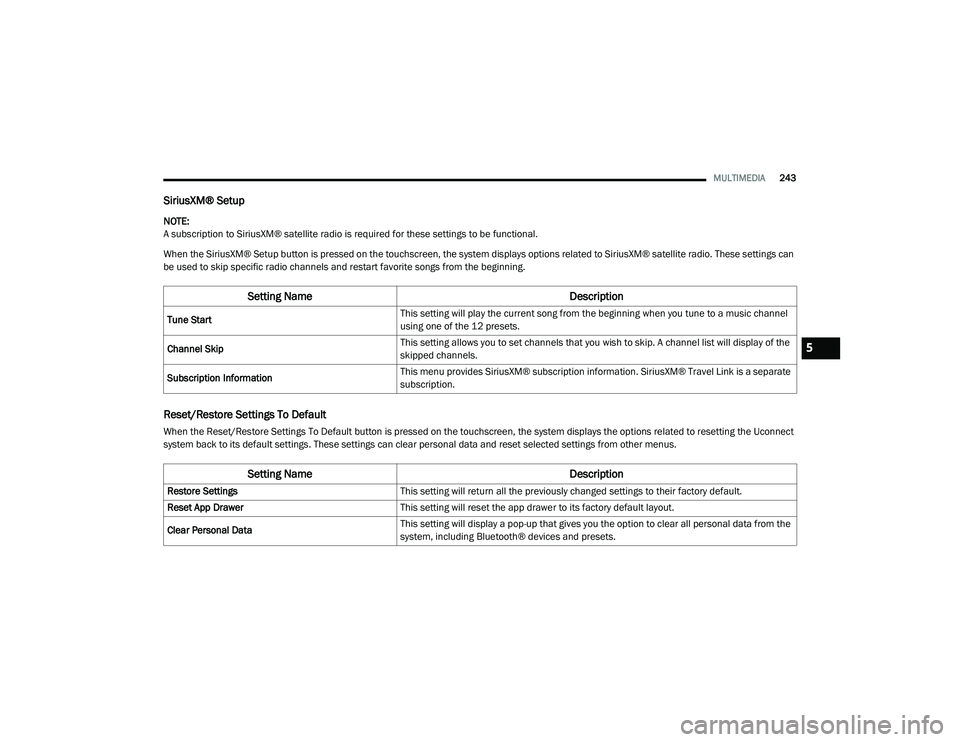
SiriusXM® Setup
NOTE:
A subscription to SiriusXM® satellite radio is required for these settings to be functional.
When the SiriusXM® Setup button is pressed on the touchscreen, the system displays options related to SiriusXM® satellite radio. These settings can
be used to skip specific radio channels and restart favorite songs from the beginning.
Reset/Restore Settings To Default
When the Reset/Restore Settings To Default button is pressed on the touchscreen, the system displays the options related to resetting the Uconnect
system back to its default settings. These settings can clear personal data and reset selected settings from other menus.
Setting Name Description
Tune StartThis setting will play the current song from the beginning when you tune to a music channel
using one of the 12 presets.
Channel Skip This setting allows you to set channels that you wish to skip. A channel list will display of the
skipped channels.
Subscription Information This menu provides SiriusXM® subscription information. SiriusXM® Travel Link is a separate
subscription.
Setting Name
Description
Restore SettingsThis setting will return all the previously changed settings to their factory default.
Reset App Drawer This setting will reset the app drawer to its factory default layout.
Clear Personal Data This setting will display a pop-up that gives you the option to clear all personal data from the
system, including Bluetooth® devices and presets.
5
21_DPF_OM_EN_USC_t.book Page 243