steering wheel RAM CHASSIS CAB 2021 Owner's Guide
[x] Cancel search | Manufacturer: RAM, Model Year: 2021, Model line: CHASSIS CAB, Model: RAM CHASSIS CAB 2021Pages: 463, PDF Size: 21.5 MB
Page 191 of 463
STARTING AND OPERATING189
Zoom View is not available with the AUX
Camera feature.
The display will always default to the Trailer
Camera display (AUX 1).
SURROUND VIEW CAMERA SYSTEM — IF
EQUIPPED
Your vehicle may be equipped with the Surround
View Camera system that allows you to see an
on-screen image of the surroundings and Top
View of your vehicle whenever the gear selector is
put into REVERSE or manually activated via the
Uconnect system. The Top View of the vehicle will
show which doors are open. The image will be
displayed on the touchscreen display along with
a caution note “Check Entire Surroundings”
across the top of the screen. After five seconds,
this note will disappear. The Surround View
Camera system is comprised of three sequential
cameras located in the front grille and side
mirrors, in addition to a fourth Rear Back Up
Camera.
NOTE:
For the 3500, 4500, and 5500 Chassis Cab vehi
-
cles, the Rear Backup Camera is shipped loose
and not installed. Please refer to the Ram Body
Builder’s Guide for more information.
The Surround View Camera system has
programmable settings that may be selected
through the Uconnect system Ú page 228.
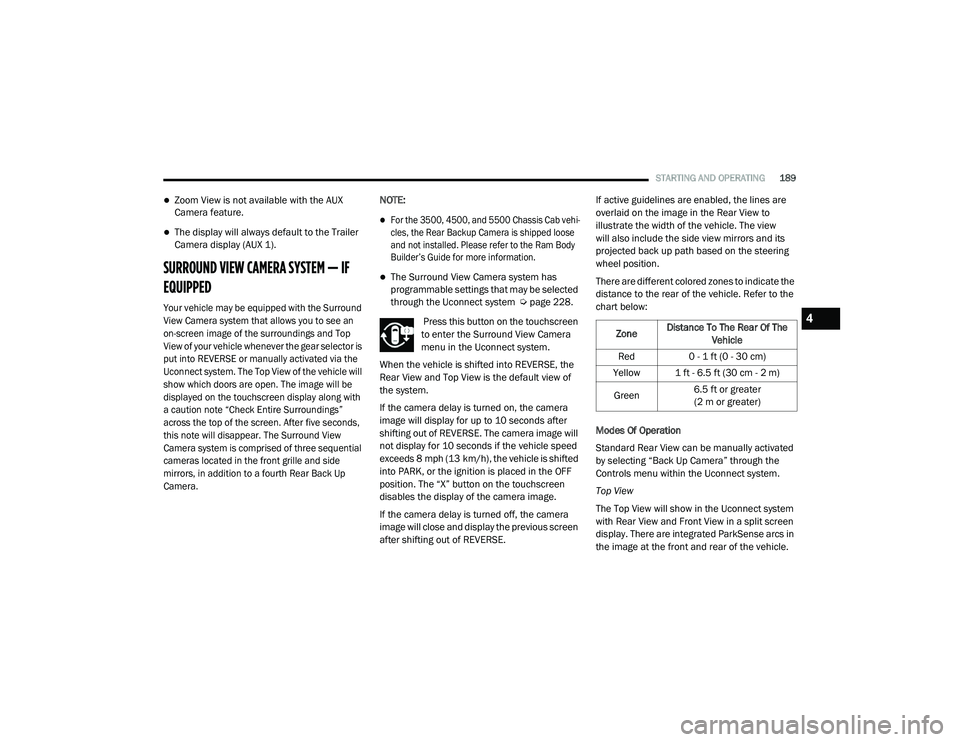
Press this button on the touchscreen
to enter the Surround View Camera
menu in the Uconnect system.
When the vehicle is shifted into REVERSE, the
Rear View and Top View is the default view of
the system.
If the camera delay is turned on, the camera
image will display for up to 10 seconds after
shifting out of REVERSE. The camera image will
not display for 10 seconds if the vehicle speed
exceeds 8 mph (13 km/h), the vehicle is shifted
into PARK, or the ignition is placed in the OFF
position. The “X” button on the touchscreen
disables the display of the camera image.
If the camera delay is turned off, the camera
image will close and display the previous screen
after shifting out of REVERSE. If active guidelines are enabled, the lines are
overlaid on the image in the Rear View to
illustrate the width of the vehicle. The view
will also include the side view mirrors and its
projected back up path based on the steering
wheel position.
There are different colored zones to indicate the
distance to the rear of the vehicle. Refer to the
chart below:
Modes Of Operation
Standard Rear View can be manually activated
by selecting “Back Up Camera” through the
Controls menu within the Uconnect system.
Top View
The Top View will show in the Uconnect system
with Rear View and Front View in a split screen
display. There are integrated ParkSense arcs in
the image at the front and rear of the vehicle.
Zone
Distance To The Rear Of The
Vehicle
Red 0 - 1 ft (0 - 30 cm)
Yellow 1 ft - 6.5 ft (30 cm - 2 m)
Green 6.5 ft or greater
(2 m or greater)
4
21_DPF_OM_EN_USC_t.book Page 189
Page 208 of 463
206STARTING AND OPERATING
(Continued)
Towing Requirements — Tires
Do not attempt to tow a trailer while using a
compact spare tire.
Do not drive more than 50 mph (80 km/h) when towing while using a full size spare tire.
Proper tire inflation pressures are essential
to the safe and satisfactory operation of your
vehicle.
Check the trailer tires for proper tire inflation
pressures before trailer usage.
Check for signs of tire wear or visible tire
damage before towing a trailer.
For the proper tire replacement procedures.
Replacing tires with a higher load carrying
capacity will not increase the vehicle's GVWR
and GAWR limits.
For further information Ú page 406.
Towing Requirements — Trailer Brakes
Do not interconnect the hydraulic brake
system or vacuum system of your vehicle
with that of the trailer. This could cause inad -
equate braking and possible personal injury.
An electronically actuated trailer brake
controller is required when towing a trailer
with electronically actuated brakes. When
towing a trailer equipped with a hydraulic
surge actuated brake system, an electronic
brake controller is not required.
Trailer brakes are recommended for trailers
over 1,000 lbs (453 kg) and required for
trailers in excess of 2,000 lbs (907 kg).
WARNING!
Make certain that the load is secured in the
trailer and will not shift during travel. When
trailering cargo that is not fully secured,
dynamic load shifts can occur that may be diffi -
cult for the driver to control. You could lose
control of your vehicle and have a collision.
When hauling cargo or towing a trailer, do
not overload your vehicle or trailer. Over -
loading can cause a loss of control, poor
performance or damage to brakes, axle,
engine, transmission, steering, suspension,
chassis structure or tires.
Safety chains must always be used
between your vehicle and trailer. Always
connect the chains to the hook retainers of
the vehicle hitch. Cross the chains under
the trailer tongue and allow enough slack
for turning corners.
Vehicles with trailers should not be parked
on a grade. When parking, apply the
parking brake on the tow vehicle. Put the
tow vehicle transmission in PARK. For
four-wheel drive vehicles, make sure the
transfer case is not in NEUTRAL. Always,
block or "chock" the trailer wheels.
GCWR must not be exceeded.
Total weight must be distributed between
the tow vehicle and the trailer such that the
following four ratings are not exceeded :
GVWR
GTW
GAWR
Tongue weight rating for the trailer
hitch utilized.
WARNING! (Continued)
21_DPF_OM_EN_USC_t.book Page 206
Page 210 of 463
208STARTING AND OPERATING
If a fault is detected in the trailer wiring or the
Integrated Trailer Brake Module (ITBM), the
“Trailer Brake Status Indicator Light” will flash.
GAIN Adjustment Buttons (+/-)
Pushing these buttons will adjust the brake
control power output to the trailer brakes in
0.5 increments. The GAIN setting can be
increased to a maximum of 10 or decreased
to a minimum of 0 (no trailer braking).
GAIN
The GAIN setting is used to set the trailer brake
control for the specific towing condition and
should be changed as towing conditions
change. Changes to towing conditions include
trailer load, vehicle load, road conditions and
weather.
Adjusting GAIN
NOTE:
This should only be performed in a traffic-free
environment at speeds of approximately
20–25 mph (30–40 km/h).
1. Make sure the trailer brakes are in good
working condition, functioning normally
and properly adjusted. See a trailer dealer
if necessary.
2. Hook up the trailer and make the electrical connections according to the trailer
manufacturer's instructions.
3. When a trailer with electric/EOH brakes is plugged in, the trailer connected message
should appear in the instrument cluster
display (if the connection is not recognized
by the ITBM, braking functions will not be
available), the GAIN setting will illuminate
and the correct type of trailer must be
selected from the instrument cluster display
options.
4. Push the UP or DOWN button on the steering wheel until “TRAILER TOW”
appears on the screen.
5. Push the RIGHT arrow on the steering wheel to enter “TRAILER TOW”. 6. Push the UP or DOWN buttons until the
Trailer Brake Type appears on the screen.
7. Push the RIGHT arrow and then push the UP or DOWN buttons until the proper Trailer
Brake Type appears on the screen.
8. In a traffic-free environment, tow the trailer on a dry, level surface at a speed of
20–25 mph (30–40 km/h) and squeeze
the manual brake control lever completely.
9. If the trailer wheels lockup (indicated by squealing tires), reduce the GAIN setting; if
the trailer wheels turn freely, increase the
GAIN setting.
Repeat steps 8 and 9 until the GAIN setting is at
a point just below trailer wheel lockup. If towing
a heavier trailer, trailer wheel lockup may not be
attainable even with the maximum GAIN setting
of 10.
21_DPF_OM_EN_USC_t.book Page 208
Page 223 of 463
MULTIMEDIA221
NOTE:
FCA US LLC or your dealer may contact you
directly regarding software updates.
To help further improve vehicle security and
minimize the potential risk of a security
breach, vehicle owners should:
Routinely check www.driveuconnect.com
(US Residents) or www.driveuconnect.ca
(Canadian Residents) to learn about
available Uconnect software updates.
Only connect and use trusted media
devices (e.g. personal mobile phones,
USBs, CDs).
Privacy of any wireless and wired
communications cannot be assured. Third
parties may unlawfully intercept information
and private communications without your
consent Ú page 116.
UCONNECT 3.0
INTRODUCTION
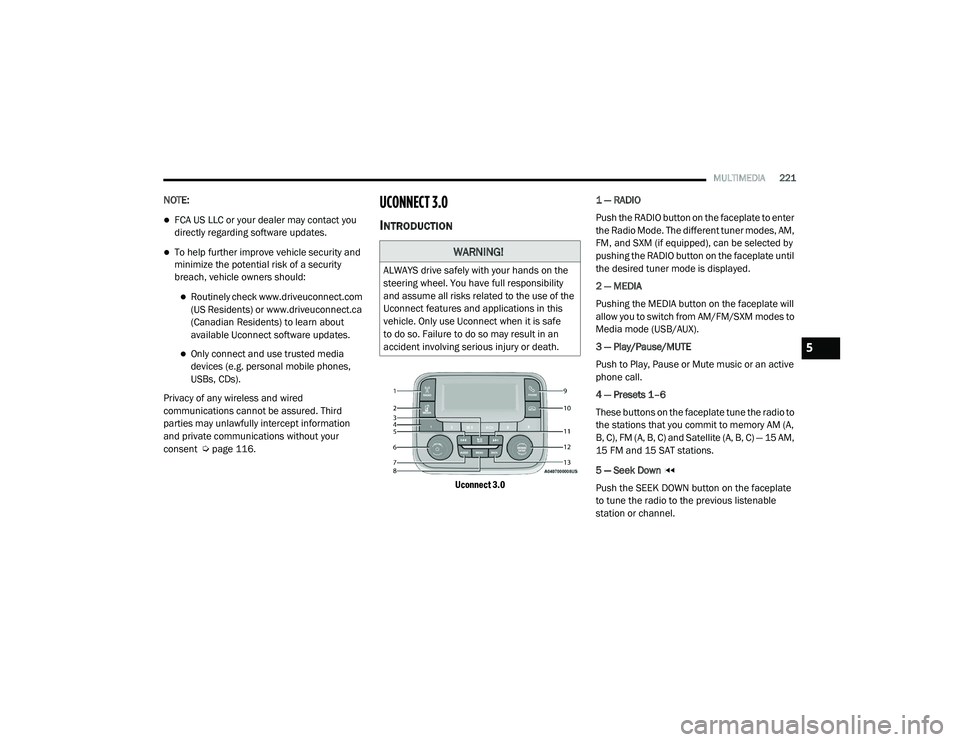
Uconnect 3.0
1 — RADIO
Push the RADIO button on the faceplate to enter
the Radio Mode. The different tuner modes, AM,
FM, and SXM (if equipped), can be selected by
pushing the RADIO button on the faceplate until
the desired tuner mode is displayed.
2 — MEDIA
Pushing the MEDIA button on the faceplate will
allow you to switch from AM/FM/SXM modes to
Media mode (USB/AUX).
3 — Play/Pause/MUTE
Push to Play, Pause or Mute music or an active
phone call.
4 — Presets 1–6
These buttons on the faceplate tune the radio to
the stations that you commit to memory AM (A,
B, C), FM (A, B, C) and Satellite (A, B, C) — 15 AM,
15 FM and 15 SAT stations.
5 — Seek Down
Push the SEEK DOWN button on the faceplate
to tune the radio to the previous listenable
station or channel.
WARNING!
ALWAYS drive safely with your hands on the
steering wheel. You have full responsibility
and assume all risks related to the use of the
Uconnect features and applications in this
vehicle. Only use Uconnect when it is safe
to do so. Failure to do so may result in an
accident involving serious injury or death.
5
21_DPF_OM_EN_USC_t.book Page 221
Page 228 of 463
226MULTIMEDIA
Uconnect System Support:
US residents visit
DriveUconnect.com
or call
1-877-855-8400 (24 hours a day, 7 days a week)
Canadian residents visit DriveUconnect.ca or
call 1-800-465-2001 (English) or
1-800-387-9983 (French)
Monday–Friday: 8:00 am – 8:00 pm, ET
Saturday: 9:00 am – 5:00 pm, ET
Sunday: Closed
Changing The Volume
1. Start a call by pushing the Phone button, then
adjust the volume during a normal call.
2. Use the radio On/Volume rotary knob to adjust the volume to a comfortable level. Please note the volume setting for
Uconnect phone is different than the
audio system volume setting.
Making A Phone Call
1. Push the Phone button on the steering wheel.
2. After the beep, say “dial” or “call” and then
the full name or phone number.
NOTE:
A phone call can also be made by pushing the Phone
button on the radio, and selecting a particular
contact in the phonebook or recent calls.
Mute (Or Unmute) Microphone During Call
Push the “Play/Pause/Mute” button on
the radio or during a call, push the Voice
Recognition button on the steering wheel.
After the beep, say “mute” (or “mute off”).
Pairing A Phone
To begin using your Uconnect Phone, you must
pair your compatible Bluetooth®-enabled mobile
phone. Mobile phone pairing is the process of
establishing a wireless connection between a
cellular phone and the Uconnect system. To complete the pairing process, you will need to
reference your mobile phone Owner's Manual.
Please visit
UconnectPhone.com
for complete
mobile phone compatibility information.
NOTE:
You must have Bluetooth® enabled on your
phone to complete this procedure.
The vehicle must be in PARK.
1. Place the ignition in the ACC or ON/RUN position.
2. Push the Phone button.
NOTE:
If there are no phones currently connected with
the system, a pop-up will appear asking if you
would like to pair a mobile phone.
3. Select “Yes” to begin the pairing process.
4. Search for available devices on your Bluetooth®-enabled mobile phone.
Press the Settings button on your mobile
phone.
Select “Bluetooth®” and ensure it is
enabled. Once enabled, the mobile
phone will begin to search for Bluetooth®
connections.
WARNING!
ALWAYS drive safely with your hands on the
wheel. You have full responsibility and
assume all risks related to the use of the
Uconnect features and applications in this
vehicle. Only use Uconnect when it is safe
to do so. Failure to do so may result in an
accident involving serious injury or death.
21_DPF_OM_EN_USC_t.book Page 226
Page 229 of 463
MULTIMEDIA227
5. If “No” is selected, and you still would like to
pair a mobile phone, press the Settings
button from the Uconnect Phone main
screen.
Select “Paired Phones”, and then select
“Add Device”.
Search for available devices on your
Bluetooth®-enabled mobile phone (see
below). When prompted on the phone,
select “Uconnect” and accept the
connection request.
6. Uconnect Phone will display an in-progress screen while the system is connecting.
7. When your mobile phone finds the Uconnect system, select “Uconnect”.
8. When prompted on the mobile phone, accept the connection request from
Uconnect Phone.
NOTE:
Some mobile phones will require you to enter
the PIN. 9. When the pairing process has successfully
completed, the system will prompt you to
choose whether or not this is your favorite
phone. Selecting “Yes” will make this phone
the highest priority. This phone will take
precedence over other paired phones within
range and will connect to the Uconnect
system automatically when entering the
vehicle. Only one mobile phone and/or one
Bluetooth® audio device can be connected
to the Uconnect system at a time. If “No” is
selected, simply select “Uconnect” from the
mobile phone/audio device Bluetooth®
screen, and the Uconnect system
reconnects to the Bluetooth® device.
NOTE:
Software updates on your phone or the
Uconnect system may interfere with the
Bluetooth® connection. If this happens, simply
repeat the pairing process. However, first, make
sure to delete the device from the list of phones
on your Uconnect system. Next, be sure to
remove Uconnect from the list of devices in your
phone’s Bluetooth® settings.
Phonebook Download — Phonebook
Transfer From Mobile Phone
If equipped and specifically supported by your
phone, Uconnect Phone will ask you if you want
to download names (text names) and number
entries from your mobile phone’s phonebook.
Specific Bluetooth® Phones with Phonebook
Access Profile may support this feature. See
UconnectPhone.com for supported phones.
Receiving A Call — Accept (And End)
1. When an incoming call rings or is announced on Uconnect, push the
Phone button on the faceplate.
2. To end a call, push the Phone button on the steering wheel or the Phone button on the
faceplate.
NOTE:
A phone call can also be accepted and ended by
pushing the steering wheel Phone button.
Transfer Ongoing Call Between Handset
And Vehicle
With a call in progress, use the Browse/Enter
knob to select “transfer” then push the enter
button or push the Phone Pick Up button on the
5
21_DPF_OM_EN_USC_t.book Page 227
Page 230 of 463
228MULTIMEDIA
steering wheel controls during a call, push the
Voice Recognition button on the steering wheel.
After the beep, say “transfer call”.
UCONNECT SETTINGS
The Uconnect system uses a combination of
buttons on the touchscreen and buttons on the
faceplate located on the center of the instrument
panel. These buttons allow you to access and
change the Customer Programmable Features.
Many features can vary by vehicle.
Buttons on the faceplate are located below
and/or beside the Uconnect system in the
center of the instrument panel. In addition,
there is a Scroll/Enter control knob located on
the right side. Turn the control knob to scroll
through menus and change settings. Push the
center of the control knob one or more times to
select or change a setting.
Your Uconnect system may also have Screen
Off and Mute buttons on the faceplate.
Push the Screen Off button on the faceplate to
turn off the Uconnect screen. Push the button
again or tap the screen to turn the screen on.
Press the Back Arrow button to exit out of a
Menu or certain option on the Uconnect system.
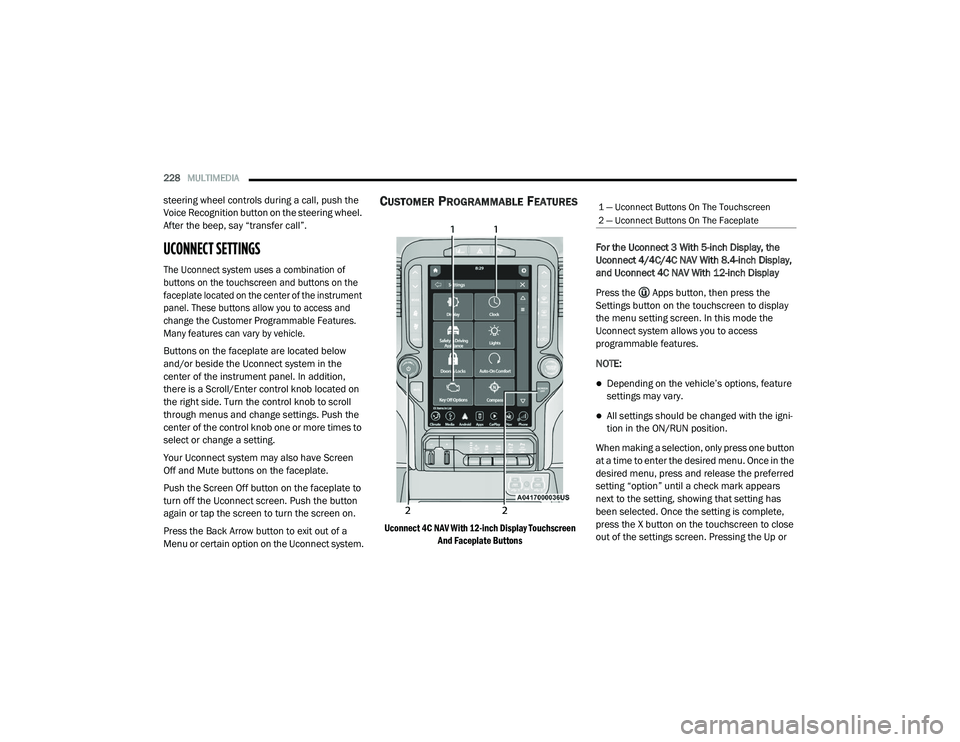
CUSTOMER PROGRAMMABLE FEATURES
Uconnect 4C NAV With 12-inch Display Touchscreen
And Faceplate Buttons
For the Uconnect 3 With 5-inch Display, the
Uconnect 4/4C/4C NAV With 8.4-inch Display,
and Uconnect 4C NAV With 12-inch Display
Press the Apps button, then press the
Settings button on the touchscreen to display
the menu setting screen. In this mode the
Uconnect system allows you to access
programmable features.
NOTE:
Depending on the vehicle’s options, feature
settings may vary.
All settings should be changed with the igni
-
tion in the ON/RUN position.
When making a selection, only press one button
at a time to enter the desired menu. Once in the
desired menu, press and release the preferred
setting “option” until a check mark appears
next to the setting, showing that setting has
been selected. Once the setting is complete,
press the X button on the touchscreen to close
out of the settings screen. Pressing the Up or
1 — Uconnect Buttons On The Touchscreen
2 — Uconnect Buttons On The Faceplate
21_DPF_OM_EN_USC_t.book Page 228
Page 235 of 463
MULTIMEDIA233
Safety/Driving Assistance
When the Safety/Driving Assistance button is selected on the touchscreen, the system displays the options related to the vehicle’s safety settings.
These options will differ depending on the features equipped on the vehicle. The settings may display in list form or within subfolders on the screen.
To access a subfolder, select the desired folder; the available options related to that feature will then display on the screen.
Setting Name Description
Forward Collision Warning SensitivityThis setting will change the distance at which the Forward Collision Warning (FCW) alert
sounds. The “Medium” setting will have the FCW system signal when an object is in view, and
the possibility of a collision is detected. The “Near” setting will have the FCW system signal
when the object is closer to the vehicle. The “Far” setting will have the FCW system signal
when an object is at a far distance from the vehicle.
Forward Collision Warning This setting will turn the Forward Collision Warning system on or off. The “Off” setting will
deactivate the FCW system. The “Warning Only” setting will provide only an audible chime
when a collision is detected. The “Warning + Active Braking” setting will provide an audible
chime and apply some brake pressure when a collision is detected.
Pedestrian Emergency Braking This setting will turn the Pedestrian Emergency Braking system on or off.
LaneSense Warning This setting will change the distance at which the steering wheel will provide lane departure
feedback. The available settings are “Early”, “Medium”, and “Late”.
LaneSense Strength This setting will change the strength of the steering wheel feedback during a lane departure.
The available settings are “Low”, “Medium”, and “High”.
ParkSense This setting will change the type of ParkSense alert when a close object is detected and
provide both an audible chime and a visual display.
Front ParkSense Volume This setting adjusts the volume of the Front ParkSense system. The available settings are
“Low”, “Medium”, and “High”.
5
21_DPF_OM_EN_USC_t.book Page 233
Page 238 of 463

236MULTIMEDIA
Lights
When the Lights button is pressed on the touchscreen, the system displays the options related to the vehicle’s exterior and interior lights.
NOTE:
When the “Daytime Running Lights” feature is selected, the daytime running lights can be turned on or off. This feature is only allowed by law in the
country of the vehicle purchased.
Setting Name Description
Headlight Off DelayThis setting will allow you to set the amount of time it takes for the headlights to shut off after
the vehicle is turned off. The available settings are “0 sec”, “30 sec”, “60 sec”, and “90 sec”.
Headlight Illumination On Approach This setting will allow you to set the amount of time it takes for the headlights to shut off after
the vehicle is unlocked. The available settings are “0 sec”, “30 sec”, “60 sec”, and “90 sec”.
Headlights with Wipers This setting will turn the headlights on when the wipers are activated.
Daytime Running Lights This setting will allow you to turn the Daytime Running Lights on or off.
Flash Lights With Lock This setting will allow you to turn the flashing of the lights when the Lock button is pushed on
the key fob on or off.
Auto Dim High Beams This setting will allow you to turn the Auto Dim High Beams on or off.
Steering Directed Lights This setting will turn the headlights with the steering wheel. The available options are “On”
and “Off”.
21_DPF_OM_EN_USC_t.book Page 236
Page 240 of 463

238MULTIMEDIA
Power Side Steps
When the Power Side Steps button is pressed on the touchscreen, the system will display the setting related to the lowering of the power side steps.
Seats & Comfort/Auto-On Comfort
When Seats & Comfort/Auto-On Comfort button is pressed on the touchscreen, the system displays the options related to the vehicle’s comfort systems
when remote start has been activated or the vehicle has been started.
Setting Name Description
Power Side Steps
This setting will raise and lower or stow the power side steps. The available options are “Automatic” to
raise and lower the power side steps and “Stow” to deactivate the power side steps.
Setting Name
Description
Auto-On Driver Heated/Ventilated Seat & Heated
Steering Wheel With Vehicle Start
This setting will activate the vehicle’s comfort systems and heated seats (if equipped) or
heated steering wheel (if equipped) when the vehicle is remote started or ignition is started.
The “Off” setting will not activate the comfort systems. The “Remote Start” setting will only
activate the comfort systems when using Remote Start. The “All Start” setting will activate the
comfort systems whenever the vehicle is started.
Easy Exit Seats This setting will automatically move the driver seat rearward when the engine is shut off.
The available settings are “On” and “Off”.
21_DPF_OM_EN_USC_t.book Page 238