buttons RAM PROMASTER CITY 2022 User Guide
[x] Cancel search | Manufacturer: RAM, Model Year: 2022, Model line: PROMASTER CITY, Model: RAM PROMASTER CITY 2022Pages: 260, PDF Size: 8.45 MB
Page 107 of 260
MULTIMEDIA105
Depending on the maximum number of entries
downloaded, there may be a short delay before
the latest downloaded names can be used. Until
then, if available, the previously downloaded
phonebook is available for use.
Only the phonebook of the currently connected
mobile phone is accessible.
This downloaded phonebook cannot be edited
or deleted on the Uconnect Phone. These can
only be edited on the mobile phone. The
changes are transferred and updated to
Uconnect Phone on the next phone connection.
MANAGING YOUR FAVORITES — IF EQUIPPED
There are two ways you can add an entry to your
favorites:
1. After loading the mobile phonebook, press
the Favorites button on the touchscreen, and
then press one of the +Add Favorite Contact
buttons that appears on the list.
2. After loading the mobile phonebook, select “Contacts” from the Phone main screen, and
then select the appropriate number. Press the
Down Arrow button next to the selected
number to display the options pop-up. In the
pop-up, select “Add to Favorites”.
NOTE:If the Favorites list is full, you will be asked to
remove an existing favorite.
TO REMOVE A FAVORITE — IF EQUIPPED
1. To remove a Favorite, select “Favorites” from the Phone main screen.
2. Next, select the Down Arrow icon next to the contact you want to remove from your
favorites. This will bring up the options for that
Favorite contact.
3. Deselect the Star icon to delete the Favorite.
Phone Call Features
The following features can be accessed through
the Uconnect Phone if the feature(s) are available
and supported by Bluetooth® on your mobile
service plan. For example, if your mobile service
plan provides three-way calling, this feature can be
accessed through the Uconnect Phone. Check with
your mobile service provider for the features that
you have.
Listed below are the phone options with Uconnect
Phone:
Redial
Dial by pressing in the number
Voice Commands (Dial by Saying a Name, Call
by Saying a Phonebook Name, Redial or Call
Back)
Favorites
Mobile Phonebook
Recent Call Log
SMS Message Viewer
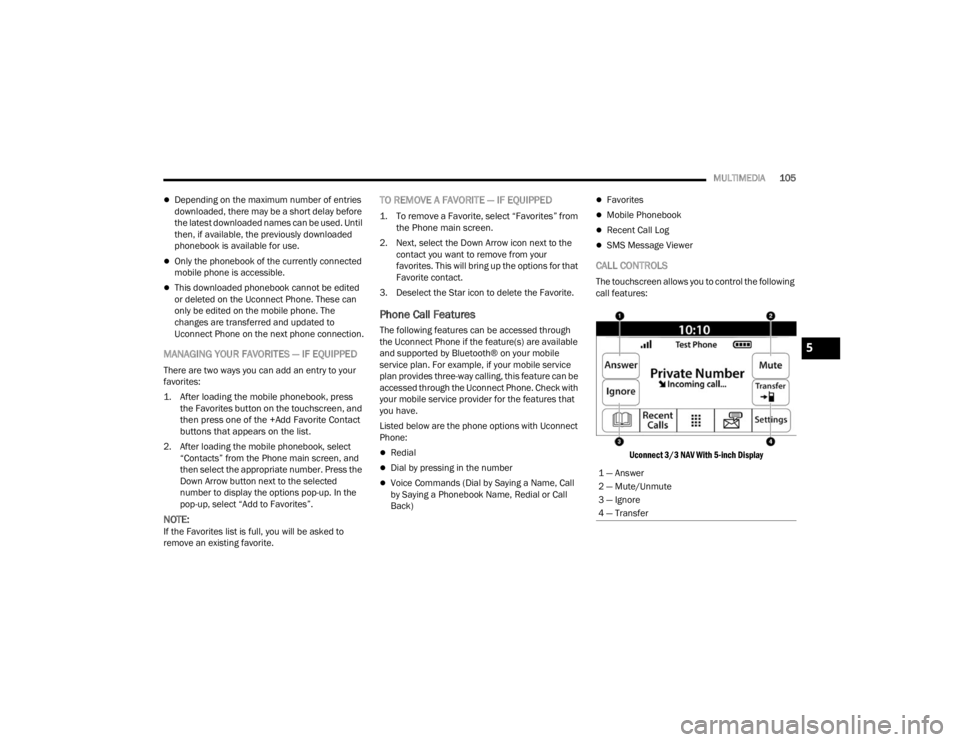
CALL CONTROLS
The touchscreen allows you to control the following
call features:
Uconnect 3/3 NAV With 5-inch Display
1 — Answer
2 — Mute/Unmute
3 — Ignore
4 — Transfer
5
22_VM_OM_EN_USC_t.book Page 105
Page 108 of 260
106MULTIMEDIA
Other phone call features include:
End Call
Hold/Unhold/Resume
Swap two active calls
KEY PAD NUMBER ENTRY
1. Press the Phone button on the faceplate.
2. Press the Dial/Keypad button on the touchscreen.
3. The Touch-Tone screen will be displayed.
4. Use the numbered buttons on the touchscreens to enter the number and press
“Dial/Call”.
RECENT CALLS
You may browse a list of the most recent of each of
the following call types:
All Calls
Incoming Calls or Calls Received
Outgoing Calls or Calls Made
Missed Calls
Calls without a reply
These can be accessed by pressing the Recent
Calls button on the phone main screen.
You can also push the VR button on your steering
wheel and perform the above operation. For
example, say “Show my incoming calls”.
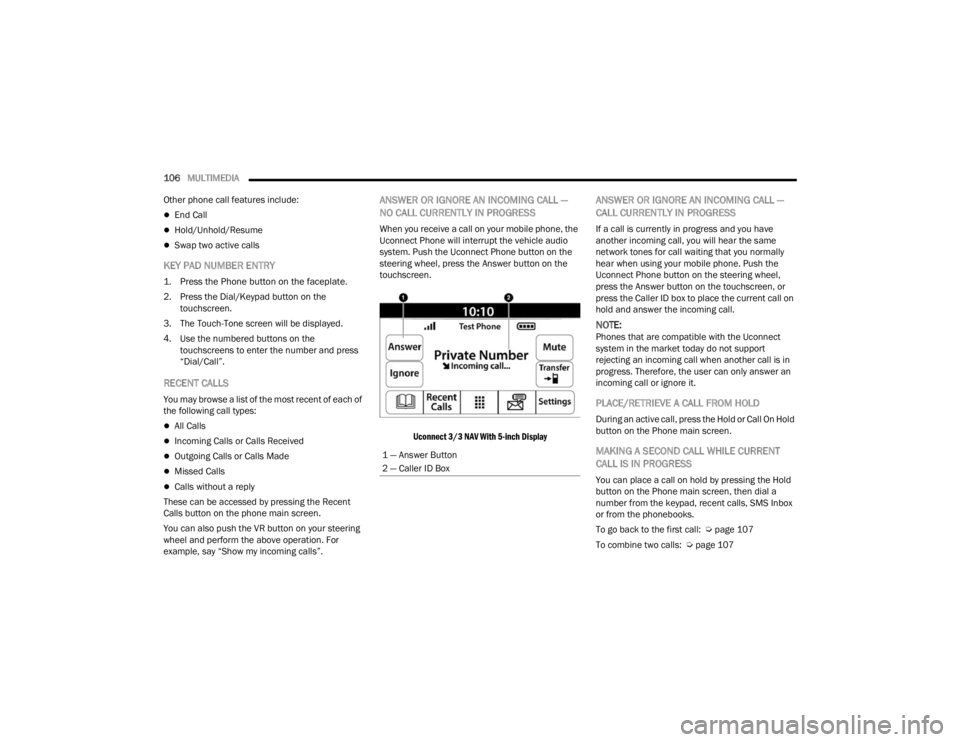
ANSWER OR IGNORE AN INCOMING CALL —
NO CALL CURRENTLY IN PROGRESS
When you receive a call on your mobile phone, the
Uconnect Phone will interrupt the vehicle audio
system. Push the Uconnect Phone button on the
steering wheel, press the Answer button on the
touchscreen.
Uconnect 3/3 NAV With 5-inch Display
ANSWER OR IGNORE AN INCOMING CALL —
CALL CURRENTLY IN PROGRESS
If a call is currently in progress and you have
another incoming call, you will hear the same
network tones for call waiting that you normally
hear when using your mobile phone. Push the
Uconnect Phone button on the steering wheel,
press the Answer button on the touchscreen, or
press the Caller ID box to place the current call on
hold and answer the incoming call.
NOTE:Phones that are compatible with the Uconnect
system in the market today do not support
rejecting an incoming call when another call is in
progress. Therefore, the user can only answer an
incoming call or ignore it.
PLACE/RETRIEVE A CALL FROM HOLD
During an active call, press the Hold or Call On Hold
button on the Phone main screen.
MAKING A SECOND CALL WHILE CURRENT
CALL IS IN PROGRESS
You can place a call on hold by pressing the Hold
button on the Phone main screen, then dial a
number from the keypad, recent calls, SMS Inbox
or from the phonebooks.
To go back to the first call: Ú page 107
To combine two calls: Ú page 107
1 — Answer Button
2 — Caller ID Box
22_VM_OM_EN_USC_t.book Page 106
Page 112 of 260
110MULTIMEDIA
NAVIGATION MODE — IF EQUIPPED
OPERATING NAVIGATION MODE —
I
F EQUIPPED
Planning A Route
Using the search bar provides a wide range of ways
to find places and then navigate to them. You can
search for your destination in different ways:
A specific address
A partial address
A type of place
A zip code
A city to navigate to a city center
A Point of Interest (POI) near your current location
Latitude and longitude coordinates Using Search
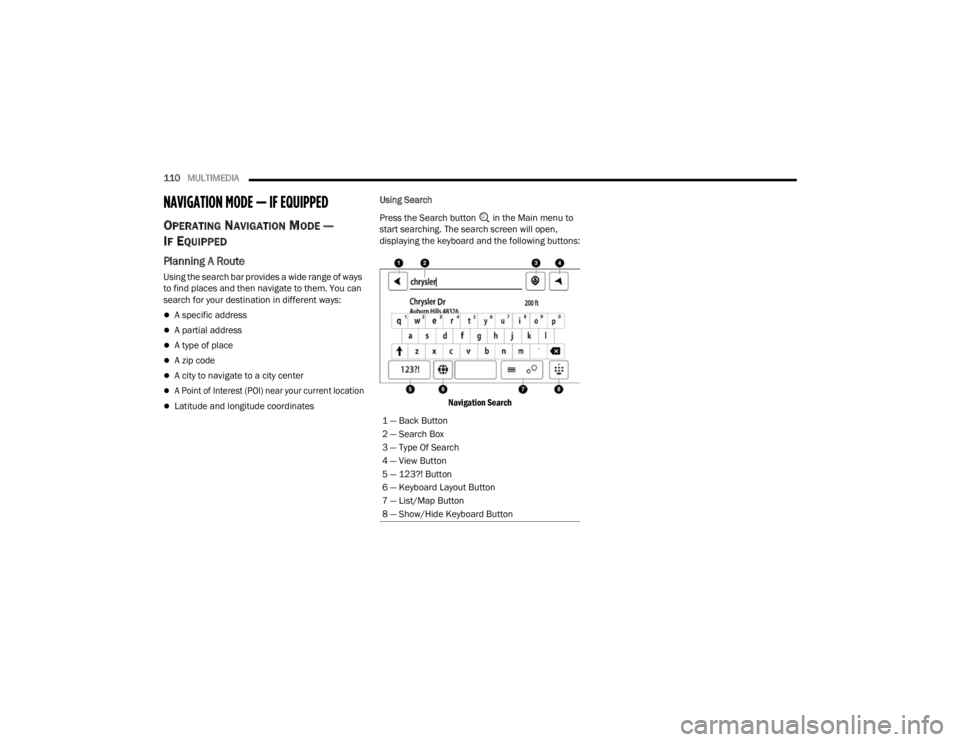
Press the Search button in the Main menu to
start searching. The search screen will open,
displaying the keyboard and the following buttons:
Navigation Search
1 — Back Button
2 — Search Box
3 — Type Of Search
4 — View Button
5 — 123?! Button
6 — Keyboard Layout Button
7 — List/Map Button
8 — Show/Hide Keyboard Button
22_VM_OM_EN_USC_t.book Page 110
Page 123 of 260
MULTIMEDIA121
Advanced Lane Guidance
NOTE:Lane guidance is not available for all intersections
or in all countries.
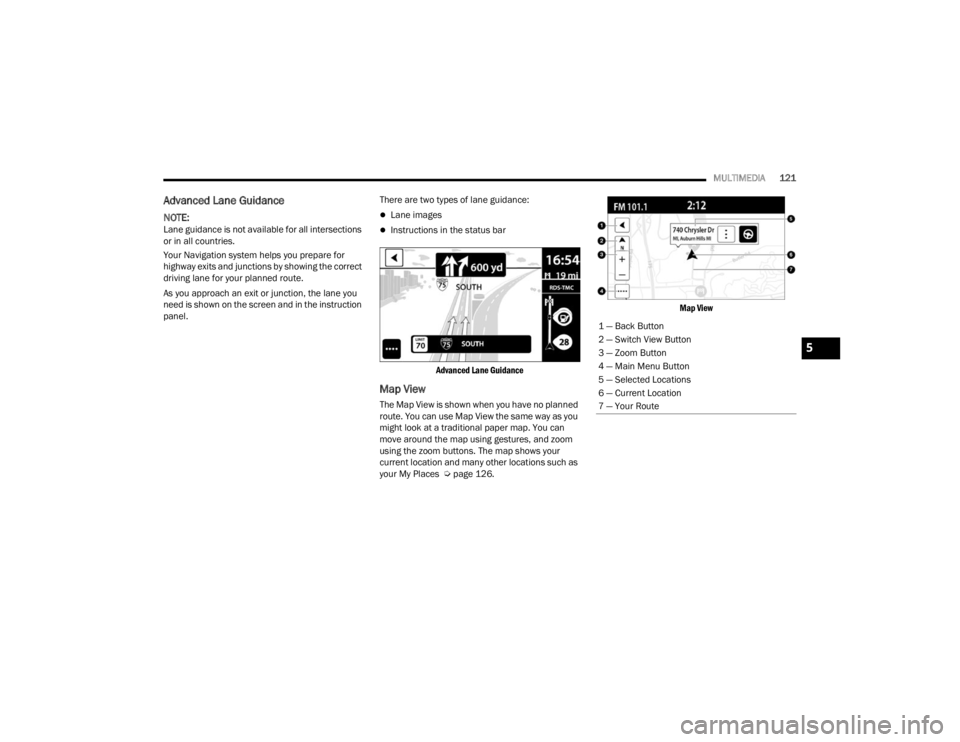
Your Navigation system helps you prepare for
highway exits and junctions by showing the correct
driving lane for your planned route.
As you approach an exit or junction, the lane you
need is shown on the screen and in the instruction
panel. There are two types of lane guidance:
Lane images
Instructions in the status bar
Advanced Lane Guidance
Map View
The Map View is shown when you have no planned
route. You can use Map View the same way as you
might look at a traditional paper map. You can
move around the map using gestures, and zoom
using the zoom buttons. The map shows your
current location and many other locations such as
your My Places Ú page 126.
Map View
1 — Back Button
2 — Switch View Button
3 — Zoom Button
4 — Main Menu Button
5 — Selected Locations
6 — Current Location
7 — Your Route
5
22_VM_OM_EN_USC_t.book Page 121