navigation system RENAULT ALASKAN 2017 User Guide
[x] Cancel search | Manufacturer: RENAULT, Model Year: 2017, Model line: ALASKAN, Model: RENAULT ALASKAN 2017Pages: 340, PDF Size: 6.93 MB
Page 136 of 340
HOW TO USE BACK BUTTON
Push the
screen. Vehicle information can be checked and various set-
tings can be adjusted on the display.
NOTE
Designs and items displayed on the screen may
vary depending on the models and specifications.
HOW TO USE INFO BUTTON
Push the
menu items on the display screen.
Available items:
• [Traffic Messages]
• [Eco Score]
[Traffic Messages] (where fitted)
Traffic Messages can be displayed on the display
screen when available. Refer to the separate Navi-
gation System Owner’s Manual for details.
[Eco Score] (where fitted)
The [Eco Score] feature analyses driving behaviour
and provides an overall score. Refer to the separate
Navigation System Owner’s Manual for details. HOW TO USE BUTTON
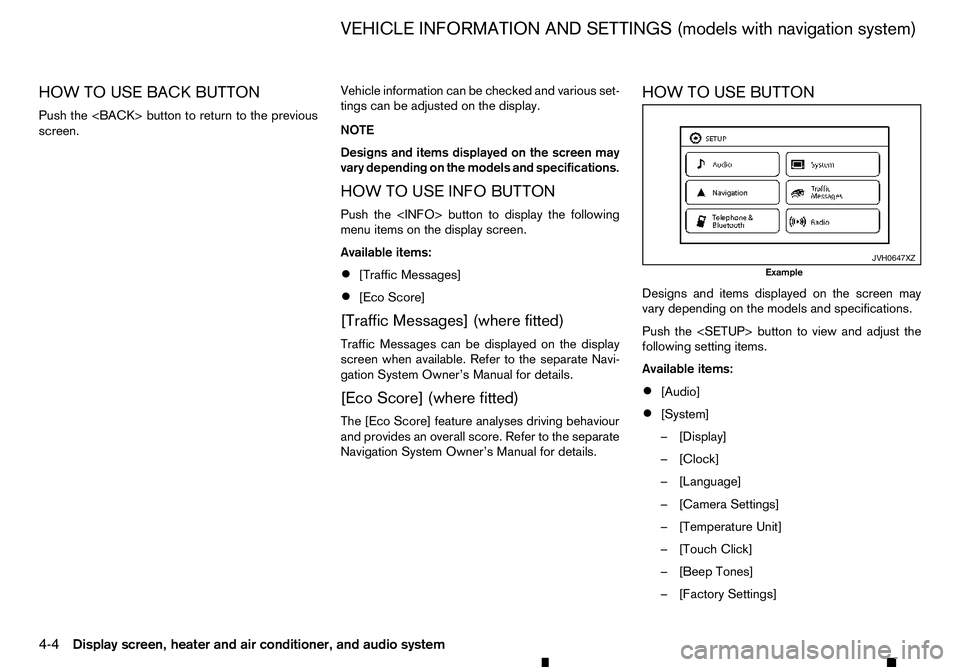
Designs and items displayed on the screen may
vary depending on the models and specifications.
Push the
following setting items.
Available items:
•
[Audio]
• [System]
–[
Display]
–[ Clock]
–[ Language]
–[ Camera Settings]
–[ Temperature Unit]
–[ Touch Click]
–[ Beep Tones]
–[ Factory Settings] JVH0647XZ
Example
VEHICLE INFORMATION AND SETTINGS (models with navigation system)
4-4 Display screen, heater and air conditioner, and audio system
Page 137 of 340
![RENAULT ALASKAN 2017 User Guide –[
Software Licenses]
• [Navigation]
• [Telephone
&Bluetooth]
• [Traffic Messages]
• [Radio]
[Audio] settings
Audio settings can be adjusted from the audio setup
screen.
This item is availab](/img/7/58394/w960_58394-136.png "RENAULT ALASKAN 2017 User Guide –[
Software Licenses]
• [Navigation]
• [Telephone
&Bluetooth]
• [Traffic Messages]
• [Radio]
[Audio] settings
Audio settings can be adjusted from the audio setup
screen.
This item is availab")
–[
Software Licenses]
• [Navigation]
• [Telephone
&Bluetooth]
• [Traffic Messages]
• [Radio]
[Audio] settings
Audio settings can be adjusted from the audio setup
screen.
This item is available only when the audio system is
turned on.
1. Push the
2. Touch the [Audio] key.
3. Select the item you wish to adjust.
[Bass]/[Treble]/[Balance]/[Fade]:
Touch the adjustment bar next to the corresponding
keys on the display to adjust the tone quality and
speaker balance.
The levels of these features can also be adjusted
with the
[Speed Sensitive Vol.]:
Speed sensitive volume function increases the vol-
ume of the audio system as the speed of the vehicle
increases. Choose the desired effect level from 0
(OFF) to 5. The higher the setting, the more the vol-
ume increases in relation to vehicle speed. [AUX Level]:
This feature controls the volume level of incoming
sound when an auxiliary device is connected to the
system. Select the level from [Quiet], [Medium], and
[Loud].
[System settings]
Various system settings can be adjusted from the
system settings.
1. Push the
2. Select the [System] key.
3. Select the item you wish to adjust.
[Display]:
Select the corresponding keys to adjust the set-
tings.
• [Brightness]:
Adjusts the brightness of the display.
• [Display Mode]:
Adjusts to fit the level of lighting in the vehicle.
Touch the [Display Mode] key to cycle through
options of the mode ([Day], [Night] and [Auto]).
• [Scroll Direction]:
Adjusts the direction of the menu scroll. Choose
either the up arrow or down arrow. [Clock]:
Select the corresponding keys to adjust the set-
tings.
• [Time Format]:
The time format setting can be selected from 12
hour and 24 hour formats.
• [Date Format]:
The day, month and year display can be selected
from five formats.
• [Clock Mode]:
Select the clock mode from [Manual], [Time
Zone] and [Auto].
When [Manual] is selected, you can set the clock
mode manually with the [Set Clock Manually]
key.
Select [Auto] to automatically maintain the time
using GPS.
• [Set Clock Manually]:
Mode (AM/PM) (where fitted), Hours, Minutes,
Day, Month and Year can be set manually if
“Manual” is selected in the Clock Mode setting.
• [Daylight Savings Time]:
Turns the daylight savings time ON or OFF.
• [Time Zone]:
Select the applicable time zone from the list.
Display screen, heater and air conditioner, and audio system 4-5
Page 138 of 340
![RENAULT ALASKAN 2017 User Guide [Language]:
Select
alanguage to be displayed on the screen.
[Camera Settings] (where fitted):
See “How to adjust the screen” later in this section
for details.
[Temperature Unit]:
Select the tempe](/img/7/58394/w960_58394-137.png "RENAULT ALASKAN 2017 User Guide [Language]:
Select
alanguage to be displayed on the screen.
[Camera Settings] (where fitted):
See “How to adjust the screen” later in this section
for details.
[Temperature Unit]:
Select the tempe")
[Language]:
Select
alanguage to be displayed on the screen.
[Camera Settings] (where fitted):
See “How to adjust the screen” later in this section
for details.
[Temperature Unit]:
Select the temperature unit from °C and °F.
[Touch Click]:
Turns the touch screen click feature on or off. When
turned on, aclick sound will be heard every time a
key on the screen is touched.
[Beep Tones]:
Turns the beep tones feature on or off. When turned
on, abeep sound will be heard as apop-up mes-
sage appears on the screen.
[Factory Settings]:
Select this key to return all settings to default.
[Software Licenses] (where fitted):
Select this key to view software licence information.
[System Software Version:]:
This key shows the current software version num-
ber.
[Navigation] settings
Navigation settings can be changed. See Naviga-
tion System Owner’s Manual for details. [Telephone
&Bluetooth] settings
Telephone &Bluetooth settings can be changed.
See “Bluetooth® Hands-Free Phone System (with
navigation system)” later in this section for details.
[Traffic Messages] settings
Traffic information guidance, announcement and
warning settings can be adjusted.
Traffic Announcement (TA) information can be re-
ceived only in areas where the service is available.
[Radio] settings
[RDS Reg]:
RDS messages can be turned ON or OFF. When
this item is turned ON, the received RDS informa-
tion will be shown on the audio screen.
RDS information can be received only in areas
where the service is available.
[Traffic Announcement]:
Traffic Announcement (TA) related messages can
be turned ON or OFF. When this item is turned ON,
the received traffic announcement information will
be tuned to automatically when received.
Traffic Announcement (TA) information can be re-
ceived only in areas where the service is available.
4-6 Display screen, heater and air conditioner, and audio system
Page 142 of 340
![RENAULT ALASKAN 2017 User Guide HOW TO ADJUST THE SCREEN
Adjusting screen (for models with
navigation system)
1. Push the <SETUP> button.
2. Select the [System] key.
3. Select the [Camera Settings] key.
4. Select the item you wish t](/img/7/58394/w960_58394-141.png "RENAULT ALASKAN 2017 User Guide HOW TO ADJUST THE SCREEN
Adjusting screen (for models with
navigation system)
1. Push the <SETUP> button.
2. Select the [System] key.
3. Select the [Camera Settings] key.
4. Select the item you wish t")
HOW TO ADJUST THE SCREEN
Adjusting screen (for models with
navigation system)
1. Push the
2. Select the [System] key.
3. Select the [Camera Settings] key.
4. Select the item you wish to adjust.
• [Display Mode]:
Adjusts to fit the level of lighting in the vehicle.
Touch the [Display Mode] key to cycle through
options of the mode ([Day], [Night] and [Auto]).
• [Brightness]:
Adjusts the brightness of the display.
• [Contrast]:
Adjusts the level of contrast.
• [Colour]:
Adjusts the level of the colour.
When [Brightness], [Contrast], or [Colour] are se-
lected the system will change to the camera view to
modify the settings using the
navigation system)
1. Push the
➁.
2. Turn the
the [Brightness] or the [Contrast] key.
3. Push the
4. Adjust the level using the
ton ➁to apply the adjustment.
NOTE
Do not adjust the Brightness or Contrast of the
reversing camera while the vehicle is moving.
OPERATING TIPS
• When the shift lever is shifted to the
R(Reverse)
position, the monitor screen automatically
changes to the reversing camera mode. How-
ever, the radio can be heard. •
It may take some time until the reversing camera
or the normal screen is displayed after the shift
lever has been shifted to
R(Reverse) from an-
other position or to another position from R(Re-
verse). Objects may be distorted momentarily
until the reversing camera screen is displayed
completely.
• When the temperature is extremely high or low,
the screen may not clearly display objects. This
is not
amalfunction.
• When strong light directly enters the camera,
objects may not be displayed clearly. This is not
am
alfunction.
• Vertical lines may be seen in objects on the
screen. This is due to strong reflected light from
the bumper. This is not
amalfunction.
• The screen may flicker under fluorescent light.
This is not
amalfunction.
• The colours of objects displayed by the revers-
ing camera may differ somewhat from those of
the actual object.
• Objects on the monitor may not be clear in a
dark place or at night. This is not
amalfunction.
• If dirt, rain or snow attaches to the camera, the
reversing camera may not clearly display objects.
Clean the camera. JVH0653XZ
4-10 Display screen, heater and air conditioner, and audio system
Page 146 of 340
OPERATION
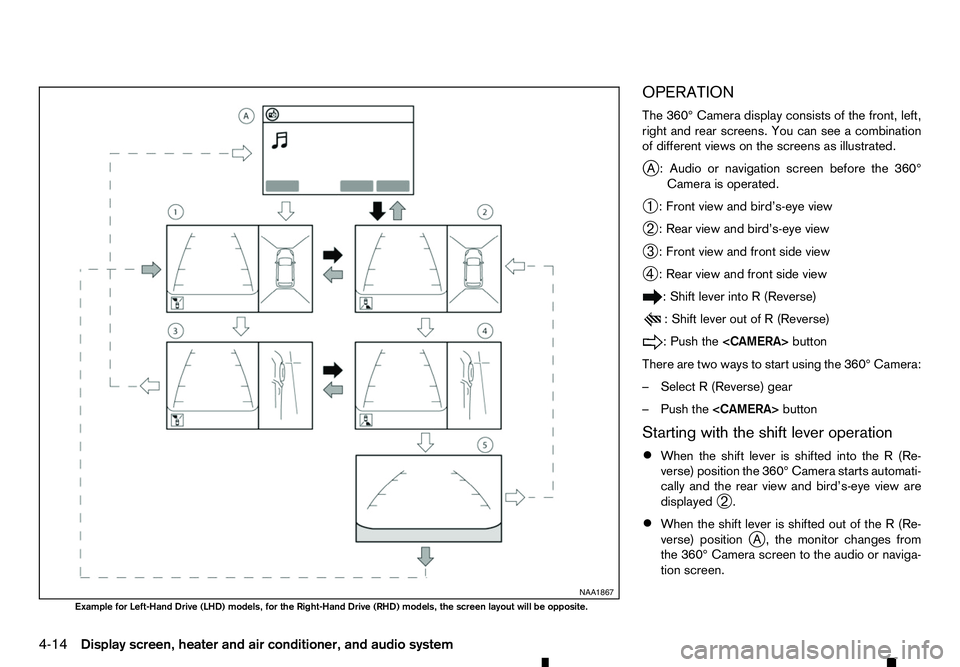
The 360° Camera display consists of the front, left,
right and rear screens. You can see acombination
of different views on the screens as illustrated.
j A: Audio or navigation screen before the 360°
Camera is operated.
➀ :F
ront view and bird’s-eye view
➁ :R
ear view and bird’s-eye view
➂ :F
ront view and front side view
➃ :R
ear view and front side view :S
hift lever into
R(Reverse) :S
hift lever out of
R(Reverse) :P
ush the
There are two ways to start using the 360° Camera:
–S elect R(Reverse) gear
–P ush the
Starting with the shift lever operation • When the shift lever is shifted into the
R(Re-
verse) position the 360° Camera starts automati-
cally and the rear view and bird’s-eye view are
displayed ➁.
• When the shift lever is shifted out of the
R(Re-
verse) position jA, the monitor changes from
the 360° Camera screen to the audio or naviga-
tion screen. NAA1867
Example for Left-Hand Drive (LHD) models, for the Right-Hand Drive (RHD) models, the screen layout will be opposite.
4-14 Display screen, heater and air conditioner, and audio system
Page 147 of 340
•
In
R( Reverse) gear, the rear view and bird’s-eye
view ➁are shown. The passenger’s side view
on the monitor changes to the front side view ➃
when the
Push the
Rear View ➄.W
hen the shift lever is shifted out
of the R(Reverse), the screen changes to before
reversing screen.
Push the
➄to change
back to rear view and bird’s-eye view ➁.
Starting with the CAMERA button
operation
• When the
360° Camera operates and the front view and
bird’s-eye view are displayed ➀.
• The front view and bird’s-eye view are displayed
➀ .W
hen the
again ➂,t
he view on the screen on the passen-
ger’s side changes to the front-side view. Push-
ing the
Camera off.
• To change the driver’s side screen between front
view and rear view use the shift lever.
• When the shift lever is not in the
R(Reverse)
position and the vehicle speed increases above
approximately 10 km/h (6 MPH), the monitor
changes from 360° Camera screen to the audio
or navigation screen. GUIDE LINES WARNING
• The distance guide line and the vehicle width
line should be used as areference only when
the vehicle is on apaved, level surface. The
distance viewed on the monitor is for refer-
ence only and may be different than the ac-
tual distance between the vehicle and dis-
played objects.
• Use the displayed lines and the bird’s-eye
view as
areference. The lines and the bird’s-
eye view are greatly affected by the number
of occupants, fuel level, vehicle position, road
condition and road grade.
• If the tyres are replaced with different sized
tyres, the predictive course line and the bird’s-
eye view may be displayed incorrectly.
• When driving the vehicle up
ahill, objects
viewed in the monitor are further than they
appear. When driving the vehicle down ahill,
objects viewed in the monitor are closer than
they appear. Use the mirrors or actually look
to properly judge distances to other objects.
The vehicle width and predictive course lines are
wider than the actual width and course. Front and rear view
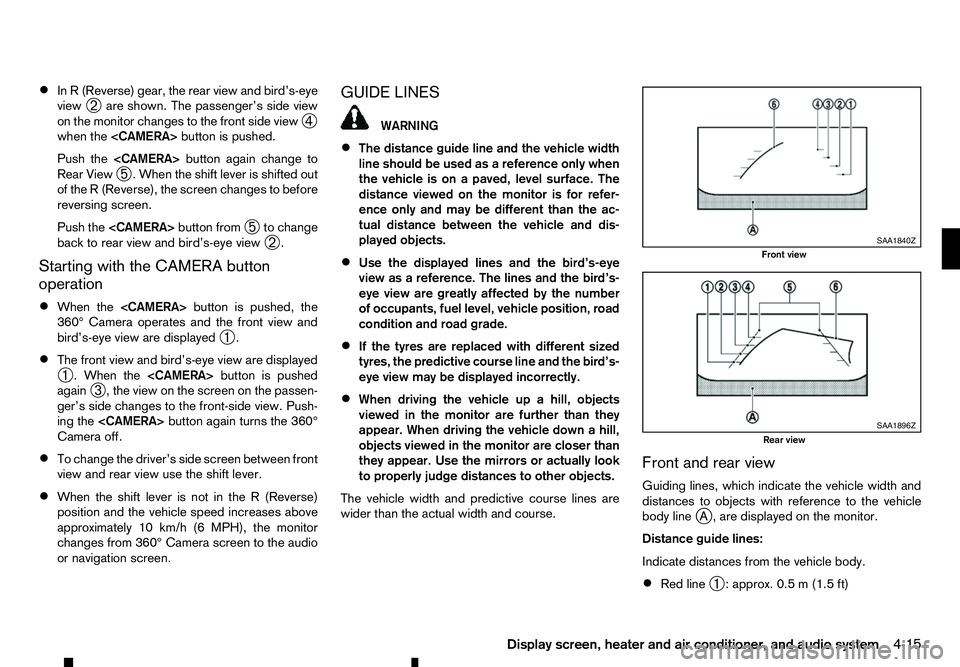
Guiding lines, which indicate the vehicle width and
distances to objects with reference to the vehicle
body line
j
A, are displayed on the monitor.
Distance guide lines: Indicate distances from the vehicle body.
• Red line
➀:a
pprox. 0.5 m(1.5 ft) SAA1840Z
Front view
SAA1896Z
Rear view
Display screen, heater and air conditioner, and audio system 4-15
Page 151 of 340
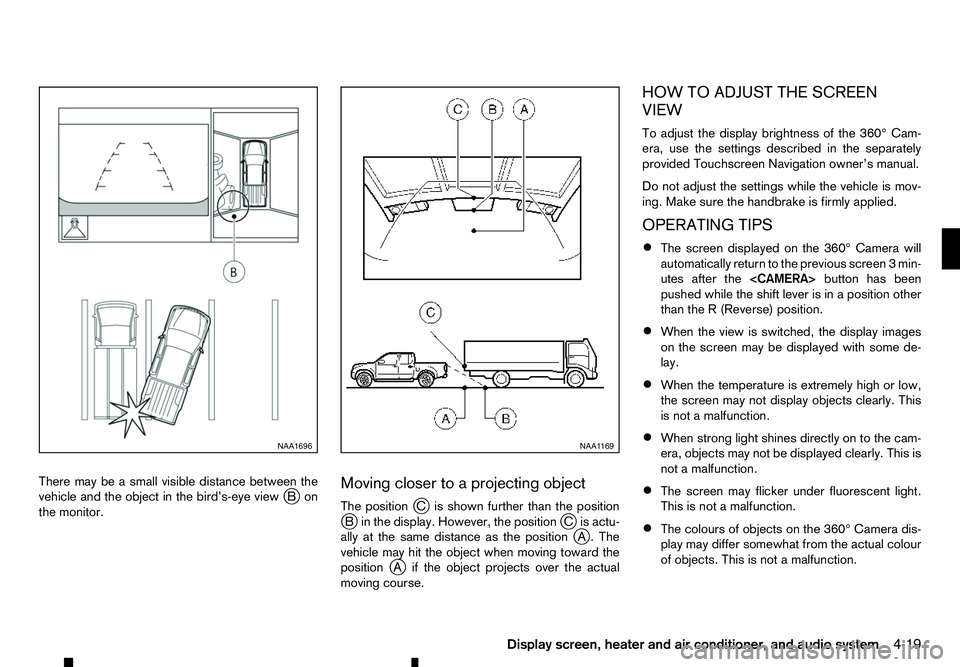
There may be
asmall visible distance between the
vehicle and the object in the bird’s-eye view j
Bon
the monitor. Moving closer to
aprojecting object
The position jCi sshown further than the position
j Bi nthe display. However, the position jCi sactu-
ally at the same distance as the position j
A. The
vehicle may hit the object when moving toward the
position j
Ai fthe object projects over the actual
moving course. HOW TO ADJUST THE SCREEN
VIEW
To adjust the display brightness of the 360° Cam-
era, use the settings described in the separately
provided Touchscreen Navigation owner’s manual.
Do not adjust the settings while the vehicle is mov-
ing. Make sure the handbrake is firmly applied.
OPERATING TIPS
• The screen displayed on the 360° Camera will
automatically return to the previous screen
3min-
utes after the
pushed while the shift lever is in aposition other
than the R(Reverse) position.
• When the view is switched, the display images
on the screen may be displayed with some de-
lay.
• When the temperature is extremely high or low,
the screen may not display objects clearly. This
is not
amalfunction.
• When strong light shines directly on to the cam-
era, objects may not be displayed clearly. This is
not
amalfunction.
• The screen may flicker under fluorescent light.
This is not
amalfunction.
• The colours of objects on the 360° Camera dis-
play may differ somewhat from the actual colour
of objects. This is not
amalfunction. NAA1696 NAA1 169
Display screen, heater and air conditioner, and audio system 4-19
Page 180 of 340
4) Enter the PIN code shown on the relevant
device with the device’s own keypad, and
press the confirmation key on the device it-
self.
Refer to the relevant Bluetooth® device own-
er’s manual for further details.
[Sel. device]:
The paired device list shows which Bluetooth® au-
dio or mobile phone devices have been paired or
registered with the Bluetooth® audio system. If the
list contains devices then select the appropriate de-
vice to connect to the Bluetooth® audio system.
The following symbols (where fitted) indicate the
capability of the registered device:
• :M
obile phone integration
• :A
udio streaming (A2DP
–Advanced Audio
Distribution Profile)
[Del. device]:
Ar egistered device can be removed from the Blue-
tooth audio system. Select aregistered device then
press
[Bluetooth]:
If Bluetooth® has been switched off anotification
message [ON/OFF] appears when you select [Blue-
tooth] from the phone menu (press ). To switch
the Bluetooth® signal on, press
follow up screen will appear. Then select [ON] and
press
menu screen. Bluetooth
®audio streaming main
operation
Turn the ignition switch to the ACC or ON position.
If the audio system was turned off while the Blue-
tooth® audio was playing, pressing the < >b
ut-
ton
will start the Bluetooth® audio streaming.
MEDIA button:
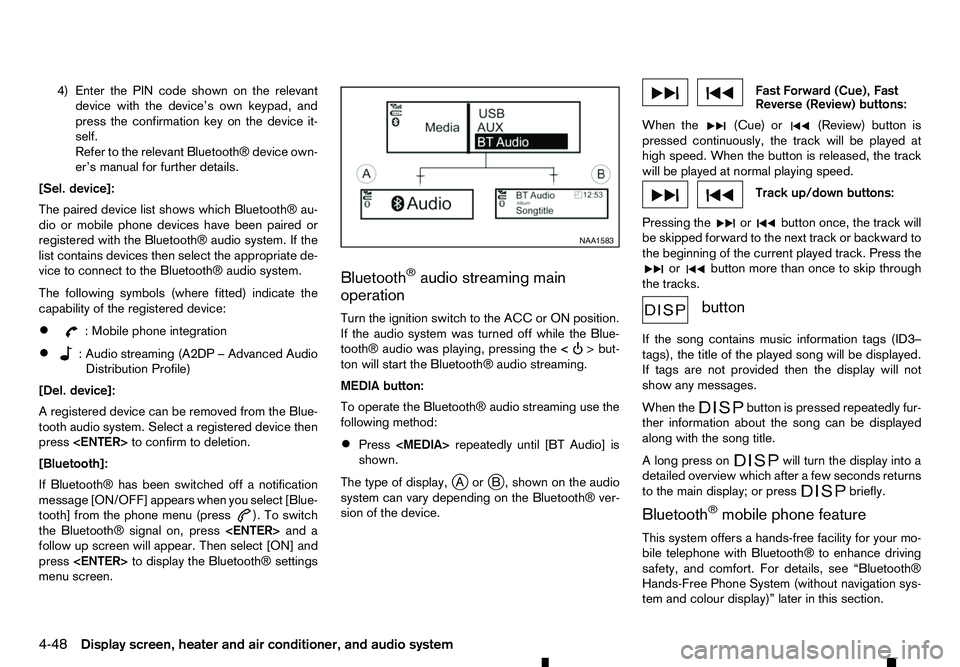
To operate the Bluetooth® audio streaming use the
following method:
• Press
shown.
The type of display, jAor jB, shown on the audio
system can vary depending on the Bluetooth® ver-
sion of the device. Fast Forward (Cue), Fast
Reverse (Review) buttons:
When the (Cue) or
(Review) button is
pressed continuously, the track will be played at
high speed. When the button is released, the track
will be played at normal playing speed. Track up/down buttons:
Pressing the or button once, the track will
be skipped forward to the next track or backward to
the beginning of the current played track. Press the or button more than once to skip through
the tracks. button
If the song contains music information tags (ID3–
tags), the title of the played song will be displayed.
If tags are not provided then the display will not
show any messages.
When the button is pressed repeatedly fur-
ther information about the song can be displayed
along with the song title.
Al ong press on will turn the display into a
detailed overview which after afew seconds returns
to the main display; or press briefly.
Bluetooth
®mobile phone feature
This system offers ahands-free facility for your mo-
bile telephone with Bluetooth® to enhance driving
safety, and comfort. For details, see “Bluetooth®
Hands-Free Phone System (without navigation sys-
tem and colour display)” later in this section. NAA1583
4-48 Display
screen, heater and air conditioner, and audio system
Page 189 of 340
increased speed while reversing or fast forwarding.
When the button is released, the track returns to
normal play speed.
Bluetooth® audio player operation
If you have acompatible Bluetooth® audio device
that is capable of playing audio files, the device can be connected to the vehicle’s audio system so that
the audio files on the device play through the vehi-
cle’s speakers
Bluetooth® trademark:
m Bluetooth®
is
at rademark
owned by Bluetooth SIG, Inc.
and licensed to Robert Bosch
GmbH.
Connecting Bluetooth® audio:
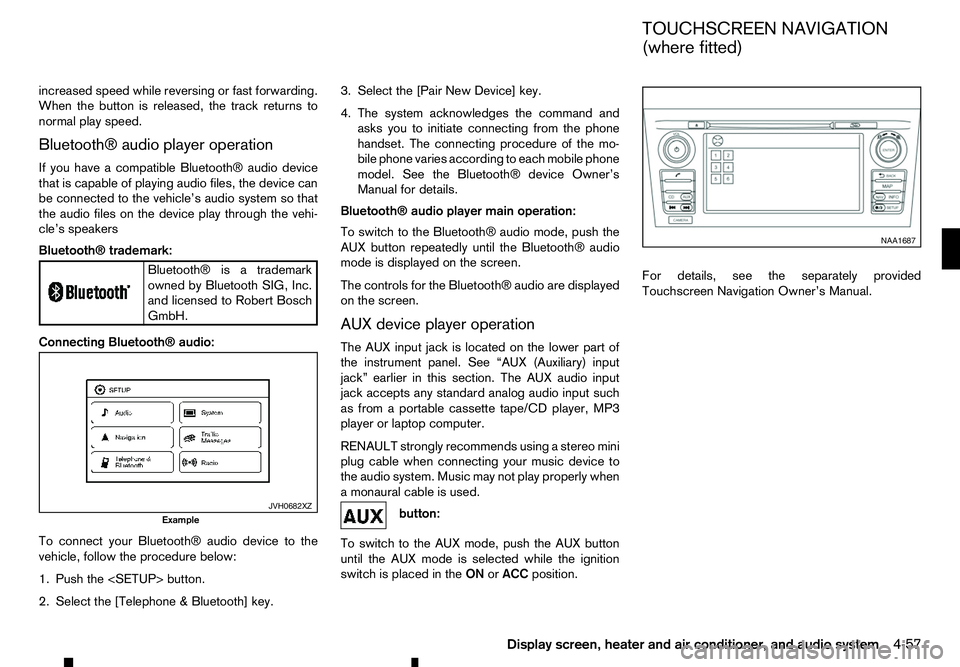
To connect your Bluetooth® audio device to the
vehicle, follow the procedure below:
1. Push the
2. Select the [Telephone &Bluetooth] key. 3. Select the [Pair New Device] key.
4. The system acknowledges the command and
asks you to initiate connecting from the phone
handset. The connecting procedure of the mo-
bile phone varies according to each mobile phone
model. See the Bluetooth® device Owner’s
Manual for details.
Bluetooth® audio player main operation:
To switch to the Bluetooth® audio mode, push the
AUX button repeatedly until the Bluetooth® audio
mode is displayed on the screen.
The controls for the Bluetooth® audio are displayed on the screen.
AUX device player operation
The AUX input jack is located on the lower part of
the instrument panel. See “AUX (Auxiliary) input
jack” earlier in this section. The AUX audio input
jack accepts any standard analog audio input such
as from aportable cassette tape/CD player, MP3
player or laptop computer.
RENAULT strongly recommends using astereo mini
plug cable when connecting your music device to
the audio system. Music may not play properly when
am onaural cable is used. button:
To switch to the AUX mode, push the AUX button
until the AUX mode is selected while the ignition
switch is placed in the ONorACC position. For details, see the separately provided
Touchscreen Navigation Owner’s Manual.
JVH0682XZ
Example NAA1687
TOUCHSCREEN NAVIGATION
(where fitted)
Display screen, heater and air conditioner, and audio system 4-57
Page 191 of 340
•
Reject an incoming call by pressing the
< >
button during the incoming call.
• End an active call by pushing the
< >
button
once.
• Redial the last outgoing call by pressing the
< >
button for more than
2seconds. BLUETOOTH
®MOBILE PHONE
FEATURE WARNING
Whilst
driving, using the mobile phone is ex-
tremely dangerous because it significantly im-
pairs your concentration and diminishes your re-
action capabilities to sudden changes on the
road, and it may lead to afatal accident. This
applies to all phone call situations such as when
receiving an incoming call, during aphone con-
versation, when calling through the phone book
search, etc.
CAUTION
Certain country jurisdictions prohibit the use of
the mobile phone in the car without hands-free
support.
This chapter provides information about the hands-
free phone system using aBluetooth
®connection.
Bluetooth
®is aw ireless radio communication stan-
dard. This system offers ahands-free facility for your
mobile telephone to enhance driving comfort.
In order to use your mobile phone with the Blue-
tooth
®of the audio system, the mobile phone must
first be setup. For details, see “BLUETOOTH®
settings” later in this section. Once it has been
setup, the hands-free mode is automatically acti-
vated on the registered mobile phone (via Blue-
tooth
®)w hen it comes into range. An
otification message appears on the audio display
when the phone is connected, when an incoming
call is being received, as well as when acall is initi-
ated.
When acall is active, the audio system, microphone
(located in the ceiling in front of the rear view mir-
ror), and steering wheel switches enable hands-free
communication.
If the audio system is in use at the time, the radio,
CD, iPod, USB audio, Bluetooth audio or AUX
source mode will be muted and will stay muted until
the active call has ended.
The Bluetooth
®system may not be able to connect
with your mobile phone for the following reasons:
• The mobile phone is too far away from the ve-
hicle.
• The Bluetooth
®mode on your mobile phone has
not been activated.
• Your mobile phone has not been paired with the
Bluetooth
®system of the audio unit.
• The mobile phone does not support Bluetooth
®
technology (BT Core v2.0).
NOTE
• For models with Audio with Navigation sys-
tem see the separately provided Owner’s
Manual.
• For details, see your mobile phone’s Owner’s
Manual.
BLUETOOTH® HANDS-FREE PHONE SYSTEM (without navigation system
and colour display)
Display screen, heater and air conditioner, and audio system 4-59