turn signal RENAULT ALASKAN 2017 User Guide
[x] Cancel search | Manufacturer: RENAULT, Model Year: 2017, Model line: ALASKAN, Model: RENAULT ALASKAN 2017Pages: 340, PDF Size: 6.93 MB
Page 89 of 340
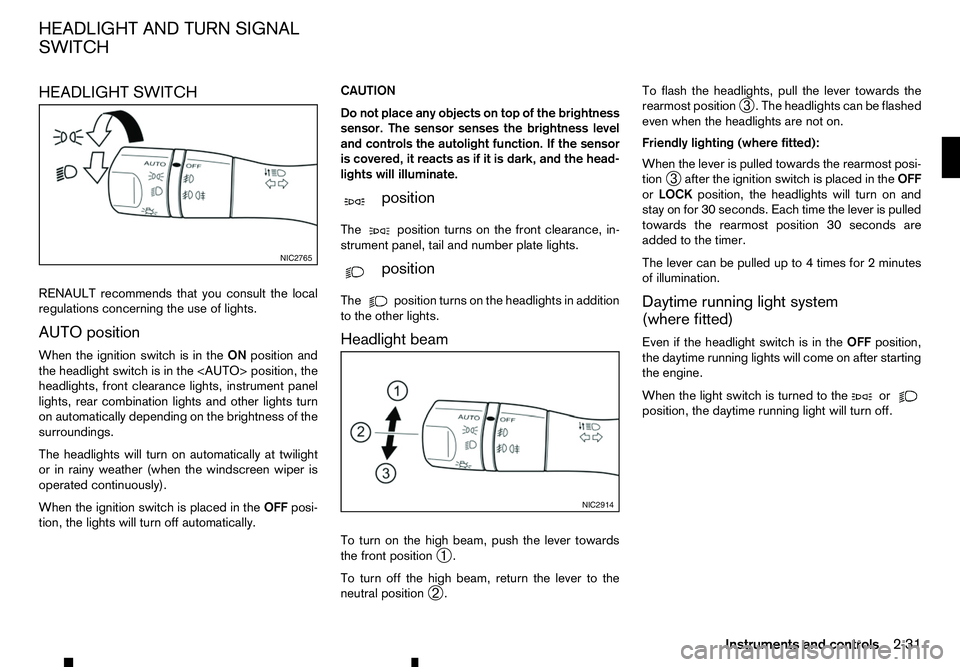
HEADLIGHT SWITCH
RENAULT recommends that you consult the local
regulations concerning the use of lights.
AUTO position
When the ignition switch is in the ONposition and
the headlight switch is in the
headlights, front clearance lights, instrument panel
lights, rear combination lights and other lights turn
on automatically depending on the brightness of the
surroundings.
The headlights will turn on automatically at twilight
or in rainy weather (when the windscreen wiper is
operated continuously).
When the ignition switch is placed in the OFFposi-
tion, the lights will turn off automatically. CAUTION
Do not place any objects on top of the brightness
sensor. The sensor senses the brightness level
and controls the autolight function. If the sensor
is covered, it reacts as if it is dark, and the head-
lights will illuminate.
m position
The position
turns on the front clearance, in-
strument panel, tail and number plate lights.
m position
The position
turns on the headlights in addition
to the other lights.
Headlight beam
To turn on the high beam, push the lever towards
the front position ➀.
To turn off the high beam, return the lever to the
neutral position ➁. To flash the headlights, pull the lever towards the
rearmost position
➂.T
he headlights can be flashed
even when the headlights are not on.
Friendly lighting (where fitted):
When the lever is pulled towards the rearmost posi-
tion ➂after the ignition switch is placed in the
OFF
or LOCK position, the headlights will turn on and
stay on for 30 seconds. Each time the lever is pulled
towards the rearmost position 30 seconds are
added to the timer.
The lever can be pulled up to 4times for 2minutes
of illumination.
Daytime running light system
(where fitted)
Even if the headlight switch is in the OFFposition,
the daytime running lights will come on after starting
the engine.
When the light switch is turned to the or
position, the daytime running light will turn off.NIC2765
NIC2914
HEADLIGHT AND TURN SIGNAL
SWITCH
Instruments and controls2-31
Page 90 of 340
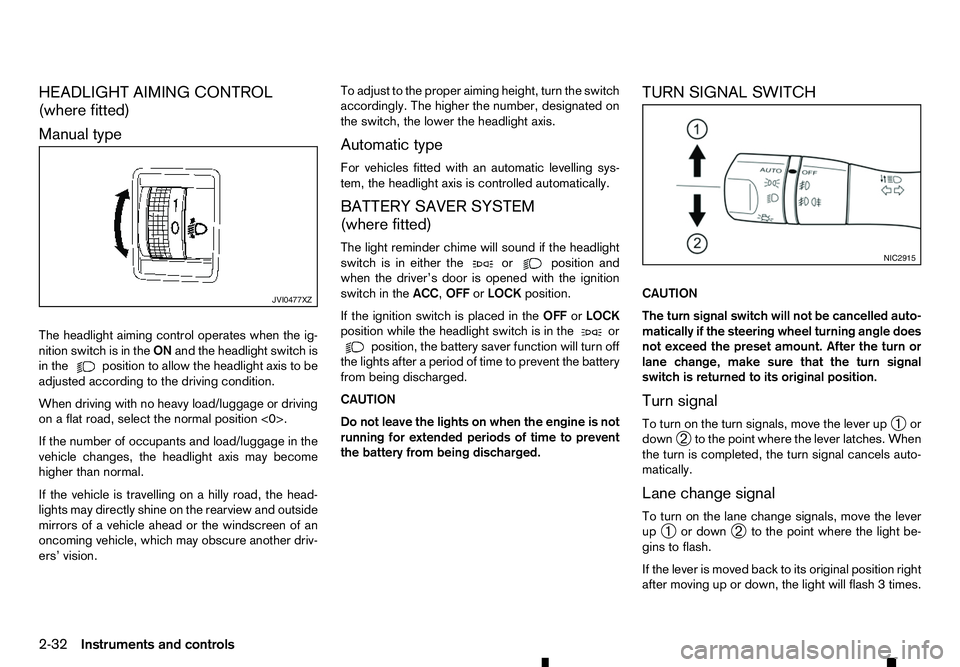
HEADLIGHT AIMING CONTROL
(where fitted)
Manual type
The headlight aiming control operates when the ig- nition switch is in the ONand the headlight switch is
in the position to allow the headlight axis to be
adjusted according to the driving condition.
When driving with no heavy load/luggage or driving
on aflat road, select the normal position <0>.
If the number of occupants and load/luggage in the
vehicle changes, the headlight axis may become
higher than normal.
If the vehicle is travelling on ahilly road, the head-
lights may directly shine on the rearview and outside mirrors of avehicle ahead or the windscreen of an
oncoming vehicle, which may obscure another driv-
ers’ vision. To adjust to the proper aiming height, turn the switch
accordingly. The higher the number, designated on
the switch, the lower the headlight axis.
Automatic type
For vehicles fitted with an automatic levelling sys-
tem, the headlight axis is controlled automatically.
BATTERY SAVER SYSTEM
(where fitted)
The light reminder chime will sound if the headlight
switch is in either the or position and
when the driver’s door is opened with the ignition
switch in the ACC,OFForLOCK position.
If the ignition switch is placed in the OFForLOCK
position while the headlight switch is in the or
position, the battery saver function will turn off
the lights after aperiod of time to prevent the battery
from being discharged.
CAUTION
Do not leave the lights on when the engine is not
running for extended periods of time to prevent
the battery from being discharged. TURN SIGNAL SWITCH
CAUTION
The turn signal switch will not be cancelled auto-
matically if the steering wheel turning angle does
not exceed the preset amount. After the turn or
lane change, make sure that the turn signal
switch is returned to its original position.
Turn signal
To turn on the turn signals, move the lever up
➀or
down ➁to the point where the lever latches. When
the turn is completed, the turn signal cancels auto-
matically.
Lane change signal
To turn on the lane change signals, move the lever
up ➀ or down
➁to the point where the light be-
gins to flash.
If the lever is moved back to its original position right
after moving up or down, the light will flash 3times. JVI0477XZ NIC2915
2-32 Instruments and controls
Page 91 of 340
To cancel the flashing, move the lever to the oppo-
site direction.
See “Settings” earlier in this section to enable/dis-
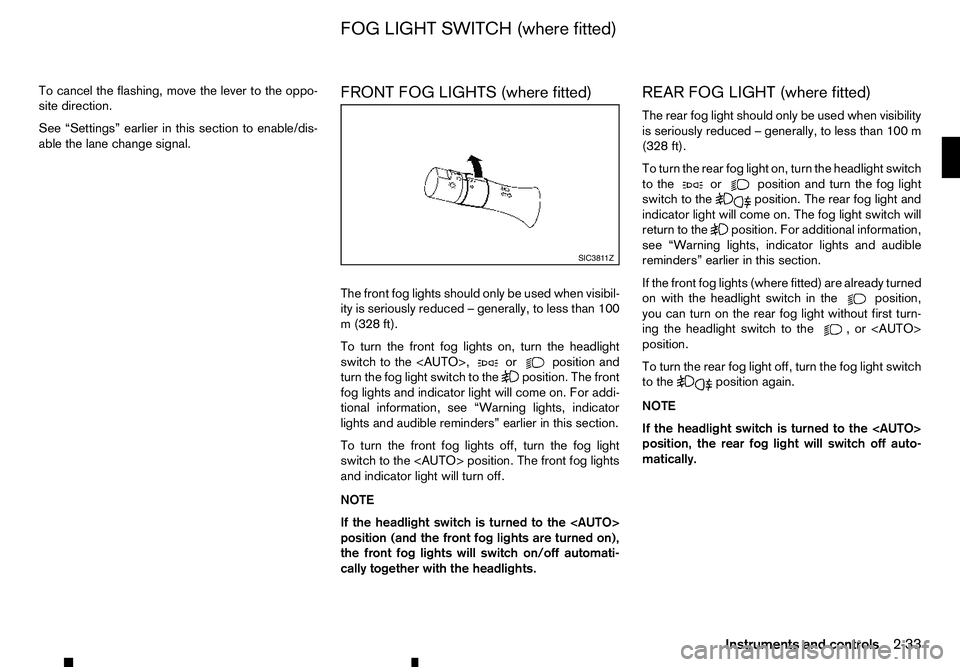
able the lane change signal. FRONT FOG LIGHTS (where fitted)
The front fog lights should only be used when visibil-
ity is seriously reduced
–generally, to less than 100
m( 328 ft).
To turn the front fog lights on, turn the headlight
switch to the
turn the fog light switch to the position. The front
fog lights and indicator light will come on. For addi-
tional information, see “Warning lights, indicator
lights and audible reminders” earlier in this section.
To turn the front fog lights off, turn the fog light
switch to the
and indicator light will turn off.
NOTE
If the headlight switch is turned to the
position (and the front fog lights are turned on),
the front fog lights will switch on/off automati-
cally together with the headlights. REAR FOG LIGHT (where fitted)
The rear fog light should only be used when visibility
is seriously reduced
–generally, to less than 100 m
(328 ft).
To turn the rear fog light on, turn the headlight switch
to the or position and turn the fog light
switch to the position. The rear fog light and
indicator light will come on. The fog light switch will
return to the position. For additional information,
see “Warning lights, indicator lights and audible
reminders” earlier in this section.
If the front fog lights (where fitted) are already turned
on with the headlight switch in the position,
you can turn on the rear fog light without first turn-
ing the headlight switch to the ,o r<
AUTO>
position.
To turn the rear fog light off, turn the fog light switch
to the position again.
NOTE
If the headlight switch is turned to the
position, the rear fog light will switch off auto-
matically. SIC381 1Z
FOG LIGHT SWITCH (where fitted)
Instruments and controls2-33
Page 93 of 340
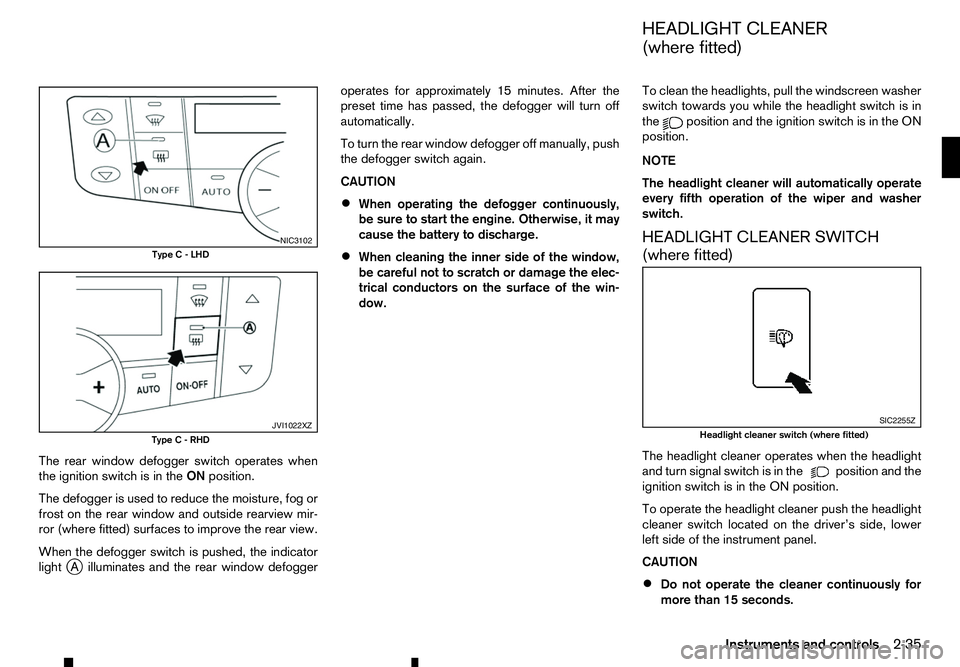
The rear window defogger switch operates when
the ignition switch is in the ONposition.
The defogger is used to reduce the moisture, fog or
frost on the rear window and outside rearview mir-
ror (where fitted) surfaces to improve the rear view.
When the defogger switch is pushed, the indicator
light j
Ai lluminates and the rear window defogger operates for approximately 15 minutes. After the
preset time has passed, the defogger will turn off
automatically.
To turn the rear window defogger off manually, push
the defogger switch again.
CAUTION
• When operating the defogger continuously,
be sure to start the engine. Otherwise, it may
cause the battery to discharge.
• When cleaning the inner side of the window,
be careful not to scratch or damage the elec-
trical conductors on the surface of the win-
dow. To clean the headlights, pull the windscreen washer
switch towards you while the headlight switch is in
the position and the ignition switch is in the ON
position.
NOTE
The headlight cleaner will automatically operate
every fifth operation of the wiper and washer
switch.
HEADLIGHT CLEANER SWITCH
(where fitted)
The headlight cleaner operates when the headlight
and turn signal switch is in the position and the
ignition switch is in the ON position.
To operate the headlight cleaner push the headlight
cleaner switch located on the driver’s side, lower
left side of the instrument panel.
CAUTION
• Do not operate the cleaner continuously for
more than 15 seconds. NIC3102
Type C-LHD JVI1022XZ
Type C-RHD SIC2255Z
Headlight cleaner switch (where fitted)
HEADLIGHT CLEANER
(where fitted)
Instruments and controls 2-35
Page 107 of 340
2.
Mechanical key (inside Remote Control Key)
(2)
3. Key number plate (1) WARNING
• The Remote Control Key transmits radio
waves that can adversely affect medical elec-
tric equipment.
• If you have
apacemaker, you should contact
the medical equipment manufacturer to ask if
it will be affected by the Remote Control Key
signal.
Your vehicle can only be driven with the Remote
Control Keys which are registered to your vehicle’s
Remote Control Key system components and Anti-
Theft System (ATS*) components. As many as 4
Remote Control Keys can be registered and used
with one vehicle. The new keys must be registered
by an approved dealer or qualified workshop prior
to use with the Remote Control Key system and
ATS of your vehicle. Since the registration process
requires erasing all memory in the Remote Control
Key system components when registering new keys,
be sure to take all Remote Control Keys that you
have to an approved dealer or qualified workshop.
*: Immobilizer
CAUTION
• Be sure to carry the Remote Control Key with
you. Do not leave the vehicle with the Remote
Control Key inside. •
Be sure to carry the Remote Control Key with
you when driving. The Remote Control Key is
ap
recision device with abuilt-in transmitter.
To avoid damaging it, please note the follow-
ing.
–T he Remote Control Key is water resistant;
however, wetting may damage the Remote
Control Key. If the Remote Control Key
gets wet, immediately wipe until it is com-
pletely dry.
–D onot bend, drop or strike it against an-
other object.
–I fthe outside temperature is below -10°C
(14°F), the battery of the Remote Control
Key may not function properly.
–D onot place the Remote Control Key for
an extended period in aplace where tem-
peratures exceed 60°C (140°F).
–D onot change or modify the Remote Con-
trol Key.
–D onot use amagnet key holder.
–D onot place the Remote Control Key near
equipment that produces amagnetic field
such as aTV, audio equipment and per-
sonal computers.
–D onot allow the Remote Control Key to
come into contact with water or salt water,
and do not wash it in awashing machine.
This could affect the system function. •
If
aR emote Control Key is lost or stolen,
RENAULT recommends erasing the ID code
of that Remote Control Key. This will prevent
the Remote Control Key from unauthorised
use to unlock the vehicle. For information re-
garding the erasing procedure, please con-
tact an approved dealer or qualified work-
shop.
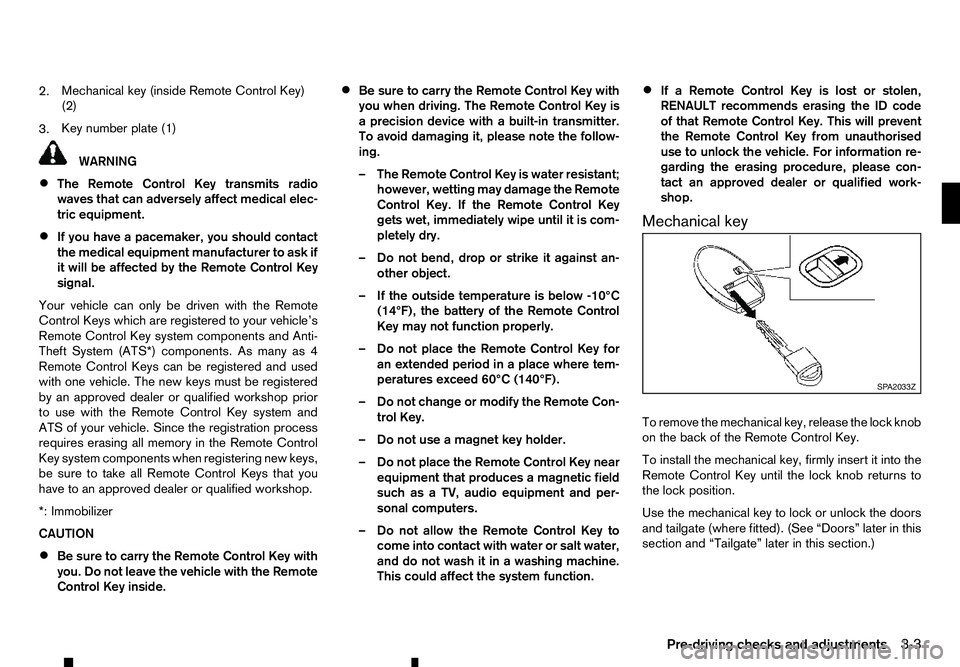
Mechanical key
To remove the mechanical key, release the lock knob
on the back of the Remote Control Key.
To install the mechanical key, firmly insert it into the
Remote Control Key until the lock knob returns to
the lock position.
Use the mechanical key to lock or unlock the doors
and tailgate (where fitted). (See “Doors” later in this
section and “Tailgate” later in this section.) SP A2033Z
Pre-driving checks and adjustments 3-3
Page 120 of 340
How to activate system (where fitted)
1. Close all windows.
The system can be armed even if the windows
are open.
2. Place the ignition switch in the OFF position.
3. Carry the integrated key fob or the Remote Con- trol Key with you and get out of the vehicle.
4. Close and lock all doors. The doors can be locked with the integrated key fob, the Remote
Control Key, door handle request switch (where
fitted), power door lock switch or mechanical
key.
5. Confirm that the security indicator light comes on. The security indicator light glows for about
30 seconds and then blinks. The system is now
activated. If, during this 30 second time period,
the door is unlocked or the ignition switch is
placed in the ACC or ON position, the system
will not activate.
Even when the driver and/or passengers are in
the vehicle, the system will activate with all doors
locked with the ignition switch in the LOCK posi-
tion. When pushing the ignition switch to the ACC
or ON position, the system will be released.
Theft warning system operation
The vehicle security system will give the following
alarm:
• The hazard indicator blinks and the horn sounds
intermittently. •
The alarm automatically turns off after approxi-
mately 30 seconds. However, the alarm reacti-
vates if the vehicle is tampered with again.
The alarm is activated by:
• Unlocking the door without using the integrated
key fob, the Remote Control Key, the door handle
request switch (where fitted) or the mechanical
key. (Even if the door is opened by releasing the
door inside lock knob, the alarm will activate.)
How to stop alarm
• The alarm will stop only by unlocking
adoor by
pushing the UNLOCK button on the Remote
Control Key.
• The alarm will not stop if the ignition switch is
placed in the ACC or ON position.
ANTI-THEFT SYSTEM (ATS)
The Anti-Theft System (ATS) will not allow the en-
gine to start without the use of the registered ATS
key.
If the engine does not start using the registered ATS
key, it may be due to interference caused by:
• Another ATS key.
• Automated toll road device.
• Automated payment device.
• Other devices that transmit similar signals. Start the engine using the following procedure:
1. Remove any items that may be causing the inter-
ference away from the ATS key.
2. Leave the ignition switch in the ON position for approximately 5seconds.
3. Place the ignition switch in the OFF or LOCK position, and wait approximately 10 seconds.
4. Repeat steps 2and 3again.
5. Start the engine.
6. Repeat the steps above until all possible interfer- ences are eliminated.
If this procedure allows the engine to start,
RENAULT recommends placing the registered ATS
key separate from other devices to avoid interfer-
ence.
If ATS is malfunctioning, this light will remain on
while the ignition switch is in the ON position.
If the light remains on and/or the engine does
not start, contact an approved dealer or qualified
workshop for ATS service as soon as possible.
Be sure to bring all Remote Control Keys that you
have when visiting an approved dealer for ser-
vice.
3-16 Pre-driving checks and adjustments
Page 171 of 340
![RENAULT ALASKAN 2017 User Guide Preset station buttons
➀➁➂➃➄➅
Pressing apreset button for less than 2seconds will
select the stored radio station.
Pressing apreset button for more than 2seconds
while in the [FM list] or](/img/7/58394/w960_58394-170.png "RENAULT ALASKAN 2017 User Guide Preset station buttons
➀➁➂➃➄➅
Pressing apreset button for less than 2seconds will
select the stored radio station.
Pressing apreset button for more than 2seconds
while in the [FM list] or")
Preset station buttons
➀➁➂➃➄➅
Pressing apreset button for less than 2seconds will
select the stored radio station.
Pressing apreset button for more than 2seconds
while in the [FM list] or radio main screen will cause
the station currently being received to be stored
against that preset button.
• Twelve stations (if available) can be stored in the
FM bands. (Six each for FM1 and FM2)
• Twelve stations (if available) can be stored in the
DR bands. (Six each for DR1 and DR2) (where
fitted)
• Six stations (if available) can be set for the AM
band.
If the battery is disconnected, or if the fuse blows,
the radio memory will be erased. In that case, reset
the desired stations after battery connection or fuse
replacement.
DAB and Radio Data System (RDS)
operation (where fitted)
The RDS is asystem through which encoded digital
information is transmitted by FM radio stations in
addition to the normal FM radio broadcasting. The
RDS provides information services such as station
name, traffic information, or news.
DAB (Digital Audio Broadcast) NOTE
• When in DR mode operation is similar to FM
mode but may slightly differ.
• In some countries or regions, some of these
services may not be available.
Alternative Frequency (AF) mode:
The AF mode operates in the FM (radio) mode.
• The AF mode operates in the FM (radio), AUX or
CD mode (if FM was previously selected in the
radio mode).
• The AF function compares signal strengths and
selects the station with the optimum reception
conditions for the currently tuned-in station.
DAB and RDS functions
Programme Service (PS) function (station name
display function):
–F M:
When an RDS station is tuned in with seek or
manual tuning, the RDS data is received and the
PS name is displayed.
–D R:
When astation is tuned in with seek or manual
tuning, the data is received and the PS name is
displayed.
TA Traffic announcement
This function operates in FM/DR (Radio) mode. This
function will still operate in the background if any
media source is selected (CD, USB or MEDIA
mode). •
Pressing the
The TA indicator is displayed while TA mode is
on.
• When
switched off and the TA indicator will disappear
from the display.
Traffic announcement interrupt function:
When atraffic announcement is received, the an-
nouncement is tuned in and the display shows a
notification message with the radio station name e.g.
[TA: Radio 1].
Once the traffic announcement has finished, the unit
returns to the source that was active before the traf-
fic announcement started.
If
the traffic announcement interrupt mode is can-
celled. The TA mode returns to the standby mode
and the audio unit returns to the previous source.
SETUP BUTTON
To configure [Audio], [Clock], [Radio], and [Lan-
guage] settings, perform the following procedure:
1. Press the
4-39
Page 178 of 340
The following operations are identical to the audio
main operation of the Compact Disc (CD) opera-
tion. For details, see “Compact Disc (CD)
operation” earlier in this section.
• List view
• ,
•
MIX (Random play)
• RPT (Repeat track)
• Folder browsing button
➄
While atrack with recorded music information tags
(ID3–tags) is being played, the title of the played
track is displayed. If the tags are not provided then
an otification message is displayed.
When the ➄
button is pressed repeatedly,
further information about the track can be displayed
along with the track title as follows:
Track time →Artist name →Album title →Track
time
Track details:
Al ong press on the ➄
button, the screen
displays the song title, artist name, and album title.
After afew seconds it returns to the main display or
press ➄
briefly. BLUETOOTH® OPERATION
Regulatory information
m Bluetooth®
is
at rademark
owned by Bluetooth SIG, Inc.
CE statement
Hereby Yanfeng Visteon Automotive Electronics
Co., Ltd. declares that this system is in compliance
with the essential requirements and other relevant
provisions of Directive 1999/5/EC.
m NOTE
The
audio system only supports Bluetooth® de-
vices with AVRCP (Audio Video Remote Control
Profile) version 1.4 or earlier. BLUETOOTH® settings
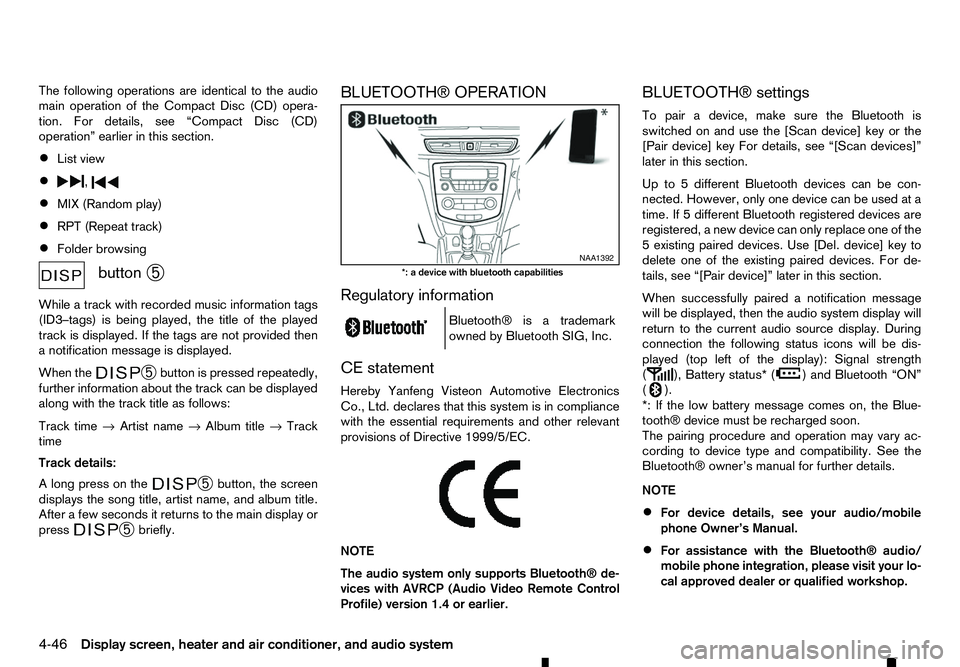
To pair
adevice, make sure the Bluetooth is
switched on and use the [Scan device] key or the
[Pair device] key For details, see “[Scan devices]”
later in this section.
Up to 5different Bluetooth devices can be con-
nected. However, only one device can be used at a
time. If 5different Bluetooth registered devices are
registered, anew device can only replace one of the
5e xisting paired devices. Use [Del. device] key to
delete one of the existing paired devices. For de-
tails, see “[Pair device]” later in this section.
When successfully paired anotification message
will be displayed, then the audio system display will
return to the current audio source display. During
connection the following status icons will be dis-
played (top left of the display): Signal strength
( ), Battery status* (
)a
nd Bluetooth “ON”
( ).
*: If the low battery message comes on, the Blue-
tooth® device must be recharged soon.
The pairing procedure and operation may vary ac-
cording to device type and compatibility. See the
Bluetooth® owner’s manual for further details.
NOTE
• For device details, see your audio/mobile
phone Owner’s Manual.
• For assistance with the Bluetooth® audio/
mobile phone integration, please visit your lo-
cal approved dealer or qualified workshop. NAA1392
*: ad evice with bluetooth capabilities
4-46 Display screen, heater and air conditioner, and audio system
Page 180 of 340
4) Enter the PIN code shown on the relevant
device with the device’s own keypad, and
press the confirmation key on the device it-
self.
Refer to the relevant Bluetooth® device own-
er’s manual for further details.
[Sel. device]:
The paired device list shows which Bluetooth® au-
dio or mobile phone devices have been paired or
registered with the Bluetooth® audio system. If the
list contains devices then select the appropriate de-
vice to connect to the Bluetooth® audio system.
The following symbols (where fitted) indicate the
capability of the registered device:
• :M
obile phone integration
• :A
udio streaming (A2DP
–Advanced Audio
Distribution Profile)
[Del. device]:
Ar egistered device can be removed from the Blue-
tooth audio system. Select aregistered device then
press
[Bluetooth]:
If Bluetooth® has been switched off anotification
message [ON/OFF] appears when you select [Blue-
tooth] from the phone menu (press ). To switch
the Bluetooth® signal on, press
follow up screen will appear. Then select [ON] and
press
menu screen. Bluetooth
®audio streaming main
operation
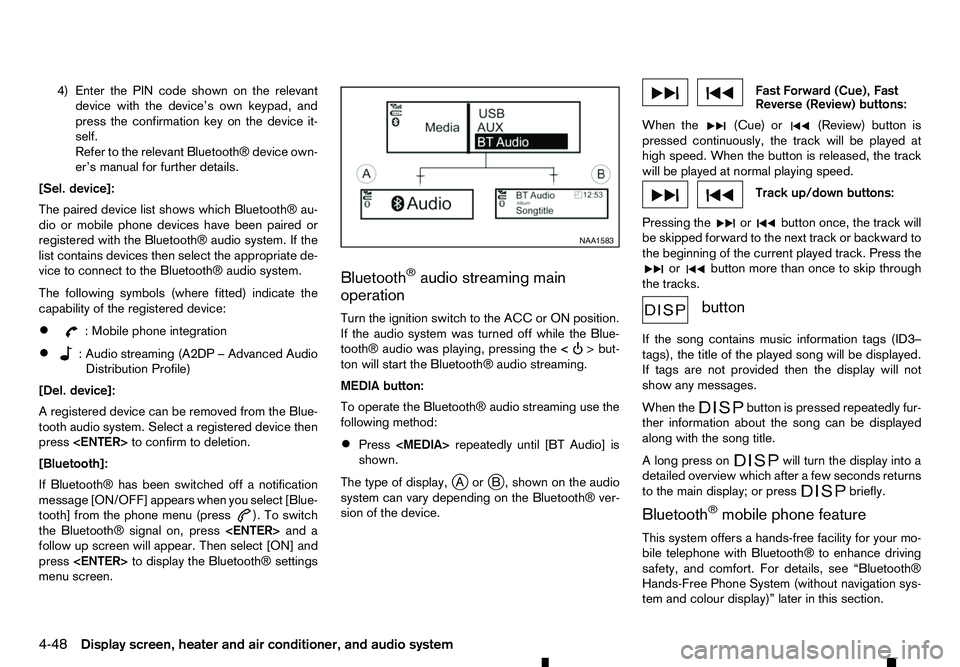
Turn the ignition switch to the ACC or ON position.
If the audio system was turned off while the Blue-
tooth® audio was playing, pressing the < >b
ut-
ton
will start the Bluetooth® audio streaming.
MEDIA button:
To operate the Bluetooth® audio streaming use the
following method:
• Press
shown.
The type of display, jAor jB, shown on the audio
system can vary depending on the Bluetooth® ver-
sion of the device. Fast Forward (Cue), Fast
Reverse (Review) buttons:
When the (Cue) or
(Review) button is
pressed continuously, the track will be played at
high speed. When the button is released, the track
will be played at normal playing speed. Track up/down buttons:
Pressing the or button once, the track will
be skipped forward to the next track or backward to
the beginning of the current played track. Press the or button more than once to skip through
the tracks. button
If the song contains music information tags (ID3–
tags), the title of the played song will be displayed.
If tags are not provided then the display will not
show any messages.
When the button is pressed repeatedly fur-
ther information about the song can be displayed
along with the song title.
Al ong press on will turn the display into a
detailed overview which after afew seconds returns
to the main display; or press briefly.
Bluetooth
®mobile phone feature
This system offers ahands-free facility for your mo-
bile telephone with Bluetooth® to enhance driving
safety, and comfort. For details, see “Bluetooth®
Hands-Free Phone System (without navigation sys-
tem and colour display)” later in this section. NAA1583
4-48 Display
screen, heater and air conditioner, and audio system
Page 185 of 340
Radio band select button:
Push the
follows:
AM →DAB →FM →AM
If another audio source is playing when the FM·AM
button is pushed, the audio source playing will auto-
matically be turned off and the last radio station
played will begin playing.
Radio tuning:
When in radio mode, the radio can be tuned using
the touch screen. To bring up the visual tuner, touch
the [Tune] key on the lower part of the screen. A
screen appears with abar running from low fre-
quencies on the left to high frequencies on the right.
One of the following operations can be used for tun-
ing.
• Touching the bar on the screen
• Touching [ ]/[ ]o nt
he screen
• Turning the
To return to the regular radio display screen, touch
the [OK] key.
Station List:
When in FM or DAB (where fitted) mode, touch [FM
List] or [DAB List] to display the station lists. Seek/Track buttons:
When in radio mode, push the Seek/Track buttons
to tune from low to high or high to low frequencies
and to stop at the next broadcasting station. Station memory keys:
Up to six stations can be stored for AM band, and
up to twelve stations can be stored for each of the
other bands.
1. Choose the radio band using the
ton.
2. Tune to the desired station using manual or seek tuning. Touch and hold any of the desired station
memory keys until abeep sound is heard.
For FM and DAB (where fitted), touch the [7-12]
key to display the 7-12memory keys.
3. The channel indicator will then come on and the sound will resume. Programming is now com-
plete.
DAB operation:
In the DAB mode, the following operation keys and
information are available.
• DAB List:
Touch to display the available station list.
• TA:
Touch this key to turn on and off the TA (Traffic
Announcement) mode. When turned on,
received TA will interrupt the audio source that is
playing. •
Extra chan.:
The [Extra chan.] key will allow access to extra
stations transmitted within the group of the cur-
rently selected station. If extra stations are not
available within the group, the key will not oper-
ate.
• Radio text:
Radio text is shown on the DAB main screen
underneath the DAB station name. This displays
radio programme and song information as deter-
mined by the DAB station.
EAS in EAS test (displayed on the screen as aPTY
name) is an abbreviation of Emergency Alert Sys-
tem.
Occasionally, in areas of poor DAB signal strength,
the full station name in the DAB List and DAB main
screen might be distorted. In this situation it may still
be possible to listen to the particular radio station, at
ar educed level of sound quality, but this is not al-
ways possible. This may also be shown in the ve-
hicle information display.
CD player operation
Loading disc:
Insert aCDi nto the slot with the label side facing
up. The CD will be guided automatically into the slot
and will start playing. If the radio is already playing,
it will automatically turn off, and the CD will start
playing.
Display screen, heater and air conditioner, and audio system 4-53