ECO Seat Exeo ST 2013 MEDIA SYSTEM E
[x] Cancel search | Manufacturer: SEAT, Model Year: 2013, Model line: Exeo ST, Model: Seat Exeo ST 2013Pages: 167, PDF Size: 5.48 MB
Page 57 of 167
MEDIA
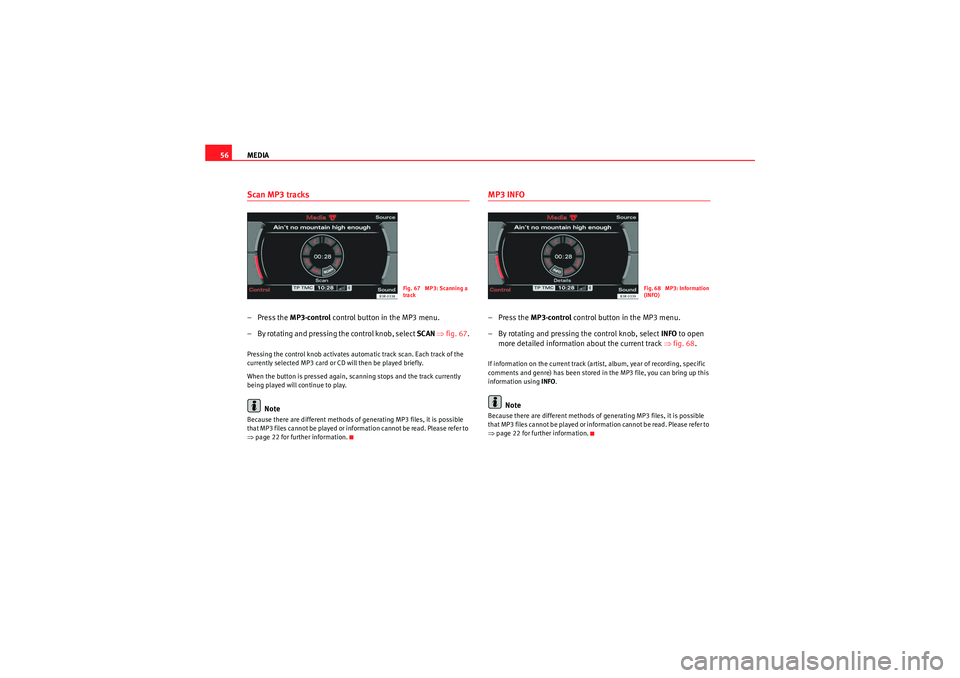
56Scan MP3 tracks– Press the MP3·control control button in the MP3 menu.
– By rotating and pressing the control knob, select SCAN ⇒ fig. 67 .Pressing the control knob activates automatic track scan. Each track of the
currently selected MP3 card or CD will then be played briefly.
When the button is pressed again, scanning stops and the track currently
being played will continue to play.
Note
Because there are different methods of generating MP3 files, it is possible
that MP3 files cannot be played or information cannot be read. Please refer to
⇒page 22 for further information.
MP3 INFO–Press the MP3·control control button in the MP3 menu.
– By rotating and pressing the control knob, select INFO to open
more detailed information about the current track ⇒fig. 68 .If information on the current track (artist, album, year of recording, specific
comments and genre) has been stored in the MP3 file, you can bring up this
information using INFO.
Note
Because there are different methods of generating MP3 files, it is possible
that MP3 files cannot be played or information cannot be read. Please refer to
⇒page 22 for further information.
Fig. 67 MP3: Scanning a
track
Fig. 68 MP3: Information
(INFO)
media_systemE_EN.book Seite 56 Montag, 21. September 2009 1:48 13
Page 59 of 167
MEDIA
58The sound and tuning settings and the brightness of the display can be
altered using the control buttons ⇒page 153.
Note
We recommend that you enter these settings when the vehicle is stationary.
In this way you can be sure that you will not be unnecessarily distracted from
the traffic when reading the messages on the display. Please note ⇒page 6,
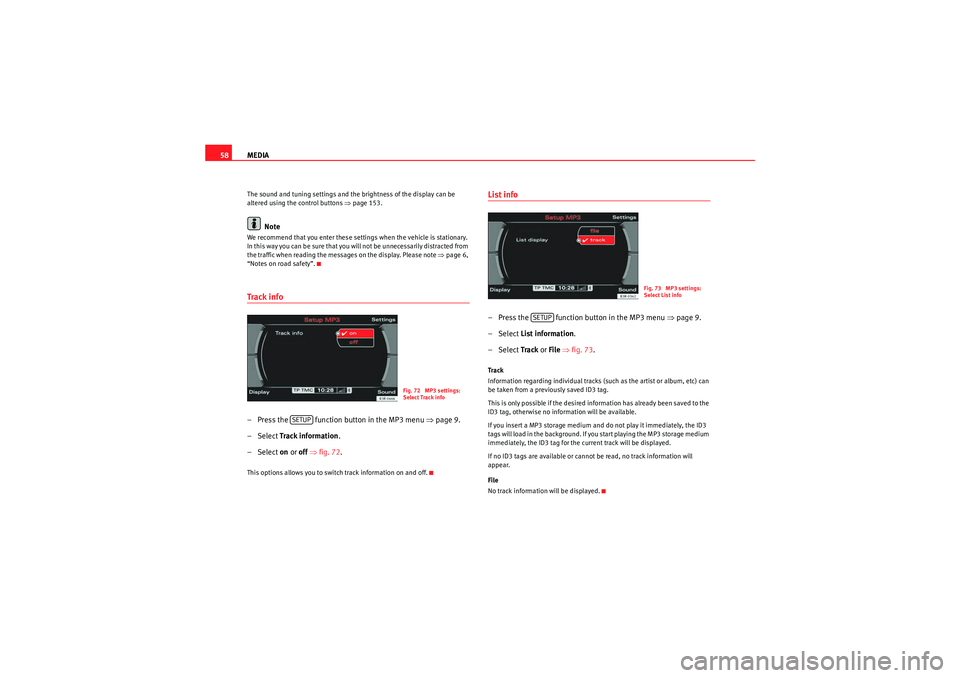
“Notes on road safety”.Track info– Press the function button in the MP3 menu ⇒ page 9.
– Select Track information .
– Select on or off ⇒ fig. 72.This options allows you to switch track information on and off.
List info– Press the function button in the MP3 menu ⇒page 9.
– Select List information .
– Select Track or File ⇒ fig. 73 .Track
Information regarding individual tracks (such as the artist or album, etc) can
be taken from a previously saved ID3 tag.
This is only possible if the desired information has already been saved to the
ID3 tag, otherwise no information will be available.
If you insert a MP3 storage medium and do not play it immediately, the ID3
tags will load in the background. If you start playing the MP3 storage medium
immediately, the ID3 tag for the current track will be displayed.
If no ID3 tags are available or cannot be read, no track information will
appear.
File
No track information will be displayed.
Fig. 72 MP3 settings:
Select Track info
SETUP
Fig. 73 MP3 settings:
Select List info
SETUP
media_systemE_EN.book Seite 58 Montag, 21. September 2009 1:48 13
Page 72 of 167
Mobile phone system*71
Operating
RADIO, MEDIA (audiovisual
systems)
NAME, TEL
NAV, INFO
CAR, SETUP
−
Therefore, you should always operate mobile phones with an external
aerial. It is also valid for the use of mobiles using Bluetooth technology.
The external aerial directs the electromagnetic fields to the exterior,
which reduces the field strength in the vehicle interior.
− If retrofitting an external aerial, please ensure that it is installed
correctly.
Bluetooth®
Bluetooth enables a wireless connection between a mobile
phone and the hands free telephone system.The mobile phone
3) must be linked once to the mobile phone
adapter in the vehicle. This procedure involves various steps,
depending on the mobile phone you are using. After switching the
ignition on (and with the vehicle at a standstill), your mobile phone
can be connected to the mobile phone adapter.
– Make sure that no other mobile phone is connected to the mobile phone interface via Bluetooth.
– Switch the ignition on.
– Select the appropriate menu option on your mobile phone to search for Bluetooth compatible devices (i.e. the mobile phone
interface).
– Connect the mobile phone to the mobile phone interface. Your on-board phone system will use the name “Seat XXXX” when it
connects with the mobile phone. – Enter the Bluetooth PIN (“1234”) for the on-board phone system
within about 30 seconds.
4)
– Wait until your mobile phone indicates that it has bonded. The Bluetooth symbol ⇒page 16, fig. 16 will appear in the display.Up to four mobile phones
You can link up to four mobile phones to the mobile phone adapter. However,
it is only possible to activate one connection at a time. If you bond a fifth
mobile phone to the mobile phone interface, the system will delete the device
which has not been used for the longest time in conjunction with the mobile
phone interface.
Connecting and disconnecting
A mobile phone which has been linked to the mobile phone adapter and is
ready to operate will be connected automatically when you switch the ignition
on. On some mobile phones, you have to confirm the connection.
The Bluetooth connection is terminated when the key is removed from the
ignition lock. With most mobile phones the Bluetooth connection will also be
terminated when you insert the mobile phone in the adapter.
Autonomy
The Bluetooth connection between the mobile phone and the mobile phone
adapter is restricted to the interior of the vehicle. The connection can be
susceptible to interference caused by other electronic devices or obstacles
between the devices. For example, the mobile phone adapter may have diffi-
culty detecting your mobile phone or communicating with it if you keep it in
your jacket pocket.
3)Please make sure that the mobile phone supports the hands free profile.
4)Yo u s h o u l d ch a n g e t h e B l u e t o o t h P I N ⇒page 84 to prevent unauthorised use of your
mobile phone.
media_systemE_EN.book Seite 71 Montag, 21. September 2009 1:48 13
Page 80 of 167
Mobile phone system*79
Operating
RADIO, MEDIA (audiovisual
systems)
NAME, TEL
NAV, INFO
CAR, SETUP
– Select a name from the list.
–Select OK using the alphanumeric keyboard, or
– Press the Dial control button.If you have stored more than one number for one of your contacts, all the
numbers will be listed.
If no telephone numbers have been stored in the directory, the directory will
appear greyed out on the display. it cannot be selected.
Note
Use the button to access and edit your directory data ⇒page 63.Phone book– Press the Memory control button in a telephone menu.
– By rotating and pressing the control knob, select Phone book.
–Select Find entry . The alphanumeric keyboard will appear, or
– Select a name from the list.
–Select OK using the alphanumeric keyboard, or
– Press the Dial control button.Loading the phone book entries
Provided your mobile phone supports this function, the phone book entries
will be automatically scanned into the memory of the mobile phone adapter
after you have switched on the ignition and inserted the mobile phone in the adapter. It may take several minutes to load the entries, depending on how
many entries are stored on the mobile phone. The message
Please wait... will
appear on the instrument panel display during this process.
The last four phone books loaded into the mobile phone adapter remain
stored there. When you link a fifth mobile phone to the mobile phone
adapter, the phone book from the mobile phone which has not been used for
the longest time is deleted from the mobile phone adapter. Up to 500 phone
book entries per phone book can be stored in the memory.
Using the mobile phone again later
If the SIM card is identical, the phone b ook entries are already stored in the
mobile phone adapter. You can use the phone book almost immediately.
The system automatically searches for changes or new entries and stores
them automatically. This process can take several minutes. If your vehicle is
equipped with the speech control system* ⇒page 86, you cannot record any
spoken names in the phone book for the speech control system while phone
book entries are being loaded from the mobile phone.
Displaying the phone book entries
The phone book entries are displayed in alphabetical order together with a
category symbol, e.g. SIM card, private, business, mobile phone or telephone
symbol.
Note
•Which phone book entries are displayed by the navigation system will
depend on the mobile phone you are using.•In certain cases, phone book entries from a mobile phone may not be
transmitted in alphabetical order. If more than 500 phone book entries exist,
entries with certain initial letters may not appear on the navigation system
display.
NAME
media_systemE_EN.book Seite 79 Montag, 21. September 2009 1:48 13
Page 83 of 167
Mobile phone system*
82Telephone on the instrument panel display
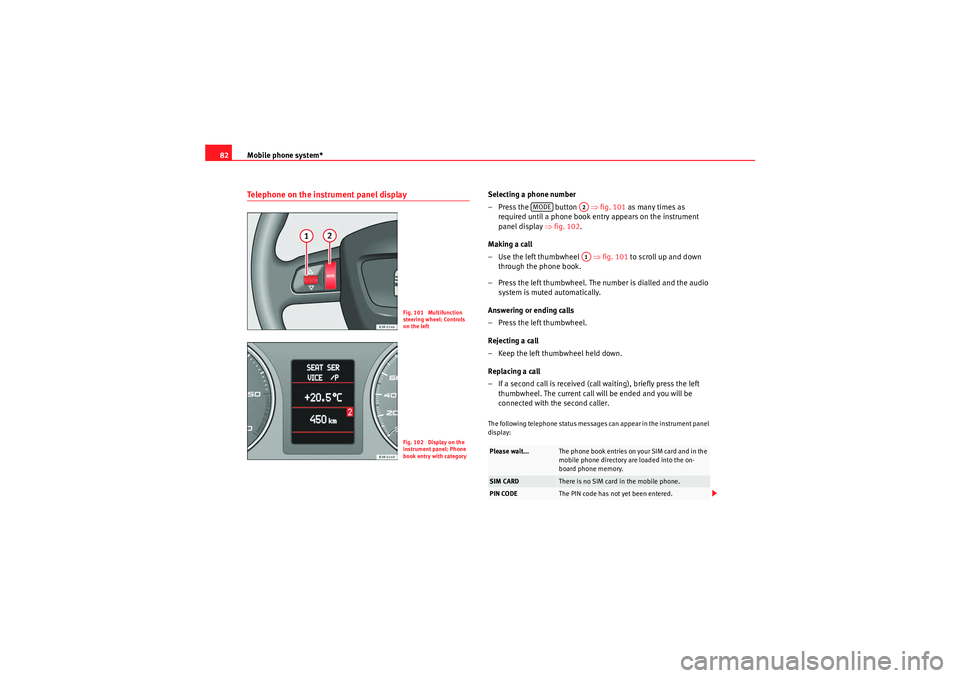
Selecting a phone number
– Press the button ⇒fig. 101 as many times as
required until a phone book entry appears on the instrument
panel display ⇒fig. 102 .
Making a call
– Use the left thumbwheel ⇒fig. 101 to scroll up and down
through the phone book.
– Press the left thumbwheel. The number is dialled and the audio system is muted automatically.
Answering or ending calls
–Press the left thumbwheel.
Rejecting a call
– Keep the left thumbwheel held down.
Replacing a call
– If a second call is received (call waiting), briefly press the left thumbwheel. The current call will be ended and you will be
connected with the second caller.The following telephone status messages can appear in the instrument panel
display:
Fig. 101 Multifunction
steering wheel: Controls
on the leftFig. 102 Display on the
instrument panel: Phone
book entry with category
Please wait...
The phone book entries on your SIM card and in the
mobile phone directory are loaded into the on-
board phone memory.
SIM CARD
There is no SIM card in the mobile phone.
PIN CODE
The PIN code has not yet been entered.
MODE
A2A1
media_systemE_EN.book Seite 82 Montag, 21. September 2009 1:48 13
Page 84 of 167
Mobile phone system*83
Operating
RADIO, MEDIA (audiovisual
systems)
NAME, TEL
NAV, INFO
CAR, SETUP
Phone numbers can be stored in different categories in the mobile phone
directory. These categories are displayed as follows:
P Private phone number
W Work phone number
M Mobile phone number
Scroll the left thumbwheel downwards to scroll down the list of stored names
from
A to Z . Scroll the left thumbwheel upwards to scroll up the list of stored
names from Z to A. If you "flick" the left thumbwheel you can jump to the next
letter of the alphabet.
Note
The information shown on the instrument panel display depends on the type
of mobile phone used.
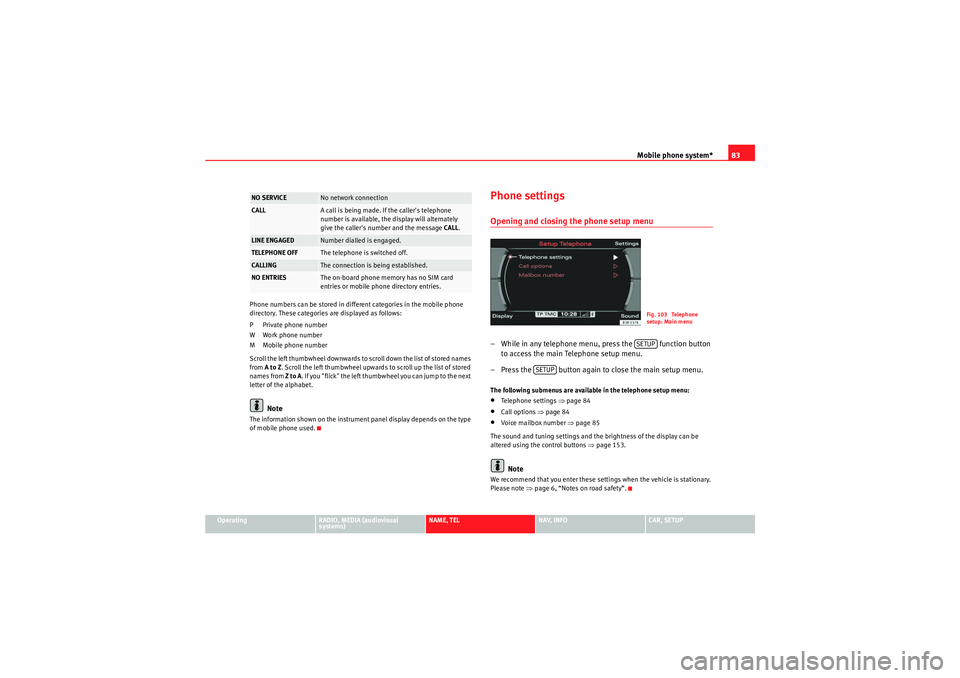
Phone settingsOpening and closing the phone setup menu– While in any telephone menu, press the function button to access the main Telephone setup menu.
– Press the button again to close the main setup menu.The following submenus are available in the telephone setup menu:•Telephone settings ⇒page 84•Call options ⇒page 84•Voice mailbox number ⇒ page 85
The sound and tuning settings and the brightness of the display can be
altered using the control buttons ⇒page 153.Note
We recommend that you enter these settings when the vehicle is stationary.
Please note ⇒ page 6, “Notes on road safety”.
NO SERVICE
No network connection
CALL
A call is being made. If the caller's telephone
number is available, the display will alternately
give the caller's number and the message CALL.
LINE ENGAGED
Number dialled is engaged.
TELEPHONE OFF
The telephone is switched off.
CALLING
The connection is being established.
NO ENTRIES
The on-board phone memory has no SIM card
entries or mobile phone directory entries.
Fig. 103 Telephone
setup: Main menuSETUP
SETUP
media_systemE_EN.book Seite 83 Montag, 21. September 2009 1:48 13
Page 87 of 167
Mobile phone system*
86Telephone speech control systemIntroduction
You can use speech commands to operate various functions
of the telephone.Functions
When used in combination with the hands-free system, you can make calls
without touching your mobile phone. The speech control system recognises
commands and digits spoken by different people.
The speech control system allows you to do the following:•Create an acoustic phone book for the speech control system ⇒page 86•Enter and dial a telephone number ⇒page 91
Traffic reports are not announced during a running dialogue. The dialogue
will be ended immediately when an incoming phone call is received. To
answer the call, press the left thumbwheel on the multi-function steering
wheel* or the talk button on the mobile phone adapter.
Unclear speech commands
The system acknowledges your commands with an acoustic signal. If the
system does not recognise a speech command, it will answer with Pardon?
and request you to repeat the command. After a third failed attempt the
system will answer with Cancel and the dialogue will be ended.
How to help the system understand you•Speak clearly in a normal volume. Speak louder if you are driving fast.•Speak in a normal tone without long pauses.•Avoid speaking when the system is saying a cue.•Close doors, windows and sun roof* to reduce background noise. Make
sure that passengers are not talking when you say a command.
•Keep the air outlets of the air distribution system pointed away from the
microphone, which is fitted in the vicinity of the front interior lights.•The system should only be operated by the driver, since the hands-free
microphone is directed towards the driver.WARNING
•Please direct your full attention to the road at all times! As the driver,
you bear the responsibility for road safety. Therefore, you should only use
the functions in a manner that allows you to maintain control of the vehicle
in all situations.•The speech control system must not be used in cases of emergency,
since the voice changes in stressful situations. This could result in a failed
or delayed telephone connection. Always dial emergency numbers
manually.
Speech control system phone book
Name tags are stored in the phone book for the speech
control system.General notes
The phone book for the speech control system has 50 memory positions. You
can use it independently of the mobile phone. The name tags are stored in
the phone book for the speech control system.
Functions
The phone book for the speech control system gives you various options:•Dialling phone numbers stored previously ⇒page 93•Recording a name in the speech control phone book for a phone book
entry in the on-board phone system ⇒ page 92
media_systemE_EN.book Seite 86 Montag, 21. September 2009 1:48 13
Page 88 of 167
Mobile phone system*87
Operating
RADIO, MEDIA (audiovisual
systems)
NAME, TEL
NAV, INFO
CAR, SETUP
•Storing name tags (consisting of a name and number) in the phone book
for the speech control system ⇒page 93•Playing the phone book through the speech control system ⇒ page 94
Once you have saved name tags in the phone book for the speech control
system, you can select them via the speech control system.
Entering data
You should choose spoken names that can be identified clearly by the speech
control system.
Numbers from ZERO to NINE are recognised when you enter a telephone
number. The telephone number can be specified all at once, in blocks of
digits (separated by a brief pause), or as single digits. After each block of
digits you specify (separated by a brief pause) the system will repeat the
digits. The system does not recognise number combinations (e.g. "twenty-
three") but separate figures ( TWO, THREE ). Say the numbers clearly so that
the system can recognise them easily.
If you indicate a number of more than twenty figures, the system will respond:
The number is too long . A Plus (+) can also be placed ahead of the number.
If the system does not recognise a phone book entry, you can play back the
name tags (voice entries) on the speech control system by saying the
command PLAY PHONE BOOK . Press the talk button as a name is being read
to select the entry.
The function is not possible
Should the system say The function is not possible, please check the status
of the speech control system:•Is the navigation system on? Is the ignition switched on?•Is the mobile phone connected to the on-board phone system* via Blue-
tooth?•Is the mobile phone inserted in the mobile phone adapter*?•Is the mobile phone switched on and the PIN entered?
•Are the phone book entries being loaded from the mobile phone into the
on-board phone system* ⇒page 92?
media_systemE_EN.book Seite 87 Montag, 21. September 2009 1:48 13
Page 91 of 167
Mobile phone system*
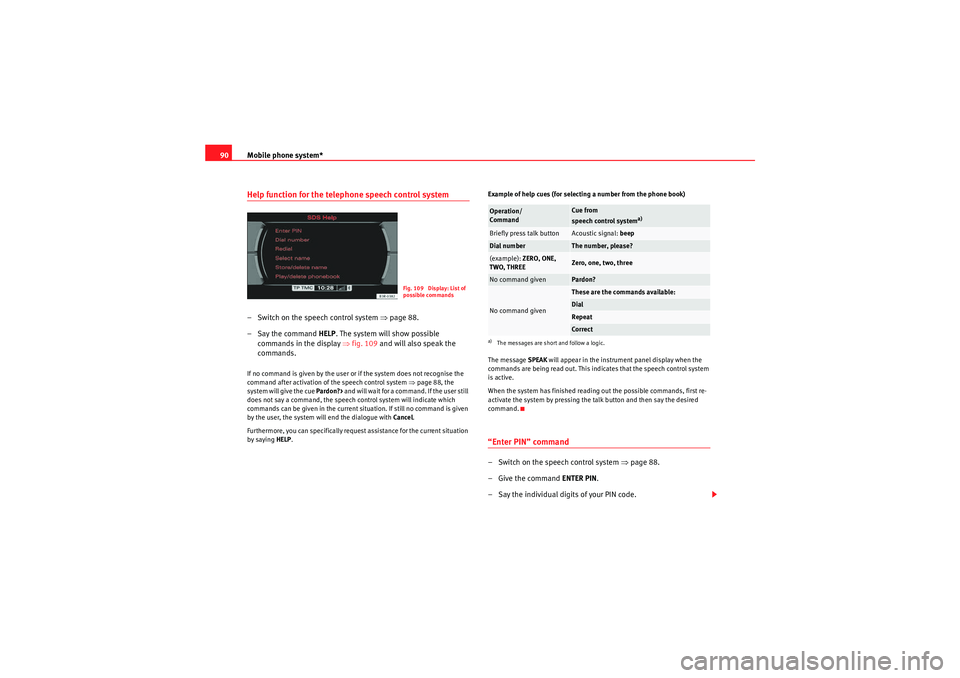
90Help function for the telephone speech control system– Switch on the speech control system ⇒ page 88.
– Say the command HELP. The system will show possible
commands in the display ⇒ fig. 109 and will also speak the
commands.If no command is given by the user or if the system does not recognise the
command after activation of the speech control system ⇒page 88, the
system will give the cue Pardon?> and will wait for a command. If the user still
does not say a command, the speech control system will indicate which
commands can be given in the current situation. If still no command is given
by the user, the system will end the dialogue with Cancel.
Furthermore, you can specifically request assistance for the current situation
by saying HELP . Example of help cues (for selecting a number from the phone book)
The message
SPEAK will appear in the instrument panel display when the
commands are being read out. This indicates that the speech control system
is active.
When the system has finished reading out the possible commands, first re-
activate the system by pressing the talk button and then say the desired
command.
“Enter PIN” command– Switch on the speech control system ⇒page 88.
–Give the command ENTER PIN.
– Say the individual digits of your PIN code.
Fig. 109 Display: List of
possible commands
Operation/
Command
Cue from
speech control system
a)
a)The messages are short and follow a logic.Briefly press talk button
Acoustic signal: beep
Dial number
The number, please?
(example): ZERO, ONE,
TWO, THREE
Zero, one, two, three
No command given
Pardon?
No command given
These are the commands available:DialRepeatCo r rect
media_systemE_EN.book Seite 90 Montag, 21. September 2009 1:48 13
Page 94 of 167
Mobile phone system*93
Operating
RADIO, MEDIA (audiovisual
systems)
NAME, TEL
NAV, INFO
CAR, SETUP
Storing a name in the phone book using the speech control system
Name tags, consisting of a name and associated telephone
numbers, can be stored in the phone book using the speech
control system.– Switch on the speech control system ⇒page 88.
– Say the command STORE NAME.
– When requested by the speech control system, please say the name ("tag") under which you wish to store the phone book
entry.
– When requested by the speech control system, repeat the name.
– When requested by the speech control system, say the digits of the corresponding telephone number individually or in groups.
After each block of digits you specify (separated by a brief pause)
the system will repeat the digits.
–Say STORE when you have completed the number entry. The
recorded name (spoken name tag with corresponding phone
number) will be stored in the phone book for the speech control
system.Name tags which you store in the phone book for the speech control system
using the STORE NAME command are not shown in the instrument panel
display.
Note
If two or more names sound alike, it is better to save the names including the
first name or some other distinguishing entry.Selecting a name– Switch on the speech control system ⇒page 88.
–Say the command DIAL NAME.
– When the speech control system gives you the cue, say the name of one of the entries stored in the phone book ⇒page 93.
–Say the command DIAL. The telephone number will be dialled.Recorded names are user-oriented and are best recognised by the system
when the same person who assigned the name repeats the recorded name.Deleting a name– Switch on the speech control system ⇒page 88.
–Say the command DELETE NAME.
– When the speech control system gives you the cue, say the name of one of the entries stored in the phone book ⇒page 93.
media_systemE_EN.book Seite 93 Montag, 21. September 2009 1:48 13