Pandora SUBARU OUTBACK 2016 6.G Owners Manual
[x] Cancel search | Manufacturer: SUBARU, Model Year: 2016, Model line: OUTBACK, Model: SUBARU OUTBACK 2016 6.GPages: 572, PDF Size: 21.79 MB
Page 229 of 572

Antenna................................................................ 5-2
Printed antenna................................................... 5-2
Roof antenna (if equipped).................................. 5-2
Audio set............................................................. 5-2Base display audio set (if equipped).................... 5-4
SUBARU STARLINKTMMultimedia Plus audio set
(U.S. spec. models only, if equipped)................. 5-6
Tips for operating the audio/visual system........... 5-7
Basic information before use.............................. 5-15
Basic operation.................................................. 5-18
Unit settings...................................................... 5-19
STARLINK (if equipped)...................................... 5-26
AM/FM radio....................................................... 5-28
SiriusXM Satellite Radio (if equipped)................. 5-37
aha
TMby HARMAN............................................. 5-44
Pandora®(if equipped)....................................... 5-50
CD ..................................................................... 5-53
USB memory...................................................... 5-55
iPod................................................................... 5-56
Bluetooth audio.................................................. 5-58
AUX ................................................................... 5-61
Steering switches for audio.............................. 5-63
Bluetooth®settings............................................ 5-66Regulatory information....................................... 5-66Registering/connecting Bluetooth
®device.......... 5-66
Setting Bluetooth details.................................... 5-69
Hands-free phone system................................. 5-71
Control screen................................................... 5-72
Registering/connecting a Bluetooth phone......... 5-73
Using the phone switch/microphone................... 5-73
How to change the hands-free phone system..... 5-73
Making a call..................................................... 5-73
Receiving a call................................................. 5-77
Talking on the phone......................................... 5-78
Phone settings.................................................. 5-79
Voice command system.................................... 5-81Using the voice command system...................... 5-81
Voice command system operation...................... 5-82
Command list.................................................... 5-84
What to do if....................................................... 5-88Troubleshooting................................................. 5-88
Appendix............................................................ 5-92Certification....................................................... 5-92
Certification for the Hands-free system............... 5-92
Certification for Mexico models.......................... 5-93
Audio
5
Page 232 of 572

Audio/Audio set
&Base display audio set (if equipped)
1) Power/VOLUME knob
2) Eject button
3) AUDIO/TUNE knob
4) HOME button5) APPS button
6) Display
7) SEEK/TRACK buttons
The audio set will operate only when the
ignition switch is in the“ACC”or“ON”
position.
.Power and audio controls: refer to
“Basic operation”F5-18.
.STARLINK (if equipped): refer to
“STARLINK”F5-26.
.Radio operation: refer to“AM/FM radio”
F5-28.
.Satellite radio operation (if equipped):
refer to“SiriusXM Satellite Radio”F5-37.
.aha
TM: refer to“ahaTMby HARMAN”
F5-44.
.Pandora
®(if equipped): refer to“Pan-
dora®”F5-50.
.CD (compact disc) player operation:
refer to“CD”F5-53.
.USB storage device: refer to“USB
memory”F5-55.
.iPod operation: refer to“iPod”F5-56.
.Bluetooth
®audio: refer to“Bluetooth
audio”F5-58.
.Auxiliary input jack: refer to“AUX”F5-
61.
.Hands-free phone system: refer to
“Hands-free phone system”F5-71.
5-4
Page 255 of 572
activated.
.You can also switch to aha or
Pandora (if equipped) from the APPS
screen.
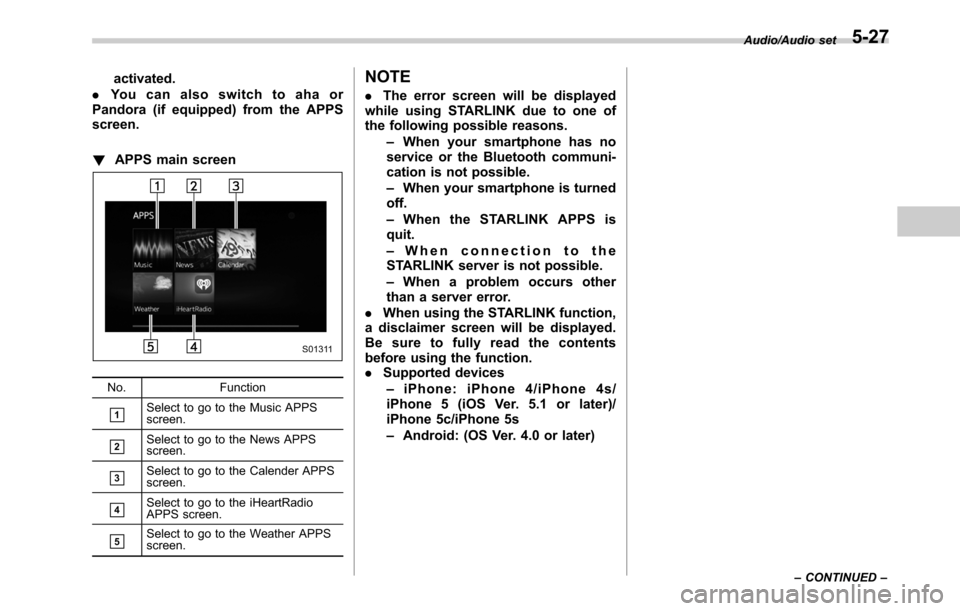
!APPS main screen
No. Function
&1Select to go to the Music APPS
screen.
&2Select to go to the News APPS
screen.
&3Select to go to the Calender APPS
screen.
&4Select to go to the iHeartRadio
APPS screen.
&5Select to go to the Weather APPS
screen.
NOTE
.The error screen will be displayed
while using STARLINK due to one of
the following possible reasons.
–When your smartphone has no
service or the Bluetooth communi-
cation is not possible.
–When your smartphone is turned
off.
–When the STARLINK APPS is
quit.
–When connection to the
STARLINK server is not possible.
–When a problem occurs other
than a server error.
.When using the STARLINK function,
a disclaimer screen will be displayed.
Be sure to fully read the contents
before using the function.
.Supported devices
–iPhone: iPhone 4/iPhone 4s/
iPhone 5 (iOS Ver. 5.1 or later)/
iPhone 5c/iPhone 5s
–Android: (OS Ver. 4.0 or later)
Audio/Audio set
–CONTINUED–5-27
Page 278 of 572

Audio/Audio set
&Pandora®(if equipped)
Pandora is an application for a smart-
phone. This can automatically select and
play recommended tracks.
By rating the track currently playing, tracks
that better match your preference will be
recommended.
In order to connect to this system, use a
USB port for an iPhone or iPod touch and
Bluetooth for Android devices.
Depending on differences between mod-
els or software version etc., some models
might be incompatible with this system.
This function is not available if the
Pandora application has not been in-
stalled on the smartphone.
WARNING
Do not operate the player’s controls
or connect the smartphone while
driving. Doing so may result in loss
of control of your vehicle and cause
an accident or serious injury.
CAUTION
.Do not leave your smartphone in
the car. In particular, high tem-peratures inside the vehicle may
damage the smartphone.
.Do not push down on or apply
unnecessary pressure to the
smartphone while it is connected
as this may damage the smart-
phone or its terminal.
.Do not insert foreign objects into
the port as this may damage the
smartphone or its terminal.
NOTE
Follow the specific operation proce-
dures for the smartphone application.
5-50
Page 279 of 572
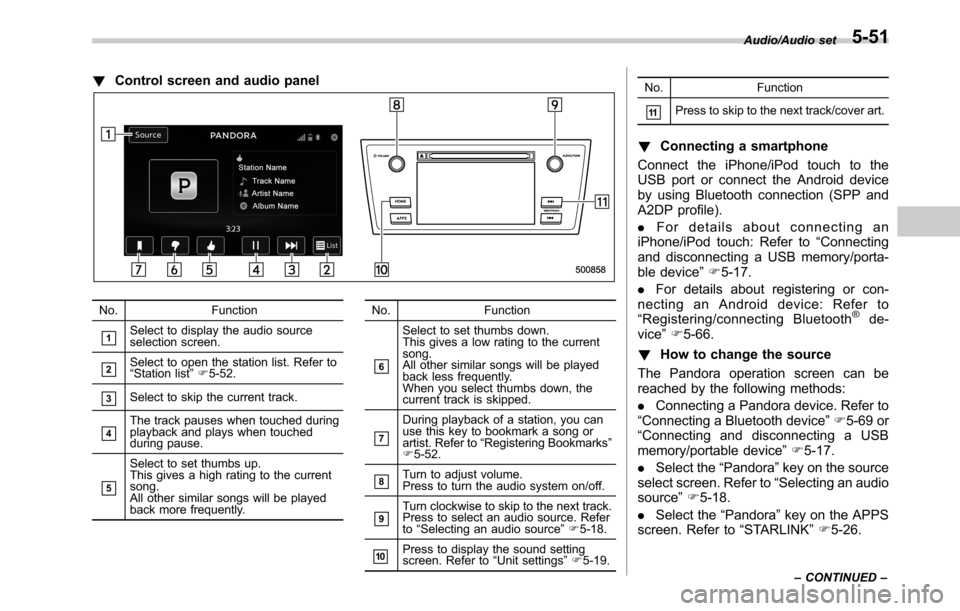
!Control screen and audio panel
No. Function
&1Select to display the audio source
selection screen.
&2Select to open the station list. Refer to
“Station list”F5-52.
&3Select to skip the current track.
&4The track pauses when touched during
playback and plays when touched
during pause.
&5
Select to set thumbs up.
This gives a high rating to the current
song.
All other similar songs will be played
back more frequently.No. Function
&6
Select to set thumbs down.
This gives a low rating to the current
song.
All other similar songs will be played
back less frequently.
When you select thumbs down, the
current track is skipped.
&7
During playback of a station, you can
use this key to bookmark a song or
artist. Refer to“Registering Bookmarks”
F5-52.
&8Turn to adjust volume.
Press to turn the audio system on/off.
&9Turn clockwise to skip to the next track.
Press to select an audio source. Refer
to“Selecting an audio source”F5-18.
&10Press to display the sound setting
screen. Refer to“Unit settings”F5-19.No. Function
&11Press to skip to the next track/cover art.
!Connecting a smartphone
Connect the iPhone/iPod touch to the
USB port or connect the Android device
by using Bluetooth connection (SPP and
A2DP profile).
.For details about connecting an
iPhone/iPod touch: Refer to“Connecting
and disconnecting a USB memory/porta-
ble device”F5-17.
.For details about registering or con-
necting an Android device: Refer to
“Registering/connecting Bluetooth
®de-
vice”F5-66.
!How to change the source
The Pandora operation screen can be
reached by the following methods:
.Connecting a Pandora device. Refer to
“Connecting a Bluetooth device”F5-69 or
“Connecting and disconnecting a USB
memory/portable device”F5-17.
.Select the“Pandora”key on the source
select screen. Refer to“Selecting an audio
source”F5-18.
.Select the“Pandora”key on the APPS
screen. Refer to“STARLINK”F5-26.
Audio/Audio set
–CONTINUED–5-51
Page 280 of 572
Audio/Audio set
NOTE
When starting-up Pandora, there are
some smartphone models for which
Pandora application does not start up
automatically.
!Registering Bookmarks
You can register the music and artist now
being played in Bookmark.
1. Touch the
tab.
2. Select the desired key. The following
items are appeared on the screen.
Item Function
TrackWhen selected after the Book-
mark key is pressed, the current
track is bookmarked.
ArtistWhen selected after the Book-
mark key is pressed, the current
artist is bookmarked.
CancelSelect to cancel the bookmark
operation.
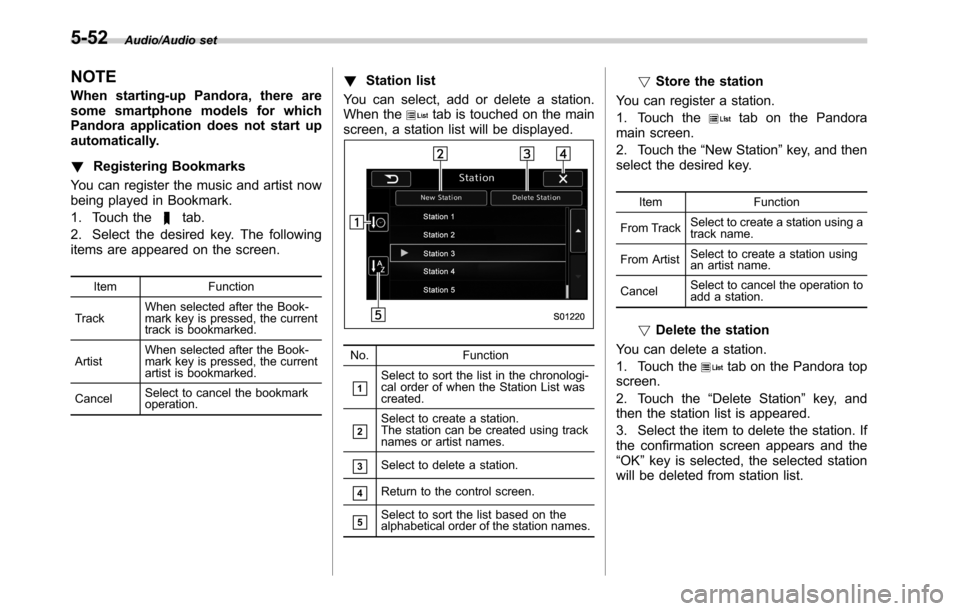
!Station list
You can select, add or delete a station.
When the
tab is touched on the main
screen, a station list will be displayed.
No. Function
&1Select to sort the list in the chronologi-
cal order of when the Station List was
created.
&2Select to create a station.
The station can be created using track
names or artist names.
&3Select to delete a station.
&4Return to the control screen.
&5Select to sort the list based on the
alphabetical order of the station names.
!Store the station
You can register a station.
1. Touch the
tab on the Pandora
main screen.
2. Touch the“New Station”key, and then
select the desired key.
Item Function
From TrackSelect to create a station using a
track name.
From ArtistSelect to create a station using
an artist name.
CancelSelect to cancel the operation to
add a station.
!Delete the station
You can delete a station.
1. Touch the
tab on the Pandora top
screen.
2. Touch the“Delete Station”key, and
then the station list is appeared.
3. Select the item to delete the station. If
the confirmation screen appears and the
“OK”key is selected, the selected station
will be deleted from station list.
5-52
Page 292 of 572

Audio/Steering switches for audio
.+/−switch
Mode Operation Function
Except list screenPress Volume up/down
Press and hold Volume up/down continuously
List screen Press Move cursor up/down
Pandora main screen (if equipped) Press and hold“+”switch is thumb up/“−”switch is thumb down
./switch
Mode Operation Function
AM/FM Radio, SiriusXM (if equipped)Press Preset channel up/down
Press and holdSeek up/down continuously while the switch is
being pressed
ahaPress Content up/down
Press and holdReverse the current content item for 15 sec-
onds/Fast forward the current content item for
30 seconds
Audio CD, MP3/WMA/AAC disc, USB, iPod, BT
audioPress Select a track/file
Press and hold Fast forward/rewind
Pandora (if equipped) Press and hold Thumbs up
List screen PressMove cursor left/right
5-64
Page 293 of 572

.Mute/Enter switch
Mode Operation Function
Except list screen Press Audio ON/OFF
List screen Press Select cursor entry
CD, USB, iPod, BT audio, Pandora (if equipped), aha Press Pause or play back
AM/FM radio, AUX, SiriusXM (if equipped) PressMute or cancel mute
.Back switch
Mode Operation Function
All (except for STARLINK) Press Return to the previous screen
All Press and holdReturn to the HOME screen
.List switch
Mode Operation Function
All (except for STARLINK) PressShow list screen
.Source switch
Mode Operation Function
All PressChange audio modes
NOTEIn the aha, Pandora (if equipped) and STARLINK (if equipped) mode, some operation may be done on the screen depend on
the selected APPS.
Audio/Steering switches for audio5-65
Page 313 of 572

!Commands for changing the audio
mode
Voice command Function
Change to AM Switch to AM mode
Change to AM1Switch to AM mode
band 1
Change to AM2Switch to AM mode
band 2
Change to FM Switch to FM mode
Change to FM1Switch to FM mode
band 1
Change to FM2Switch to FM mode
band 2
Change to FM3Switch to FM mode
band 3
Change to SiriusXM Switch to XM mode
Change to BT AudioSwitch to Bluetooth
Audio mode
Change to CD Switch to CD mode
Change to USB Switch to USB mode
Change to iPod Switch to iPod mode
Change to ahaSwitch to aha radio
mode
Change to PandoraSwitch to Pandora
mode
Change to AUXSwitch to AUX mode
!Commands for hands-free phone
Voice command Function
Dial Number?<0-9,
+, *, #>?Change
number, DialPlaces a call to the
said phone number
Dial <0-9, +, *, #>?
Change number, Dial
Contacts, Phonebook
?
?DialMake a call by using
the phonebook
Call
<1-5>?Dial
Call History?In-
coming call, Outgoing
call?Next (page),
Previous (page)?
<1-5>?DialMake a call by using
the call history
Incoming CallsDisplay the call his-
tory screen
Outgoing CallsDisplay the call his-
tory screen
RedialPlaces a call to the
phone number of the
latest outgoing call
CallbackPlaces a call to the
phone number of the
latest incoming call
Select Phone?
<1-5>Display the phone
select screen
Phone MenuDisplay the hands
free top screen
!Commands for Pandora
Voice command Function
Like Mark“Like”flag
Dislike Mark“Dislike”flag
Skip, NextSkip to the next song
!Commands for aha
Voice command Function
Thumbs Up, Heart,
LikeMark“Like”flag
Thumbs Down, Ban,
DislikeMark“Dislike”flag
Refresh, updateRefresh the selected
station to get the lat-
est information
Content UpPlayback next Con-
tent
Content DownPlayback previous
Content Audio/Voice command system
–CONTINUED–
5-85
Page 320 of 572

Audio/Appendix
Appendix
&Certification
.Bluetooth
The Bluetooth word mark and logo are
registered trademarks of Bluetooth SIG,
Inc. and any use of such marks by Clarion
Co., Ltd. is under license.
.SiriusXM Satellite Radio (if
equipped)
SiriusXM
TMand all related marks and
logos are trademarks of SiriusXM Radio
Inc. All rights reserved.
.Pandora (if equipped)
Pandora, the Pandora logo, and other
Pandora marks are trademarks or regis-
tered trademarks of Pandora Media, Inc.,
or its subsidiaries worldwide.
If you have any issues with the Pandora
application on your mobile phone, please
direct them to
[email protected].
.iPod
“Made for iPod”and“Made for iPhone”
mean that an electronic accessory has
been designed to connect specifically to
iPod or iPhone respectively, and has been
certified by the developer to meet Apple
performance standards. Apple is not
responsible for the operation of this device
or its compliance with safety and regula-
tory standards. Please note that the use of
this accessory with iPod or iPhone may
affect wireless performance.
iPhone, iPod, iPod classic, iPod nano,
iPod touch, and iTunes are trademarks of
Apple Inc., registered in the U.S. and other
countries.
.How to get the source code using
the open source
This system implements software using
the open source. For customers who
would like to get the source code of the
software, it is available by downloading it
from the web site of Clarion Co., Ltd.
For details, refer to the following web site.http://www.clarion.com/us/en/support/in-
dex.html
&Certification for the Hands-
free system
This device complies with Part 15 of FCC
Rules and Industry Canada licence-ex-
empt RSS standard(s). Operation is sub-
ject to the following two conditions: (1) this
device may not cause harmful interfer-
ence, and (2) this device must accept any
interference received, including interfer-
ence that may cause undesired operation.
Le présent appareil est conforme à la
partie 15 des règles de la FCC et CNR
d’Industrie Canada applicables aux appa-
reils radio exempts de licence. L’exploita-
tion est autorisée aux deux conditions
suivantes : (1) l’appareil ne doit pas
produire de brouillage, et (2) l’utilisateur
de l’appareil doit accepter tout brouillage
radioélectrique subi, même si le brouillage
est susceptible d’en compromettre le
fonctionnement.
This equipment complies with FCC/IC
radiation exposure limits set forth for an
uncontrolled environment and meets the
FCC radio frequency (RF) Exposure
Guidelines in Supplement C to OET65
and RSS-102 of the IC radio frequency
(RF) Exposure rules. This equipment has
5-92