turn SUBARU OUTBACK 2022 Getting Started Guide
[x] Cancel search | Manufacturer: SUBARU, Model Year: 2022, Model line: OUTBACK, Model: SUBARU OUTBACK 2022Pages: 172, PDF Size: 58.6 MB
Page 161 of 172
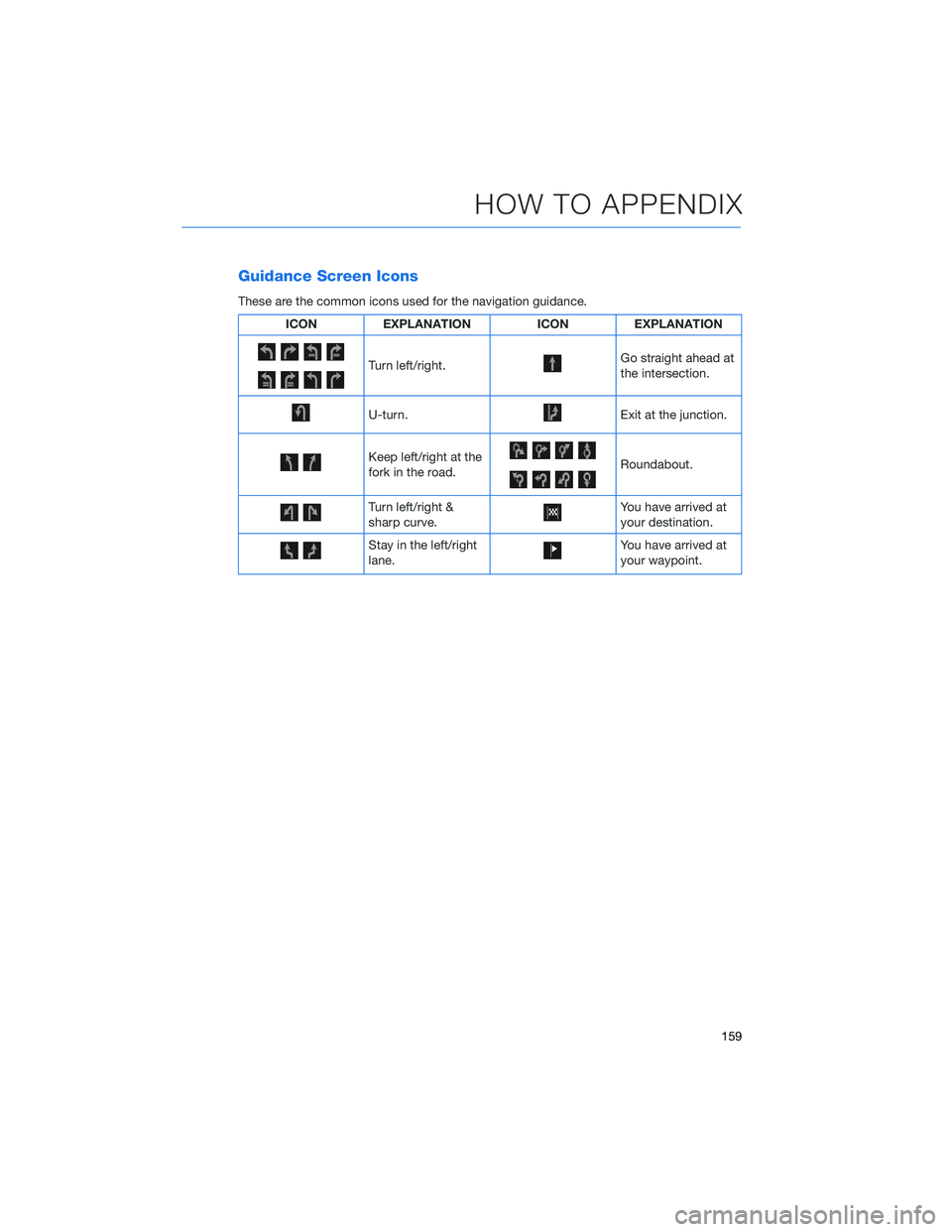
Guidance Screen Icons
These are the common icons used for the navigation guidance.
ICON EXPLANATION ICON EXPLANATION
Turn left/right.Go straight ahead at
the intersection.
U-turn.Exit at the junction.
Keep left/right at the
fork in the road.Roundabout.
Turn left/right &
sharp curve.You have arrived at
your destination.
Stay in the left/right
lane.You have arrived at
your waypoint.
HOW TO APPENDIX
159
Page 164 of 172
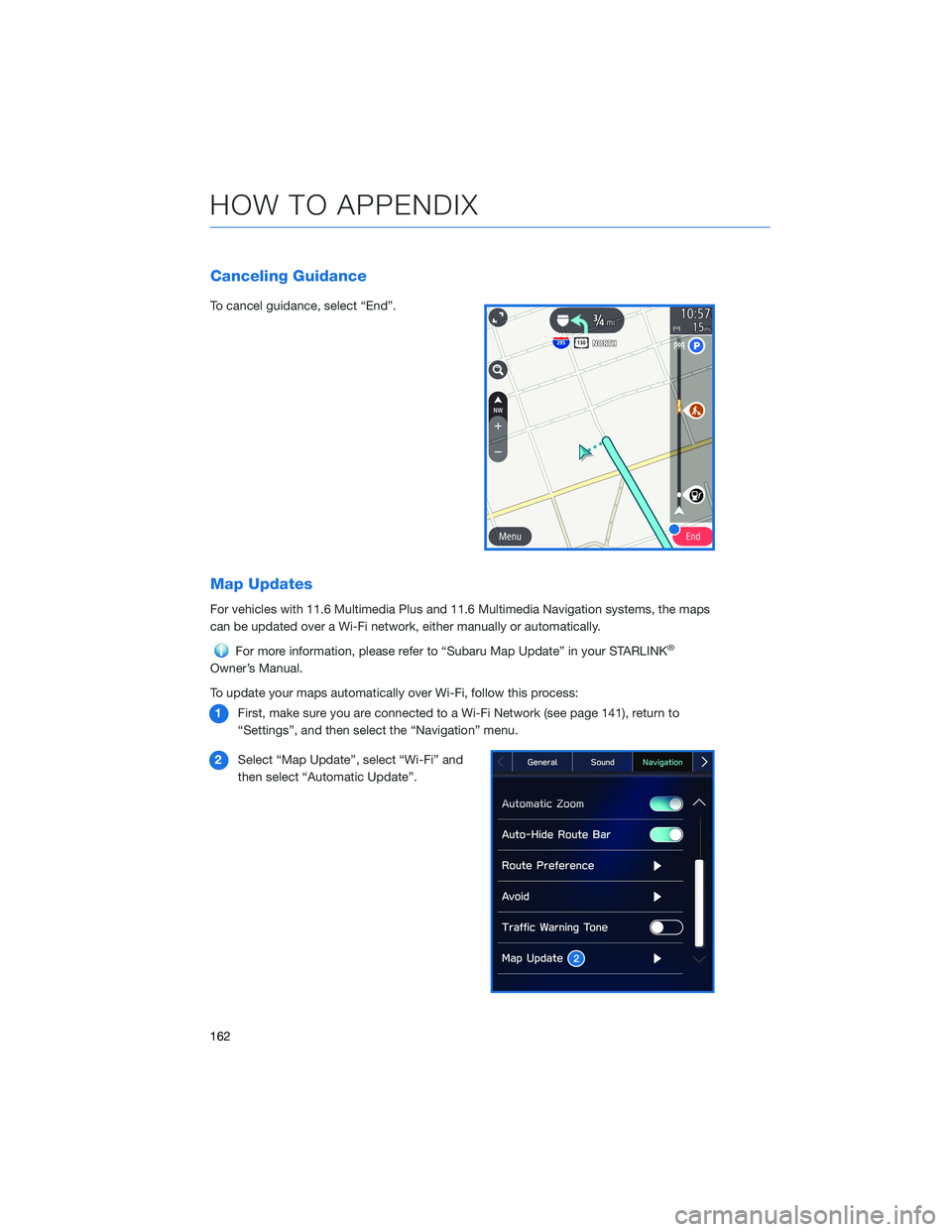
Canceling Guidance
To cancel guidance, select “End”.
Map Updates
For vehicles with 11.6 Multimedia Plus and 11.6 Multimedia Navigation systems, the maps
can be updated over a Wi-Fi network, either manually or automatically.
For more information, please refer to “Subaru Map Update” in your STARLINK®
Owner’s Manual.
To update your maps automatically over Wi-Fi, follow this process:
1First, make sure you are connected to a Wi-Fi Network (see page 141), return to
“Settings”, and then select the “Navigation” menu.
2Select “Map Update”, select “Wi-Fi” and
then select “Automatic Update”.
HOW TO APPENDIX
162
Page 166 of 172
FIRMWARE AND SOFTWARE UPDATES
Software updates provide enhancements to the system, such as new features, added
security, and upgraded functions. You can ask your preferred Subaru retailer to check for
and perform a full update to the system software. Please ask your preferred Subaru retailer
for specific details on update content.
For the 11.6-inch Multimedia Plus and the 11.6-inch Multimedia Navigation systems, some
system software can be updated via a Wi-Fi network. The update process involves
downloading and installing the software update.
NOTE: System functionality will be restricted during installation, and you may need to
reset radio station presets and volume settings after the update process. Set your clock to
“Auto” (see page 126) before updating the software.
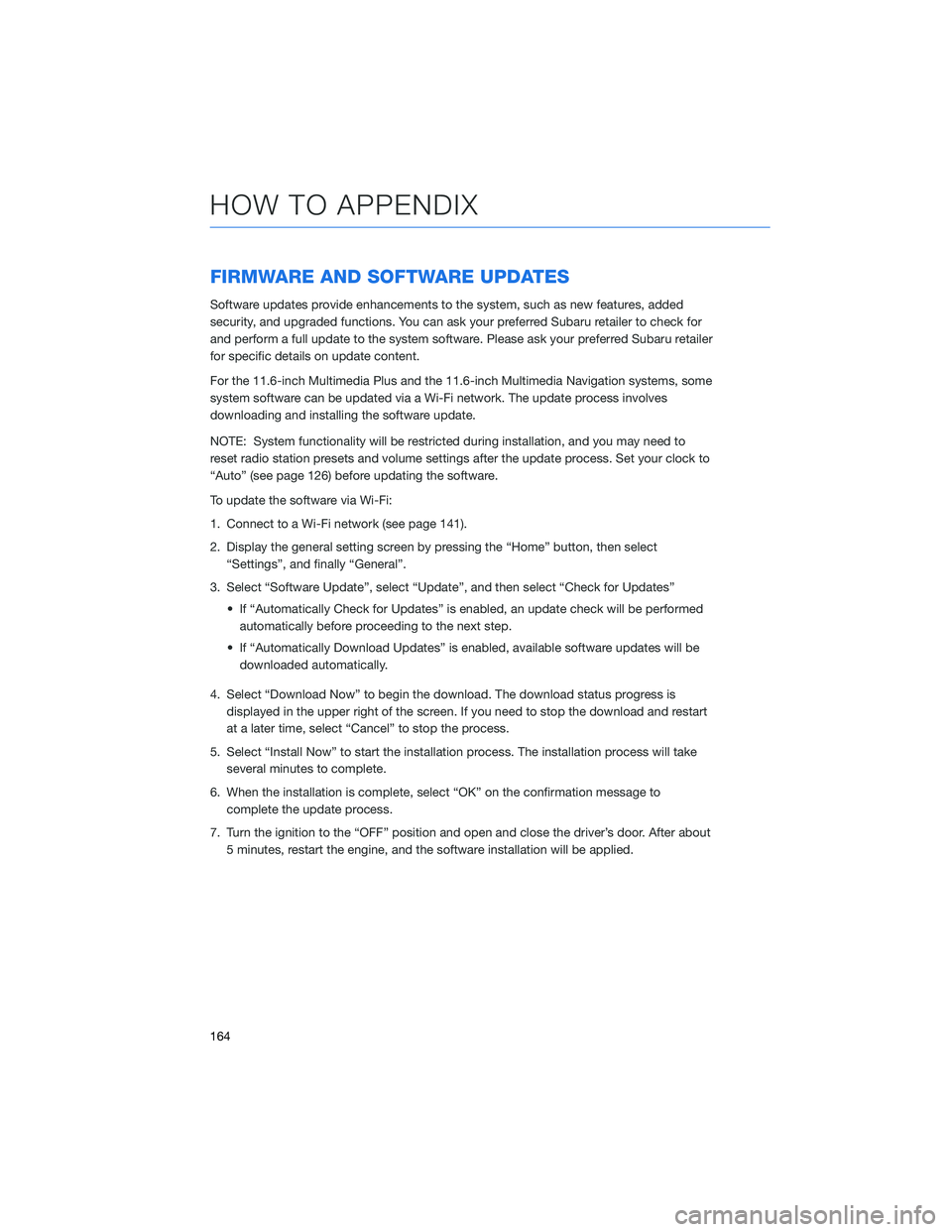
To update the software via Wi-Fi:
1. Connect to a Wi-Fi network (see page 141).
2. Display the general setting screen by pressing the “Home” button, then select
“Settings”, and finally “General”.
3. Select “Software Update”, select “Update”, and then select “Check for Updates”
• If “Automatically Check for Updates” is enabled, an update check will be performed
automatically before proceeding to the next step.
• If “Automatically Download Updates” is enabled, available software updates will be
downloaded automatically.
4. Select “Download Now” to begin the download. The download status progress is
displayed in the upper right of the screen. If you need to stop the download and restart
at a later time, select “Cancel” to stop the process.
5. Select “Install Now” to start the installation process. The installation process will take
several minutes to complete.
6. When the installation is complete, select “OK” on the confirmation message to
complete the update process.
7. Turn the ignition to the “OFF” position and open and close the driver’s door. After about
5 minutes, restart the engine, and the software installation will be applied.
HOW TO APPENDIX
164
Page 170 of 172
SETTING THE CLOCK . . . . . . . . . 124
Automatically . . . . . . . . . . . . . . 126
Manually . . . . . . . . . .......125
SOUND................... 96
SPARE TIRE . . . . . . . . . ....... 57
STARTING THE VEHICLE . . . . ..... 42
Without Push-button Ignition.....42
With Push-button Ignition.......42
STEERING RESPONSIVE HEADLIGHTS
(SRH).................. 115
STEERING WHEEL CONTROLS . . . . . 70
Advanced Adaptive Cruise Control. . 107
Customizing EyeSight®Settings . . 108
STEREO CAMERA PRECAUTIONS . . 121
SUBARU STARLINK
®IN-VEHICLE
APPS . . . . . . . . . . . ....... 88
Android Auto™ . . . . . . . . . . . . . 88
Apple CarPlay
®.............88
SiriusXM®Travel Link . .........89
SUBARU STARLINK®MOBILE APP . . 89
SUBARU STARLINK®WI-FI HOTSPOT . . 94
T
TEXT MESSAGES . . . . . . . . . . . . . 87
TILT AND TELESCOPIC STEERING
COLUMN . . . . . . . . . . . . . . . . 19
TIRE PRESSURE MONITORING SYSTEM
(TPMS).................. 63
TOUCHSCREEN . . . . . . ........ 69
TOWING YOUR ALL-WHEEL DRIVE
SUBARU . . . . . . . . . . . ...... 6TRAILER TOWING CAPACITY . . . . . . 62
TURNING OFF THE VEHICLE...... 50
Without Push-button Ignition.....50
With Push-button Ignition . ......50
TURN SIGNALS . . . . . ......... 37
V
VOICE RECOGNITION .......... 71
Common Commands . . . . . . . . . . 72
Tips....................71
W
WARNING AND INDICATOR LIGHTS . . 41
WELCOME.................. 4
WI-FI.................... 141
Connecting to a Wi-Fi Network . . . 141
Wi-Fi Hotspot Subscription . . . . . 143
WINDSHIELD GLASS AND
DASHBOARD . . . . . . ....... 121
WINDSHIELD WIPERS .......... 37
X
X-MODE
®.................. 48
Hill Descent Control (HDC).......50
INDEX
168