turn SUBARU OUTBACK 2022 Getting Started Guide
[x] Cancel search | Manufacturer: SUBARU, Model Year: 2022, Model line: OUTBACK, Model: SUBARU OUTBACK 2022Pages: 172, PDF Size: 58.6 MB
Page 98 of 172
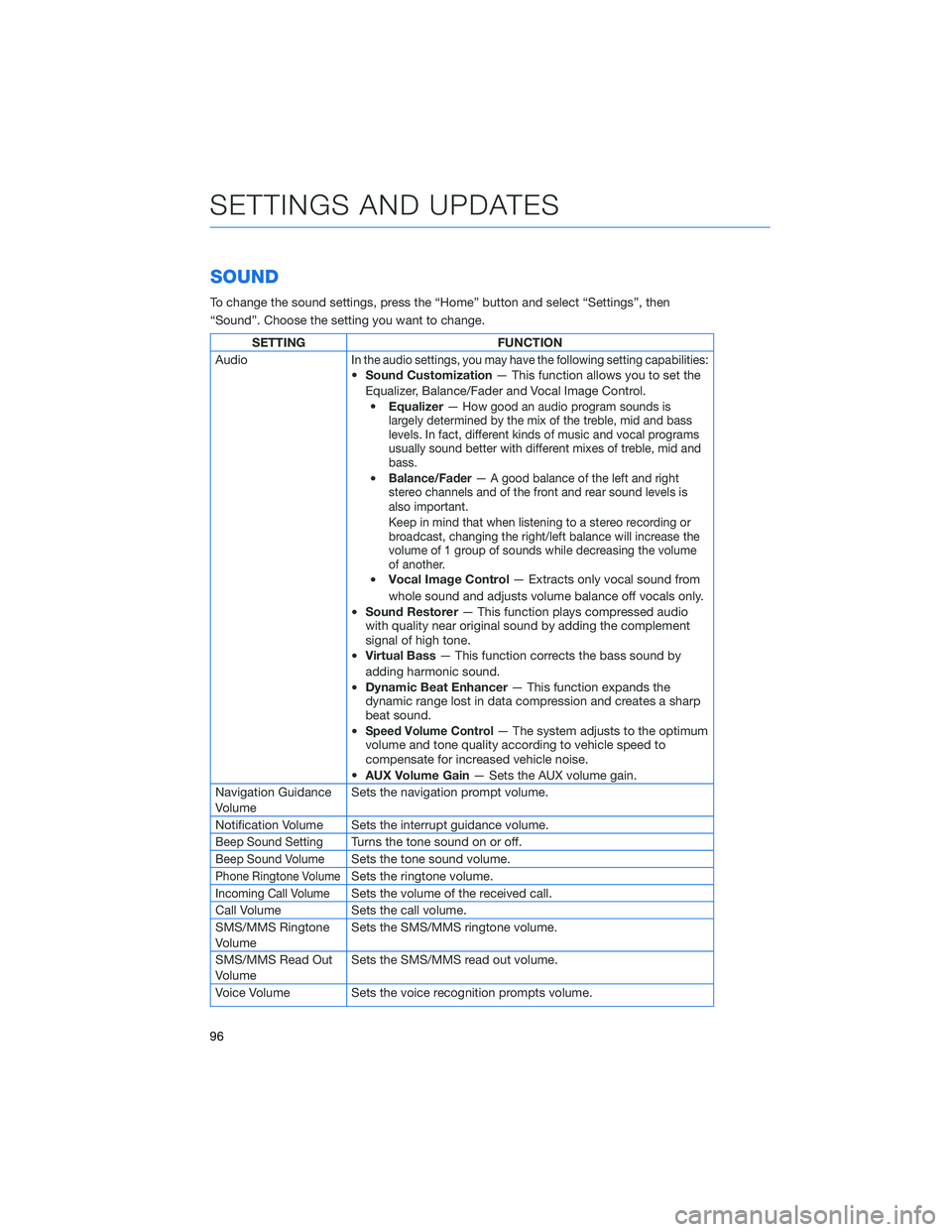
SOUND
To change the sound settings, press the “Home” button and select “Settings”, then
“Sound”. Choose the setting you want to change.
SETTING FUNCTION
Audio
In the audio settings, you may have the following setting capabilities:•Sound Customization— This function allows you to set the
Equalizer, Balance/Fader and Vocal Image Control.
•Equalizer—
How good an audio program sounds is
largely determined by the mix of the treble, mid and bass
levels. In fact, different kinds of music and vocal programs
usually sound better with different mixes of treble, mid and
bass.
•Balance/Fader— A good balance of the left and right
stereo channels and of the front and rear sound levels is
also important.
Keep in mind that when listening to a stereo recording or
broadcast, changing the right/left balance will increase the
volume of 1 group of sounds while decreasing the volume
of another.
•Vocal Image Control— Extracts only vocal sound from
whole sound and adjusts volume balance off vocals only.
•Sound Restorer— This function plays compressed audio
with quality near original sound by adding the complement
signal of high tone.
•Virtual Bass— This function corrects the bass sound by
adding harmonic sound.
•Dynamic Beat Enhancer— This function expands the
dynamic range lost in data compression and creates a sharp
beat sound.
•
Speed Volume Control— The system adjusts to the optimum
volume and tone quality according to vehicle speed to
compensate for increased vehicle noise.
•AUX Volume Gain— Sets the AUX volume gain.
Navigation Guidance
VolumeSets the navigation prompt volume.
Notification Volume Sets the interrupt guidance volume.
Beep Sound SettingTurns the tone sound on or off.
Beep Sound VolumeSets the tone sound volume.
Phone Ringtone VolumeSets the ringtone volume.
Incoming Call VolumeSets the volume of the received call.
Call Volume Sets the call volume.
SMS/MMS Ringtone
VolumeSets the SMS/MMS ringtone volume.
SMS/MMS Read Out
VolumeSets the SMS/MMS read out volume.
Voice Volume Sets the voice recognition prompts volume.
SETTINGS AND UPDATES
96
Page 99 of 172
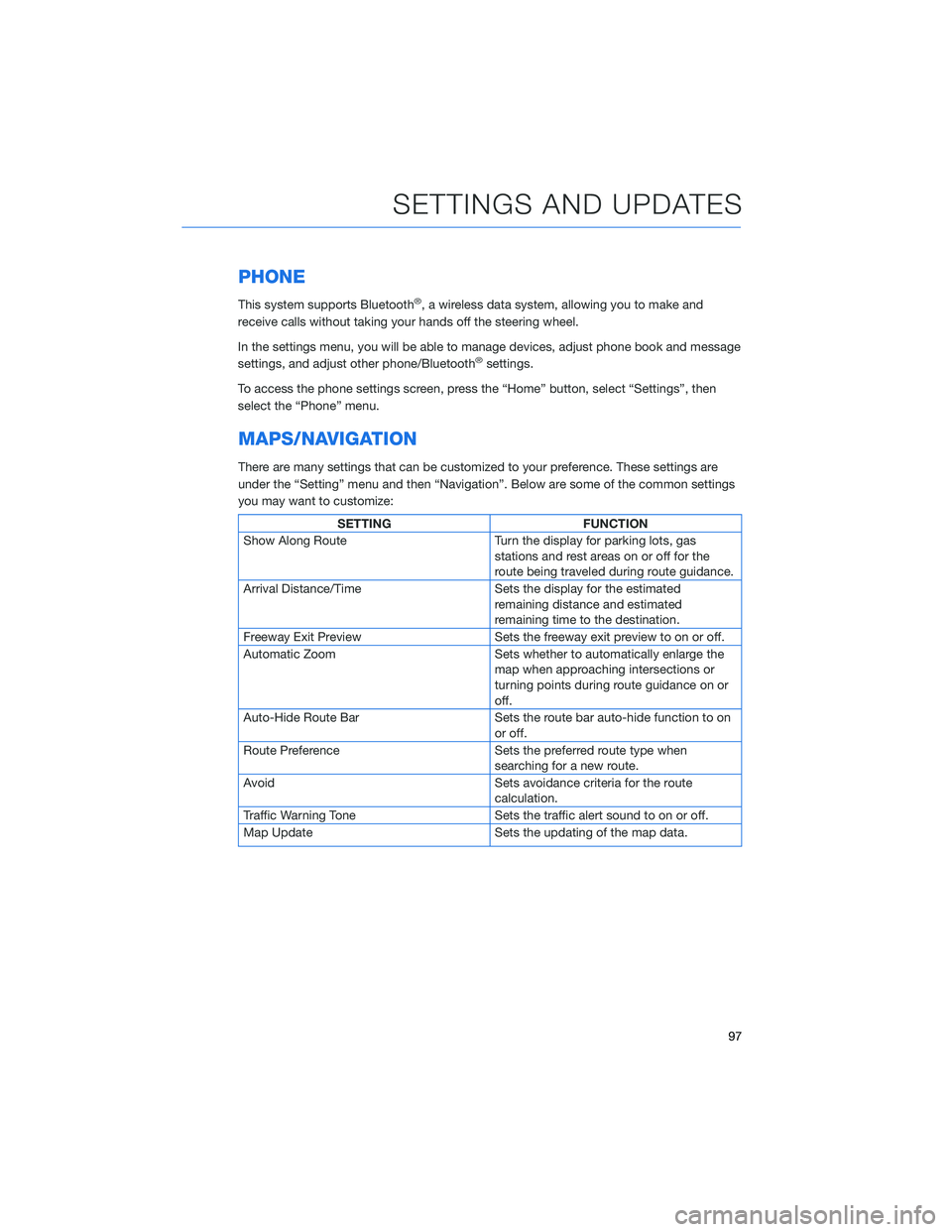
PHONE
This system supports Bluetooth®, a wireless data system, allowing you to make and
receive calls without taking your hands off the steering wheel.
In the settings menu, you will be able to manage devices, adjust phone book and message
settings, and adjust other phone/Bluetooth
®settings.
To access the phone settings screen, press the “Home” button, select “Settings”, then
select the “Phone” menu.
MAPS/NAVIGATION
There are many settings that can be customized to your preference. These settings are
under the “Setting” menu and then “Navigation”. Below are some of the common settings
you may want to customize:
SETTING FUNCTION
Show Along Route Turn the display for parking lots, gas
stations and rest areas on or off for the
route being traveled during route guidance.
Arrival Distance/Time Sets the display for the estimated
remaining distance and estimated
remaining time to the destination.
Freeway Exit Preview Sets the freeway exit preview to on or off.
Automatic Zoom Sets whether to automatically enlarge the
map when approaching intersections or
turning points during route guidance on or
off.
Auto-Hide Route Bar Sets the route bar auto-hide function to on
or off.
Route Preference Sets the preferred route type when
searching for a new route.
Avoid Sets avoidance criteria for the route
calculation.
Traffic Warning Tone Sets the traffic alert sound to on or off.
Map Update Sets the updating of the map data.
SETTINGS AND UPDATES
97
Page 104 of 172
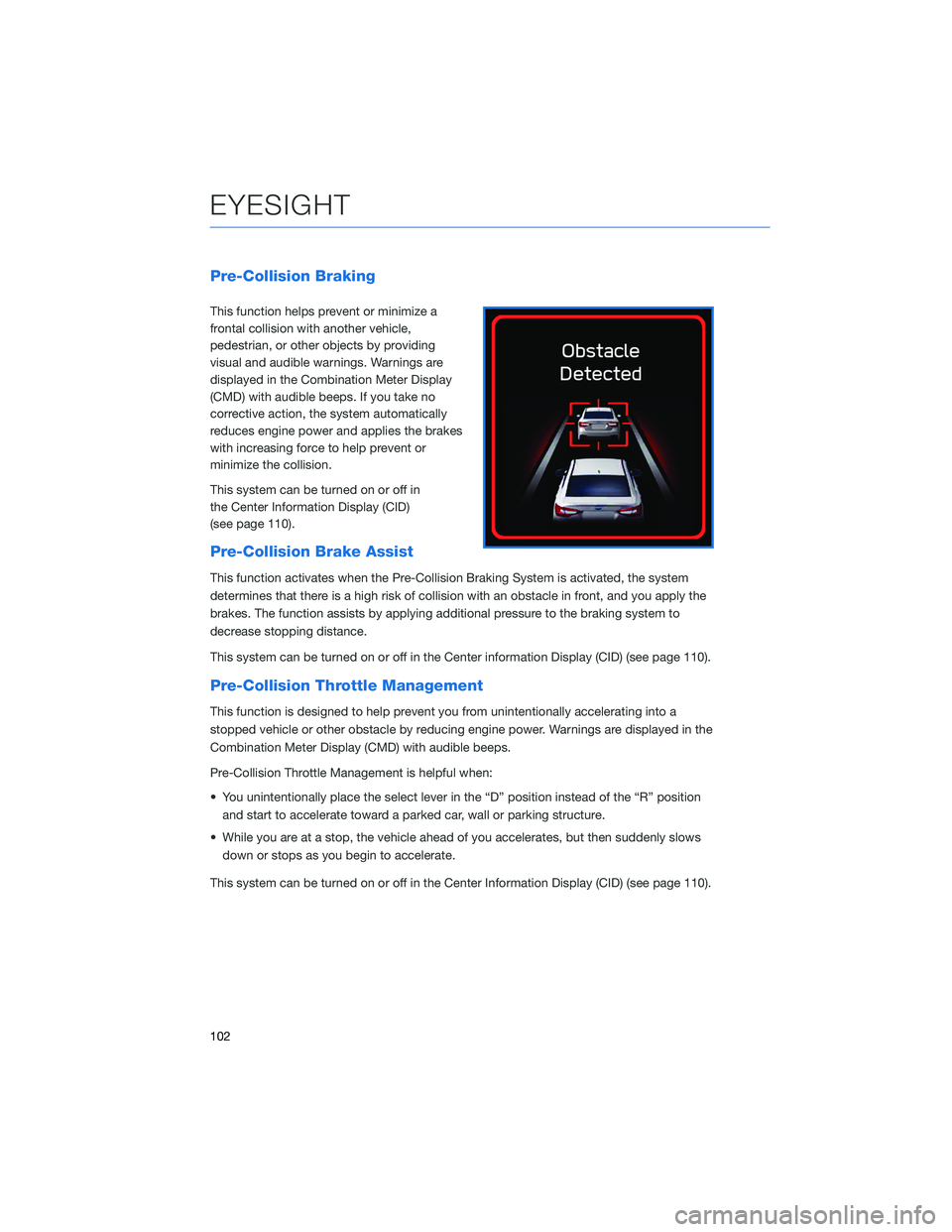
Pre-Collision Braking
This function helps prevent or minimize a
frontal collision with another vehicle,
pedestrian, or other objects by providing
visual and audible warnings. Warnings are
displayed in the Combination Meter Display
(CMD) with audible beeps. If you take no
corrective action, the system automatically
reduces engine power and applies the brakes
with increasing force to help prevent or
minimize the collision.
This system can be turned on or off in
the Center Information Display (CID)
(see page 110).
Pre-Collision Brake Assist
This function activates when the Pre-Collision Braking System is activated, the system
determines that there is a high risk of collision with an obstacle in front, and you apply the
brakes. The function assists by applying additional pressure to the braking system to
decrease stopping distance.
This system can be turned on or off in the Center information Display (CID) (see page 110).
Pre-Collision Throttle Management
This function is designed to help prevent you from unintentionally accelerating into a
stopped vehicle or other obstacle by reducing engine power. Warnings are displayed in the
Combination Meter Display (CMD) with audible beeps.
Pre-Collision Throttle Management is helpful when:
• You unintentionally place the select lever in the “D” position instead of the “R” position
and start to accelerate toward a parked car, wall or parking structure.
• While you are at a stop, the vehicle ahead of you accelerates, but then suddenly slows
down or stops as you begin to accelerate.
This system can be turned on or off in the Center Information Display (CID) (see page 110).
EYESIGHT
102
Page 105 of 172
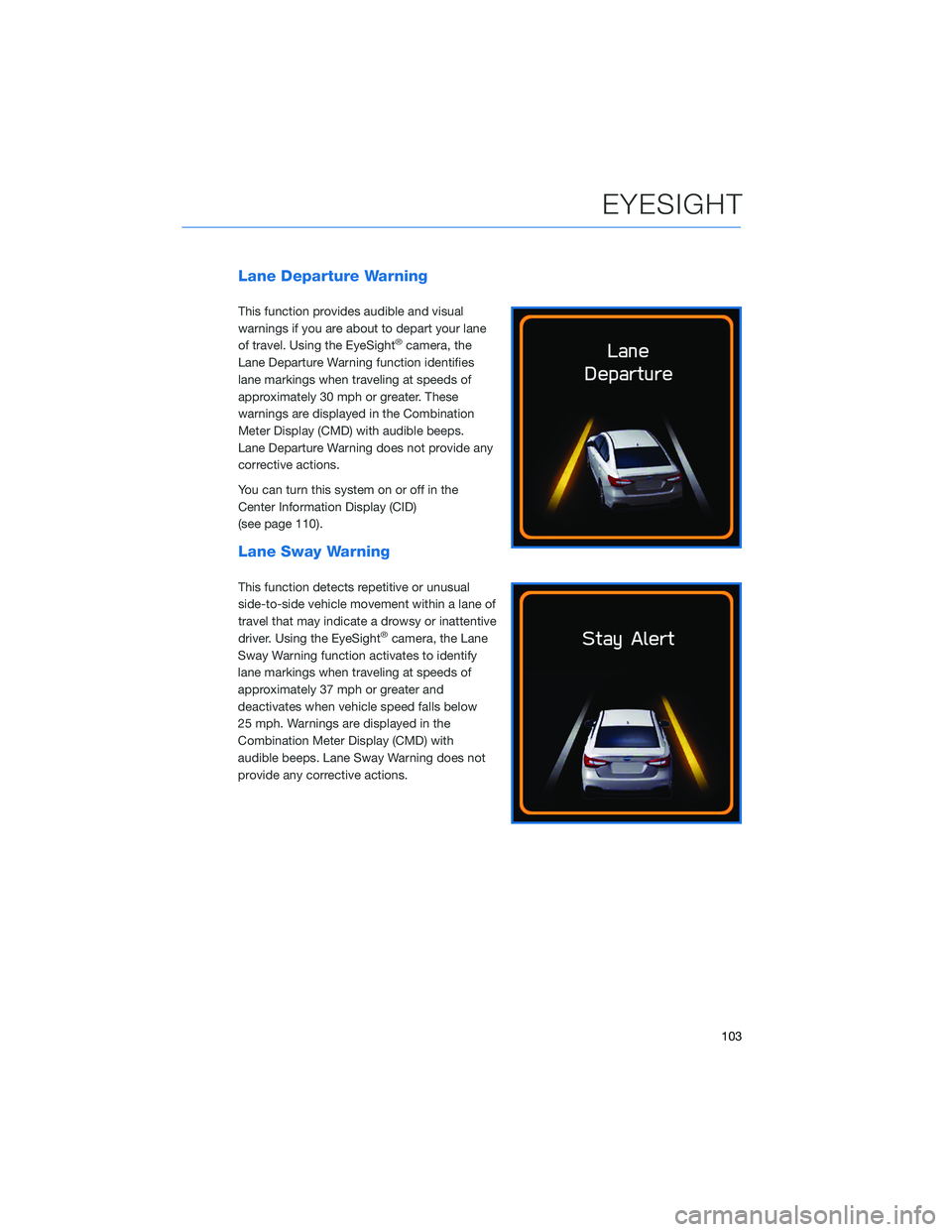
Lane Departure Warning
This function provides audible and visual
warnings if you are about to depart your lane
of travel. Using the EyeSight
®camera, the
Lane Departure Warning function identifies
lane markings when traveling at speeds of
approximately 30 mph or greater. These
warnings are displayed in the Combination
Meter Display (CMD) with audible beeps.
Lane Departure Warning does not provide any
corrective actions.
You can turn this system on or off in the
Center Information Display (CID)
(see page 110).
Lane Sway Warning
This function detects repetitive or unusual
side-to-side vehicle movement within a lane of
travel that may indicate a drowsy or inattentive
driver. Using the EyeSight
®camera, the Lane
Sway Warning function activates to identify
lane markings when traveling at speeds of
approximately 37 mph or greater and
deactivates when vehicle speed falls below
25 mph. Warnings are displayed in the
Combination Meter Display (CMD) with
audible beeps. Lane Sway Warning does not
provide any corrective actions.
EYESIGHT
103
Page 106 of 172
Lane Departure Prevention
This function provides steering assistance to
keep your Subaru in its lane of travel when
cruising on expressways, freeways, and
interstate highways. Using the EyeSight
®
camera, the Lane Departure Prevention
Function identifies lane markings when
traveling at speeds of approximately 37 mph
or greater.
Operate the Center Information Display (CID)
to turn on the Lane Departure Prevention
Function by selecting “All Functions” or “Lane
Departure Prevention Function Only” on the
“Lane Departure Prevention Function” screen
of the EyeSight
®settings.
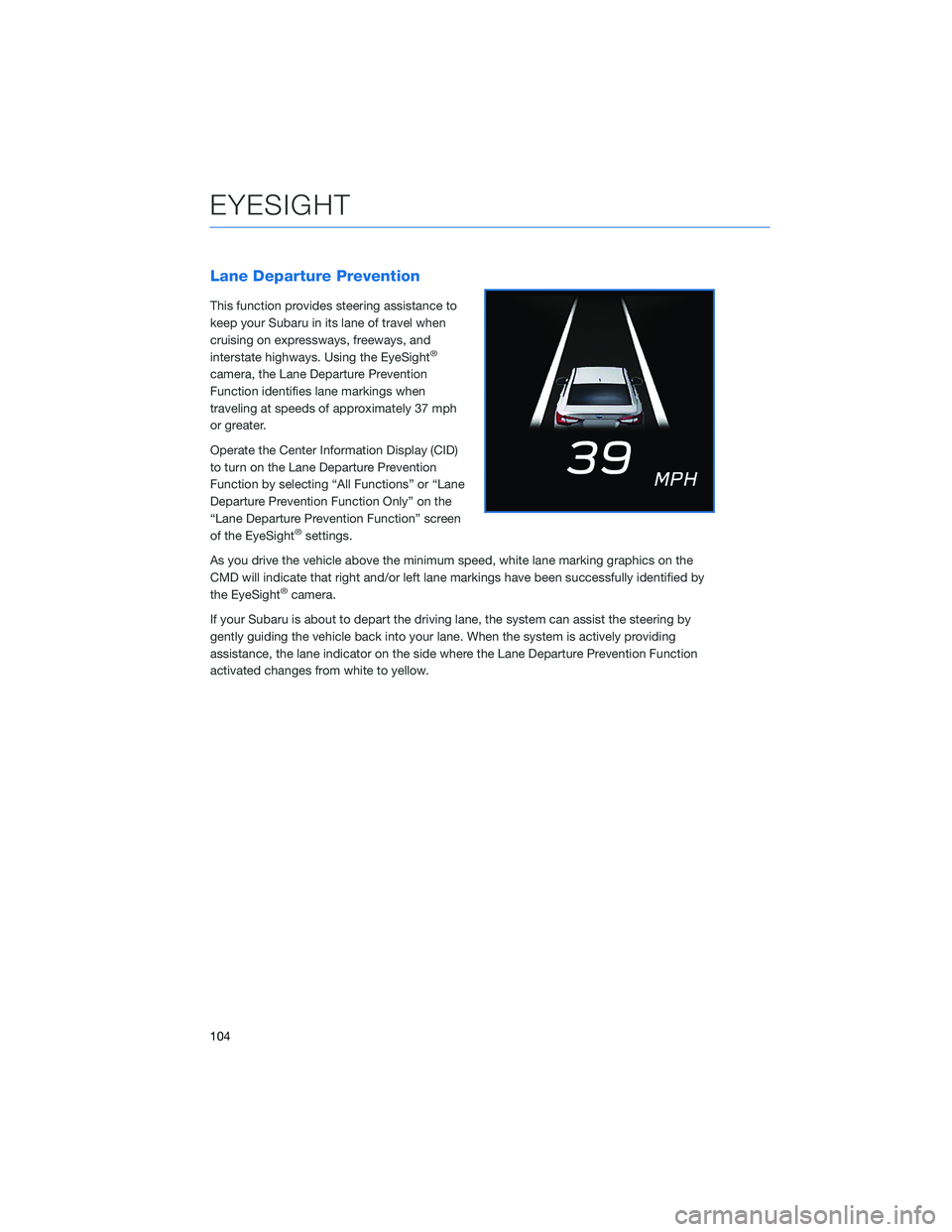
As you drive the vehicle above the minimum speed, white lane marking graphics on the
CMD will indicate that right and/or left lane markings have been successfully identified by
the EyeSight
®camera.
If your Subaru is about to depart the driving lane, the system can assist the steering by
gently guiding the vehicle back into your lane. When the system is actively providing
assistance, the lane indicator on the side where the Lane Departure Prevention Function
activated changes from white to yellow.
EYESIGHT
104
Page 107 of 172
Advanced Adaptive Cruise Control with Lane Centering
Advanced Adaptive Cruise Control is a driving support system intended to reduce the
burden on you when driving on an expressway (including during congestion and when
driving at high speed). Advanced Adaptive Cruise Control and Lane Centering work
together to assist you by automatically controlling the accelerator, brake, and steering.
Advanced Adaptive Cruise Control
This system provides cruise control with the
ability to keep a safe distance from the car in
front of you. Using the EyeSight
®camera, the
Advanced Adaptive Cruise Control function
identifies vehicles in front of you in the same
lane, and your vehicle follows the vehicle in
front (up to the maximum of your set speed).
While following, your vehicle will automatically
maintain a following distance that
corresponds to the speed of the vehicle in
front. The vehicle is capable of being
controlled at a speed between 0 mph and
approximately 90 mph.
You can turn the Advanced Adaptive Cruise
Control on or off using the Adaptive Cruise
Control On/Off button on the right side of the steering wheel (see page 107). Once the
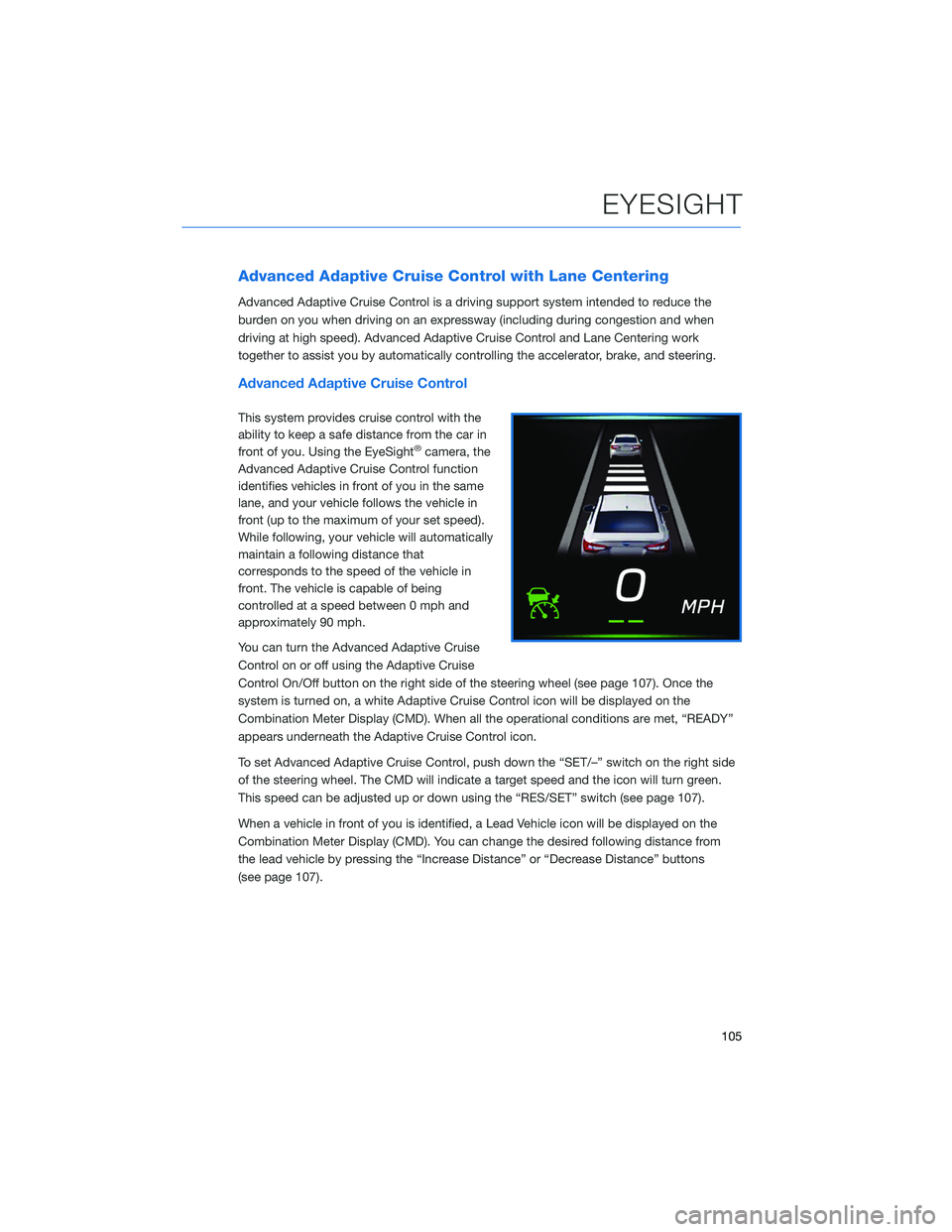
system is turned on, a white Adaptive Cruise Control icon will be displayed on the
Combination Meter Display (CMD). When all the operational conditions are met, “READY”
appears underneath the Adaptive Cruise Control icon.
To set Advanced Adaptive Cruise Control, push down the “SET/–” switch on the right side
of the steering wheel. The CMD will indicate a target speed and the icon will turn green.
This speed can be adjusted up or down using the “RES/SET” switch (see page 107).
When a vehicle in front of you is identified, a Lead Vehicle icon will be displayed on the
Combination Meter Display (CMD). You can change the desired following distance from
the lead vehicle by pressing the “Increase Distance” or “Decrease Distance” buttons
(see page 107).
EYESIGHT
105
Page 109 of 172
Lead Vehicle Start Alert
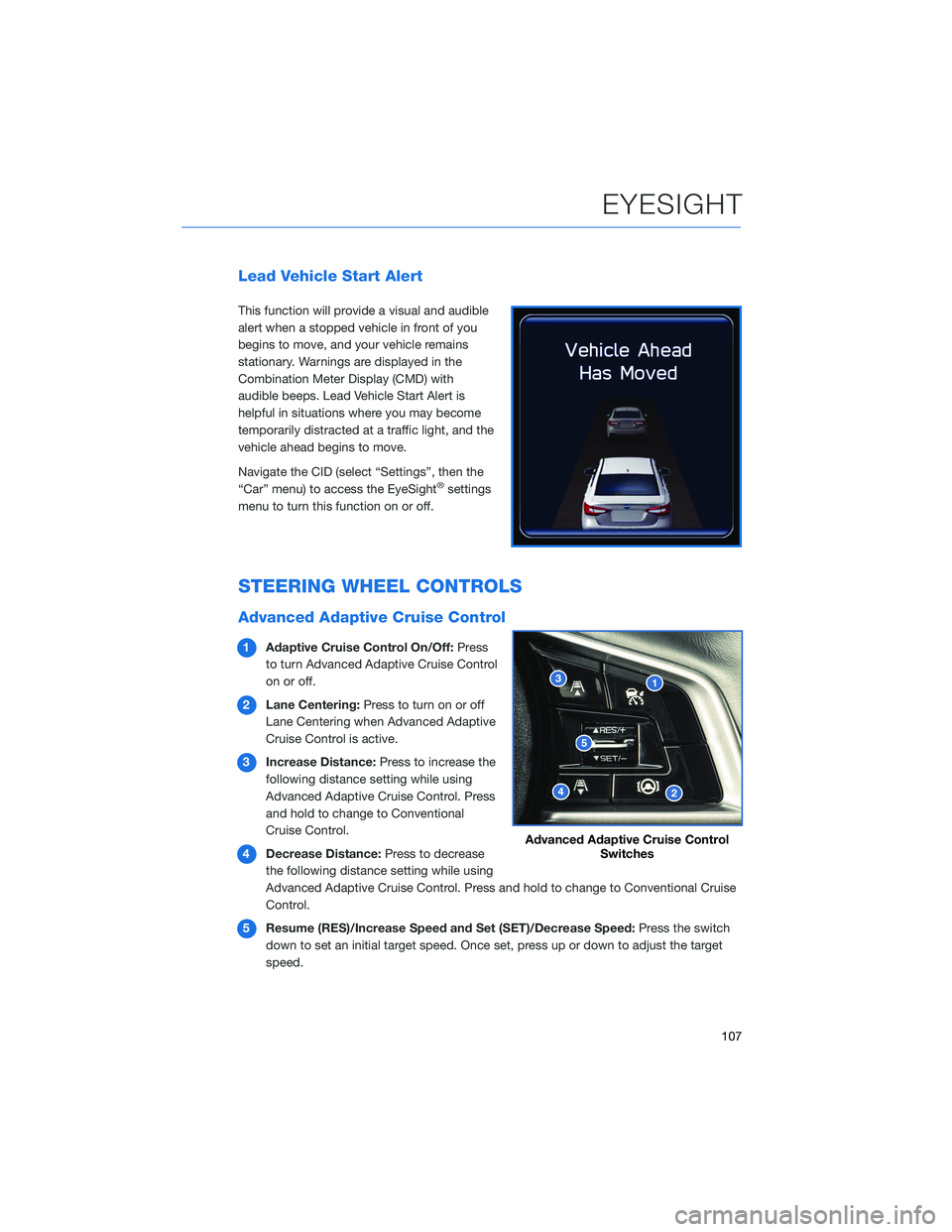
This function will provide a visual and audible
alert when a stopped vehicle in front of you
begins to move, and your vehicle remains
stationary. Warnings are displayed in the
Combination Meter Display (CMD) with
audible beeps. Lead Vehicle Start Alert is
helpful in situations where you may become
temporarily distracted at a traffic light, and the
vehicle ahead begins to move.
Navigate the CID (select “Settings”, then the
“Car” menu) to access the EyeSight
®settings
menu to turn this function on or off.
STEERING WHEEL CONTROLS
Advanced Adaptive Cruise Control
1Adaptive Cruise Control On/Off:Press
to turn Advanced Adaptive Cruise Control
on or off.
2Lane Centering:Press to turn on or off
Lane Centering when Advanced Adaptive
Cruise Control is active.
3Increase Distance:Press to increase the
following distance setting while using
Advanced Adaptive Cruise Control. Press
and hold to change to Conventional
Cruise Control.
4Decrease Distance:Press to decrease
the following distance setting while using
Advanced Adaptive Cruise Control. Press and hold to change to Conventional Cruise
Control.
5Resume (RES)/Increase Speed and Set (SET)/Decrease Speed:Press the switch
down to set an initial target speed. Once set, press up or down to adjust the target
speed.
Advanced Adaptive Cruise Control
Switches
EYESIGHT
107
Page 112 of 172
LANE DEPARTURE WARNING AND PRE-COLLISION
BRAKING SYSTEM OFF
Lane Departure Warning OFF
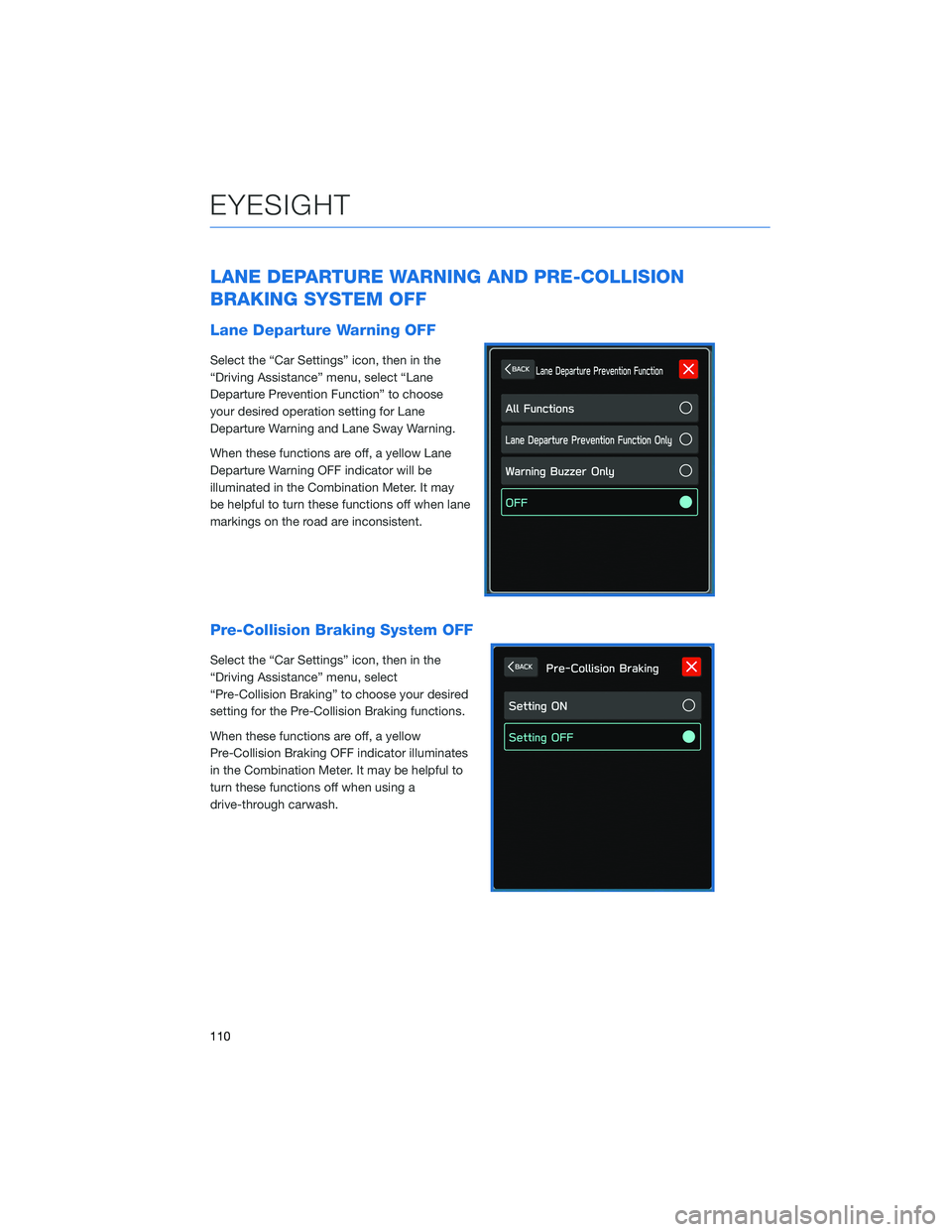
Select the “Car Settings” icon, then in the
“Driving Assistance” menu, select “Lane
Departure Prevention Function” to choose
your desired operation setting for Lane
Departure Warning and Lane Sway Warning.
When these functions are off, a yellow Lane
Departure Warning OFF indicator will be
illuminated in the Combination Meter. It may
be helpful to turn these functions off when lane
markings on the road are inconsistent.
Pre-Collision Braking System OFF
Select the “Car Settings” icon, then in the
“Driving Assistance” menu, select
“Pre-Collision Braking” to choose your desired
setting for the Pre-Collision Braking functions.
When these functions are off, a yellow
Pre-Collision Braking OFF indicator illuminates
in the Combination Meter. It may be helpful to
turn these functions off when using a
drive-through carwash.
EYESIGHT
110
Page 113 of 172
REAR-VISION CAMERA
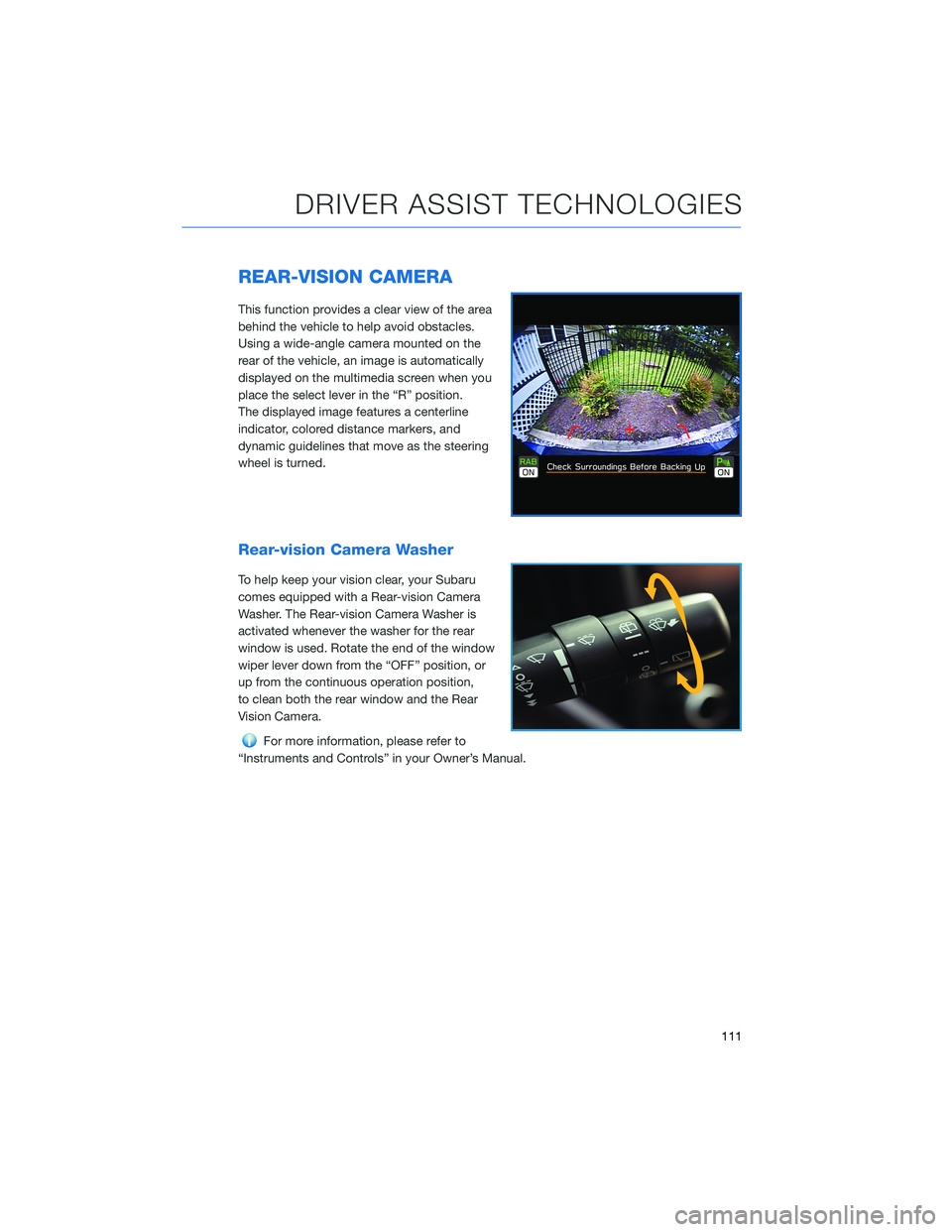
This function provides a clear view of the area
behind the vehicle to help avoid obstacles.
Using a wide-angle camera mounted on the
rear of the vehicle, an image is automatically
displayed on the multimedia screen when you
place the select lever in the “R” position.
The displayed image features a centerline
indicator, colored distance markers, and
dynamic guidelines that move as the steering
wheel is turned.
Rear-vision Camera Washer
To help keep your vision clear, your Subaru
comes equipped with a Rear-vision Camera
Washer. The Rear-vision Camera Washer is
activated whenever the washer for the rear
window is used. Rotate the end of the window
wiper lever down from the “OFF” position, or
up from the continuous operation position,
to clean both the rear window and the Rear
Vision Camera.
For more information, please refer to
“Instruments and Controls” in your Owner’s Manual.
DRIVER ASSIST TECHNOLOGIES
111
Page 114 of 172
FRONT VIEW MONITOR(if equipped)
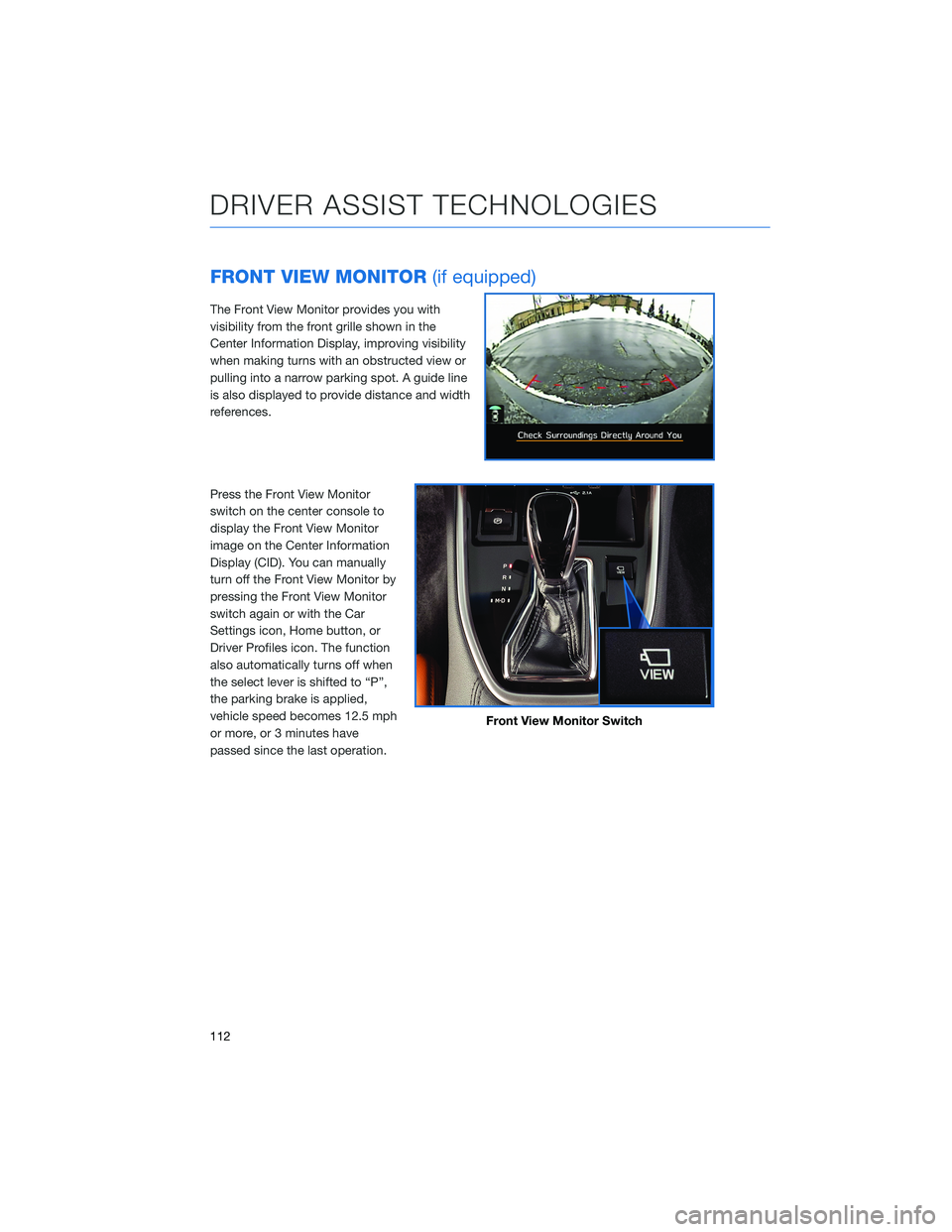
The Front View Monitor provides you with
visibility from the front grille shown in the
Center Information Display, improving visibility
when making turns with an obstructed view or
pulling into a narrow parking spot. A guide line
is also displayed to provide distance and width
references.
Press the Front View Monitor
switch on the center console to
display the Front View Monitor
image on the Center Information
Display (CID). You can manually
turn off the Front View Monitor by
pressing the Front View Monitor
switch again or with the Car
Settings icon, Home button, or
Driver Profiles icon. The function
also automatically turns off when
the select lever is shifted to “P”,
the parking brake is applied,
vehicle speed becomes 12.5 mph
or more, or 3 minutes have
passed since the last operation.
Front View Monitor Switch
DRIVER ASSIST TECHNOLOGIES
112