display SUBARU WRX 2016 Manual Online
[x] Cancel search | Manufacturer: SUBARU, Model Year: 2016, Model line: WRX, Model: SUBARU WRX 2016Pages: 594, PDF Size: 19.43 MB
Page 241 of 594
Instruments and controls/Defogger and deicer
Defogger and deicer
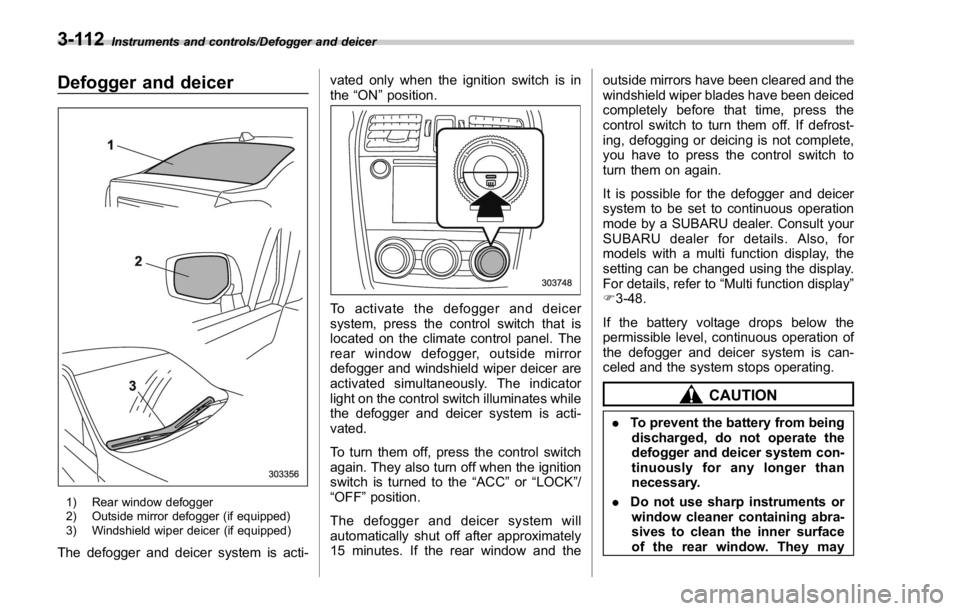
1) Rear window defogger
2) Outside mirror defogger (if equipped)
3) Windshield wiper deicer (if equipped)
The defogger and deicer system is acti- vated only when the ignition switch is in
the “ ON ” position.
To activate the defogger and deicer
system, press the control switch that is
located on the climate control panel. The
rear window defogger, outside mirror
defogger and windshield wiper deicer are
activated simultaneously. The indicator
light on the control switch illuminates while
the defogger and deicer system is acti-
vated.
To turn them off, press the control switch
again. They also turn off when the ignition
switch is turned to the “ ACC ” or “ LOCK ” /
“ OFF ” position.
The defogger and deicer system will
automatically shut off after approximately
15 minutes. If the rear window and the outside mirrors have been cleared and the
windshield wiper blades have been deiced
completely before that time, press the
control switch to turn them off. If defrost-
ing, defogging or deicing is not complete,
you have to press the control switch to
turn them on again.
It is possible for the defogger and deicer
system to be set to continuous operation
mode by a SUBARU dealer. Consult your
SUBARU dealer for details. Also, for
models with a multi function display, the
setting can be changed using the display.
For details, refer to “ Multi function display ”
F 3-48.
If the battery voltage drops below the
permissible level, continuous operation of
the defogger and deicer system is can-
celed and the system stops operating.
CAUTION
. To prevent the battery from being
discharged, do not operate the
defogger and deicer system con-
tinuously for any longer than
necessary.
. Do not use sharp instruments or
window cleaner containing abra-
sives to clean the inner surface
of the rear window. They may3-112
Page 248 of 594

Automatic climate control
operation When this mode is selected, the fan
speed, airflow distribution, air-inlet control,
and air conditioner compressor operation
are automatically controlled. To activate
this mode, perform the following.
NOTE . Operate the automatic climate con-
trol system when the engine is running.
. Even when cooling is not necessary,
setting the temperature much lower
than the current outlet air temperature
turns on the air conditioner compres-
sor automatically and the “ A/C ” indi-
cator on the control panel illuminates. 1. Depress the “ AUTO ” button. The
indicator “ FULL AUTO ” on the display
illuminates.
2. Set the preferred temperature using
the temperature control dial.
NOTE . The controllable temperature range
may vary depending on the regional
specifications of the vehicle.
. If you operate any of the buttons on
the control panel other than the “ OFF ”
button, rear window defogger button
and temperature control dial(s) during
FULL AUTO mode operation, the
“ FULL ” indicator on the control panel
will turn off and the “ AUTO ” indicator
will remain illuminated. You can then
manually control the system as desired
using the button you operated. To
change the system back to the FULL
AUTO mode, press the “ AUTO ” button.
. When the climate control system
turns off, the air inlet is fixed to the
outside air mode.
To turn off the climate control system,
press the “ OFF ” button. & Sensors
1) Interior air temperature sensor
2) Solar sensor
The automatic climate control system
employs several sensors. These sensors
are delicate. If they are not treatedClimate control/Automatic climate control operation
– CONTINUED –4-5
Page 251 of 594
Climate control/Manual climate control operation
. Turn the passenger ’ s side temperature
control dial
The “ DUAL ” mode can be canceled by
pressing the “ DUAL ” button.
When the “ DUAL ” mode is selected:
Turn the driver ’ ssidedialtosetthe
driver ’ s side temperature. Turn the front
passenger ’ ssidedialtosetthefront
passenger ’ s side temperature.
When the “ DUAL ” mode is canceled:
Set the desired temperature by turning the
driver ’ s side dial.
When the “ DUAL ” mode is canceled, only
the driver ’ s side temperature is displayed.
& Fan speed controlThe fan operates only when the ignition
switch is in the “ ON ” position. Select the
preferred fan speed by turning the fan
speed control dial.
& Air conditioner controlThe air conditioner operates only when
the engine is running.
Press the air conditioner button while the
fan is in operation to turn on the air
conditioner. When the air conditioner is
on, the “ A/C ” indicator light illuminates.
To turn off the air conditioner, press the button again.
NOTE For efficient defogging or dehumidify-
ing in cold weather, turn on the air
conditioner. However, if the ambient
temperature decreases to approxi-
mately 32 8 F(0 8 C), the air conditioner
compressor will stop operating.
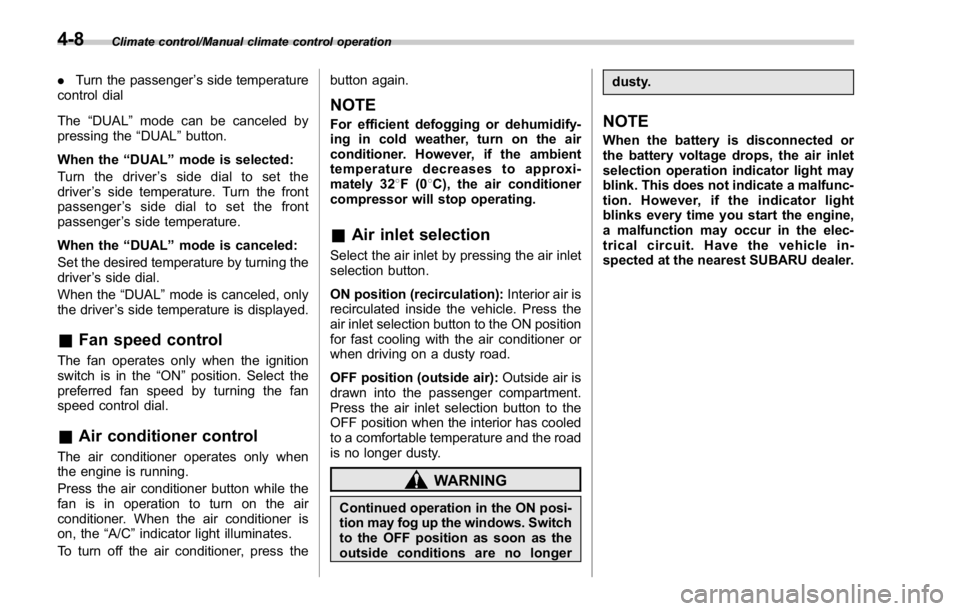
& Air inlet selection Select the air inlet by pressing the air inlet
selection button.
ON position (recirculation): Interior air is
recirculated inside the vehicle. Press the
air inlet selection button to the ON position
for fast cooling with the air conditioner or
when driving on a dusty road.
OFF position (outside air): Outside air is
drawn into the passenger compartment.
Press the air inlet selection button to the
OFF position when the interior has cooled
to a comfortable temperature and the road
is no longer dusty.
WARNING
Continued operation in the ON posi-
tion may fog up the windows. Switch
to the OFF position as soon as the
outside conditions are no longer dusty.
NOTE When the battery is disconnected or
the battery voltage drops, the air inlet
selection operation indicator light may
blink. This does not indicate a malfunc-
tion. However, if the indicator light
blinks every time you start the engine,
a malfunction may occur in the elec-
trical circuit. Have the vehicle in-
spected at the nearest SUBARU dealer.4-8
Page 260 of 594
Basic information before use & Initial screen ! Initial screen
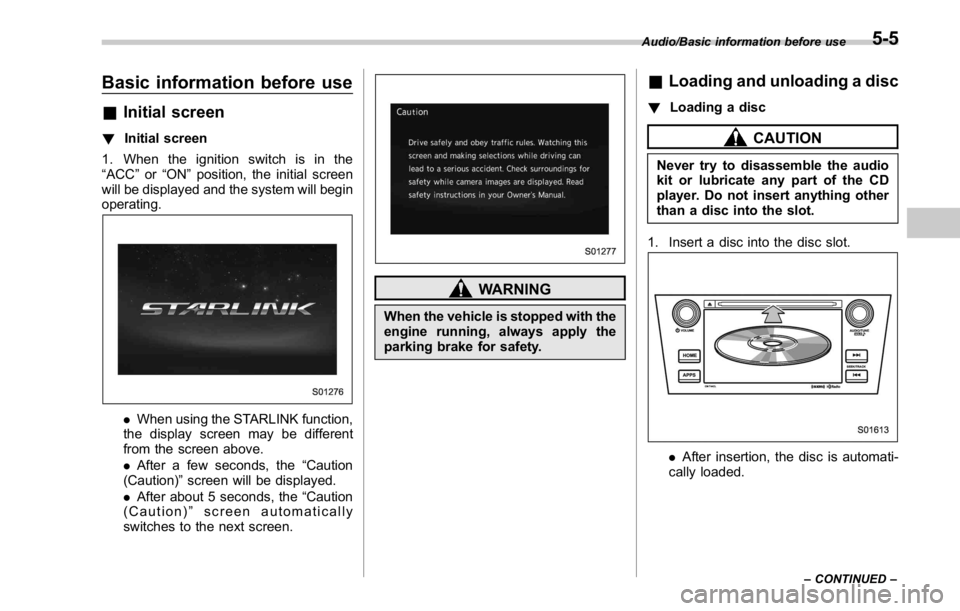
1. When the ignition switch is in the
“ ACC ” or “ ON ” position, the initial screen
will be displayed and the system will begin
operating.
. When using the STARLINK function,
the display screen may be different
from the screen above.
. After a few seconds, the “ Caution
(Caution) ” screen will be displayed.
. After about 5 seconds, the “ Caution
(Caution) ” screen automatically
switches to the next screen. WARNINGWhen the vehicle is stopped with the
engine running, always apply the
parking brake for safety. & Loading and unloading a disc ! Loading a disc
CAUTIONNever try to disassemble the audio
kit or lubricate any part of the CD
player. Do not insert anything other
than a disc into the slot.
1. Insert a disc into the disc slot.
. After insertion, the disc is automati-
cally loaded. Audio/Basic information before use
– CONTINUED –5-5
Page 263 of 594
Audio/Basic information before use
it again.
. Grayed-out screen buttons cannot
be operated.
. The displayed image may become
darkerandmovingimagesmaybe
slightly distorted when the screen is
cold.
. In extremely cold conditions, the
map may not be displayed and the data
input by a user may be deleted. Also,
the screen buttons may be harder than
usual to press.
. When you look at the screen
through polarized material such as
polarized sunglasses, the screen may
be dark and hard to see. If so, look at
the screen from different angles, adjust
the screen settings on the “ Display
Settings (Display Settings) ” screen or
take off your sunglasses.
& Entering letters and num-
bers/list screen operation! Entering letters and numbers
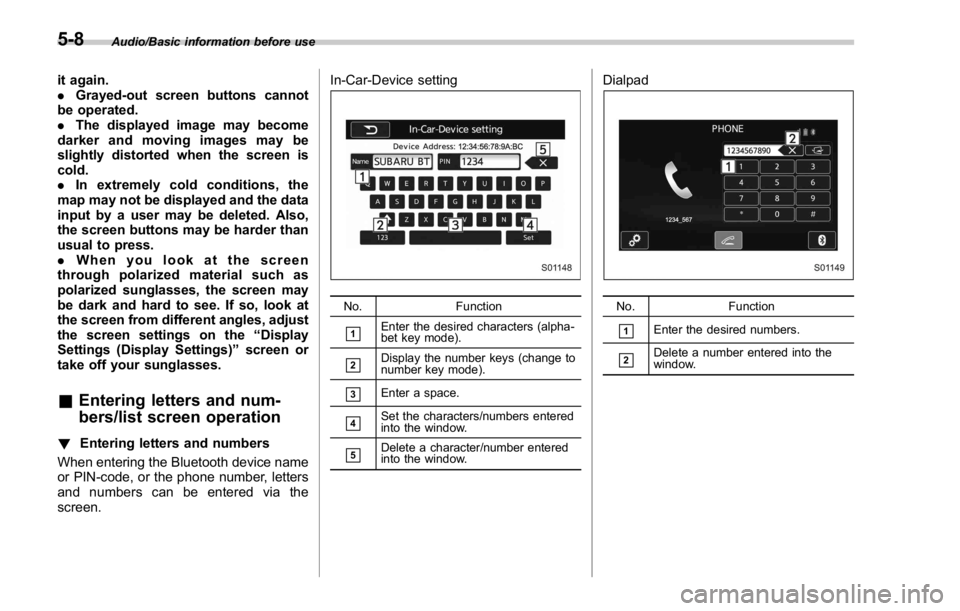
When entering the Bluetooth device name
or PIN-code, or the phone number, letters
and numbers can be entered via the
screen. In-Car-Device setting
No. Function
& 1
Enter the desired characters (alpha-
bet key mode).
& 2
Display the number keys (change to
number key mode).
& 3
Enter a space.
& 4
Set the characters/numbers entered
into the window.
& 5
Delete a character/number entered
into the window. Dialpad
No. Function
& 1
Enter the desired numbers.
& 2
Delete a number entered into the
window.5-8
Page 264 of 594
! List screen
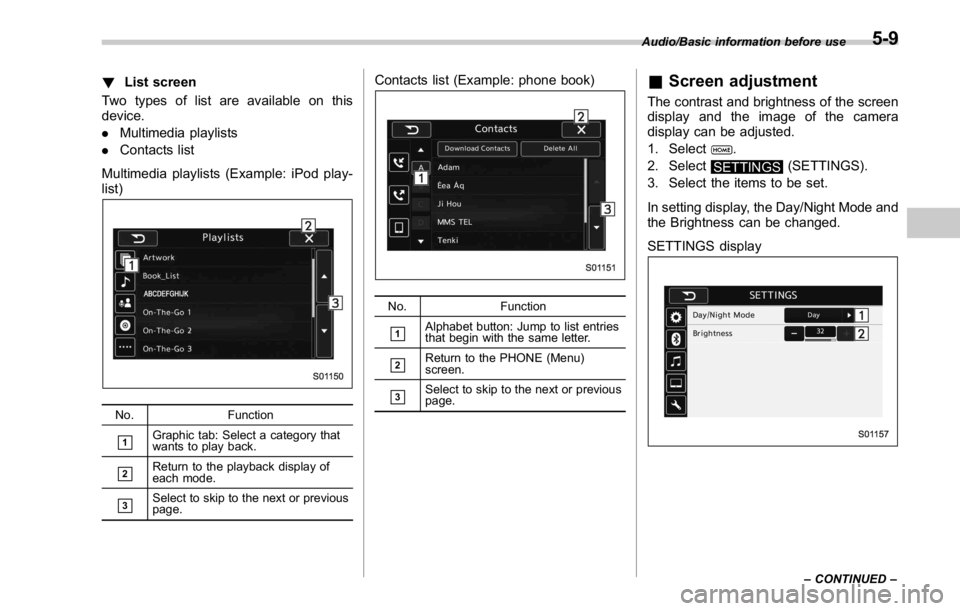
Two types of list are available on this
device.
. Multimedia playlists
. Contacts list
Multimedia playlists (Example: iPod play-
list)
No. Function
& 1
Graphic tab: Select a category that
wants to play back.
& 2
Return to the playback display of
each mode.
& 3
Select to skip to the next or previous
page. Contacts list (Example: phone book)
No. Function
& 1
Alphabet button: Jump to list entries
that begin with the same letter.
& 2
Return to the PHONE (Menu)
screen.
& 3
Select to skip to the next or previous
page. & Screen adjustment The contrast and brightness of the screen
display and the image of the camera
display can be adjusted.
1. Select
.
2. Select
SETTINGS (SETTINGS).
3. Select the items to be set.
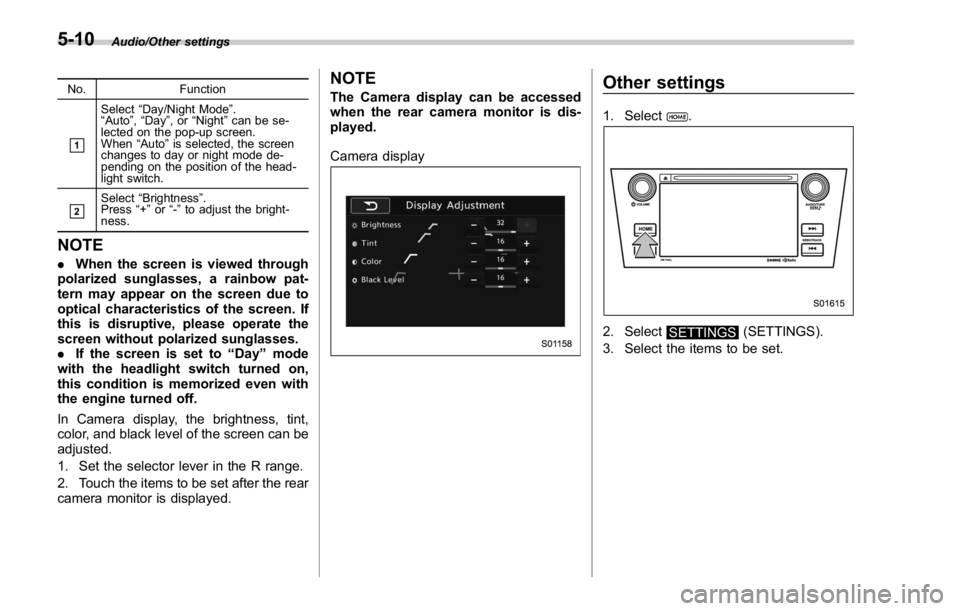
In setting display, the Day/Night Mode and
the Brightness can be changed.
SETTINGS display Audio/Basic information before use
– CONTINUED –5-9
Page 265 of 594
Audio/Other settings
No. Function
& 1
Select “ Day/Night Mode ” .
“ Auto ” , “ Day ” ,or “ Night ” can be se-
lected on the pop-up screen.
When “ Auto ” is selected, the screen
changes to day or night mode de-
pending on the position of the head-
light switch.
& 2
Select “ Brightness ” .
Press “ + ” or “ - ” to adjust the bright-
ness.
NOTE . When the screen is viewed through
polarized sunglasses, a rainbow pat-
tern may appear on the screen due to
optical characteristics of the screen. If
this is disruptive, please operate the
screen without polarized sunglasses.
. If the screen is set to “ Day ” mode
with the headlight switch turned on,
this condition is memorized even with
the engine turned off.
In Camera display, the brightness, tint,
color, and black level of the screen can be
adjusted.
1. Set the selector lever in the R range.
2. Touch the items to be set after the rear
camera monitor is displayed. NOTE The Camera display can be accessed
when the rear camera monitor is dis-
played.
Camera display
Other settings 1. Select .
2. Select
SETTINGS (SETTINGS).
3. Select the items to be set.5-10
Page 268 of 594
! Turning the system on and off
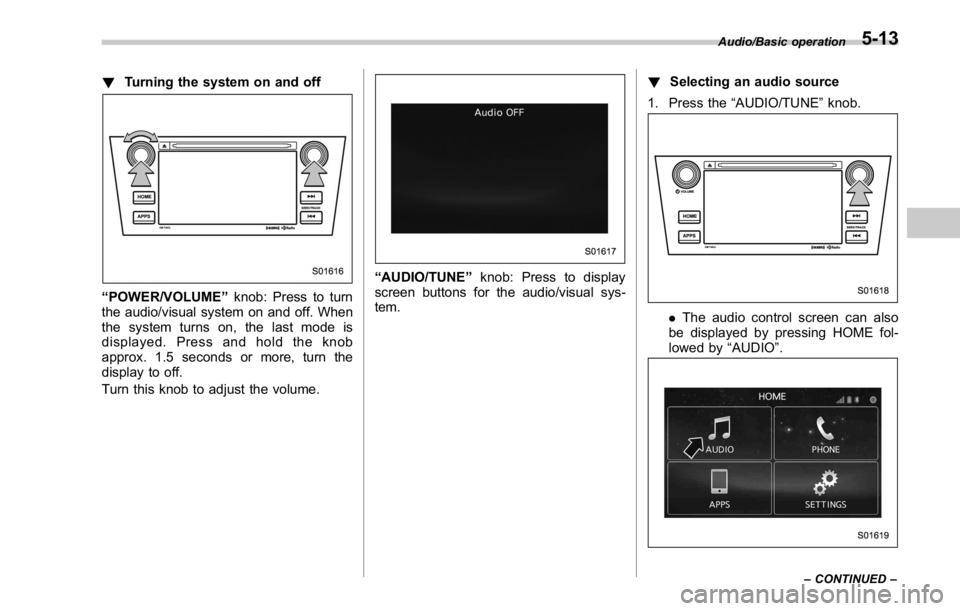
“ POWER/VOLUME ” knob: Press to turn
the audio/visual system on and off. When
the system turns on, the last mode is
displayed. Press and hold the knob
approx. 1.5 seconds or more, turn the
display to off.
Turn this knob to adjust the volume. “ AUDIO/TUNE ” knob: Press to display
screen buttons for the audio/visual sys-
tem. ! Selecting an audio source
1. Press the “ AUDIO/TUNE ” knob.
. The audio control screen can also
be displayed by pressing HOME fol-
lowed by “ AUDIO ” . Audio/Basic operation
– CONTINUED –5-13
Page 269 of 594
Audio/Basic operation
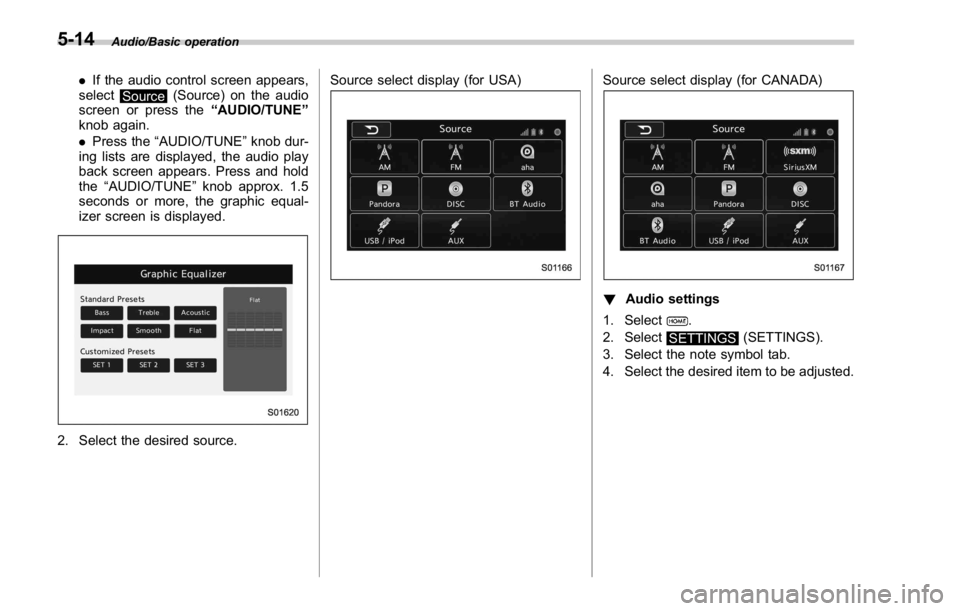
. If the audio control screen appears,
select
Source (Source) on the audio
screen or press the “ AUDIO/TUNE ”
knob again.
. Press the “ AUDIO/TUNE ” knob dur-
ing lists are displayed, the audio play
back screen appears. Press and hold
the “ AUDIO/TUNE ” knob approx. 1.5
seconds or more, the graphic equal-
izer screen is displayed.
2. Select the desired source. Source select display (for USA) Source select display (for CANADA)
! Audio settings
1. Select
.
2. Select
SETTINGS (SETTINGS).
3. Select the note symbol tab.
4. Select the desired item to be adjusted.5-14
Page 280 of 594

Corresponding bit rates (Audio) File type Bit rate (kbps)
MP3 files:
MPEG 1 LAYER 3 32 - 320
MP3 files:
MPEG 2 LSF LAYER 3 8 - 160
WMA files: Ver. 7, 8 CBR 48 - 192
WMA files:
Ver. 9 (9.1/9.2) CBR 32 - 192
AAC files:
MPEG4/AAC-LC 16 - 320
(Variable Bit Rate (VBR) compatible)
. MP3 (MPEG Audio Layer 3), WMA
(Windows Media Audio) and AAC (Ad-
vanced Audio Coding) are audio compres-
sion standards.
. This system can play MP3/WMA/AAC
files on CD-R, CD-RW discs, USB mem-
ory, and Bluetooth device.
. This system can play disc recordings
compatible with ISO 9660 level 1 and level
2 and with the Romeo and Joliet file
system.
. When naming an MP3/WMA/AAC file,
add an appropriate file extension (.mp3/
.wma/.m4a).
. This system plays back files with .mp3/
.wma/.m4a file extensions as MP3/WMA/
AAC files respectively. To prevent noise and playback errors, use the appropriate
file extension.
. This system can play only the first
session when using multi-session compa-
tible CDs.
. MP3 files are compatible with the ID3
Tag Ver. 1.0, Ver. 1.1, Ver. 2.2 and Ver. 2.3
formats. This system cannot display disc
title, track title and artist name in other
formats.
. WMA/AAC files can contain a WMA/
AAC tag that is used in the same way as
an ID3 tag. WMA/AAC tags carry informa-
tion such as track title and artist name.
. The emphasis function is available only
when playing MP3/WMA files recorded at
32, 44.1 and 48 kHz.
. This system can play back AAC files
encoded by iTunes.
. The sound quality of MP3/WMA files
generally improves with higher bit rates. In
order to achieve a reasonable level of
sound quality, discs recorded with a bit
rate of at least 128 kbps are recom-
mended.
. The MP3/WMA player does not play
back MP3/WMA files from discs recorded
using packet write data transfer (UDF
format). Discs should be recorded using
“ pre-mastering ” software rather than
“ packet write ” software. . M3u playlists are not compatible with
the audio device.
. MP3i (MP3 interactive) and MP3PRO
formats are not compatible with the audio
device.
. The player is compatible with VBR
(Variable Bit Rate).
. When playing back files recorded as
VBR (Variable Bit Rate) files, the play time
will not be correctly displayed if the fast
forward or reverse operations are used.
. It is not possible to check folders that
do not include MP3/WMA/AAC files.
. MP3/WMA/AAC files in folders up to 8
levels deep can be played. However, the
start of playback may be delayed when
using discs containing numerous levels of
folders. For this reason, we recommend
creating discs with no more than 2 levels
of folders.Audio/Tips for operating the audio/visual system
– CONTINUED –5-25