display SUBARU WRX 2016 Owners Manual
[x] Cancel search | Manufacturer: SUBARU, Model Year: 2016, Model line: WRX, Model: SUBARU WRX 2016Pages: 594, PDF Size: 19.43 MB
Page 283 of 594
Audio/Useful information
Useful information & SiriusXM Data Service*Data service information, which is com-
prised of traffic information and weather
information, can be received via the
SiriusXM Radio.
To receive the data service information in
the vehicle, a subscription to the SiriusXM
Satellite Radio service is necessary. Refer
to “ SiriusXM Satellite Radio ” F 5-45.
Content set to use the SiriusXM data
service is reset when personal information
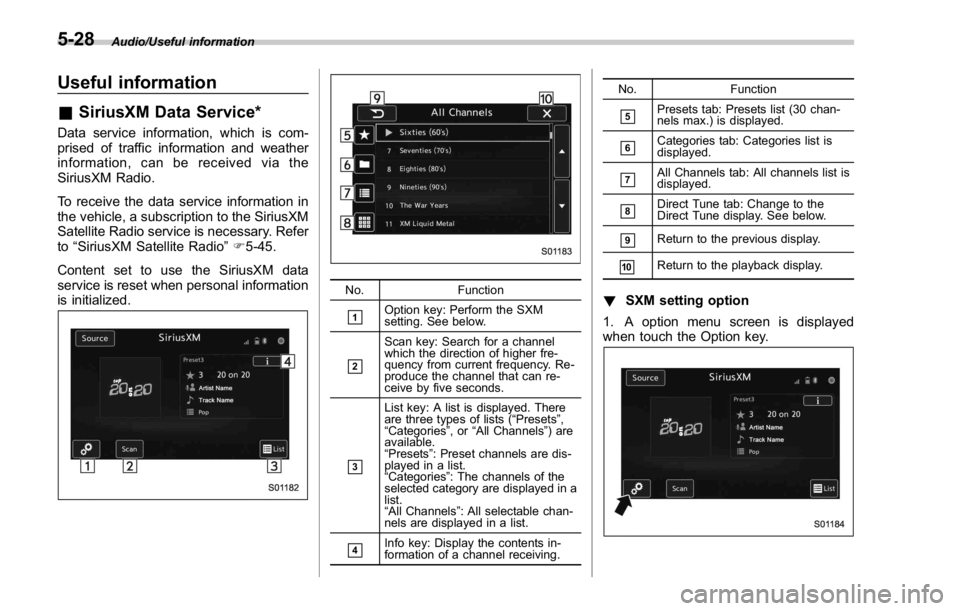
is initialized. No. Function
& 1
Option key: Perform the SXM
setting. See below.
& 2
Scan key: Search for a channel
which the direction of higher fre-
quency from current frequency. Re-
produce the channel that can re-
ceive by five seconds.
& 3List key: A list is displayed. There
are three types of lists ( “ Presets ” ,
“ Categories ” ,or “ All Channels ” ) are
available.
“ Presets ” : Preset channels are dis-
played in a list.
“ Categories ” : The channels of the
selected category are displayed in a
list.
“ All Channels ” : All selectable chan-
nels are displayed in a list.
& 4
Info key: Display the contents in-
formation of a channel receiving. No. Function
& 5
Presets tab: Presets list (30 chan-
nels max.) is displayed.
& 6
Categories tab: Categories list is
displayed.
& 7
All Channels tab: All channels list is
displayed.
& 8
Direct Tune tab: Change to the
Direct Tune display. See below.
& 9
Return to the previous display.
& 10
Return to the playback display.
! SXM setting option
1. A option menu screen is displayed
when touch the Option key.5-28
Page 284 of 594
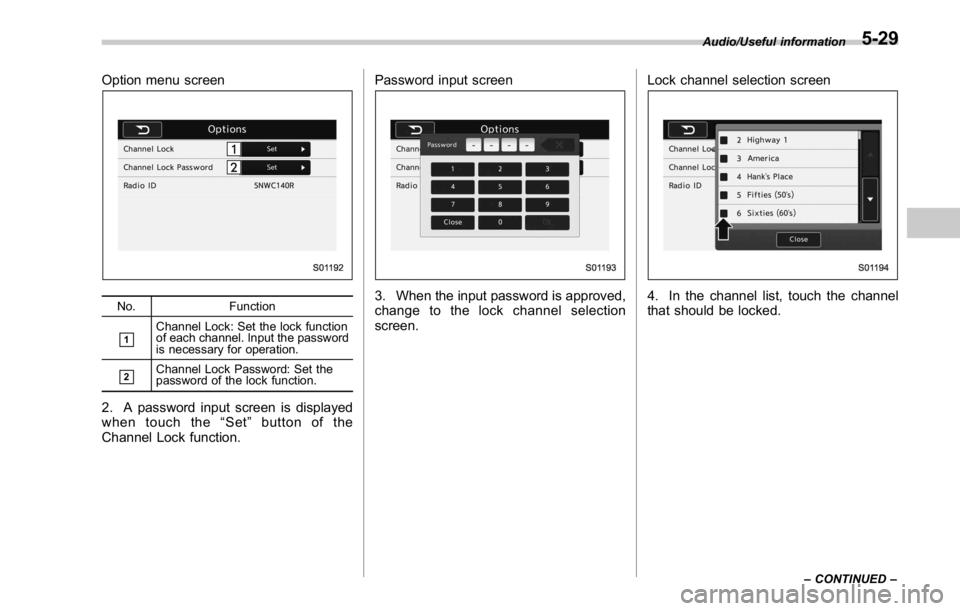
Option menu screen
No. Function
& 1
Channel Lock: Set the lock function
of each channel. Input the password
is necessary for operation.
& 2
Channel Lock Password: Set the
password of the lock function.
2. A password input screen is displayed
when touch the “ Set ” button of the
Channel Lock function. Password input screen
3. When the input password is approved,
change to the lock channel selection
screen. Lock channel selection screen
4. In the channel list, touch the channel
that should be locked. Audio/Useful information
– CONTINUED –5-29
Page 285 of 594
Audio/Useful information
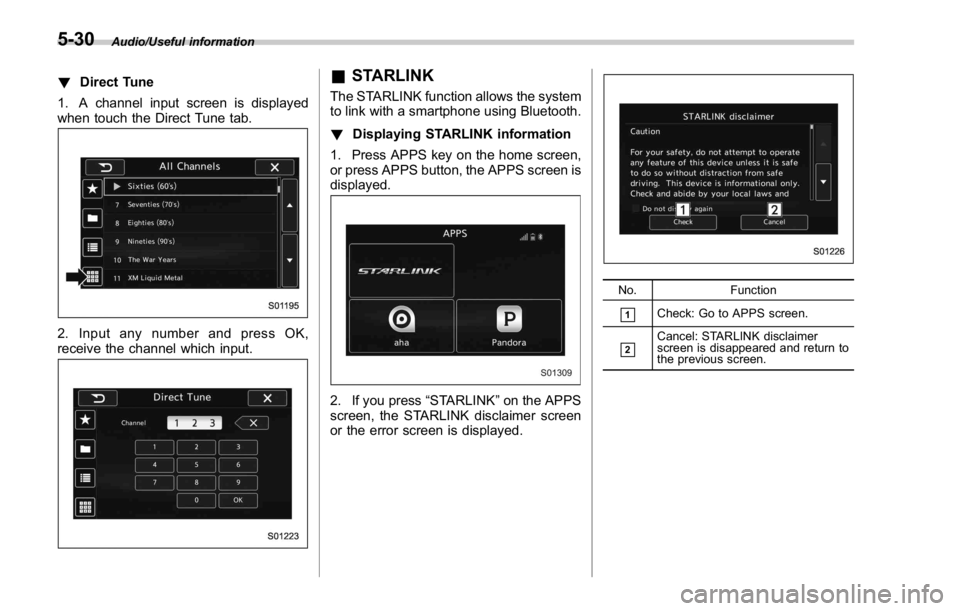
! Direct Tune
1. A channel input screen is displayed
when touch the Direct Tune tab.
2. Input any number and press OK,
receive the channel which input. & STARLINK The STARLINK function allows the system
to link with a smartphone using Bluetooth.
! Displaying STARLINK information
1. Press APPS key on the home screen,
or press APPS button, the APPS screen is
displayed.
2. If you press “ STARLINK ” on the APPS
screen, the STARLINK disclaimer screen
or the error screen is displayed. No. Function
& 1
Check: Go to APPS screen.
& 2
Cancel: STARLINK disclaimer
screen is disappeared and return to
the previous screen.5-30
Page 286 of 594
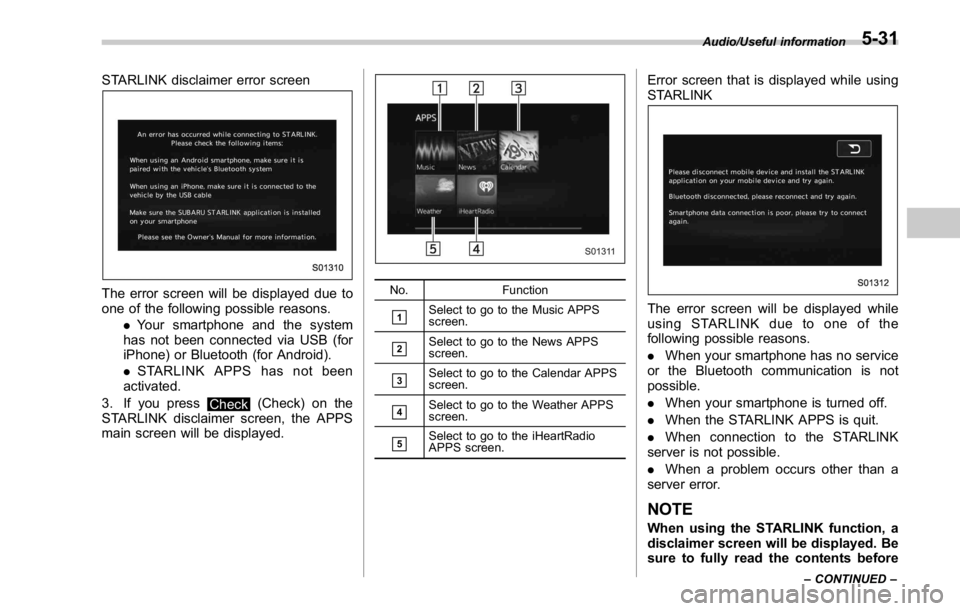
STARLINK disclaimer error screen
The error screen will be displayed due to
one of the following possible reasons.
. Your smartphone and the system
has not been connected via USB (for
iPhone) or Bluetooth (for Android).
. STARLINK APPS has not been
activated.
3. If you press
Check (Check) on the
STARLINK disclaimer screen, the APPS
main screen will be displayed. No. Function
& 1
Select to go to the Music APPS
screen.
& 2
Select to go to the News APPS
screen.
& 3
Select to go to the Calendar APPS
screen.
& 4
Select to go to the Weather APPS
screen.
& 5
Select to go to the iHeartRadio
APPS screen. Error screen that is displayed while using
STARLINK
The error screen will be displayed while
using STARLINK due to one of the
following possible reasons.
. When your smartphone has no service
or the Bluetooth communication is not
possible.
. When your smartphone is turned off.
. When the STARLINK APPS is quit.
. When connection to the STARLINK
server is not possible.
. When a problem occurs other than a
server error.
NOTE
When using the STARLINK function, a
disclaimer screen will be displayed. Be
sure to fully read the contents before Audio/Useful information
– CONTINUED –5-31
Page 289 of 594
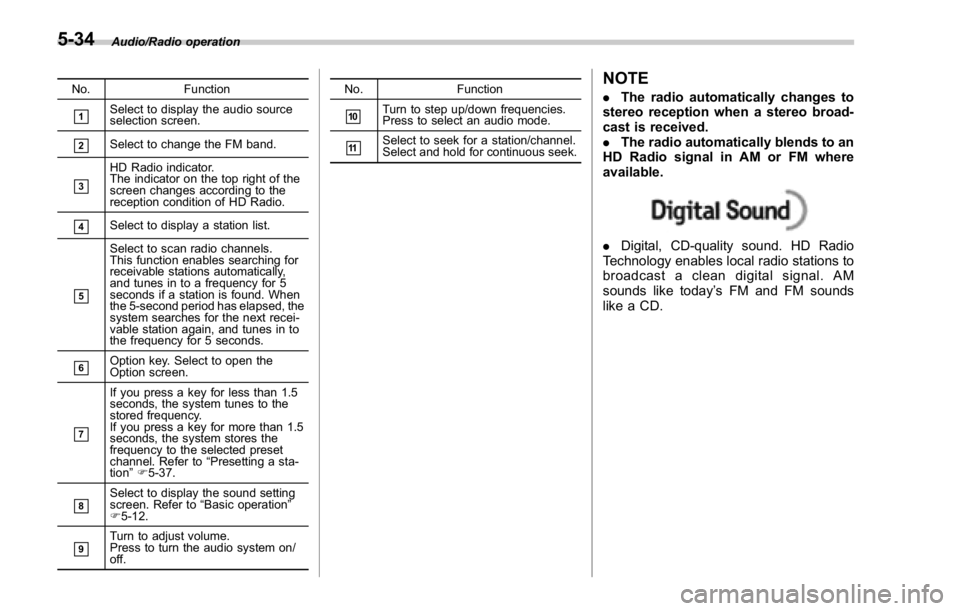
Audio/Radio operation
No. Function
& 1
Select to display the audio source
selection screen.
& 2
Select to change the FM band.
& 3
HD Radio indicator.
The indicator on the top right of the
screen changes according to the
reception condition of HD Radio.
& 4
Select to display a station list.
& 5
Select to scan radio channels.
This function enables searching for
receivable stations automatically,
and tunes in to a frequency for 5
seconds if a station is found. When
the 5-second period has elapsed, the
system searches for the next recei-
vable station again, and tunes in to
the frequency for 5 seconds.
& 6
Option key. Select to open the
Option screen.
& 7 If you press a key for less than 1.5
seconds, the system tunes to the
stored frequency.
If you press a key for more than 1.5
seconds, the system stores the
frequency to the selected preset
channel. Refer to “ Presetting a sta-
tion ” F 5-37.
& 8
Select to display the sound setting
screen. Refer to “ Basic operation ”
F 5-12.
& 9
Turn to adjust volume.
Press to turn the audio system on/
off. No. Function
& 10
Turn to step up/down frequencies.
Press to select an audio mode.
& 11
Select to seek for a station/channel.
Select and hold for continuous seek.
NOTE . The radio automatically changes to
stereo reception when a stereo broad-
cast is received.
. The radio automatically blends to an
HD Radio signal in AM or FM where
available.
. Digital, CD-quality sound. HD Radio
Technology enables local radio stations to
broadcast a clean digital signal. AM
sounds like today ’ s FM and FM sounds
like a CD.5-34
Page 292 of 594
! Presetting a station
The AM band can store up to 12 stations
(AM1 and AM2, 6 stations each).
The FM band can store up to 18 stations
(FM1, FM2 and FM3, 6 stations each).
. AM2andFM3canstoreupto6
stations when performing the auto store
function.
The SAT band can store up to 30 stations.
Refer to “ Presetting a channel ” F 5-48.
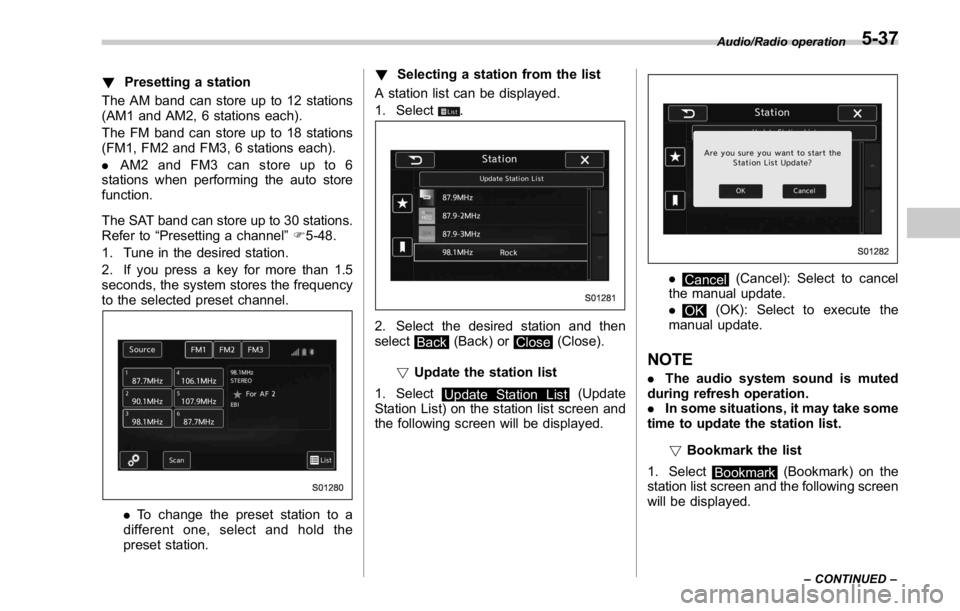
1. Tune in the desired station.
2. If you press a key for more than 1.5
seconds, the system stores the frequency
to the selected preset channel.
. To change the preset station to a
different one, select and hold the
preset station. ! Selecting a station from the list
A station list can be displayed.
1. Select
.
2. Select the desired station and then
select
Back (Back) or
Close (Close).
! Update the station list
1. Select
Update Station List (Update
Station List) on the station list screen and
the following screen will be displayed. .
Cancel (Cancel): Select to cancel
the manual update.
.
OK (OK): Select to execute the
manual update.
NOTE . The audio system sound is muted
during refresh operation.
. In some situations, it may take some
time to update the station list.
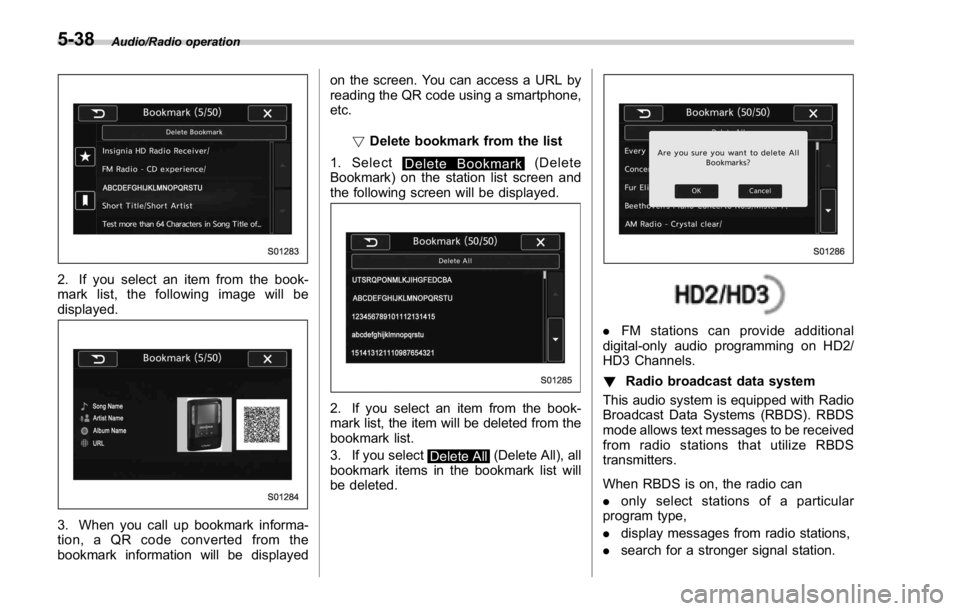
! Bookmark the list
1. Select
Bookmark (Bookmark) on the
station list screen and the following screen
will be displayed. Audio/Radio operation
– CONTINUED –5-37
Page 293 of 594
Audio/Radio operation
2. If you select an item from the book-
mark list, the following image will be
displayed.
3. When you call up bookmark informa-
tion, a QR code converted from the
bookmark information will be displayed on the screen. You can access a URL by
reading the QR code using a smartphone,
etc.
! Delete bookmark from the list
1. Select
Delete Bookmark (Delete
Bookmark) on the station list screen and
the following screen will be displayed.
2. If you select an item from the book-
mark list, the item will be deleted from the
bookmark list.
3. If you select
Delete All (Delete All), all
bookmark items in the bookmark list will
be deleted. . FM stations can provide additional
digital-only audio programming on HD2/
HD3 Channels.
! Radio broadcast data system
This audio system is equipped with Radio
Broadcast Data Systems (RBDS). RBDS
mode allows text messages to be received
from radio stations that utilize RBDS
transmitters.
When RBDS is on, the radio can
. only select stations of a particular
program type,
. display messages from radio stations,
. search for a stronger signal station.5-38
Page 294 of 594
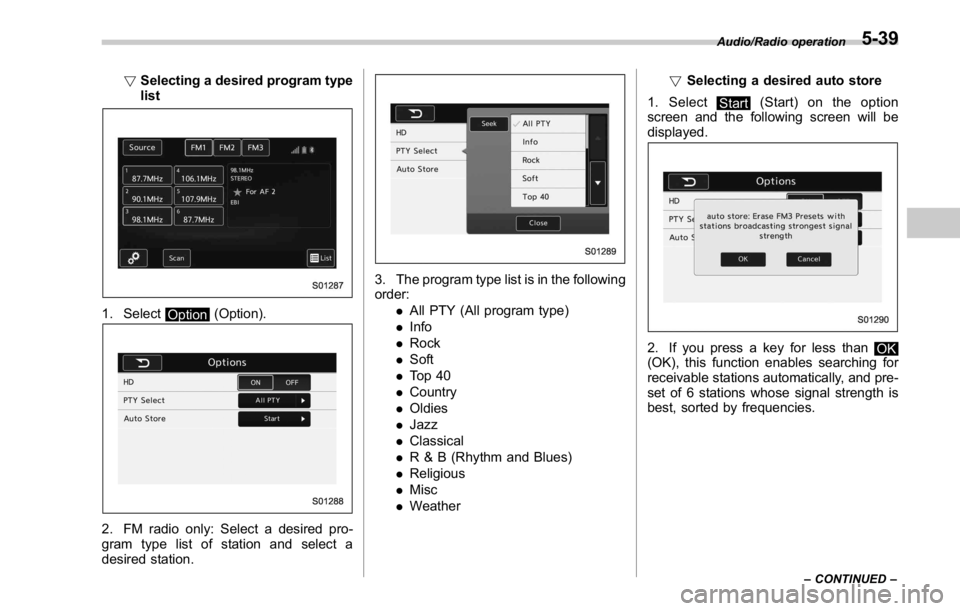
! Selecting a desired program type
list
1. Select
Option (Option).
2. FM radio only: Select a desired pro-
gram type list of station and select a
desired station. 3. The program type list is in the following
order:
. All PTY (All program type)
. Info
. Rock
. Soft
. To p 4 0
. Country
. Oldies
. Jazz
. Classical
. R & B (Rhythm and Blues)
. Religious
. Misc
. Weather ! Selecting a desired auto store
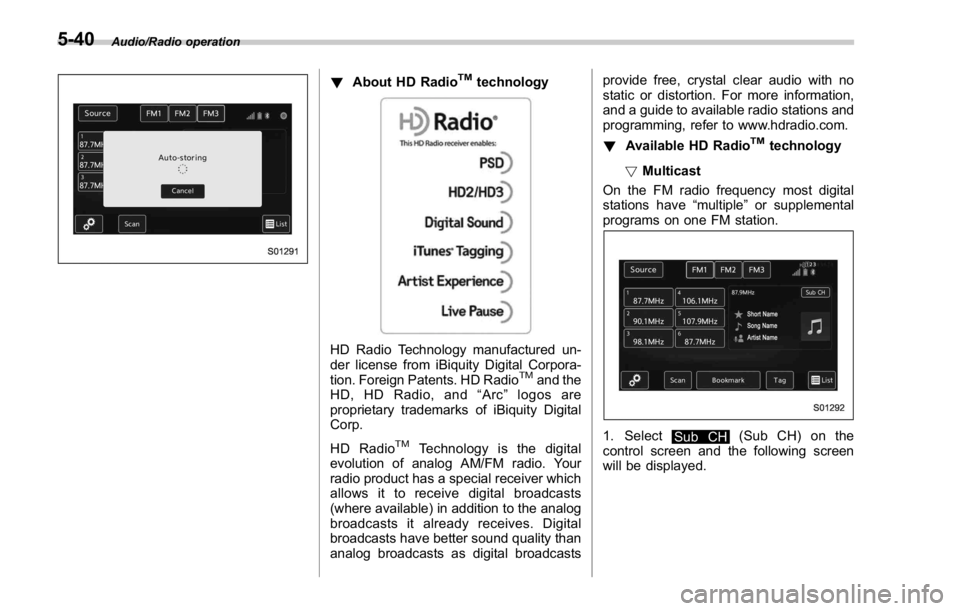
1. Select
Start (Start) on the option
screen and the following screen will be
displayed.
2. If you press a key for less than
OK
(OK), this function enables searching for
receivable stations automatically, and pre-
set of 6 stations whose signal strength is
best, sorted by frequencies. Audio/Radio operation
– CONTINUED –5-39
Page 295 of 594
Audio/Radio operation
! About HD Radio TM
technology
HD Radio Technology manufactured un-
der license from iBiquity Digital Corpora-
tion. Foreign Patents. HD Radio TM
and the
HD, HD Radio, and “ Arc ” logos are
proprietary trademarks of iBiquity Digital
Corp.
HD Radio TM
Technology is the digital
evolution of analog AM/FM radio. Your
radio product has a special receiver which
allows it to receive digital broadcasts
(where available) in addition to the analog
broadcasts it already receives. Digital
broadcasts have better sound quality than
analog broadcasts as digital broadcasts provide free, crystal clear audio with no
static or distortion. For more information,
and a guide to available radio stations and
programming, refer to www.hdradio.com.
! Available HD Radio TM
technology
! Multicast
On the FM radio frequency most digital
stations have “ multiple ” or supplemental
programs on one FM station.
1. Select
Sub CH (Sub CH) on the
control screen and the following screen
will be displayed.5-40
Page 296 of 594
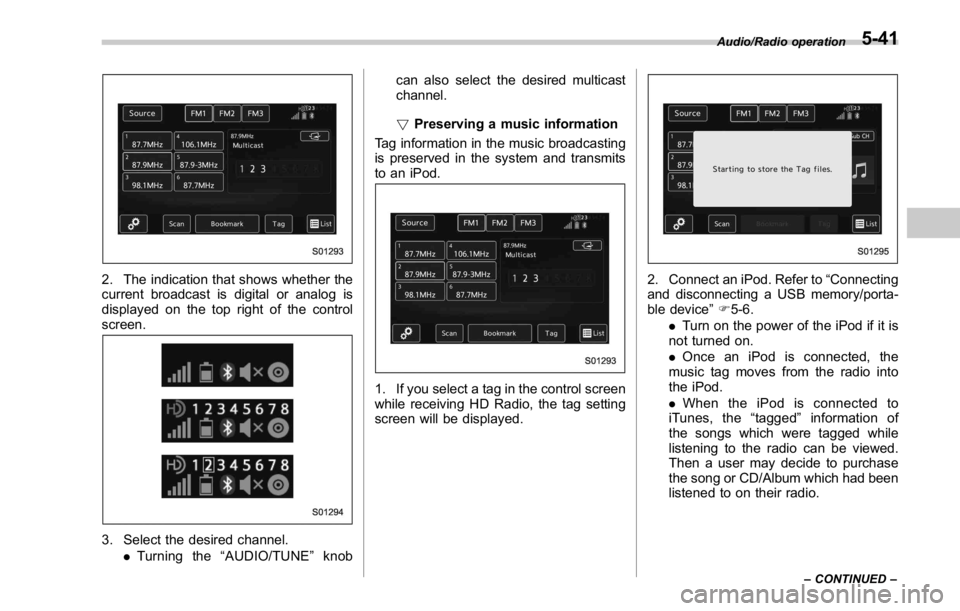
2. The indication that shows whether the
current broadcast is digital or analog is
displayed on the top right of the control
screen.
3. Select the desired channel.
. Turning the “ AUDIO/TUNE ” knob can also select the desired multicast
channel.
! Preserving a music information
Tag information in the music broadcasting
is preserved in the system and transmits
to an iPod.
1. If you select a tag in the control screen
while receiving HD Radio, the tag setting
screen will be displayed. 2. Connect an iPod. Refer to “ Connecting
and disconnecting a USB memory/porta-
ble device ” F 5-6.
. Turn on the power of the iPod if it is
not turned on.
. Once an iPod is connected, the
music tag moves from the radio into
the iPod.
. When the iPod is connected to
iTunes, the “ tagged ” information of
the songs which were tagged while
listening to the radio can be viewed.
Then a user may decide to purchase
the song or CD/Album which had been
listened to on their radio. Audio/Radio operation
– CONTINUED –5-41