key SUBARU WRX 2016 Manual Online
[x] Cancel search | Manufacturer: SUBARU, Model Year: 2016, Model line: WRX, Model: SUBARU WRX 2016Pages: 594, PDF Size: 19.43 MB
Page 340 of 594

tration may be displayed on the Blue-
tooth device ’ s screen. Respond and
operate the Bluetooth device accord-
ing to the confirmation message.
4. Check that the screen is displayed
when registration is complete.
. The system waits for connection
requests coming from the registered
device.
. At this stage, the Bluetooth func-
tions are not yet available.
! Deleting a Bluetooth device
1. Display the “ BT Devices Connection ”
screen. Refer to “ Registering a Bluetooth
phone for the first time ” F 5-81.
2. Select the desired device.
Press and hold the Trash box icon for the
device to be deleted, and then select
“ OK ” .
NOTE When deleting a Bluetooth phone, the
contact data will be deleted at the same
time.
! Connecting a Bluetooth device
Up to 5 Bluetooth devices (Phones (HFP)
and audio devices (AVP)) can be regis-
tered. If more than 1 Bluetooth device has been
registered, select which device to connect
to.
1. Display the “ BT Devices Connection ”
screen. Refer to “ Registering a Bluetooth
phone for the first time ” F 5-81.
2. Select the device to be connected.
. Supported profile icons will be dis-
played.
–
: Phone
– : Audio device
– : Smartphone Application
. Supported profile icons for currently
connected devices will illuminate.
. The Audio icon illuminates only
when in the Bluetooth audio mode.
. All icons are dimmed when Blue-
tooth is set to OFF or when the
connection cannot be made with the
device.
NOTE . It may take time if the device con-
nection is carried out during Bluetooth
audio playback.
. Depending on the type of Bluetooth
device being connected, it may be
necessary to perform additional steps
on the device.
. It is not possible to establish a
Bluetooth connection with iOS devices currently connected with a USB cable.
! Bluetooth ON/OFF
1. Display the “ BT Devices Connection ”
screen. Refer to “ Registering a Bluetooth
phone for the first time ” F 5-81.
2. Select the “ Bluetooth ON/OFF ” key.
. Select “ ON ” or “ OFF ” to connect/
disconnect the Bluetooth communica-
tion. “ ON ” establishes a connection,
and “ OFF ” disconnects the connec-
tion.
. The setting is fixed as “ OFF ” when
no device is registered.
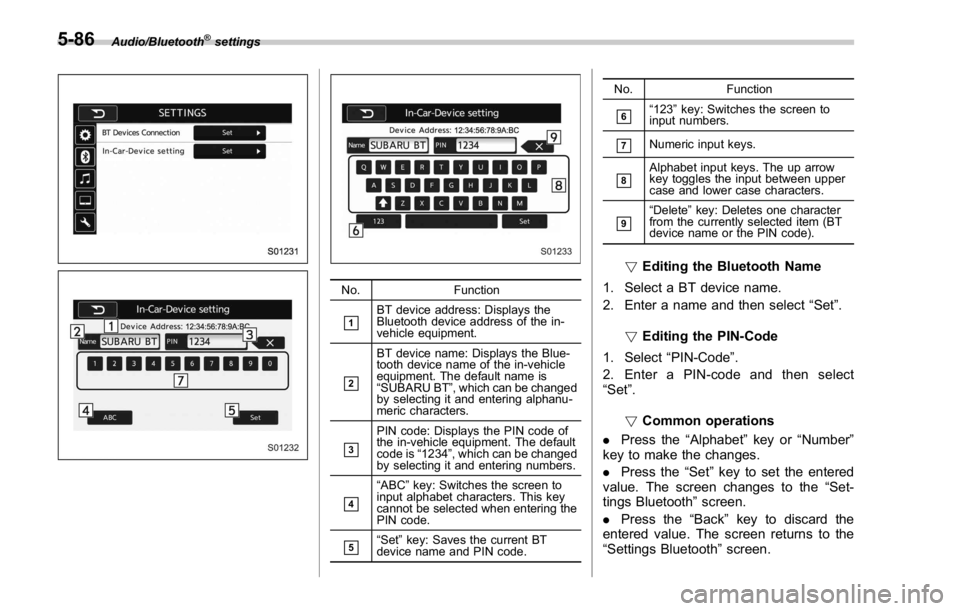
! “ In-Car-Device setting ” screen
The Bluetooth settings can be confirmed
and changed.
1. Display the “ SETTINGS ” screen. Refer
to “ Registering a Bluetooth phone for the
first time ” F 5-81.
2. On the SETTINGS for In-Car-Device
setting select “ set ” key. Audio/Bluetooth ®
settings
– CONTINUED –5-85
Page 341 of 594
Audio/Bluetooth ®
settings
No. Function
& 1
BT device address: Displays the
Bluetooth device address of the in-
vehicle equipment.
& 2
BT device name: Displays the Blue-
tooth device name of the in-vehicle
equipment. The default name is
“ SUBARU BT ” , which can be changed
by selecting it and entering alphanu-
meric characters.
& 3
PIN code: Displays the PIN code of
the in-vehicle equipment. The default
code is “ 1234 ” , which can be changed
by selecting it and entering numbers.
& 4
“ ABC ” key: Switches the screen to
input alphabet characters. This key
cannot be selected when entering the
PIN code.
& 5
“ Set ” key: Saves the current BT
device name and PIN code. No. Function
& 6
“ 123 ” key: Switches the screen to
input numbers.
& 7
Numeric input keys.
& 8
Alphabet input keys. The up arrow
key toggles the input between upper
case and lower case characters.
& 9
“ Delete ” key: Deletes one character
from the currently selected item (BT
device name or the PIN code).
! Editing the Bluetooth Name
1. Select a BT device name.
2. Enter a name and then select “ Set ” .
! Editing the PIN-Code
1. Select “ PIN-Code ” .
2. Enter a PIN-code and then select
“ Set ” .
! Common operations
. Press the “ Alphabet ” key or “ Number ”
key to make the changes.
. Press the “ Set ” key to set the entered
value. The screen changes to the “ Set-
tings Bluetooth ” screen.
. Press the “ Back ” key to discard the
entered value. The screen returns to the
“ Settings Bluetooth ” screen.5-86
Page 342 of 594
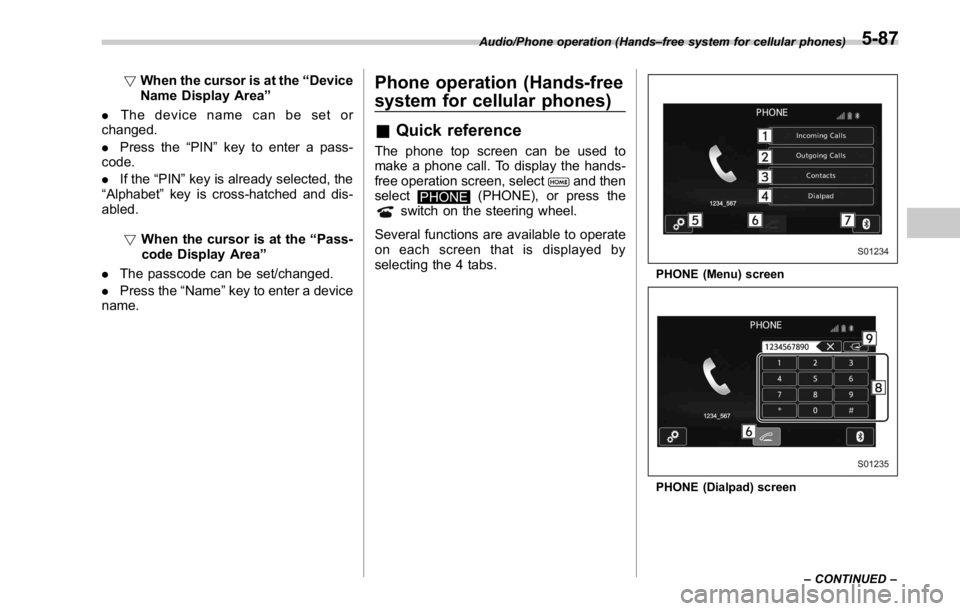
! When the cursor is at the “ Device
Name Display Area ”
. Thedevicenamecanbesetor
changed.
. Press the “ PIN ” key to enter a pass-
code.
. If the “ PIN ” key is already selected, the
“ Alphabet ” key is cross-hatched and dis-
abled.
! When the cursor is at the “ Pass-
code Display Area ”
. The passcode can be set/changed.
. Press the “ Name ” key to enter a device
name. Phone operation (Hands-free
system for cellular phones) & Quick reference The phone top screen can be used to
make a phone call. To display the hands-
free operation screen, select
and then
select
PHONE (PHONE), or press the
switch on the steering wheel.
Several functions are available to operate
on each screen that is displayed by
selecting the 4 tabs. PHONE (Menu) screen
PHONE (Dialpad) screenAudio/Phone operation (Hands – free system for cellular phones)
– CONTINUED –5-87
Page 343 of 594
Audio/Phone operation (Hands – free system for cellular phones)
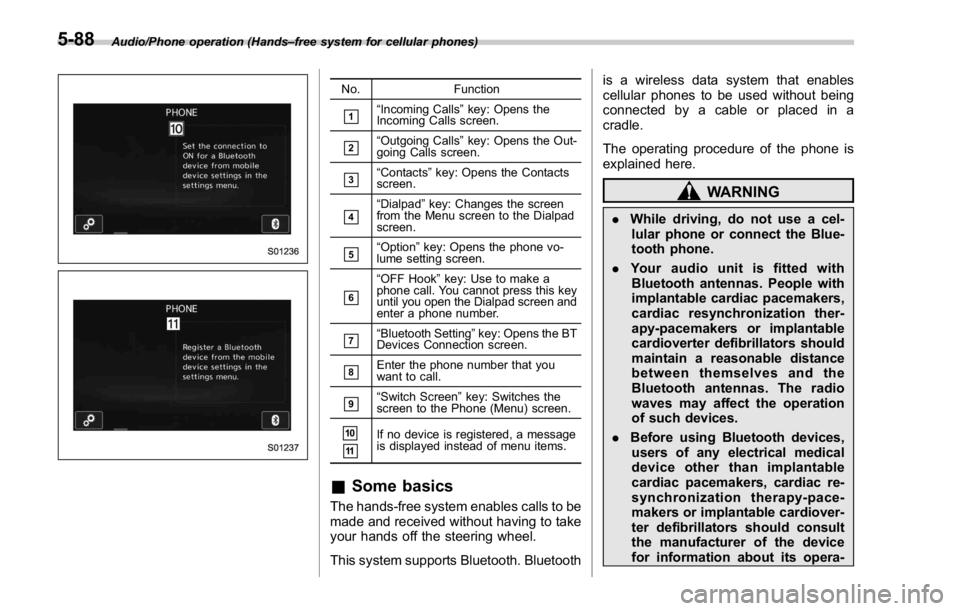
No. Function
& 1
“ Incoming Calls ” key: Opens the
Incoming Calls screen.
& 2
“ Outgoing Calls ” key: Opens the Out-
going Calls screen.
& 3
“ Contacts ” key: Opens the Contacts
screen.
& 4
“ Dialpad ” key: Changes the screen
from the Menu screen to the Dialpad
screen.
& 5
“ Option ” key: Opens the phone vo-
lume setting screen.
& 6
“ OFF Hook ” key: Use to make a
phone call. You cannot press this key
until you open the Dialpad screen and
enter a phone number.
& 7
“ Bluetooth Setting ” key: Opens the BT
Devices Connection screen.
& 8
Enter the phone number that you
want to call.
& 9
“ Switch Screen ” key: Switches the
screen to the Phone (Menu) screen.
& 10
& 11
If no device is registered, a message
is displayed instead of menu items.
& Some basics The hands-free system enables calls to be
made and received without having to take
your hands off the steering wheel.
This system supports Bluetooth. Bluetooth is a wireless data system that enables
cellular phones to be used without being
connected by a cable or placed in a
cradle.
The operating procedure of the phone is
explained here.
WARNING. While driving, do not use a cel-
lular phone or connect the Blue-
tooth phone.
. Your audio unit is fitted with
Bluetooth antennas. People with
implantable cardiac pacemakers,
cardiac resynchronization ther-
apy-pacemakers or implantable
cardioverter defibrillators should
maintain a reasonable distance
between themselves and the
Bluetooth antennas. The radio
waves may affect the operation
of such devices.
. Before using Bluetooth devices,
users of any electrical medical
device other than implantable
cardiac pacemakers, cardiac re-
synchronization therapy-pace-
makers or implantable cardiover-
ter defibrillators should consult
the manufacturer of the device
for information about its opera-5-88
Page 348 of 594
! By call history
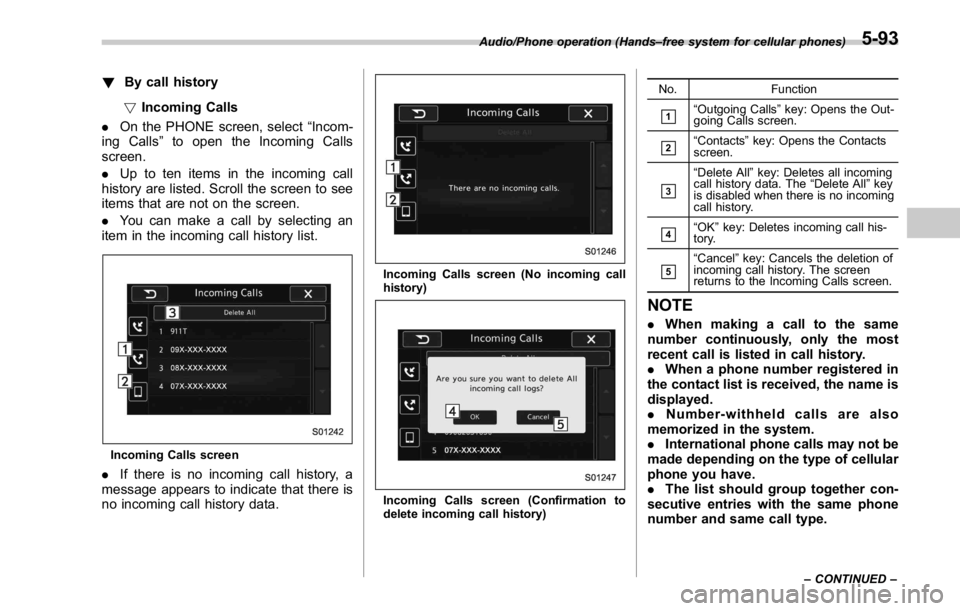
! Incoming Calls
. On the PHONE screen, select “ Incom-
ing Calls ” to open the Incoming Calls
screen.
. Up to ten items in the incoming call
history are listed. Scroll the screen to see
items that are not on the screen.
. You can make a call by selecting an
item in the incoming call history list.
Incoming Calls screen
. If there is no incoming call history, a
message appears to indicate that there is
no incoming call history data. Incoming Calls screen (No incoming call
history)
Incoming Calls screen (Confirmation to
delete incoming call history) No. Function
& 1
“ Outgoing Calls ” key: Opens the Out-
going Calls screen.
& 2
“ Contacts ” key: Opens the Contacts
screen.
& 3
“ Delete All ” key: Deletes all incoming
call history data. The “ Delete All ” key
is disabled when there is no incoming
call history.
& 4
“ OK ” key: Deletes incoming call his-
tory.
& 5
“ Cancel ” key: Cancels the deletion of
incoming call history. The screen
returns to the Incoming Calls screen.
NOTE . When making a call to the same
number continuously, only the most
recent call is listed in call history.
. When a phone number registered in
the contact list is received, the name is
displayed.
. Number-withheld calls are also
memorized in the system.
. International phone calls may not be
made depending on the type of cellular
phone you have.
. The list should group together con-
secutive entries with the same phone
number and same call type.Audio/Phone operation (Hands – free system for cellular phones)
– CONTINUED –5-93
Page 349 of 594
Audio/Phone operation (Hands – free system for cellular phones)
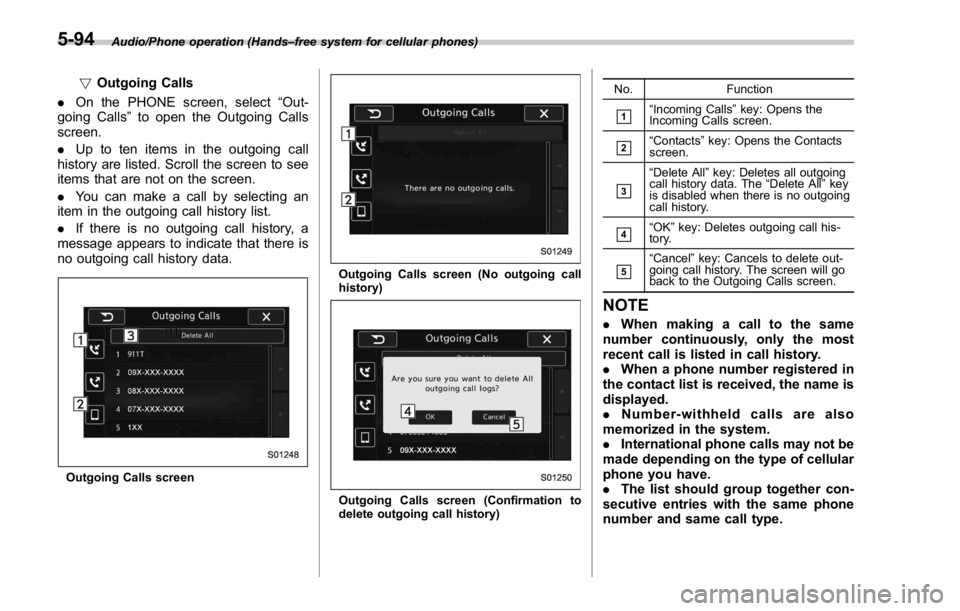
! Outgoing Calls
. On the PHONE screen, select “ Out-
going Calls ” to open the Outgoing Calls
screen.
. Up to ten items in the outgoing call
history are listed. Scroll the screen to see
items that are not on the screen.
. You can make a call by selecting an
item in the outgoing call history list.
. If there is no outgoing call history, a
message appears to indicate that there is
no outgoing call history data.
Outgoing Calls screen Outgoing Calls screen (No outgoing call
history)
Outgoing Calls screen (Confirmation to
delete outgoing call history) No. Function
& 1
“ Incoming Calls ” key: Opens the
Incoming Calls screen.
& 2
“ Contacts ” key: Opens the Contacts
screen.
& 3
“ Delete All ” key: Deletes all outgoing
call history data. The “ Delete All ” key
is disabled when there is no outgoing
call history.
& 4
“ OK ” key: Deletes outgoing call his-
tory.
& 5
“ Cancel ” key: Cancels to delete out-
going call history. The screen will go
back to the Outgoing Calls screen.
NOTE . When making a call to the same
number continuously, only the most
recent call is listed in call history.
. When a phone number registered in
the contact list is received, the name is
displayed.
. Number-withheld calls are also
memorized in the system.
. International phone calls may not be
made depending on the type of cellular
phone you have.
. The list should group together con-
secutive entries with the same phone
number and same call type.5-94
Page 350 of 594
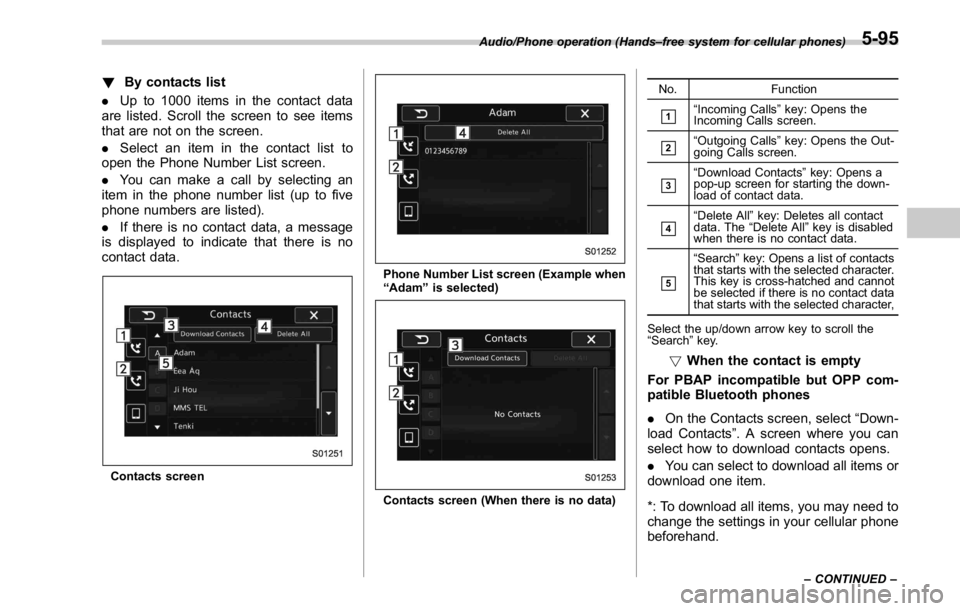
! By contacts list
. Up to 1000 items in the contact data
are listed. Scroll the screen to see items
that are not on the screen.
. Select an item in the contact list to
open the Phone Number List screen.
. You can make a call by selecting an
item in the phone number list (up to five
phone numbers are listed).
. If there is no contact data, a message
is displayed to indicate that there is no
contact data.
Contacts screen Phone Number List screen (Example when
“ Adam ” is selected)
Contacts screen (When there is no data) No. Function
& 1
“ Incoming Calls ” key: Opens the
Incoming Calls screen.
& 2
“ Outgoing Calls ” key: Opens the Out-
going Calls screen.
& 3
“ Download Contacts ” key: Opens a
pop-up screen for starting the down-
load of contact data.
& 4
“ Delete All ” key: Deletes all contact
data. The “ Delete All ” key is disabled
when there is no contact data.
& 5
“ Search ” key: Opens a list of contacts
that starts with the selected character.
This key is cross-hatched and cannot
be selected if there is no contact data
that starts with the selected character,
Select the up/down arrow key to scroll the
“ Search ” key.
! When the contact is empty
For PBAP incompatible but OPP com-
patible Bluetooth phones
. On the Contacts screen, select “ Down-
load Contacts ” . A screen where you can
select how to download contacts opens.
. You can select to download all items or
download one item.
*: To download all items, you may need to
change the settings in your cellular phone
beforehand.Audio/Phone operation (Hands – free system for cellular phones)
– CONTINUED –5-95
Page 351 of 594
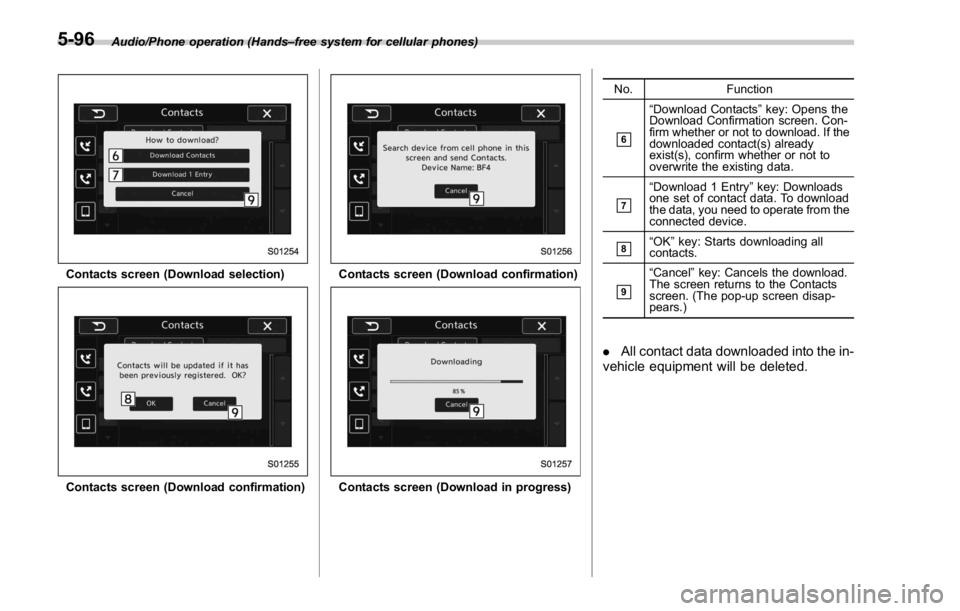
Audio/Phone operation (Hands – free system for cellular phones)
Contacts screen (Download selection)
Contacts screen (Download confirmation) Contacts screen (Download confirmation)
Contacts screen (Download in progress) No. Function
& 6
“ Download Contacts ” key: Opens the
Download Confirmation screen. Con-
firm whether or not to download. If the
downloaded contact(s) already
exist(s), confirm whether or not to
overwrite the existing data.
& 7
“ Download 1 Entry ” key: Downloads
one set of contact data. To download
the data, you need to operate from the
connected device.
& 8
“ OK ” key: Starts downloading all
contacts.
& 9
“ Cancel ” key: Cancels the download.
The screen returns to the Contacts
screen. (The pop-up screen disap-
pears.)
. All contact data downloaded into the in-
vehicle equipment will be deleted.5-96
Page 352 of 594
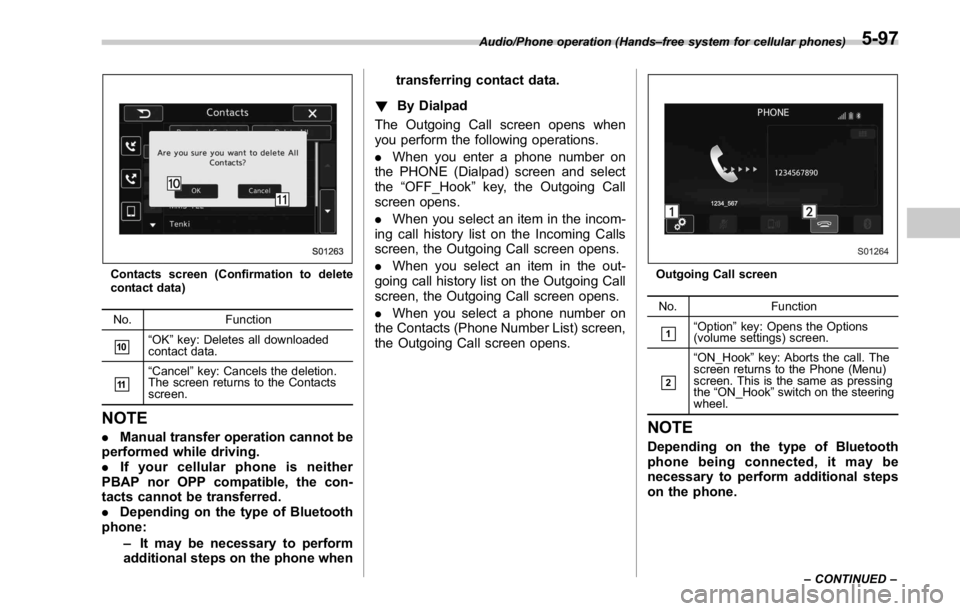
Contacts screen (Confirmation to delete
contact data)
No. Function
& 10
“ OK ” key: Deletes all downloaded
contact data.
& 11
“ Cancel ” key: Cancels the deletion.
The screen returns to the Contacts
screen.
NOTE . Manual transfer operation cannot be
performed while driving.
. If your cellular phone is neither
PBAP nor OPP compatible, the con-
tacts cannot be transferred.
. Depending on the type of Bluetooth
phone:
– It may be necessary to perform
additional steps on the phone when transferring contact data.
! By Dialpad
The Outgoing Call screen opens when
you perform the following operations.
. When you enter a phone number on
the PHONE (Dialpad) screen and select
the “ OFF_Hook ” key, the Outgoing Call
screen opens.
. When you select an item in the incom-
ing call history list on the Incoming Calls
screen, the Outgoing Call screen opens.
. When you select an item in the out-
going call history list on the Outgoing Call
screen, the Outgoing Call screen opens.
. When you select a phone number on
the Contacts (Phone Number List) screen,
the Outgoing Call screen opens. Outgoing Call screen
No. Function
& 1
“ Option ” key: Opens the Options
(volume settings) screen.
& 2
“ ON_Hook ” key: Aborts the call. The
screen returns to the Phone (Menu)
screen. This is the same as pressing
the “ ON_Hook ” switch on the steering
wheel.
NOTE Depending on the type of Bluetooth
phone being connected, it may be
necessary to perform additional steps
on the phone.Audio/Phone operation (Hands – free system for cellular phones)
– CONTINUED –5-97
Page 353 of 594
Audio/Phone operation (Hands – free system for cellular phones)
! By off hook switch
1. Press the
switch on the steering
wheel to display the phone top screen.
2. Check that the “ Call (Call) ” screen is
displayed.
& Receiving on the Bluetooth
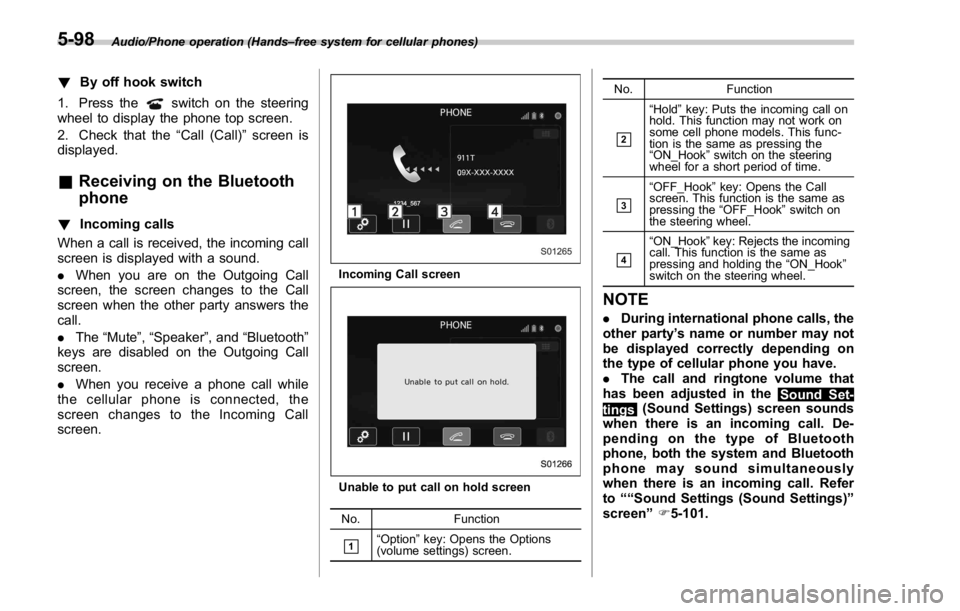
phone! Incoming calls
When a call is received, the incoming call
screen is displayed with a sound.
. When you are on the Outgoing Call
screen, the screen changes to the Call
screen when the other party answers the
call.
. The “ Mute ” , “ Speaker ” , and “ Bluetooth ”
keys are disabled on the Outgoing Call
screen.
. When you receive a phone call while
the cellular phone is connected, the
screen changes to the Incoming Call
screen. Incoming Call screen
Unable to put call on hold screen
No. Function
& 1
“ Option ” key: Opens the Options
(volume settings) screen. No. Function
& 2
“ Hold ” key: Puts the incoming call on
hold. This function may not work on
some cell phone models. This func-
tion is the same as pressing the
“ ON_Hook ” switch on the steering
wheel for a short period of time.
& 3
“ OFF_Hook ” key: Opens the Call
screen. This function is the same as
pressing the “ OFF_Hook ” switch on
the steering wheel.
& 4
“ ON_Hook ” key: Rejects the incoming
call. This function is the same as
pressing and holding the “ ON_Hook ”
switch on the steering wheel.
NOTE . During international phone calls, the
other party ’ s name or number may not
be displayed correctly depending on
the type of cellular phone you have.
. The call and ringtone volume that
has been adjusted in the
Sound Set-
tings (Sound Settings) screen sounds
when there is an incoming call. De-
pending on the type of Bluetooth
phone, both the system and Bluetooth
phone may sound simultaneously
when there is an incoming call. Refer
to ““ Sound Settings (Sound Settings) ”
screen ” F 5-101.5-98