light TESLA MODEL S 2014 (North America) Service Manual
[x] Cancel search | Manufacturer: TESLA, Model Year: 2014, Model line: MODEL S, Model: TESLA MODEL S 2014Pages: 159, PDF Size: 6.14 MB
Page 74 of 159
Overview of Climate ControlsThe climate controls are always available at the bottom of the touchscreen. By default, climate
control is set to Auto On, which maintains optimum comfort in all but the most severe weather conditions. When you adjust the temperature, the system automatically adjusts the heating, air
conditioning, air distribution, air circulation, and fan speed to maintain your selected temperature.
To override these settings, touch Auto On (see Customizing Climate Control on page 73).
The fan, heating, and air conditioning systems are powered by the Battery. Therefore, prolonged use decreases driving range.
Note: The following illustration is provided for demonstration purposes only. Depending on
vehicle options, software version, market region, and settings, the information displayed may be
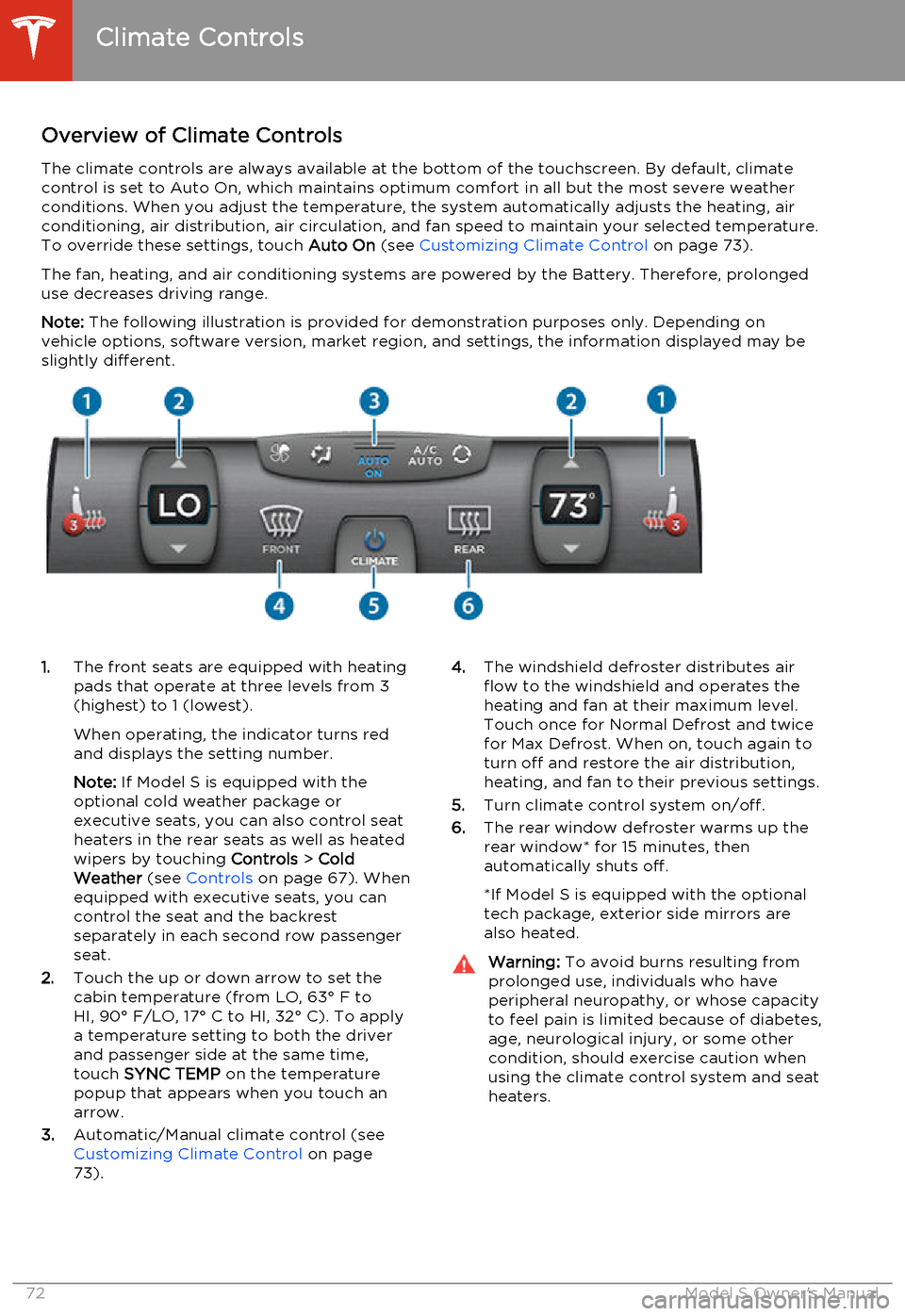
slightly different.1. The front seats are equipped with heating
pads that operate at three levels from 3
(highest) to 1 (lowest).
When operating, the indicator turns red
and displays the setting number.
Note: If Model S is equipped with the
optional cold weather package or
executive seats, you can also control seat
heaters in the rear seats as well as heated wipers by touching Controls > Cold
Weather (see Controls on page 67). When
equipped with executive seats, you can
control the seat and the backrest
separately in each second row passenger
seat.
2. Touch the up or down arrow to set the
cabin temperature (from LO, 63° F to
HI, 90° F/LO, 17° C to HI, 32° C). To apply a temperature setting to both the driver
and passenger side at the same time,
touch SYNC TEMP on the temperature
popup that appears when you touch an
arrow.
3. Automatic/Manual climate control (see
Customizing Climate Control on page
73).4. The windshield defroster distributes air
flow to the windshield and operates the
heating and fan at their maximum level.
Touch once for Normal Defrost and twice
for Max Defrost. When on, touch again to
turn off and restore the air distribution,
heating, and fan to their previous settings.
5. Turn climate control system on/off.
6. The rear window defroster warms up the
rear window* for 15 minutes, then
automatically shuts off.
*If Model S is equipped with the optional
tech package, exterior side mirrors are
also heated.Warning: To avoid burns resulting from
prolonged use, individuals who have
peripheral neuropathy, or whose capacity to feel pain is limited because of diabetes,
age, neurological injury, or some other
condition, should exercise caution when using the climate control system and seat
heaters.
Climate Controls
72Model S Owner's Manual
Page 76 of 159
Ventilation
Outside air is drawn into Model S through the
grill in front of the windshield. Keep the grill
clear of obstructions such as leaves and snow.
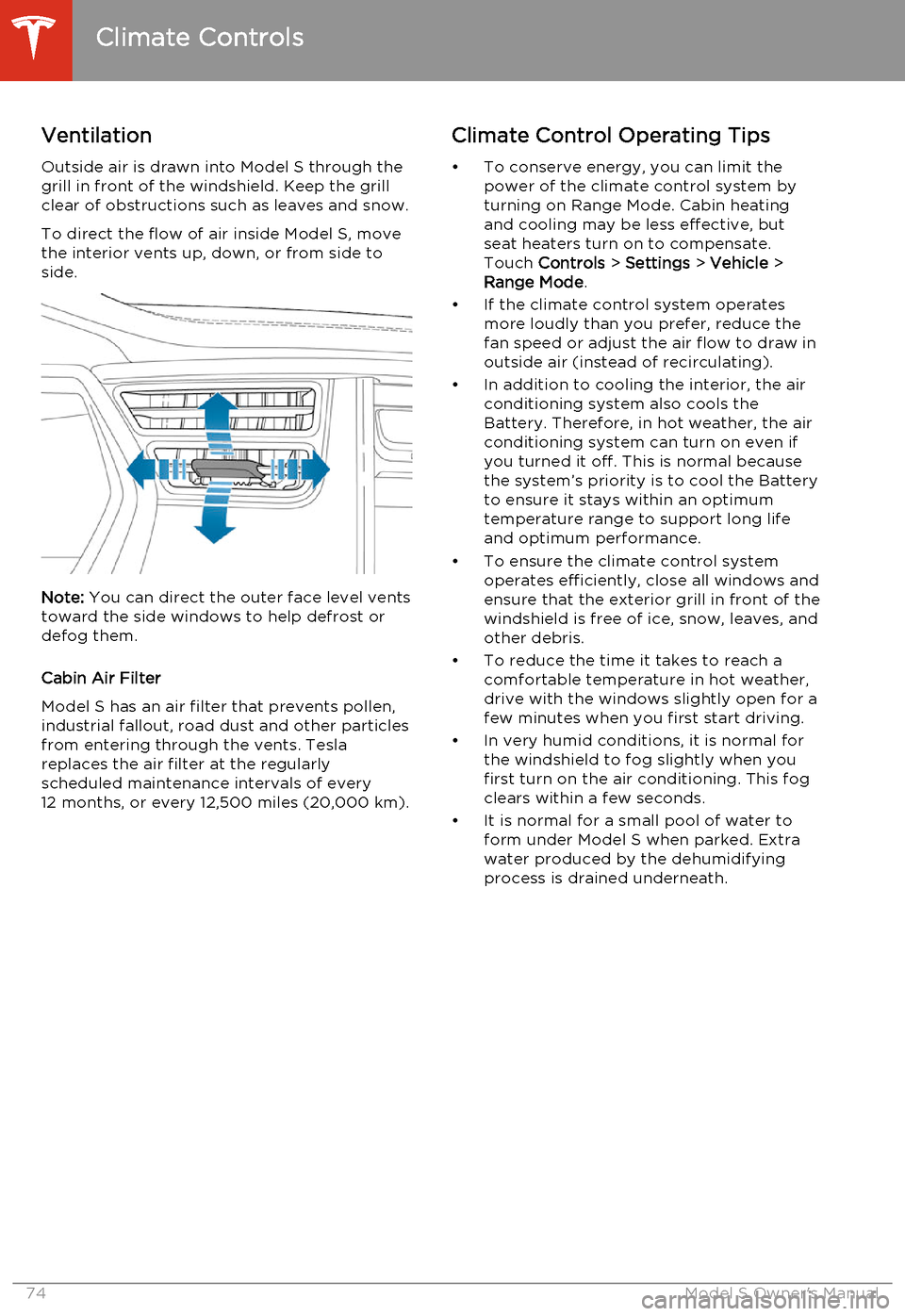
To direct the flow of air inside Model S, move
the interior vents up, down, or from side to
side.
Note: You can direct the outer face level vents
toward the side windows to help defrost or defog them.
Cabin Air Filter
Model S has an air filter that prevents pollen,
industrial fallout, road dust and other particles
from entering through the vents. Tesla replaces the air filter at the regularly
scheduled maintenance intervals of every 12 months, or every 12,500 miles (20,000 km).
Climate Control Operating Tips
• To conserve energy, you can limit the power of the climate control system by
turning on Range Mode. Cabin heating and cooling may be less effective, butseat heaters turn on to compensate.
Touch Controls > Settings > Vehicle >
Range Mode .
• If the climate control system operates more loudly than you prefer, reduce the
fan speed or adjust the air flow to draw in
outside air (instead of recirculating).
• In addition to cooling the interior, the air conditioning system also cools the
Battery. Therefore, in hot weather, the air conditioning system can turn on even if
you turned it off. This is normal because the system’s priority is to cool the Battery
to ensure it stays within an optimum
temperature range to support long life and optimum performance.
• To ensure the climate control system operates efficiently, close all windows and
ensure that the exterior grill in front of the
windshield is free of ice, snow, leaves, and
other debris.
• To reduce the time it takes to reach a comfortable temperature in hot weather,
drive with the windows slightly open for a
few minutes when you first start driving.
• In very humid conditions, it is normal for the windshield to fog slightly when you
first turn on the air conditioning. This fog
clears within a few seconds.
• It is normal for a small pool of water to form under Model S when parked. Extra
water produced by the dehumidifying
process is drained underneath.
Climate Controls
74Model S Owner's Manual
Page 78 of 159
Automatic Lowering) until you are driving
faster than the auto-raising speed
thresholds described above.
• If Model S reaches a saved location and the existing suspension setting is higher
than the level that has been saved for that
location, the suspension is not adjusted.
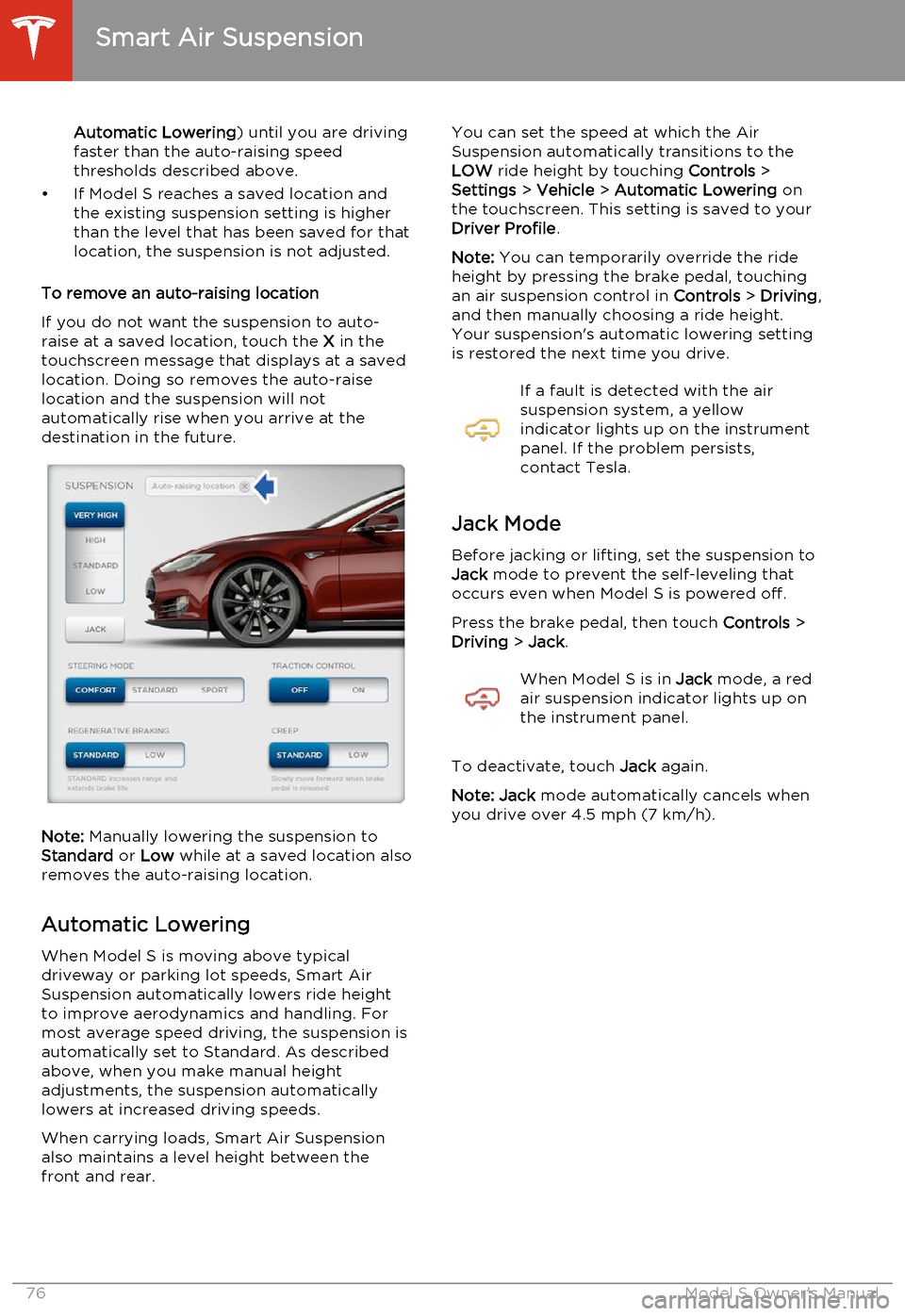
To remove an auto-raising location
If you do not want the suspension to auto-
raise at a saved location, touch the X in the
touchscreen message that displays at a saved
location. Doing so removes the auto-raise location and the suspension will not
automatically rise when you arrive at the
destination in the future.
Note: Manually lowering the suspension to
Standard or Low while at a saved location also
removes the auto-raising location.
Automatic Lowering When Model S is moving above typical
driveway or parking lot speeds, Smart Air
Suspension automatically lowers ride height
to improve aerodynamics and handling. For
most average speed driving, the suspension is
automatically set to Standard. As described
above, when you make manual height
adjustments, the suspension automatically lowers at increased driving speeds.
When carrying loads, Smart Air Suspension also maintains a level height between the
front and rear.
You can set the speed at which the Air
Suspension automatically transitions to the LOW ride height by touching Controls >
Settings > Vehicle > Automatic Lowering on
the touchscreen. This setting is saved to your
Driver Profile .
Note: You can temporarily override the ride
height by pressing the brake pedal, touching an air suspension control in Controls > Driving ,
and then manually choosing a ride height.
Your suspension's automatic lowering setting is restored the next time you drive.If a fault is detected with the air
suspension system, a yellow
indicator lights up on the instrument
panel. If the problem persists,
contact Tesla.
Jack Mode
Before jacking or lifting, set the suspension to
Jack mode to prevent the self-leveling that
occurs even when Model S is powered off.
Press the brake pedal, then touch Controls >
Driving > Jack .
When Model S is in Jack mode, a red
air suspension indicator lights up on
the instrument panel.
To deactivate, touch Jack again.
Note: Jack mode automatically cancels when
you drive over 4.5 mph (7 km/h).
Smart Air Suspension
76Model S Owner's Manual
Page 88 of 159

About the Security System
If Model S does not detect a key nearby and a locked door or trunk is opened, an alarmsounds and headlights and turn signals flash.
To deactivate the alarm, press any button on
the key.
To manually enable or disable the alarm
system, touch Controls > Settings > Safety &
Security > Alarm . When set to on, Model S
activates its alarm one minute after the doors
lock and a recognized key is no longer
detected nearby.
Security Settings
86Model S Owner's Manual
Page 89 of 159
About HomeLinkIf Model S is equipped with the optional tech
package, you can program the HomeLink ®
Universal Transceiver to operate up to three
garage doors, gates, lights, and security
systems that can transmit Radio Frequency
(RF) signals.
Programming HomeLink
1. Park Model S in front of the device you
want to program, and have the device’s
remote control ready.
2. Touch Controls > Settings > HomeLink on
the touchscreen.
3. Touch Add New HomeLink , then use the
onscreen keyboard to enter a name for
your HomeLink device.
4. Touch Program .
5. Follow the onscreen instructions.
Once programmed, you can operate the device by touching its corresponding
HomeLink icon on the touchscreen’s status bar. HomeLink remembers the location of
your programmed devices. When you approach a known location, the HomeLink
control on the touchscreen automatically
drops down. When you drive away, it
disappears.
Note: For security reasons, erase your
HomeLink settings if you sell Model S.Warning: Your device might open or
close during programming. Before
programming, make sure that the device is clear of any people or objects.Warning: Do not use the HomeLink
Universal Transceiver with a garage door that does not meet safety standards. Agarage door opener that cannot detectan object in its path and then
automatically stop and reverse, does not
meet these standards. Using a garage
door opener without these features
increases the risk of injury or death.
Troubleshooting HomeLink
When programming a HomeLink device, the touchscreen steps you through a two-part
programming process:
• First, Model S records the signal from the remote. The touchscreen instructs you to
stand in front of the car, point the remote
at the front bumper and press and hold
the button until the headlights flash.
When headlights flash, Model S has
learned the remote and you can touch
Continue on the touchscreen . If the
headlights do not flash, refer to the
guidelines below.
• Next, the device's receiver learns Model S. The touchscreen instructs you to press
the LEARN button on the garage door or
gate's receiver. If training the receiver
does not work, refer to the guidelines
below.
NOTE: Only devices that are equipped
with a “rolling code” remote need to learn
Model S. If you have a very old device that
is not equipped with a rolling code
remote, the device does not need to learn
Model S and you can skip this part. You
can also skip this step if your receiver is
Quick-Train compatible. The opener
should work.
Headlights do not flash
• Check the batteries in the remote. It is a good idea to replace the batteries before
you start programming.
• Hold the remote against the nose cone, with the button pressed, about 6 inches to
the left of the Tesla emblem. In some
cases you must hold the remote for up to
three minutes.
• Check compatibility of the remote by contacting the HomeLink manufacturer
( www.homelink.com ).
After programming, the device does not work
• Park Model S with its front bumper as close as possible to the HomeLink device
(garage door, gate, etc).
• Make sure you haven’t reached the device receiver's limit of learned remotes/cars.
Most receivers can learn up to five
remotes/cars. If the receiver's memory is
full, you must clear the memory and
restart the programming process. For
instructions on how to clear the receiver's
memory, refer to the owner
documentation provided with the
HomeLink device.
• Make sure you are pressing the receiver's LEARN button. Most receivers have twobuttons and a LED. One button is a RESET
button and the other is a LEARN button.
Pressing the LEARN button usually causes the LED to flash. For instructions on how
to put the receiver into learning mode, refer to the owner documentation
provided with the HomeLink device.
HomeLink ®
Universal Transceiver
Using the Touchscreen87
Page 93 of 159
Model S Mobile AppThe Tesla Model S mobile app allows you tocommunicate with Model S remotely using
your iPhone ®
or Android ™
phone. With this app,
you can:
• Check charging progress and receive notifications when charging has started,
has been interrupted, or is complete.
• Heat or cool Model S before driving (even if it's in a garage).
• Locate Model S with directions, or track its movement across a map.
• Flash lights or honk the horn to find Model S when parked.
• Vent or close the sunroof.
• Lock or unlock Model S from afar. • Start Model S.
• Support the Model S Calendar app by allowing the mobile app to send your
phone's calendar data to Model S.
• Receive notifications when the car alarm has been triggered, or a new Model S
software update is available.
Simply download the Tesla Model S mobile
app to your phone and enter your MY TESLA
login credentials. You must also ensure that Model S is ready to communicate with the
mobile app by turning on its remote access
setting. Touch Controls > Settings > Safety &
Security > Remote Access > On (see Settings
on page 69).
Mobile App
Using the Touchscreen91
Page 97 of 159
Opening the Charge Port
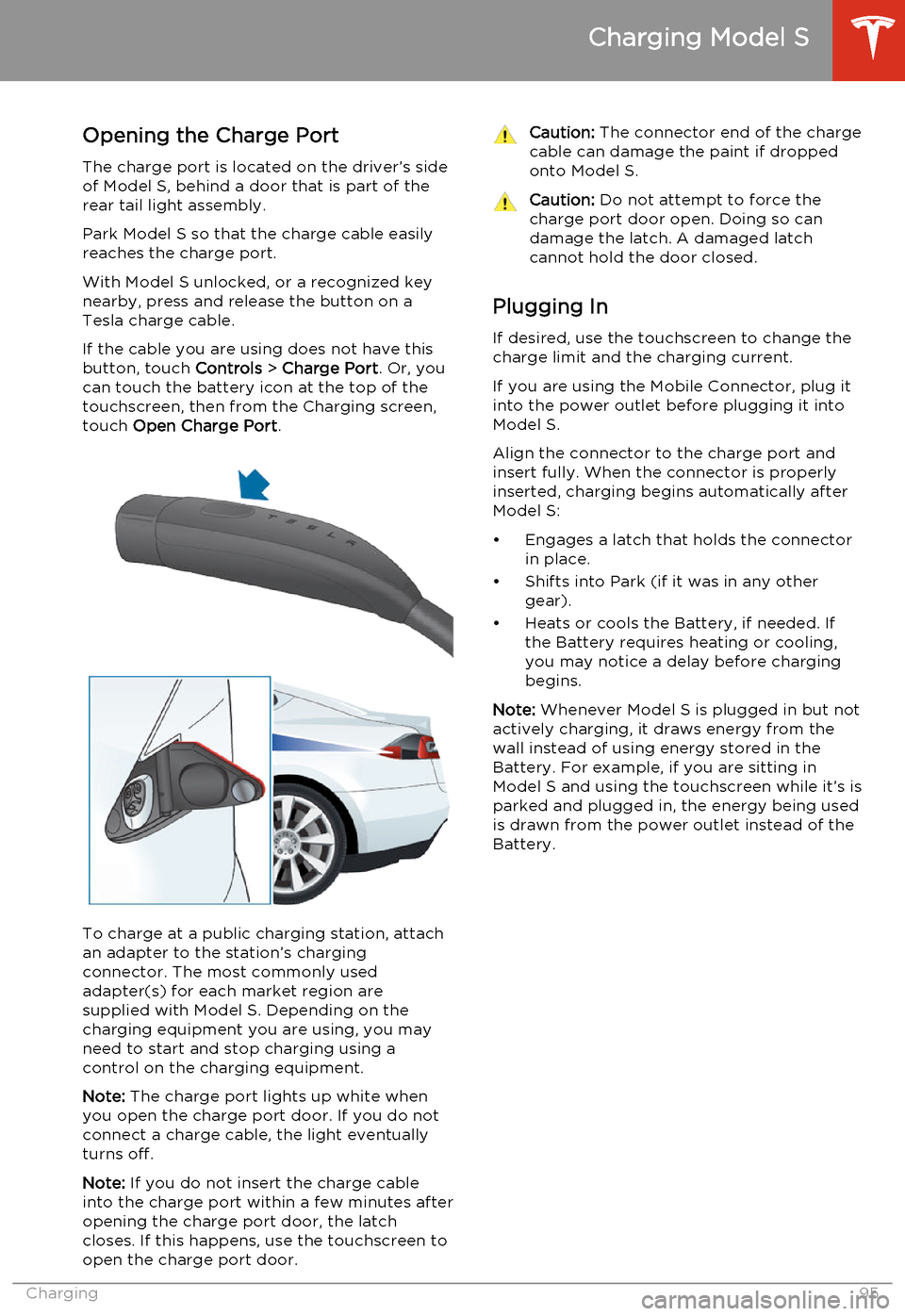
The charge port is located on the driver’s side of Model S, behind a door that is part of therear tail light assembly.
Park Model S so that the charge cable easily
reaches the charge port.
With Model S unlocked, or a recognized key
nearby, press and release the button on a
Tesla charge cable.
If the cable you are using does not have this
button, touch Controls > Charge Port . Or, you
can touch the battery icon at the top of the
touchscreen, then from the Charging screen,
touch Open Charge Port .
To charge at a public charging station, attach
an adapter to the station’s chargingconnector. The most commonly usedadapter(s) for each market region aresupplied with Model S. Depending on thecharging equipment you are using, you may
need to start and stop charging using a control on the charging equipment.
Note: The charge port lights up white when
you open the charge port door. If you do not
connect a charge cable, the light eventually
turns off.
Note: If you do not insert the charge cable
into the charge port within a few minutes after
opening the charge port door, the latch
closes. If this happens, use the touchscreen to
open the charge port door.
Caution: The connector end of the charge
cable can damage the paint if dropped onto Model S.Caution: Do not attempt to force the
charge port door open. Doing so can
damage the latch. A damaged latch
cannot hold the door closed.
Plugging In
If desired, use the touchscreen to change the
charge limit and the charging current.
If you are using the Mobile Connector, plug it into the power outlet before plugging it into
Model S.
Align the connector to the charge port and
insert fully. When the connector is properly
inserted, charging begins automatically after Model S:
• Engages a latch that holds the connector in place.
• Shifts into Park (if it was in any other gear).
• Heats or cools the Battery, if needed. If the Battery requires heating or cooling,
you may notice a delay before charging begins.
Note: Whenever Model S is plugged in but not
actively charging, it draws energy from the wall instead of using energy stored in the
Battery. For example, if you are sitting in
Model S and using the touchscreen while it’s is
parked and plugged in, the energy being used
is drawn from the power outlet instead of the
Battery.
Charging Model S
Charging95
Page 98 of 159
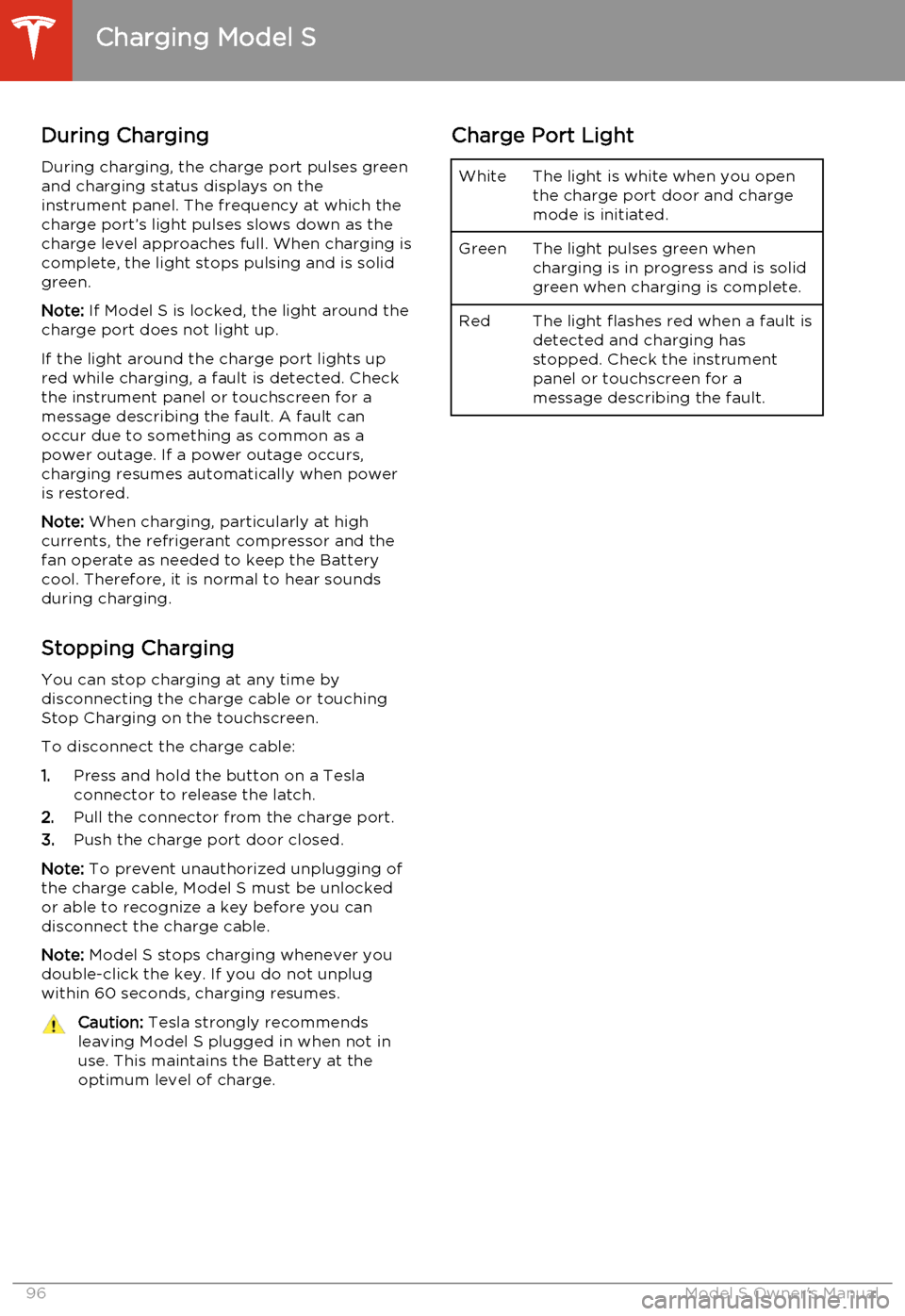
During ChargingDuring charging, the charge port pulses green
and charging status displays on the instrument panel. The frequency at which thecharge port’s light pulses slows down as thecharge level approaches full. When charging iscomplete, the light stops pulsing and is solid
green.
Note: If Model S is locked, the light around the
charge port does not light up.
If the light around the charge port lights up
red while charging, a fault is detected. Check
the instrument panel or touchscreen for a
message describing the fault. A fault can
occur due to something as common as a
power outage. If a power outage occurs,
charging resumes automatically when power
is restored.
Note: When charging, particularly at high
currents, the refrigerant compressor and the
fan operate as needed to keep the Battery cool. Therefore, it is normal to hear sounds
during charging.
Stopping Charging You can stop charging at any time by
disconnecting the charge cable or touching
Stop Charging on the touchscreen.
To disconnect the charge cable:
1. Press and hold the button on a Tesla
connector to release the latch.
2. Pull the connector from the charge port.
3. Push the charge port door closed.
Note: To prevent unauthorized unplugging of
the charge cable, Model S must be unlocked
or able to recognize a key before you can
disconnect the charge cable.
Note: Model S stops charging whenever you
double-click the key. If you do not unplug
within 60 seconds, charging resumes.Caution: Tesla strongly recommends
leaving Model S plugged in when not in
use. This maintains the Battery at the optimum level of charge.Charge Port LightWhiteThe light is white when you open
the charge port door and charge
mode is initiated.GreenThe light pulses green when
charging is in progress and is solid
green when charging is complete.RedThe light flashes red when a fault is detected and charging has
stopped. Check the instrument
panel or touchscreen for a
message describing the fault.
Charging Model S
96Model S Owner's Manual
Page 99 of 159
Changing Charge SettingsThe charge settings screen displays on the
touchscreen whenever the charge port door is
open.
To display charge settings at any time, touch
the Battery icon on the top of the
touchscreen, or touch Controls > Charging
(located in the upper right portion of the
Controls screen).
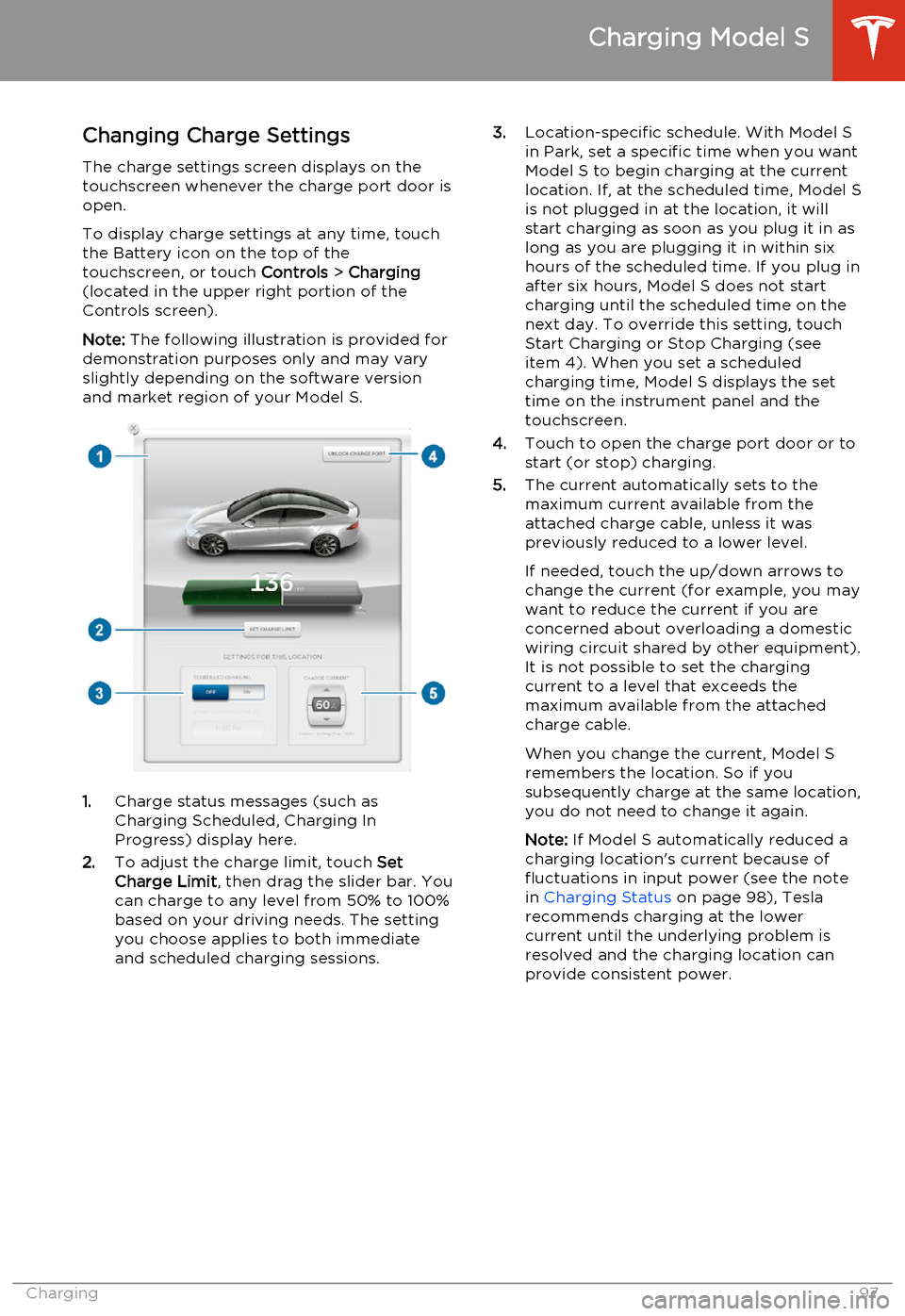
Note: The following illustration is provided for
demonstration purposes only and may vary
slightly depending on the software version
and market region of your Model S.
1. Charge status messages (such as
Charging Scheduled, Charging In
Progress) display here.
2. To adjust the charge limit, touch Set
Charge Limit , then drag the slider bar. You
can charge to any level from 50% to 100%
based on your driving needs. The setting
you choose applies to both immediate
and scheduled charging sessions.
3. Location-specific schedule. With Model S
in Park, set a specific time when you want
Model S to begin charging at the current
location. If, at the scheduled time, Model S
is not plugged in at the location, it will
start charging as soon as you plug it in as
long as you are plugging it in within six hours of the scheduled time. If you plug in
after six hours, Model S does not start
charging until the scheduled time on the next day. To override this setting, touch
Start Charging or Stop Charging (see
item 4). When you set a scheduled
charging time, Model S displays the set time on the instrument panel and the
touchscreen.
4. Touch to open the charge port door or to
start (or stop) charging.
5. The current automatically sets to the
maximum current available from the
attached charge cable, unless it was
previously reduced to a lower level.
If needed, touch the up/down arrows to change the current (for example, you may
want to reduce the current if you are
concerned about overloading a domestic
wiring circuit shared by other equipment).
It is not possible to set the charging
current to a level that exceeds the maximum available from the attached
charge cable.
When you change the current, Model S
remembers the location. So if you
subsequently charge at the same location, you do not need to change it again.
Note: If Model S automatically reduced a
charging location's current because of
fluctuations in input power (see the note
in Charging Status on page 98), Tesla
recommends charging at the lower
current until the underlying problem is
resolved and the charging location can provide consistent power.
Charging Model S
Charging97
Page 100 of 159
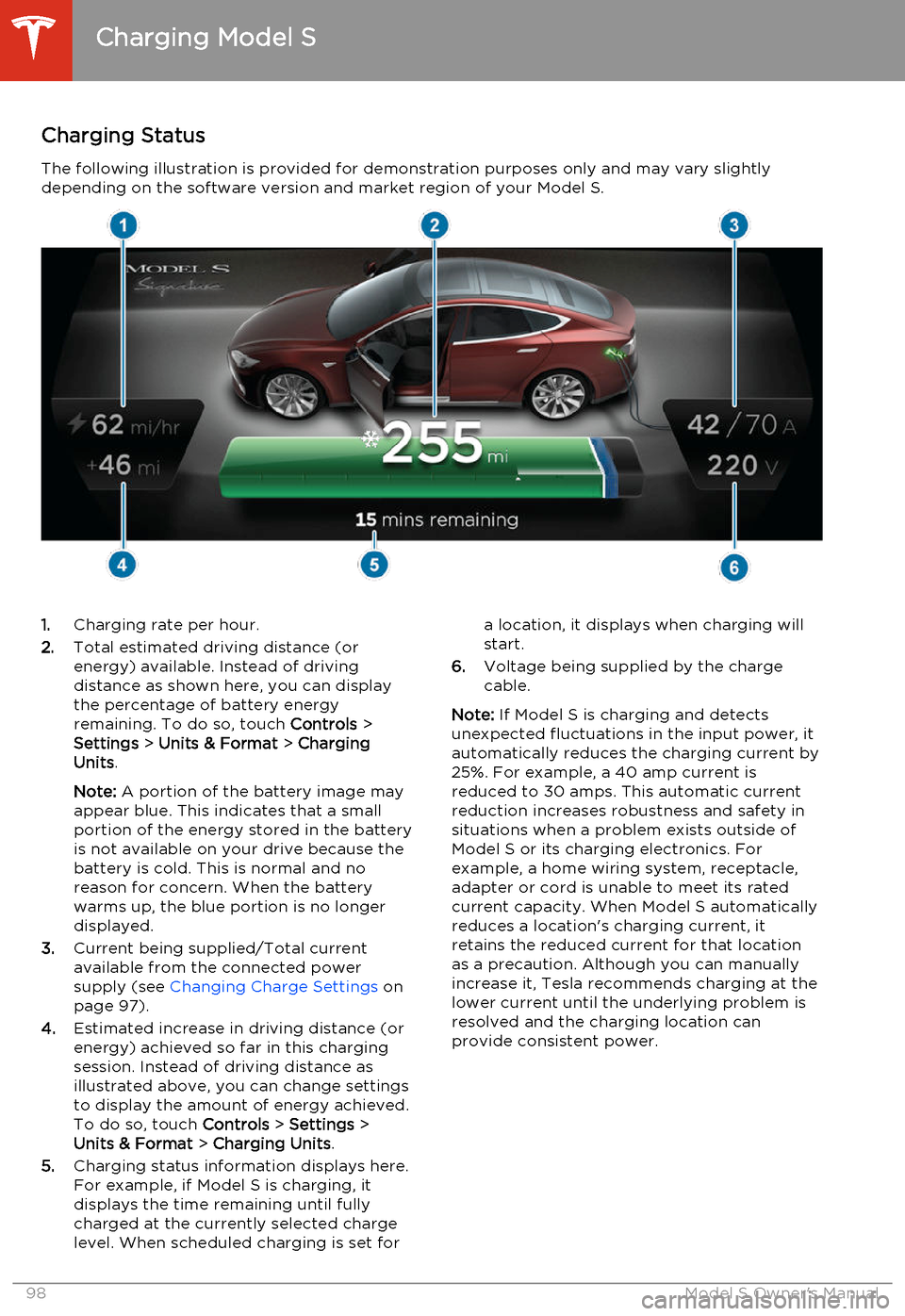
Charging StatusThe following illustration is provided for demonstration purposes only and may vary slightlydepending on the software version and market region of your Model S.1. Charging rate per hour.
2. Total estimated driving distance (or
energy) available. Instead of driving distance as shown here, you can display
the percentage of battery energy
remaining. To do so, touch Controls >
Settings > Units & Format > Charging
Units .
Note: A portion of the battery image may
appear blue. This indicates that a small
portion of the energy stored in the battery
is not available on your drive because the battery is cold. This is normal and no
reason for concern. When the battery warms up, the blue portion is no longer
displayed.
3. Current being supplied/Total current
available from the connected power
supply (see Changing Charge Settings on
page 97).
4. Estimated increase in driving distance (or
energy) achieved so far in this charging session. Instead of driving distance as
illustrated above, you can change settings
to display the amount of energy achieved.
To do so, touch Controls > Settings >
Units & Format > Charging Units .
5. Charging status information displays here.
For example, if Model S is charging, it displays the time remaining until fully
charged at the currently selected charge
level. When scheduled charging is set fora location, it displays when charging will
start.
6. Voltage being supplied by the charge
cable.
Note: If Model S is charging and detects
unexpected fluctuations in the input power, it automatically reduces the charging current by25%. For example, a 40 amp current isreduced to 30 amps. This automatic currentreduction increases robustness and safety in
situations when a problem exists outside of
Model S or its charging electronics. For
example, a home wiring system, receptacle,
adapter or cord is unable to meet its rated
current capacity. When Model S automatically
reduces a location's charging current, it
retains the reduced current for that location
as a precaution. Although you can manually
increase it, Tesla recommends charging at the
lower current until the underlying problem is
resolved and the charging location can
provide consistent power.
Charging Model S
98Model S Owner's Manual