phone TOYOTA AYGO 2021 User Guide
[x] Cancel search | Manufacturer: TOYOTA, Model Year: 2021, Model line: AYGO, Model: TOYOTA AYGO 2021Pages: 546, PDF Size: 81 MB
Page 311 of 546
3095-4. Using an external device
5
Audio system
AYGO_OM_Europe_OM9A012E
■About iPod
●Use of the Made for Apple badge means that an accessory has been
designed to connect specifically to the Apple product(s) identified in the
badge, and has been certified by the developer to meet Apple performance
standards.
●Apple is not responsible for the operation of this device or its compliance
with safety and regulatory standards. Please note that the use of this acces-
sory with an Apple product may affect wireless performance.
●iPhone, iPod, iPod classic, iPod nano and iPod touch are trademarks of
Apple Inc., registered in the U.S. and other countries.
■iPod functions
●When an iPod is connected and the audio source is changed to iPod mode,
the iPod will resume play from the same point in which it was last used.
●Depending on the iPod that is connected to the system, certain functions
may not be available. Disconnecting the device and reconnecting it once
again may resolve some malfunctions.
●While connected to the system, the iPod cannot be operated with its own
controls. It is necessary to use the controls of the vehicle’s audio system
instead.
■iPod problems
To resolve most problems encountered when using your iPod, disconnect
your iPod from the vehicle iPod connection and reset it.
For instructions on how to reset your iPod, refer to your iPod Owner’s Man-
ual.
■Display
Depending on the contents recorded, the characters may not be displayed
properly or may not be displayed at all.
Page 313 of 546
3115-4. Using an external device
5
Audio system
AYGO_OM_Europe_OM9A012E■Compatible models
The following iPod
®, iPod nano®, iPod classic®, iPod touch® and iPhone®
devices can be used with this system.
●Made for
• iPhone 5
• iPhone 4S
• iPhone 4
• iPhone 3GS
• iPhone 3G
• iPod touch (5th generation)
• iPod touch (4th generation)
• iPod touch (3rd generation)
• iPod touch (2nd generation)
• iPod touch (1st generation)
• iPod classic
• iPod nano (7th generation)
• iPod nano (6th generation)
• iPod nano (5th generation)
• iPod nano (4th generation)
• iPod nano (3rd generation)
• iPod nano (2nd generation)
• iPod nano (1st generation)
This system only supports audio playback.
Depending on differences between models or software versions etc., some
models might be incompatible with this system.
Items related to standards and limitations are as follows:
●Maximum number of lists in device: 9999
●Maximum number of songs in device: 65535
●Maximum number of songs per list: 65535
Page 323 of 546
321
5
5-5. Using Bluetooth® devices
Audio system
AYGO_OM_Europe_OM9A012E
Bluetooth® audio/phone
◆Bluetooth® audio
The Bluetooth
® audio system enables you to enjoy music played on
a portable digital audio player (portable player) from the vehicle
speakers via wireless communication.
This audio system supports Bluetooth
®, a wireless data system
capable of playing portable audio music without cables. If your por-
table player does not support Bluetooth
®, the Bluetooth® audio sys-
tem will not function.
◆Bluetooth® phone (hands-free phone system)
This system supports Bluetooth
®, which allows you to make or
receive calls without using cables to connect a cellular phone and
the system, and without operating the cellular phone.
: If equipped
The following can be performed using Bluetooth® wireless com-
munication:
Page 324 of 546
3225-5. Using Bluetooth® devices
AYGO_OM_Europe_OM9A012E
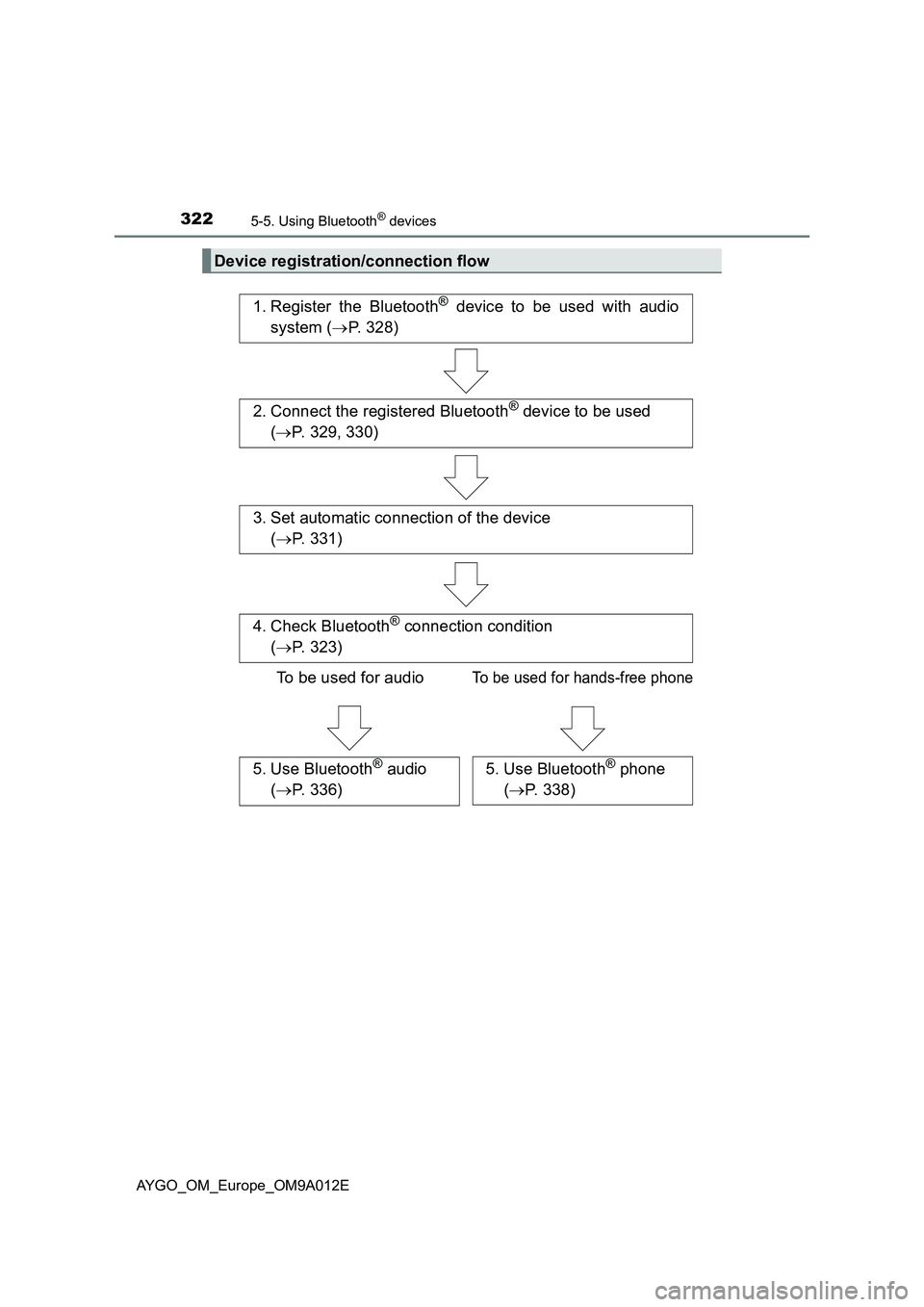
Device registration/connection flow
1. Register the Bluetooth® device to be used with audio
system (P. 328)
2. Connect the registered Bluetooth® device to be used
(P. 329, 330)
5. Use Bluetooth® audio
(P. 336)5. Use Bluetooth® phone
(P. 338)
4. Check Bluetooth® connection condition
(P. 323)
To be used for audio
To be used for hands-free phone
3. Set automatic connection of the device
(P. 331)
Page 325 of 546
3235-5. Using Bluetooth® devices
5
Audio system
AYGO_OM_Europe_OM9A012E
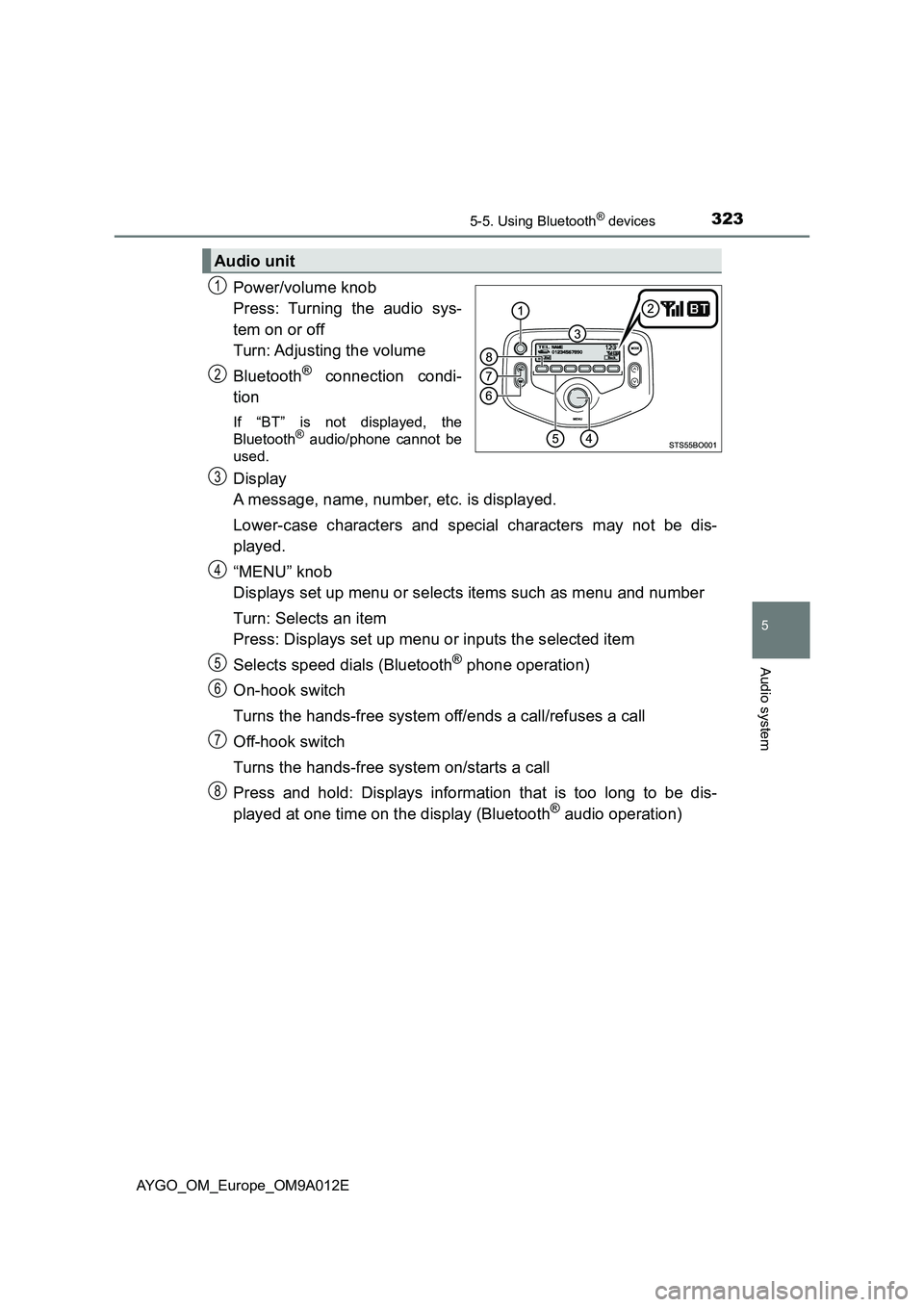
Power/volume knob
Press: Turning the audio sys-
tem on or off
Turn: Adjusting the volume
Bluetooth
® connection condi-
tion
If “BT” is not displayed, the
Bluetooth® audio/phone cannot be
used.
Display
A message, name, number, etc. is displayed.
Lower-case characters and special characters may not be dis-
played.
“MENU” knob
Displays set up menu or selects items such as menu and number
Turn: Selects an item
Press: Displays set up menu or inputs the selected item
Selects speed dials (Bluetooth
® phone operation)
On-hook switch
Turns the hands-free system off/ends a call/refuses a call
Off-hook switch
Turns the hands-free system on/starts a call
Press and hold: Displays information that is too long to be dis-
played at one time on the display (Bluetooth
® audio operation)
Audio unit
1
2
3
4
5
6
7
8
Page 326 of 546
3245-5. Using Bluetooth® devices
AYGO_OM_Europe_OM9A012E
■When the other party may not hear you clearly
●Driving on an unpaved road. (Making excessive traffic noise.)
●Driving at high speeds.
●The canvas top (if equipped) or windows are open.
●The sound of the air conditioning fan is loud.
●There is a negative effect on sound quality due to the phone and/or network
being used.
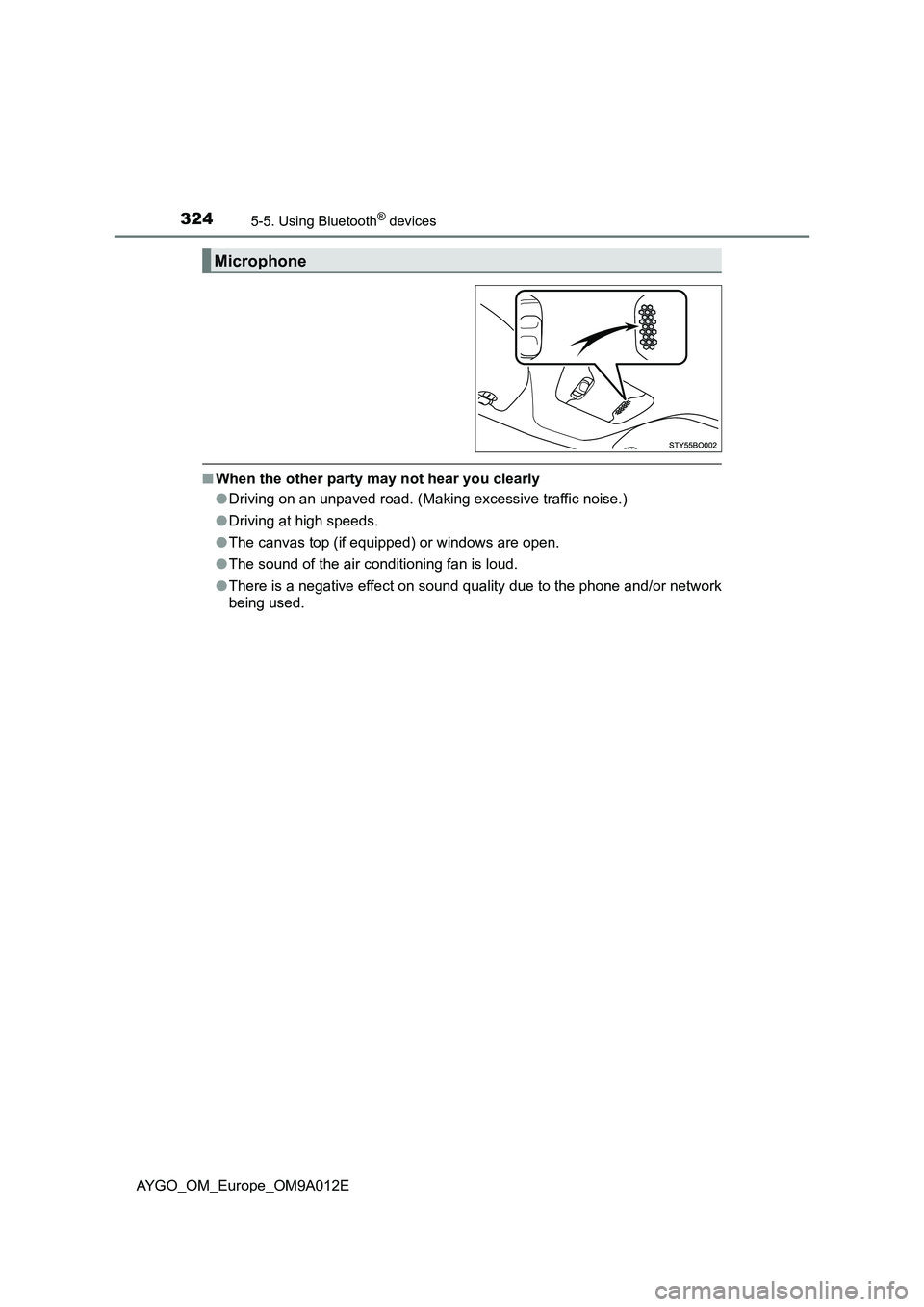
Microphone
Page 327 of 546
3255-5. Using Bluetooth® devices
5
Audio system
AYGO_OM_Europe_OM9A012E
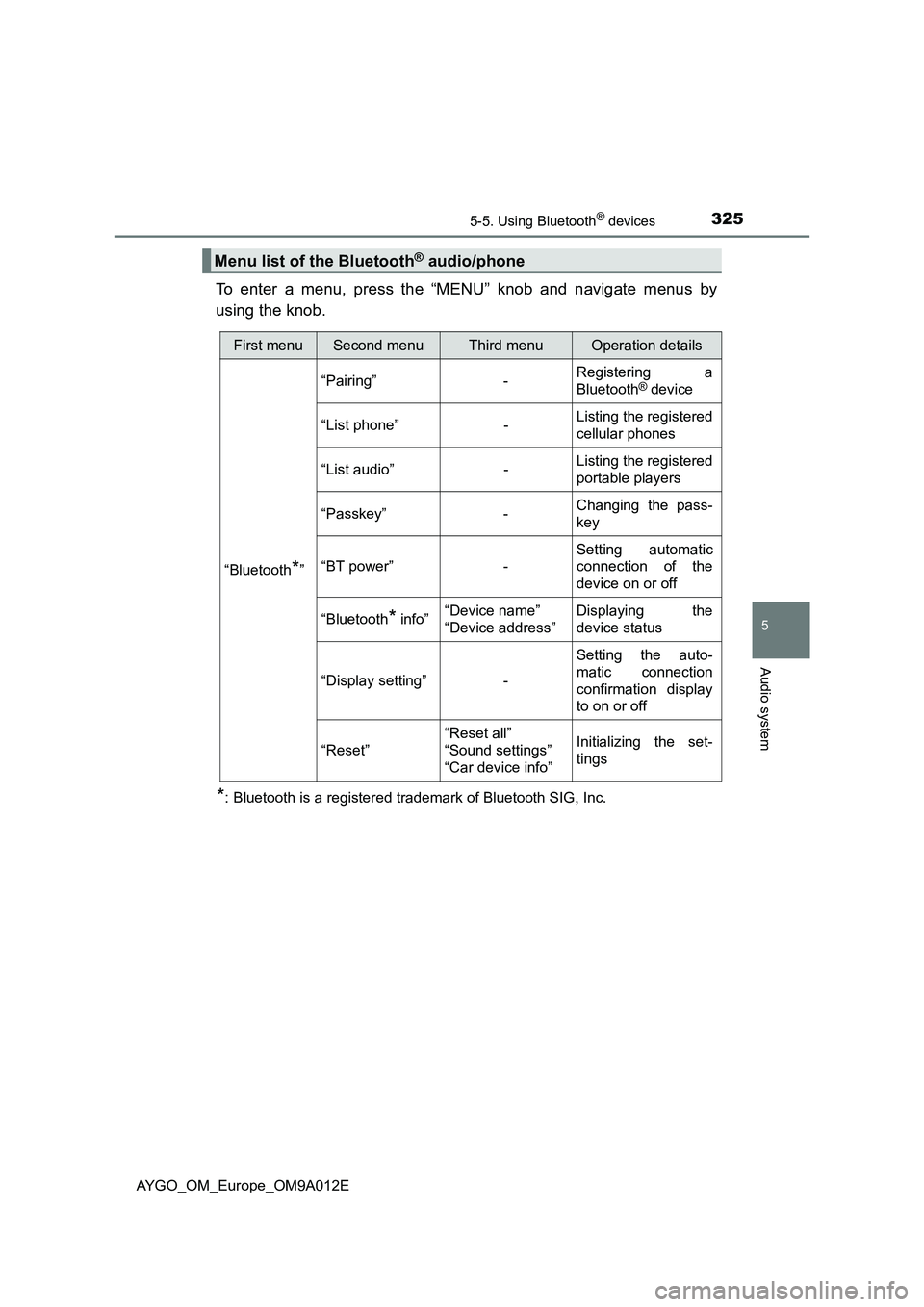
To enter a menu, press the “MENU” knob and navigate menus by
using the knob.
*: Bluetooth is a registered trademark of Bluetooth SIG, Inc.
Menu list of the Bluetooth® audio/phone
First menuSecond menuThird menuOperation details
“Bluetooth*”
“Pairing” -Registering a
Bluetooth® device
“List phone” -Listing the registered
cellular phones
“List audio” -Listing the registered
portable players
“Passkey” -Changing the pass-
key
“BT power” -Setting automatic
connection of the
device on or off
“Bluetooth
* info”“Device name”
“Device address”Displaying the
device status
“Display setting” -Setting the auto-
matic connection
confirmation display
to on or off
“Reset”“Reset all”
“Sound settings”
“Car device info”Initializing the set-
tings
Page 328 of 546
3265-5. Using Bluetooth® devices
AYGO_OM_Europe_OM9A012E
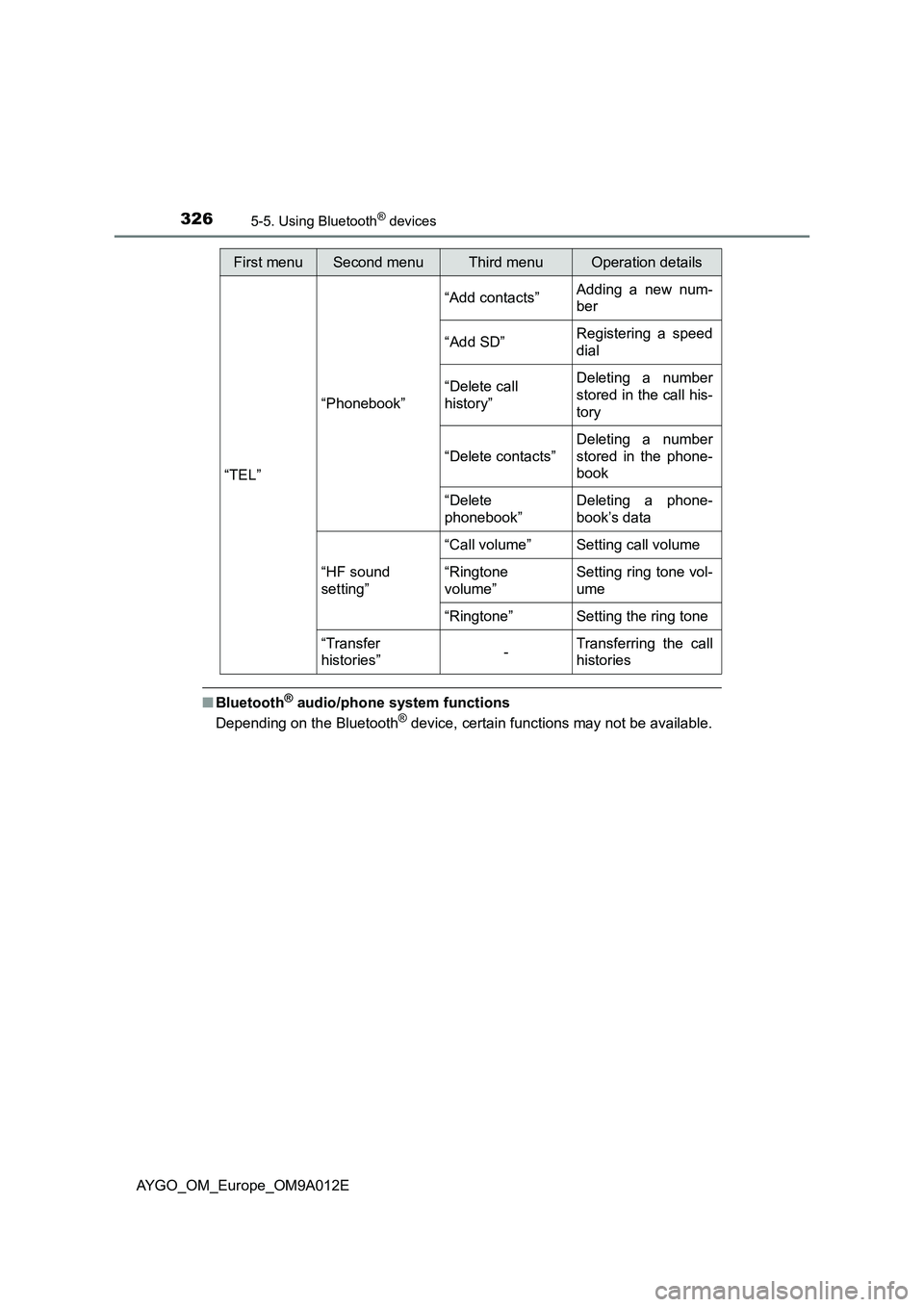
■Bluetooth® audio/phone system functions
Depending on the Bluetooth® device, certain functions may not be available.
First menuSecond menuThird menuOperation details
“TEL”“Phonebook”“Add contacts”Adding a new num-
ber
“Add SD”Registering a speed
dial
“Delete call
history”Deleting a number
stored in the call his-
tory
“Delete contacts”Deleting a number
stored in the phone-
book
“Delete
phonebook”Deleting a phone-
book’s data
“HF sound
setting”“Call volume” Setting call volume
“Ringtone
volume”Setting ring tone vol-
ume
“Ringtone” Setting the ring tone
“Transfer
histories”-Transferring the call
histories
Page 329 of 546
327
5
5-5. Using Bluetooth® devices
Audio system
AYGO_OM_Europe_OM9A012E
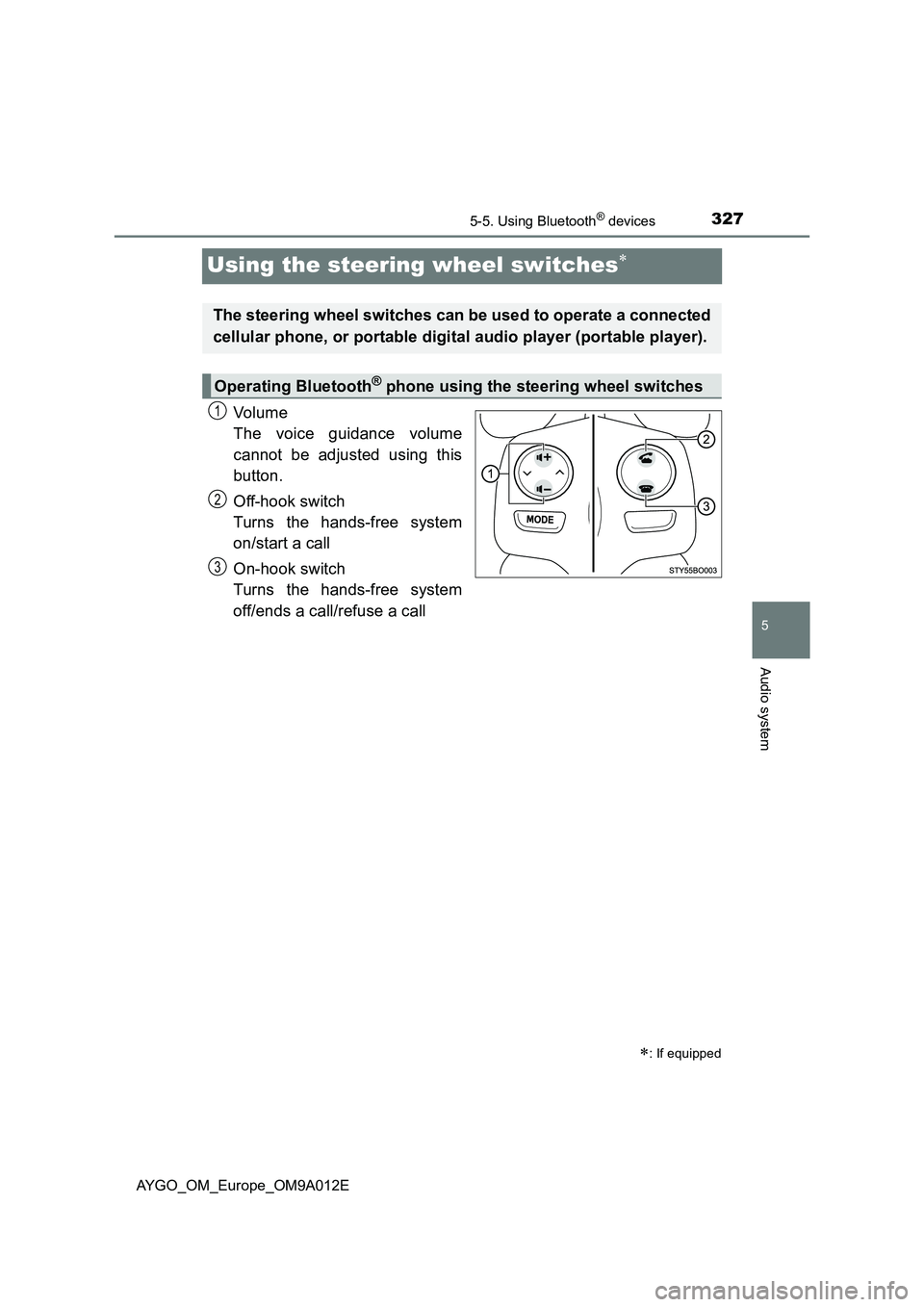
Using the steering wheel switches
Vo lu m e
The voice guidance volume
cannot be adjusted using this
button.
Off-hook switch
Turns the hands-free system
on/start a call
On-hook switch
Turns the hands-free system
off/ends a call/refuse a call
: If equipped
The steering wheel switches can be used to operate a connected
cellular phone, or portable digital audio player (portable player).
Operating Bluetooth® phone using the steering wheel switches
1
2
3
Page 330 of 546
3285-5. Using Bluetooth® devices
AYGO_OM_Europe_OM9A012E
Registering a Bluetooth® device
Press the “MENU” knob and select “Bluetooth*” using the knob.
Press the knob and select “Pairing” using the knob.
A passkey will be displayed.
SSP (Secure Simple Pairing) incompatible Bluetooth
® devices:
Input the passkey into the device.
SSP (Secure Simple Pairing) compatible Bluetooth
® devices:
Select “YES” to register the device. Depending on the type of
device, it may register automatically.
If a Bluetooth
® device has both music player and cellular phone func-
tions, both functions will be registered at the same time. When delet-
ing the device, both functions will be deleted at the same time.
If the off-hook switch is pressed and the “TEL” mode is entered when
no phones have been registered, the registration screen will be auto-
matically displayed.
*: Bluetooth is a registered trademark of Bluetooth SIG, Inc.
: If equipped
Before using the Bluetooth® audio/phone, it is necessary to reg-
ister a Bluetooth® device in the system. You can register up to 5
Bluetooth® devices.
How to register a Bluetooth® device