phone TOYOTA AYGO 2021 Owner's Manual
[x] Cancel search | Manufacturer: TOYOTA, Model Year: 2021, Model line: AYGO, Model: TOYOTA AYGO 2021Pages: 546, PDF Size: 81 MB
Page 331 of 546
329
5
5-6. “SETUP” menu
Audio system
AYGO_OM_Europe_OM9A012E
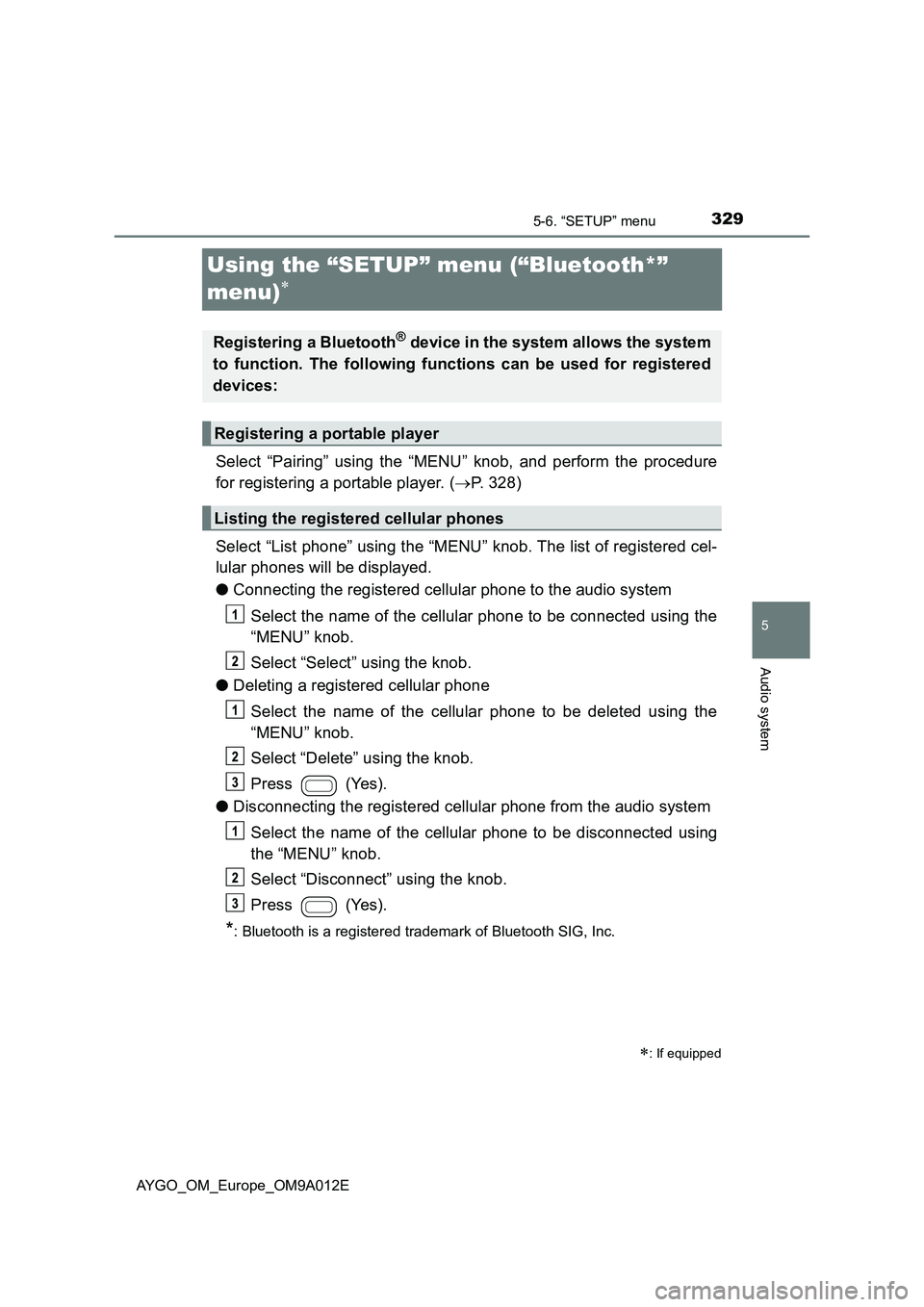
Using the “SETUP” menu (“Bluetooth*”
menu)
Select “Pairing” using the “MENU” knob, and perform the procedure
for registering a portable player. (P. 328)
Select “List phone” using the “MENU” knob. The list of registered cel-
lular phones will be displayed.
●Connecting the registered cellular phone to the audio system
Select the name of the cellular phone to be connected using the
“MENU” knob.
Select “Select” using the knob.
●Deleting a registered cellular phone
Select the name of the cellular phone to be deleted using the
“MENU” knob.
Select “Delete” using the knob.
Press (Yes).
●Disconnecting the registered cellular phone from the audio system
Select the name of the cellular phone to be disconnected using
the “MENU” knob.
Select “Disconnect” using the knob.
Press (Yes).
*: Bluetooth is a registered trademark of Bluetooth SIG, Inc.
: If equipped
Registering a Bluetooth® device in the system allows the system
to function. The following functions can be used for registered
devices:
Registering a portable player
Listing the registered cellular phones
Page 335 of 546
333
5
5-6. “SETUP” menu
Audio system
AYGO_OM_Europe_OM9A012E
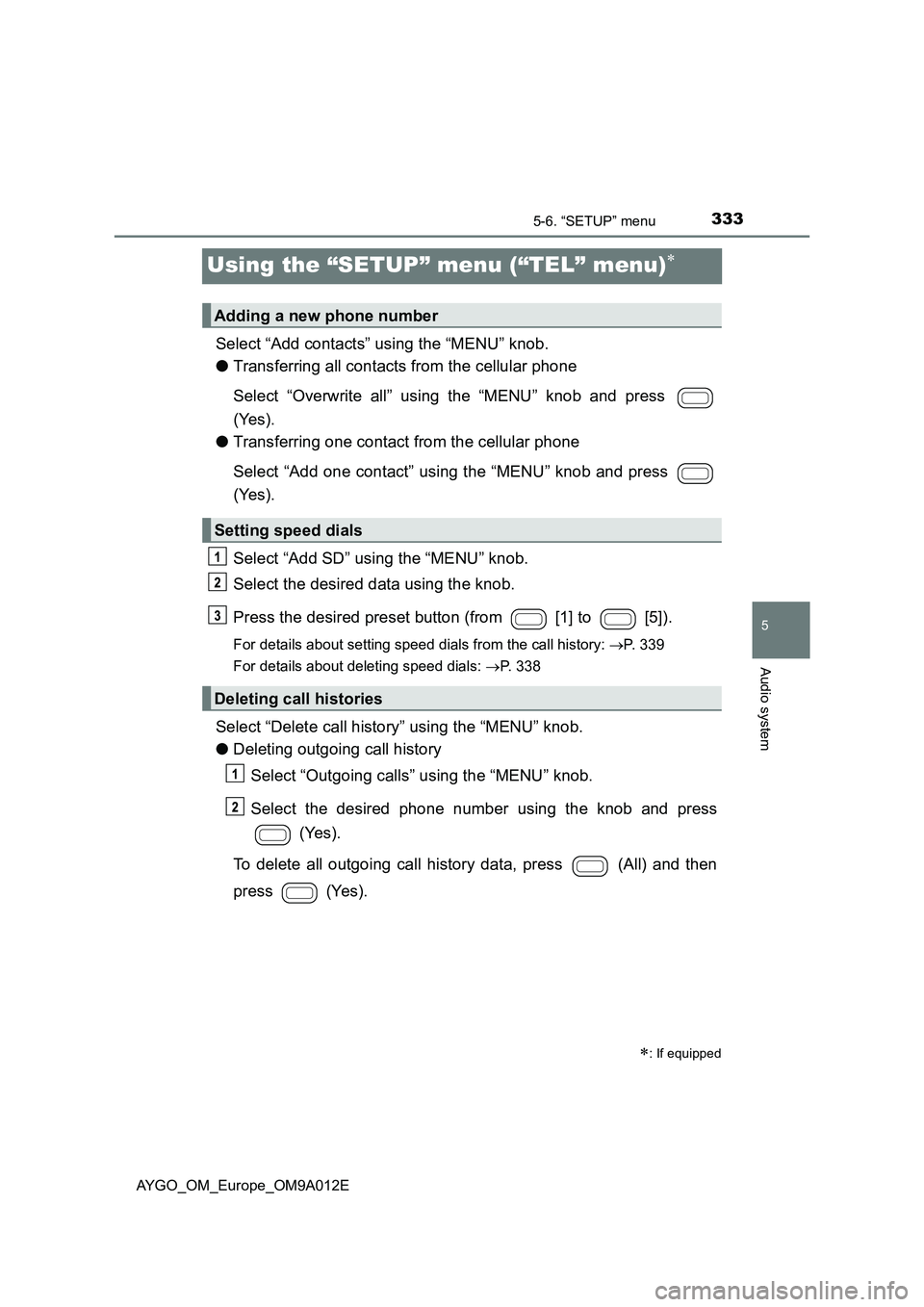
Using the “SETUP” menu (“TEL” menu)
Select “Add contacts” using the “MENU” knob.
●Transferring all contacts from the cellular phone
Select “Overwrite all” using the “MENU” knob and press
(Yes).
●Transferring one contact from the cellular phone
Select “Add one contact” using the “MENU” knob and press
(Yes).
Select “Add SD” using the “MENU” knob.
Select the desired data using the knob.
Press the desired preset button (from [1] to [5]).
For details about setting speed dials from the call history: P. 339
For details about deleting speed dials: P. 338
Select “Delete call history” using the “MENU” knob.
●Deleting outgoing call history
Select “Outgoing calls” using the “MENU” knob.
Select the desired phone number using the knob and press
(Yes).
To delete all outgoing call history data, press (All) and then
press (Yes).
: If equipped
Adding a new phone number
Setting speed dials
Deleting call histories
Page 336 of 546
3345-6. “SETUP” menu
AYGO_OM_Europe_OM9A012E
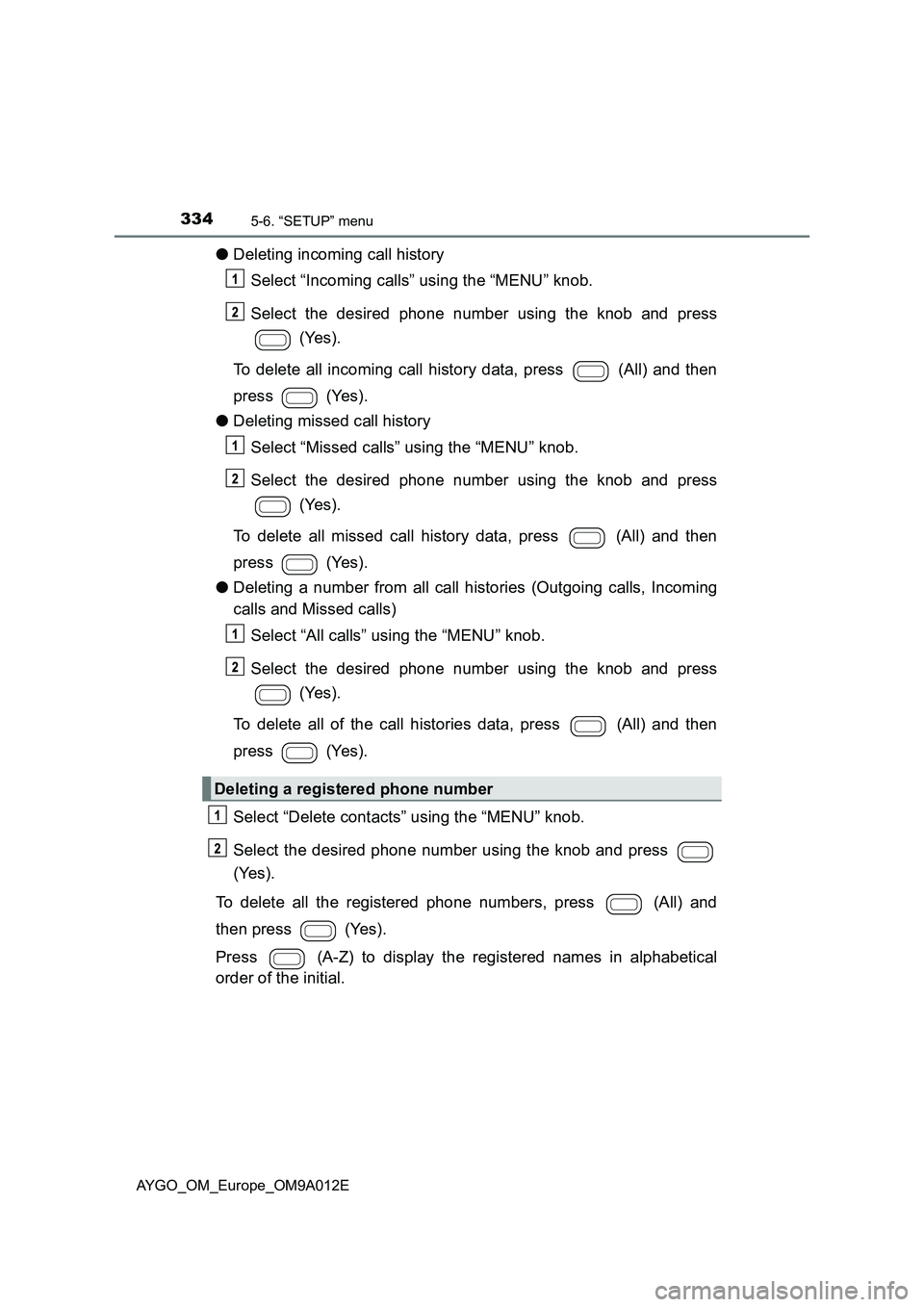
●Deleting incoming call history
Select “Incoming calls” using the “MENU” knob.
Select the desired phone number using the knob and press
(Yes).
To delete all incoming call history data, press (All) and then
press (Yes).
●Deleting missed call history
Select “Missed calls” using the “MENU” knob.
Select the desired phone number using the knob and press
(Yes).
To delete all missed call history data, press (All) and then
press (Yes).
●Deleting a number from all call histories (Outgoing calls, Incoming
calls and Missed calls)
Select “All calls” using the “MENU” knob.
Select the desired phone number using the knob and press
(Yes).
To delete all of the call histories data, press (All) and then
press (Yes).
Select “Delete contacts” using the “MENU” knob.
Select the desired phone number using the knob and press
(Yes).
To delete all the registered phone numbers, press (All) and
then press (Yes).
Press (A-Z) to display the registered names in alphabetical
order of the initial.
Deleting a registered phone number
Page 337 of 546
3355-6. “SETUP” menu
5
Audio system
AYGO_OM_Europe_OM9A012E
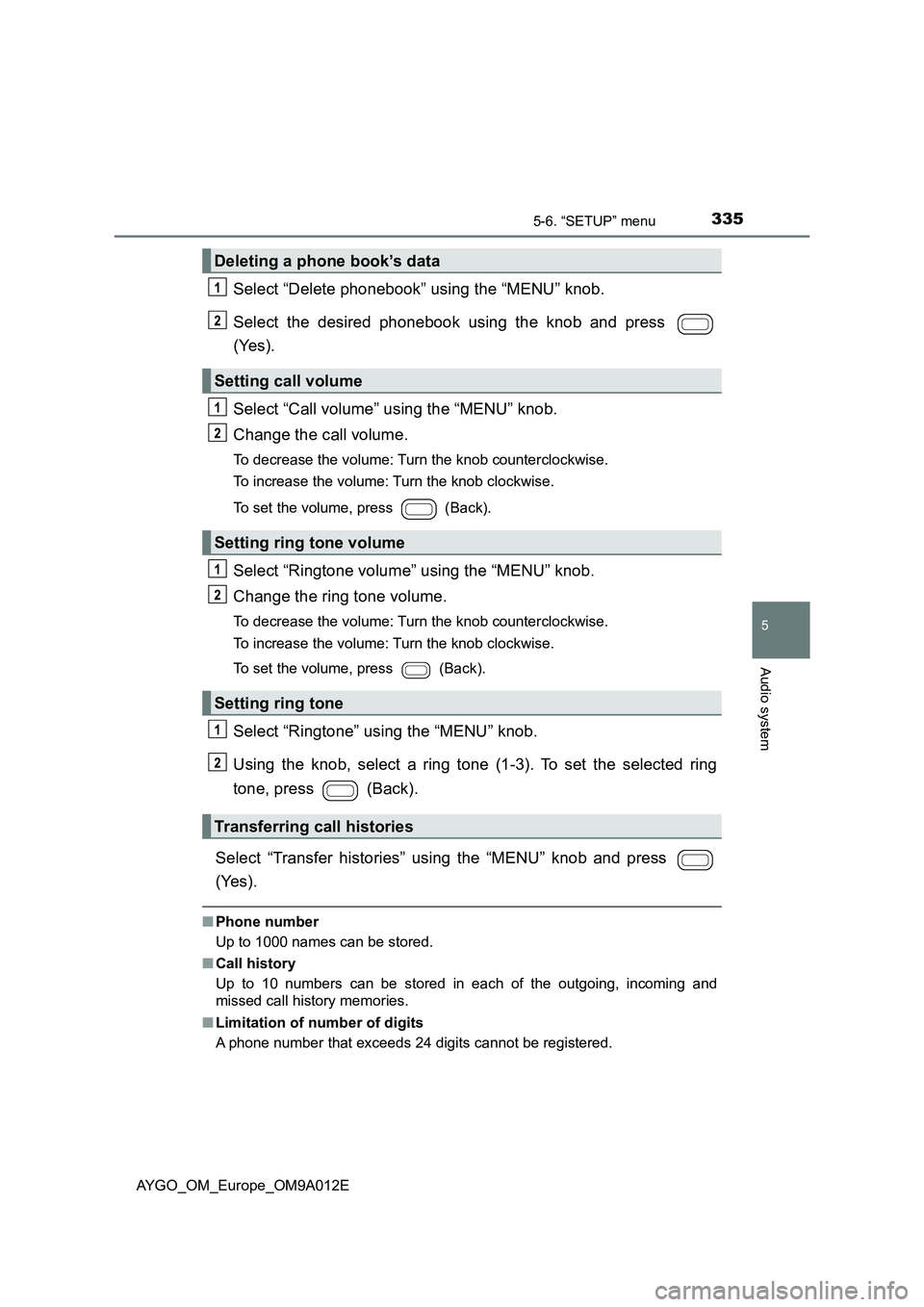
Select “Delete phonebook” using the “MENU” knob.
Select the desired phonebook using the knob and press
(Yes).
Select “Call volume” using the “MENU” knob.
Change the call volume.
To decrease the volume: Turn the knob counterclockwise.
To increase the volume: Turn the knob clockwise.
To set the volume, press (Back).
Select “Ringtone volume” using the “MENU” knob.
Change the ring tone volume.
To decrease the volume: Turn the knob counterclockwise.
To increase the volume: Turn the knob clockwise.
To set the volume, press (Back).
Select “Ringtone” using the “MENU” knob.
Using the knob, select a ring tone (1-3). To set the selected ring
tone, press (Back).
Select “Transfer histories” using the “MENU” knob and press
(Yes).
■ Phone number
Up to 1000 names can be stored.
■ Call history
Up to 10 numbers can be stored in each of the outgoing, incoming and
missed call history memories.
■ Limitation of number of digits
A phone number that exceeds 24 digits cannot be registered.
Deleting a phone book’s data
Setting call volume
Setting ring tone volume
Setting ring tone
Transferring call histories
Page 340 of 546
3385-8. Bluetooth® Phone
AYGO_OM_Europe_OM9A012E
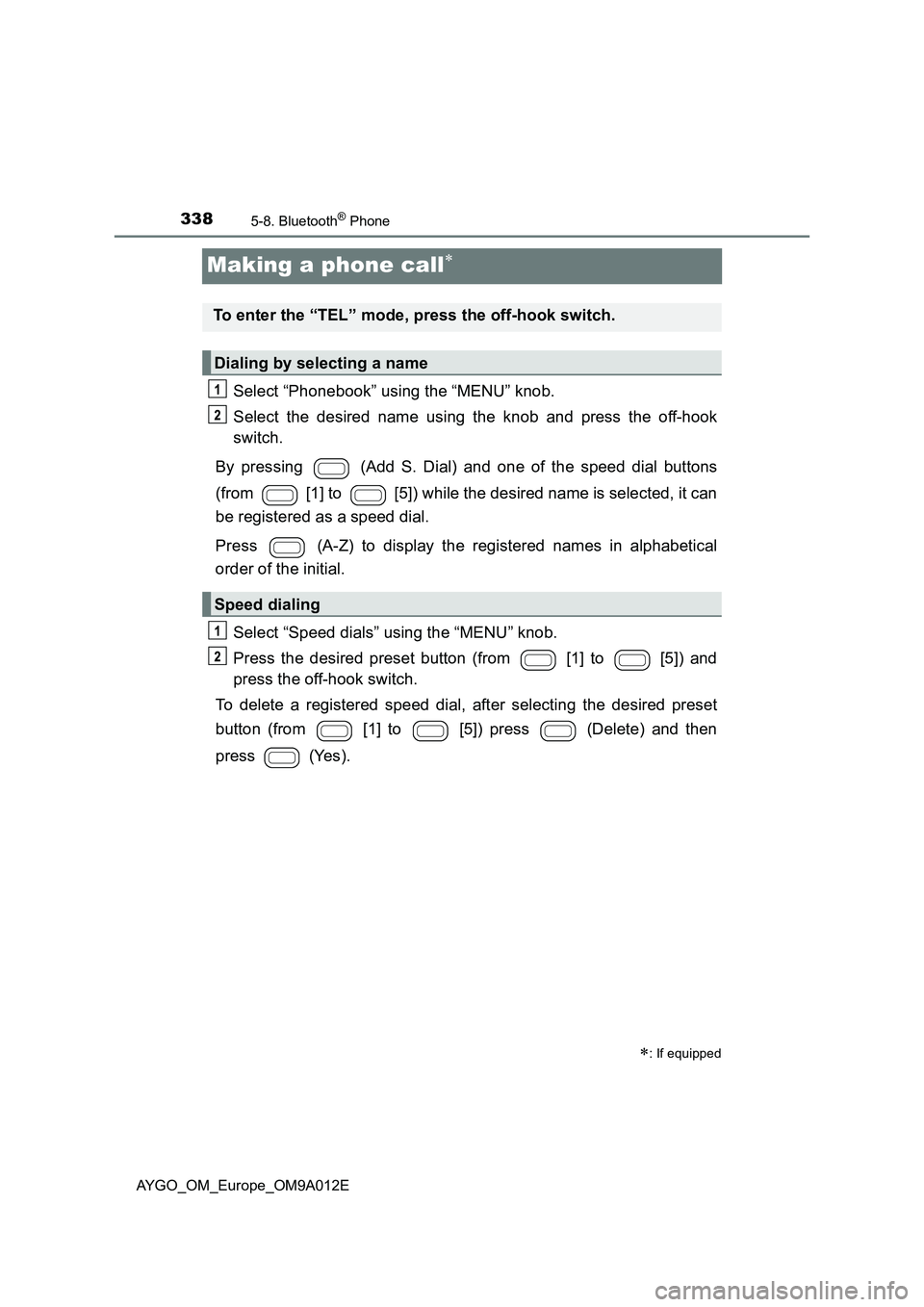
Making a phone call
Select “Phonebook” using the “MENU” knob.
Select the desired name using the knob and press the off-hook
switch.
By pressing (Add S. Dial) and one of the speed dial buttons
(from [1] to [5]) while the desired name is selected, it can
be registered as a speed dial.
Press (A-Z) to display the registered names in alphabetical
order of the initial.
Select “Speed dials” using the “MENU” knob.
Press the desired preset button (from [1] to [5]) and
press the off-hook switch.
To delete a registered speed dial, after selecting the desired preset
button (from [1] to [5]) press (Delete) and then
press (Yes).
: If equipped
To enter the “TEL” mode, press the off-hook switch.
Dialing by selecting a name
Speed dialing
Page 341 of 546
3395-8. Bluetooth® Phone
5
Audio system
AYGO_OM_Europe_OM9A012E
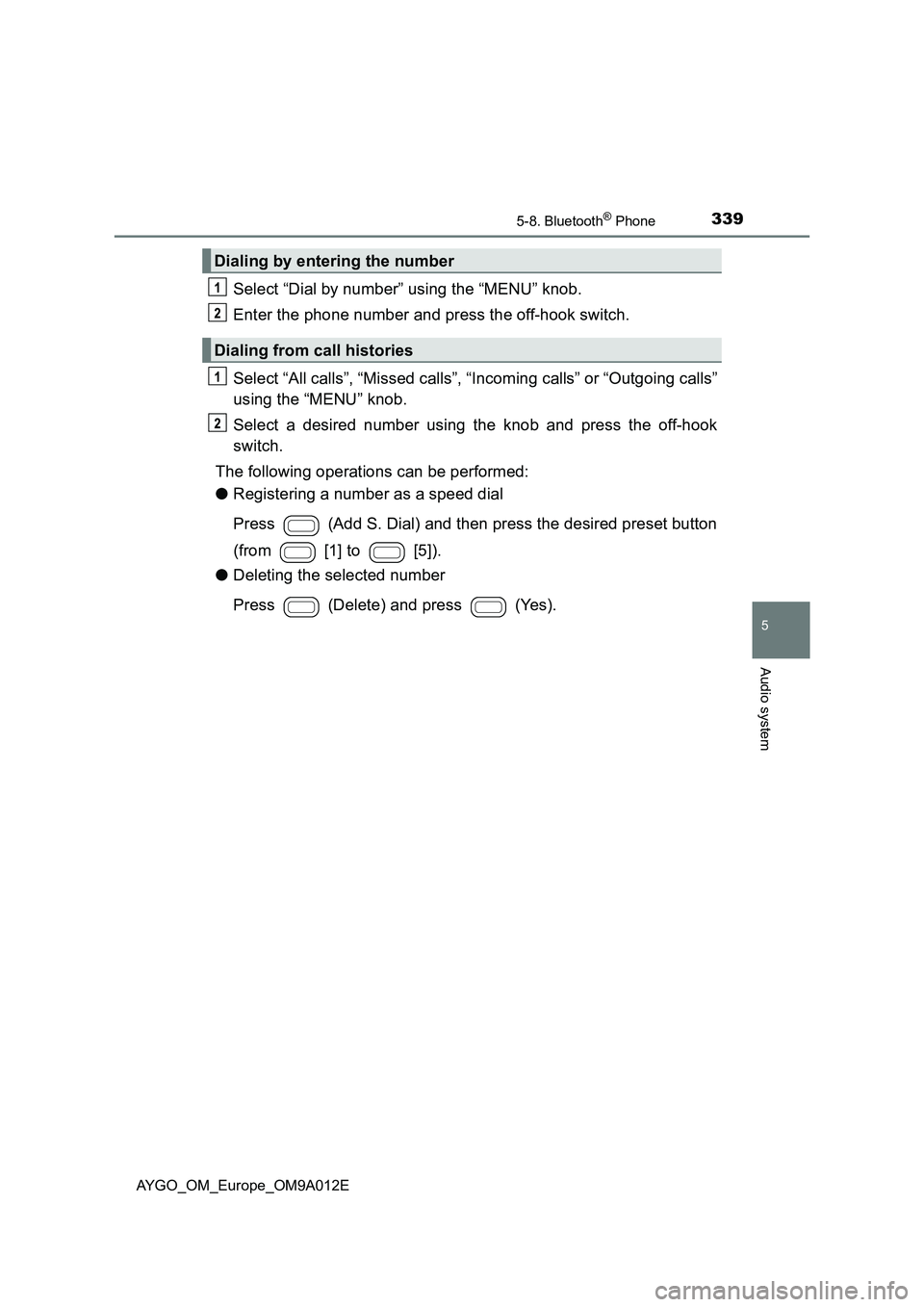
Select “Dial by number” using the “MENU” knob.
Enter the phone number and press the off-hook switch.
Select “All calls”, “Missed calls”, “Incoming calls” or “Outgoing calls”
using the “MENU” knob.
Select a desired number using the knob and press the off-hook
switch.
The following operations can be performed:
●Registering a number as a speed dial
Press (Add S. Dial) and then press the desired preset button
(from [1] to [5]).
●Deleting the selected number
Press (Delete) and press (Yes).
Dialing by entering the number
Dialing from call histories
Page 342 of 546
3405-8. Bluetooth® Phone
AYGO_OM_Europe_OM9A012E
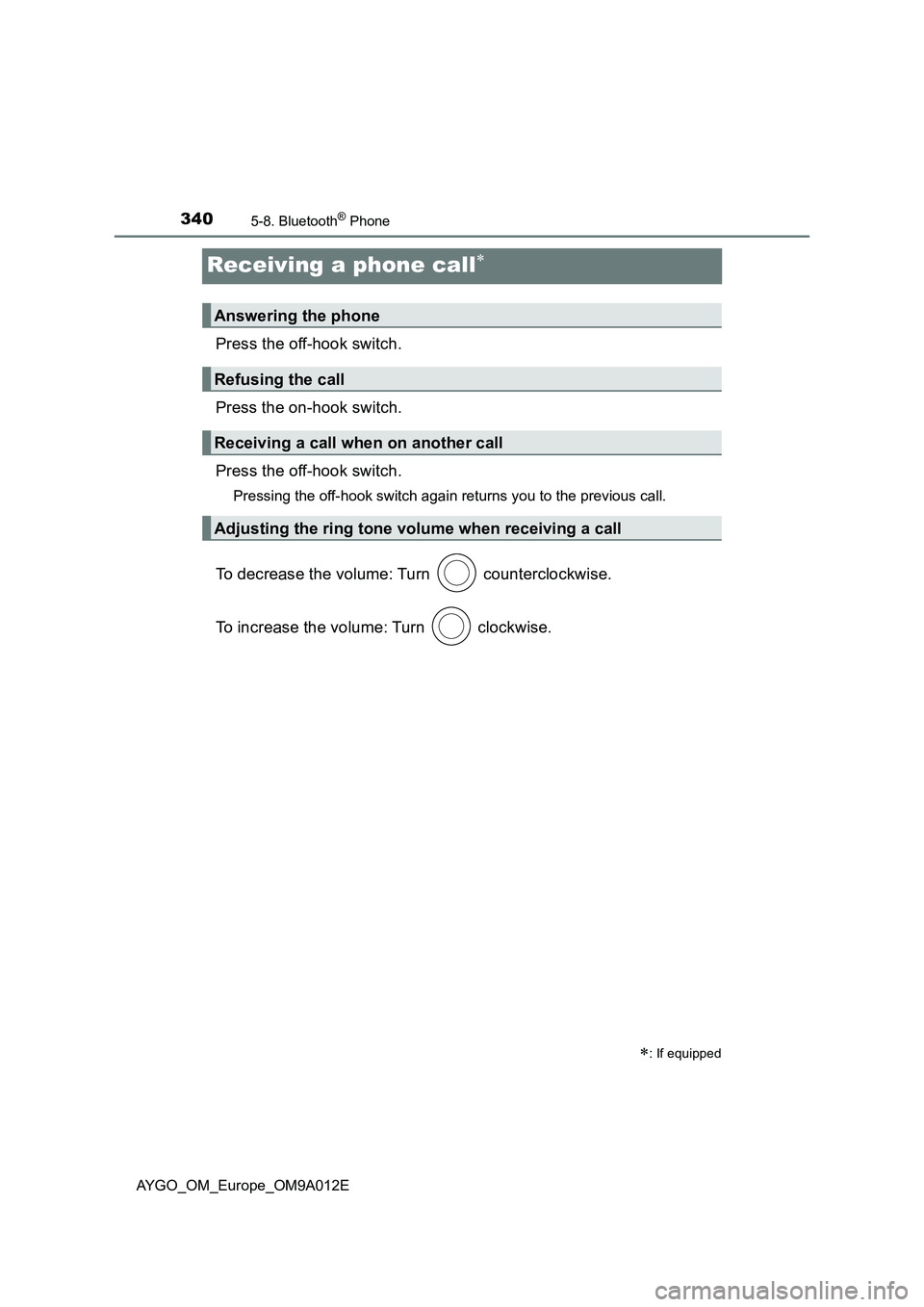
Receiving a phone call
Press the off-hook switch.
Press the on-hook switch.
Press the off-hook switch.
Pressing the off-hook switch again returns you to the previous call.
To decrease the volume: Turn counterclockwise.
To increase the volume: Turn clockwise.
: If equipped
Answering the phone
Refusing the call
Receiving a call when on another call
Adjusting the ring tone volume when receiving a call
Page 343 of 546
341
5
5-8. Bluetooth® Phone
Audio system
AYGO_OM_Europe_OM9A012E
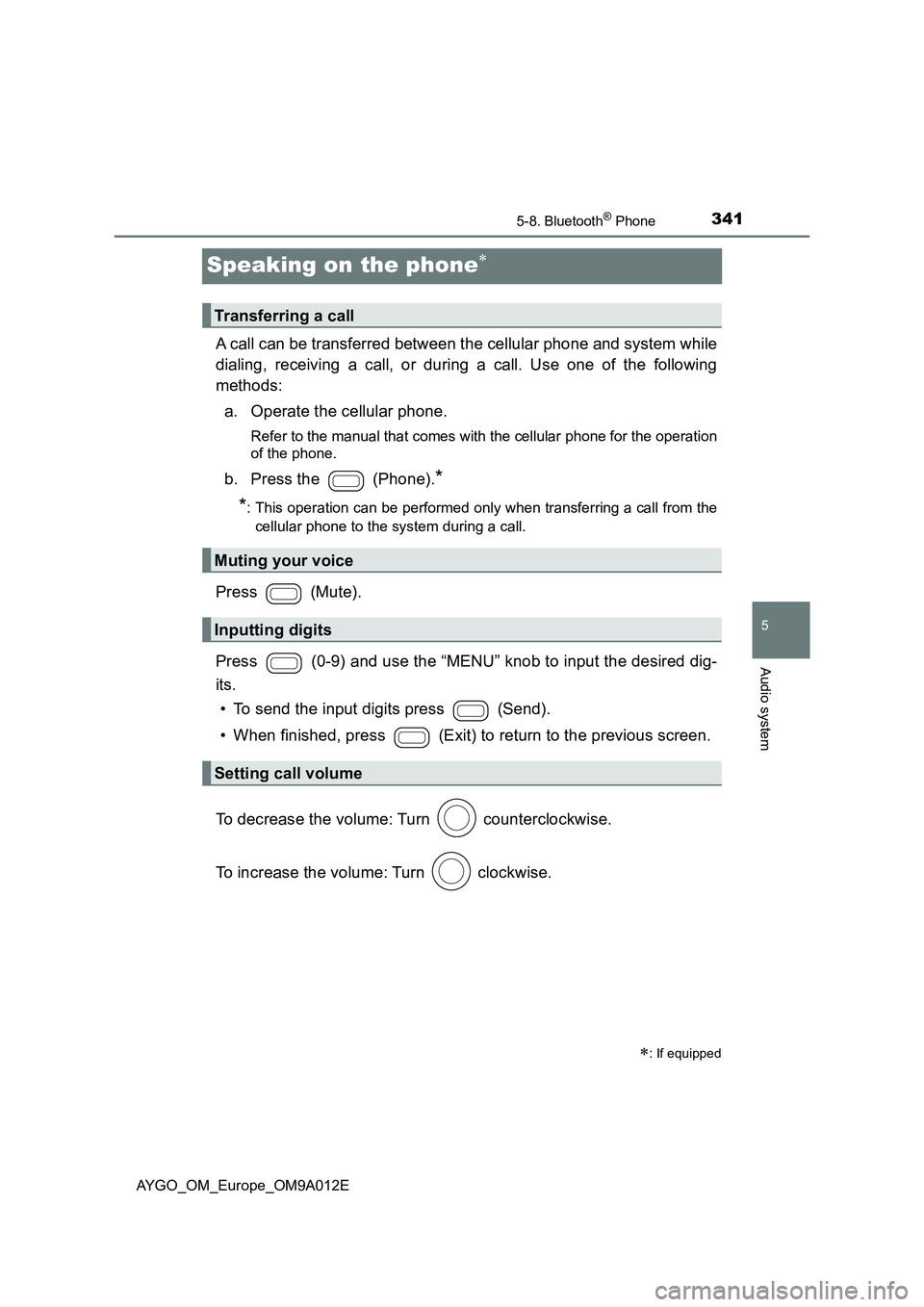
Speaking on the phone
A call can be transferred between the cellular phone and system while
dialing, receiving a call, or during a call. Use one of the following
methods:
a. Operate the cellular phone.
Refer to the manual that comes with the cellular phone for the operation
of the phone.
b. Press the (Phone).*
*
: This operation can be performed only when transferring a call from the
cellular phone to the system during a call.
Press (Mute).
Press (0-9) and use the “MENU” knob to input the desired dig-
its.
• To send the input digits press (Send).
• When finished, press (Exit) to return to the previous screen.
To decrease the volume: Turn counterclockwise.
To increase the volume: Turn clockwise.
: If equipped
Transferring a call
Muting your voice
Inputting digits
Setting call volume
Page 344 of 546
3425-8. Bluetooth® Phone
AYGO_OM_Europe_OM9A012E
■When talking on the phone
●Do not talk simultaneously with the other party.
●Keep the volume of the received voice down. Otherwise, voice echo will
increase.
■Automatic volume adjustment
When vehicle speed is 80 km/h (50 mph) or more, the volume automatically
increases. The volume returns to the previous volume setting when vehicle
speed drops to 70 km/h (43 mph) or less.
■Phone call system functions
Depending on the cellular phone, certain functions may not be available.
■Situations where the system may not recognize your voice
●When driving on a rough road
●When driving at high speeds
●When air is blowing out of the vents onto the microphone
●When the air conditioning fan emits a loud noise
Page 345 of 546
343
5
5-9. Bluetooth®
Audio system
AYGO_OM_Europe_OM9A012E
Bluetooth®
■When using the Bluetooth® audio/phone
●In the following situations, the system may not function.
• The portable player does not support Bluetooth
®
• The cellular phone is located outside the service area
• The Bluetooth® device is switched off
• The Bluetooth® device has a low battery
• The Bluetooth® device is not connected to the system
• The Bluetooth® device is behind the seat or in the glove box or
console box, or metal material covers or touches the device
●There may be a delay if a cellular phone connection is made
during Bluetooth
® audio play.
●Depending on the type of portable audio player that is connected
to the system, operation may differ slightly and certain functions
may not be available.
: If equipped