ad blue TOYOTA COROLLA HATCHBACK 2021 (in English) Owner's Manual
[x] Cancel search | Manufacturer: TOYOTA, Model Year: 2021, Model line: COROLLA HATCHBACK, Model: TOYOTA COROLLA HATCHBACK 2021Pages: 576, PDF Size: 12.73 MB
Page 282 of 576
2825-3. Connectivity settings
COROLLA H/B_U
player, the “Vehicle” or
“Device” connection method
may be best. As such, refer to
the manual that comes with
the audio player.
The Bluetooth
® settings can be
confirmed and changed.
1 Display the Bluetooth
® set-
tings screen. ( P.277)
2 Select “Detailed Settings”.
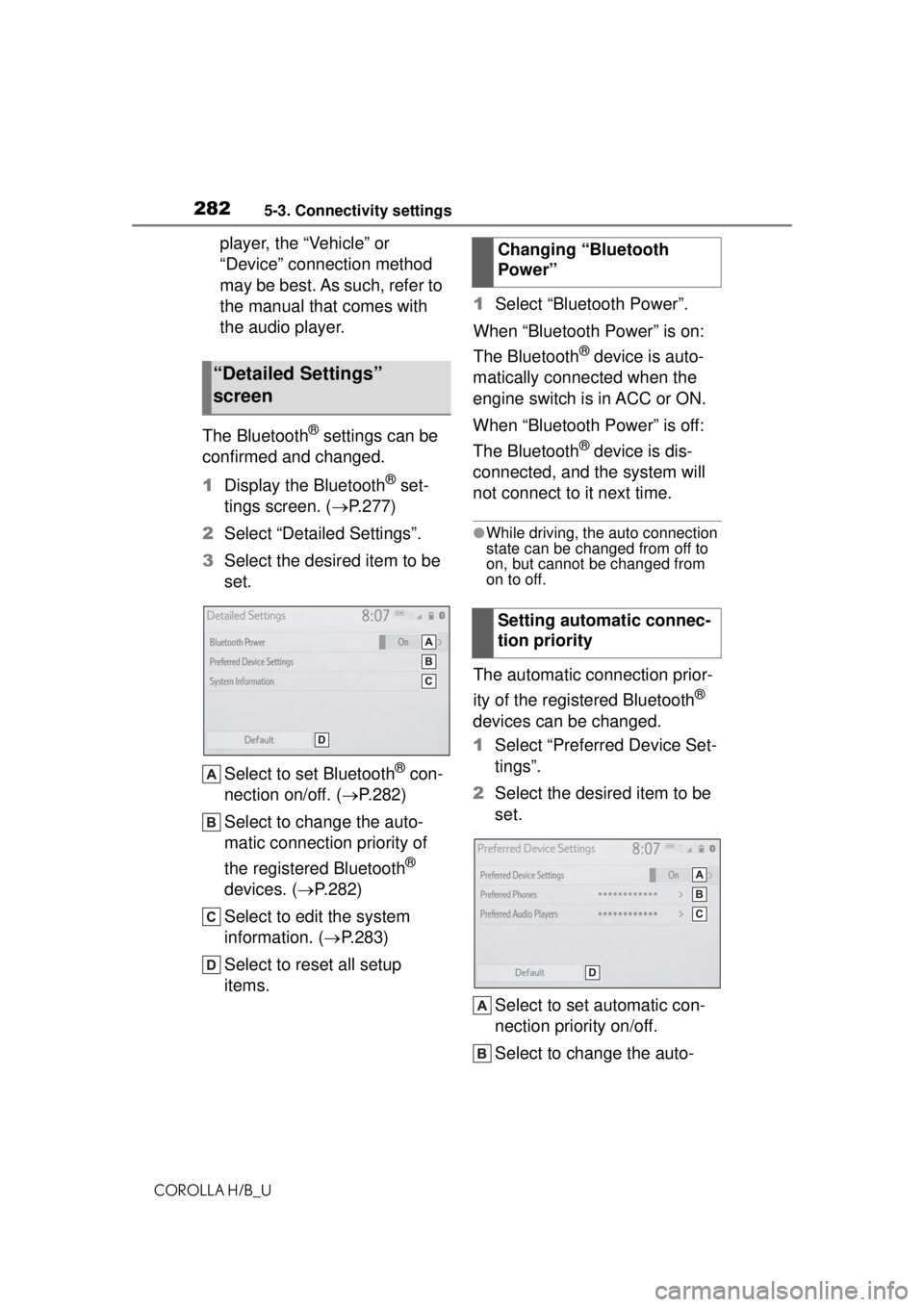
3 Select the desired item to be
set.
Select to set Bluetooth
® con-
nection on/off. ( P.282)
Select to change the auto-
matic connection priority of
the registered Bluetooth
®
devices. ( P.282)
Select to edit the system
information. ( P.283)
Select to reset all setup
items. 1
Select “Bluetooth Power”.
When “Bluetooth Power” is on:
The Bluetooth
® device is auto-
matically connected when the
engine switch is in ACC or ON.
When “Bluetooth Power” is off:
The Bluetooth
® device is dis-
connected, and the system will
not connect to it next time.
●While driving, the auto connection
state can be changed from off to
on, but cannot be changed from
on to off.
The automatic connection prior-
ity of the registered Bluetooth
®
devices can be changed.
1 Select “Preferred Device Set-
tings”.
2 Select the desired item to be
set.
Select to set automatic con-
nection priority on/off.
Select to change the auto-
“Detailed Settings”
screen
Changing “Bluetooth
Power”
Setting automatic connec-
tion priority
Page 283 of 576
2835-3. Connectivity settings
COROLLA H/B_U
5
Audio
matic connection priority of
the registered Bluetooth
®
phones. ( P.283)
Select to change the auto-
matic connection priority of
the registered Bluetooth
®
audio players. ( P.283)
Select to reset all setup
items.
■Changing Bluetooth®
device automatic connec-
tion priority
1 Select “Preferred Phones” or
“Preferred Audio Players”.
2 Select the desired Bluetooth
®
device and select “Move Up”
or “Move Down” to change
the preferred order.
●A newly registered Bluetooth®
device will automatically be given
the highest automatic connection
priority.
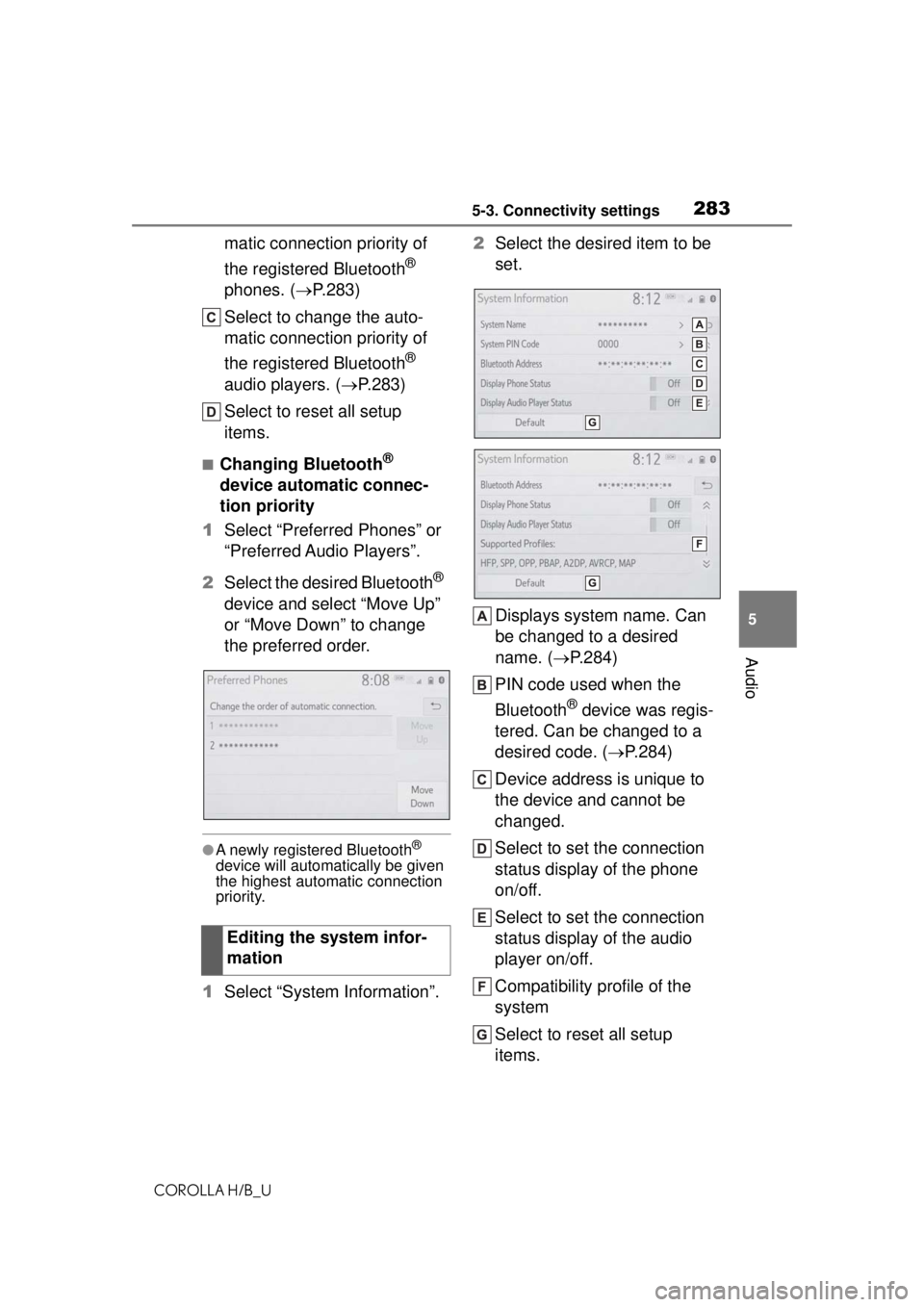
1 Select “System Information”. 2
Select the desired item to be
set.
Displays system name. Can
be changed to a desired
name. ( P.284)
PIN code used when the
Bluetooth
® device was regis-
tered. Can be changed to a
desired code. ( P.284)
Device address is unique to
the device and cannot be
changed.
Select to set the connection
status display of the phone
on/off.
Select to set the connection
status display of the audio
player on/off.
Compatibility profile of the
system
Select to reset all setup
items.
Editing the system infor-
mation
Page 287 of 576
2875-3. Connectivity settings
COROLLA H/B_U
5
Audio
• Change the password regularly.
• If you write the password down, do not leave it somewhere where
it would be visible.
• Do not use the same or a similar password to that for other
accounts.
• Avoid using easy to identify words, such as your vehicle’s
model name or license plate
number, simple di ctionary words,
or words with simple obfuscation,
such as c@t (for cat), as your
password.
1 Select “Security”.
2 Select the desired security
protocol.
1 Select “Access Point Name”.
2 Enter the desired access
point name (SSID) and select
“OK”.
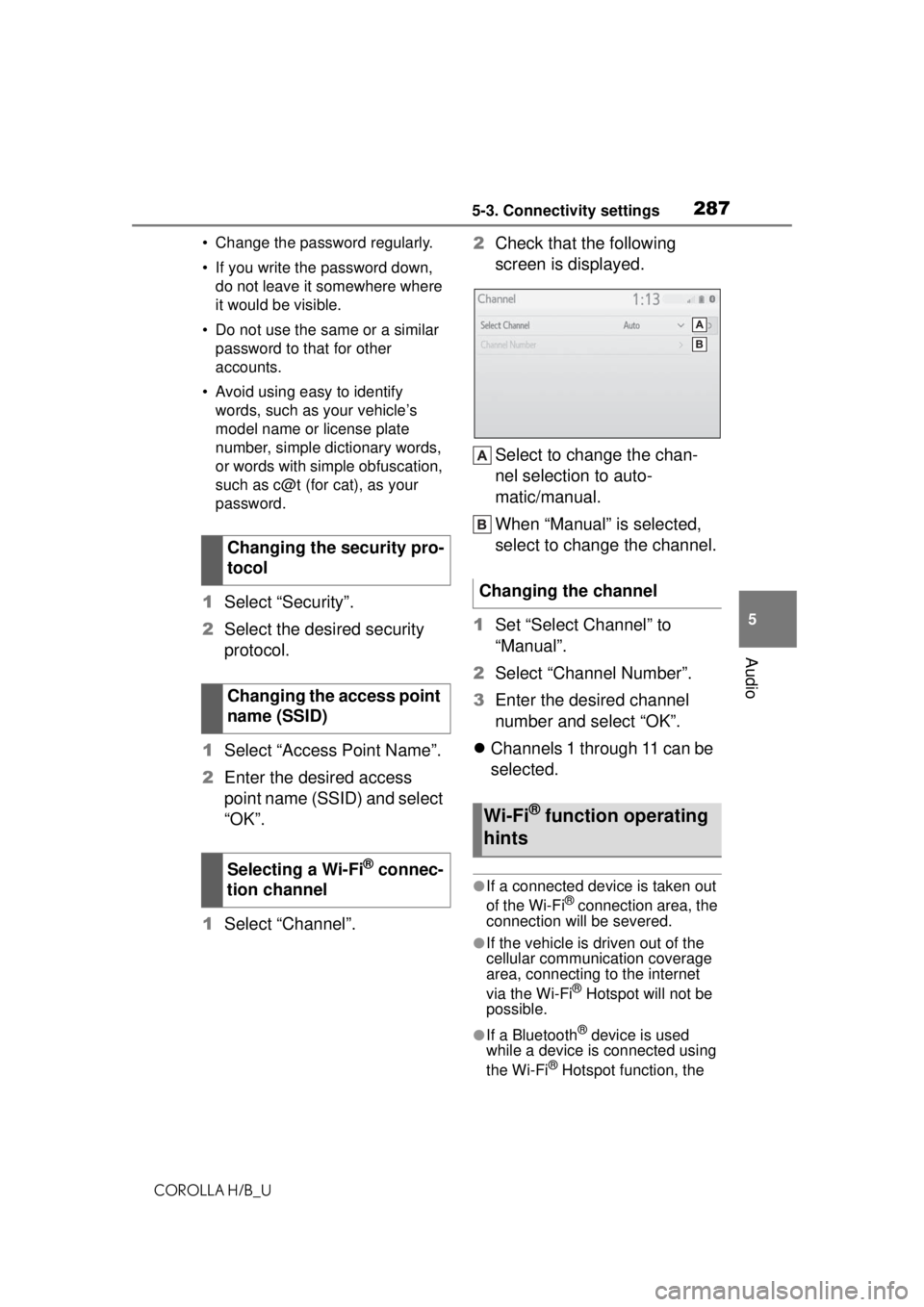
1 Select “Channel”. 2
Check that the following
screen is displayed.
Select to change the chan-
nel selection to auto-
matic/manual.
When “Manual” is selected,
select to change the channel.
1 Set “Select Channel” to
“Manual”.
2 Select “Channel Number”.
3 Enter the desired channel
number and select “OK”.
Channels 1 through 11 can be
selected.
●If a connected device is taken out
of the Wi-Fi® connection area, the
connection will be severed.
●If the vehicle is driven out of the
cellular communic ation coverage
area, connecting to the internet
via the Wi-Fi
® Hotspot will not be
possible.
●If a Bluetooth® device is used
while a device is connected using
the Wi-Fi
® Hotspot function, the
Changing the security pro-
tocol
Changing the access point
name (SSID)
Selecting a Wi-Fi
® connec-
tion channel
Changing the channel
Wi-Fi® function operating
hints
Page 291 of 576
2915-3. Connectivity settings
COROLLA H/B_U
5
Audio
• iPod (Audio Playback)
• USB audio/USB video
• Bluetooth
® audio
• Bluetooth® phone (Apple CarPlay
only)
• Toyota apps
●When an Apple CarPlay/Android
Auto connection is established,
voice command system (Siri/Goo-
gle Assistant) and map application
voice guidance volume can be
changed by selecting “Voice Vol-
ume” on the voice settings screen.
It cannot be changed by “POWER
VOLUME” knob on Audio control
panel.( P.300)
●Apple CarPlay/Android Auto is an
application developed by Apple
Inc/Google LLC. Its functions and
services may be terminated or
changed without notice depending
on the connected device’s opera-
tion system, hardware and soft-
ware, or due to changes in Apple
CarPlay/Android Auto specifica-
tions.
●For a list of the apps supported by
Apple CarPlay or Android Auto,
refer to their respective website.
●While using these functions, vehi-
cle and user information, such as
location and vehicle speed, will be
shared with the respective appli-
cation publisher and the cellular
service provider.
●By downloading and using each
application, you agree to their
terms of use.
●Data for these functions is trans-
mitted using the internet and may
incur charges.
For information ab out data trans-
mission fees, contact your cellular
service provider.
●Depending on the application, cer-
tain functions, such as music play-
back, may be restricted.
●As the applications for each func-
tion are provided by a third-party,
they may be subject to change or discontinuation without notice.
For details, refer to the website of
the function.
●If the USB cable is disconnected,
operation of Apple Car-
Play/Android Auto will end.
At this time, sound output will stop
and change to the system screen.
●Use of the Apple CarPlay logo
means that a vehicle user inter-
face meets Apple performance
standards. Apple is not responsi-
ble for the operation of this vehicle
or its compliance with safety and
regulatory standards. Please note
that the use of this product with
iPhone or iPod may affect wire-
less performance.
●Apple CarPlay is a trademark of
Apple Inc.
●Android and Android Auto are
trademarks of Google LLC.
WARNING
Do not connect iPhone or operate
the controls while driving.
Page 298 of 576
2985-4. Other settings
COROLLA H/B_U
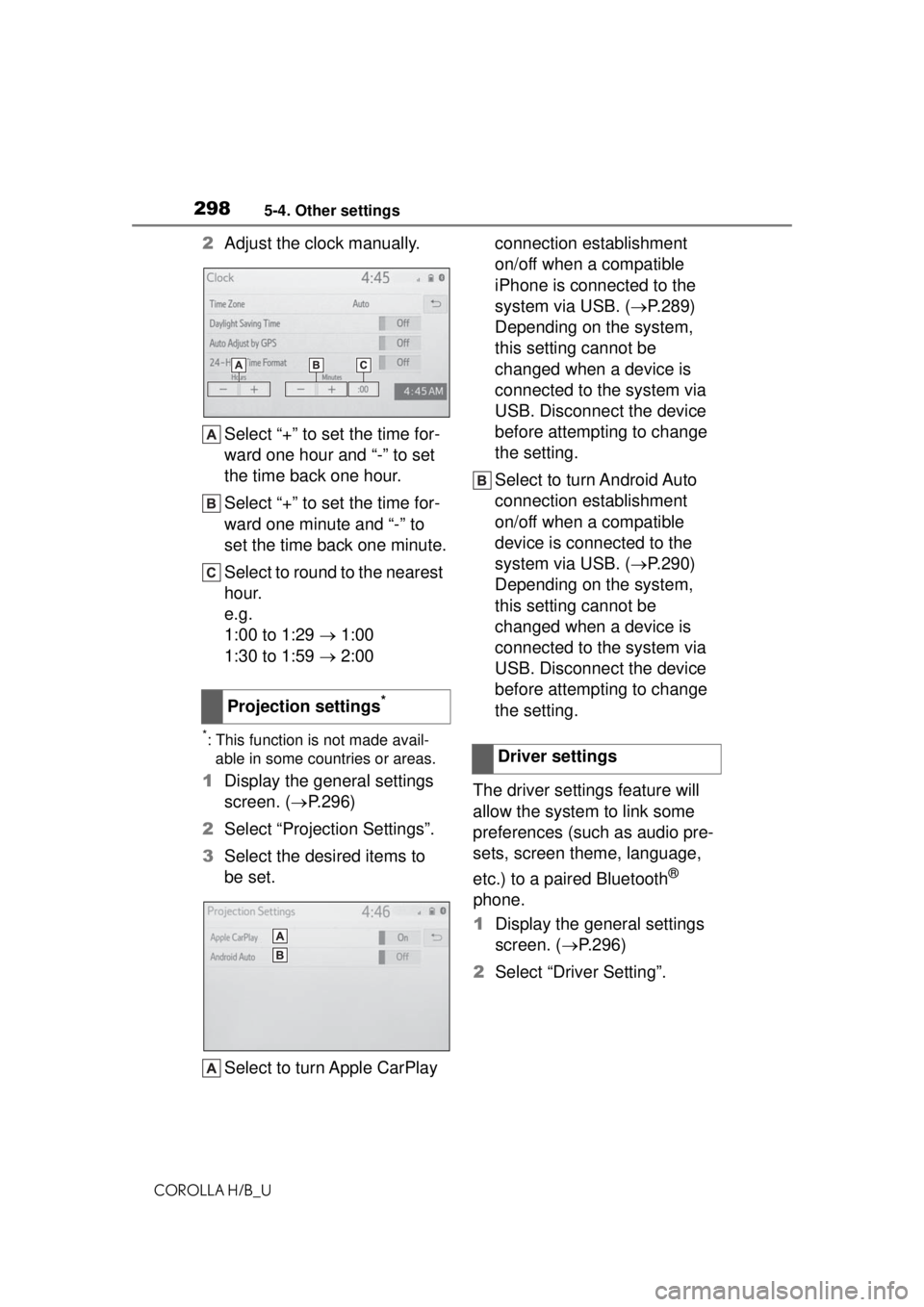
2Adjust the clock manually.
Select “+” to set the time for-
ward one hour and “-” to set
the time back one hour.
Select “+” to set the time for-
ward one minute and “-” to
set the time back one minute.
Select to round to the nearest
hour.
e.g.
1:00 to 1:29 1:00
1:30 to 1:59 2:00
*: This function is not made avail-
able in some countries or areas.
1 Display the general settings
screen. ( P.296)
2 Select “Projection Settings”.
3 Select the desired items to
be set.
Select to turn Apple CarPlay connection establishment
on/off when a compatible
iPhone is connected to the
system via USB. (
P.289)
Depending on the system,
this setting cannot be
changed when a device is
connected to the system via
USB. Disconnect the device
before attempting to change
the setting.
Select to turn Android Auto
connection establishment
on/off when a compatible
device is connected to the
system via USB. ( P.290)
Depending on the system,
this setting cannot be
changed when a device is
connected to the system via
USB. Disconnect the device
before attempting to change
the setting.
The driver settings feature will
allow the system to link some
preferences (such as audio pre-
sets, screen theme, language,
etc.) to a paired Bluetooth
®
phone.
1 Display the general settings
screen. ( P.296)
2 Select “Driver Setting”.
Projection settings
*
Driver settings
Page 303 of 576
3035-5. Using the audio/visual system
COROLLA H/B_U
5
Audio
5-5.Using the audio/visual system
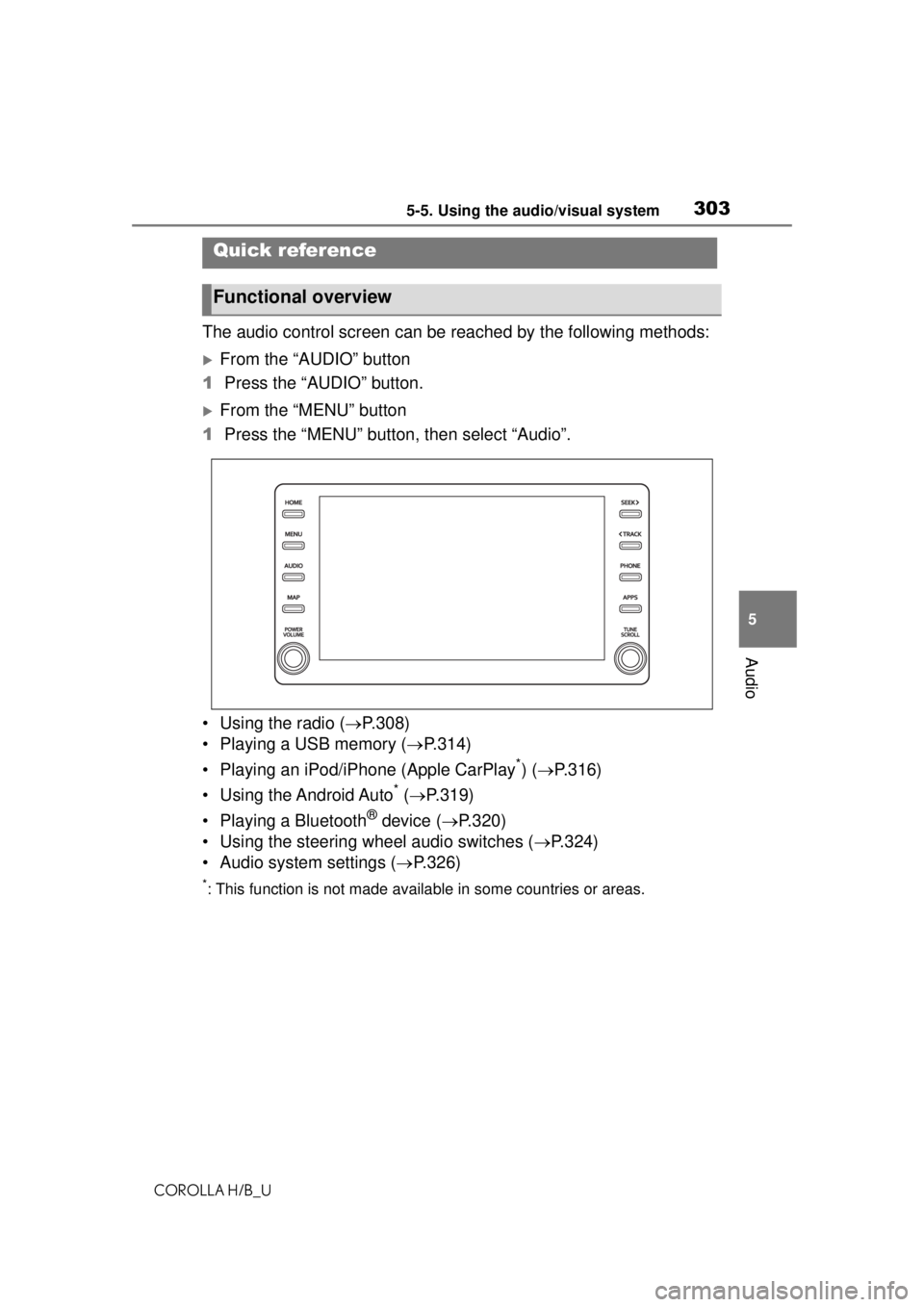
The audio control screen can be reached by the following methods:
From the “AUDIO” button
1 Press the “AUDIO” button.
From the “MENU” button
1 Press the “MENU” button, then select “Audio”.
• Using the radio ( P.308)
• Playing a USB memory ( P.314)
• Playing an iPod/iPhone (Apple CarPlay
*) ( P.316)
• Using the Android Auto
* ( P.319)
• Playing a Bluetooth
® device ( P.320)
• Using the steering wheel audio switches ( P.324)
• Audio system settings ( P.326)
*: This function is not made availa ble in some countries or areas.
Quick reference
Functional overview
Page 304 of 576
3045-5. Using the audio/visual system
COROLLA H/B_U
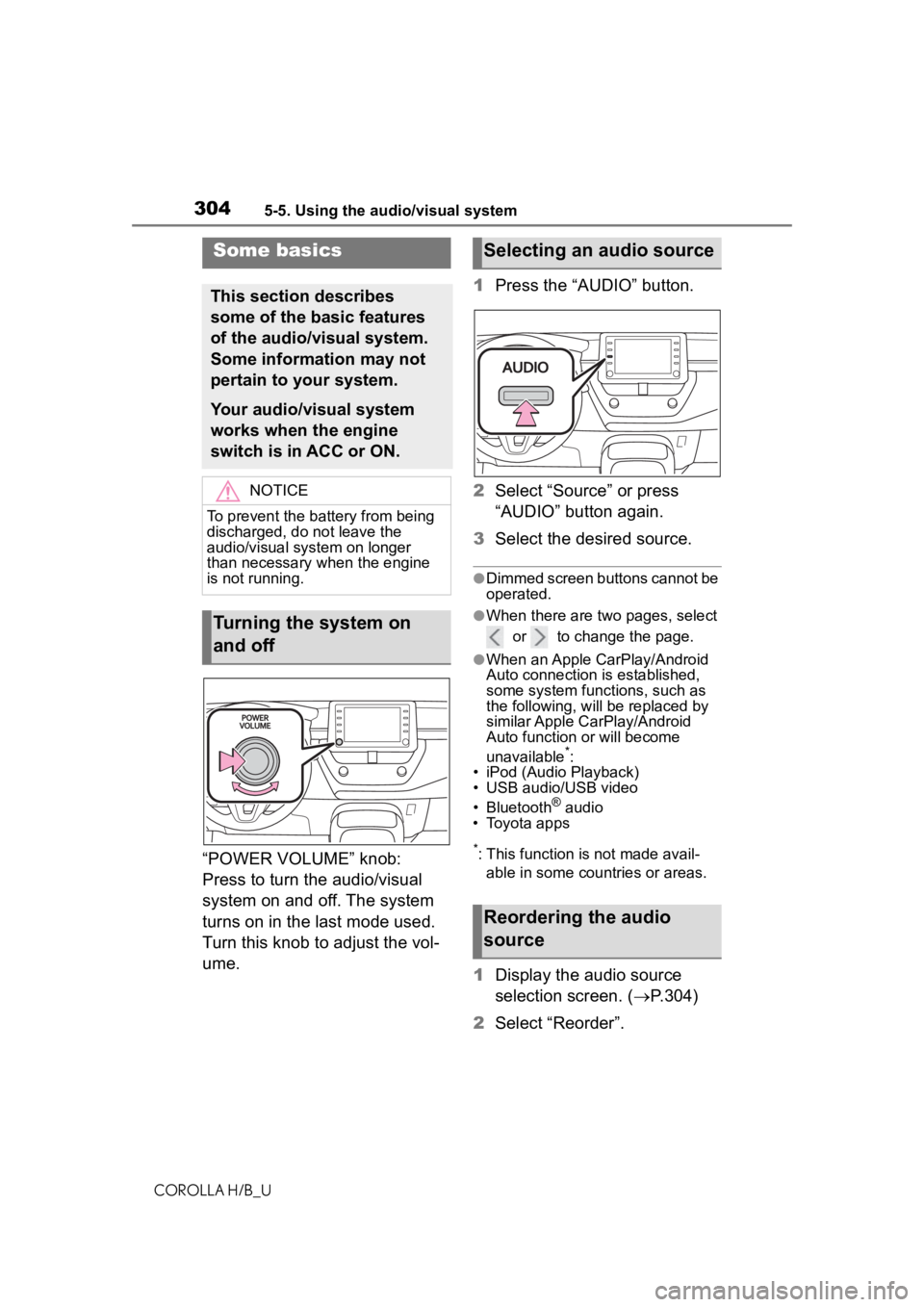
“POWER VOLUME” knob:
Press to turn the audio/visual
system on and off. The system
turns on in the last mode used.
Turn this knob to adjust the vol-
ume.1
Press the “AUDIO” button.
2 Select “Source” or press
“AUDIO” button again.
3 Select the desired source.
●Dimmed screen buttons cannot be
operated.
●When there are two pages, select
or to change the page.
●When an Apple CarPlay/Android
Auto connection is established,
some system functions, such as
the following, will be replaced by
similar Apple CarPlay/Android
Auto function or will become
unavailable
*:
• iPod (Audio Playback)
• USB audio/USB video
• Bluetooth
® audio
• Toyota apps
*: This function is not made avail-
able in some countries or areas.
1 Display the audio source
selection screen. ( P.304)
2 Select “Reorder”.
Some basics
This section describes
some of the basic features
of the audio/visual system.
Some information may not
pertain to your system.
Your audio/visual system
works when the engine
switch is in ACC or ON.
NOTICE
To prevent the battery from being
discharged, do not leave the
audio/visual system on longer
than necessary when the engine
is not running.
Turning the system on
and off
Selecting an audio source
Reordering the audio
source
Page 320 of 576
3205-7. Media operation
COROLLA H/B_U
The Bluetooth® audio operation
screen can be reached by the
following methods: P. 3 0 4
Connecting a Bluetooth
®
audio device ( P.322)
Depending on the type of porta-
ble player connected, some
functions may not be available
and/or the screen may look dif-
ferently than shown in this man-
ual.
When an Apple CarPlay/Android
Auto connection is established,
Bluetooth
® audio will be sus-
pended and become unavail-
able.
*
*: This function is not made avail- able in some countries or areas.
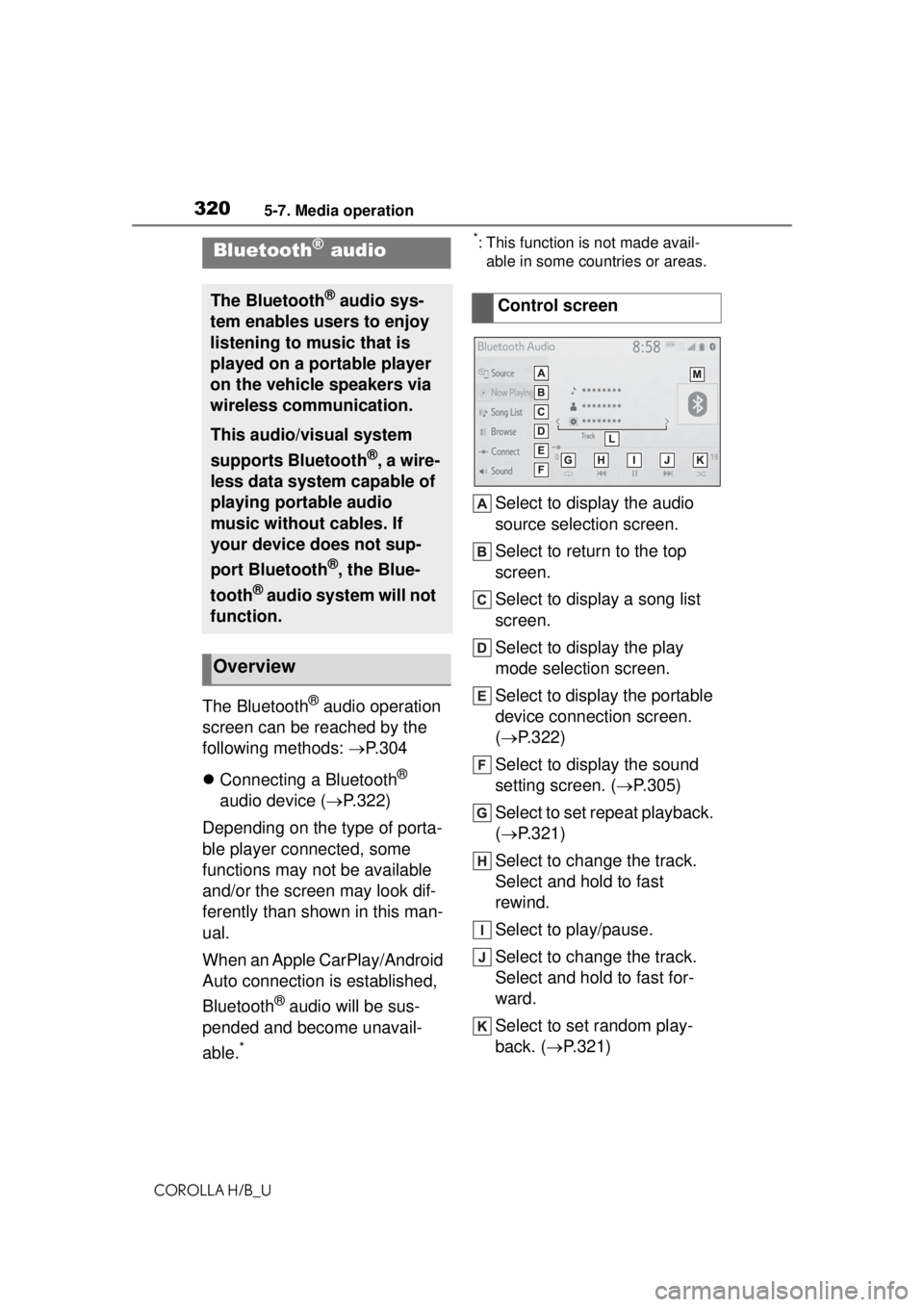
Select to display the audio
source selection screen.
Select to return to the top
screen.
Select to display a song list
screen.
Select to display the play
mode selection screen.
Select to display the portable
device connection screen.
( P.322)
Select to display the sound
setting screen. ( P.305)
Select to set repeat playback.
( P.321)
Select to change the track.
Select and hold to fast
rewind.
Select to play/pause.
Select to change the track.
Select and hold to fast for-
ward.
Select to set random play-
back. ( P.321)
Bluetooth® audio
The Bluetooth® audio sys-
tem enables users to enjoy
listening to music that is
played on a portable player
on the vehicle speakers via
wireless communication.
This audio/visual system
supports Bluetooth
®, a wire-
less data system capable of
playing portable audio
music without cables. If
your device does not sup-
port Bluetooth
®, the Blue-
tooth
® audio system will not
function.
Overview
Control screen
Page 321 of 576
3215-7. Media operation
COROLLA H/B_U
5
Audio
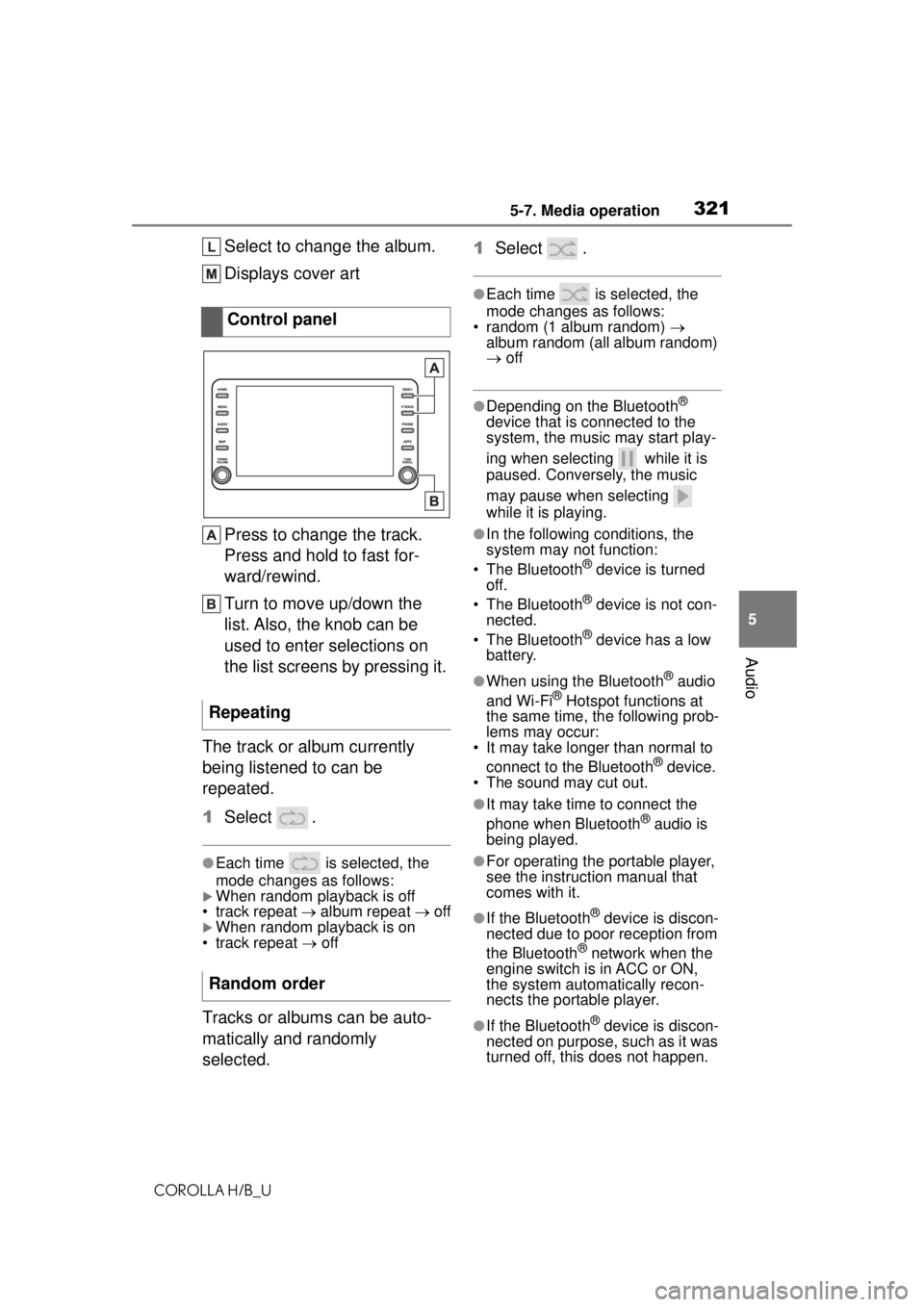
Select to change the album.
Displays cover art
Press to change the track.
Press and hold to fast for-
ward/rewind.
Turn to move up/down the
list. Also, the knob can be
used to enter selections on
the list screens by pressing it.
The track or album currently
being listened to can be
repeated.
1 Select .
●Each time is selected, the
mode changes as follows:
When random playback is off
• track repeat album repeat off
When random playback is on
• track repeat off
Tracks or albums can be auto-
matically and randomly
selected. 1
Select .
●Each time is selected, the
mode changes as follows:
• random (1 album random)
album random (all album random)
off
●Depending on the Bluetooth®
device that is connected to the
system, the music may start play-
ing when selecting while it is
paused. Conversely, the music
may pause when selecting
while it is playing.
●In the following conditions, the
system may not function:
• The Bluetooth
® device is turned
off.
• The Bluetooth
® device is not con-
nected.
• The Bluetooth
® device has a low
battery.
●When using the Bluetooth® audio
and Wi-Fi® Hotspot functions at
the same time, the following prob-
lems may occur:
• It may take longer than normal to
connect to the Bluetooth
® device.
• The sound may cut out.
●It may take time to connect the
phone when Bluetooth® audio is
being played.
●For operating the portable player,
see the instruction manual that
comes with it.
●If the Bluetooth® device is discon-
nected due to poor reception from
the Bluetooth
® network when the
engine switch is in ACC or ON,
the system automatically recon-
nects the portable player.
●If the Bluetooth® device is discon-
nected on purpose, such as it was
turned off, this does not happen.
Control panel
Repeating
Random order
Page 322 of 576
3225-7. Media operation
COROLLA H/B_UReconnect the portable player
manually.
●Bluetooth® device information is
registered when the Bluetooth®
device is connected to the Blue-
tooth
® audio system. When selling
or disposing of the vehicle,
remove the Bluetooth
® audio
information from the system.
( P.299)
●In some situations, sound output
via the Bluetooth® audio system
may be out of sync with the con-
nected device or output intermit-
tently.
To use the Bluetooth® audio
system, it is necessary to regis-
ter a Bluetooth
® device with the
system.
Registering an additional
device
1 Display the Bluetooth
® audio
control screen. ( P.320)
2 Select “Connect”.
3 Select “Add Device”.
When another Bluetooth
®
device is connected, a confir-
mation screen will be dis-
played. To disconnect the
Bluetooth
® device, select
“Yes”.
4 Follow the steps in “Register-
ing a Bluetooth
® phone for
the first time” from step 5.
( P.272)
Selecting a registered device
1 Display the Bluetooth
® audio
control screen. ( P.320)
2 Select “Connect”.
3 Select the desired device to
be connected.
WARNING
●Do not operate the player’s con-
trols or connect to the Blue-
tooth
® audio system while
driving.
●Your audio unit is fitted with
Bluetooth® antennas. People
with implantable cardiac pace-
makers, cardiac resynchroniza-
tion therapy-pacemakers or
implantable cardioverter defibril-
lators should ma intain a reason-
able distance between
themselves and the Bluetooth
®
antennas. The radio waves may
affect the operation of such
devices.
●Before using Bluetooth®
devices, users of any electrical
medical device other than
implantable cardiac pacemak-
ers, cardiac resynchronization
therapy-pacemakers or implant-
able cardioverter defibrillators
should consult the manufacturer
of the device for information
about its operation under the
influence of radio waves. Radio
waves could have unexpected
effects on the operation of such
medical devices.
NOTICE
Do not leave your portable player
in the vehicle. In particular, high
temperatures inside the vehicle
may damage the portable player.
Registering/Connecting a
Bluetooth® device