audio TOYOTA COROLLA HYBRID 2021 (in English) Owner's Manual
[x] Cancel search | Manufacturer: TOYOTA, Model Year: 2021, Model line: COROLLA HYBRID, Model: TOYOTA COROLLA HYBRID 2021Pages: 584, PDF Size: 19.59 MB
Page 228 of 584
2284-5. Using the driving support systems
COROLLA HV_U
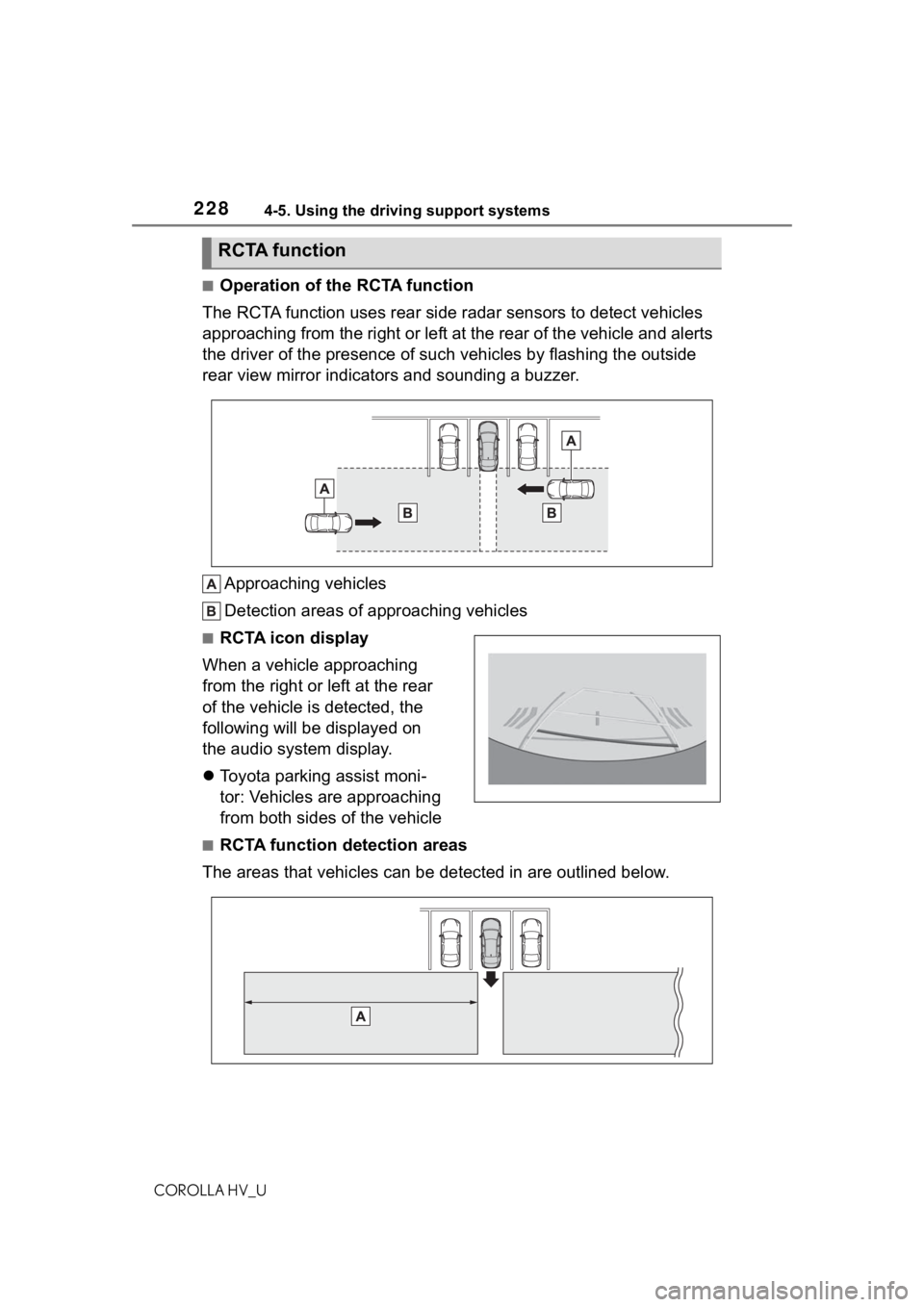
■Operation of the RCTA function
The RCTA function uses rear side radar sensors to detect vehicles
approaching from the right or left at the rear of the vehicle a nd alerts
the driver of the presence of such vehicles by flashing the out side
rear view mirror indicators and sounding a buzzer.
Approaching vehicles
Detection areas of approaching vehicles
■RCTA icon display
When a vehicle approaching
from the right or left at the rear
of the vehicle is detected, the
following will be displayed on
the audio system display.
Toyota parking assist moni-
tor: Vehicles are approaching
from both sides of the vehicle
■RCTA function detection areas
The areas that vehicles can be detected in are outlined below.
RCTA function
Page 231 of 584
2314-5. Using the driving support systems
COROLLA HV_U
4
Driving
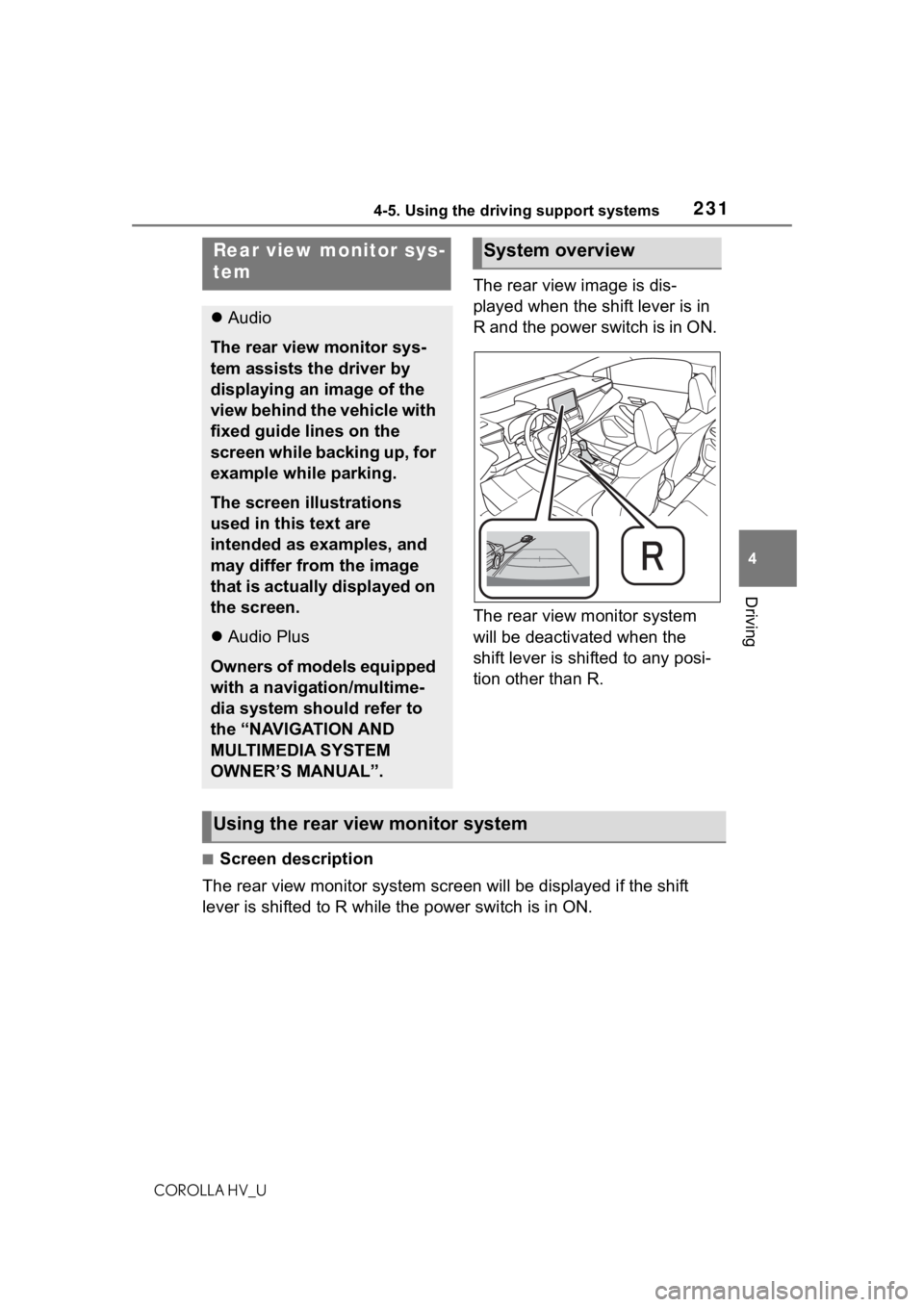
The rear view image is dis-
played when the shift lever is in
R and the power switch is in ON.
The rear view monitor system
will be deactivated when the
shift lever is shifted to any posi-
tion other than R.
■Screen description
The rear view monitor system scr een will be displayed if the shift
lever is shifted to R while the power switch is in ON.
Rear view monitor sys-
tem
Audio
The rear view monitor sys-
tem assists the driver by
displaying an image of the
view behind the vehicle with
fixed guide lines on the
screen while backing up, for
example while parking.
The screen illustrations
used in this text are
intended as examples, and
may differ from the image
that is actually displayed on
the screen.
Audio Plus
Owners of models equipped
with a navigation/multime-
dia system should refer to
the “NAVIGATION AND
MULTIMEDIA SYSTEM
OWNER’S MANUAL”.
System overview
Using the rear view monitor system
Page 251 of 584
251
COROLLA HV_U
5
5
Audio
Audio
.5-1. Basic functionButtons overview......... 253
Menu screen ............... 255
Status icon .................. 256
“Setup” screen ............ 258
5-2. Basic information before operation
Initial screen ................ 259
Touch screen............... 260
Home screen............... 262
Entering letters and num- bers/list screen operation
.................................. 263
Screen adjustment ...... 266
Linking multi-information display and the system
.................................. 267
5-3. Connectivity settings Registering/Connecting a Bluetooth
® device ..... 268
Setting Bluetooth
® details
.................................. 272
Wi-Fi
® Hotspot ............ 280
Apple CarPlay/ Android Auto.............. 284
5-4. Other settings General settings .......... 291
Voice settings .............. 295
Vehicle settings ........... 2965-5. Using the audio/visual
system
Quick reference ........... 298
Some basics................ 299
5-6. Radio operation AM radio/FM radio/Siri-usXM
® Satellite
Radio(SXM) ............... 303
Internet radio ............... 308
5-7. Media operation USB memory ............... 309
iPod/iPhone (Apple Car- Play) .......................... 311
Android Auto................ 314
Bluetooth
® audio ......... 315
5-8. Audio/visual remote con- trols
Steering switches ........ 319
5-9. Audio settings Setup ........................... 321
5-10.Tips for operating the audio/visual system
Operating information.. 322
5-11.Voice command system operation
Voice command system .................................. 334
Command list .............. 337
5-12.Mobile Assistant opera- tion
Mobile Assistant .......... 341
Page 253 of 584
2535-1. Basic function
COROLLA HV_U
5
Audio
5-1.Basic function
*: If equipped
Audio Plus
Owners of this system should refer to the “NAVIGATION AND MUL-
TIMEDIA SYSTEM OWNER’S MANUAL”.
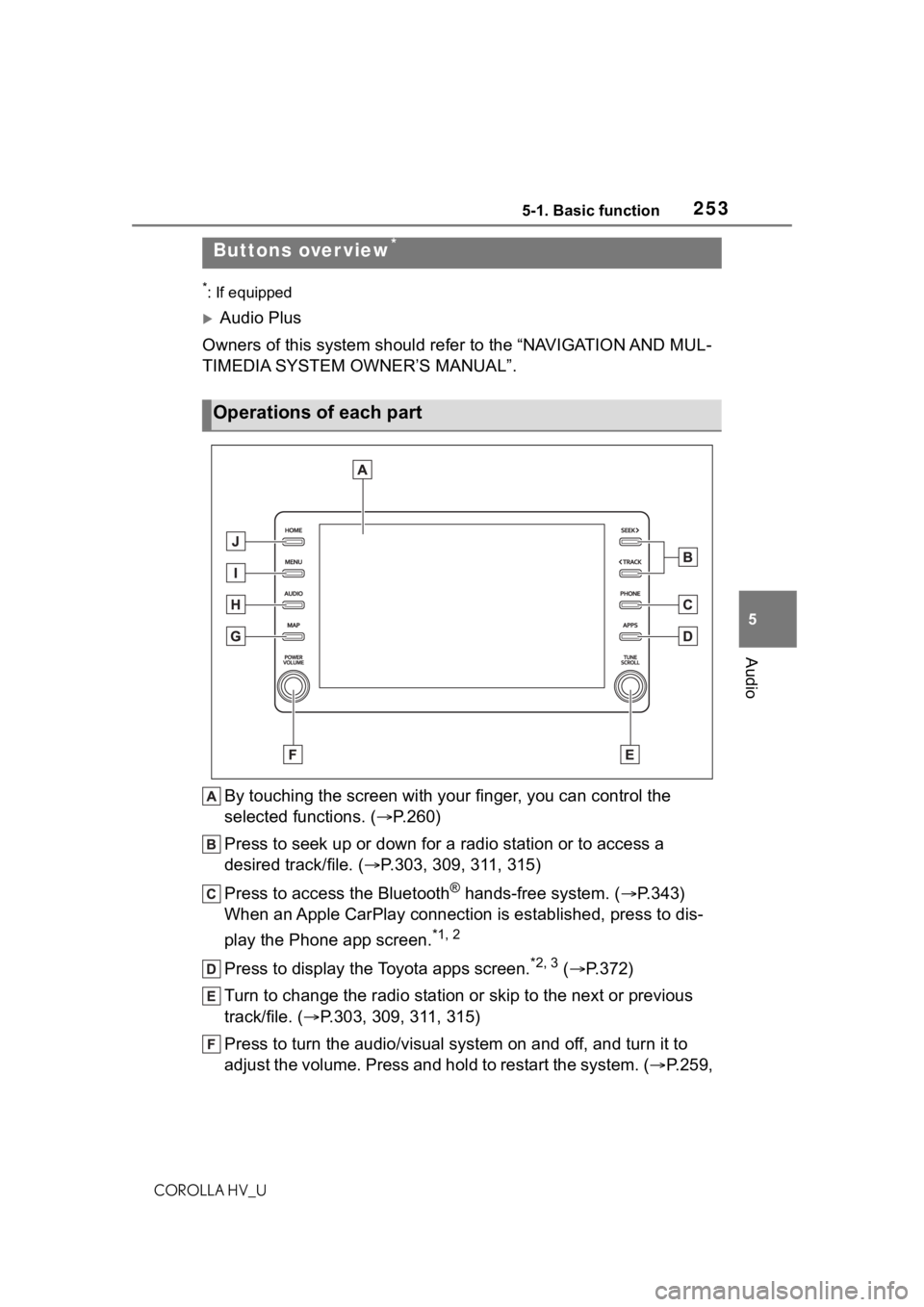
By touching the screen with y our finger, you can control the
selected functions. ( P.260)
Press to seek up or down for a radio station or to access a
desired track/file. ( P.303, 309, 311, 315)
Press to access the Bluetooth
® hands-free system. ( P.343)
When an Apple CarPlay connection is established, press to dis-
play the Phone app screen.
*1, 2
Press to display the Toyota apps screen.*2, 3 ( P.372)
Turn to change the radio station or skip to the next or previou s
track/file. ( P.303, 309, 311, 315)
Press to turn the audio/visual system on and off, and turn it t o
adjust the volume. Press and hold to restart the system. ( P.259,
Buttons over view*
Operations of each part
Page 254 of 584
2545-1. Basic function
COROLLA HV_U
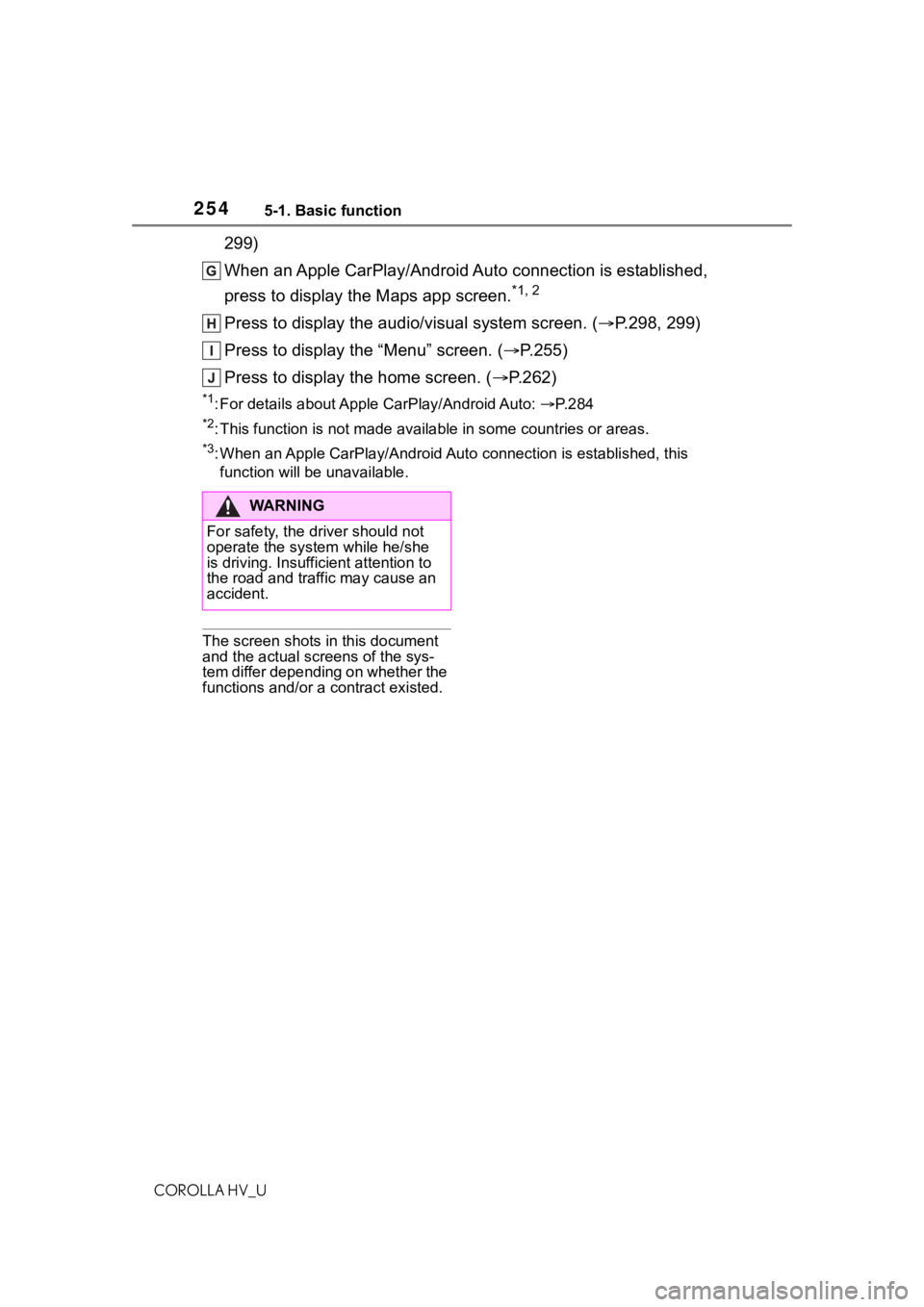
299)
When an Apple CarPlay/Android Auto connection is established,
press to display the Maps app screen.
*1, 2
Press to display the audio/visual system screen. (P.298, 299)
Press to display the “Menu” screen. ( P.255)
Press to display the home screen. ( P.262)
*1: For details about Apple CarPlay/Android Auto: P. 2 8 4
*2: This function is not made available in some countries or areas .
*3: When an Apple CarPlay/Android Auto connection is established, this
function will be unavailable.
The screen shots in this document
and the actual screens of the sys-
tem differ depending on whether the
functions and/or a contract existed.
WA R N I N G
For safety, the driver should not
operate the system while he/she
is driving. Insufficient attention to
the road and traffic may cause an
accident.
Page 255 of 584
2555-1. Basic function
COROLLA HV_U
5
Audio
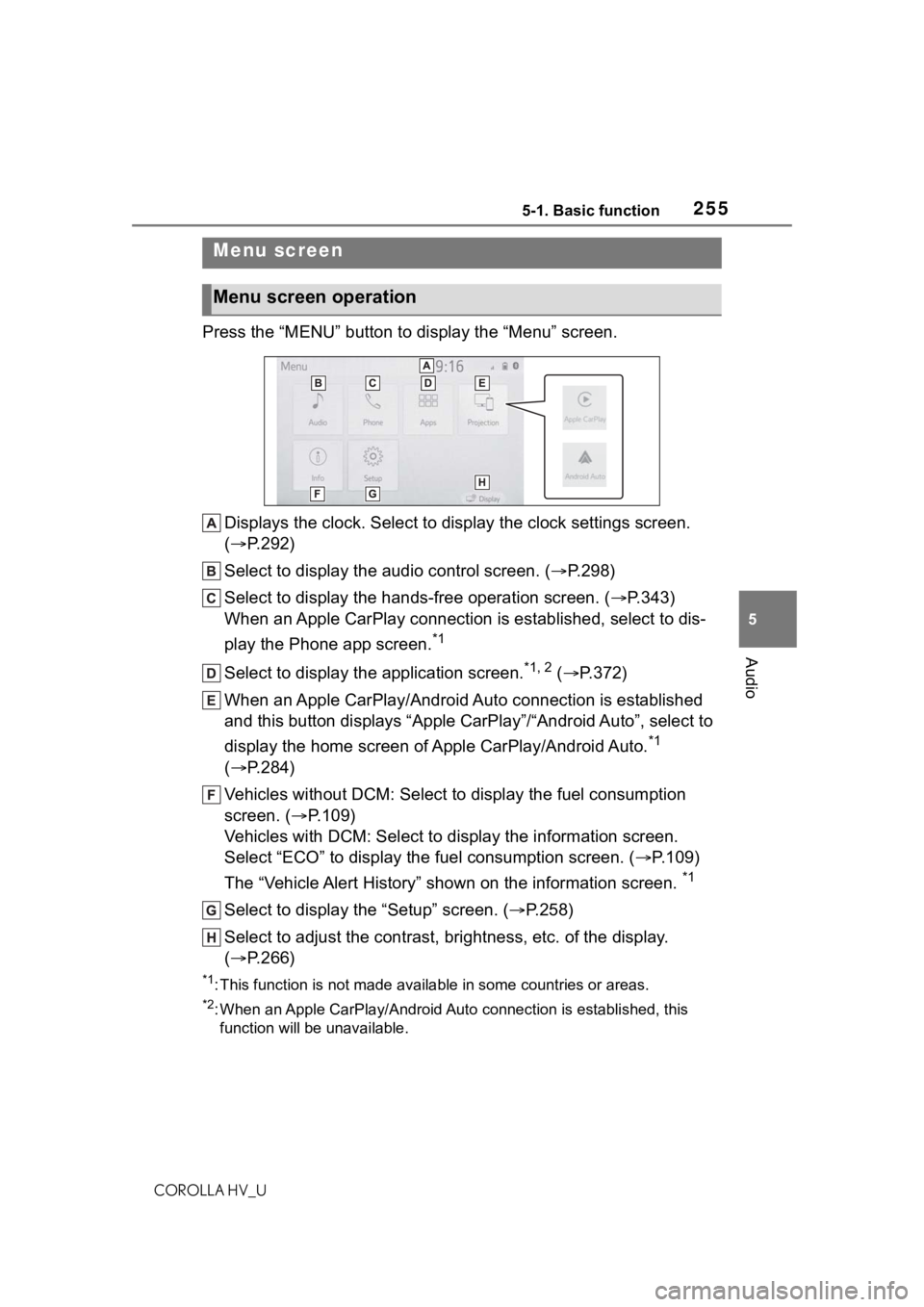
Press the “MENU” button to display the “Menu” screen.
Displays the clock. Select to display the clock settings screen.
( P.292)
Select to display the audio control screen. ( P.298)
Select to display the hands-free operation screen. ( P.343)
When an Apple CarPlay connection is established, select to dis-
play the Phone app screen.
*1
Select to display the application screen.*1, 2 ( P.372)
When an Apple CarPlay/Android Auto connection is established
and this button displays “Apple CarPlay”/“Android Auto”, select to
display the home screen of Apple CarPlay/Android Auto.
*1
( P.284)
Vehicles without DCM: Select to d isplay the fuel consumption
screen. ( P.109)
Vehicles with DCM: Select to display the information screen.
Select “ECO” to display the fuel consumption screen. ( P.109)
The “Vehicle Alert History” shown on the information screen.
*1
Select to display the “Setup” screen. ( P.258)
Select to adjust the contrast, brightness, etc. of the display.
( P.266)
*1: This function is not made available in some countries or areas .
*2: When an Apple CarPlay/Android Auto connection is established, this
function will be unavailable.
Menu screen
Menu screen operation
Page 257 of 584
2575-1. Basic function
COROLLA HV_U
5
Audio
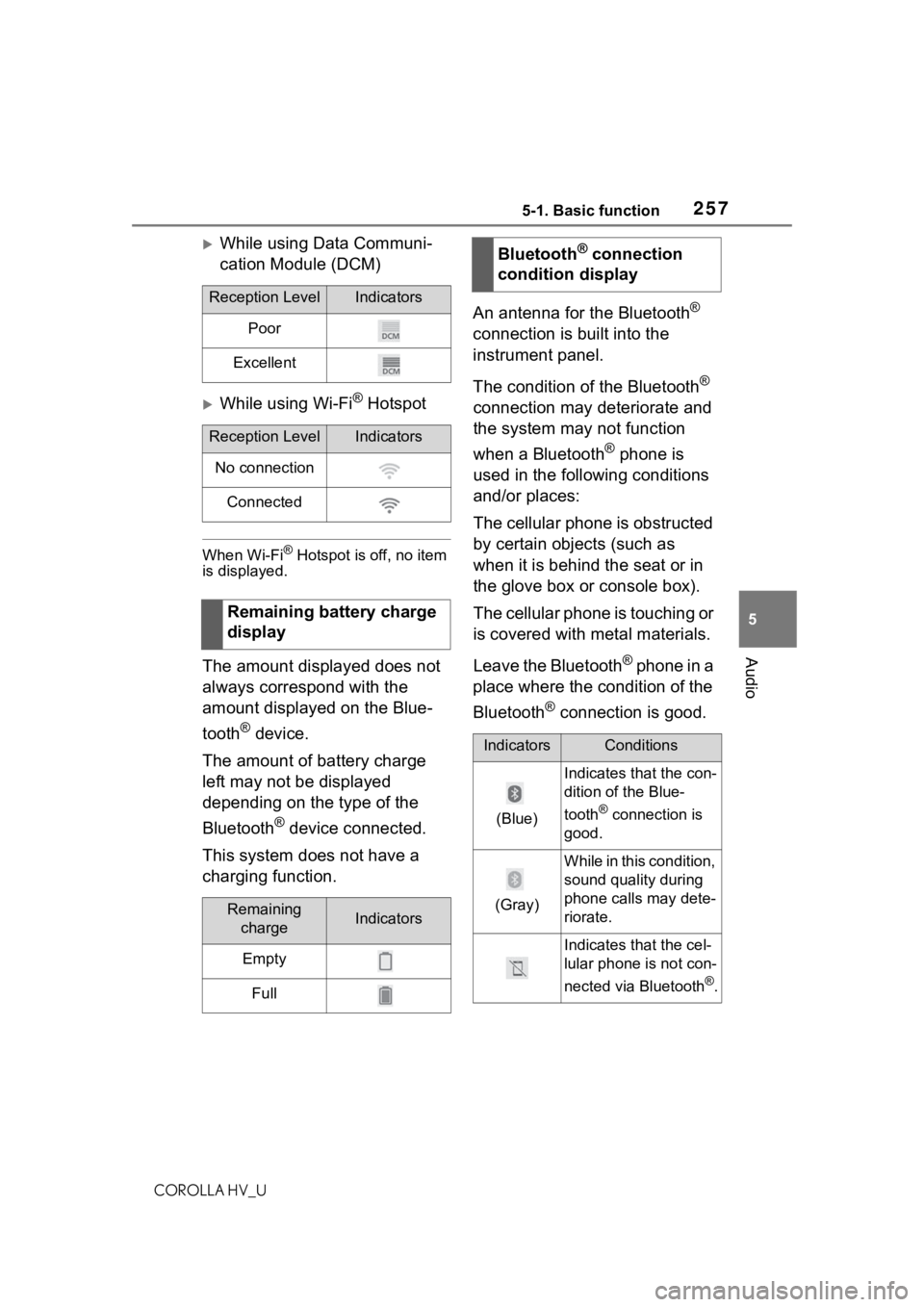
While using Data Communi-
cation Module (DCM)
While using Wi-Fi® Hotspot
When Wi-Fi® Hotspot is off, no item
is displayed.
The amount displayed does not
always correspond with the
amount displayed on the Blue-
tooth
® device.
The amount of battery charge
left may not be displayed
depending on the type of the
Bluetooth
® device connected.
This system does not have a
charging function. An antenna for the Bluetooth
®
connection is built into the
instrument panel.
The condition of the Bluetooth
®
connection may deteriorate and
the system may not function
when a Bluetooth
® phone is
used in the following conditions
and/or places:
The cellular phone is obstructed
by certain objects (such as
when it is behind the seat or in
the glove box or console box).
The cellular phone is touching or
is covered with metal materials.
Leave the Bluetooth
® phone in a
place where the condition of the
Bluetooth
® connection is good.
Reception LevelIndicators
Poor
Excellent
Reception LevelIndicators
No connection
Connected
Remaining battery charge
display
Remaining chargeIndicators
Empty
Full
Bluetooth® connection
condition display
IndicatorsConditions
(Blue)
Indicates that the con-
dition of the Blue-
tooth
® connection is
good.
(Gray)
While in this condition,
sound quality during
phone calls may dete-
riorate.
Indicates that the cel-
lular phone is not con-
nected via Bluetooth
®.
Page 258 of 584
2585-1. Basic function
COROLLA HV_U
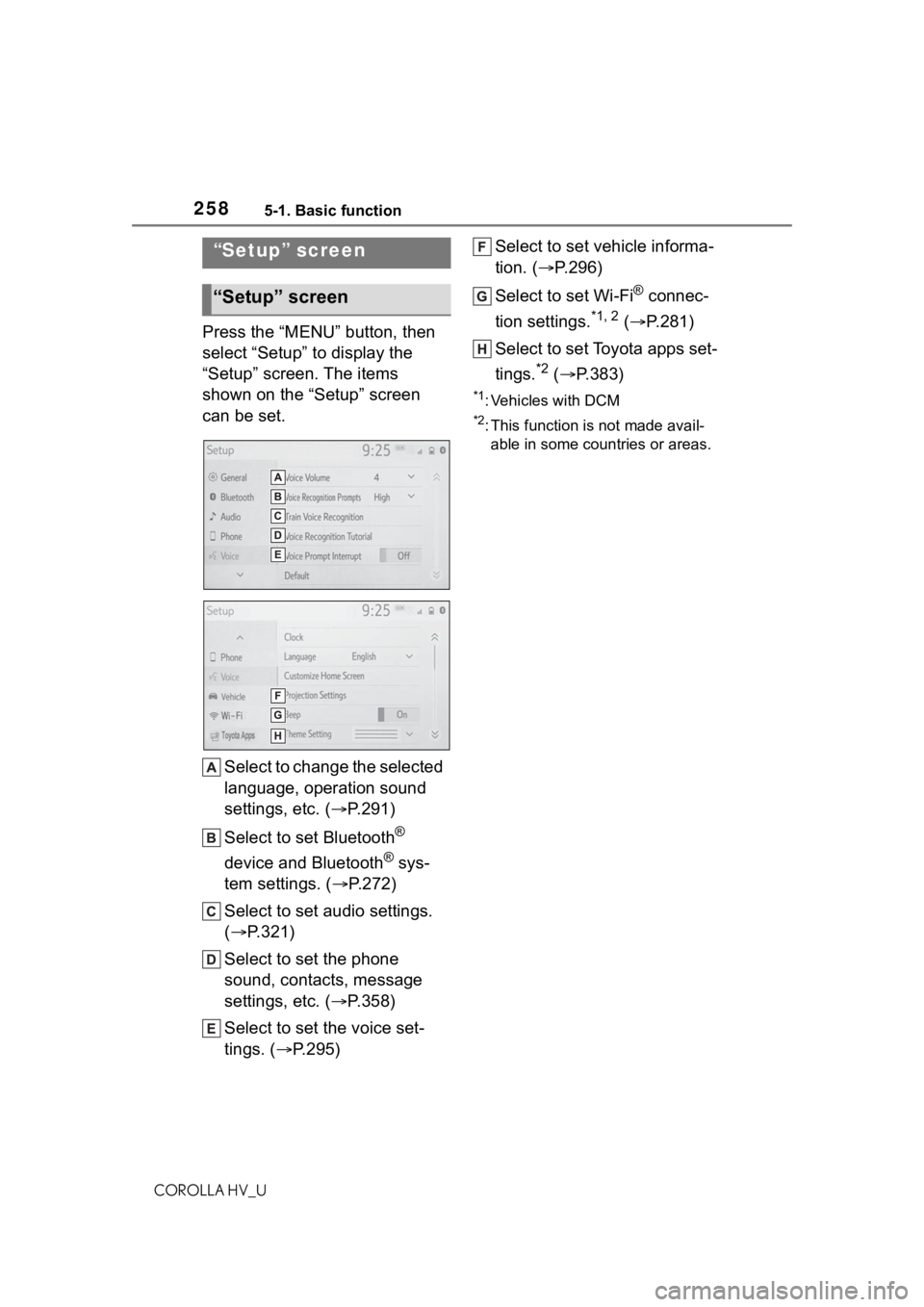
Press the “MENU” button, then
select “Setup” to display the
“Setup” screen. The items
shown on the “Setup” screen
can be set.Select to change the selected
language, operation sound
settings, etc. ( P.291)
Select to set Bluetooth
®
device and Bluetooth
® sys-
tem settings. ( P.272)
Select to set audio settings.
( P.321)
Select to set the phone
sound, contacts, message
settings, etc. ( P.358)
Select to set the voice set-
tings. ( P.295) Select to set vehicle informa-
tion. (
P.296)
Select to set Wi-Fi
® connec-
tion settings.
*1, 2 ( P.281)
Select to set Toyota apps set-
tings.
*2 ( P.383)
*1: Vehicles with DCM
*2: This function is not made avail-
able in some countries or areas.
“Setup” screen
“Setup” screen
Page 259 of 584
2595-2. Basic information before operation
COROLLA HV_U
5
Audio
5-2.Basic information before operation
After a few seconds, the caution
screen will be displayed.
After about 5 seconds or select-
ing “Continue”, the caution
screen automatically switches to
the next screen.
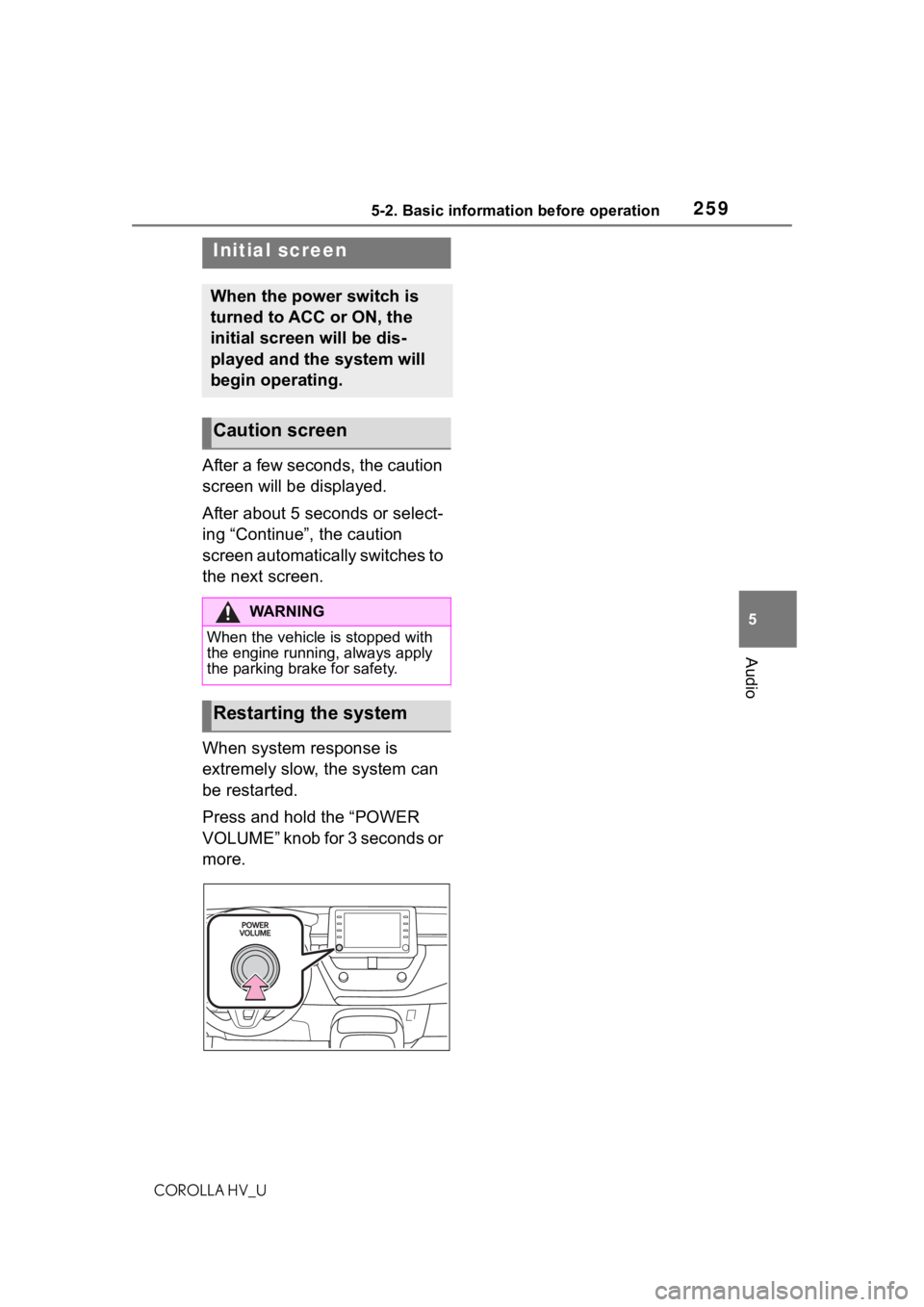
When system response is
extremely slow, the system can
be restarted.
Press and hold the “POWER
VOLUME” knob for 3 seconds or
more.
Initial screen
When the power switch is
turned to ACC or ON, the
initial screen will be dis-
played and the system will
begin operating.
Caution screen
WA R N I N G
When the vehicle is stopped with
the engine running, always apply
the parking brak e for safety.
Restarting the system
Page 261 of 584
2615-2. Basic information before operation
COROLLA HV_U
5
Audio
operated.
●The displayed image may become
darker and moving images may
be slightly distorted when the
screen is cold.
●In extremely cold conditions, the
screen may not be displayed and
the data input b y a user may be
deleted. Also, the screen buttons
may be harder than usual to
depress.
●When you look at the screen
through polarized material such as
polarized sunglasses, the screen
may be dark and hard to see. If
so, look at the scr een from differ-
ent angles, adjust the screen set-
tings on the display settings
screen or take off your sun-
glasses.
●When is displayed on the
screen, select to return to the
previous screen.
The operable areas of the
capacitive touch screen buttons
use capacitive touch sensors
and may not operate properly in
the following situations:
If the screen is dirty or wet
If a source of strong electro-
magnetic waves is brought
near the screen
If a glove is worn during oper-
ation
If the screen is touched by a
fingernail
If a stylus is used to operate
the buttons
If your palm touches the oper-
able area of another button
during operation
If a button is touched quickly
If the operable part of a
capacitive touch screen but-
ton is touched by or covered
with a metal object, such as
the following, it may not oper-
ate properly:
• Magnetic isolation cards
• Metallic foil, such as the inner
packaging of a cigarette box
• Metallic wallets or bags
•Coins
• Discs, such as a CD or DVD
If the operable part of a
capacitive touch screen but-
ton is wiped, it may operate
unintentionally.
If the capacitive touch screen
button is being touched when
the power switch is changed
to ACC or ON, the button may
not operate properly. In this
case, remove anything touch-
ing the button, turn the power
switch off and then turn it to
NOTICE
●To prevent damaging the
screen, lightly touch the screen
buttons with your finger.
●Do not use objects other than
your finger to touch the screen.
●Wipe off fingerprints using a
glass cleaning cloth. Do not use
chemical cleaners to clean the
screen, as they may damage
the touch screen.
Capacitive touch screen
buttons