change time TOYOTA COROLLA iM 2018 Owners Manual (in English)
[x] Cancel search | Manufacturer: TOYOTA, Model Year: 2018, Model line: COROLLA iM, Model: TOYOTA COROLLA iM 2018Pages: 36, PDF Size: 1.57 MB
Page 2 of 36
COROLLA iM 2018
This Quick Reference Guide is a summary of basic vehicle
operations. It contains brief descriptions of fundamental
operations so you can locate and use the vehicle’s main
equipment quickly and easily.
The Quick Reference Guide is not intended as a substitute for
the Owner’s Manual located in your vehicle’s glove box. We
strongly encourage you to review the Owner’s Manual and
supplementary manuals so you will have a better understanding
of your vehicle’s capabilities and limitations.
Your dealership and the entire staff of Toyota Motor North
America, Inc. wish you many years of satisfi ed driving in your
new Corolla iM.
A word about safe vehicle operations
This Quick Reference Guide is not a full description of Corolla iM operations.
Every Corolla iM owner should review the Owner’s Manual that accompanies this
vehicle.
Pay special attention to the boxed information highlighted in color throughout the
Owner’s Manual. Each box contains safe operating instructions to help you avoi\
d
injury or equipment malfunction.
All information in this Quick Reference Guide is current at the time of printing.
Toyota reserves the right to make changes at any time without notice.
33
PAIRING BLUETOOTH® PHONE FOR THE FIRST TIME
5. A message will display on the
head unit requesting messaging
access.6. Touch “OK” when the connection status changes from “Connection
waiting...” to “Connected”.
7. For Navigation
1 Units Only: Confi rm that the passkey number displayed
on screen matches the passkey displayed on your Bluetooth®2 device and
press “Yes”. iPhone
®4: Using your smartphone,
you may need to allow head unit
access to your messaging and
contacts. [See Figure 6]
Only current iPhone®4 text messages
can be viewed on the head unit.
iPhone
®4 does not allow text message
reply.
Android™: Using your smartphone,
you may need to allow head unit
access to your messaging and
contacts. [See Figure 7]
It is recommended to check the “Don’t
ask again” box, so as not to have to
press OK every time the phone makes
a Bluetooth
®2 connection with your
Toyota.
4. Next, search for “My Toyota”
from your phone’s Bluetooth®2
screen and select “My Toyota” [See
Figure 5] • To cancel the registration, touch
“Cancel”.
• Navigation units - skip to step 7
1. Availability & accuracy of the information provided by the navigation sys\
tem is dependent upon many factors. Use common sense when
relying on information provided. Services & programming subject to change. Services not available in every city or roadway. Updates may
be available from your dealer at an additional cost. See Owner’s Manual for details. 2. The Bluetooth® word mark and logos are regis\
tered
trademarks owned by Bluetooth® SIG, Inc. and any use of such marks by\
Toyota is under license. A compatible Bluetooth® enabled phone
must first be paired. Phone performance depends on software, coverage & \
carrier. 3. Concentrating on the road should always be your
first priority while driving. Do not use the hands-free phone system if \
it will distract you. 4. iPhone® is not included. iPhone® is registered
trademarks of Apple, Inc.
Figure 6: iOS Figure 7: Android
Figure 5: Without Navigation
NOTE: A message will display on the head unit requesting messaging
access. Please refer to step 5
Page 13 of 36
11
OVERVIEW
FEATURES & OPERATIONS
TOYOTA SAFETY SENSE
SAFETY & EMERGENCY FEATURES
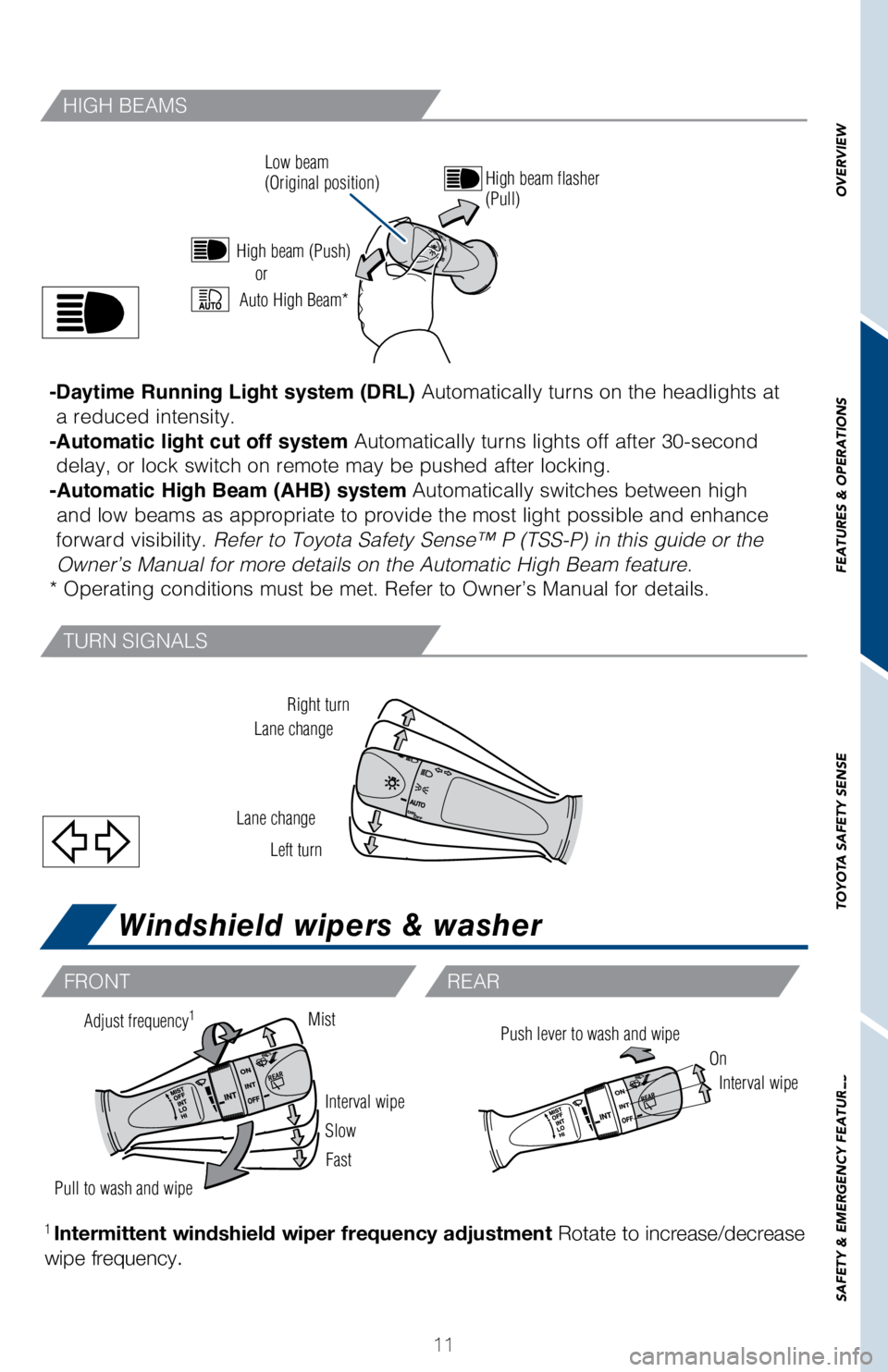
Windshield wipers & washer
Right turn
Lane change
Lane change Left turn
High beam flasher
(Pull)
Low beam
(Original position)
or
Interval wipe
Slow
Fast
Pull to wash and wipe
Push lever to wash and wipeAdjust frequency1Mist
On
Interval wipe
1 Intermittent windshield wiper frequency adjustment Rotate to increase/decrease
wipe frequency.
FRONT REAR
-Daytime Running Light system (DRL) Automatically turns on the headlights at
a reduced intensity.
-Automatic light cut off system Automatically turns lights off after 30-second delay, or lock switch on remote may be pushed after locking.
-Automatic High Beam (AHB) system Automatically switches between high and low beams as appropriate to provide the most light possible and enha\
nce
forward visibility. Refer to Toyota Safety Sense™ P (TSS-P) in this guide or the Owner’s Manual for more details on the Automatic High Beam feature.
* Operating conditions must be met. Refer to Owner’s Manual for detai\
ls.
High beam (Push)
Auto High Beam*
TURN SIGNALS
HIGH BEAMS
Page 24 of 36
 22
CHANGING THE PRE-COLLISION ALERT TIMING
DISABLING THE PRE-COLLISION SYSTEM (PCS)
Each time the PCS switch is pressed, the response to the PCS alert timin\
g changes.
To disable the system
Press the")
22
CHANGING THE PRE-COLLISION ALERT TIMING
DISABLING THE PRE-COLLISION SYSTEM (PCS)
Each time the PCS switch is pressed, the response to the PCS alert timin\
g changes.
To disable the system
Press the PCS switch for 3 seconds or more.
The
will turn on and a message will be displayed on the
Multi-Information Display (MID).
To enable the system
Press the PCS switch again.
The system is enabled.
Note: PCS is enabled each time the engine switch is turned to Ignition O\
n.
The system can be disabled/enabled and the alert timing of the system ca\
n be
changed. (Alert timing only, brake operation remains the same).
Far Middle
(default) Near
TOYOTA SAFETY SENSE™
Page 35 of 36
COROLLA iM 2018
This Quick Reference Guide is a summary of basic vehicle
operations. It contains brief descriptions of fundamental
operations so you can locate and use the vehicle’s main
equipment quickly and easily.
The Quick Reference Guide is not intended as a substitute for
the Owner’s Manual located in your vehicle’s glove box. We
strongly encourage you to review the Owner’s Manual and
supplementary manuals so you will have a better understanding
of your vehicle’s capabilities and limitations.
Your dealership and the entire staff of Toyota Motor North
America, Inc. wish you many years of satisfi ed driving in your
new Corolla iM.
A word about safe vehicle operations
This Quick Reference Guide is not a full description of Corolla iM operations.
Every Corolla iM owner should review the Owner’s Manual that accompanies this
vehicle.
Pay special attention to the boxed information highlighted in color throughout the
Owner’s Manual. Each box contains safe operating instructions to help you avoi\
d
injury or equipment malfunction.
All information in this Quick Reference Guide is current at the time of printing.
Toyota reserves the right to make changes at any time without notice.
33
PAIRING BLUETOOTH® PHONE FOR THE FIRST TIME
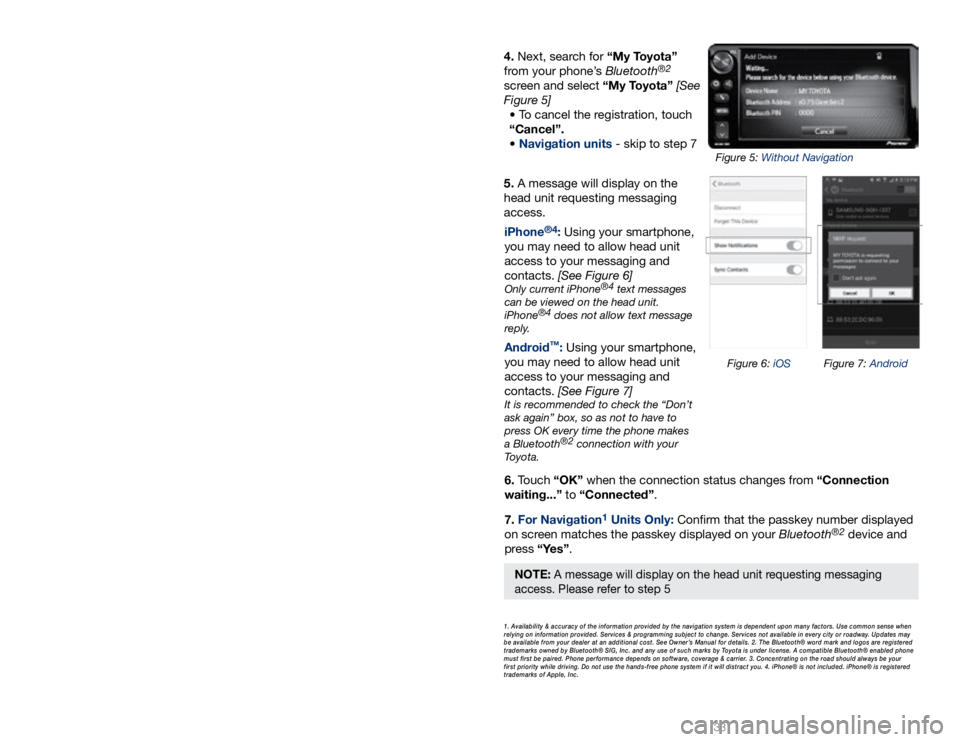
5. A message will display on the
head unit requesting messaging
access.6. Touch “OK” when the connection status changes from “Connection
waiting...” to “Connected”.
7. For Navigation
1 Units Only: Confi rm that the passkey number displayed
on screen matches the passkey displayed on your Bluetooth®2 device and
press “Yes”. iPhone
®4: Using your smartphone,
you may need to allow head unit
access to your messaging and
contacts. [See Figure 6]
Only current iPhone®4 text messages
can be viewed on the head unit.
iPhone
®4 does not allow text message
reply.
Android™: Using your smartphone,
you may need to allow head unit
access to your messaging and
contacts. [See Figure 7]
It is recommended to check the “Don’t
ask again” box, so as not to have to
press OK every time the phone makes
a Bluetooth
®2 connection with your
Toyota.
4. Next, search for “My Toyota”
from your phone’s Bluetooth®2
screen and select “My Toyota” [See
Figure 5] • To cancel the registration, touch
“Cancel”.
• Navigation units - skip to step 7
1. Availability & accuracy of the information provided by the navigation sys\
tem is dependent upon many factors. Use common sense when
relying on information provided. Services & programming subject to change. Services not available in every city or roadway. Updates may
be available from your dealer at an additional cost. See Owner’s Manual for details. 2. The Bluetooth® word mark and logos are regis\
tered
trademarks owned by Bluetooth® SIG, Inc. and any use of such marks by\
Toyota is under license. A compatible Bluetooth® enabled phone
must first be paired. Phone performance depends on software, coverage & \
carrier. 3. Concentrating on the road should always be your
first priority while driving. Do not use the hands-free phone system if \
it will distract you. 4. iPhone® is not included. iPhone® is registered
trademarks of Apple, Inc.
Figure 6: iOS Figure 7: Android
Figure 5: Without Navigation
NOTE: A message will display on the head unit requesting messaging
access. Please refer to step 5