glove box TOYOTA COROLLA iM 2018 Owners Manual (in English)
[x] Cancel search | Manufacturer: TOYOTA, Model Year: 2018, Model line: COROLLA iM, Model: TOYOTA COROLLA iM 2018Pages: 36, PDF Size: 1.57 MB
Page 2 of 36
COROLLA iM 2018
This Quick Reference Guide is a summary of basic vehicle
operations. It contains brief descriptions of fundamental
operations so you can locate and use the vehicle’s main
equipment quickly and easily.
The Quick Reference Guide is not intended as a substitute for
the Owner’s Manual located in your vehicle’s glove box. We
strongly encourage you to review the Owner’s Manual and
supplementary manuals so you will have a better understanding
of your vehicle’s capabilities and limitations.
Your dealership and the entire staff of Toyota Motor North
America, Inc. wish you many years of satisfi ed driving in your
new Corolla iM.
A word about safe vehicle operations
This Quick Reference Guide is not a full description of Corolla iM operations.
Every Corolla iM owner should review the Owner’s Manual that accompanies this
vehicle.
Pay special attention to the boxed information highlighted in color throughout the
Owner’s Manual. Each box contains safe operating instructions to help you avoi\
d
injury or equipment malfunction.
All information in this Quick Reference Guide is current at the time of printing.
Toyota reserves the right to make changes at any time without notice.
33
PAIRING BLUETOOTH® PHONE FOR THE FIRST TIME
5. A message will display on the
head unit requesting messaging
access.6. Touch “OK” when the connection status changes from “Connection
waiting...” to “Connected”.
7. For Navigation
1 Units Only: Confi rm that the passkey number displayed
on screen matches the passkey displayed on your Bluetooth®2 device and
press “Yes”. iPhone
®4: Using your smartphone,
you may need to allow head unit
access to your messaging and
contacts. [See Figure 6]
Only current iPhone®4 text messages
can be viewed on the head unit.
iPhone
®4 does not allow text message
reply.
Android™: Using your smartphone,
you may need to allow head unit
access to your messaging and
contacts. [See Figure 7]
It is recommended to check the “Don’t
ask again” box, so as not to have to
press OK every time the phone makes
a Bluetooth
®2 connection with your
Toyota.
4. Next, search for “My Toyota”
from your phone’s Bluetooth®2
screen and select “My Toyota” [See
Figure 5] • To cancel the registration, touch
“Cancel”.
• Navigation units - skip to step 7
1. Availability & accuracy of the information provided by the navigation sys\
tem is dependent upon many factors. Use common sense when
relying on information provided. Services & programming subject to change. Services not available in every city or roadway. Updates may
be available from your dealer at an additional cost. See Owner’s Manual for details. 2. The Bluetooth® word mark and logos are regis\
tered
trademarks owned by Bluetooth® SIG, Inc. and any use of such marks by\
Toyota is under license. A compatible Bluetooth® enabled phone
must first be paired. Phone performance depends on software, coverage & \
carrier. 3. Concentrating on the road should always be your
first priority while driving. Do not use the hands-free phone system if \
it will distract you. 4. iPhone® is not included. iPhone® is registered
trademarks of Apple, Inc.
Figure 6: iOS Figure 7: Android
Figure 5: Without Navigation
NOTE: A message will display on the head unit requesting messaging
access. Please refer to step 5
Page 5 of 36
3
OVERVIEW
FEATURES & OPERATIONS
TOYOTA SAFETY SENSE
SAFETY & EMERGENCY FEATURES
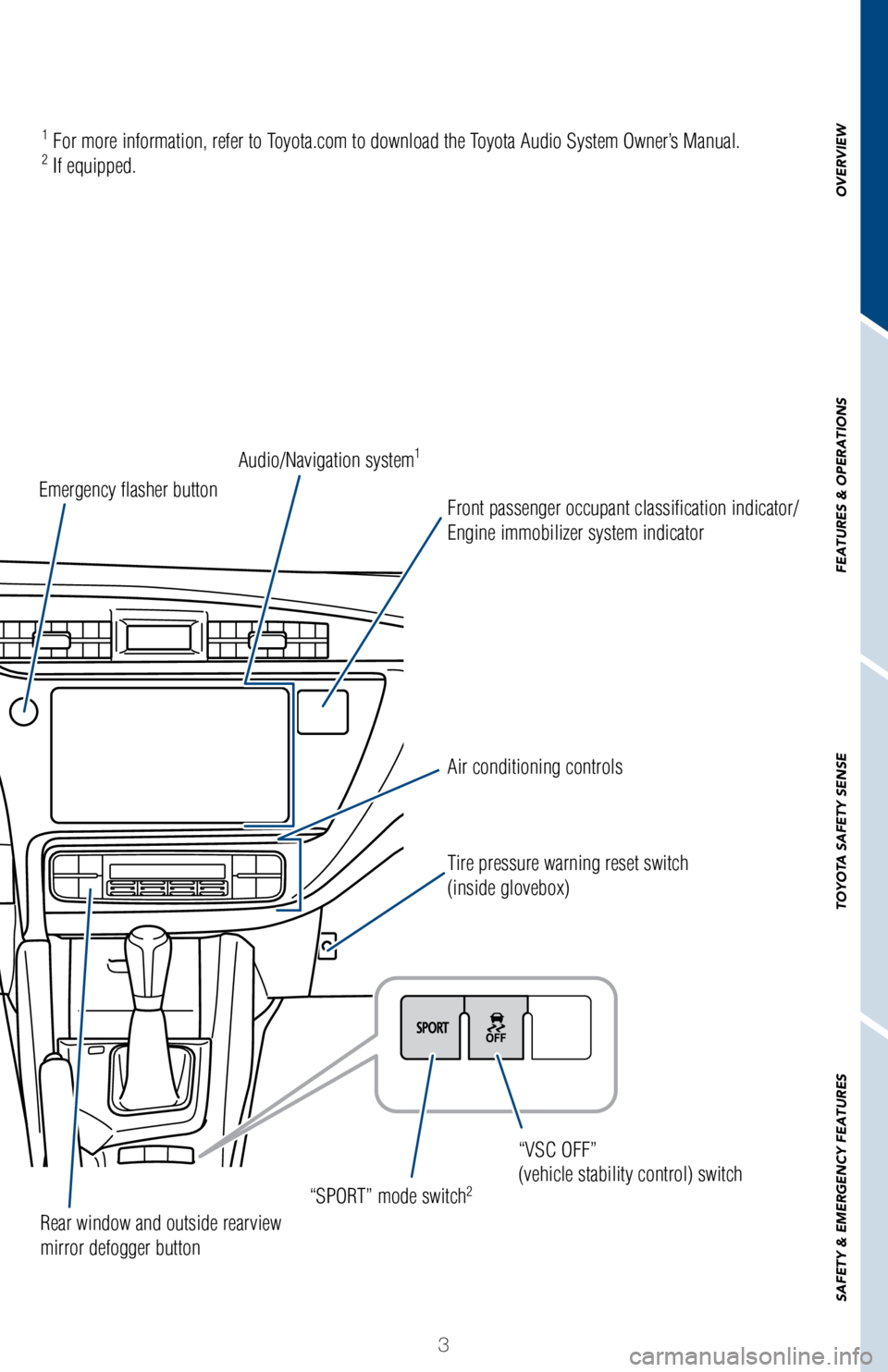
Air conditioning controls
“SPORT” mode switch
2
Tire pressure warning reset switch
(inside glovebox) “VSC OFF”
(vehicle stability control) switch
Rear window and outside rearview
mirror defogger button
Emergency flasher button
Audio/Navigation system
1
Front passenger occupant classification indicator/
Engine immobilizer system indicator
1 For more information, refer to Toyota.com to download the Toyota Audio System Owner’s Manual.2 If equipped.
Page 29 of 36
27
OVERVIEW
FEATURES & OPERATIONS
TOYOTA SAFETY SENSE
SAFETY & EMERGENCY FEATURES
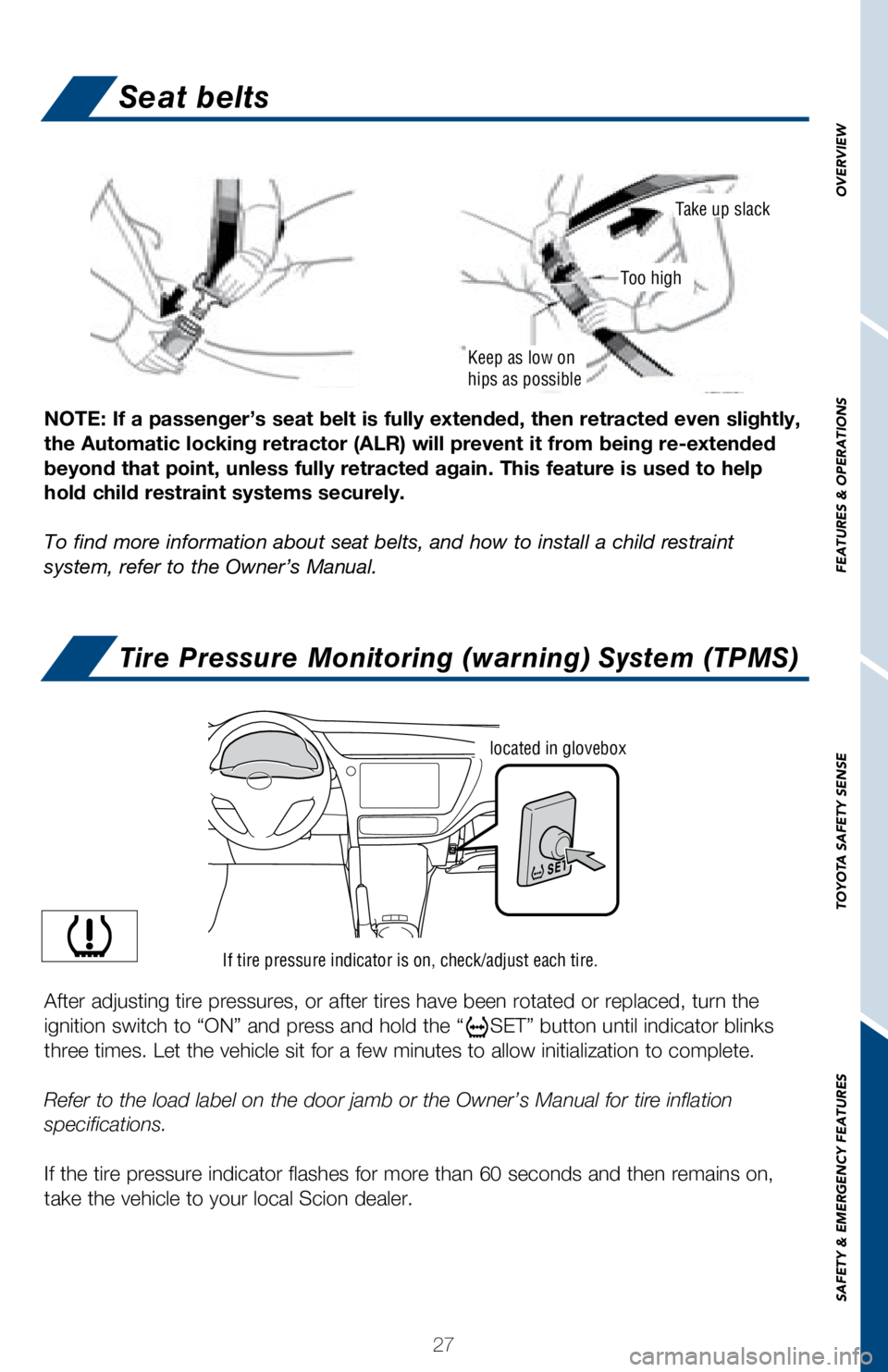
Seat belts
Tire Pressure Monitoring (warning) System (TPMS)
NOTE: If a passenger’s seat belt is fully extended, then retracted ev\
en slightly,
the Automatic locking retractor (ALR) will prevent it from being re-ex\
tended
beyond that point, unless fully retracted again. This feature is used to\
help
hold child restraint systems securely.
To find more information about seat belts, and how to install a child re\
straint
system, refer to the Owner’s Manual.
Keep as low on
hips as possible
Take up slack
Too high
If tire pressure indicator is on, check/adjust each tire.
located in glovebox
After adjusting tire pressures, or after tires have been rotated or repl\
aced, turn the
ignition switch to “ON” and press and hold the “
SET” button until indicator blinks
three times. Let the vehicle sit for a few minutes to allow initializati\
on to complete.
Refer to the load label on the door jamb or the Owner’s Manual for ti\
re inflation
specifications.
If the tire pressure indicator flashes for more than 60 seconds and then\
remains on,
take the vehicle to your local Scion dealer.
Page 35 of 36
COROLLA iM 2018
This Quick Reference Guide is a summary of basic vehicle
operations. It contains brief descriptions of fundamental
operations so you can locate and use the vehicle’s main
equipment quickly and easily.
The Quick Reference Guide is not intended as a substitute for
the Owner’s Manual located in your vehicle’s glove box. We
strongly encourage you to review the Owner’s Manual and
supplementary manuals so you will have a better understanding
of your vehicle’s capabilities and limitations.
Your dealership and the entire staff of Toyota Motor North
America, Inc. wish you many years of satisfi ed driving in your
new Corolla iM.
A word about safe vehicle operations
This Quick Reference Guide is not a full description of Corolla iM operations.
Every Corolla iM owner should review the Owner’s Manual that accompanies this
vehicle.
Pay special attention to the boxed information highlighted in color throughout the
Owner’s Manual. Each box contains safe operating instructions to help you avoi\
d
injury or equipment malfunction.
All information in this Quick Reference Guide is current at the time of printing.
Toyota reserves the right to make changes at any time without notice.
33
PAIRING BLUETOOTH® PHONE FOR THE FIRST TIME
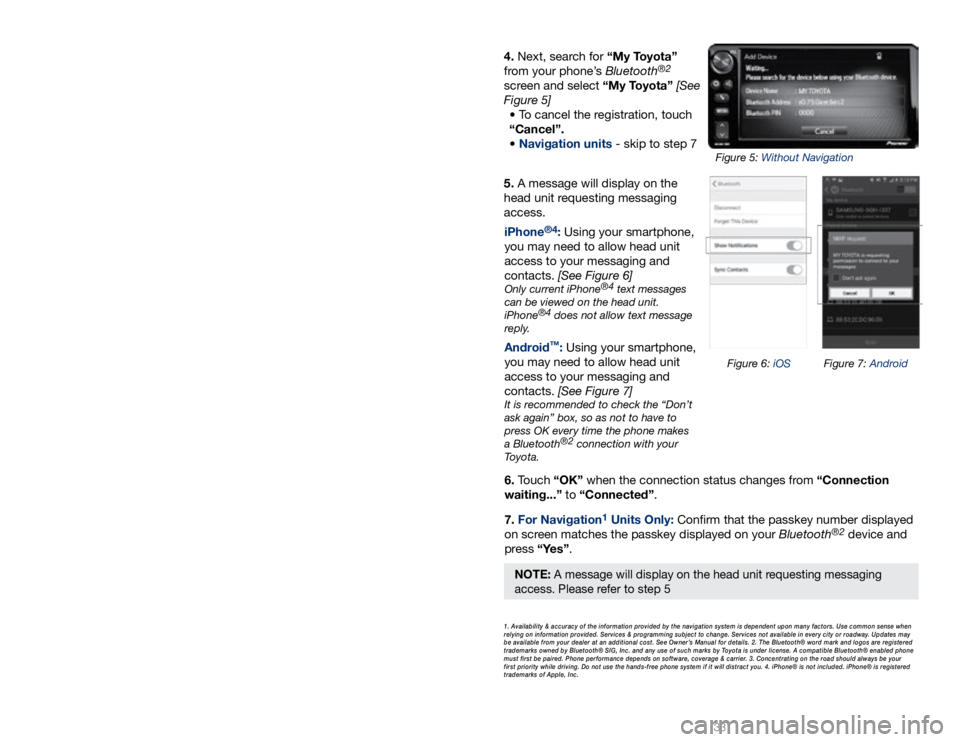
5. A message will display on the
head unit requesting messaging
access.6. Touch “OK” when the connection status changes from “Connection
waiting...” to “Connected”.
7. For Navigation
1 Units Only: Confi rm that the passkey number displayed
on screen matches the passkey displayed on your Bluetooth®2 device and
press “Yes”. iPhone
®4: Using your smartphone,
you may need to allow head unit
access to your messaging and
contacts. [See Figure 6]
Only current iPhone®4 text messages
can be viewed on the head unit.
iPhone
®4 does not allow text message
reply.
Android™: Using your smartphone,
you may need to allow head unit
access to your messaging and
contacts. [See Figure 7]
It is recommended to check the “Don’t
ask again” box, so as not to have to
press OK every time the phone makes
a Bluetooth
®2 connection with your
Toyota.
4. Next, search for “My Toyota”
from your phone’s Bluetooth®2
screen and select “My Toyota” [See
Figure 5] • To cancel the registration, touch
“Cancel”.
• Navigation units - skip to step 7
1. Availability & accuracy of the information provided by the navigation sys\
tem is dependent upon many factors. Use common sense when
relying on information provided. Services & programming subject to change. Services not available in every city or roadway. Updates may
be available from your dealer at an additional cost. See Owner’s Manual for details. 2. The Bluetooth® word mark and logos are regis\
tered
trademarks owned by Bluetooth® SIG, Inc. and any use of such marks by\
Toyota is under license. A compatible Bluetooth® enabled phone
must first be paired. Phone performance depends on software, coverage & \
carrier. 3. Concentrating on the road should always be your
first priority while driving. Do not use the hands-free phone system if \
it will distract you. 4. iPhone® is not included. iPhone® is registered
trademarks of Apple, Inc.
Figure 6: iOS Figure 7: Android
Figure 5: Without Navigation
NOTE: A message will display on the head unit requesting messaging
access. Please refer to step 5