control TOYOTA HILUX 2018 Owners Manual
[x] Cancel search | Manufacturer: TOYOTA, Model Year: 2018, Model line: HILUX, Model: TOYOTA HILUX 2018Pages: 708, PDF Size: 95.31 MB
Page 410 of 708
4105-1. Basic Operations
HILUX_OM_OM0K375E_(EE)
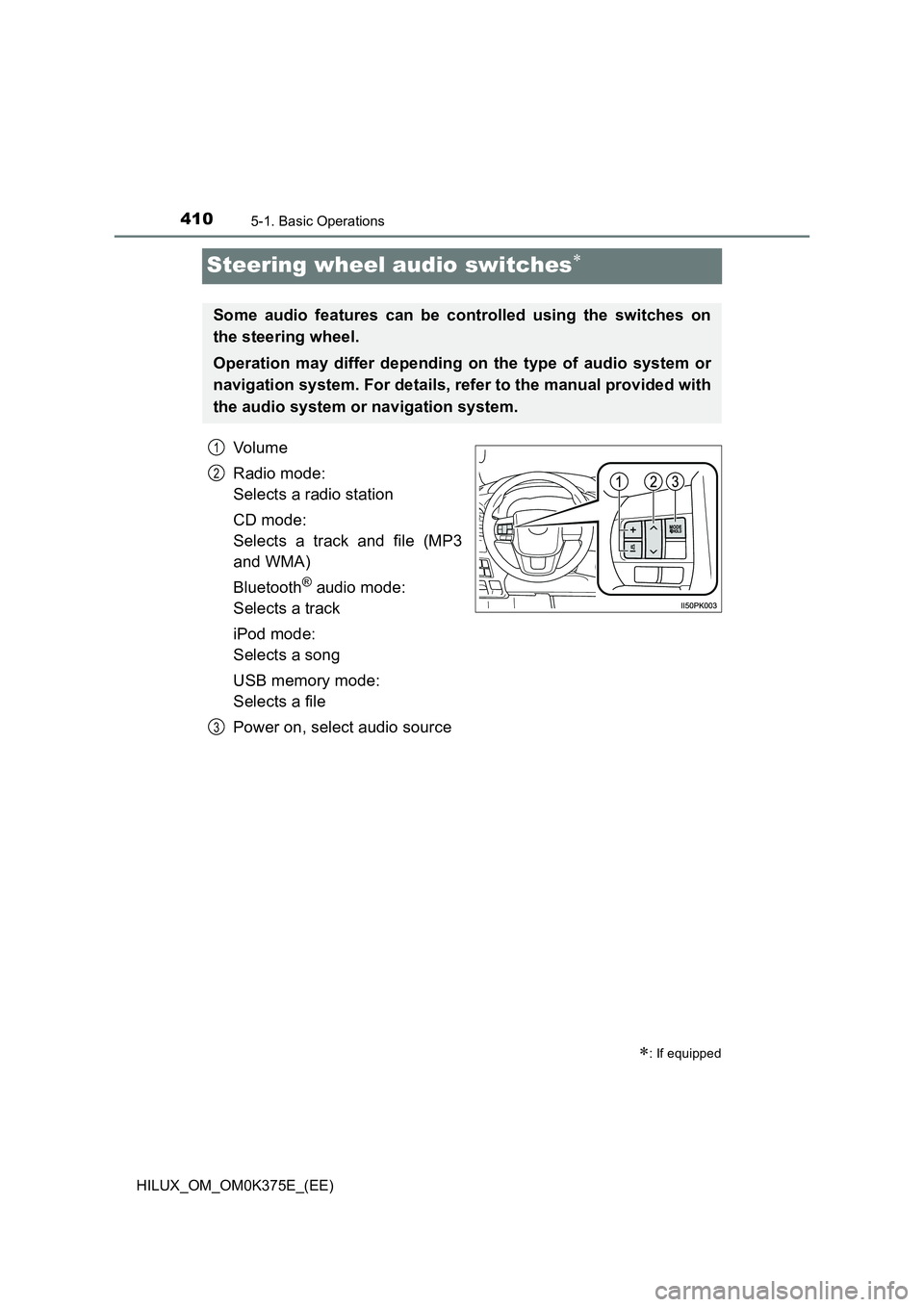
Steering wheel audio switches
Vo lu m e
Radio mode:
Selects a radio station
CD mode:
Selects a track and file (MP3
and WMA)
Bluetooth® audio mode:
Selects a track
iPod mode:
Selects a song
USB memory mode:
Selects a file
Power on, select audio source
: If equipped
Some audio features can be controlled using the switches on
the steering wheel.
Operation may differ depending on the type of audio system or
navigation system. For details, refer to the manual provided with
the audio system or navigation system.
1
2
3
Page 413 of 708
413
5
5-1. Basic Operations
Audio system
HILUX_OM_OM0K375E_(EE)
AUX port/USB port
■iPod
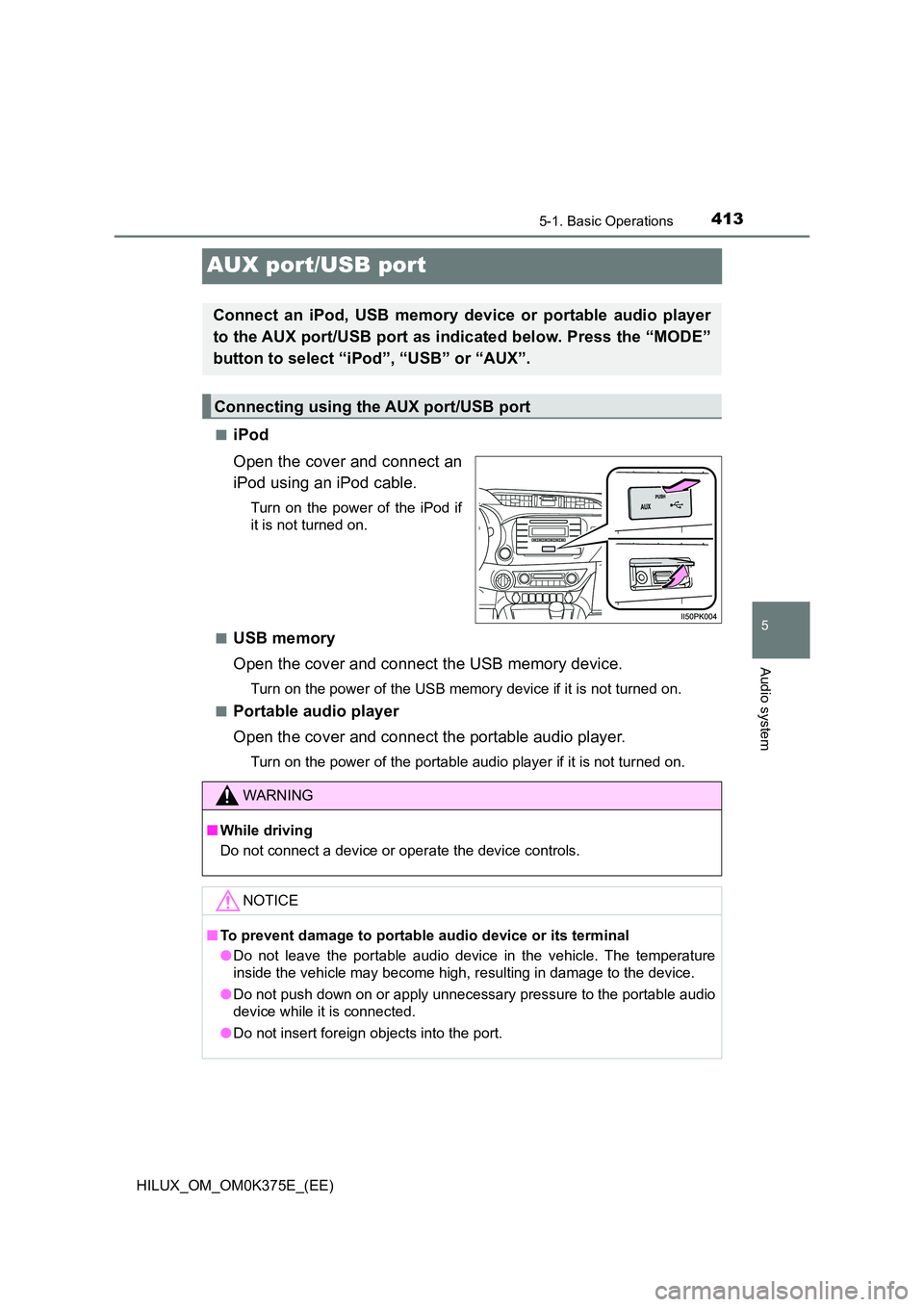
Open the cover and connect an
iPod using an iPod cable.
Turn on the power of the iPod if
it is not turned on.
■USB memory
Open the cover and connect the USB memory device.
Turn on the power of the USB memory device if it is not turned on.
■Portable audio player
Open the cover and connect the portable audio player.
Turn on the power of the portable audio player if it is not turned on.
Connect an iPod, USB memory device or portable audio player
to the AUX port/USB port as indicated below. Press the “MODE”
button to select “iPod”, “USB” or “AUX”.
Connecting using the AUX port/USB port
WARNING
■ While driving
Do not connect a device or operate the device controls.
NOTICE
■ To prevent damage to portable audio device or its terminal
● Do not leave the portable audio device in the vehicle. The temperature
inside the vehicle may become high, resulting in damage to the device.
● Do not push down on or apply unnecessary pressure to the portable audio
device while it is connected.
● Do not insert foreign objects into the port.
Page 414 of 708
4145-2. Using the audio system
HILUX_OM_OM0K375E_(EE)
Optimal use of the audio system
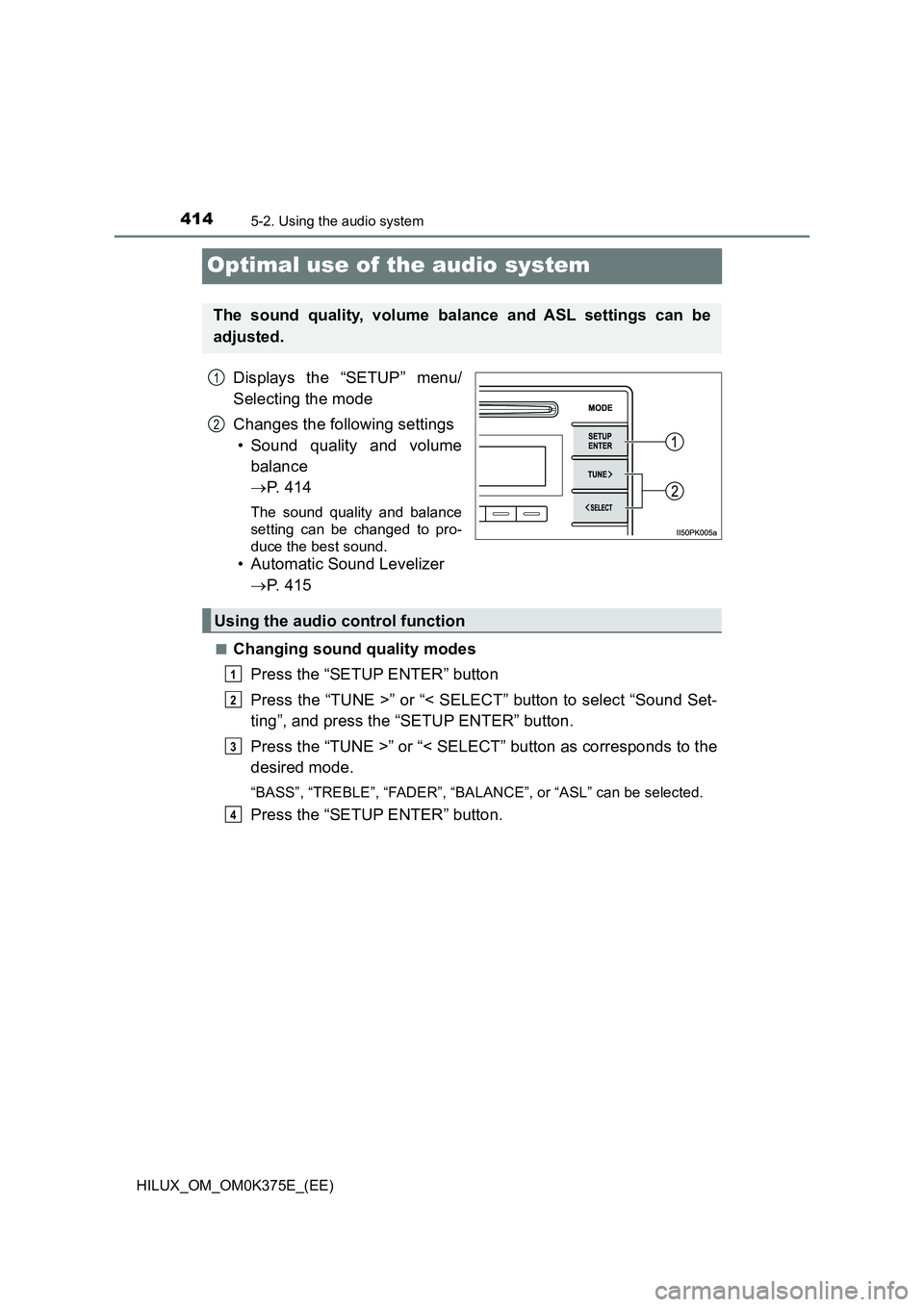
Displays the “SETUP” menu/
Selecting the mode
Changes the following settings
• Sound quality and volume
balance
P. 4 1 4
The sound quality and balance
setting can be changed to pro-
duce the best sound.
• Automatic Sound Levelizer
P. 4 1 5
■Changing sound quality modes
Press the “SETUP ENTER” button
Press the “TUNE >” or “< SELECT” button to select “Sound Set-
ting”, and press the “SETUP ENTER” button.
Press the “TUNE >” or “< SELECT” button as corresponds to the
desired mode.
“BASS”, “TREBLE”, “FADER”, “BAL ANCE”, or “ASL” can be selected.
Press the “SETUP ENTER” button.
The sound quality, volume balance and ASL settings can be
adjusted.
1
2
Using the audio control function
1
2
3
4
Page 431 of 708
431
5
5-5. Using an external device
Audio system
HILUX_OM_OM0K375E_(EE)
Listening to an iPod
P. 4 1 3
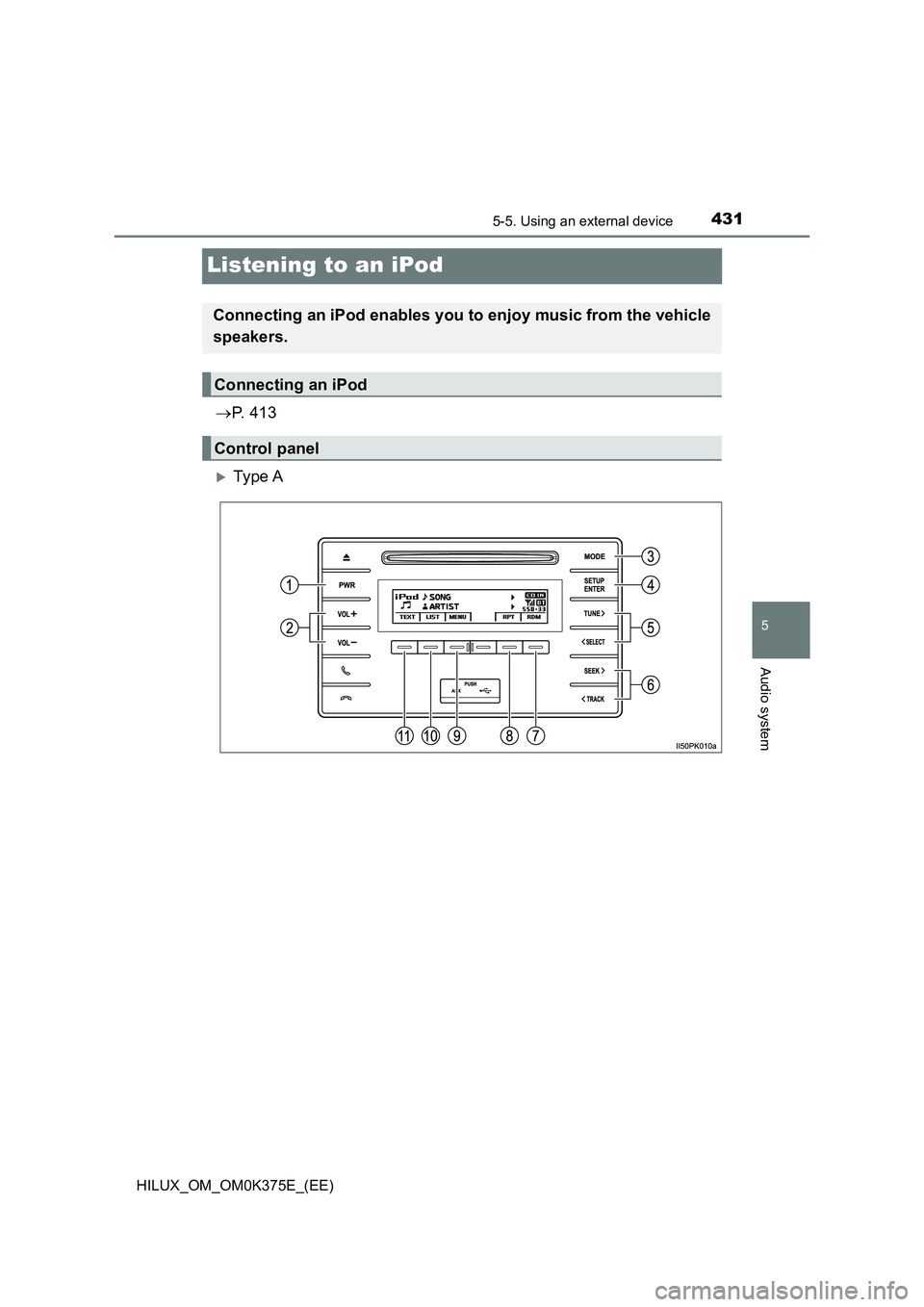
Ty pe A
Connecting an iPod enables you to enjoy music from the vehicle
speakers.
Connecting an iPod
Control panel
Page 435 of 708
4355-5. Using an external device
5
Audio system
HILUX_OM_OM0K375E_(EE)
Press (TEXT) to display or hide the album title.
If there are continuing texts, is displayed.
Press and hold (TEXT) to display the remaining texts.
■ About iPod
● “Made for iPod” and “Made for iPhone” mean that an electronic accessory
has been designed to connect specifically to iPod, or iPhone, respectively,
and has been certified by the developer to meet Apple performance
standards.
● Apple is not responsible for the operation of this device or its compliance
with safety and regulatory standards. Please note that the use of this
accessory with iPod or iPhone may affect wireless performance.
● iPhone, iPod, iPod classic, iPod nano, iPod shuffle, and iPod touch are
trademarks of Apple Inc., registered in the U.S. and other countries.
■ iPod functions
● When an iPod is connected and the audio source is changed to iPod mode,
the iPod will resume play from the same point in which it was last used.
● Depending on the iPod that is connected to the system, certain functions
may not be available. Disconnecting the device and reconnecting it once
again may resolve some malfunctions.
● While connected to the system, the iPod cannot be operated with its own
controls. It is necessary to use the controls of the vehicle’s audio system
instead.
Switching the display
Page 437 of 708
4375-5. Using an external device
5
Audio system
HILUX_OM_OM0K375E_(EE)
■ Compatible models
The following iPod®, iPod nano®, iPod classic®, iPod touch® and iPhone®
devices can be used with this system.
● Made for
• iPod touch (5th generation)
• iPod touch (4th generation)
• iPod touch (3rd generation)
• iPod touch (2nd generation)
• iPod touch (1st generation)
• iPod classic
• iPod with video
• iPod nano (7th generation)
• iPod nano (6th generation)
• iPod nano (5th generation)
• iPod nano (4th generation)
• iPod nano (3rd generation)
• iPod nano (2nd generation)
• iPod nano (1st generation)
• iPhone 5s
• iPhone 5c
• iPhone 5
• iPhone 4S
• iPhone 4
• iPhone 3GS
• iPhone 3G
• iPhone
Depending on differences between models or software versions etc., some
models might be incompatible with this system.
Items related to standards and limitations are as follows:
● Maximum number of lists in device: 9999
● Maximum number of songs in device: 65535
● Maximum number of songs per list: 65535
WARNING
■While driving
Do not connect iPod or operate the controls. Doing so may cause an acci-
dent, resulting in death or serious injury.
Page 439 of 708
439
5
5-5. Using an external device
Audio system
HILUX_OM_OM0K375E_(EE)
Listening USB memory device
P. 4 1 3
Ty pe A
Connecting a USB memory enables you to enjoy music from the
vehicle speakers.
Connecting a USB memory
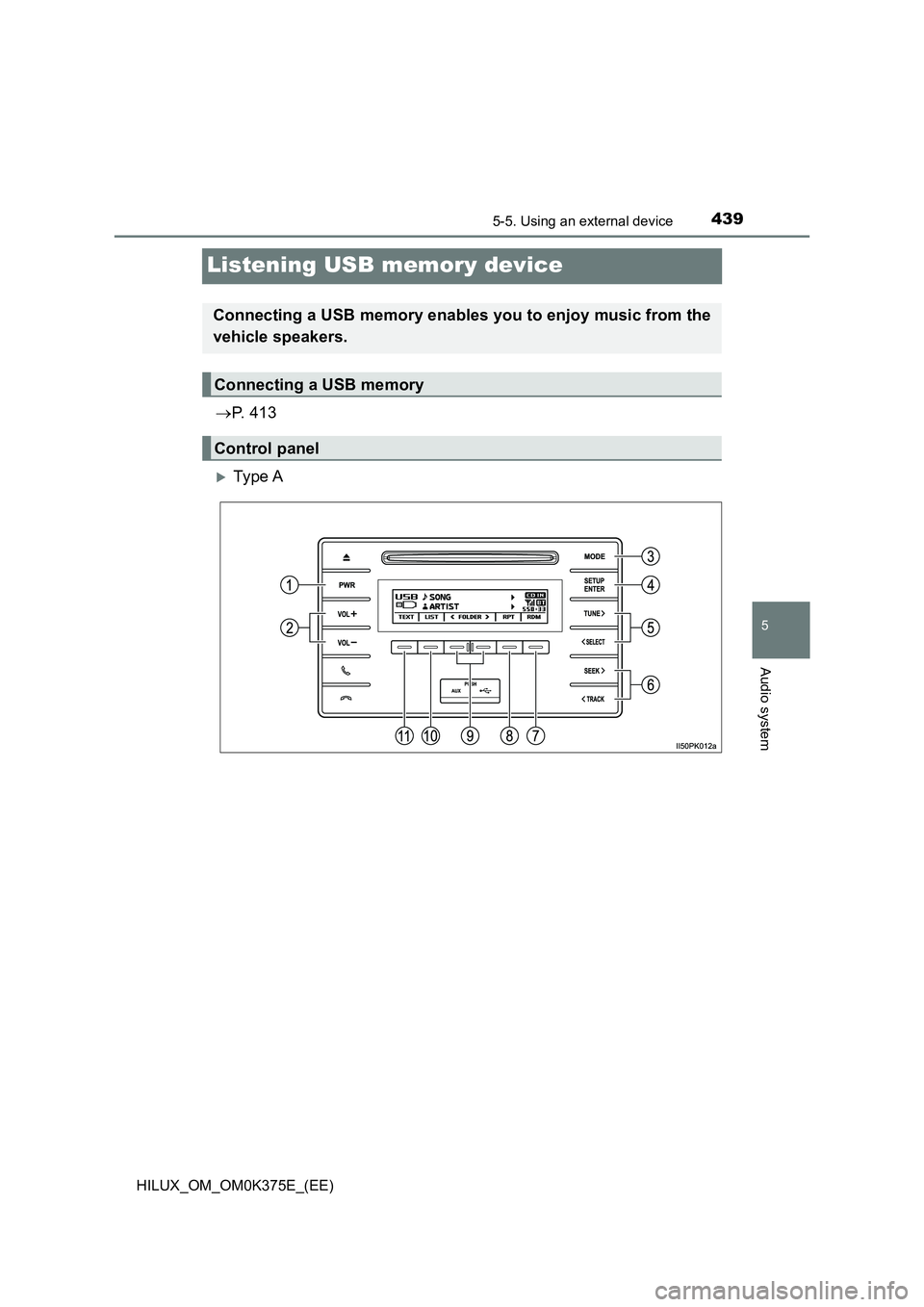
Control panel
Page 445 of 708
4455-5. Using an external device
5
Audio system
HILUX_OM_OM0K375E_(EE)
● Playback
• To play MP3 files with steady s ound quality, we recommend a fixed bit
rate of at least 128 kbps and a sampling frequency of 44.1 kHz.
• There is a wide variety of freewar e and other encoding software for MP3
and WMA files on the market, and depending on the status of the encod-
ing and the file format, poor sound quality or noise at the start of playback
may result. In some cases, playback may not be possible at all.
• Microsoft, Windows, and Windows Media are registered trademarks of
Microsoft Corporation in the U.S.A. and other countries.
WARNING
■ While driving
Do not connect USB memory or operate the controls. Doing so may cause
an accident, resulting in death or serious injury.
NOTICE
■ To prevent damage to USB memory
● Do not leave USB memory in the vehicle. The temperature inside the vehi-
cle may become high, resulting in damage to the USB memory.
● Do not push down on or apply unnecessary pressure to the USB memory
while it is connected as this may damage the USB memory or its terminal.
● Do not insert foreign objects into the port as this may damage the USB
memory or its terminal.
Page 446 of 708
4465-5. Using an external device
HILUX_OM_OM0K375E_(EE)
Using the AUX port
P. 4 1 3
■Operating portable audio devices connected to the audio system
The volume can be adjusted using the vehicle’s audio controls. All other
adjustments must be made on the portable audio device itself.
■ When using a portable audio device connected to the power outlet
Noise may occur during playback. Use the power source of the portable
audio device.
This port can be used to connect a portable audio device and lis-
ten to it using the vehicle’s speakers.
Connecting a portable player
Page 475 of 708
4755-10. Bluetooth®
5
Audio system
HILUX_OM_OM0K375E_(EE)
■ Compatible models
● Bluetooth® specifications:
Ver. 1.1, or higher (Recommended: Ver. 2.1 + EDR or higher)
● Following Profiles:
• A2DP (Advanced Audio Distribution Profile) Ver. 1.0 or higher (recom-
mended: Ver. 1.2 or higher)
• AVRCP (Audio/Video Remote Control Profile) Ver. 1.0 or higher (recom-
mended: Ver. 1.3 or higher)
Portable players must correspond to the above specifications in order to be
connected to the Bluetooth® audio/phone. However, please note that some
functions may be limited depending on the type of portable player.
● Cellular phone
• HFP (Hands Free Profile) Ver. 1.0 or higher (Recommended: Ver. 1.5)
• OPP (Object Push Profile) Ver. 1.1
• PBAP (Phone Book Access Profile) Ver. 1.0