light TOYOTA MIRAI 2023 Service Manual
[x] Cancel search | Manufacturer: TOYOTA, Model Year: 2023, Model line: MIRAI, Model: TOYOTA MIRAI 2023Pages: 572, PDF Size: 17.71 MB
Page 104 of 572
1043-1. Instrument cluster
Owners Manual_USA_M62064_en
■Liquid crystal display
P. 1 0 6
■Customization
Settings (e. g. meter display) can be
changed on screen of the multi-
information display. ( P.512)
■Display items
Odometer
Displays the total distance the vehi-
cle has been driven.
Trip meter A/Trip meter B
Displays the distan ce the vehicle
has been driven si nce the meter
was last reset. Trip meters A and B
can be used to record and display
different distances independently.
■Changing the display
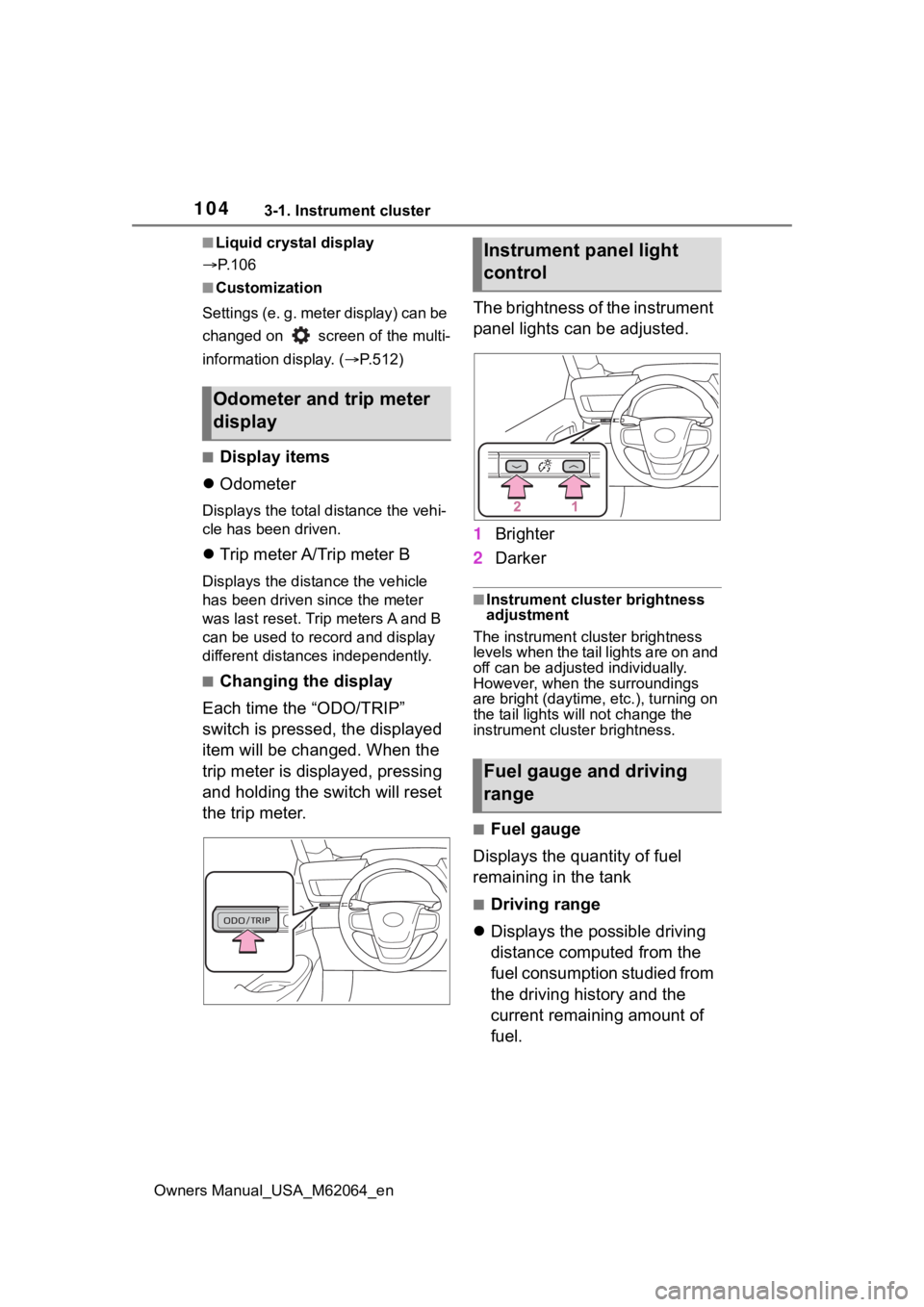
Each time the “ODO/TRIP”
switch is pressed, the displayed
item will be changed. When the
trip meter is displayed, pressing
and holding the switch will reset
the trip meter. The brightness of the instrument
panel lights can be adjusted.
1
Brighter
2 Darker
■Instrument cluster brightness
adjustment
The instrument cluster brightness
levels when the tail lights are on and
off can be adjusted individually.
However, when the surroundings
are bright (daytime, etc.), turning on
the tail lights will not change the
instrument cluster brightness.
■Fuel gauge
Displays the quantity of fuel
remaining in the tank
■Driving range
Displays the possible driving
distance computed from the
fuel consumption studied from
the driving history and the
current remaining amount of
fuel.
Odometer and trip meter
display
Instrument panel light
control
Fuel gauge and driving
range
Page 105 of 572
1053-1. Instrument cluster
Owners Manual_USA_M62064_en
3
Vehicle status information and indicators
When the air conditioning sys-
tem is operating, is dis-
played next to the driving
range and this will be the driv-
ing range with the air condi-
tioning system on is
displayed.
■When the low fuel level warning
light turns on
The low fuel level warning light turns
on ( P.460) when the fuel gets low.
In that case, refuel the vehicle.
■Possible Driving Distance
●The actual possible driving dis-
tance may differ as fuel consump-
tion changes, depending on
driving environment (weather, traf-
fic, etc.) and cond itions (sudden
acceleration, air conditioning,
etc.).
●The driving range may shorten
even when not driving due to
power consumption by the sys-
tem.
●The possible driv ing distance will
be displayed as “--- miles (--- km)”
in the following cases:
• When the remaining fuel is being calculated (short time).
• When the remaining fuel total reaches “E”.
• When a malfunction occurs where
the possible drivi ng distance can-
not be calculated.
Following information is dis-
played on the multi-information
display.
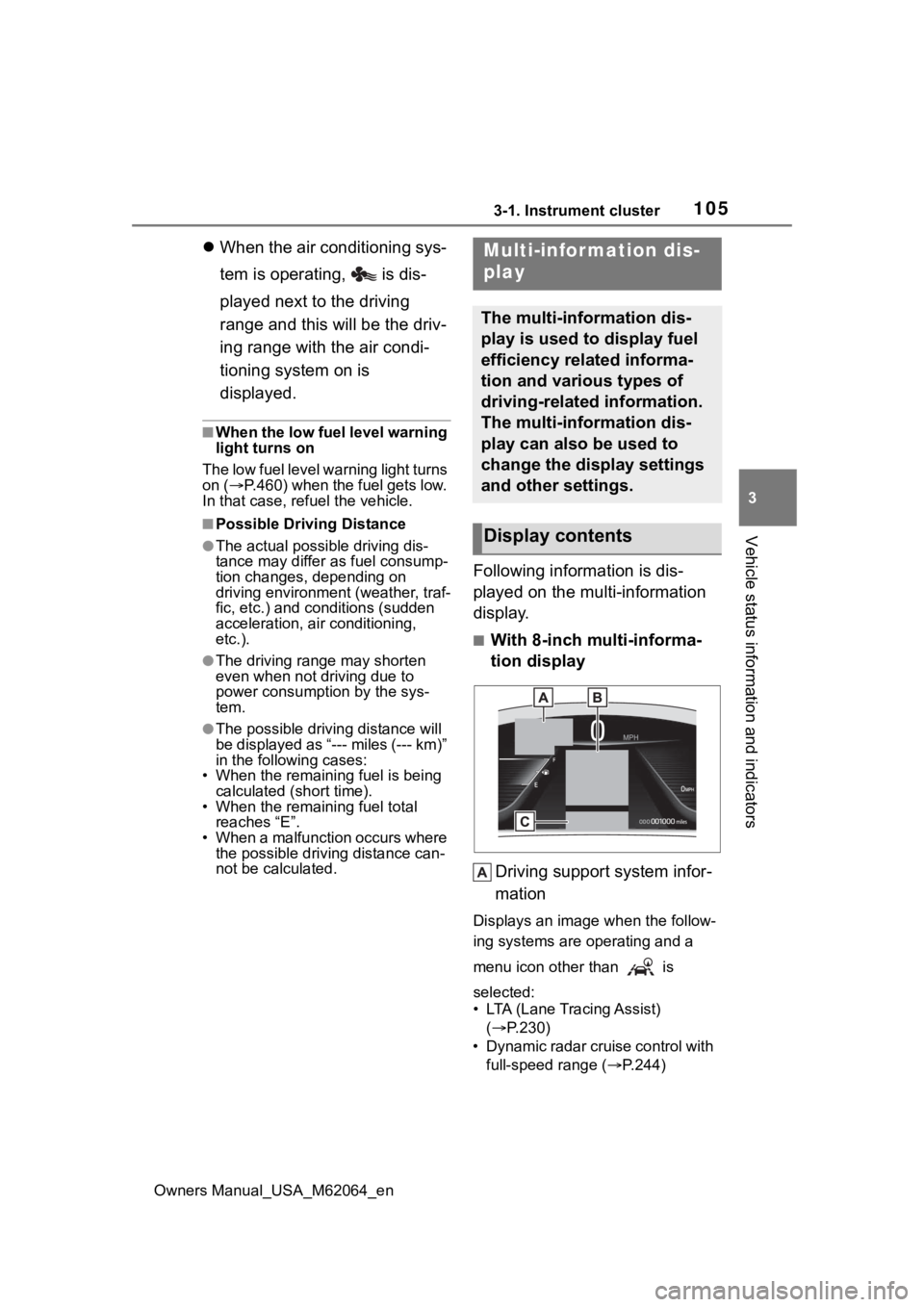
■With 8-inch multi-informa-
tion display
Driving support system infor-
mation
Displays an image when the follow-
ing systems are operating and a
menu icon other than is
selected:
• LTA (Lane Tracing Assist) ( P.230)
• Dynamic radar cruise control with full-speed range ( P.244)
Multi-infor mation dis-
play
The multi-information dis-
play is used to display fuel
efficiency related informa-
tion and various types of
driving-related information.
The multi-information dis-
play can also be used to
change the display settings
and other settings.
Display contents
Page 106 of 572
1063-1. Instrument cluster
Owners Manual_USA_M62064_en• RSA (Road Sign Assist) (if
equipped) ( P.241)
Information display area
A variety of information can be dis-
played by selecting a menu icon.
Additionally, warning or sugges-
tion/advice pop- up displays will be
displayed in some situations.
Menu icons ( P.107)
■With 12.3-inch multi-infor-
mation display
By selecting menu icons
( P.107) on the multi-informa-
tion display, a variety of driving-
related information can be dis-
played. The multi-information
display can also be used to
change display settings and
other vehicle settings. Warning
or suggestion/advice pop-up
displays are also displayed in
certain situations.
■The multi-information display is
displayed when
The power swit ch is in ON.
■When changing driving mode
Background color of the multi-infor-
mation display is changed following
the selected driving mode. ( P.320,
321)
■Liquid crystal display
Small spots or light spots may
appear on the display. This phenom-
enon is characteristic of liquid crys-
tal displays, and there is no problem
continuing to use the display.
The multi-information display is
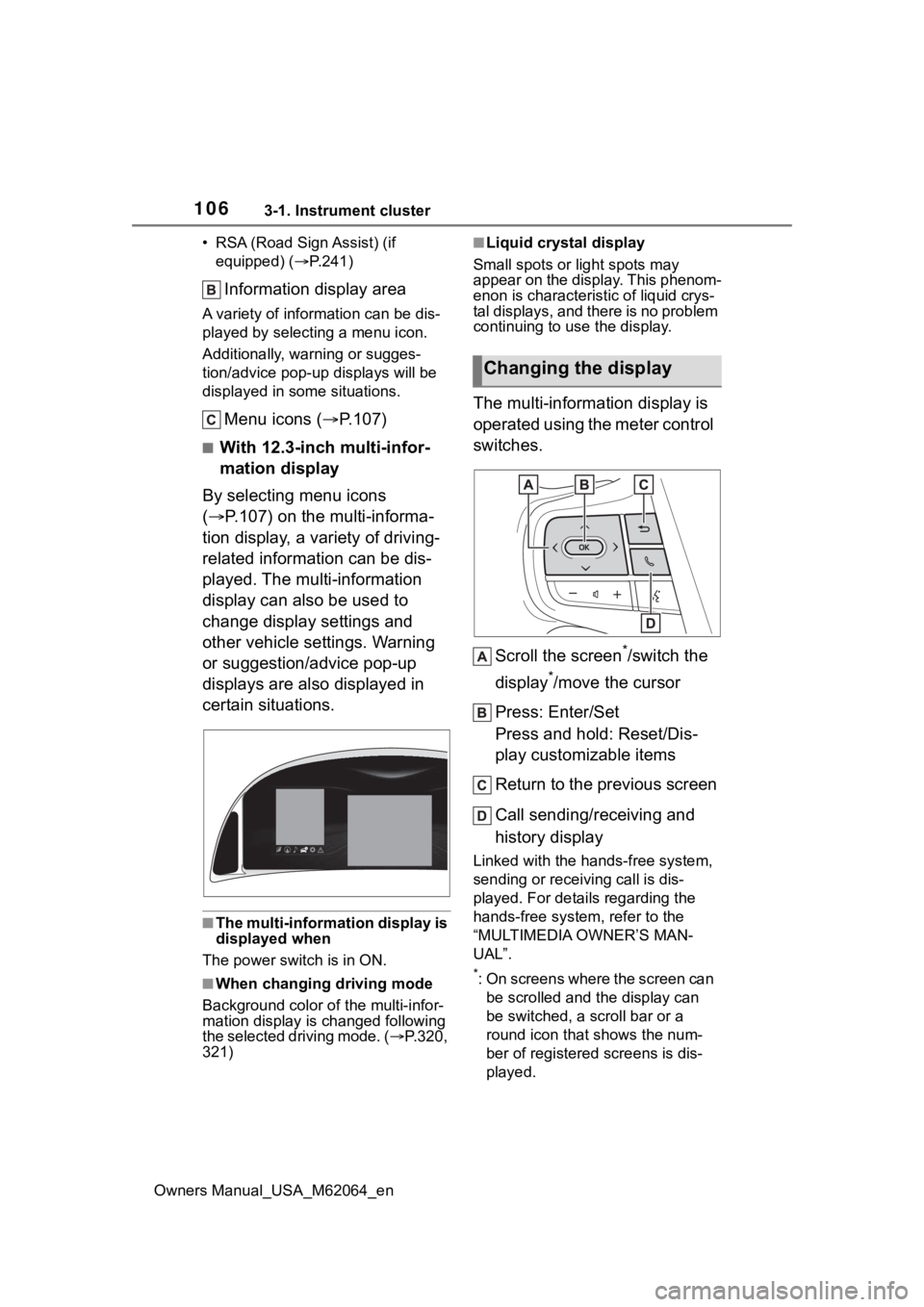
operated using the meter control
switches.
Scroll the screen
*/switch the
display
*/move the cursor
Press: Enter/Set
Press and hold: Reset/Dis-
play customizable items
Return to the previous screen
Call sending/receiving and
history display
Linked with the hands-free system,
sending or receiving call is dis-
played. For details regarding the
hands-free system, refer to the
“MULTIMEDIA OWNER’S MAN-
UAL”.
*: On screens where the screen can be scrolled and the display can
be switched, a scroll bar or a
round icon that shows the num-
ber of registered screens is dis-
played.
Changing the display
Page 112 of 572
1123-1. Instrument cluster
Owners Manual_USA_M62064_en
(Audio settings)
Select to enable/disable
screen.
(Vehicle information dis-
play settings)
• Display Contents
Select to set up the following items.
Energy monitor:
Select to enable/disable the Energy
monitor ( P.119)
• Drive Info Type
Select to change the drive informa-
tion type display between trip and
total. ( P. 111 ) .
• Drive Info Items
Select to set the items on the upper
and lower side of the drive informa-
tion screen from three items, aver-
age speed, distance and total time.
Trip Summary
Select to set the i tems displayed
when the power switch is turned off.
Pop-Up Display
Select to enable/disable pop-up
displays for each relevant system.
Multi-information display off
Select to turn the m ulti-information
display off.
To turn the multi-in formation display
on again, press any of the meter
control switches.
Default Settings
Select to reset the meter display
settings.
■Suspension of the settings dis-
play
●In the following situations, opera-
tion of the settings display will be
temporarily suspended.
• When a warning message appears on the multi-information
display
• When the vehicle begins to move
●Settings for functions not
equipped to the vehicle are not
displayed.
●When a function is turned off, the
related settings for that function
are not selectable.
Select to display warning mes-
sages and measures to be
taken if a malfunction is
detected. ( P.464)
Displays suggestions to the
driver in the following situations.
To select a response to a dis-
played suggestion, use the
meter control switches.
■Suggestion to turn on the
headlights
If the headlight switch is in other
than or , and the vehicle
speed is 3 mph (5 km/h) or
NOTICE
■During setting up the display
To prevent 12-volt battery dis-
charge, ensure that the fuel cell
system is operating while setting
up the display features.
Warning message display
Suggestion function
Page 113 of 572

1133-1. Instrument cluster
Owners Manual_USA_M62064_en
3
Vehicle status information and indicators
higher for a certain amount of
time when the surroundings are
dark, a suggestion message will
be displayed.
■Suggestion to turn off the
headlights
If the headlights are left on for a
certain amount of time after the
power switch has been turned
off, a suggestion message will
be displayed.
When the headlight switch is in
the AUTO position: The mes-
sage asking if you wish to turn
the headlights off is displayed.
To turn the headlights off, select
“Yes”.
If the driver’s door is opened after
the power switch is turned off, this
suggestion message will not be dis-
played.
■Customization
The suggestion function can be
turned on/off. (Customizable fea-
tures: P.512)
Page 120 of 572
1203-1. Instrument cluster
Owners Manual_USA_M62064_en
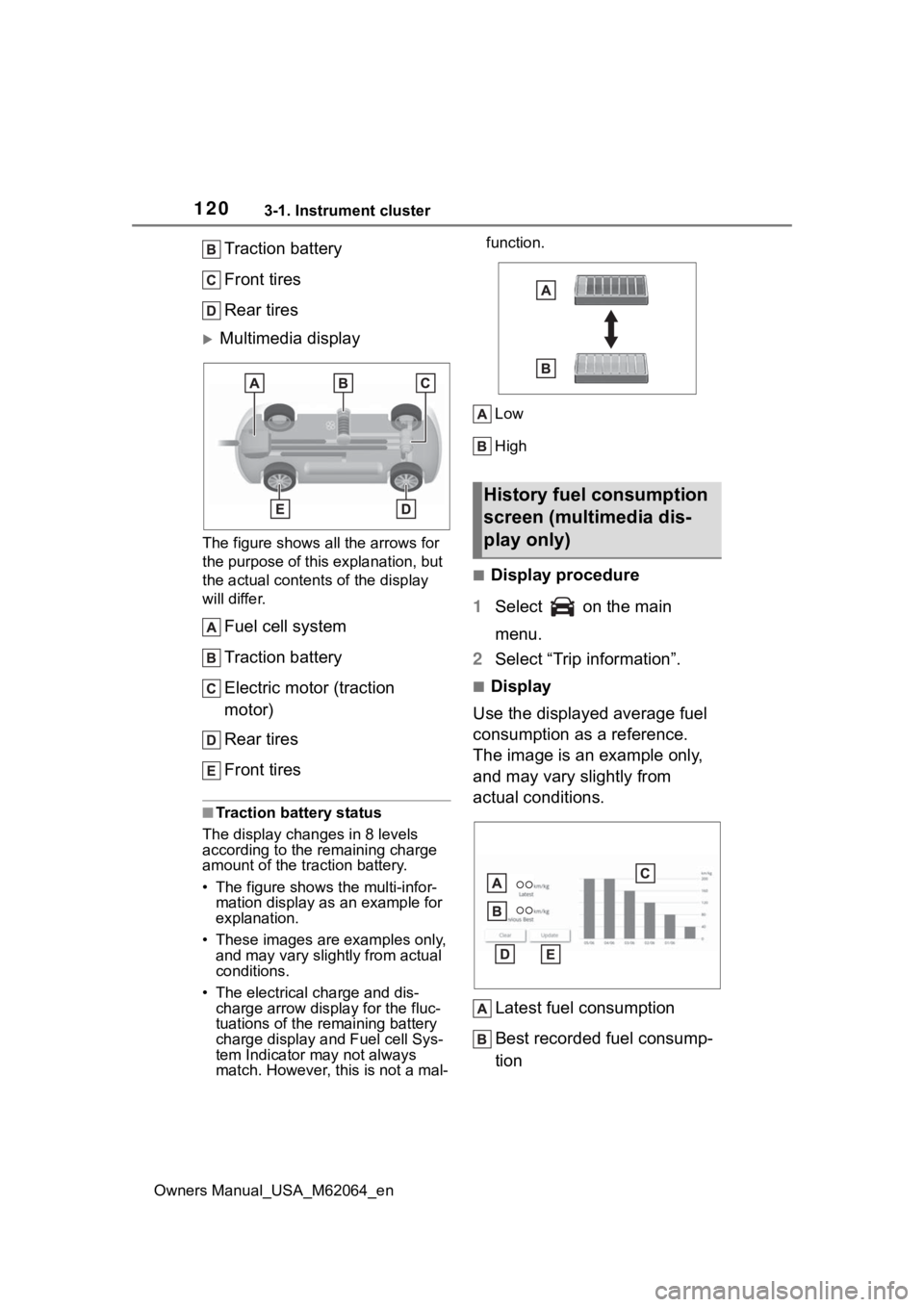
Traction battery
Front tires
Rear tires
Multimedia display
The figure shows all the arrows for
the purpose of this explanation, but
the actual contents of the display
will differ.
Fuel cell system
Traction battery
Electric motor (traction
motor)
Rear tires
Front tires
■Traction battery status
The display changes in 8 levels
according to the remaining charge
amount of the traction battery.
• The figure shows the multi-infor- mation display as an example for
explanation.
• These images are examples only, and may vary slight ly from actual
conditions.
• The electrical charge and dis- charge arrow display for the fluc-
tuations of the remaining battery
charge display and Fuel cell Sys-
tem Indicator may not always
match. However, this is not a mal- function.
Low
High
■Display procedure
1 Select on the main
menu.
2 Select “Trip information”.
■Display
Use the displayed average fuel
consumption as a reference.
The image is an example only,
and may vary slightly from
actual conditions.
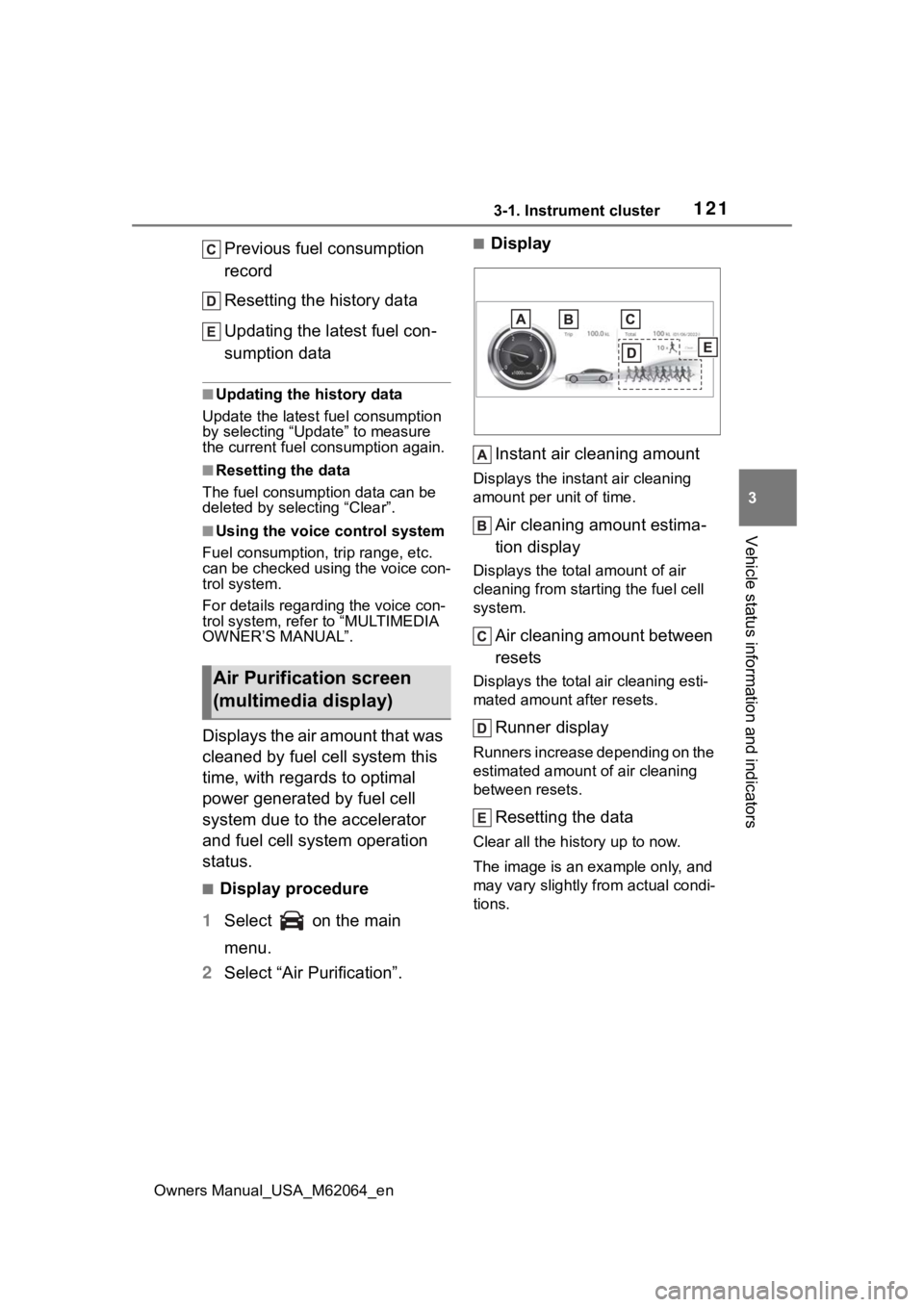
Latest fuel consumption
Best recorded fuel consump-
tion
History fuel consumption
screen (multimedia dis-
play only)
Page 121 of 572
1213-1. Instrument cluster
Owners Manual_USA_M62064_en
3
Vehicle status information and indicators
Previous fuel consumption
record
Resetting the history data
Updating the latest fuel con-
sumption data
■Updating the history data
Update the latest fuel consumption
by selecting “Upda te” to measure
the current fuel consumption again.
■Resetting the data
The fuel consumption data can be
deleted by selecting “Clear”.
■Using the voice control system
Fuel consumption, trip range, etc.
can be checked using the voice con-
trol system.
For details regardi ng the voice con-
trol system, refer to “MULTIMEDIA
OWNER’S MANUAL”.
D i s p l a y s t h e a i r a m o u n t t h a t w a s
cleaned by fuel cell system this
time, with regards to optimal
power generated by fuel cell
system due to the accelerator
and fuel cell system operation
status.
■Display procedure
1 Select on the main
menu.
2 Select “Air Purification”.
■Display
Instant air cleaning amount
Displays the instant air cleaning
amount per unit of time.
Air cleaning amount estima-
tion display
Displays the total amount of air
cleaning from starting the fuel cell
system.
Air cleaning amount between
resets
Displays the total air cleaning esti-
mated amount after resets.
Runner display
Runners increase depending on the
estimated amount of air cleaning
between resets.
Resetting the data
Clear all the history up to now.
The image is an example only, and
may vary slightly from actual condi-
tions.
Air Purification screen
(multimedia display)
Page 125 of 572
1254-1. Key information
Owners Manual_USA_M62064_en
4
Before driving
approximately 10 days after a new
electronic key has been registered.
If this message is displayed but you
have not had a new electronic key
registered, ask your Toyota dealer to
check if an unknow n electronic key
(other than those in your posses-
sion) has been registered.
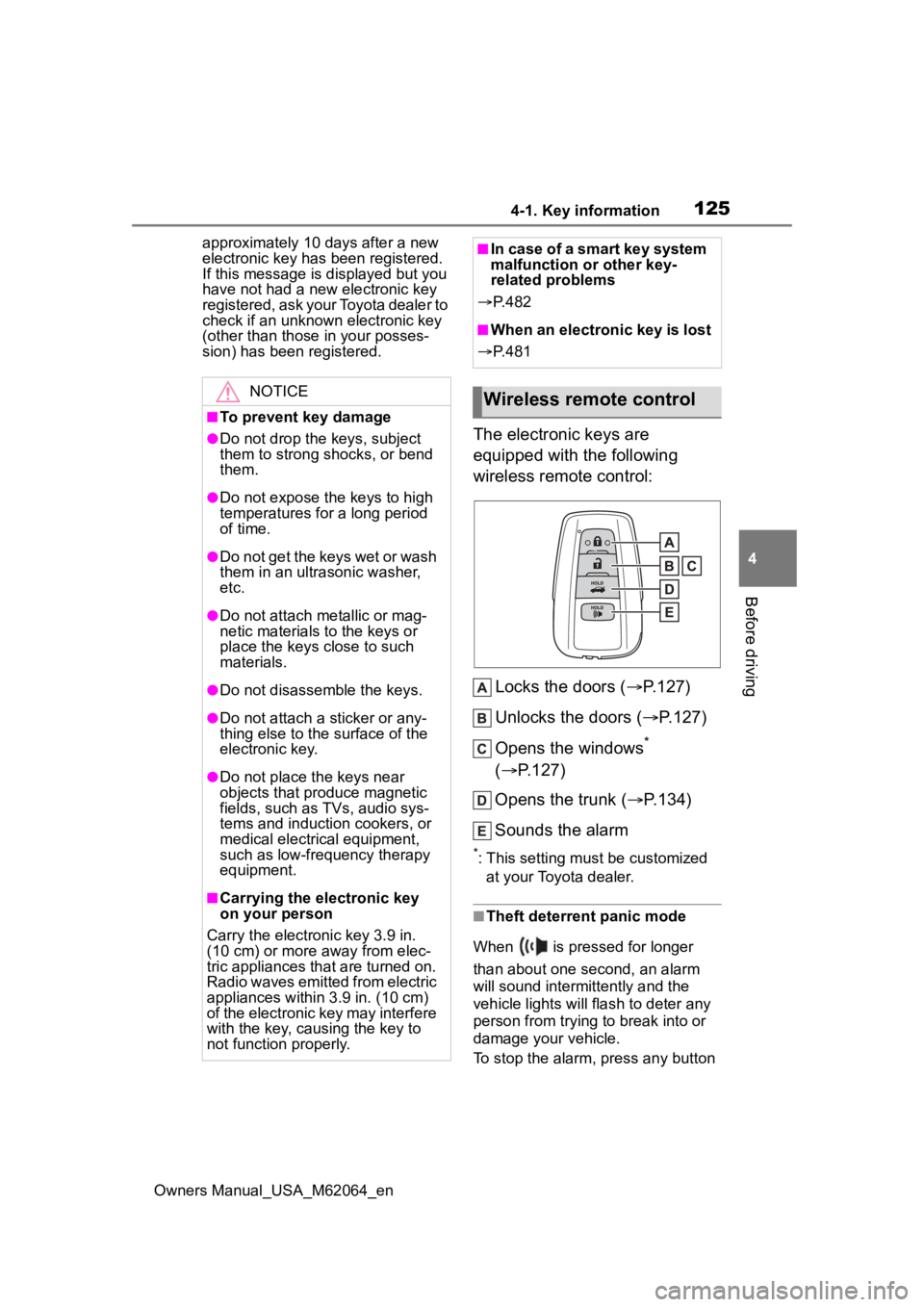
The electronic keys are
equipped with the following
wireless remote control:
Locks the doors ( P.127)
Unlocks the doors ( P.127)
Opens the windows
*
( P.127)
Opens the trunk ( P.134)
Sounds the alarm
*: This setting must be customized at your Toyota dealer.
■Theft deterrent panic mode
When is pressed for longer
than about one second, an alarm
will sound intermittently and the
vehicle lights will flash to deter any
person from trying to break into or
damage your vehicle.
To stop the alarm, press any button
NOTICE
■To prevent key damage
●Do not drop the keys, subject
them to strong shocks, or bend
them.
●Do not expose the keys to high
temperatures for a long period
of time.
●Do not get the keys wet or wash
them in an ultrasonic washer,
etc.
●Do not attach metallic or mag-
netic materials to the keys or
place the keys close to such
materials.
●Do not disassemble the keys.
●Do not attach a sticker or any-
thing else to the surface of the
electronic key.
●Do not place th e keys near
objects that produce magnetic
fields, such as TVs, audio sys-
tems and induction cookers, or
medical electrical equipment,
such as low-frequency therapy
equipment.
■Carrying the electronic key
on your person
Carry the electronic key 3.9 in.
(10 cm) or more away from elec-
tric appliances that are turned on.
Radio waves emitted from electric
appliances within 3.9 in. (10 cm)
of the electronic key may interfere
with the key, causing the key to
not function properly.
■In case of a smart key system
malfunction or other key-
related problems
P. 4 8 2
■When an electronic key is lost
P. 4 8 1
Wireless remote control
Page 127 of 572
1274-2. Opening, closing and locking the doors and trunk
Owners Manual_USA_M62064_en
4
Before driving
4-2.Opening, closing and locking the doors and trunk
■Smart key system (entry
function)
Carry the electronic key to
enable this function.
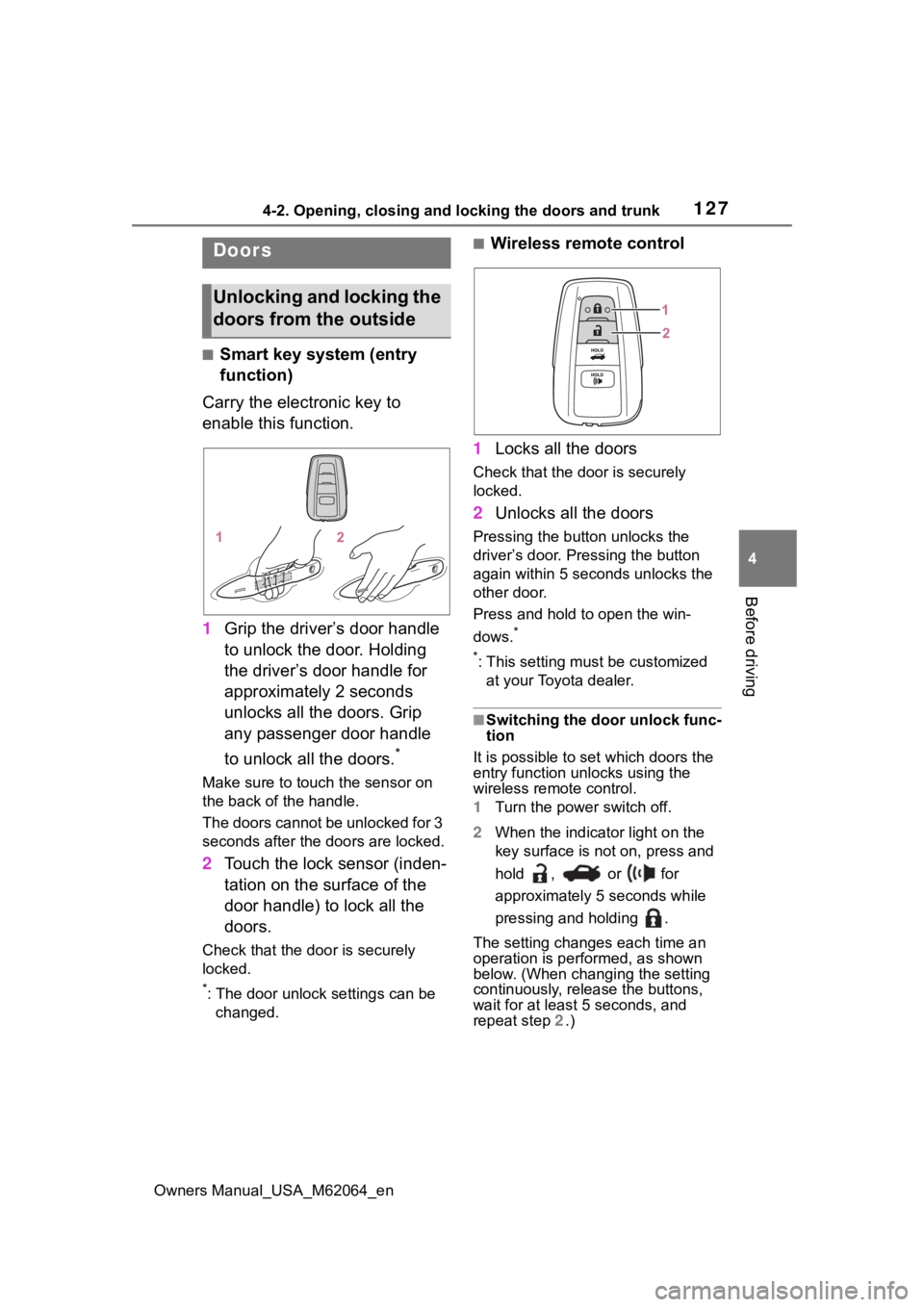
1 Grip the driver’s door handle
to unlock the door. Holding
the driver’s door handle for
approximately 2 seconds
unlocks all the doors. Grip
any passenger door handle
to unlock all the doors.
*
Make sure to touch the sensor on
the back of the handle.
The doors cannot be unlocked for 3
seconds after the doors are locked.
2Touch the lock sensor (inden-
tation on the surface of the
door handle) to lock all the
doors.
Check that the door is securely
locked.
*: The door unlock settings can be
changed.
■Wireless remote control
1 Locks all the doors
Check that the d oor is securely
locked.
2 Unlocks all the doors
Pressing the button unlocks the
driver’s door. Pressing the button
again within 5 seconds unlocks the
other door.
Press and hold to open the win-
dows.
*
*
: This setting must be customized at your Toyota dealer.
■Switching the door unlock func-
tion
It is possible to set which doors the
entry function unlocks using the
wireless remote control.
1 Turn the power switch off.
2 When the indicator light on the
key surface is not on, press and
hold , or for
approximately 5 seconds while
pressing and holding .
The setting changes each time an
operation is per formed, as shown
below. (When changing the setting
continuously, release the buttons,
wait for at least 5 seconds, and
repeat step 2 .)
Doors
Unlocking and locking the
doors from the outside
Page 133 of 572
1334-2. Opening, closing and locking the doors and trunk
Owners Manual_USA_M62064_en
4
Before driving
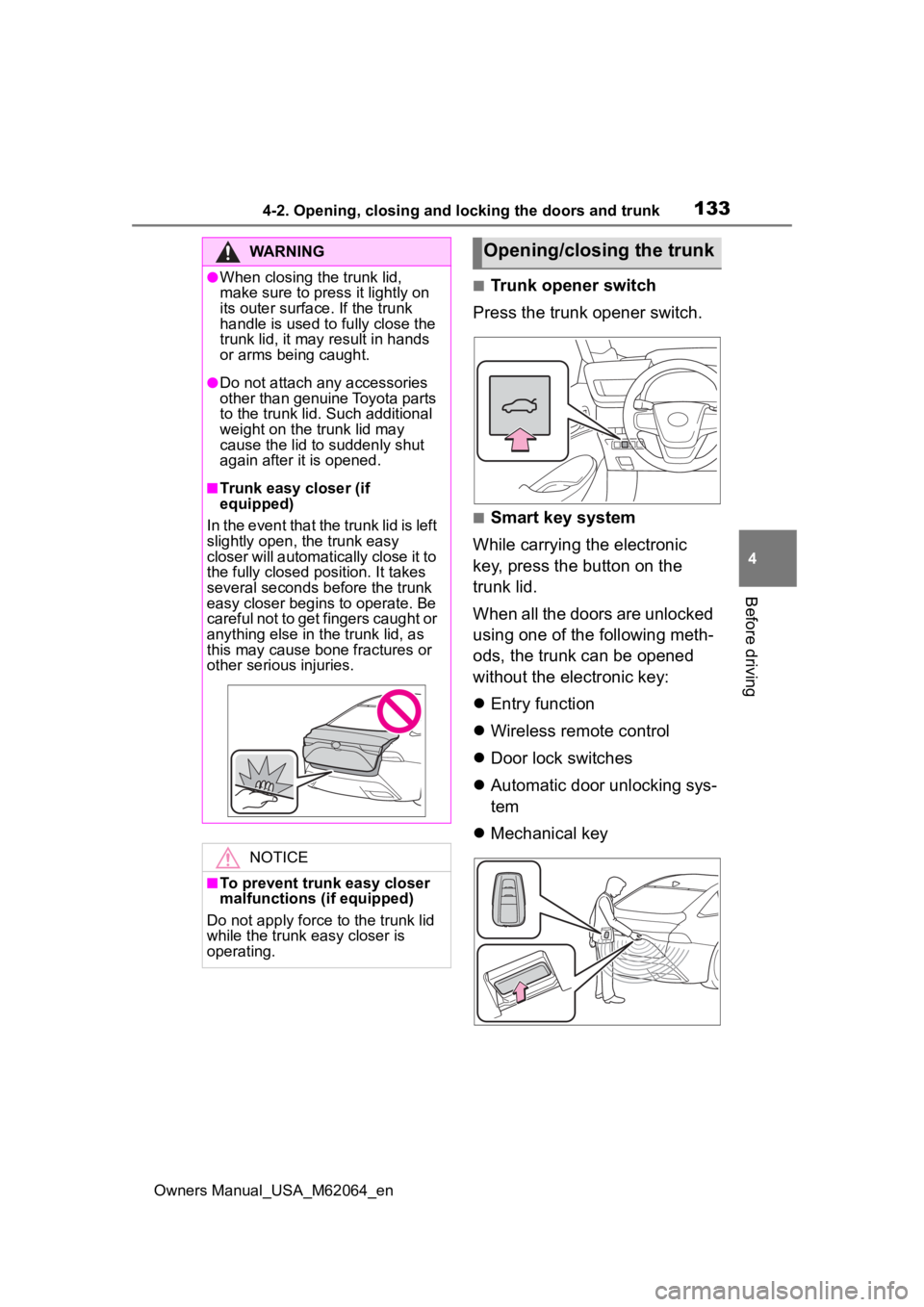
■Trunk opener switch
Press the trunk opener switch.
■Smart key system
While carrying the electronic
key, press the button on the
trunk lid.
When all the doors are unlocked
using one of the following meth-
ods, the trunk can be opened
without the electronic key:
Entry function
Wireless remote control
Door lock switches
Automatic door unlocking sys-
tem
Mechanical key
WARNING
●When closing the trunk lid,
make sure to press it lightly on
its outer surface. If the trunk
handle is used to fully close the
trunk lid, it may result in hands
or arms being caught.
●Do not attach any accessories
other than genuine Toyota parts
to the trunk lid . Such additional
weight on the trunk lid may
cause the lid to suddenly shut
again after it is opened.
■Trunk easy closer (if
equipped)
In the event that the trunk lid is left
slightly open , the trunk easy
closer will automatically close it to
the fully closed po sition. It takes
several seconds before the trunk
easy closer begins to operate. Be
careful not to get fingers caught or
anything else in the trunk lid, as
this may cause bone fractures or
other serious injuries.
NOTICE
■To prevent trunk easy closer
malfunctions ( if equipped)
Do not apply force to the trunk lid
while the trunk easy closer is
operating.
Opening/closing the trunk