display TOYOTA PRIUS 2012 3.G Repair Manual
[x] Cancel search | Manufacturer: TOYOTA, Model Year: 2012, Model line: PRIUS, Model: TOYOTA PRIUS 2012 3.GPages: 636, PDF Size: 11.02 MB
Page 244 of 636
244 2-2. Instrument cluster
■Head-up display contents
●Speedometer
Displays the vehicle speed.
●Hybrid System Indicator
Provides assistance for Eco-friendly driving.
●Turn-by-turn navigation*
Displays a notification of upcoming intersections during navigation
system route guidance. ( P. 247)
●Dynamic radar cruise control*
Indicates that there is a possibility of collision. ( P. 270)
●PCS (Pre-Collision System)*
Displays the approach warning. ( P. 303)
●LKA (Lane-Keeping Assist)*
Displays a warning message that alerts the driver of a deviation from
the lane through use of the lane departure warning function.
(P. 498)
*: If equipped
Page 245 of 636
245
2-2. Instrument cluster
2
When driving
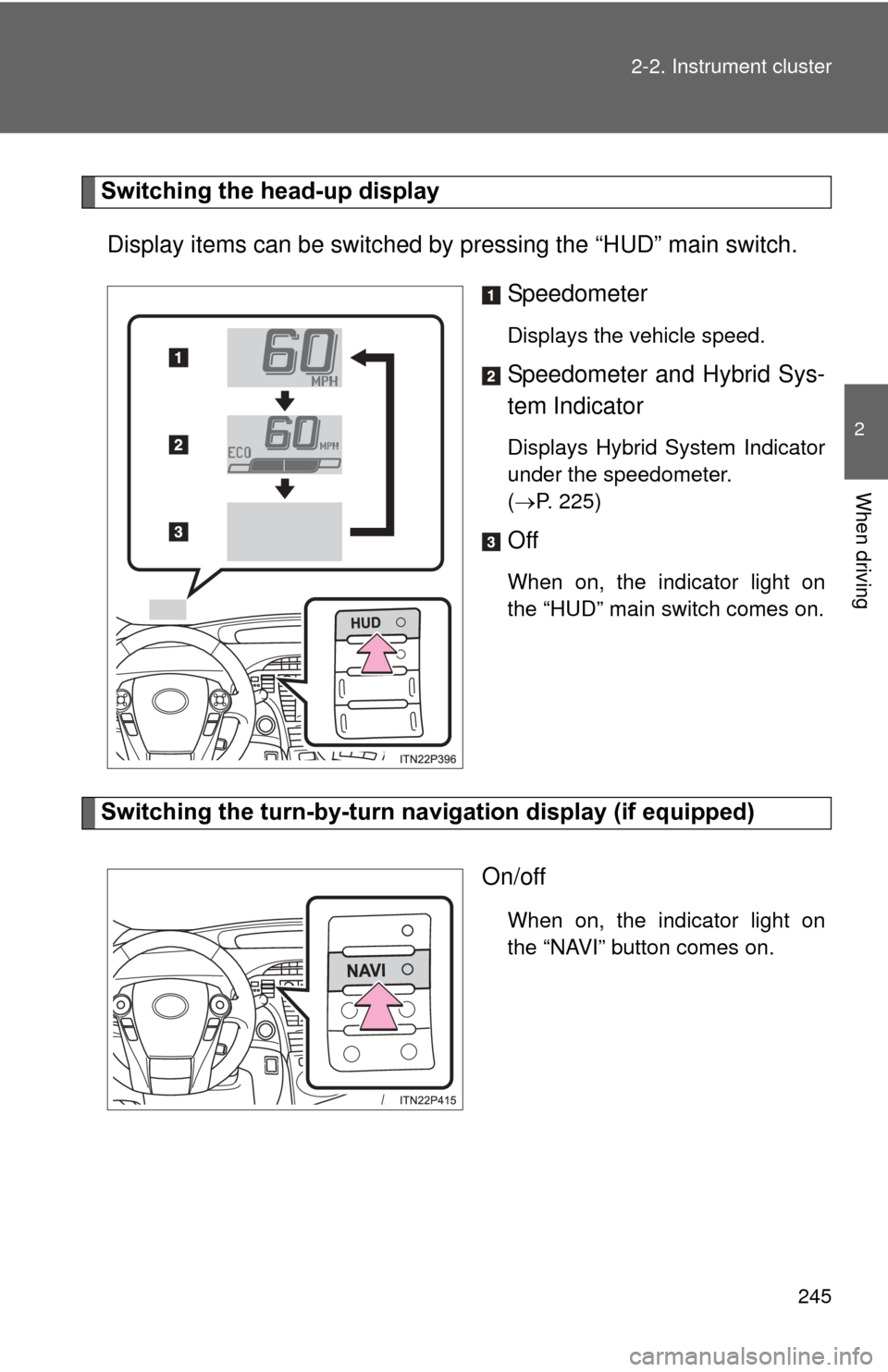
Switching the head-up display
Display items can be switched by pressing the “HUD” main switch.
Speedometer
Displays the vehicle speed.
Speedometer and Hybrid Sys-
tem Indicator
Displays Hybrid System Indicator
under the speedometer.
(P. 225)
Off
When on, the indicator light on
the “HUD” main switch comes on.
Switching the turn-by-turn na vigation display (if equipped)
On/off
When on, the indicator light on
the “NAVI” button comes on.
Page 246 of 636
246 2-2. Instrument cluster
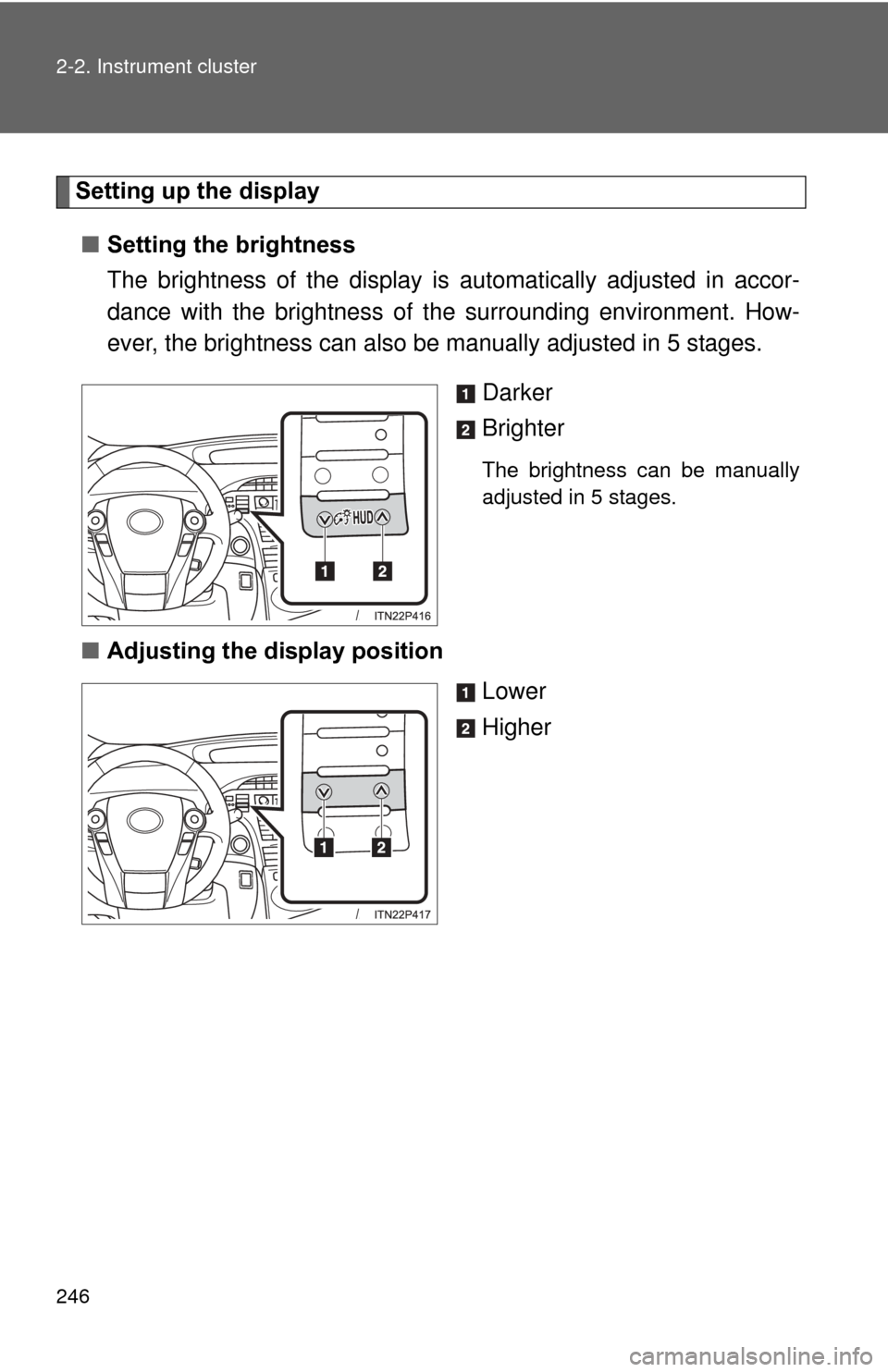
Setting up the display ■ Setting the brightness
The brightness of the display is automatically adjusted in accor-
dance with the brightness of the surrounding environment. How-
ever, the brightness can also be manually adjusted in 5 stages.
Darker
Brighter
The brightness can be manually
adjusted in 5 stages.
■Adjusting the display position
Lower
Higher
Page 247 of 636
247
2-2. Instrument cluster
2
When driving
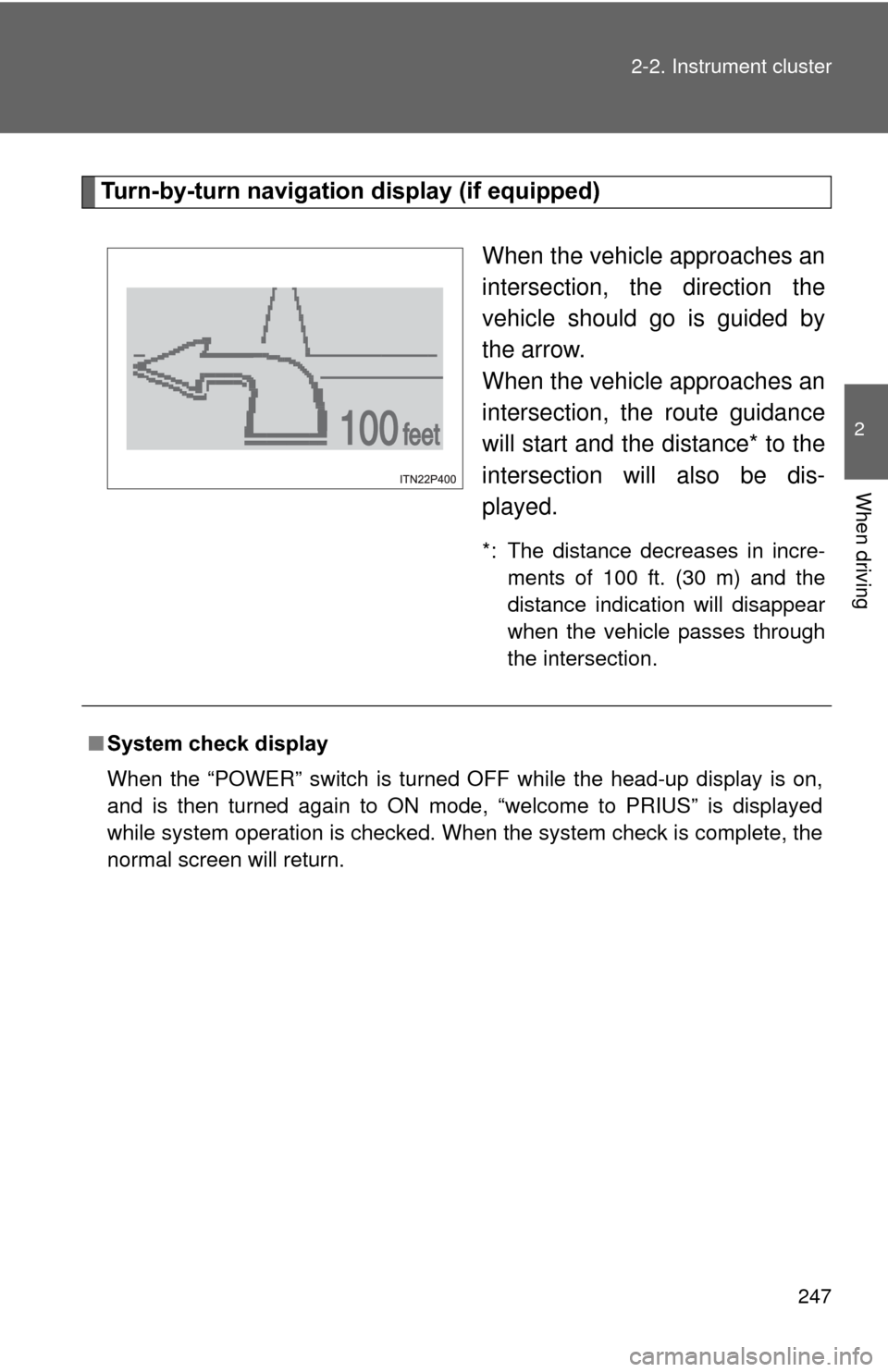
Turn-by-turn navigati
on display (if equipped)
When the vehicle approaches an
intersection, the direction the
vehicle should go is guided by
the arrow.
When the vehicle approaches an
intersection, the route guidance
will start and the distance* to the
intersection will also be dis-
played.
*: The distance decreases in incre-ments of 100 ft. (30 m) and the
distance indication will disappear
when the vehicle passes through
the intersection.
■System check display
When the “POWER” switch is turned OFF while the head-up display is on,
and is then turned again to ON mode, “welcome to PRIUS” is displayed
while system operation is checked. When the system check is complete, the
normal screen will return.
Page 248 of 636

248 2-2. Instrument cluster
■When driving on snowy roads or in other bright environments
When the highest level of brightness has been reached, the display can b\
e
made even brighter by pressing and holding “ ” on the brightness control
button.
Pressing “ ” on the brightness control button or turning the “POWER” switch
off will cause the brightness level to revert to the original level.
■ Display speed setting function
The speedometer can be set to display only when a desired vehicle speed is
reached.
Press and hold the “HUD” main switch while the vehicle is stopped
and while the head-up display is showing only the speedometer.
The speedometer will begin to flash.
Set the desired display speed on the speedometer by pressing “ ”
and “ ” on the display position adjustment button.
Press “ ” to raise the speed and “ ” to lower. The speed will change
by 1 mph (1.6 km/h) each time the button is pressed, and continu-
ously by 10 mph (16 km/h) when the button is pressed and held.
Press and hold the “HUD” main switch to finish setting.
■ Head-up display
The head-up display may seem dark and hard to see when viewed through
sunglasses, especially polarized sunglasses.
Adjust the brightness of the head-up display or remove your sunglasses.
■ When the 12-volt battery is disconnected
The head-up display settings will be reset.
STEP 1
STEP 2
STEP 3
Page 249 of 636
249
2-2. Instrument cluster
2
When driving
CAUTION
■
Before using the head-up display
Check that the position and brightness of the head-up display image does
not interfere with safe driving. Incorrect adjustment of the image’s position or
brightness may obstruct the driver’s view and lead to an accident, resulting
in death or serious injury.
NOTICE
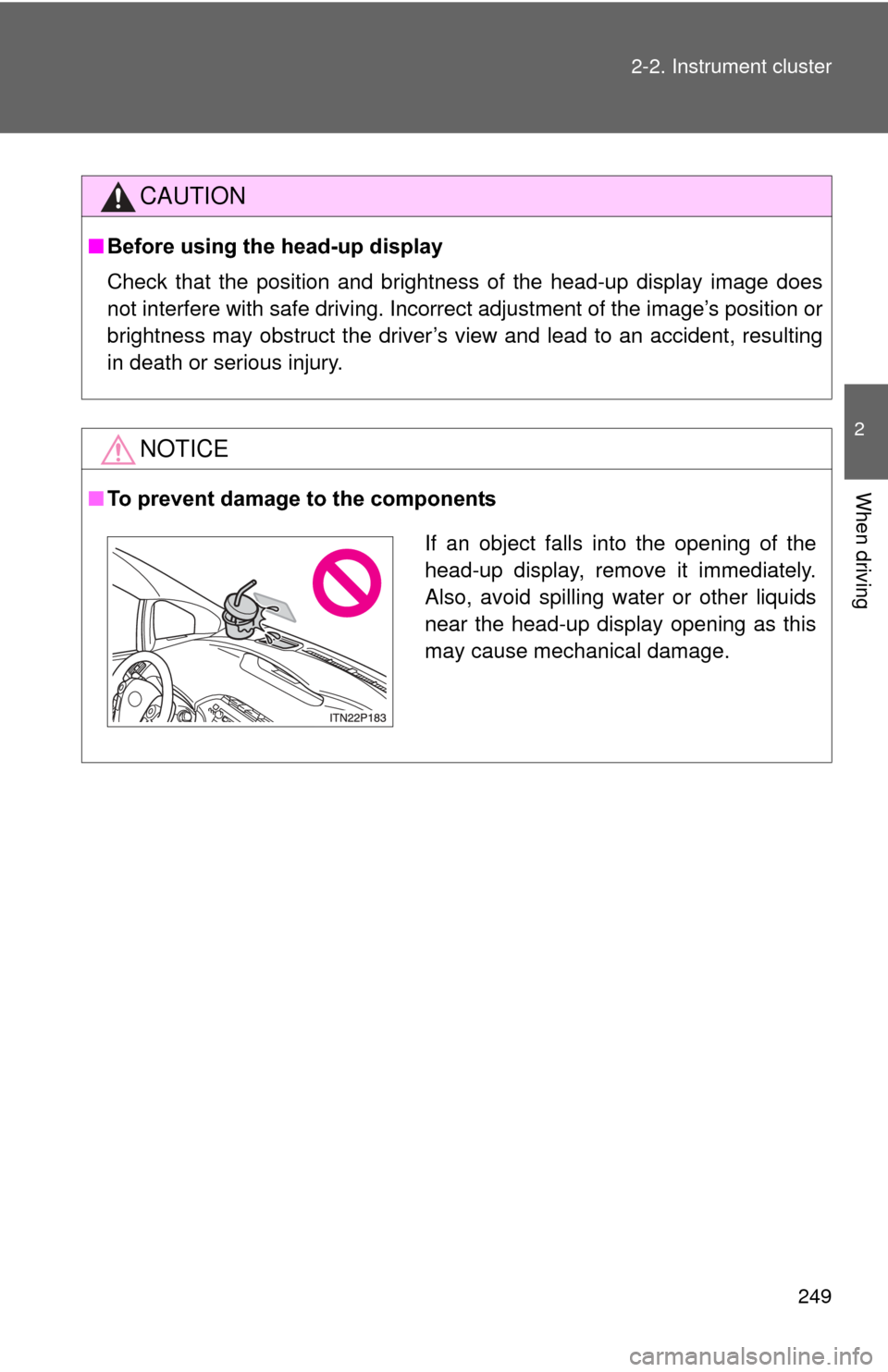
■To prevent damage to the components
If an object falls into the opening of the
head-up display, remove it immediately.
Also, avoid spilling water or other liquids
near the head-up display opening as this
may cause mechanical damage.
Page 270 of 636
270
2-4. Using other driving systems
Dynamic radar cruise control
: If equipped
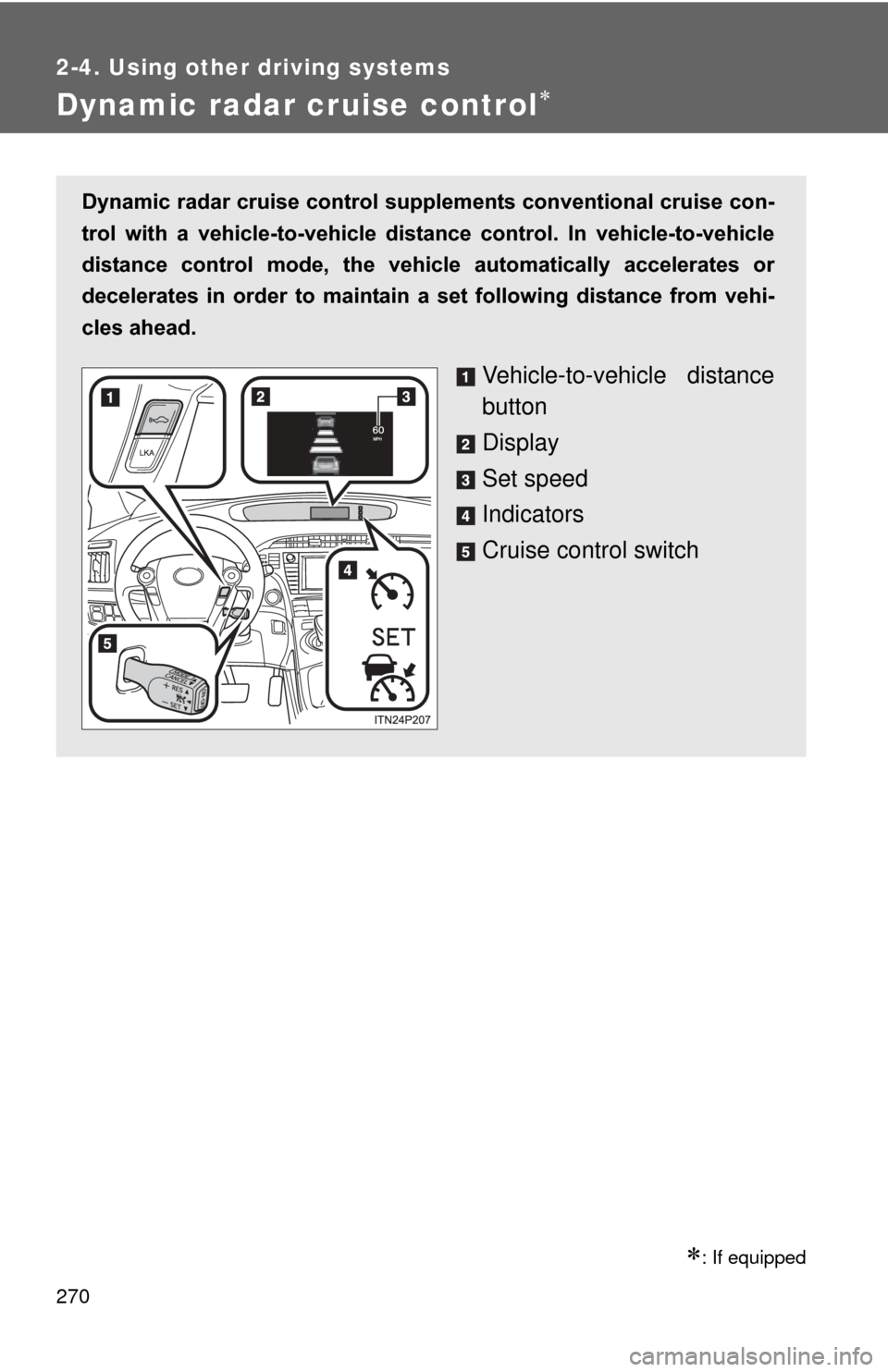
Dynamic radar cruise control supplements conventional cruise con-
trol with a vehicle-to-vehicle dist ance control. In vehicle-to-vehicle
distance control mode, the vehicle automatically accelerates or
decelerates in order to maintain a set following distance from vehi-
cles ahead.
Vehicle-to-vehicle distance
button
Display
Set speed
Indicators
Cruise control switch
Page 272 of 636
272 2-4. Using other driving systems
■Adjusting the set speed
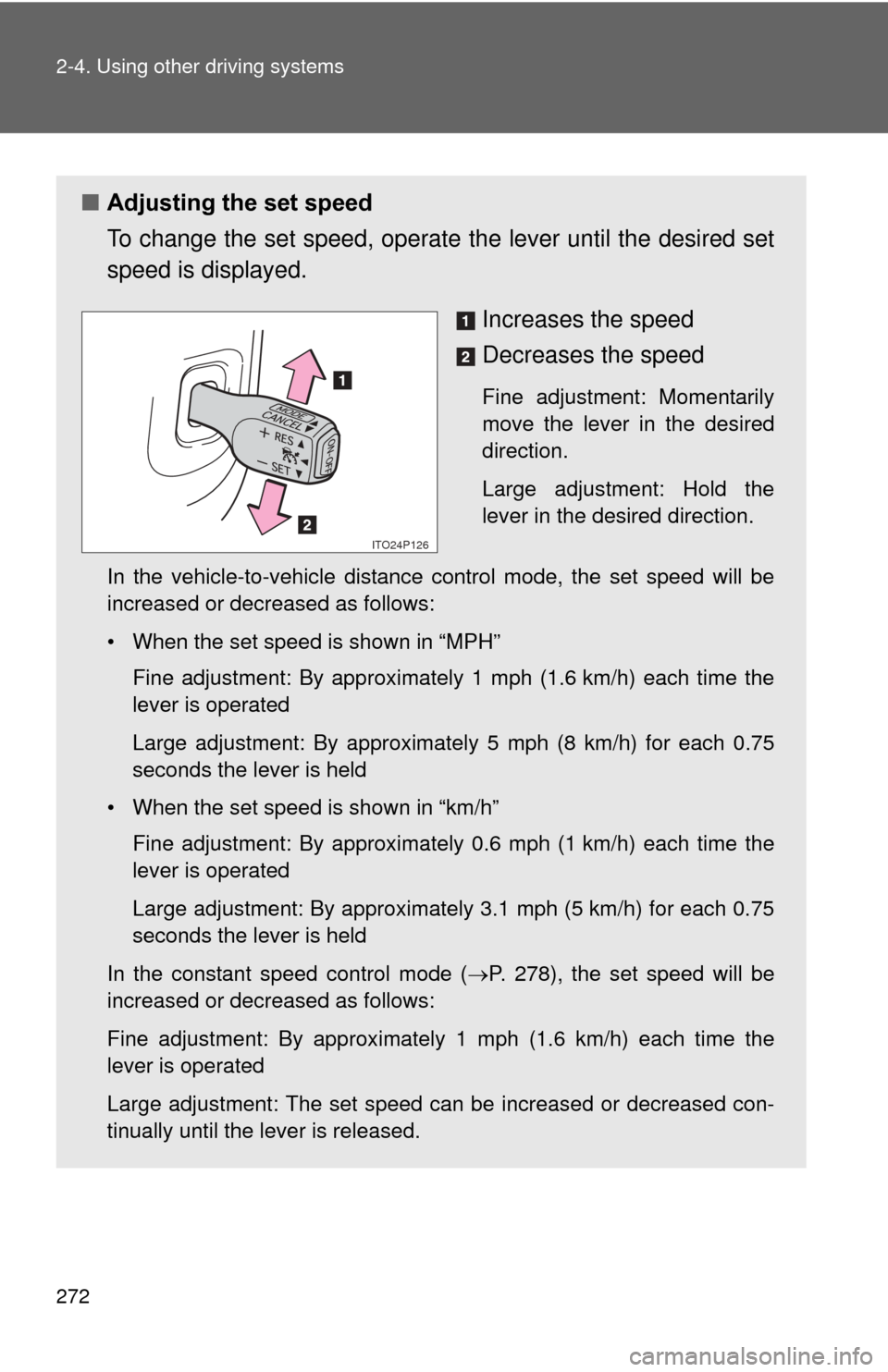
To change the set speed, operate the lever until the desired set
speed is displayed.
Increases the speed
Decreases the speed
Fine adjustment: Momentarily
move the lever in the desired
direction.
Large adjustment: Hold the
lever in the desired direction.
In the vehicle-to-vehicle distance control mode, the set speed will be
increased or decreased as follows:
• When the set speed is shown in “MPH” Fine adjustment: By approximately 1 mph (1.6 km/h) each time the
lever is operated
Large adjustment: By approximately 5 mph (8 km/h) for each 0.75
seconds the lever is held
• When the set speed is shown in “km/h” Fine adjustment: By approximately 0.6 mph (1 km/h) each time the
lever is operated
Large adjustment: By approximately 3.1 mph (5 km/h) for each 0.75
seconds the lever is held
In the constant speed control mode ( P. 278), the set speed will be
increased or decreased as follows:
Fine adjustment: By approximately 1 mph (1.6 km/h) each time the
lever is operated
Large adjustment: The set speed can be increased or decreased con-
tinually until the lever is released.
ITO24P126
Page 273 of 636
273
2-4. Using other
driving systems
2
When driving
■Changing the vehicle -to-vehicle distance
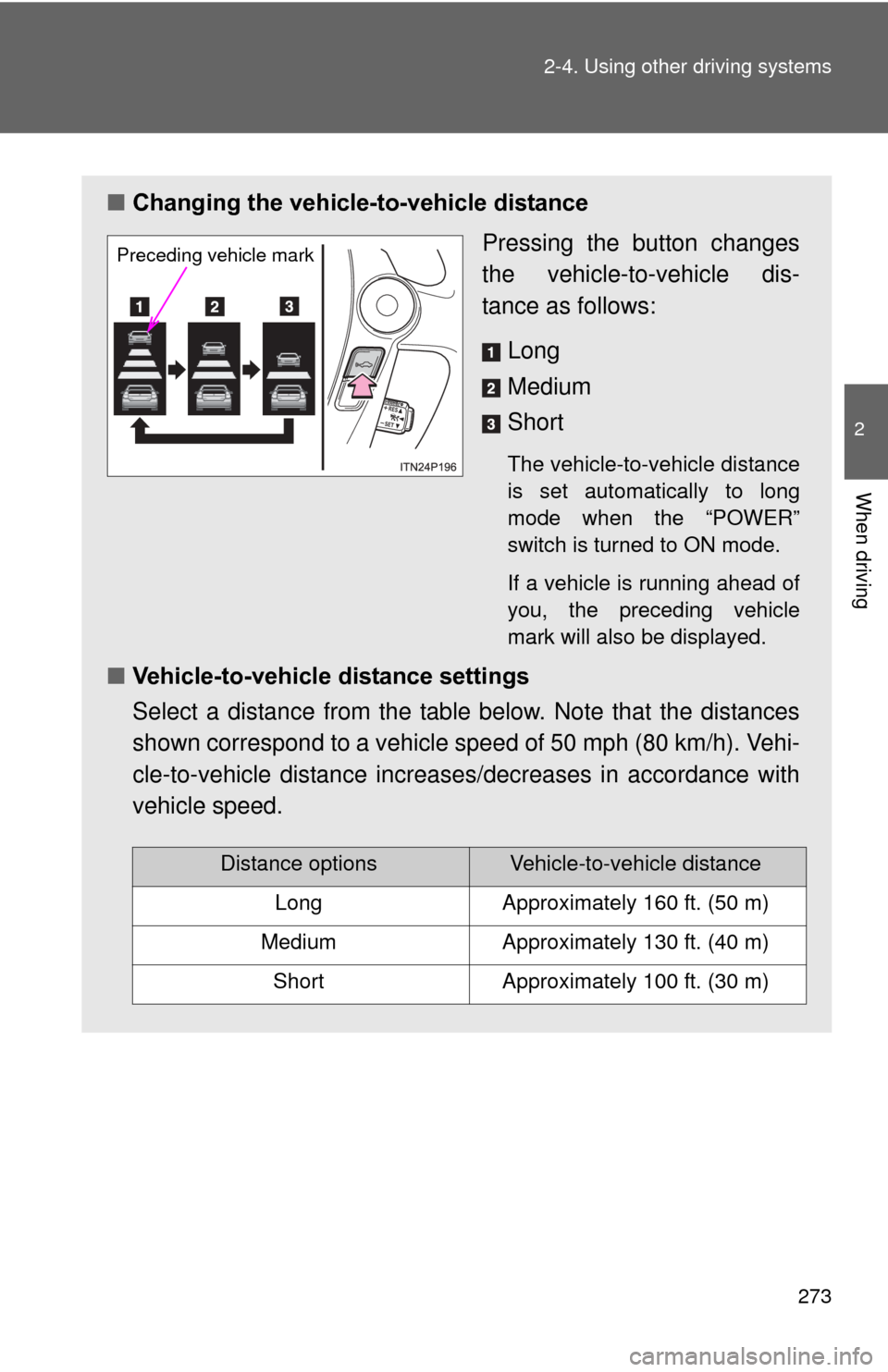
Pressing the button changes
the vehicle-to-vehicle dis-
tance as follows:
Long
Medium
Short
The vehicle-to-vehicle distance
is set automatically to long
mode when the “POWER”
switch is turned to ON mode.
If a vehicle is running ahead of
you, the preceding vehicle
mark will also be displayed.
■Vehicle-to-vehicle distance settings
Select a distance from the table below. Note that the distances
shown correspond to a vehicle speed of 50 mph (80 km/h). Vehi-
cle-to-vehicle distance increases/decreases in accordance with
vehicle speed.
Preceding vehicle mark
Distance optionsVehicle-to-vehicle distance
LongApproximately 160 ft. (50 m)
MediumApproximately 130 ft. (40 m)
ShortApproximately 100 ft. (30 m)
Page 286 of 636
286
2-4. Using other driving systems
LKA (Lane-Keeping Assist)
: If equipped
While driving on a freeway or motor highway that has lane markings,
this system recognizes the lanes using a camera as a sensor to
assist the driver with staying in the lane. The LKA system has two
functions.
■ Lane departure warning function
If the system judges that the vehicle may deviate from its lane, it
alerts the driver using rapid be eping, indications on the multi-
information display, and a sensory warning
* given via the steer-
ing wheel.
*: A slight steering torque is applied for a short period of time in
the direction of the center of the lane.
■ Lane keeping assist function
This function will be active when the vehicle-to-vehicle distance
control mode of the cruise control ( P. 270) is set with vehicle
speed above approx. 50 mph (approx. 75 km/h) and while the
lane departure warning function is active. When the lane keep-
ing assist function is active , a slight steering torque will be
applied, to help the driver mainta in the vehicle inside the lane.