ignition TOYOTA PROACE VERSO 2020 Owners Manual
[x] Cancel search | Manufacturer: TOYOTA, Model Year: 2020, Model line: PROACE VERSO, Model: TOYOTA PROACE VERSO 2020Pages: 418, PDF Size: 39.32 MB
Page 347 of 418
347
Select "Weather".
Press this button to display primary information.
Press this button to display the detailed weather information.
The temperature displayed at 6 a.m. will be the maximum temperature for the day.The temperature displayed at 6 p.m. will be the minimum temperature for the night.
Applications
Connectivity
Press Applications to display the primary page.
Press "Connectivity" to go to the CarPlay®, MirrorLinkTM or Android Auto functions.
CarPlay® smartphone
connection
USB sockets
Depending on equipment, for more information on the USB sockets compatible with the CarPlay®, MirrorLinkTM or Android Auto applications, refer to the "Ease of use and comfort" section.
The synchronisation of a smartphone allows users to display applications adapted to the CarPlay®, MirrorLinkTM or Android Auto technology of the smartphone on the vehicle screen. For the CarPlay® technology, the CarPlay® function must be activated on the smartphone beforehand.For the communication process between the smartphone and the system to work, it is essential in all cases that the smartphone is unlocked.As the principles and standards are constantly changing, it is recommended that you keep the smar tphone's operating system up-to- date, as well as the date and time of the smar tphone and of the system.For the list of eligible smartphones, go to the Brand's national website.
Connect a USB cable. The smartphone charges when connected by the USB cable.
Press "Telephone" to display the CarPlay® inter face.
Or
Connect a USB cable. The
smartphone charges when connected by the USB cable.
From the system, press "Applications" to display the primary page.
Press "Connectivity" to go to the CarPlay® function.
Press "CarPlay" to display the CarPlay® inter face.
On connecting the USB cable, the CarPlay® function deactivates the system's Bluetooth® mode.
When the USB cable is disconnected and the ignition is switched off then back on, the system will not automatically switch to Radio Media mode, a change of source will have to be done manually.
.
Toyota Pro Touch with navigation system
Page 352 of 418
352
DAB (Digital Audio
Broadcasting) radio
Terrestrial Digital Radio
Digital radio provides higher quality sound.The different "multiplexes/ensembles" offer a choice of radio stations arranged in alphabetical order.
Press Radio Media to display the primary page.
Press "Band…" at the top right of the screen to display the "DAB" waveband.
DAB-FM tracking
"DAB" does not cover 100 % of the te r r i to r y.When the digital radio signal is poor, "DAB-FM auto tracking" allows you to continue listening to the same station, by automatically switching to the corresponding FM analogue station (if there is one).
Press Radio Media to display the primary page.
Press the "OPTIONS" button to go to the secondary page.
Select "Radio settings".
Select "General".
Activate/deactivate "FM- DAB tracking".
Activate/deactivate "Station tracking".
Press "OK".
If "DAB-FM auto tracking" is activated, there may be a difference of a few seconds when the system switches to "FM" analogue radio with sometimes a variation in volume.Once the digital signal quality is restored, the system automatically changes back to " DA B ".
If the "DAB" station being listened to is not available on FM ("DAB- FM" option greyed out), or "DAB-FM auto tracking" is not activated, the sound will cut out while the digital signal is too weak.
Media
USB socket
Insert the USB memory stick in the USB socket or connect the USB device to the USB socket using a suitable cable (not supplied).
To protect the system, do not use a USB hub.
The system builds playlists (in temporary memory), an operation which can take from a few seconds to several minutes at the first connection.
Reduce the number of non-music files and the number of folders to reduce the waiting time.The playlists are updated every time the ignition is switched off or a USB stick is connected. The lists are memorised: if they are not modified, the subsequent loading time will be shorter.
Toyota Pro Touch with navigation system
Page 355 of 418
355
Select "Search".The list of telephones detected is displayed.
If the pairing procedure fails, it is recommended that you deactivate and then reactivate the Bluetooth function on the telephone.
Select the name of the chosen telephone in the list.
Connection sharing
The system offers to connect the telephone with 3 profiles:- "Telephone" (hands-free kit, telephone only),- "Audio streaming" (streaming: wireless playing of the audio files on the telephone),- "Mobile internet data".
Activation of the "Mobile internet
data" profile is obligatory for connected navigation having first activated sharing of this connection on the smartphone.
Select one or more profiles.
Press "OK" to confirm.
Depending on the type of telephone, the option is given to accept or not accept the transfer of contacts and messages.
Automatic reconnection
On return to the vehicle, if the last telephone connected is present again, it is automatically recognised and within about 30 seconds of switching on the ignition,
the pairing is established automatically (Bluetooth activated).
To modify the connection profile:
Press Telephone to display the primary page.
Press the "OPTIONS" button to go to the secondary page.
Select "Bluetooth connection" to display the list of paired devices.
Press the "details" button.
Select one or more profiles.
Press "OK" to confirm.
The ability of the system to connect to just one profile depends on the telephone.All three profiles may connect by default.
The ser vices available depend on the network, the SIM card and the compatibility of the Bluetooth devices used. Check the user guide for the telephone and with the ser vice provider for the available ser vices.
The profiles compatible with the system are: HFP, OPP, PBAP, A 2DP, AVRCP, MAP and PAN.
Go to the Brand's website for more information (compatibility, additional help, etc.).
Managing paired telephones
This function allows the connection or disconnection of a device as well as the deletion of a pairing.
Press Telephone to display the primary page.
Press the "OPTIONS" button to go to the secondary page.
.
Toyota Pro Touch with navigation system
Page 367 of 418
367
To y o t a P r o To u c h
Multimedia audio system -
Applications - Bluetooth®
telephone
The various functions and settings described differ according to the version and configuration of the vehicle.
For safety reasons and because they require continued attention on the part of the driver, the following operations must be carried out with the vehicle stationary and the ignition on:- Using a smartphone.- Pairing a Bluetooth mobile phone to the hands-free Bluetooth system of the car radio.- Smartphone connection operations for CarPlay®, MirrorLinkTM or Android Auto (certain applications interrupt their display when the vehicle starts to move again).- The configuration of profiles.
The system is protected in such a way that it will only operate in the vehicle.The display of the message Energy Economy Mode signals that a change to standby is imminent.
First steps
With the engine running, a press mutes the sound.With the ignition off, a press turns the system on.
Increase or decrease the volume using the wheel or the "plus" or "minus" buttons (depending on the equipment).
Use the buttons on either side of or below the touch screen for access to the menus, then press the virtual buttons in the touch screen.
Depending on the model, use the "Source" or "Menu" buttons on the left of the touch screen for access to the menus, then press the virtual buttons in the touch screen.
At all times it is possible to display the rolling menus by pressing the screen briefly with three fingers.
All of the touch areas of the screen are white.For pages with multiple tabs at the bottom of
the screen, it is possible to switch between pages either by tapping the tab for the desired page, or by using a finger, sliding the pages to the left or to the right.Press in the grey zone to go back up a level or to confirm.
ContentsFirst steps 367Steering mounted controls 368Menus 369Applications 371R adi o 371DAB (Digital Audio Broadcasting) radio 373M e d i a 3 74Telephone 376Frequently asked questions 382
.
Toyota Pro Touch
Page 374 of 418
374
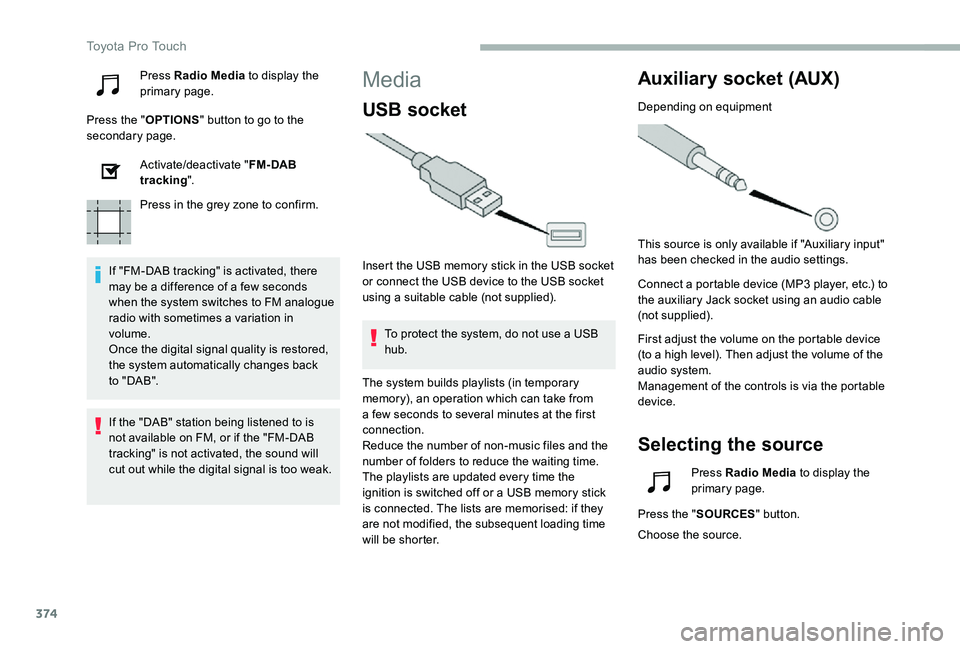
Press Radio Media to display the primary page.
Press the "OPTIONS" button to go to the secondary page.
Activate/deactivate "FM- DAB tracking".
Press in the grey zone to confirm.
If "FM-DAB tracking" is activated, there may be a difference of a few seconds when the system switches to FM analogue radio with sometimes a variation in volume.Once the digital signal quality is restored, the system automatically changes back to " DA B ".
Media
USB socket
Insert the USB memory stick in the USB socket or connect the USB device to the USB socket using a suitable cable (not supplied).
To protect the system, do not use a USB hub.
Auxiliary socket (AUX)
Depending on equipment
This source is only available if "Auxiliary input" has been checked in the audio settings.
Connect a portable device (MP3 player, etc.) to the auxiliary Jack socket using an audio cable (not supplied).
First adjust the volume on the portable device (to a high level). Then adjust the volume of the audio system.Management of the controls is via the portable device.
Selecting the source
If the "DAB" station being listened to is not available on FM, or if the "FM-DAB
tracking" is not activated, the sound will cut out while the digital signal is too weak.
The system builds playlists (in temporary memory), an operation which can take from a few seconds to several minutes at the first connection.Reduce the number of non-music files and the number of folders to reduce the waiting time.The playlists are updated every time the ignition is switched off or a USB memory stick is connected. The lists are memorised: if they are not modified, the subsequent loading time will be shorter.
Press Radio Media to display the primary page.
Press the "SOURCES" button.
Choose the source.
Toyota Pro Touch
Page 377 of 418
377
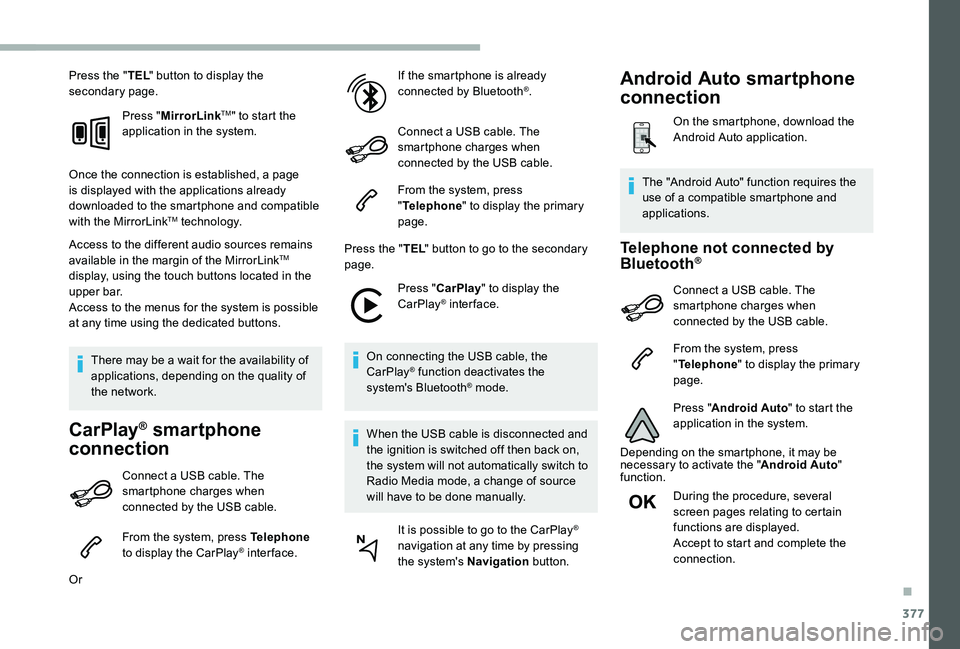
Press the "TEL" button to display the secondary page.
Press "MirrorLinkTM" to start the application in the system.
Once the connection is established, a page is displayed with the applications already downloaded to the smartphone and compatible with the MirrorLinkTM technology.
Access to the different audio sources remains available in the margin of the MirrorLinkTM display, using the touch buttons located in the upper bar.Access to the menus for the system is possible at any time using the dedicated buttons.
There may be a wait for the availability of applications, depending on the quality of the network.
CarPlay® smartphone
connection
Connect a USB cable. The smartphone charges when connected by the USB cable.
From the system, press Telephone to display the CarPlay® inter face.
Or
If the smartphone is already connected by Bluetooth®.
Connect a USB cable. The smartphone charges when connected by the USB cable.
From the system, press "Telephone" to display the primary page.
Press the "TEL" button to go to the secondary page.
Press "CarPlay" to display the CarPlay® inter face.
On connecting the USB cable, the CarPlay® function deactivates the system's Bluetooth® mode.
When the USB cable is disconnected and
the ignition is switched off then back on, the system will not automatically switch to Radio Media mode, a change of source will have to be done manually.
It is possible to go to the CarPlay® navigation at any time by pressing the system's Navigation button.
Telephone not connected by Bluetooth®
Connect a USB cable. The smartphone charges when connected by the USB cable.
From the system, press "Telephone" to display the primary page.
Press "Android Auto" to start the application in the system.
Depending on the smartphone, it may be necessary to activate the "Android Auto" function.
During the procedure, several screen pages relating to certain functions are displayed.Accept to start and complete the
connection.
The "Android Auto" function requires the use of a compatible smartphone and applications.
Android Auto smartphone
connection
On the smartphone, download the Android Auto application.
.
Page 378 of 418
378
When connecting a smartphone to the system, it is recommended that Bluetooth® be started on the smartphone.
Telephone connected by Bluetooth®
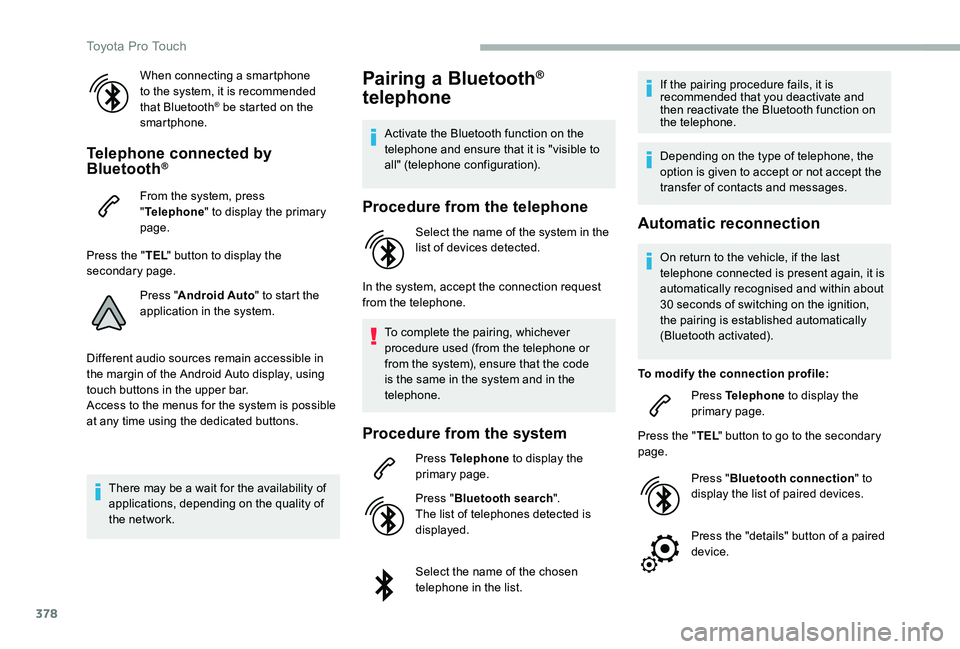
From the system, press "Telephone" to display the primary page.
Press the "TEL" button to display the secondary page.
Press "Android Auto" to start the application in the system.
Different audio sources remain accessible in the margin of the Android Auto display, using touch buttons in the upper bar.Access to the menus for the system is possible at any time using the dedicated buttons.
There may be a wait for the availability of applications, depending on the quality of the network.
Pairing a Bluetooth®
telephone
Activate the Bluetooth function on the telephone and ensure that it is "visible to all" (telephone configuration).
Procedure from the telephone
Select the name of the system in the
list of devices detected.
In the system, accept the connection request from the telephone.
To complete the pairing, whichever procedure used (from the telephone or from the system), ensure that the code is the same in the system and in the telephone.
Procedure from the system
Press Telephone to display the primary page.
Press "Bluetooth search".The list of telephones detected is displayed.
Select the name of the chosen telephone in the list.
If the pairing procedure fails, it is recommended that you deactivate and then reactivate the Bluetooth function on the telephone.
Depending on the type of telephone, the option is given to accept or not accept the transfer of contacts and messages.
Automatic reconnection
On return to the vehicle, if the last telephone connected is present again, it is automatically recognised and within about 30 seconds of switching on the ignition, the pairing is established automatically (Bluetooth activated).
To modify the connection profile:
Press Telephone to display the primary page.
Press the "TEL" button to go to the secondary page.
Press "Bluetooth connection" to display the list of paired devices.
Press the "details" button of a paired device.
Toyota Pro Touch
Page 387 of 418
387
Toyota Radio Bluetooth
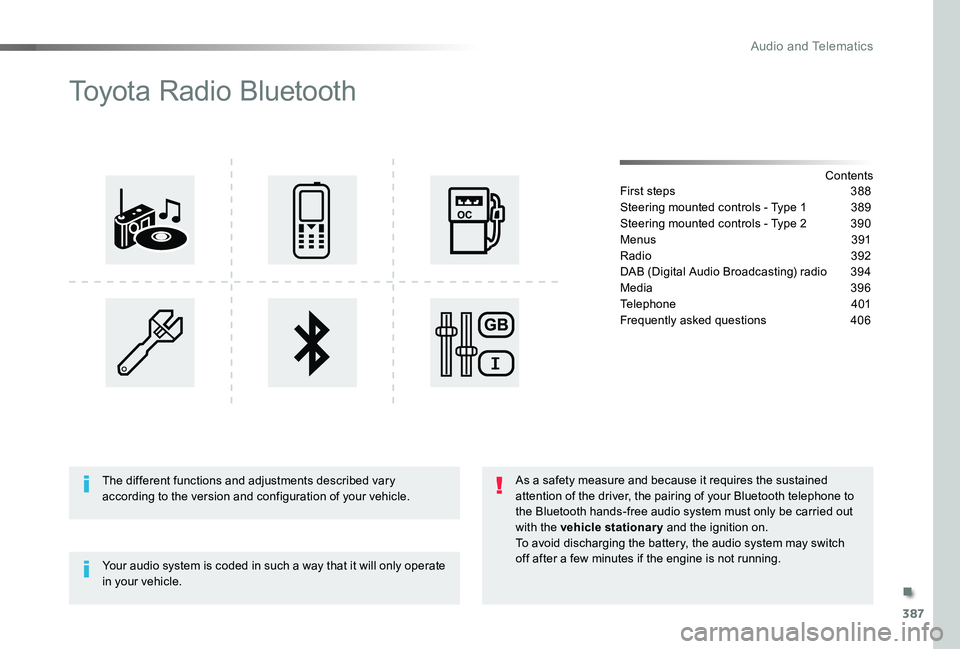
ContentsFirst steps 388
Steering mounted controls - Type 1 389
Steering mounted controls - Type 2 390
Menus 391
Radio 392
DAB (Digital Audio Broadcasting) radio 394
Media 396
Telephone 401
Frequently asked questions 406
Your audio system is coded in such a way that it will only operate in your vehicle.
The different functions and adjustments described vary according to the version and configuration of your vehicle.
As a safety measure and because it requires the sustained attention of the driver, the pairing of your Bluetooth telephone to the Bluetooth hands-free audio system must only be carried out with the vehicle stationary and the ignition on.To avoid discharging the battery, the audio system may switch off after a few minutes if the engine is not running.
.
Audio and Telematics
Page 401 of 418
401
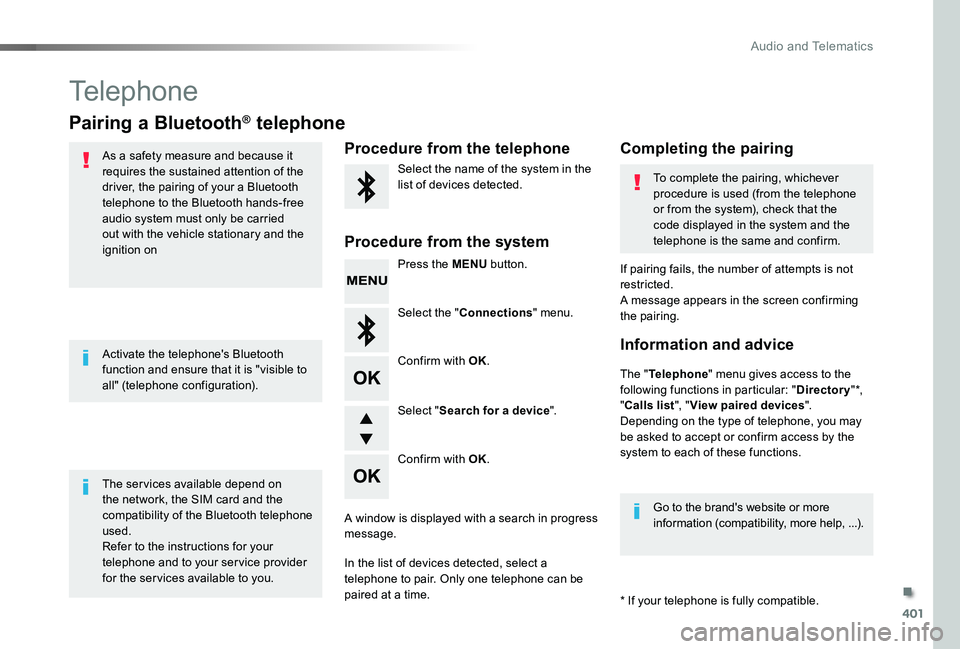
Telephone
Pairing a Bluetooth® telephone
As a safety measure and because it requires the sustained attention of the driver, the pairing of your a Bluetooth telephone to the Bluetooth hands-free audio system must only be carried out with the vehicle stationary and the ignition on
The ser vices available depend on the network, the SIM card and the compatibility of the Bluetooth telephone used.Refer to the instructions for your telephone and to your ser vice provider for the ser vices available to you.
Activate the telephone's Bluetooth function and ensure that it is "visible to all" (telephone configuration).
* If your telephone is fully compatible.
The "Telephone" menu gives access to the following functions in particular: "Directory" *, "Calls list", "View paired devices".Depending on the type of telephone, you may be asked to accept or confirm access by the system to each of these functions.
If pairing fails, the number of attempts is not restricted.A message appears in the screen confirming the pairing.
Procedure from the telephoneCompleting the pairing
Procedure from the system
Select the name of the system in the list of devices detected.To complete the pairing, whichever procedure is used (from the telephone or from the system), check that the code displayed in the system and the telephone is the same and confirm.
Press the MENU button.
Select the "Connections" menu.
Confirm with OK.
A window is displayed with a search in progress message.
In the list of devices detected, select a telephone to pair. Only one telephone can be paired at a time.
Confirm with OK.
Select "Search for a device".
Information and advice
Go to the brand's website or more information (compatibility, more help, ...).
.
Audio and Telematics
Page 412 of 418
412
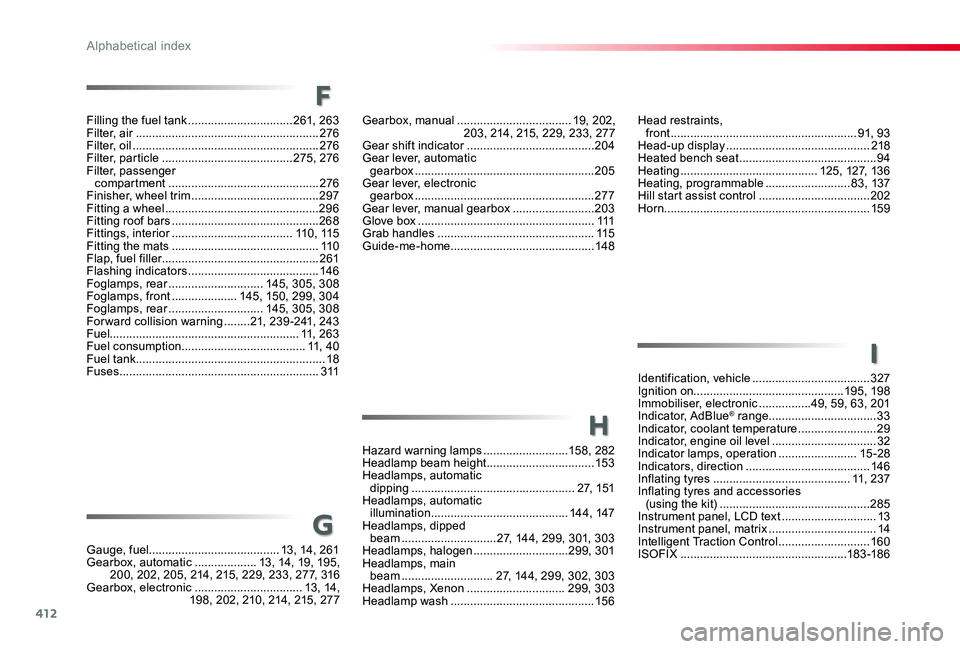
G
I
Head restraints, front .........................................................91, 93Head-up display ............................................218Heated bench seat ..........................................94Heating ..........................................125, 127, 136Heating, programmable ..........................83, 137Hill start assist control ..................................202Horn...............................................................159
Gauge, fuel........................................13, 14, 261Gearbox, automatic ...................13, 14, 19, 195, 200, 202, 205, 214, 215, 229, 233, 277, 316Gearbox, electronic .................................13, 14, 198, 202, 210, 214, 215, 277
Identification, vehicle ....................................327Ignition on..............................................195, 198Immobiliser, electronic ................49, 59, 63, 201Indicator, AdBlue® range .................................33Indicator, coolant temperature ........................29Indicator, engine oil level ................................32Indicator lamps, operation ........................15-28Indicators, direction ......................................14 6Inflating tyres ..........................................11, 237Inflating tyres and accessories (using the kit) ..............................................285Instrument panel, LCD text .............................13Instrument panel, matrix .................................14Intelligent Traction Control ............................160ISOFIX ...................................................183 -18 6
Gearbox, manual ...................................19, 202, 203, 214, 215, 229, 233, 277Gear shift indicator .......................................204Gear lever, automatic gearbox .......................................................205Gear lever, electronic gearbox .......................................................277Gear lever, manual gearbox .........................203Glove box ......................................................111Grab handles ................................................115Guide-me-home ............................................148
Hazard warning lamps ..........................15 8, 282Headlamp beam height .................................15 3Headlamps, automatic dipping ..................................................27, 151Headlamps, automatic illumination ..........................................14 4, 147Headlamps, dipped beam .............................27, 14 4, 299, 301, 303Headlamps, halogen .............................299, 301Headlamps, main beam ............................27, 14 4, 299, 302, 303Headlamps, Xenon ..............................299, 303Headlamp wash ............................................15 6
H
Filling the fuel tank ................................261, 263Filter, air ........................................................276Filter, oil .........................................................276Filter, particle ........................................275, 276Filter, passenger compartment ..............................................276Finisher, wheel trim .......................................297Fitting a wheel ...............................................296Fitting roof bars .............................................268Fittings, interior .....................................11 0 , 115Fitting the mats .............................................11 0Flap, fuel filler ................................................261Flashing indicators ........................................14 6Foglamps, rear .............................145, 305, 308Foglamps, front ....................145, 15 0, 299, 304Foglamps, rear .............................145, 305, 308Forward collision warning ........21, 239-2 41, 243Fuel..........................................................11, 263Fuel consumption ......................................11, 40Fuel tank..........................................................18Fuses .............................................................311
F
Alphabetical index