buttons TOYOTA RAV4 HYBRID 2020 Owners Manual (in English)
[x] Cancel search | Manufacturer: TOYOTA, Model Year: 2020, Model line: RAV4 HYBRID, Model: TOYOTA RAV4 HYBRID 2020Pages: 744, PDF Size: 31.43 MB
Page 3 of 744
3TABLE OF CONTENTS
1
2
3
4
5
6
7
8
9
10
4-1. Before drivingDriving the vehicle......... 189
Cargo and luggage ....... 196
Vehicle load limits ......... 199
Trailer towing................. 200
Dinghy towing ............... 209
4-2. Driving procedures Power (ignition) switch (vehi-cles without smart key sys-
tem) ............................. 210
Power (ignition) switch (vehi- cles with smart key system).................................... 212
EV drive mode .............. 217
Hybrid transmission ...... 219
Turn signal lever............ 223
Parking brake ................ 224
Brake Hold .................... 227
4-3. Operating the lights and wipers
Headlight switch ............ 229
AHB (Automatic High Beam) .................................... 232
Fog light switch ............. 235
Windshield wipers and washer......................... 235
Rear window wiper and washer......................... 238
4-4. Refueling Opening the fuel tank cap.................................... 240
4-5. Using the driving support
systems
Toyota Safety Sense 2.0 243PCS (Pre-Collision System)
.................................... 249
LTA (Lane Tracing Assist) .................................... 257
RSA (Road Sign Assist). 267
Dynamic radar cruise control with full-speed range ... 270
BSM (Blind Spot Monitor) .................................... 280
Intuitive parking assist ... 290
PKSB (Parking Support Brake) .......................... 297
Parking Support Brake func- tion (static objects) ...... 302
Parking Support Brake func- tion (rear-crossing vehicles).................................... 308
Rear view monitor system .................................... 312
Toyota parking assist monitor .................................... 320
Panoramic view monitor 333
Driving mode s elect switch
.................................... 365
Trail Mode ..................... 366
Driving assist systems ... 368
4-6. Driving tips Hybrid vehicle driving tips.................................... 375
Winter d
riving tips .......... 377
Utility vehicle precautions .................................... 380
5-1. Basic function Buttons overview ........... 385
Menu screen.................. 387
4Driving
5Audio
Page 24 of 744
24Pictorial index
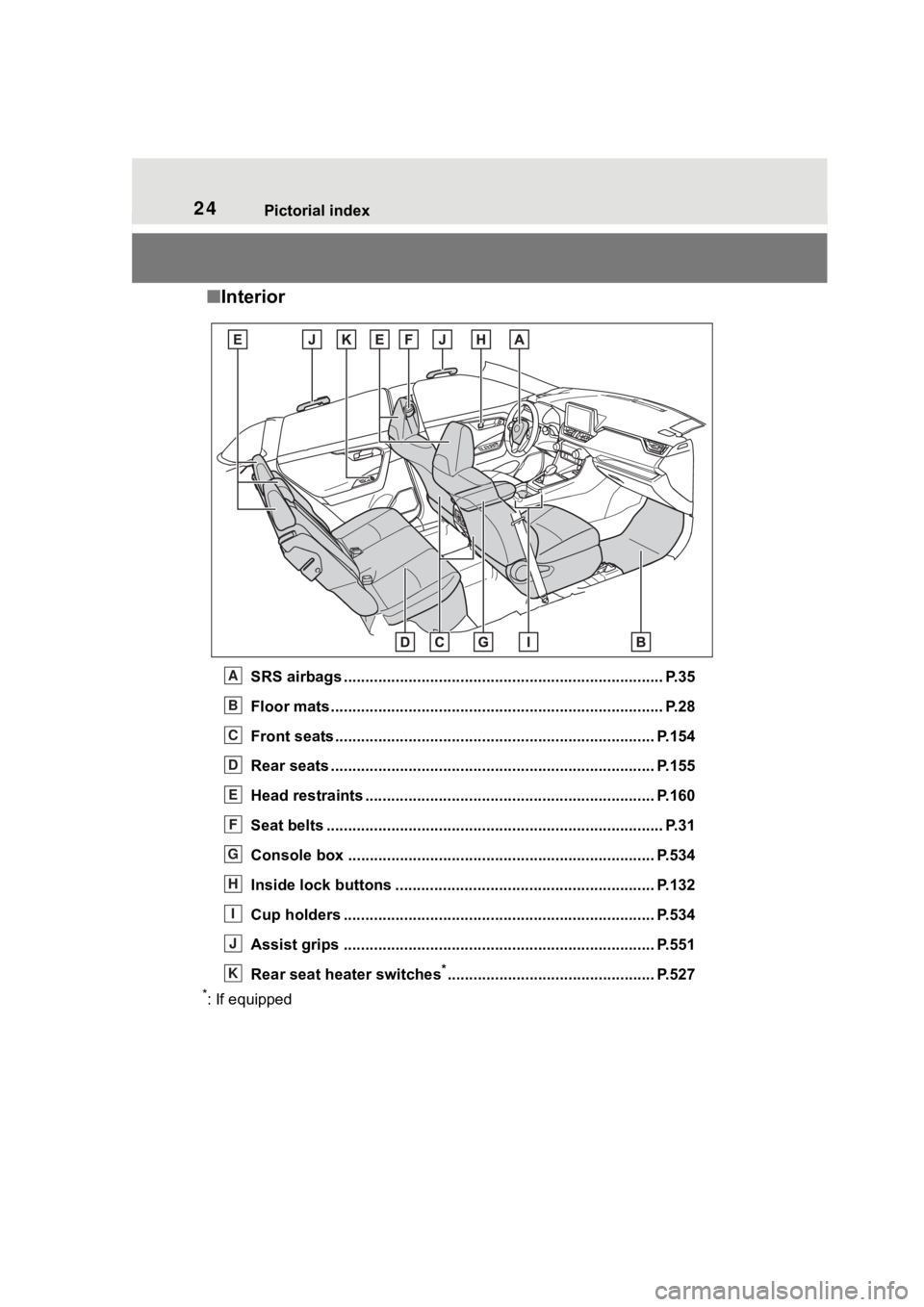
■Interior
SRS airbags .................................................... ...................... P.35
Floor mats..................................................... ........................ P.28
Front seats .................................................... ...................... P.154
Rear seats ..................................................... ...................... P.155
Head restraints ................................................ ................... P.160
Seat belts ..................................................... ......................... P.31
Console box ....................................................................... P.534
Inside lock buttons ............................................ ................ P.132
Cup holders .................................................... .................... P.534
Assist grips ................................................... ..................... P.551
Rear seat heater switches
*................................................ P.527
*: If equipped
A
B
C
D
E
F
G
H
I
J
K
Page 122 of 744
1223-1. Key information
3-1.Key information
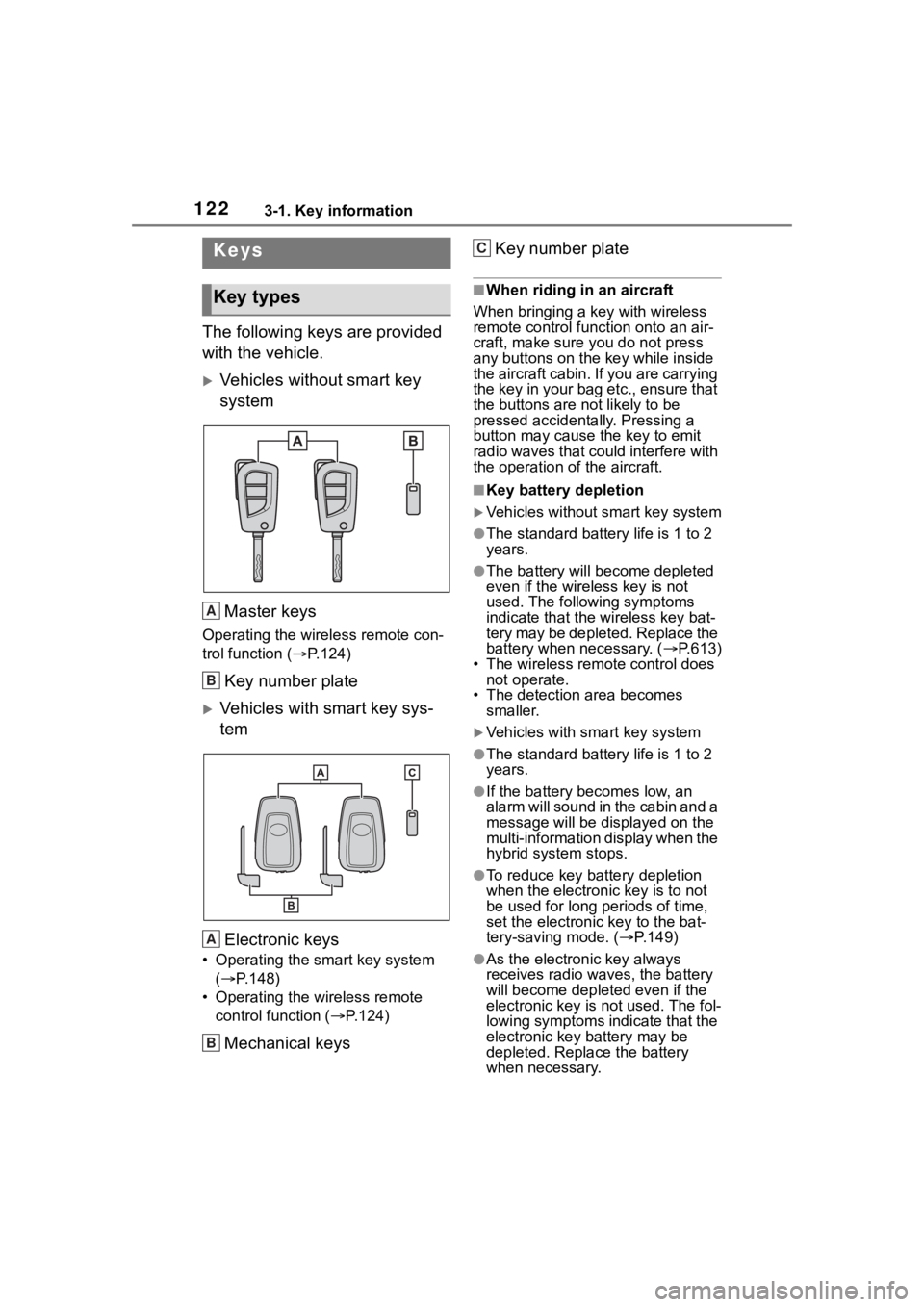
The following keys are provided
with the vehicle.
Vehicles without smart key
systemMaster keys
Operating the wireless remote con-
trol function ( P.124)
Key number plate
Vehicles with smart key sys-
tem
Electronic keys
• Operating the smart key system ( P.148)
• Operating the wireless remote control function ( P.124)
Mechanical keys Key number plate
■When riding in an aircraft
When bringing a ke y with wireless
remote control func tion onto an air-
craft, make sure you do not press
any buttons on the key while inside
the aircraft cabin. If you are carrying
the key in your bag etc., ensure that
the buttons are not likely to be
pressed accidentally. Pressing a
button may cause the key to emit
radio waves that could interfere with
the operation of the aircraft.
■Key battery depletion
Vehicles without smart key system
●The standard battery life is 1 to 2
years.
●The battery will be come depleted
even if the wireless key is not
used. The following symptoms
indicate that the wireless key bat-
tery may be depleted. Replace the
battery when necessary. ( P.613)
• The wireless remote control does
not operate.
• The detection area becomes smaller.
Vehicles with smart key system
●The standard battery life is 1 to 2
years.
●If the battery bec omes low, an
alarm will sound in the cabin and a
message will be disp layed on the
multi-information display when the
hybrid system stops.
●To reduce key battery depletion
when the electronic key is to not
be used for long periods of time,
set the electronic key to the bat-
tery-saving mode. ( P.149)
●As the electronic key always
receives radio waves, the battery
will become depleted even if the
electronic key is not used. The fol-
lowing symptoms indicate that the
electronic key battery may be
depleted. Replace the battery
when necessary.
Keys
Key types
A
B
A
B
C
Page 129 of 744
1293-2. Opening, closing and locking the doors
3
Before driving
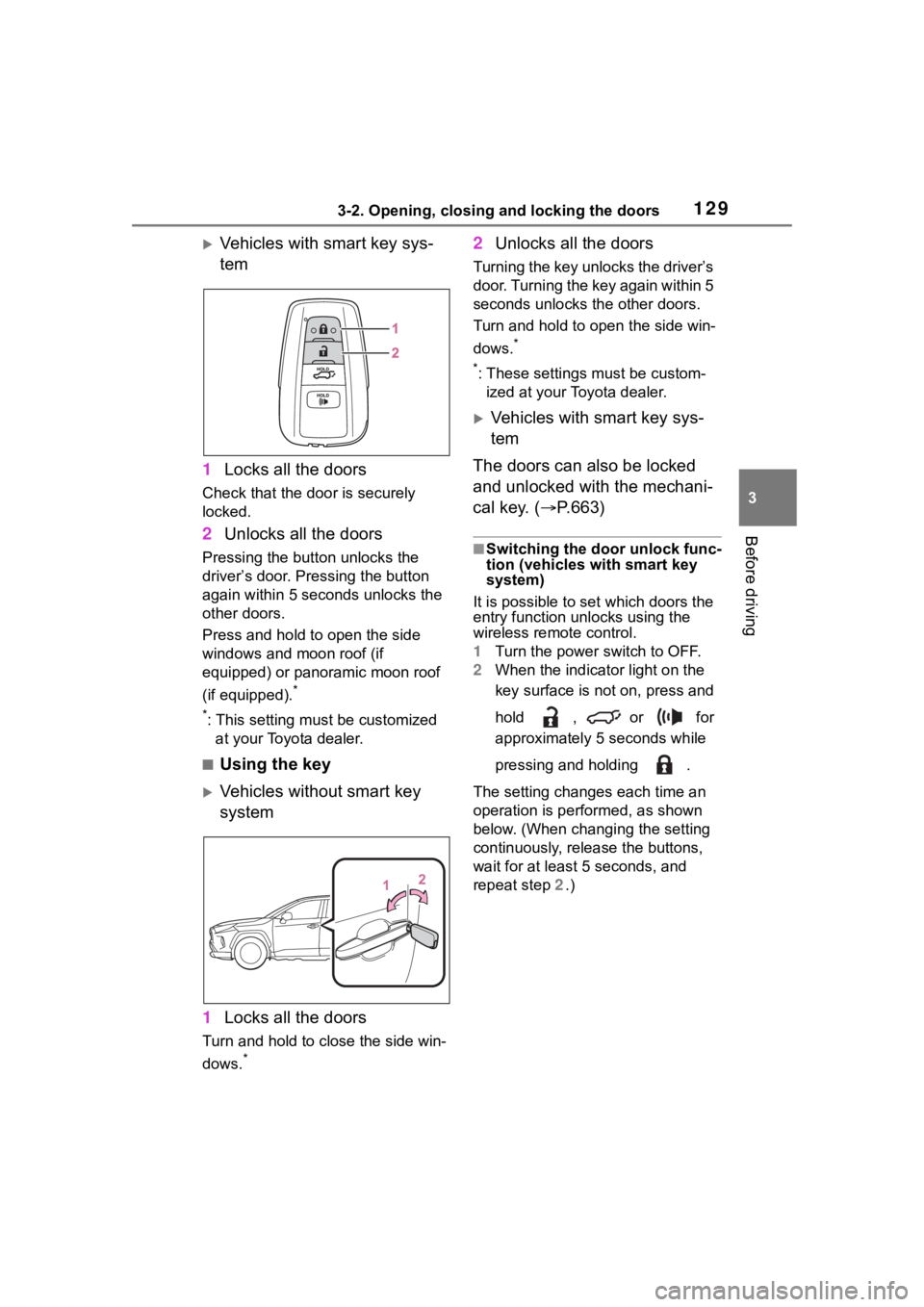
Vehicles with smart key sys-
tem
1 Locks all the doors
Check that the door is securely
locked.
2Unlocks all the doors
Pressing the button unlocks the
driver’s door. Pressing the button
again within 5 seconds unlocks the
other doors.
Press and hold to open the side
windows and moon roof (if
equipped) or panoramic moon roof
(if equipped).
*
*
: This setting must be customized at your Toyota dealer.
■Using the key
Vehicles without smart key
system
1 Locks all the doors
Turn and hold to close the side win-
dows.
*
2Unlocks all the doors
Turning the key unlocks the driver’s
door. Turning the key again within 5
seconds unlocks th e other doors.
Turn and hold to open the side win-
dows.
*
*
: These settings must be custom- ized at your Toyota dealer.
Vehicles with smart key sys-
tem
The doors can also be locked
and unlocked with the mechani-
cal key. ( P.663)
■Switching the door unlock func-
tion (vehicles with smart key
system)
It is possible to set which doors the
entry function unlocks using the
wireless remote control.
1 Turn the power switch to OFF.
2 When the indicator light on the
key surface is not on, press and
hold , or for
approximately 5 seconds while
pressing and holding .
The setting changes each time an
operation is per formed, as shown
below. (When changing the setting
continuously, release the buttons,
wait for at least 5 seconds, and
repeat step 2 .)
Page 131 of 744
1313-2. Opening, closing and locking the doors
3
Before driving
vehicle once more.
■Setting the alarm (if equipped)
Locking the doors will set the alarm
system. ( P.85)
■Conditions affect ing the opera-
tion of the smart key system or
wireless remo te control
Vehicles without smart key system
P. 1 2 5
Vehicles with smart key system
P. 1 4 9
■If the smart key system (if
equipped) or the wireless
remote control does not oper-
ate properly
●Vehicles with smart key system:
Use the mechanical key to lock
and unlock the doors. ( P.663)
●Replace the key battery with a
new one if it is depleted. ( P.613)
■If the 12-volt battery is dis-
charged
The doors cannot be locked and
unlocked using the smart key sys-
tem (if equipped) or wireless remote
control. Lock or unlock the doors
using the key (vehicles without
smart key system) or mechanical
key (vehicles with smart key sys-
tem). ( P.129, 663)
■Customization
Settings (e.g. unlocking function
using a key) c an be changed.
(Customizable features: P.699)
WA R N I N G
■To prevent an accident
Observe the following precautions
while driving t he vehicle.
Failure to do so m ay result in a
door opening and an occupant
could be thrown out of the vehicle,
resulting in death or serious injury.
●Ensure that all doors are prop-
erly closed and locked.
●Do not pull the inside handle of
the doors while driving.
Be especially careful for the
front doors, as the doors may
be opened even if the inside
lock buttons are in locked posi-
tion.
●Set the rear door child-protector
locks when children are seated
in the rear seats.
■When opening or closing a
door
Check the surroundings of the
vehicle such as wh ether the vehi-
cle is on an incline, whether there
is enough space for a door to
open and whether a strong wind
is blowing. When opening or clos-
ing the door, hold the door handle
tightly to prepare for any unpre-
dictable movement.
■When using the wireless
remote control, key or
mechanical key and operating
the power windows, moon
roof (if equipped) or pan-
oramic moon roof (if
equipped)
Operate the power window, moon
roof or panoramic moon roof after
checking to make sure that there
is no possibility of any passenger
having any of their body parts
caught in the side window, moon
roof or panoramic moon roof.
Also, do not allo w children to
operate the wireless remote con-
trol, key or mechanical key. It is
possible for children and other
passengers to get caught in the
side window, moon roof or pan-
oramic moon roof.
Page 132 of 744

1323-2. Opening, closing and locking the doors
■Using the door lock switch
1 Locks all the doors
2 Unlocks all the doors
■Using the inside lock but-
tons
1 Locks the door
2 Unlocks the door
The front doors can be opened by
pulling the inside ha ndle even if the
lock buttons are in the lock position.
■Locking the front doors from
the outside without a key
1 Move the inside lock button to
the lock position.
2 Close the door.
Vehicles without smart key system
The door cannot be locked if the key
is in the po wer switch.
Vehicles with smart key system
The door cannot be locked if the
power switch is in ACC or ON, or
the electronic key is left inside the
vehicle.
Depending on the position of the
electronic key, the key may not be
detected correctly and the door may
be locked.
■Open door warning buzzer
If the vehicle speed reaches 3 mph
(5 km/h), a buzzer sounds to indi-
cate that the door( s) or the hood is
not fully closed.
The open door(s) or hood is dis-
played on the multi-information dis-
play.
■When all the doors are locked
with the entry function (vehicles
with smart key system), wire-
less remote control or key
●The doors cannot be unlocked
with the door lock switch.
●The door lock switch can be reset
by unlocking all the doors with the
entry function (vehicles with smart
key system), wireless remote con-
trol or key.
The door cannot be opened
from inside the vehicle when the
lock is set.
Unlocking and locking the
doors from the inside
Rear door child-protector
lock
Page 149 of 744
1493-2. Opening, closing and locking the doors
3
Before driving
●When an exterior alarm sounds
once for 5 seconds
●When an interior alarm pings con-
tinuously
■Battery-saving function
The battery-saving function will be
activated in order to prevent the
electronic key battery and the 12-
volt battery from being discharged
while the vehicle is not in operation
for a long time.
●In the following situations, the
smart key system may take some
time to unlock the doors.
• The electronic key has been left in
an area of approximately 6 ft. (2
m) of the outside of the vehicle for
10 minutes or longer.
• The smart key system has not been used for 5 days or longer.
●If the smart key system has not
been used for 14 days or longer,
the doors canno t be unlocked at
any doors except the driver’s door.
In this case, take hold of the
driver’s door handle, or use the
wireless remote control or the mechanical key, to unlock the
doors.
■Turning an electronic key to
battery-saving mode
●When battery-saving mode is set,
battery depletion is minimized by
stopping the electronic key from
receiving radio waves.
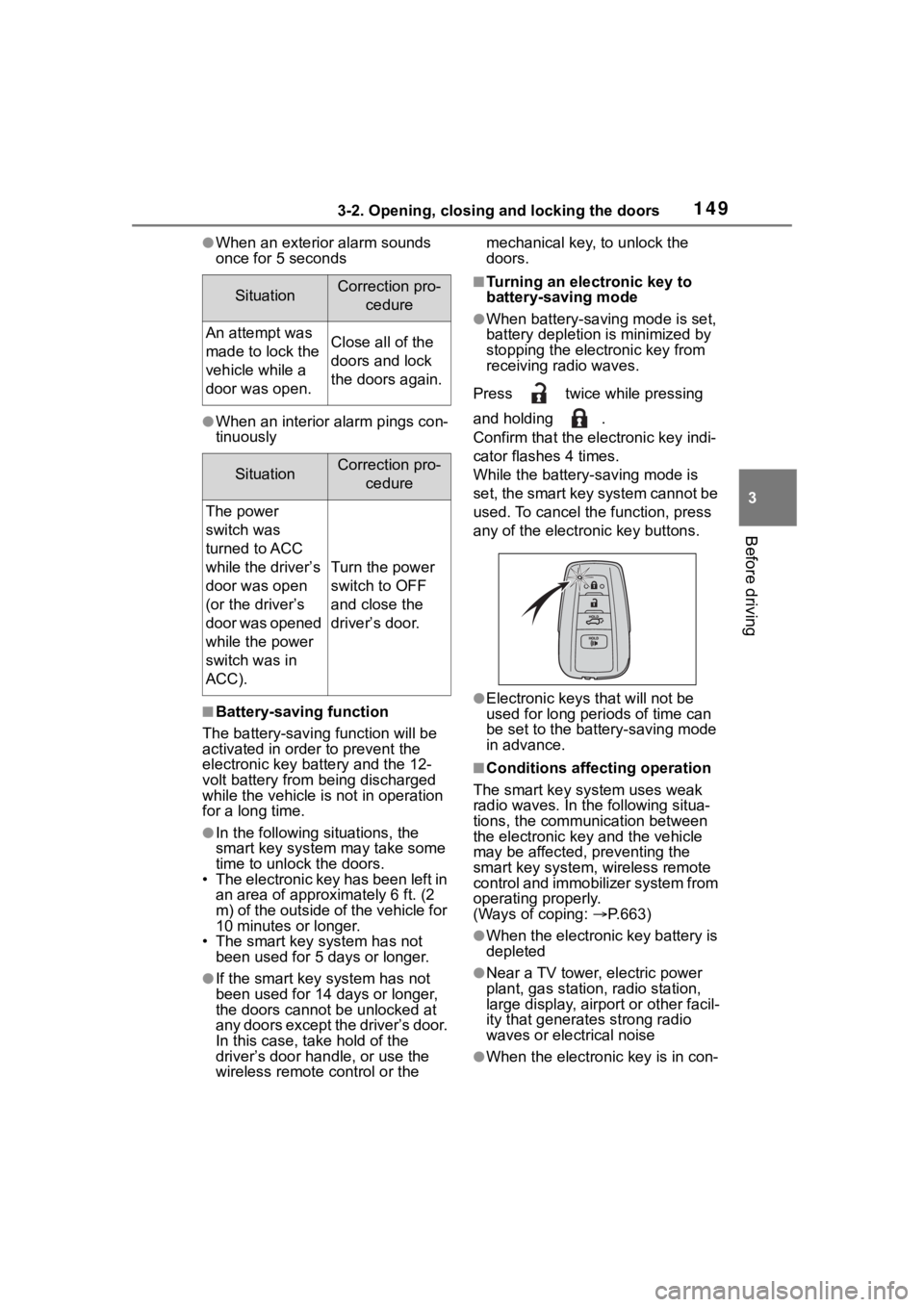
Press twice while pressing
and holding .
Confirm that the ele ctronic key indi-
cator flashes 4 times.
While the battery-saving mode is
set, the smart key system cannot be
used. To cancel the function, press
any of the electronic key buttons.
●Electronic keys that will not be
used for long periods of time can
be set to the battery-saving mode
in advance.
■Conditions affecting operation
The smart key system uses weak
radio waves. In the following situa-
tions, the communication between
the electronic key and the vehicle
may be affected, preventing the
smart key system, wireless remote
control and immobilizer system from
operating properly.
(Ways of coping: P.663)
●When the electronic key battery is
depleted
●Near a TV tower, electric power
plant, gas station, radio station,
large display, airpo rt or other facil-
ity that generates strong radio
waves or electrical noise
●When the electronic key is in con-
SituationCorrection pro-
cedure
An attempt was
made to lock the
vehicle while a
door was open.Close all of the
doors and lock
the doors again.
SituationCorrection pro-cedure
The power
switch was
turned to ACC
while the driver’s
door was open
(or the driver’s
door was opened
while the power
switch was in
ACC).
Turn the power
switch to OFF
and close the
driver’s door.
Page 158 of 744
1583-3. Adjusting the seats
ten.
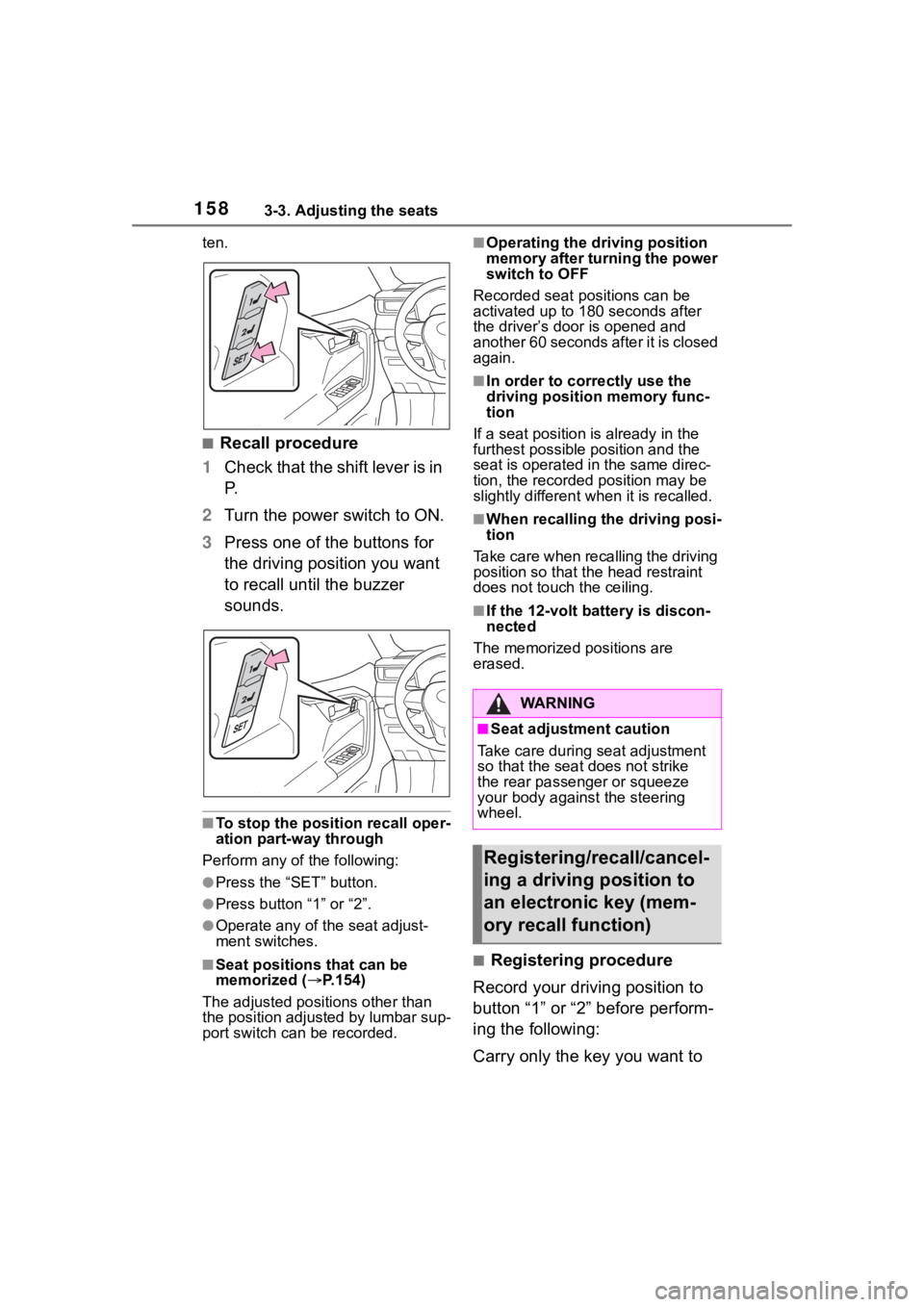
■Recall procedure
1 Check that the shift lever is in
P.
2 Turn the power switch to ON.
3 Press one of the buttons for
the driving position you want
to recall until the buzzer
sounds.
■To stop the position recall oper-
ation part-way through
Perform any of the following:
●Press the “SET” button.
●Press button “1” or “2”.
●Operate any of the seat adjust-
ment switches.
■Seat positions that can be
memorized ( P.154)
The adjusted positions other than
the position adjusted by lumbar sup-
port switch can be recorded.
■Operating the driving position
memory after turning the power
switch to OFF
Recorded seat positions can be
activated up to 180 seconds after
the driver’s door is opened and
another 60 seconds after it is closed
again.
■In order to corre ctly use the
driving position memory func-
tion
If a seat position is already in the
furthest possible position and the
seat is operated in the same direc-
tion, the recorded position may be
slightly different w hen it is recalled.
■When recalling the driving posi-
tion
Take care when recalling the driving
position so that the head restraint
does not touch the ceiling.
■If the 12-volt b attery is discon-
nected
The memorized positions are
erased.
■Registering procedure
Record your driving position to
button “1” or “2” before perform-
ing the following:
Carry only the key you want to
WA R N I N G
■Seat adjustment caution
Take care during seat adjustment
so that the seat does not strike
the rear passenger or squeeze
your body against the steering
wheel.
Registering/recall/cancel-
ing a driving position to
an electronic key (mem-
ory recall function)
Page 221 of 744
2214-2. Driving procedures
4
Driving
the shift release button is pushed
first, the shift lock will not be
released.
■Shift lock system
The shift lock system is a system to
prevent accidental operation of the
shift lever in starting.
The shift lever can be shifted from P
only when the pow er switch is in
ON, the brake pedal is depressed
and the shift release button is
pushed.
■If the shift lever cannot be
shifted from P
First, check whether the brake pedal
is being depressed.
If the shift lever cannot be shifted
even though the brake pedal is
depressed and the shift release but-
ton is pushed, there may be a prob-
lem with the shift lock system. Have
the vehicle inspected by your Toyota
dealer immediately.
The following steps may be used as
an emergency measure to ensure
that the shift lev er can be shifted.
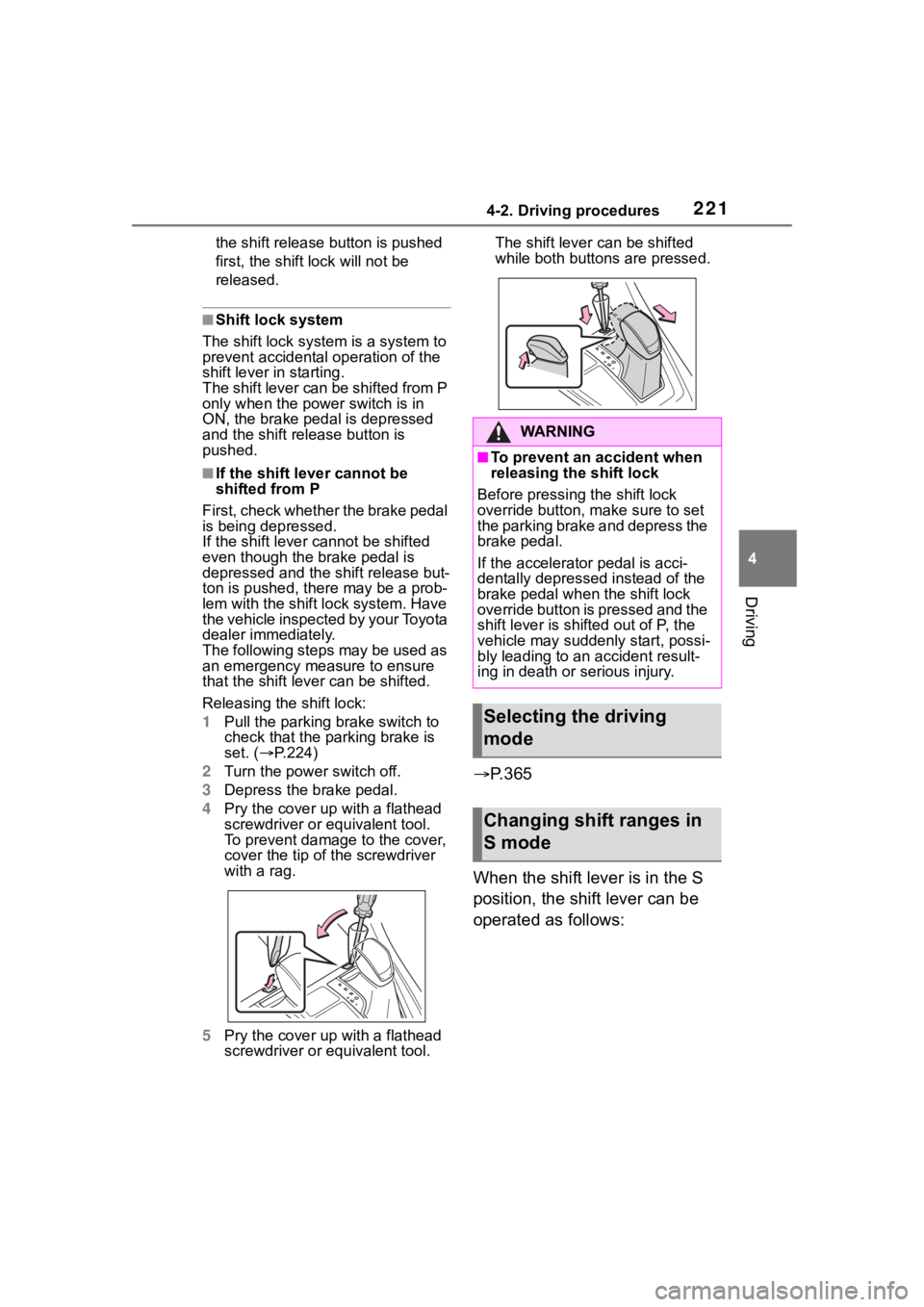
Releasing the shift lock:
1 Pull the parking brake switch to
check that the parking brake is
set. ( P.224)
2 Turn the power switch off.
3 Depress the brake pedal.
4 Pry the cover up with a flathead
screwdriver or equivalent tool.
To prevent damage to the cover,
cover the tip of the screwdriver
with a rag.
5 Pry the cover up with a flathead
screwdriver or equivalent tool. The shift lever can be shifted
while both buttons
are pressed.
P.365
When the shift lever is in the S
position, the shift lever can be
operated as follows:
WA R N I N G
■To prevent an accident when
releasing the shift lock
Before pressing the shift lock
override button, m ake sure to set
the parking brake and depress the
brake pedal.
If the accelerator pedal is acci-
dentally depressed instead of the
brake pedal when the shift lock
override button is pressed and the
shift lever is shifted out of P, the
vehicle may suddenly start, possi-
bly leading to an accident result-
ing in death or serious injury.
Selecting the driving
mode
Changing shift ranges in
S mode
Page 383 of 744
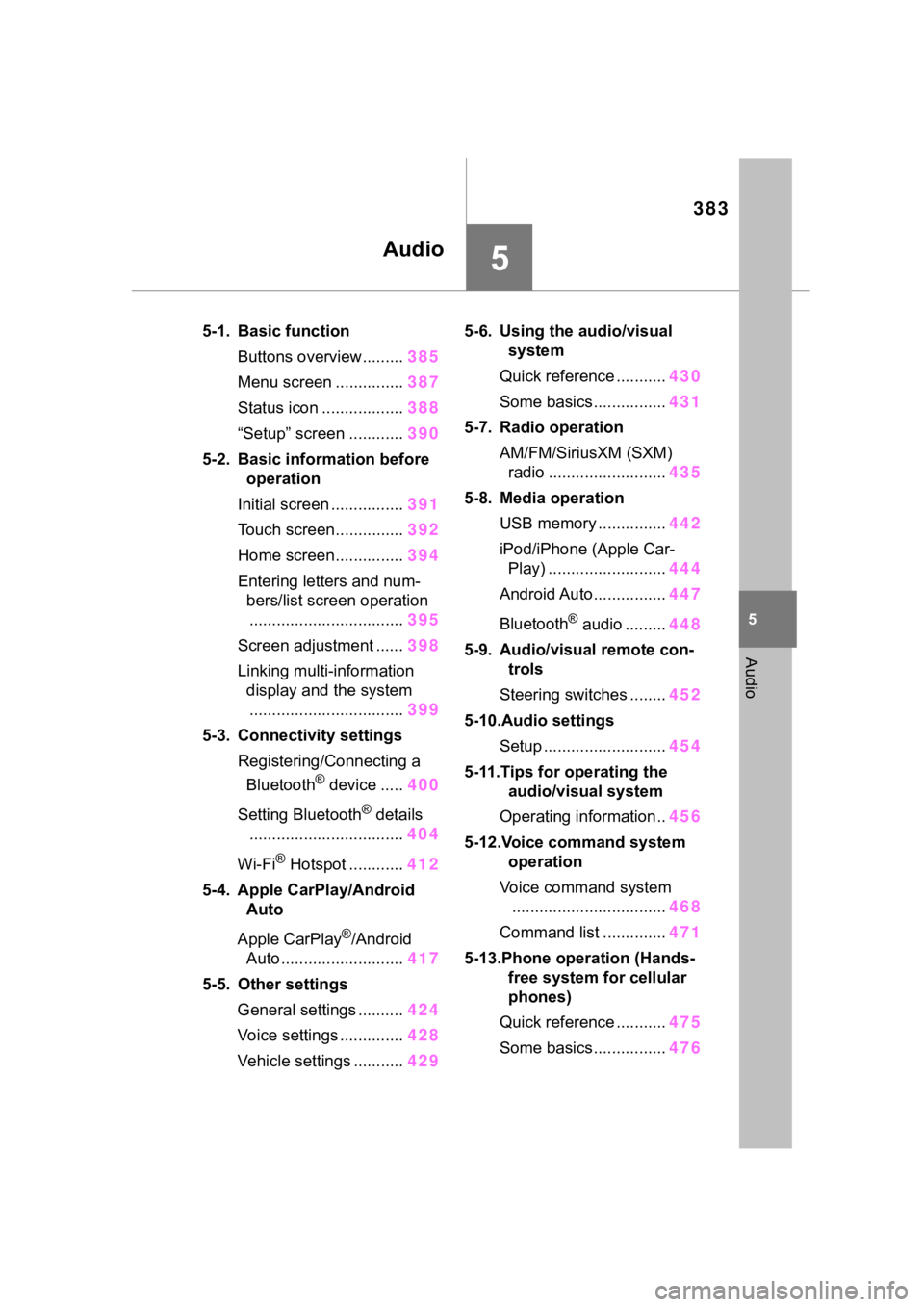
383
5
5
Audio
Audio
5-1. Basic functionButtons overview......... 385
Menu screen ............... 387
Status icon .................. 388
“Setup” screen ............ 390
5-2. Basic information before operation
Initial screen ................ 391
Touch screen............... 392
Home screen............... 394
Entering letters and num- bers/list screen operation.................................. 395
Screen adjustment ...... 398
Linking multi-information display and the system.................................. 399
5-3. Connectivity settings Registering/Connecting a Bluetooth
® device ..... 400
Setting Bluetooth
® details
.................................. 404
Wi-Fi
® Hotspot ............ 412
5-4. Apple CarPlay/Android Auto
Apple CarPlay
®/Android
Auto ........................... 417
5-5. Other settings General settings .......... 424
Voice settings .............. 428
Vehicle settings ........... 4295-6. Using the audio/visual
system
Quick reference ........... 430
Some basics................ 431
5-7. Radio operation AM/FM/SiriusXM (SXM) radio .......................... 435
5-8. Media operation USB memory ............... 442
iPod/iPhone (Apple Car- Play) .......................... 444
Android Auto................ 447
Bluetooth
® audio ......... 448
5-9. Audio/visual remote con- trols
Steering switches ........ 452
5-10.Audio settings Setup ........................... 454
5-11.Tips for operating the audio/visual system
Operating information.. 456
5-12.Voice command system operation
Voice command system .................................. 468
Command list .............. 471
5-13.Phone operation (Hands- free system for cellular
phones)
Quick reference ........... 475
Some basics................ 476