reset TOYOTA RAV4 PLUG-IN HYBRID 2023 Owners Manual
[x] Cancel search | Manufacturer: TOYOTA, Model Year: 2023, Model line: RAV4 PLUG-IN HYBRID, Model: TOYOTA RAV4 PLUG-IN HYBRID 2023Pages: 718, PDF Size: 167.55 MB
Page 170 of 718
1682-2. Charging
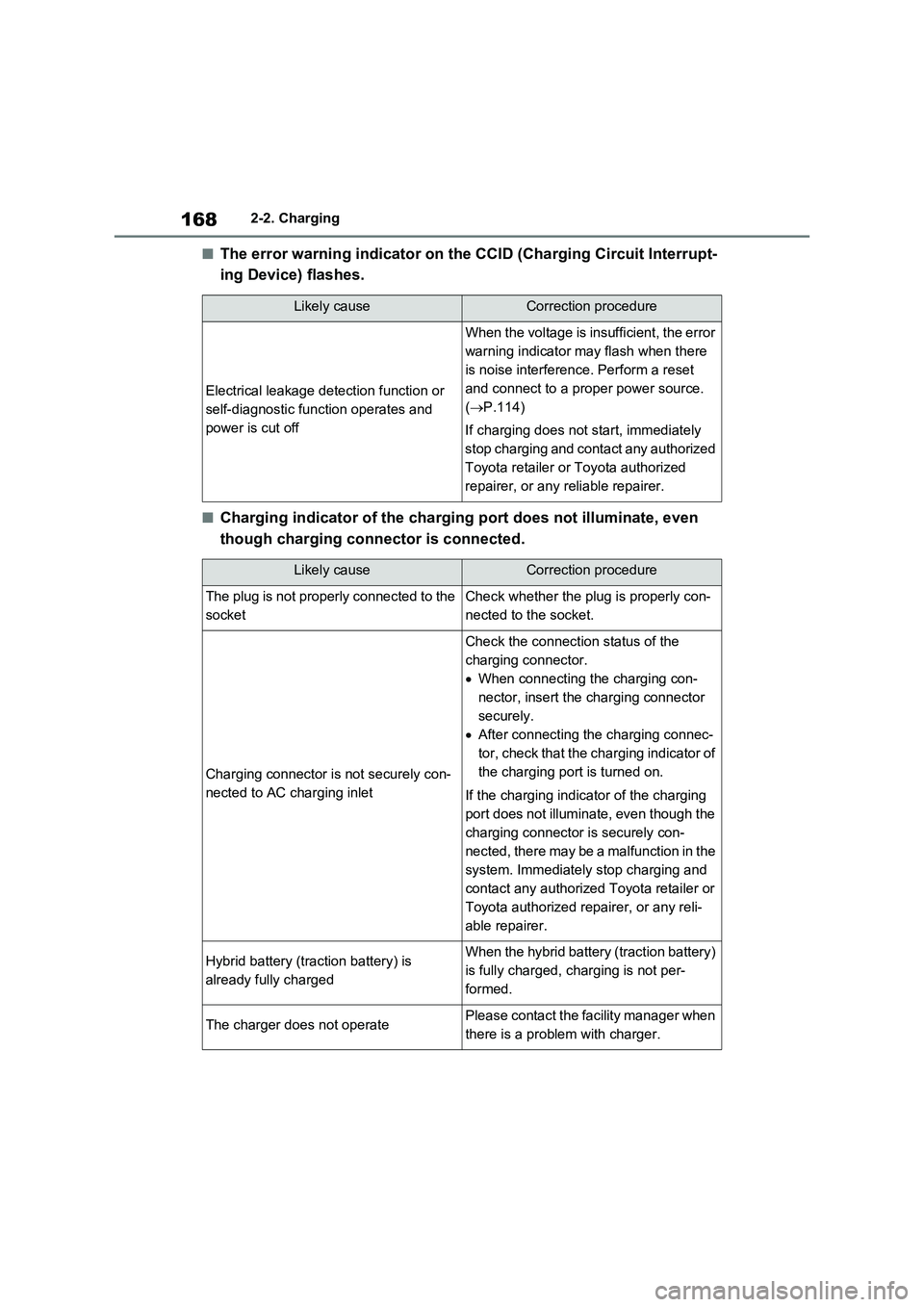
■The error warning indicator on the CCID (Charging Circuit Interrupt-
ing Device) flashes.
■Charging indicator of the charging port does not illuminate, even
though charging connector is connected.
Likely causeCorrection procedure
Electrical leakage detection function or
self-diagnostic function operates and
power is cut off
When the voltage is insufficient, the error
warning indicator may flash when there
is noise interference. Perform a reset
and connect to a proper power source.
(P.114)
If charging does not start, immediately
stop charging and contact any authorized
Toyota retailer or Toyota authorized
repairer, or any reliable repairer.
Likely causeCorrection procedure
The plug is not properly connected to the
socketCheck whether the plug is properly con-
nected to the socket.
Charging connector is not securely con-
nected to AC charging inlet
Check the connection status of the
charging connector.
When connecting the charging con-
nector, insert the charging connector
securely.
After connecting the charging connec-
tor, check that the charging indicator of
the charging port is turned on.
If the charging indicator of the charging
port does not illuminate, even though the
charging connector is securely con-
nected, there may be a malfunction in the
system. Immediately stop charging and
contact any authorized Toyota retailer or
Toyota authorized repairer, or any reli-
able repairer.
Hybrid battery (traction battery) is
already fully chargedWhen the hybrid battery (traction battery)
is fully charged, charging is not per-
formed.
The charger does not operatePlease contact the facility manager when
there is a problem with charger.
Page 190 of 718
1883-1. Instrument cluster
to HV mode). Charge the hybrid battery (traction battery) to allow EV driving.
Odometer, trip meter and instrument cluster light control display
Odometer:
Displays the total distance that the vehicle has been driven
Trip meter:
Displays the distance the vehicle has been driven since the meter was last reset.
Trip meters “A” and “B” can be used to record and display different distances inde-
pendently.
Instrument cluster light control:
Displays the brightness of the instrument cluster lights that can be adjusted.
Outside temperature (P.190)
Multi-information display
Presents the driver with a variety of driving-related data (P.199)
Displays warning messages if a malfunction occurs (P.544)
Shift position and shift range indicator
Displays the selected shift position or selected shift range (P.315)
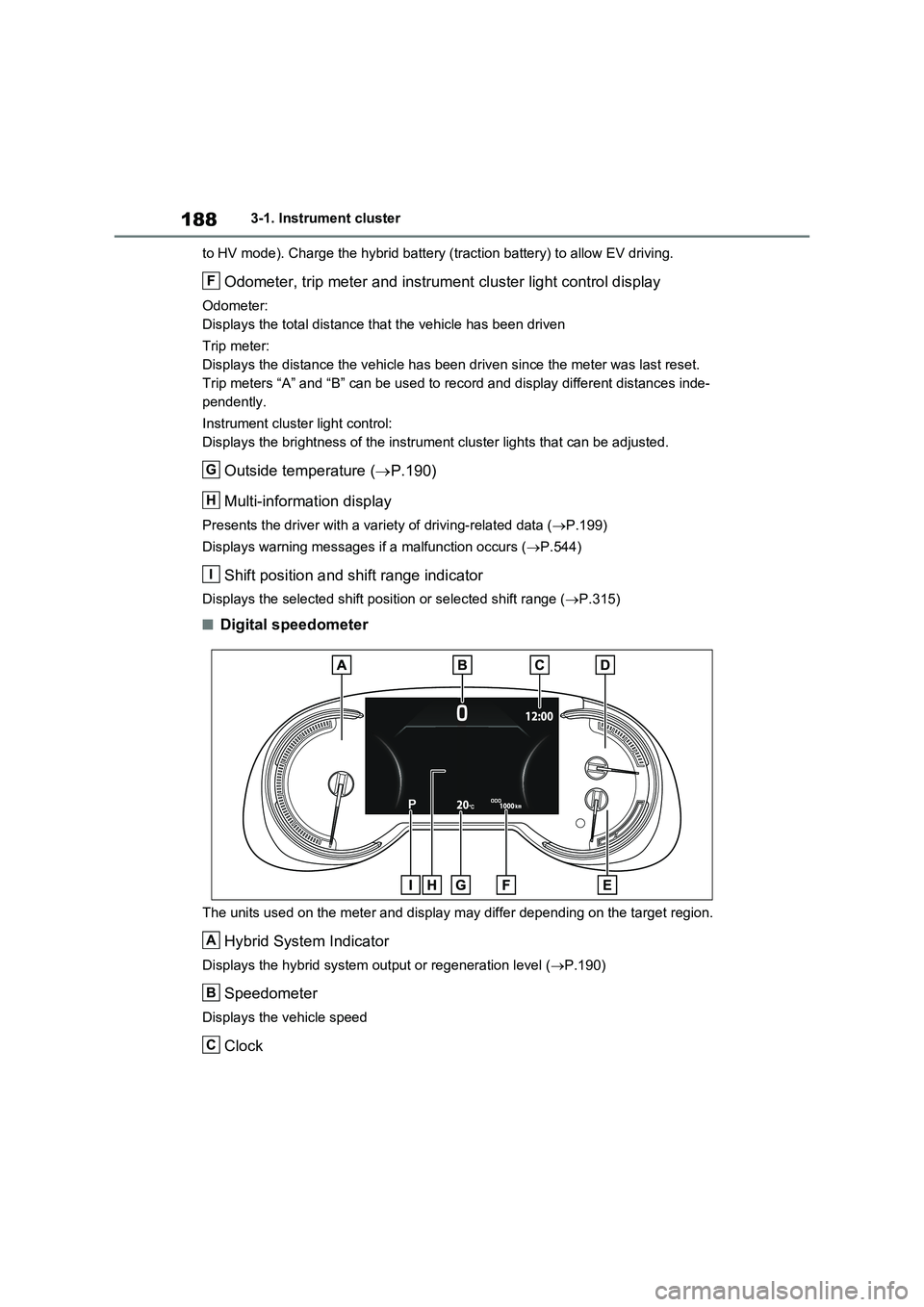
■Digital speedometer
The units used on the meter and display may differ depending on the target region.
Hybrid System Indicator
Displays the hybrid system output or regeneration level (P.190)
Speedometer
Displays the vehicle speed
Clock
F
G
H
I
A
B
C
Page 191 of 718
189
3 3-1. Instrument cluster
Vehicle status information and indicators
Automatically adjusts the time by using the GPS time information (GPS clock).
For details, refer to “Multimedia owner’s manual”.
Fuel gauge
Displays the quantity of fuel remaining in the tank
SOC (State of Charge) gauge
Displays the amount of charge remaining in the traction battery.
When the gauge is in the green zone, EV driving is possible. When the gauge is in
the blue zone, EV driving is no longer possible (in this situation, the vehicle switches
to HV mode). Charge the hybrid battery (traction battery) to allow EV driving.
Odometer, trip meter and instrument cluster light control display
Odometer:
Displays the total distance that the vehicle has been driven
Trip meter:
Displays the distance the vehicle has been driven since the meter was last reset.
Trip meters A and B can be used to record and display different distances inde-
pendently.
Instrument cluster light control:
Displays the brightness of the instrument cluster lights that can be adjusted.
Outside temperature (P.190)
Multi-information display
Presents the driver with a variety of driving-related data (P.199)
Displays warning messages if a malfunction occurs (P.544)
Shift position and shift range indicator
Displays the selected shift position or selected shift range (P.315)
■The meters and display illuminate
when
The power switch is in ON.
■When changing driving mode
●Speedometer color is changed follow-
ing the selected driving mode.
(P.411)
●Speedometer color is changed follow-
ing the selected driving mode or when
Trail Mode is turned on. (P.411,
413)
■If the units of measure for speed-
ometer can be changed (if
equipped)
The other units of measure is also dis-
played as shown in the illustrations.
D
E
F
G
H
I
Page 193 of 718
191
3
3-1. Instrument cluster
Vehicle status information and indicators
changed suddenly (at the
entrance/exit of a garage, tunnel, etc.)
●When “--” or “E” is displayed, the sys-
tem may be malfunctioning. Take your vehicle to any authorized Toyota retailer or Toyota authorized
repairer, or any reliable repairer.
●Displays the outside temperature
within the range of -40°C (-40°F) to 50°C (122°F).
●When the outside temperature is
approximately 3°C (37°F) or lower,
the indicator will flash for approxi-
mately 10 seconds, then stay on.
■Liquid crystal display
P.200
■Customization
Settings (e. g. meter display) can be
changed on the screen of the multi-
information display. ( P.206)
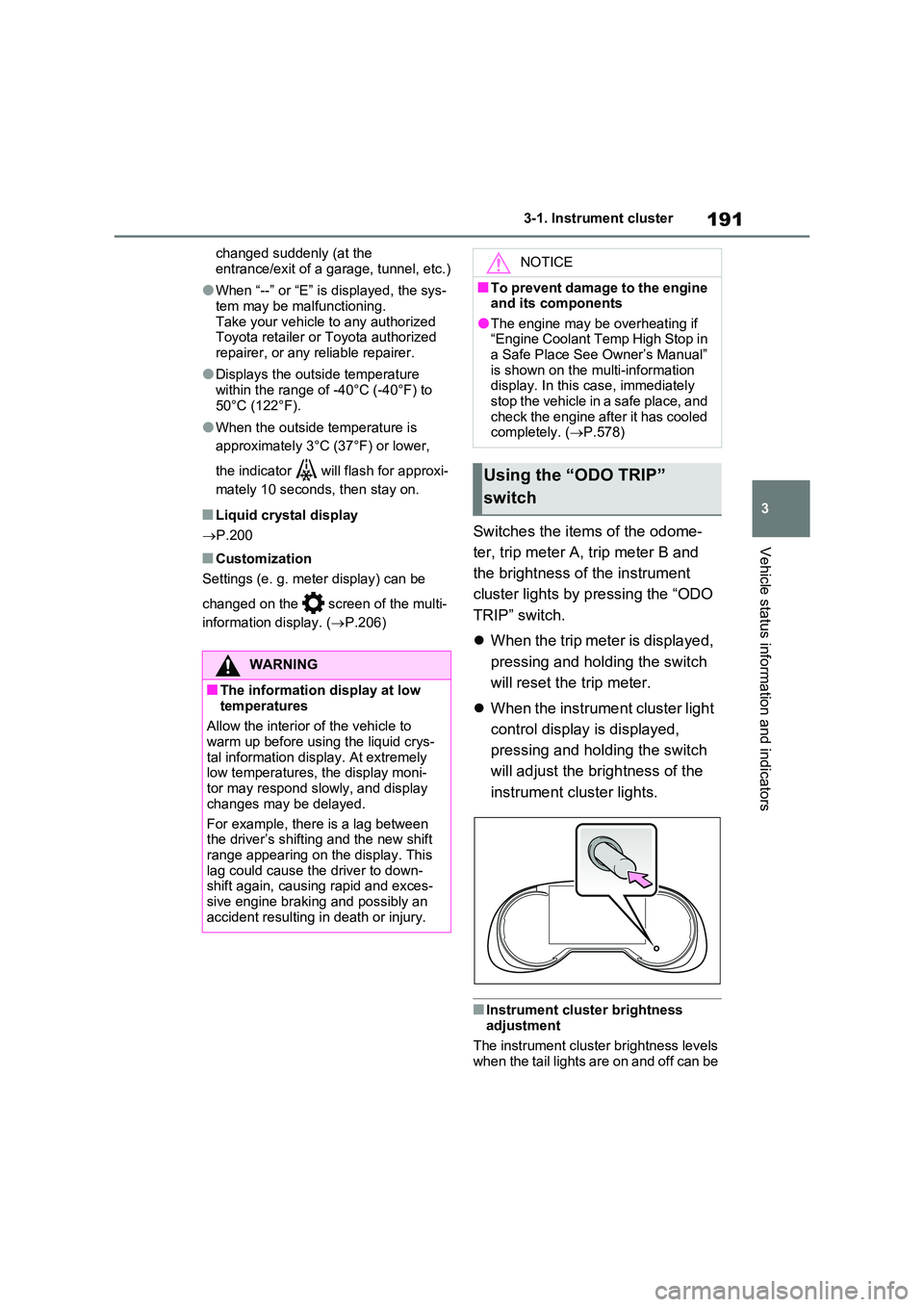
Switches the items of the odome-
ter, trip meter A, trip meter B and
the brightness of the instrument
cluster lights by pressing the “ODO
TRIP” switch.
When the trip meter is displayed,
pressing and holding the switch
will reset the trip meter.
When the instrument cluster light
control display is displayed,
pressing and holding the switch
will adjust the brightness of the
instrument cluster lights.
■Instrument cluster brightness adjustment
The instrument cluster brightness levels when the tail lights are on and off can be
WARNING
■The information display at low
temperatures
Allow the interior of the vehicle to warm up before using the liquid crys-
tal information display. At extremely low temperatures, the display moni-tor may respond slowly, and display
changes may be delayed.
For example, there is a lag between the driver’s shifting and the new shift
range appearing on the display. This lag could cause the driver to down-shift again, causing rapid and exces-
sive engine braking and possibly an accident resulting in death or injury.
NOTICE
■To prevent damage to the engine and its components
●The engine may be overheating if “Engine Coolant Temp High Stop in a Safe Place See Owner’s Manual”
is shown on the multi-information display. In this case, immediately stop the vehicle in a safe place, and
check the engine after it has cooled completely. ( P.578)
Using the “ODO TRIP”
switch
Page 201 of 718
199
3
3-1. Instrument cluster
Vehicle status information and indicators
■Display items
Odometer
Displays the total distance the vehicle
has been driven.
Trip meter A/trip meter B
Displays the distance the vehicle has
been driven since the meter was last
reset. Trip meters A and B can be used
to record and display different dis-
tances independently.
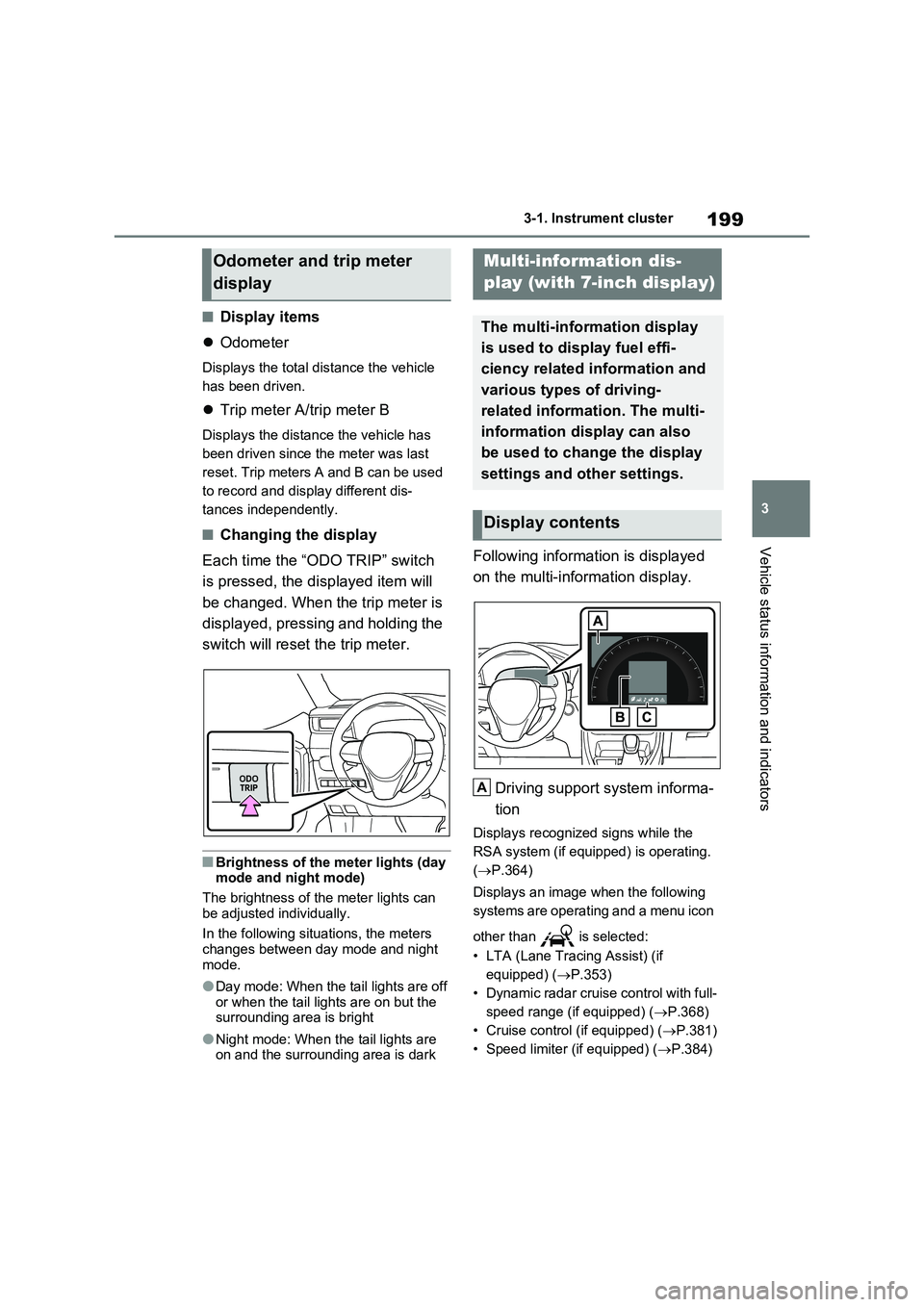
■Changing the display
Each time the “ODO TRIP” switch
is pressed, the displayed item will
be changed. When the trip meter is
displayed, pressing and holding the
switch will reset the trip meter.
■Brightness of the meter lights (day mode and night mode)
The brightness of the meter lights can
be adjusted individually.
In the following situations, the meters
changes between day mode and night mode.
●Day mode: When the tail lights are off or when the tail lights are on but the surrounding area is bright
●Night mode: When the tail lights are on and the surrounding area is dark
Following information is displayed
on the multi-information display.
Driving support system informa-
tion
Displays recognized signs while the
RSA system (if equipped) is operating.
( P.364)
Displays an image when the following
systems are operating and a menu icon
other than is selected:
• LTA (Lane Tracing Assist) (if
equipped) ( P.353)
• Dynamic radar cruise control with full-
speed range (if equipped) ( P.368)
• Cruise control (if equipped) ( P.381)
• Speed limiter (if equipped) ( P.384)
Odometer and trip meter
display
Multi-information dis-
play (with 7-inch display)
The multi-information display
is used to display fuel effi-
ciency related information and
various types of driving-
related information. The multi-
information display can also
be used to change the display
settings and other settings.
Display contents
A
Page 202 of 718
2003-1. Instrument cluster
Information display area
A variety of information can be dis-
played by selecting a menu icon.
Additionally, warning or sugges-
tion/advice pop-up displays will be dis-
played in some situations.
Menu icons ( P.200)
■The multi-information display is
displayed when
The power switch is in ON.
■When changing driving mode
●Background color of the multi-informa- tion display is changed following the selected driving mode. ( P.411)
●Background color of the multi-informa- tion display is changed following the
selected driving mode or when Trail Mode is turned on. ( P.411, 413)
■Liquid crystal display
Small spots or light spots may appear
on the display. This phenomenon is characteristic of liquid crystal displays, and there is no problem continuing to
use the display.
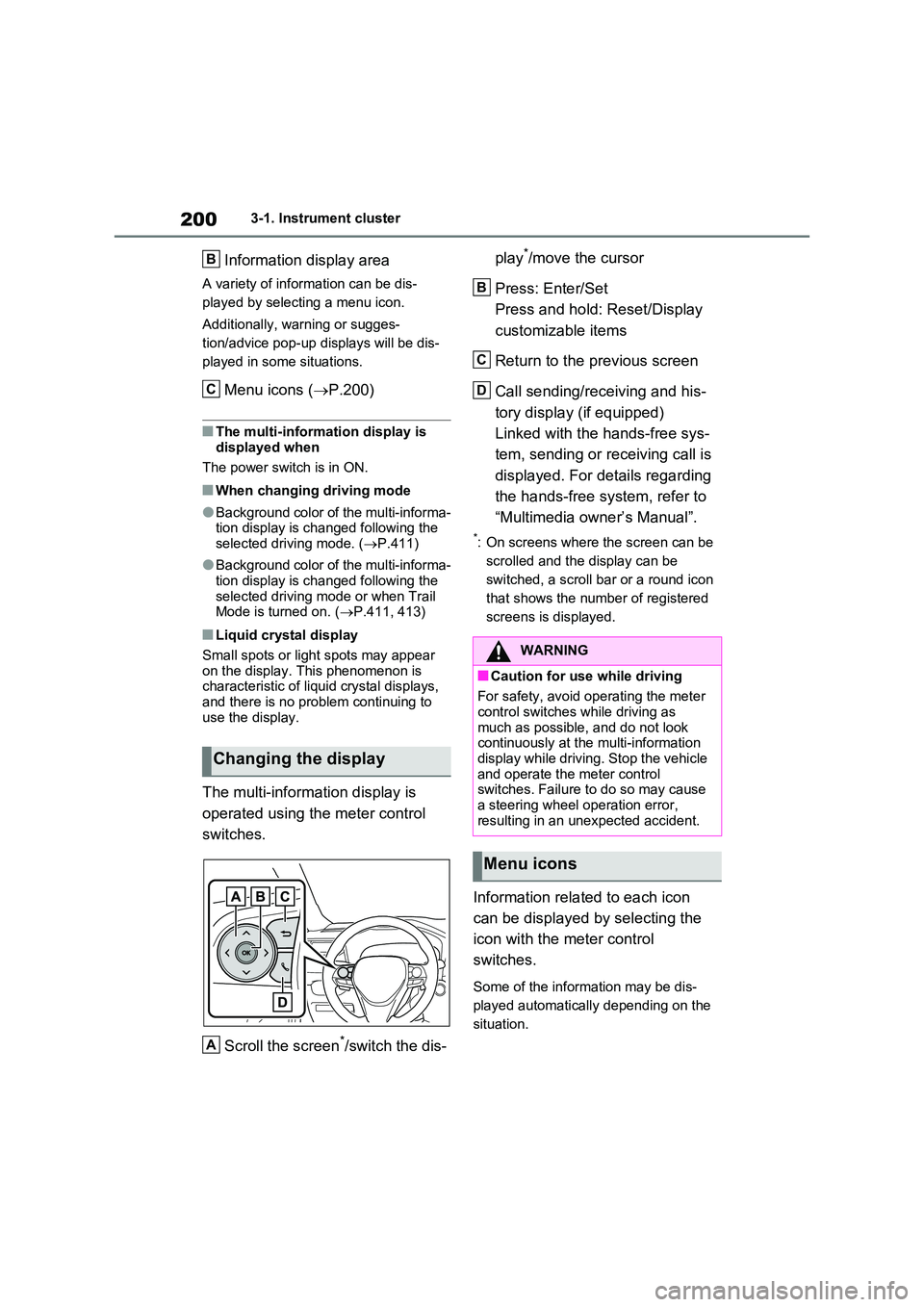
The multi-information display is
operated using the meter control
switches.
Scroll the screen*/switch the dis-
play*/move the cursor
Press: Enter/Set
Press and hold: Reset/Display
customizable items
Return to the previous screen
Call sending/receiving and his-
tory display (if equipped)
Linked with the hands-free sys-
tem, sending or receiving call is
displayed. For details regarding
the hands-free system, refer to
“Multimedia owner’s Manual”.
*: On screens where the screen can be
scrolled and the display can be
switched, a scroll bar or a round icon
that shows the number of registered
screens is displayed.
Information related to each icon
can be displayed by selecting the
icon with the meter control
switches.
Some of the information may be dis-
played automatically depending on the
situation.
Changing the display
B
C
A
WARNING
■Caution for use while driving
For safety, avoid operating the meter
control switches while driving as much as possible, and do not look continuously at the multi-information
display while driving. Stop the vehicle and operate the meter control switches. Failure to do so may cause
a steering wheel operation error, resulting in an unexpected accident.
Menu icons
B
C
D
Page 203 of 718
201
3 3-1. Instrument cluster
Vehicle status information and indicators
Select to display fuel consumption
data in various forms.
■Power Consumption/Fuel
Economy
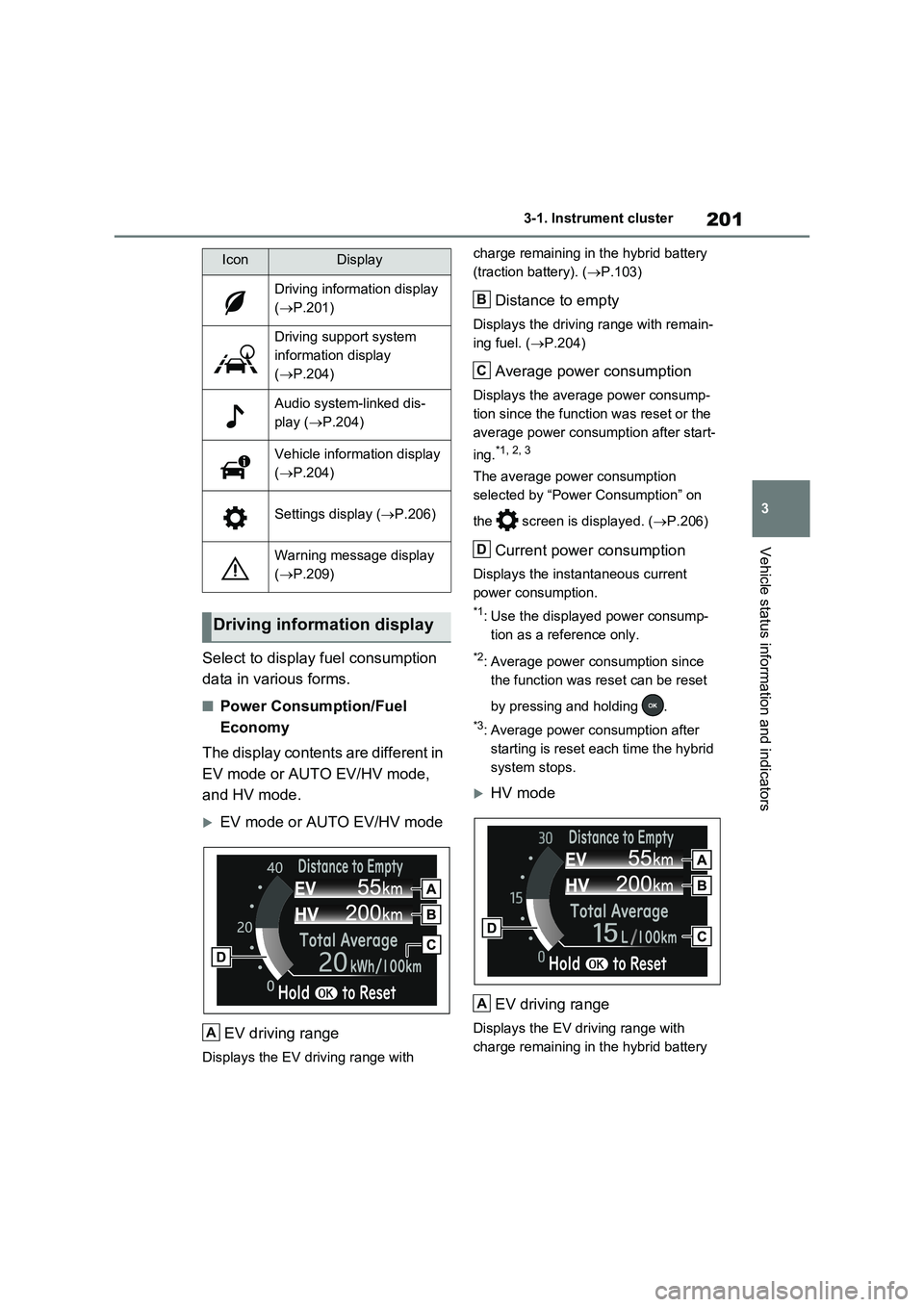
The display contents are different in
EV mode or AUTO EV/HV mode,
and HV mode.
EV mode or AUTO EV/HV mode
EV driving range
Displays the EV driving range with charge remaining in the hybrid battery
(traction battery). (P.103)
Distance to empty
Displays the driving range with remain-
ing fuel. (P.204)
Average power consumption
Displays the average power consump-
tion since the function was reset or the
average power consumption after start-
ing.
*1, 2, 3
The average power consumption
selected by “Power Consumption” on
the screen is displayed. (P.206)
Current power consumption
Displays the instantaneous current
power consumption.
*1: Use the displayed power consump-
tion as a reference only.
*2: Average power consumption since
the function was reset can be reset
by pressing and holding .
*3: Average power consumption after
starting is reset each time the hybrid
system stops.
HV mode
EV driving range
Displays the EV driving range with
charge remaining in the hybrid battery
IconDisplay
Driving information display
(P.201)
Driving support system
information display
(P.204)
Audio system-linked dis-
play (P.204)
Vehicle information display
(P.204)
Settings display (P.206)
Warning message display
(P.209)
Driving information display
A
B
C
D
A
Page 204 of 718
2023-1. Instrument cluster
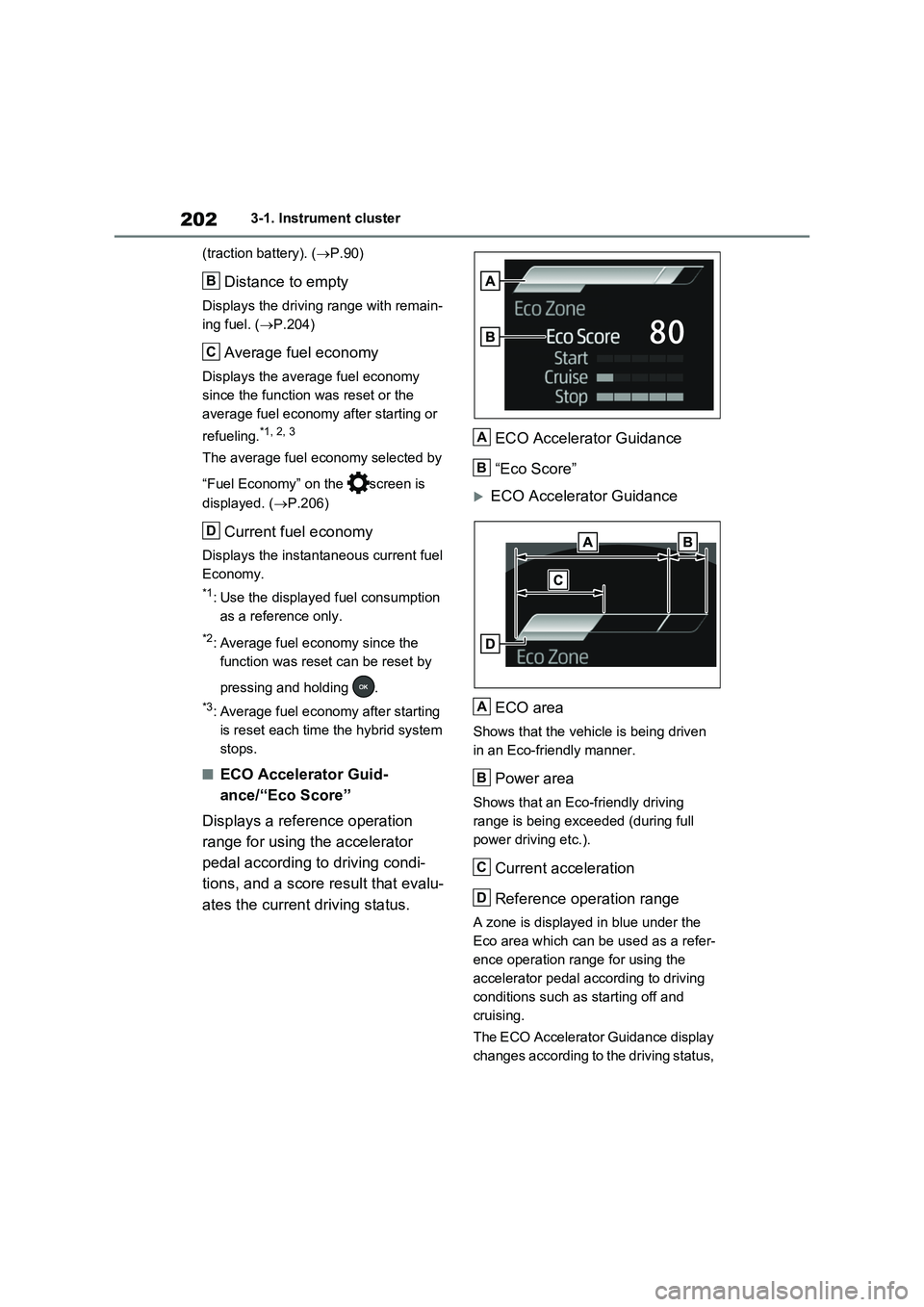
(traction battery). (P.90)
Distance to empty
Displays the driving range with remain-
ing fuel. (P.204)
Average fuel economy
Displays the average fuel economy
since the function was reset or the
average fuel economy after starting or
refueling.
*1, 2, 3
The average fuel economy selected by
“Fuel Economy” on the screen is
displayed. (P.206)
Current fuel economy
Displays the instantaneous current fuel
Economy.
*1: Use the displayed fuel consumption
as a reference only.
*2: Average fuel economy since the
function was reset can be reset by
pressing and holding .
*3: Average fuel economy after starting
is reset each time the hybrid system
stops.
■ECO Accelerator Guid-
ance/“Eco Score”
Displays a reference operation
range for using the accelerator
pedal according to driving condi-
tions, and a score result that evalu-
ates the current driving status.ECO Accelerator Guidance
“Eco Score”
ECO Accelerator Guidance
ECO area
Shows that the vehicle is being driven
in an Eco-friendly manner.
Power area
Shows that an Eco-friendly driving
range is being exceeded (during full
power driving etc.).
Current acceleration
Reference operation range
A zone is displayed in blue under the
Eco area which can be used as a refer-
ence operation range for using the
accelerator pedal according to driving
conditions such as starting off and
cruising.
The ECO Accelerator Guidance display
changes according to the driving status,
B
C
D
A
B
A
B
C
D
Page 205 of 718
203
3 3-1. Instrument cluster
Vehicle status information and indicators
such as when starting off or cruising.
It is easier to drive in an Eco-friendly
manner by driving according to the dis-
play showing the accelerator pedal
operations and staying within the refer-
ence operation range.
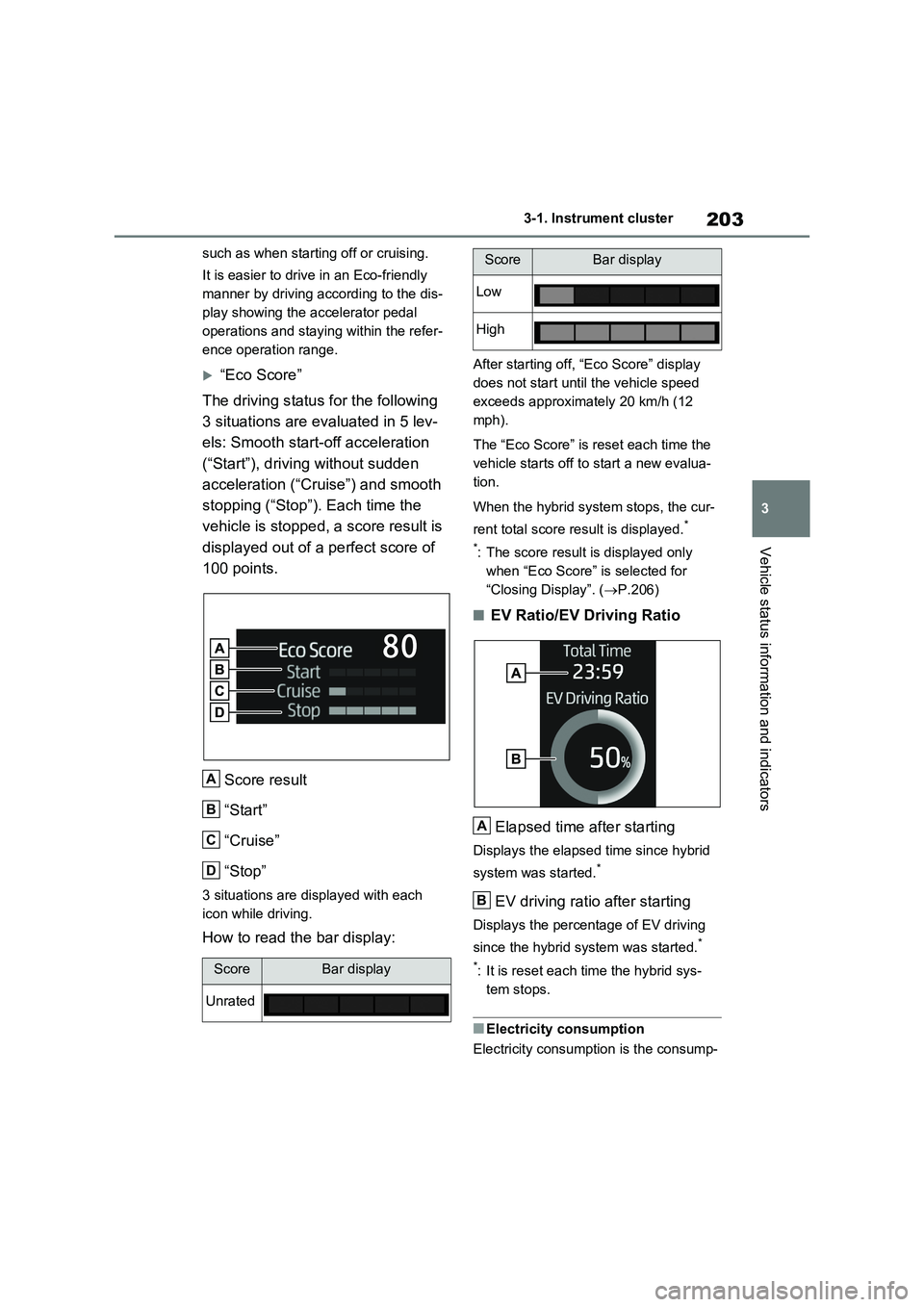
“Eco Score”
The driving status for the following
3 situations are evaluated in 5 lev-
els: Smooth start-off acceleration
(“Start”), driving without sudden
acceleration (“Cruise”) and smooth
stopping (“Stop”). Each time the
vehicle is stopped, a score result is
displayed out of a perfect score of
100 points.
Score result
“Start”
“Cruise”
“Stop”
3 situations are displayed with each
icon while driving.
How to read the bar display:
After starting off, “Eco Score” display
does not start until the vehicle speed
exceeds approximately 20 km/h (12
mph).
The “Eco Score” is reset each time the
vehicle starts off to start a new evalua-
tion.
When the hybrid system stops, the cur-
rent total score result is displayed.
*
*
: The score result is displayed only
when “Eco Score” is selected for
“Closing Display”. (P.206)
■EV Ratio/EV Driving Ratio
Elapsed time after starting
Displays the elapsed time since hybrid
system was started.
*
EV driving ratio after starting
Displays the percentage of EV driving
since the hybrid system was started.
*
*
: It is reset each time the hybrid sys-
tem stops.
■Electricity consumption
Electricity consumption is the consump-
ScoreBar display
Unrated
A
B
C
D
Low
High
ScoreBar display
A
B
Page 207 of 718
205
3 3-1. Instrument cluster
Vehicle status information and indicators
setting (since the system was
started or between resets).
(P.206)
Use the displayed information as a ref-
erence only.
Following items will be displayed.
“Trip”
• “Average Speed”: Displays the aver-
age vehicle speed since hybrid sys-
tem start
*
• “Distance”: Displays the distance
driven since hybrid system start*
• “Total Time”: Displays the elapsed
time since hybrid system start*
*
: These items are reset each time the
hybrid system stops.
“Total”
• “Average Speed”: Displays the aver-
age vehicle speed since the display
was reset
*
• “Distance”: Displays the distance
driven since the display was reset*
• “Total Time”: Displays the elapsed
time since the display was reset*
*
: To reset, display the desired item and
press and hold .
■Energy monitor
P.226
■Tire pressure
P.488
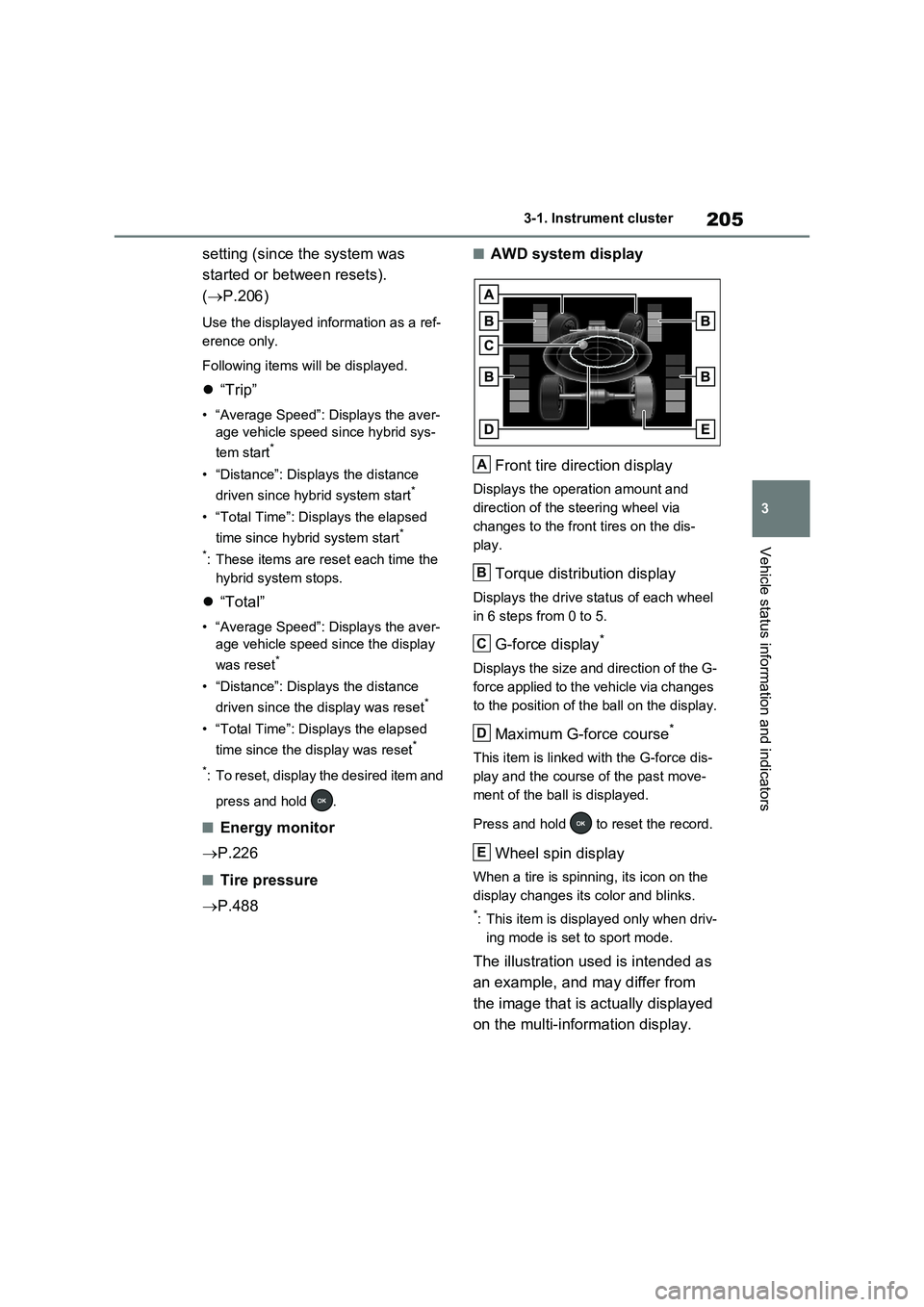
■AWD system display
Front tire direction display
Displays the operation amount and
direction of the steering wheel via
changes to the front tires on the dis-
play.
Torque distribution display
Displays the drive status of each wheel
in 6 steps from 0 to 5.
G-force display*
Displays the size and direction of the G-
force applied to the vehicle via changes
to the position of the ball on the display.
Maximum G-force course*
This item is linked with the G-force dis-
play and the course of the past move-
ment of the ball is displayed.
Press and hold to reset the record.
Wheel spin display
When a tire is spinning, its icon on the
display changes its color and blinks.
*: This item is displayed only when driv-
ing mode is set to sport mode.
The illustration used is intended as
an example, and may differ from
the image that is actually displayed
on the multi-information display.
A
B
C
D
E