manual key TOYOTA SUPRA 2019 Owners Manual
[x] Cancel search | Manufacturer: TOYOTA, Model Year: 2019, Model line: SUPRA, Model: TOYOTA SUPRA 2019Pages: 456, PDF Size: 88.65 MB
Page 9 of 456
9
1
Supra Owner's Manual1-1. NOTES
NOTES
This data includes, for example:
• Status messages of the vehicle
and its individual components,
for example wheel rotation
speed, wheel speed, decelera-
tion, lateral acceleration, fas-
tened seat belt indicator.
• Ambient conditions, for example
temperature, rain sensor signals.
The data is only processed within
the vehicle itself and is usually tran-
sient. The data is not saved after
the vehicle is switched off.
Electronic parts, for example con-
trol devices and vehicle keys, con-
tain components for saving
technical information. Information
on vehicle condition, component
load, maintenance requirements,
events or errors can be saved tem-
porarily or permanently.
This information generally docu-
ments the condition of a compo-
nent, a module, a system or its
environment, for example:
• Operating states of system com-
ponents, for example, fill levels,
tyre inflation pressure, battery
status.
• Malfunctions and faults of impor-
tant system components, for
example, lights and brakes.
• Responses of the vehicle to par-
ticular driving situations, for
example triggering of an airbag,
activation of the drive stability
control systems.
• Information on vehicle-damag-ing events.
The data is required so that the
control units can perform their func-
tions. It is also used for detecting
and rectifying malfunctions, and
helps the vehicle manufacturer to
optimise vehicle functions.
The majority of this data is transient
and is only processed within the
vehicle itself. Only a small propor-
tion of the data is stored in event or
error memories in response to spe-
cific circumstances.
When service work is being carried
out, for example repairs, service
operations, warranty work and
quality assurance measures, this
technical information can be read
out from the vehicle together with
the vehicle identification number.
Any authorized Toyota retailer or
Toyota authorized repairer, or any
reliable repairer can read out the
information. The legally required
on-board diagnostics (OBD) socket
in the vehicle is used to read out
the data.
The data is collected, processed
and used by the relevant organisa-
tions in the service network. The
data documents the technical con-
ditions of the vehicle and helps in
locating errors, complying with war-
ranty obligations and improving
quality.
Furthermore, the manufacturer has
product monitoring obligations to
meet in line with product liability
Page 23 of 456
23
2
Supra Owner's Manual2-1. QUICK REFERENCE
QUICK REFERENCE
This feature allows you to access
the vehicle without having to oper-
ate the remote control.
Simply having the remote control
with you, for example in your trou-
ser pocket, is sufficient.
The vehicle automatically recog-
nises the remote control when it is
in the immediate vicinity or inside
the vehicle.
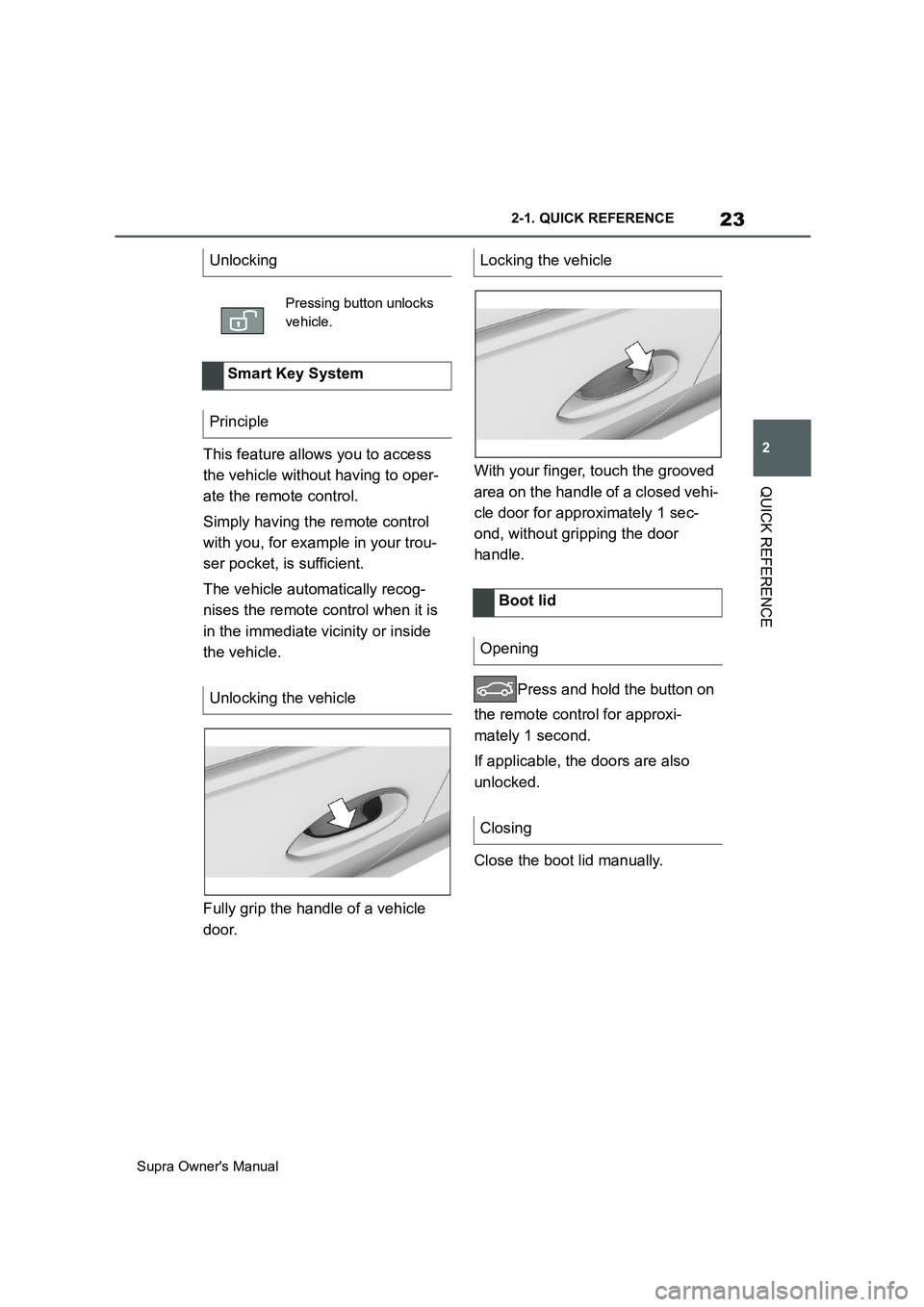
Fully grip the handle of a vehicle
door.With your finger, touch the grooved
area on the handle of a closed vehi-
cle door for approximately 1 sec-
ond, without gripping the door
handle.
Press and hold the button on
the remote control for approxi-
mately 1 second.
If applicable, the doors are also
unlocked.
Close the boot lid manually. Unlocking
Pressing button unlocks
vehicle.
Smart Key System
Principle
Unlocking the vehicle
Locking the vehicle
Boot lid
Opening
Closing
Page 28 of 456
28
Supra Owner's Manual2-1. QUICK REFERENCE
■Country
1"Navigation"
2"Address input"
3"Country?"
4Tilt the Controller to the right to
select the country from the list.
■Entering an address
1"City/town or postcode?"
2Enter letters or numbers.
3Tilt the Controller to the right to
select the town/city or postal
code from the list.
4"Street?"
5Enter the street in the same way
as for the town/city.
6"House number/road junction?"
7Switch to the list of house num-
bers and junctions.
8Select the house number or
junction.
"Start route guidance"
If only the town/city was entered:
route guidance to the town/city cen-
tre is started.Once the mobile telephone has
been connected in the vehicle, it
can be operated using the Toyota
Supra Command, the buttons on
the steering wheel and by voice
control.
Via Toyota Supra Command:
1"My Vehicle"
2"System settings"
3"Mobile devices"
4"Connect new device"
5Select functions for which you
would like to use the mobile
telephone.
The Bluetooth name of the vehicle is
displayed in the Control Display.
6To perform other operations on
the mobile telephone; see the
user manual of the mobile tele-
phone: for example finding/con-
necting Bluetooth device or new
device.
The Bluetooth name of the vehicle is
shown on the display of the mobile tele-
phone. Select the Bluetooth name of
the vehicle.
7Depending on the mobile
device, either a control number
is displayed, or you will have to Navigation destination input
Entering the destination using an
address
Starting route guidance
Connecting mobile telephone
General
Connecting mobile telephone by
passkey entry
Page 45 of 456
45
3
Supra Owner's Manual3-1. CONTROLS
CONTROLS
The vehicle switches automatically
to idle state under the following
conditions:
• After a few minutes, if no opera-
tion is performed on the vehicle.
• When the battery state of charge
is low.
• When leaving the vehicle, if one
of the front doors is opened,
depending on the Toyota Supra
Command setting.
Idle state is not established auto-
matically during a telephone call.
Via Toyota Supra Command:
1"My Vehicle"
2"Vehicle setteing"
3"Doors/Key"
4"Switch off after door opening"
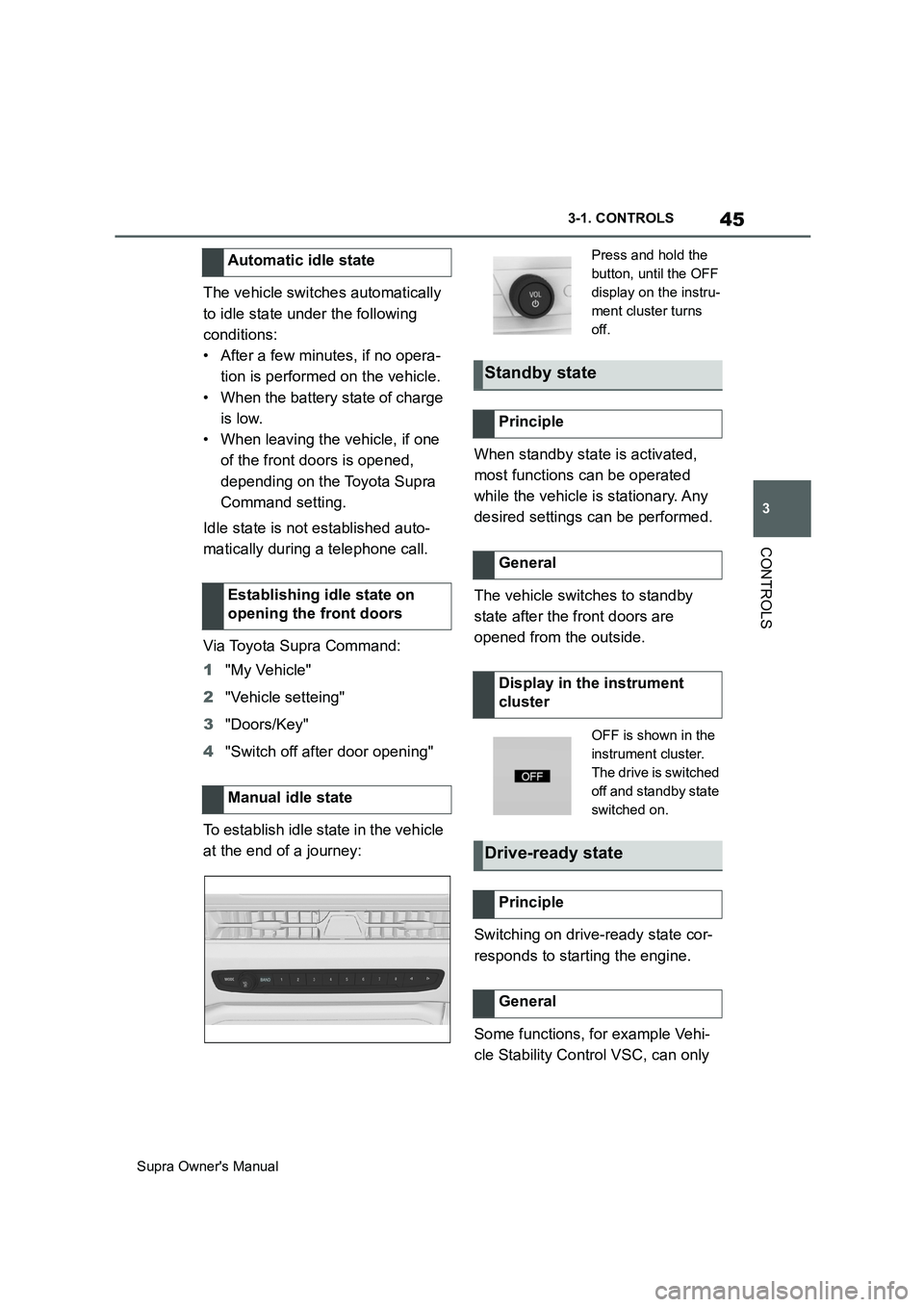
To establish idle state in the vehicle
at the end of a journey:When standby state is activated,
most functions can be operated
while the vehicle is stationary. Any
desired settings can be performed.
The vehicle switches to standby
state after the front doors are
opened from the outside.
Switching on drive-ready state cor-
responds to starting the engine.
Some functions, for example Vehi-
cle Stability Control VSC, can only Automatic idle state
Establishing idle state on
opening the front doors
Manual idle state
Press and hold the
button, until the OFF
display on the instru-
ment cluster turns
off.
Standby state
Principle
General
Display in the instrument
cluster
OFF is shown in the
instrument cluster.
The drive is switched
off and standby state
switched on.
Drive-ready state
Principle
General
Page 48 of 456
48
Supra Owner's Manual3-1. CONTROLS
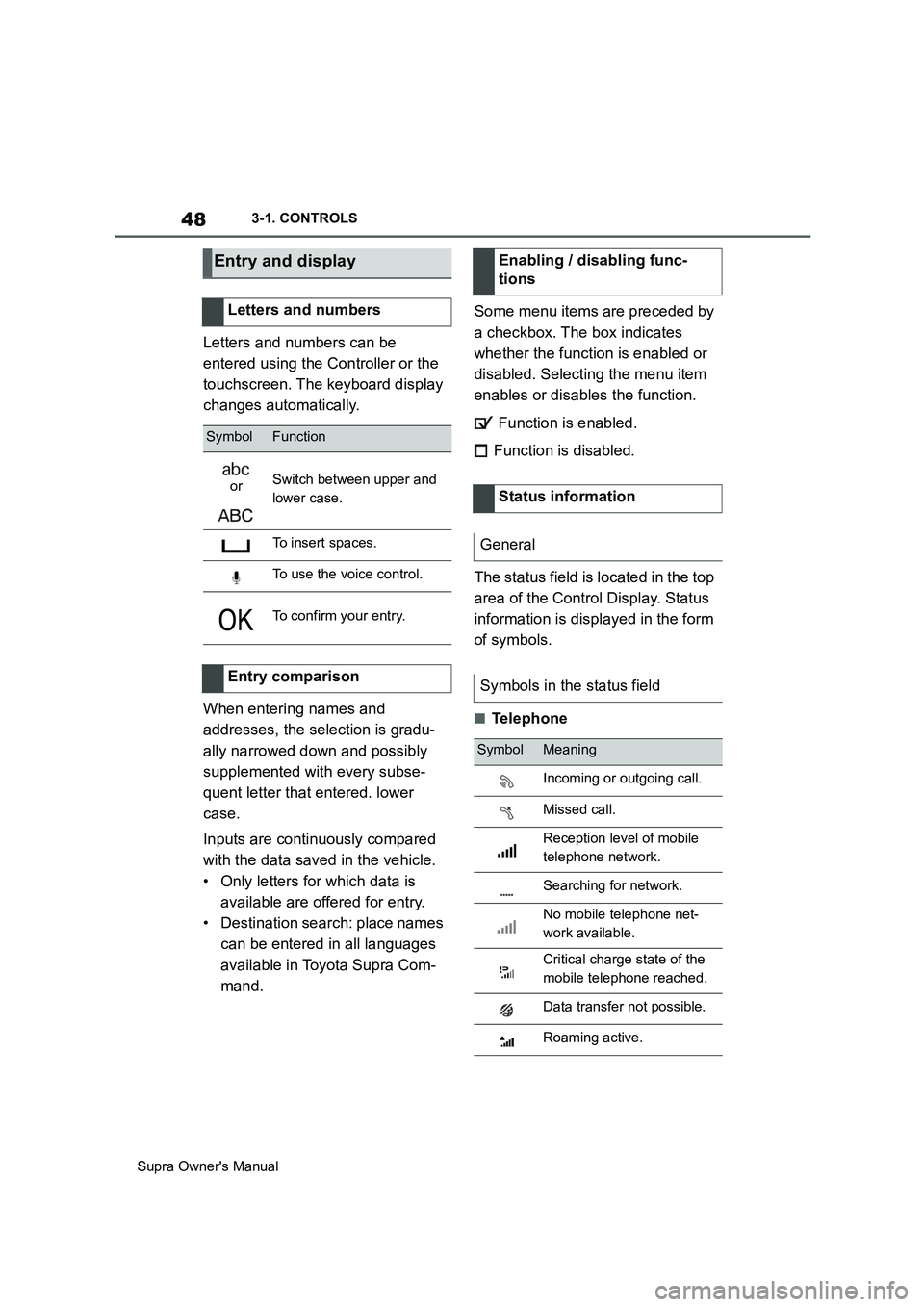
Letters and numbers can be
entered using the Controller or the
touchscreen. The keyboard display
changes automatically.
When entering names and
addresses, the selection is gradu-
ally narrowed down and possibly
supplemented with every subse-
quent letter that entered. lower
case.
Inputs are continuously compared
with the data saved in the vehicle.
• Only letters for which data is
available are offered for entry.
• Destination search: place names
can be entered in all languages
available in Toyota Supra Com-
mand.Some menu items are preceded by
a checkbox. The box indicates
whether the function is enabled or
disabled. Selecting the menu item
enables or disables the function.
Function is enabled.
Function is disabled.
The status field is located in the top
area of the Control Display. Status
information is displayed in the form
of symbols.
■Telephone
Entry and display
Letters and numbers
SymbolFunction
orSwitch between upper and
lower case.
To insert spaces.
To use the voice control.
To confirm your entry.
Entry comparison
Enabling / disabling func-
tions
Status information
General
Symbols in the status field
SymbolMeaning
Incoming or outgoing call.
Missed call.
Reception level of mobile
telephone network.
Searching for network.
No mobile telephone net-
work available.
Critical charge state of the
mobile telephone reached.
Data transfer not possible.
Roaming active.
Page 55 of 456
55
3
Supra Owner's Manual3-1. CONTROLS
CONTROLS
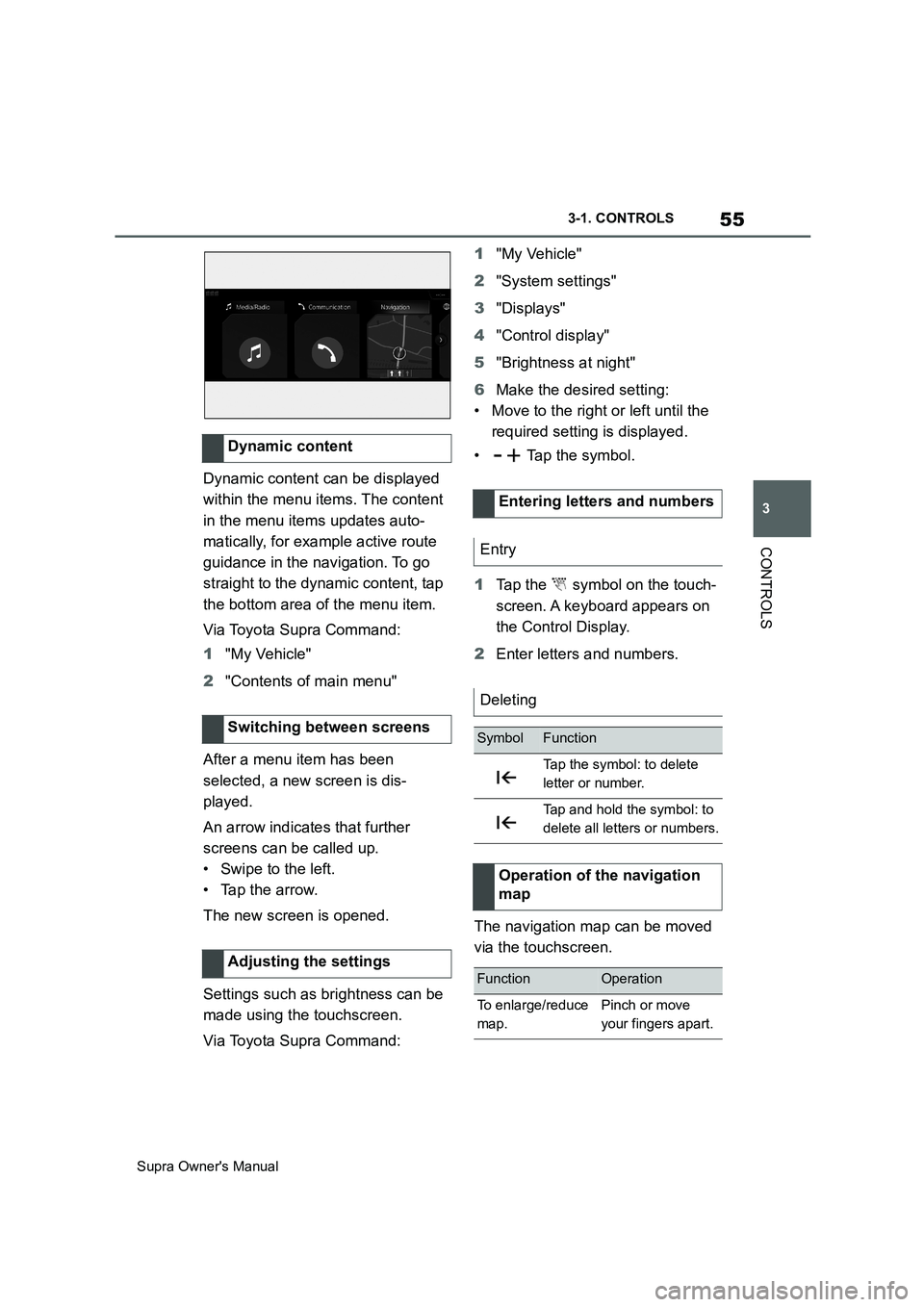
Dynamic content can be displayed
within the menu items. The content
in the menu items updates auto-
matically, for example active route
guidance in the navigation. To go
straight to the dynamic content, tap
the bottom area of the menu item.
Via Toyota Supra Command:
1"My Vehicle"
2"Contents of main menu"
After a menu item has been
selected, a new screen is dis-
played.
An arrow indicates that further
screens can be called up.
• Swipe to the left.
• Tap the arrow.
The new screen is opened.
Settings such as brightness can be
made using the touchscreen.
Via Toyota Supra Command:1"My Vehicle"
2"System settings"
3"Displays"
4"Control display"
5"Brightness at night"
6Make the desired setting:
• Move to the right or left until the
required setting is displayed.
• Tap the symbol.
1Tap the symbol on the touch-
screen. A keyboard appears on
the Control Display.
2Enter letters and numbers.
The navigation map can be moved
via the touchscreen. Dynamic content
Switching between screens
Adjusting the settings
Entering letters and numbers
Entry
Deleting
SymbolFunction
Tap the symbol: to delete
letter or number.
Tap and hold the symbol: to
delete all letters or numbers.
Operation of the navigation
map
FunctionOperation
To enlarge/reduce
map.Pinch or move
your fingers apart.
Page 74 of 456
74
Supra Owner's Manual3-1. CONTROLS
This chapter describes all standard,
country-specific and special equip-
ment available for the model series.
It may therefore describe equip-
ment and functions which are not
installed in your vehicle, for exam-
ple on account of the optional
equipment selected or the country
specification. This also applies to
safety-relevant functions and sys-
tems. Please comply with the rele-
vant laws and regulations when
using the corresponding functions
and systems.
The delivery specification includes
two remote controls with integrated
keys.
Each remote control contains a
replaceable battery. Replacing the
battery, see page 77.
The button functions can be
assigned, depending on the equip-
ment and the country specifica-
tions. For settings, see page 89.
A driver profile, see page 86, with
personalised settings can be
assigned to a remote control.
To prevent the remote control from
being locked in, take it with you whenever you leave the vehicle.
Opening and closing
Vehicle equipment
Remote control
General
Safety notes
WARNING
Persons remaining in the vehicle or
pets left inside can lock the doors
from the inside and lock themselves
in. In this case, the vehicle cannot be
opened from the outside. There is a
danger of injury. Carry the remote
control with you so that you can open
the vehicle from the outside.
WARNING
With some country specifications,
unlocking from the inside is only pos-
sible with special knowledge.
There is a risk of injury or danger to
life if persons remain in the vehicle for
extended periods and are exposed to
extreme temperatures as a result. Do
not lock the vehicle from the outside
when there is someone inside it.
WARNING
Unsupervised children or pets in the
vehicle can set the vehicle in motion
and endanger themselves or other
road users, for example by the follow-
ing actions:
• Pressing the start/stop button.
• Release the parking brake.
• Opening and closing doors or win-
dows.
• Engaging selector lever position N.
• Operating vehicle equipment.
There is a risk of accidents or injury.
Do not leave children or pets unsu-
pervised in the vehicle. When leaving
the vehicle, take the remote control
with you and lock the vehicle.
Page 77 of 456
77
3
Supra Owner's Manual3-1. CONTROLS
CONTROLS
The exterior mirrors are folded in.
If the hazard warning lights are
switched on, the exterior mirrors
are not folded in.
The function is not available for the
first 10 seconds after locking.
• The interior light is switched on
unless it was switched off manu-
ally. Switching the interior light
on/off manually, see page 178.
• Depending on the settings, the
exterior lights, see page 173, are
switched on.
The light functions might be
dependent on the ambient bright-
ness.
To prevent the remote control from
being locked in, do not place the
remote control in the boot.
It is possible to set whether the
doors are unlocked when the boot
lid is opened with the remote con-
trol. For settings, see page 89.On some equipment versions, the
doors are also unlocked each time.
Setting the duration, see page 173.
1Remove the integrated key from
the remote control, see page 80.
2Place integrated key under the
battery compartment cover,
arrow 1, and pry off the cover Switching on the interior
light and exterior lights
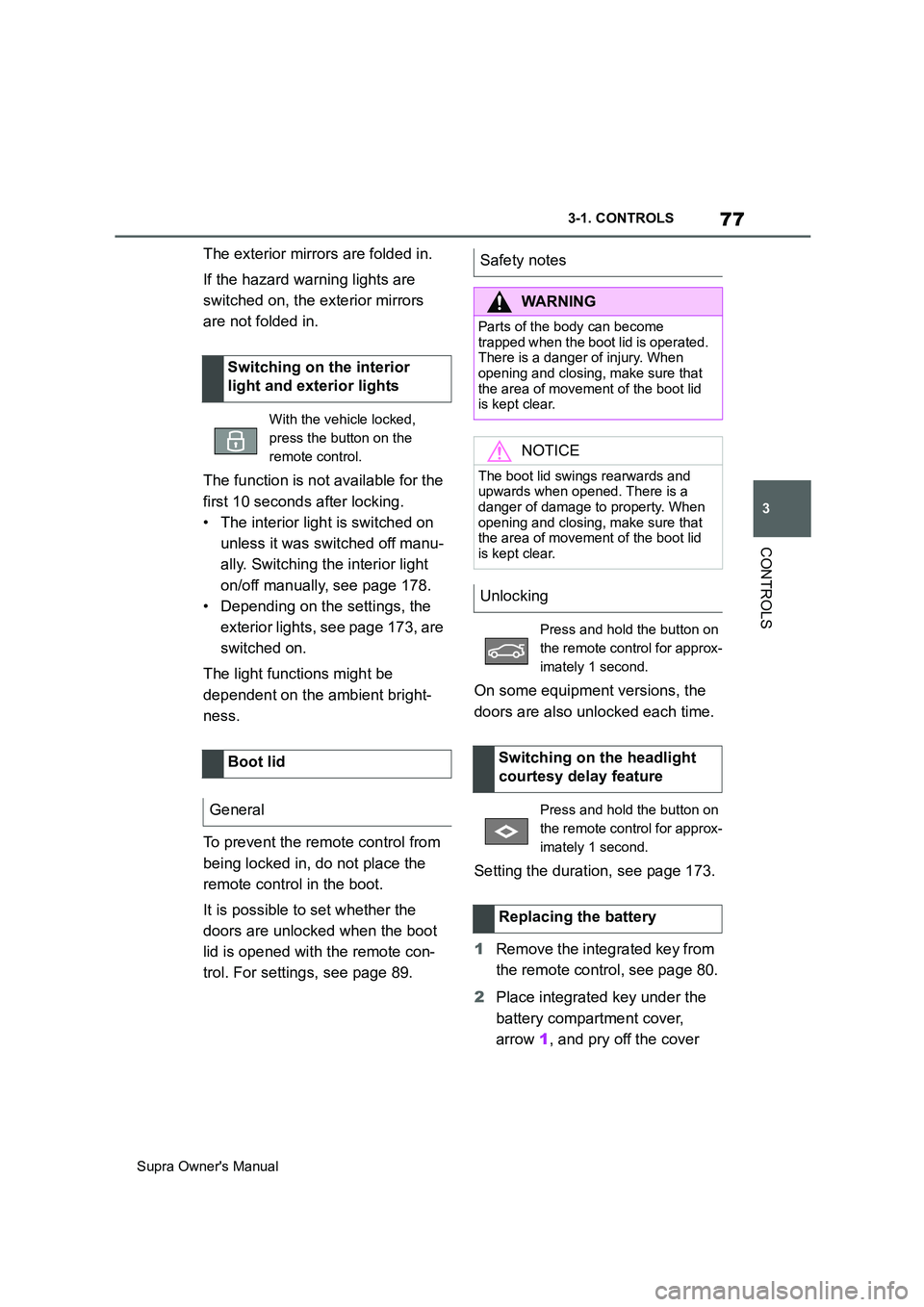
With the vehicle locked,
press the button on the
remote control.
Boot lid
General
Safety notes
WARNING
Parts of the body can become
trapped when the boot lid is operated.
There is a danger of injury. When
opening and closing, make sure that
the area of movement of the boot lid
is kept clear.
NOTICE
The boot lid swings rearwards and
upwards when opened. There is a
danger of damage to property. When
opening and closing, make sure that
the area of movement of the boot lid
is kept clear.
Unlocking
Press and hold the button on
the remote control for approx-
imately 1 second.
Switching on the headlight
courtesy delay feature
Press and hold the button on
the remote control for approx-
imately 1 second.
Replacing the battery
Page 78 of 456
78
Supra Owner's Manual3-1. CONTROLS
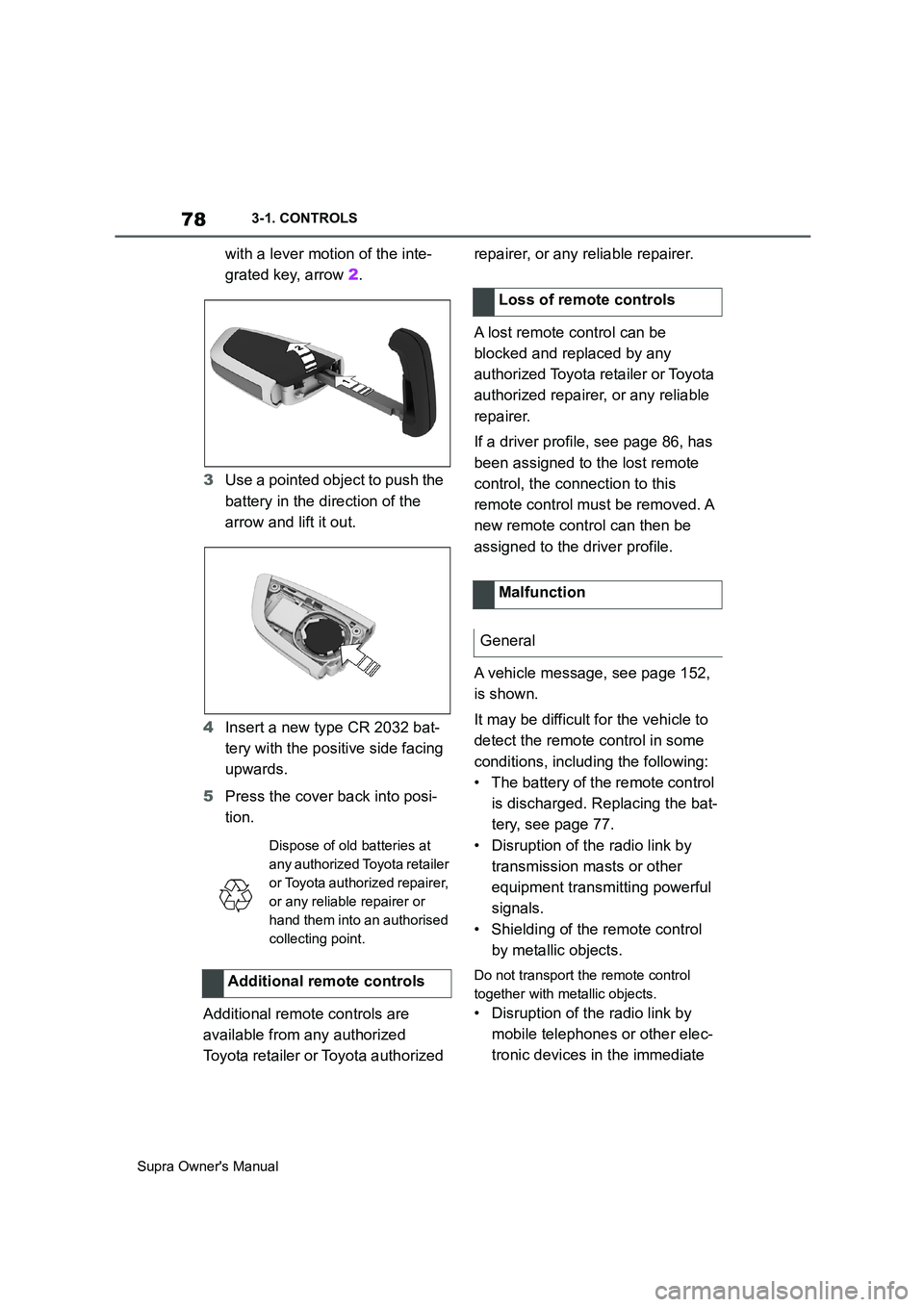
with a lever motion of the inte-
grated key, arrow 2.
3Use a pointed object to push the
battery in the direction of the
arrow and lift it out.
4Insert a new type CR 2032 bat-
tery with the positive side facing
upwards.
5Press the cover back into posi-
tion.
Additional remote controls are
available from any authorized
Toyota retailer or Toyota authorized repairer, or any reliable repairer.
A lost remote control can be
blocked and replaced by any
authorized Toyota retailer or Toyota
authorized repairer, or any reliable
repairer.
If a driver profile, see page 86, has
been assigned to the lost remote
control, the connection to this
remote control must be removed. A
new remote control can then be
assigned to the driver profile.
A vehicle message, see page 152,
is shown.
It may be difficult for the vehicle to
detect the remote control in some
conditions, including the following:
• The battery of the remote control
is discharged. Replacing the bat-
tery, see page 77.
• Disruption of the radio link by
transmission masts or other
equipment transmitting powerful
signals.
• Shielding of the remote control
by metallic objects.
Do not transport the remote control
together with metallic objects.
• Disruption of the radio link by
mobile telephones or other elec-
tronic devices in the immediate
Dispose of old batteries at
any authorized Toyota retailer
or Toyota authorized repairer,
or any reliable repairer or
hand them into an authorised
collecting point.
Additional remote controls
Loss of remote controls
Malfunction
General
Page 79 of 456
79
3
Supra Owner's Manual3-1. CONTROLS
CONTROLS
vicinity of the remote control.
Do not transport the remote control
together with electronic devices.
• Interference with radio transmis-
sion caused by the charging of
mobile devices, for example a
mobile phone.
• The remote control is located in
the immediate vicinity of the
wireless charging dock. Place
the remote control somewhere
else.
If there is a malfunction, the vehicle
can be unlocked and locked from
the outside with the integrated key,
see page 79.
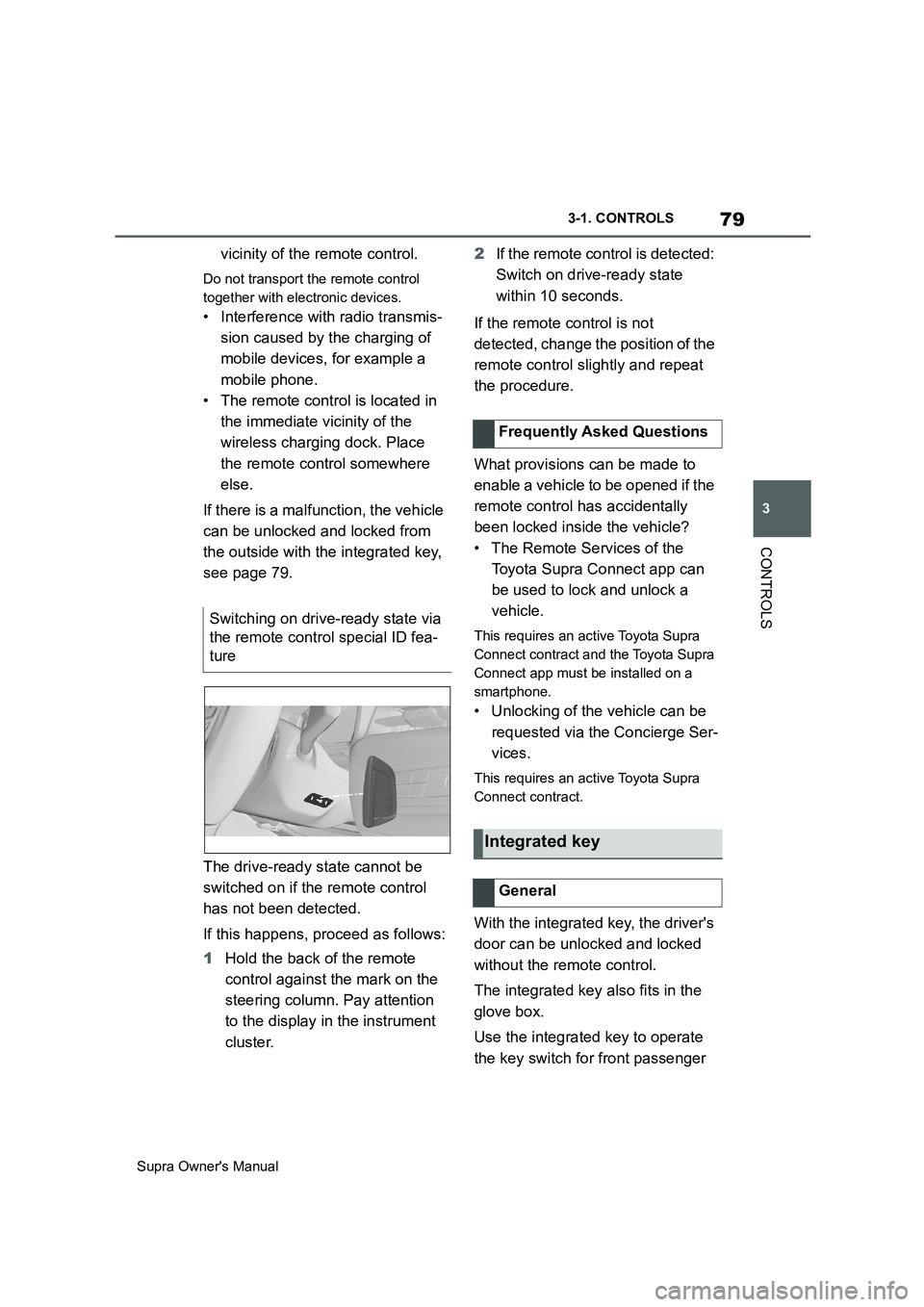
The drive-ready state cannot be
switched on if the remote control
has not been detected.
If this happens, proceed as follows:
1Hold the back of the remote
control against the mark on the
steering column. Pay attention
to the display in the instrument
cluster.2If the remote control is detected:
Switch on drive-ready state
within 10 seconds.
If the remote control is not
detected, change the position of the
remote control slightly and repeat
the procedure.
What provisions can be made to
enable a vehicle to be opened if the
remote control has accidentally
been locked inside the vehicle?
• The Remote Services of the
Toyota Supra Connect app can
be used to lock and unlock a
vehicle.
This requires an active Toyota Supra
Connect contract and the Toyota Supra
Connect app must be installed on a
smartphone.
• Unlocking of the vehicle can be
requested via the Concierge Ser-
vices.
This requires an active Toyota Supra
Connect contract.
With the integrated key, the driver's
door can be unlocked and locked
without the remote control.
The integrated key also fits in the
glove box.
Use the integrated key to operate
the key switch for front passenger Switching on drive-ready state via
the remote control special ID fea-
ture
Frequently Asked Questions
Integrated key
General