lock TOYOTA SUPRA 2023 User Guide
[x] Cancel search | Manufacturer: TOYOTA, Model Year: 2023, Model line: SUPRA, Model: TOYOTA SUPRA 2023Pages: 372, PDF Size: 6.32 MB
Page 47 of 372
473-1. CONTROLS
3
CONTROLS
drive-ready state switched on.1Depress the brake pedal.
2 Press on the clutch pedal
and shift to Neutral.
3 Press the Start/Stop button.
The ignition is activated auto-
matically for a brief time and is
stopped as soon as the engine
starts.
Most of the indicator/warning
lights in the instrument cluster
light up for a varied length of
time.
1 Depress the brake pedal.
2 Press the Start/Stop button.
The ignition is activated auto-
matically for a brief time and is
stopped as soon as the engine
starts.
Most of the indicator/warning
lights in the instrument cluster
light up for a varied length of
time.
Safety information
WARNING
If the exhaust pipe is blocked or
ventilation is insufficient, harmful
exhaust gases can enter into the
vehicle. The exhaust gases con-
tain pollutants which are colorless
and odorless. In enclosed areas,
exhaust gases can also accumu-
late outside of the vehicle. There
is danger to life. Keep the exhaust
pipe free and ensure sufficient
ventilation.
WARNING
An unsecured vehicle can begin
to move and possibly roll away.
There is a risk of an accident.
Before exiting, secure the vehicle
against rolling.
In order to ensure that the vehicle
is secured against rolling away,
follow the following:
Page 51 of 372
513-1. CONTROLS
3
CONTROLS
1Move the Controller to the
right until the split screen is
selected.
2 Press the Controller.
3 "Personalize menu"
4 Select the desired setting.
5 Move the Controller to the
left.
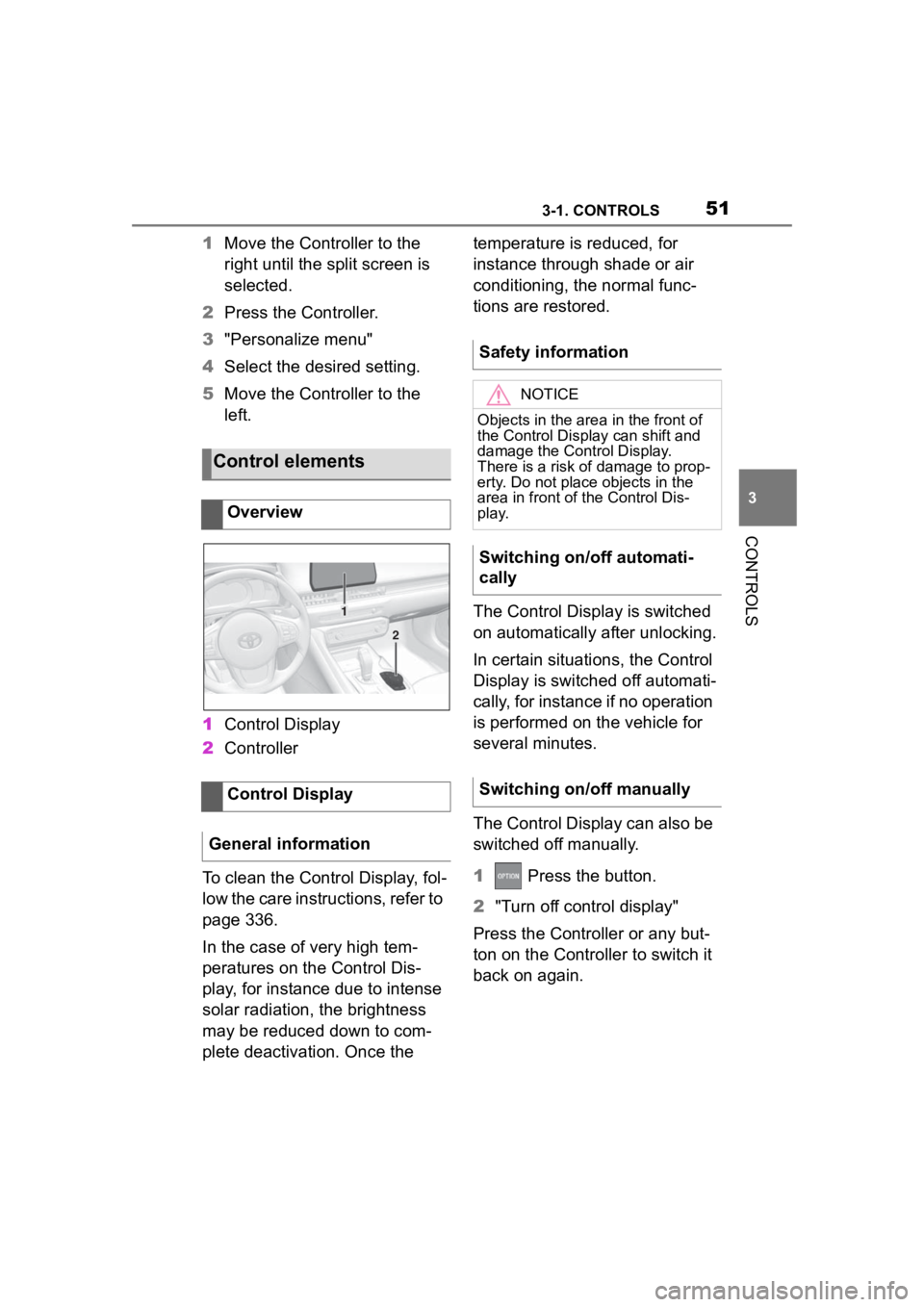
1 Control Display
2 Controller
To clean the Control Display, fol-
low the care instructions, refer to
page 336.
In the case of very high tem-
peratures on the Control Dis-
play, for instance due to intense
solar radiation, the brightness
may be reduced down to com-
plete deactivation. Once the temperature is reduced, for
instance through shade or air
conditioning, the normal func-
tions are restored.
The Control Display is switched
on automatically after unlocking.
In certain situations, the Control
Display is switched off automati-
cally, for instance if no operation
is performed on the vehicle for
several minutes.
The Control Display can also be
switched off manually.
1
Press the button.
2 "Turn off control display"
Press the Controller or any but-
ton on the Controller to switch it
back on again.
Control elements
Overview
Control Display
General information
1
2
Safety information
NOTICE
Objects in the area in the front of
the Control Display can shift and
damage the Control Display.
There is a risk of damage to prop-
erty. Do not place objects in the
area in front of the Control Dis-
play.
Switching on/off automati-
cally
Switching on/off manually
Page 67 of 372
673-1. CONTROLS
3
CONTROLS
• Office data, for instance voice notes.
• Login accounts.
Altogether, the deletion of the
data can take up to 15 minutes.
Data can only be deleted while
stationary.
Heed and follow the instructions
on the Control Display.
Via Toyota Supra Command:
1 "My Vehicle"
2 "System settings"
3 "Data privacy"
4 "Delete personal data"
5 "Delete personal data"
6 "OK"
7 Exit and lock the vehicle.
The deletion process takes 15
minutes to complete.
If not all of the data was deleted,
repeat the deletion.
Switch on the drive-ready state
to cancel deletion of the data. In the driver profiles, individual
settings for several drivers can
be stored and called up again
when required.
There are three driver profiles
with which personal vehicle set-
tings can be stored. Every
remote control has one of these
driver profiles assigned.
If the vehicle is unlocked using a
remote control, the assigned
personal driver profile will be
activated. All settings stored in
the driver profile are automati-
cally applied.
If several drivers use their own
remote control, the vehicle will
adjust the personal settings
during unlocking. These settings
are also restored, if the vehicle
has been used in the meantime
by a person with a different
remote control.
Changes to the settings are
automatically stored in the driver
profile currently activated.
If another driver profile is
selected via Toyota Supra Com-
mand, the settings stored in it
will be applied automatically.
The new driver profile is
assigned to the vehicle key that
Functional requirement
Deleting data
Canceling deletionDriver profile
Concept
General information
Page 68 of 372
683-1. CONTROLS
is currently in use.
There is an additional guest pro-
file available that is not assigned
to any vehicle key. It can be
used to apply settings in the
vehicle without changing the
personal driver profiles.
For the system to be able to
identify the driver profile associ-
ated to a particular driver, the
detected remote control must be
clearly allocated to the driver.
This is the case when:
• The driver is only carrying his or her own remote control.
• The driver unlocks the vehi- cle.
• The driver gets into the vehi- cle through the driver's door.
After switching on the Control
Display, the name of the active
driver profile is displayed.
Select driver profile, refer to
page 69.
As soon as the engine is started
or any key is pressed, the last
selected display is shown on the
Control Display.
To exit the welcome screen via
Toyota Supra Command: "OK" The settings for the following
systems and functions are
stored in the active driver profile.
The scope of storable settings
depends on country and equip-
ment.
• Unlocking and locking.
•Lights.
• Climate control.
• Radio.
• Instrument cluster.
• Programmable memory but-
tons.
• Volumes, tone.
• Control Display.
•TV.
• Parking Sensors.
• Rearview camera.
• Head-up Display.
• Sport mode switch.
• Seat position, exterior mirror position.
Both the positions saved via the
seat memory and th e last position
set are saved.
• Toyota Supra Safety.
Regardless of the remote con-
trol in use, a different driver pro-
file may be activated. This
allows you to call up personal
vehicle settings, even if you did
not unlock the vehicle with your
own remote control.
Functional requirements
Active driver profile
Adjusting
Profile management
Selecting a driver profile
Page 70 of 372
703-1. CONTROLS
2"Driver profiles"
3 Select driver profile.
The driver profile marked with
this symbol can be exported.
4 "Export driver profile"
5 Select a storage device for
exporting the driver profile.
• "USB device"
Select USB storage device, as
needed, refer to page 75.
The existing settings of the
active driver profile are overwrit-
ten with the settings of the
imported driver profile.
Via Toyota Supra Command:
1 "My Vehicle"
2 "Driver profiles"
3 Select the driver profile to be
overwritten.
The driver profile marked with
this symbol can b e overwritten.
4"Import driver profile"
5 Select a storage device for
importing the driver profile.
• USB storage device: "USB device"
Select USB stor age device as
needed.
6 Select the driver profile to be
imported.
A clear assignment between the
remote control and driver may not be possible in the following
cases, for example.
• The passenger unlocks the
vehicle with his or her own
remote control, but another
person is driving.
• The driver unlocks the vehicle via Smart Key System and
has multiple remote controls
with him or her.
• The driver changes, but the vehicle is not locked and
unlocked.
• Multiple remote controls are located outside of the vehicle.
Importing driver profiles
System limits
Page 79 of 372
793-1. CONTROLS
3
CONTROLS
changed.
Via Toyota Supra Command:
1"My Vehicle"
2 "System settings"
3 "Mobile devices"
4 "Settings"
5 "Swap telephone/additional
tel." This chapter describes all stan-
dard, country-specific and
optional features offered with
the series. It also describes fea-
tures and functions that are not
necessarily available in your
vehicle, e.g., due to the selected
options or country versions. This
also applies to safety-related
functions and systems. When
using these functions and sys-
tems, the applicable laws and
regulations must be observed.
The vehicle is supplied with two
remote controls with integrated
key.
Each remote control contains a
replaceable battery. Replacing
the battery, refer to page 84.
Depending on the equipment
and country version, various
settings, refer to page 93, can
be configured for the button
functions.
A driver profile, refer to page 68,
with personal settings can be
assigned to a remote control.
To prevent possible locking in of Opening and closing
Vehicle features and
options
Remote control
General information
Page 80 of 372
803-1. CONTROLS
the remote control, take the
remote control with you when
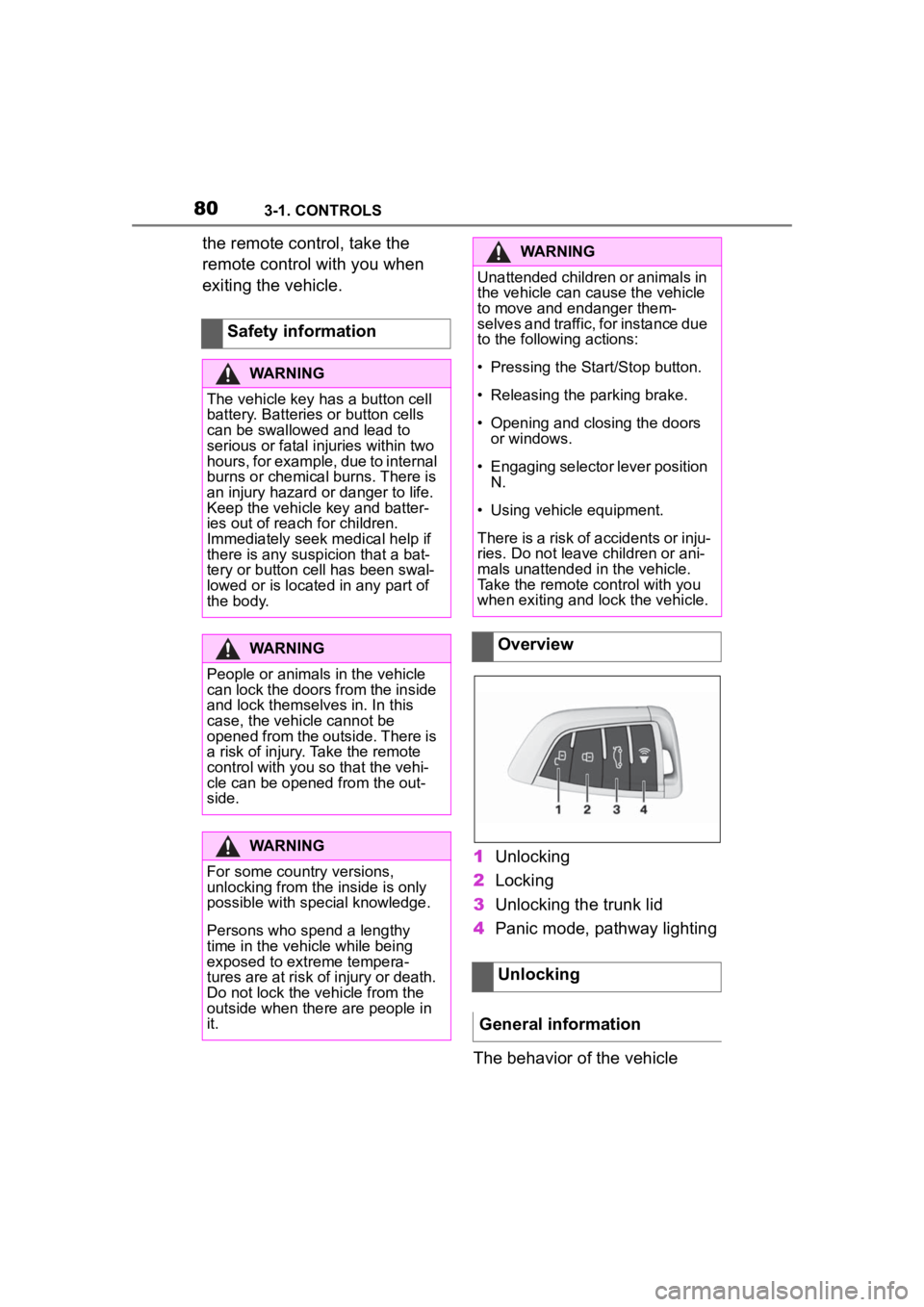
exiting the vehicle.1Unlocking
2 Locking
3 Unlocking the trunk lid
4 Panic mode, pathway lighting
The behavior of the vehicle
Safety information
WARNING
The vehicle key has a button cell
battery. Batteries or button cells
can be swallowed and lead to
serious or fatal injuries within two
hours, for example, due to internal
burns or chemical burns. There is
an injury hazard or danger to life.
Keep the vehicle key and batter-
ies out of reach for children.
Immediately seek medical help if
there is any suspicion that a bat-
tery or button cell has been swal-
lowed or is located in any part of
the body.
WARNING
People or animals in the vehicle
can lock the doors from the inside
and lock themselves in. In this
case, the vehicle cannot be
opened from the outside. There is
a risk of injury. Take the remote
control with you so that the vehi-
cle can be opene
d from the out-
side.
WARNING
For some country versions,
unlocking from the inside is only
possible with special knowledge.
Persons who spend a lengthy
time in the vehicle while being
exposed to extreme tempera-
tures are at risk of injury or death.
Do not lock the vehicle from the
outside when there are people in
it.
WARNING
Unattended children or animals in
the vehicle can cause the vehicle
to move and endanger them-
selves and traffic, for instance due
to the following actions:
Page 81 of 372
813-1. CONTROLS
3
CONTROLS
when unlocking with the remote
control depends on the following
settings, refer to page 93, for
unlocking and locking:
• If only the driver's door and the fuel filler flap or all access
to the vehicle will be
unlocked.
• If the unlocking of the vehicle is confirmed with a light signal
or a sound signal.
• If the welcome light, refer to page 159, is switched on
when the vehicle is being
unlocked.
• If the exterior mirrors are automatically folded out and
in when the vehicle is
unlocked and locked.
• If the driver's seat is set to the last position saved in the
driver's profile. P.68
If, due to the settings, only the
driver's door and fuel filler flap
were unlocked, press the button
on the remote control again to
unlock the other vehicle access
points.
In addition, the following func-
tions are executed:
• If a driver profile, refer to page 68, was assigned to the
remote control, this driver pro-
file will be activated and the
settings that are stored in it will be applied.
• The interior lights are switched on, unless they were
manually switched off. For
switching the interior lights
on/off manually, refer to page
162.
• Folded in exterior mirrors are folded out.
If the exterior mirrors were folded in
via the button in th e car’s interior,
they will not be folded out when
unlocking.
• With alarm system: The alarm
system, refer to page , will be
switched off.
After opening one of the front
doors, the vehicle is ready for
operation, refer to page 46.
The light functions may depend
on the ambient brightness.
The windows are opened, as
long as the button on the remote
control is pressed.
The behavior of the vehicle
during locking with the remote
control depends on the following
Unlocking the vehicle
Press the button on the
remote control.
Convenient opening
Opening
Press and hold the button
on the remote control.
Locking
General information
Page 82 of 372
823-1. CONTROLS
settings, refer to page 93:
• If the locking of the vehicle is confirmed with a light signal
or a sound signal.
• If the exterior mirrors are automatically folded in when
the vehicle is locked. The
exterior mirrors are not folded
in when the hazard warning
flashers are switched on.
• If the headlight courtesy delay feature is activated during
locking.
1 Close the driver's door.
2 Press the button on the
remote control.
The following functions are exe-
cuted:
• All doors, the trunk lid, and the fuel filler flap are locked.
• With alarm system: The alarm system will be switched on.
If the drive-ready state is still
switched on when you lock the
vehicle, the vehicle horn honks
twice. In this case, the
drive-ready state must be
switched off by means of the
Start/Stop button. The windows are closed in the
area close to the vehicle, as
long as the button on the remote
control is pressed.
The function is not available for
the first 10 seconds after lock-
ing.
• The interior lights are
switched on, unless they were
manually switched off. For
switching the interior lights
on/off manually, refer to page
162.
• Depending on the settings, the exterior lighting, refer to
page 159, will be switched on.
Locking the vehicleWith Smart Key System:
convenient closing
Safety information
WARNING
With convenient closing, body
parts can be jammed. There is a
risk of injury. Make sure that the
area of movement of the doors is
clear during convenient closing.
Closing
Press and hold the button
on the remote control after
locking.
Switching on the interior
and exterior lights
Press the button on the
remote control with the
vehicle locked.
Page 83 of 372
833-1. CONTROLS
3
CONTROLS
The light functions may depend
on the ambient brightness.
To avoid locking the vehicle key
in the vehicle, do not place the
vehicle key in the cargo area.
You can set up if the doors will
be unlocked when the trunk lid
is opened with the remote con-
trol. Settings, refer to page 93.
You can trigger the alarm sys-tem if you find yourself in a dan-
gerous situation.
To switch off the alarm: press
any button.
Set the duration, refer to page
159.
Trunk lid
General information
Safety information
WARNING
Body parts can be jammed when
operating the trunk lid. There is a
risk of injury. Make sure that the
area of movement o f the trunk lid
is clear during opening and clos-
ing.
NOTICE
During opening, the trunk lid piv-
ots back and up. There is a risk of
damage to property. Make sure
that the area of movement of the
trunk lid is clear during opening
and closing.
Unlocking
Press and hold the button
on the remote control for
approx. 1 second.
Panic mode
• Press the button on the
remote control and hold
for at least 3 seconds.
• Briefly press the button on the remote control
three times in succes-
sion.
Switching on the headlight
courtesy delay feature
Press and hold the button
on the remote control for
approx. 1 second.
Replacing the battery
WARNING
The battery inside the vehicle key
is a button cell. Batteries or button
cells can be swallowed, causing
serious or even fatal injuries
within two hours, e .g. due to inter-
nal burns or cauterisations. There
is a danger of injury or danger to
life. Keep vehicle keys and batter-
ies out of the reach of children.
Seek medical assistance immedi-
ately if you suspect that a battery
or button cell ha s been swallowed
or has got into a part of the body.